Overview
Elevate your document design in MS Word with just a few clicks. Seamlessly add professional-looking tables to organize and showcase your information, transforming your content into visually captivating and impactful presentations. This comprehensive guide provides you step by step instructions on how to add a table in MS-Word.
Step by step interactive walkthrough
Steps to How to add a table in MS-Word
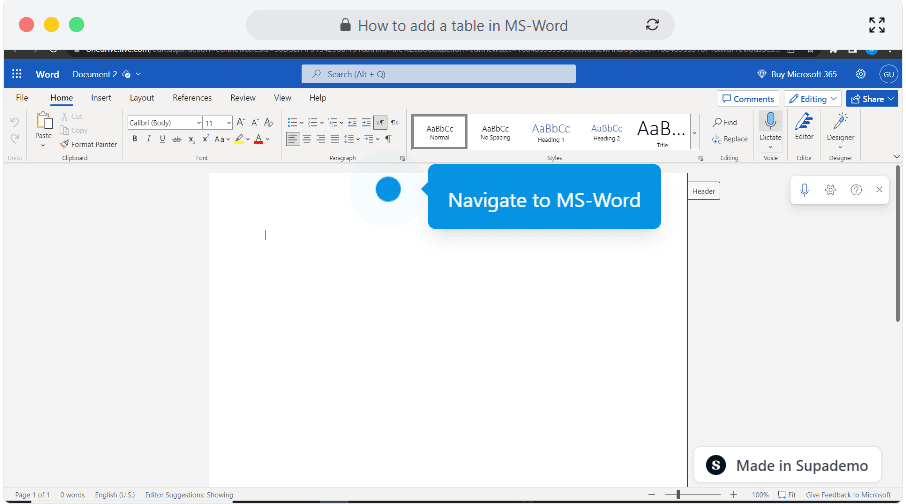
1) Navigate to MS-Word.
2) Click on "Insert"
3) Click on "Table" 4) Choose how many rows and columns you want.
5) Your table is ready.
Frequently Asked Questions about how to add a table in ms-word
Commonly asked questions about this topic.
What plan do I need on MS for full table features?
Free tiers on platforms like MS often include basic table functionality, while advanced features like automation, custom fields, and timeline views typically require paid plans. Compare your must-have features against each tier's offering — paying for features you don't use wastes budget, but outgrowing a free plan mid-project is disruptive. 54% of top-completing demos use AI voiceover to improve the guided experience.
Can multiple team members edit the same table in Word simultaneously?
MS supports real-time collaboration where multiple team members can view and edit simultaneously. Features like commenting, @mentions, and activity logs help keep communication in context. Set clear editing permissions — having too many editors without structure leads to version conflicts and confusion. Learn more about Supademo's features.
Processmaker saved hundreds of hours by replacing manual demo processes with interactive walkthroughs, with Supademo users going from recording to publishing in an average of 3.5 minutes. Supademo integrates with 30+ tools including HubSpot, Salesforce, Slack, and more.
What should a well-structured table include?
A strong table includes clear labels, defined owners, status indicators, and relevant dates or milestones. Avoid including information that belongs elsewhere — keep each element focused on its core purpose. The right level of detail depends on your audience: executives need summaries while team leads need actionable specifics. Learn more about AI-powered demo creation.
76% of teams rate internal enablement impact from interactive demos as high or very high.
What formatting options help make Word tables easier to read?
Use a consistent layout with clear headings, logical groupings, and visual hierarchy. Keep individual items concise — if a table element needs a paragraph of explanation, it probably should be broken into smaller pieces. Color-coding or tagging by category helps teams scan quickly without reading every detail. Learn more about chapter organization features.
Easy Software closed $100k+ in contracts using interactive demos in their sales process. Supademo holds a 4.7/5 rating on G2 based on verified user reviews.
How should I save and share my Word table creation process with colleagues?
Capture the end-to-end process with annotated screenshots or clickable walkthroughs — written-only SOPs often go unread. Tools like Supademo let you record the exact steps in MS, creating a living reference that stays current with UI changes. Store documentation where your team already works, not in a separate wiki they'll forget to check.
68% of teams rate support and self-service impact from interactive demos as high or very high.
What are the most common errors to avoid when inserting tables in Word?
The biggest mistake is overcomplicating the setup — adding too many fields, views, or automations before validating the basic workflow. Another common issue is inconsistent naming conventions, which makes searching and filtering unreliable at scale. Finally, skipping regular reviews leads to outdated table data that erodes team trust in the system.
For context, beehiiv saw 50% better conversion rates after adopting interactive demos.
What's the best way to onboard new team members to adding a table in MS?
Combine a brief overview document with a hands-on walkthrough they can follow independently. Interactive walkthroughs are more effective than recorded videos because new hires can proceed step-by-step at their own pace and revisit specific sections. Pair the walkthrough with a simple checklist of tasks to complete during their first week.
As a reference point, Supademo was recognized as the #5 fastest-growing software product on G2 in 2025.
45% of teams adopted top arcade alternatives for 2026s specifically to solve onboarding friction.

Justin James
Justin is a growth intern focused on content generation and marketing. He's passionate about making an impact across various startup roles.





