

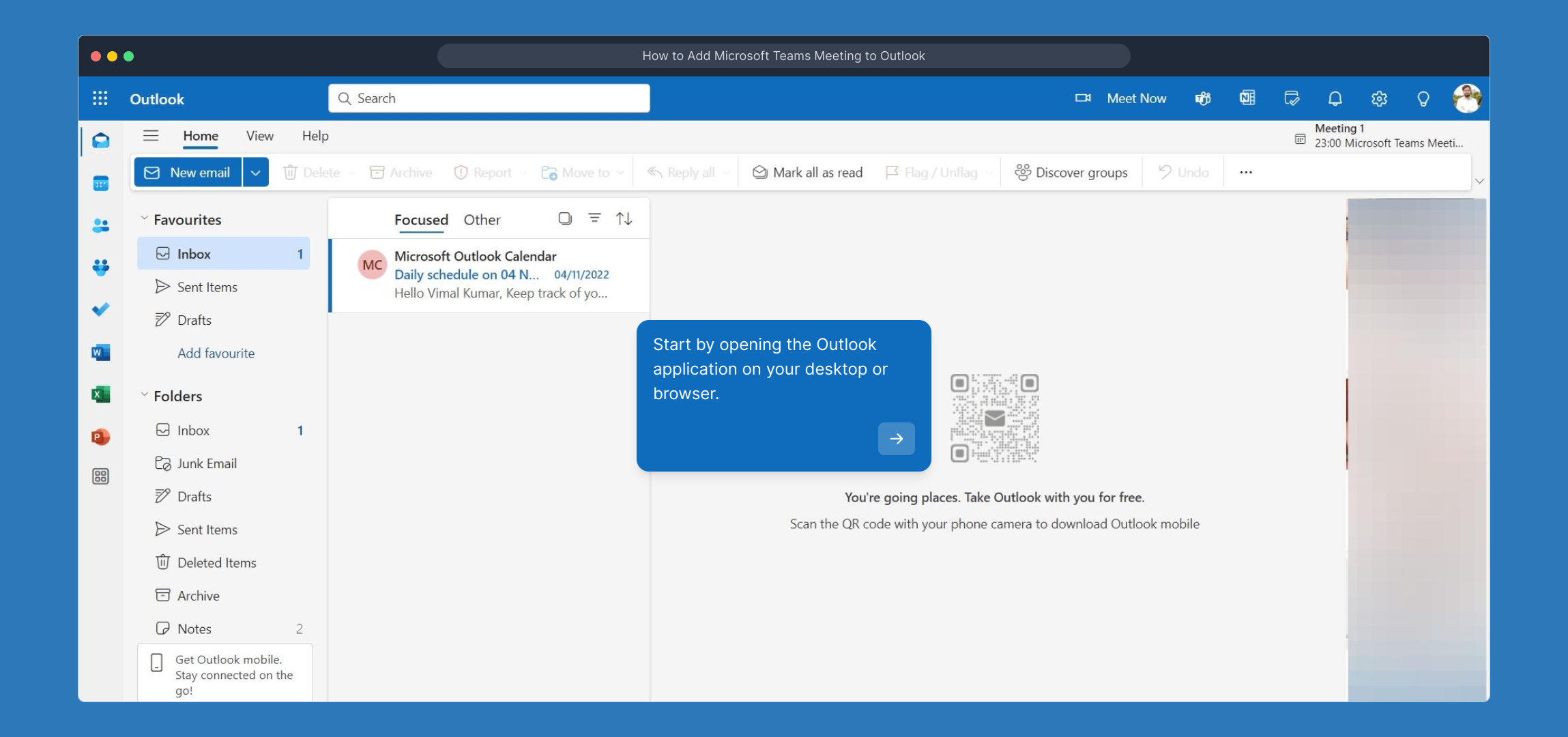
1. Start by opening the Outlook application on your desktop or browser.
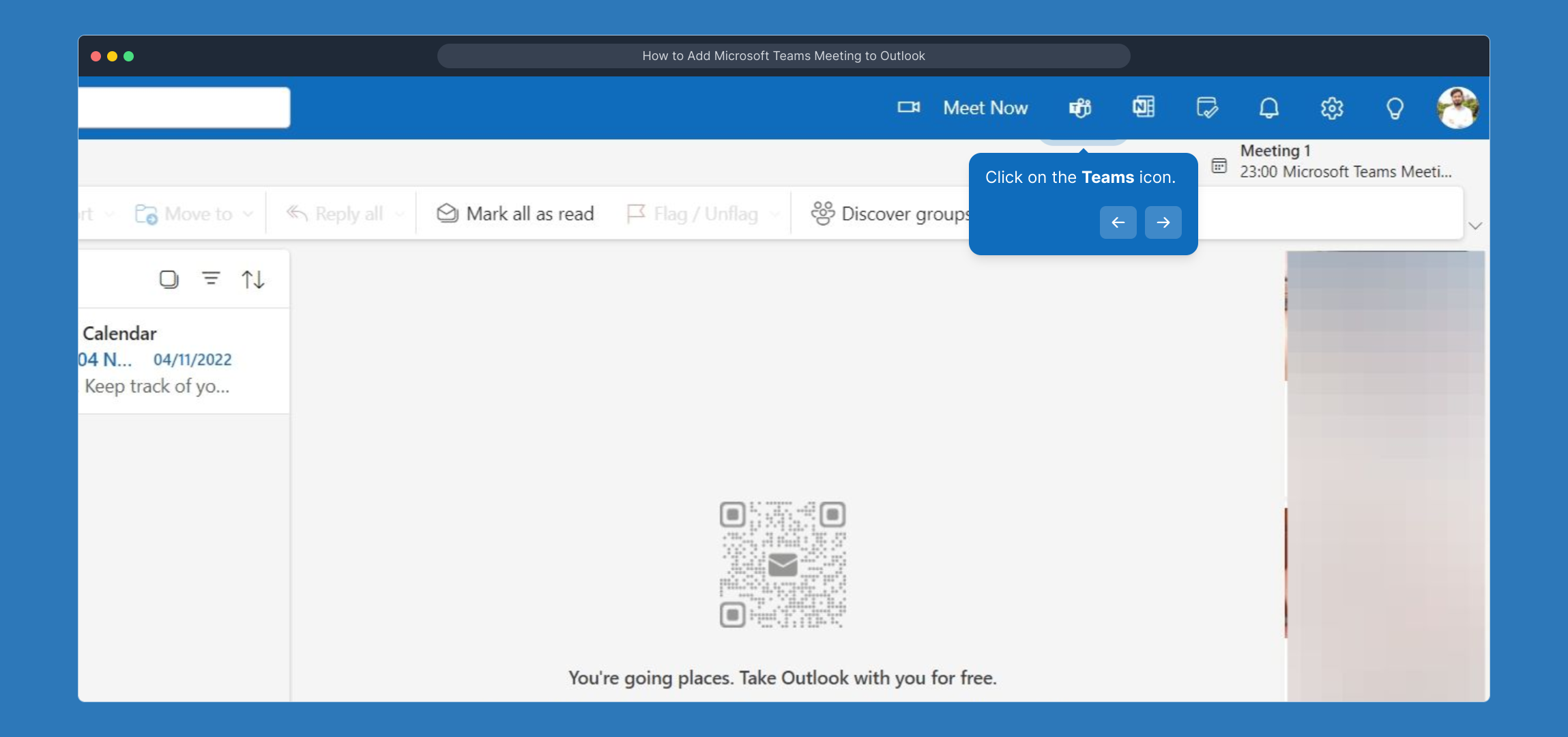
2. Click on the Teams icon.
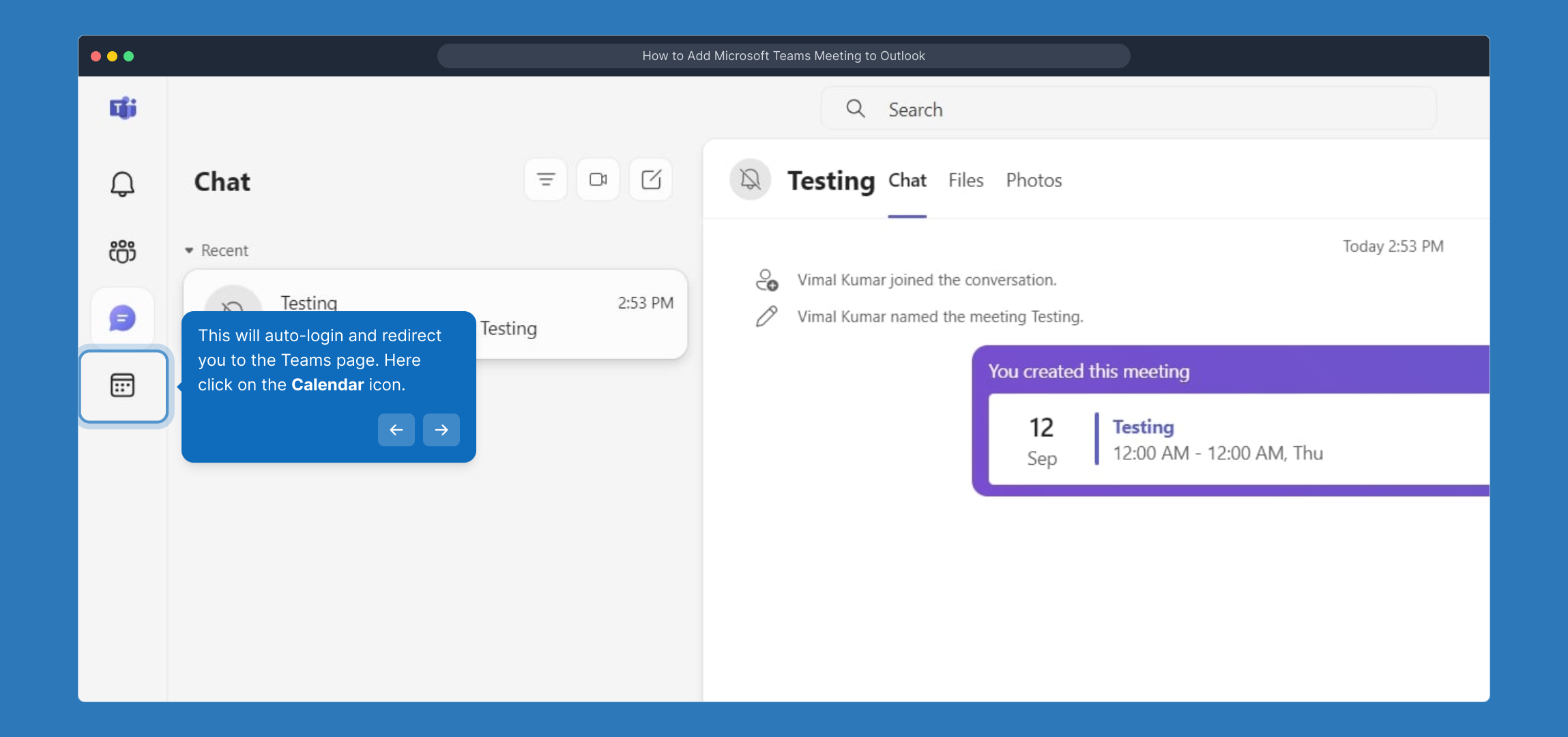
3. This will auto-login and redirect you to the Teams page. Here click on the Calendar icon.
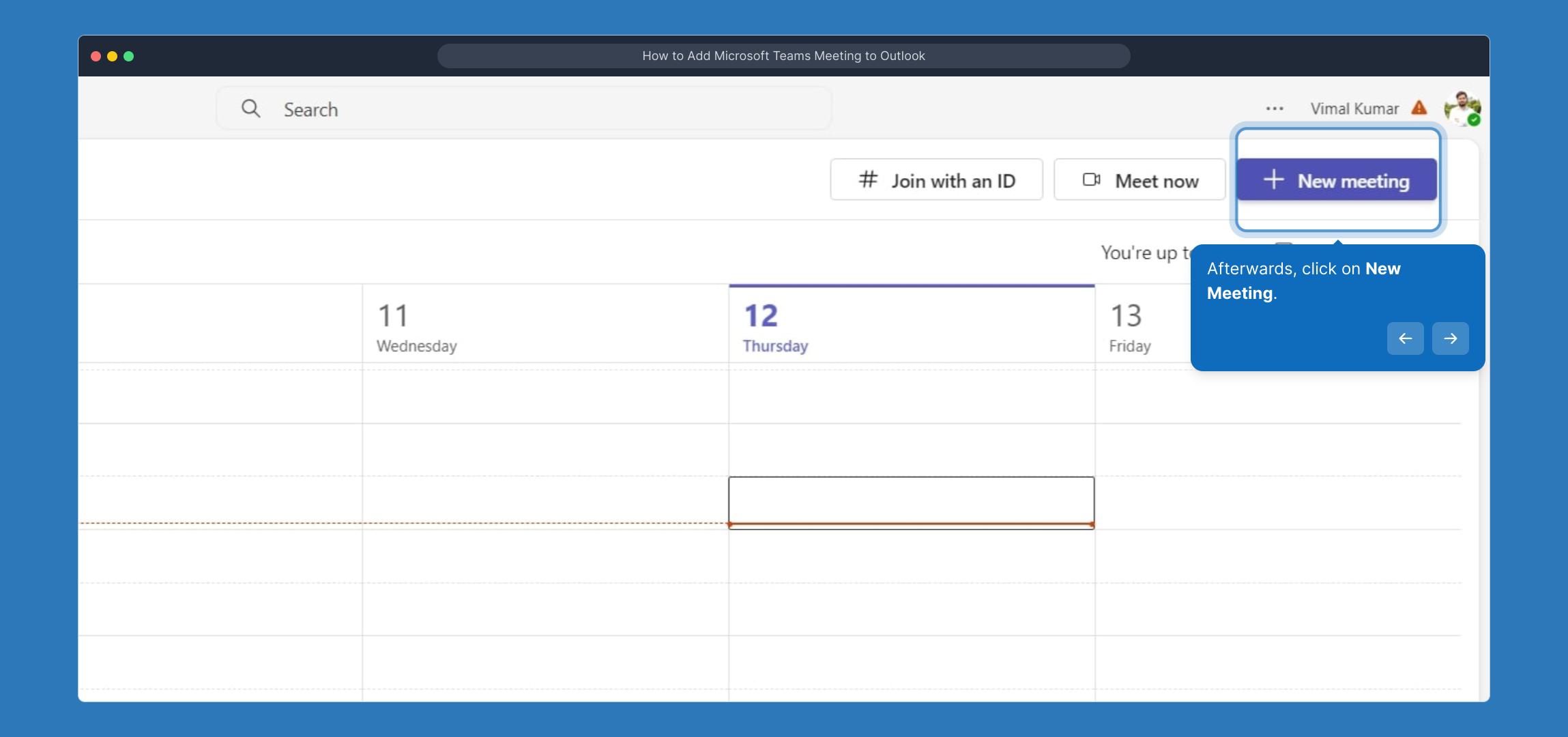
4. Afterwards, click on New Meeting.
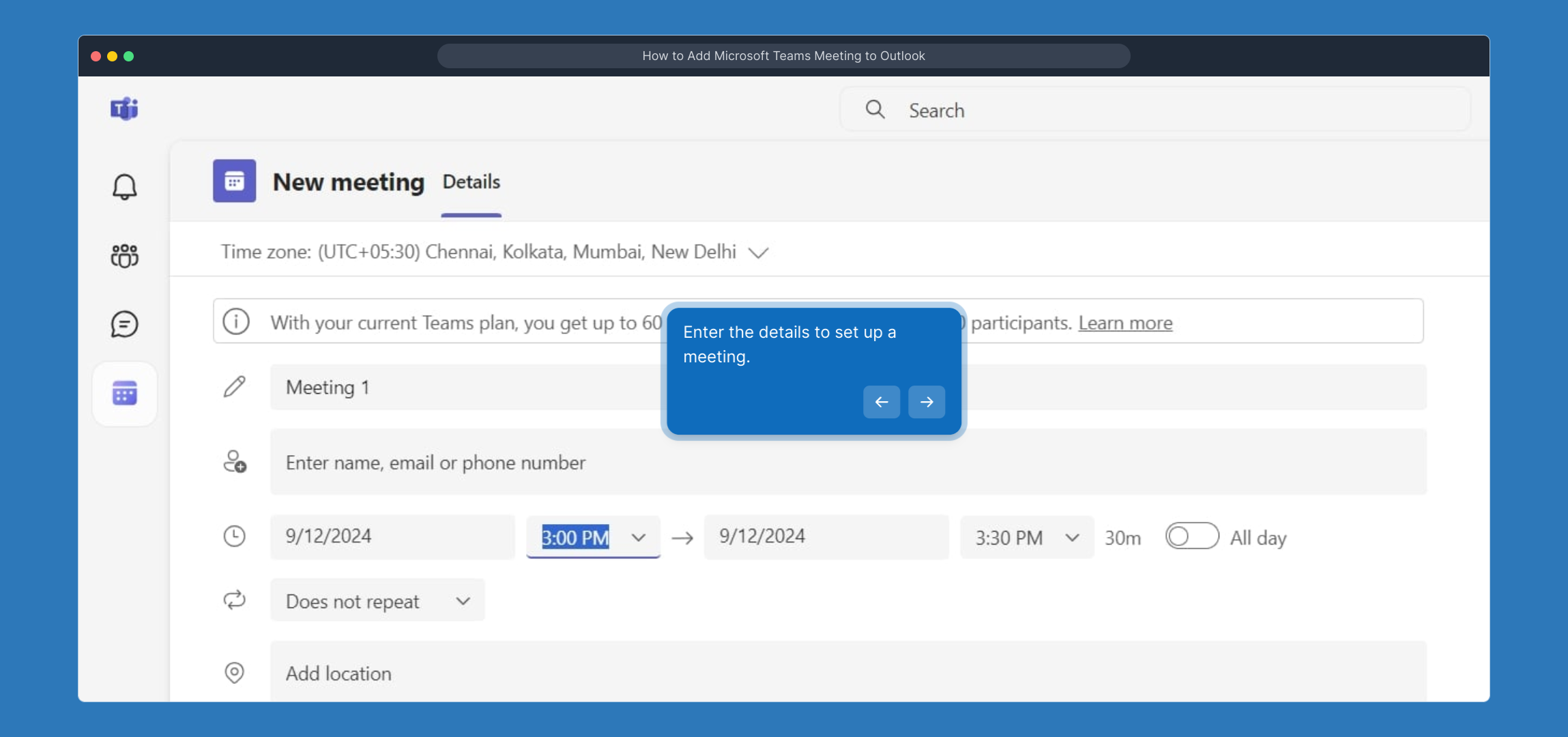
5. Enter the details to set up a meeting.
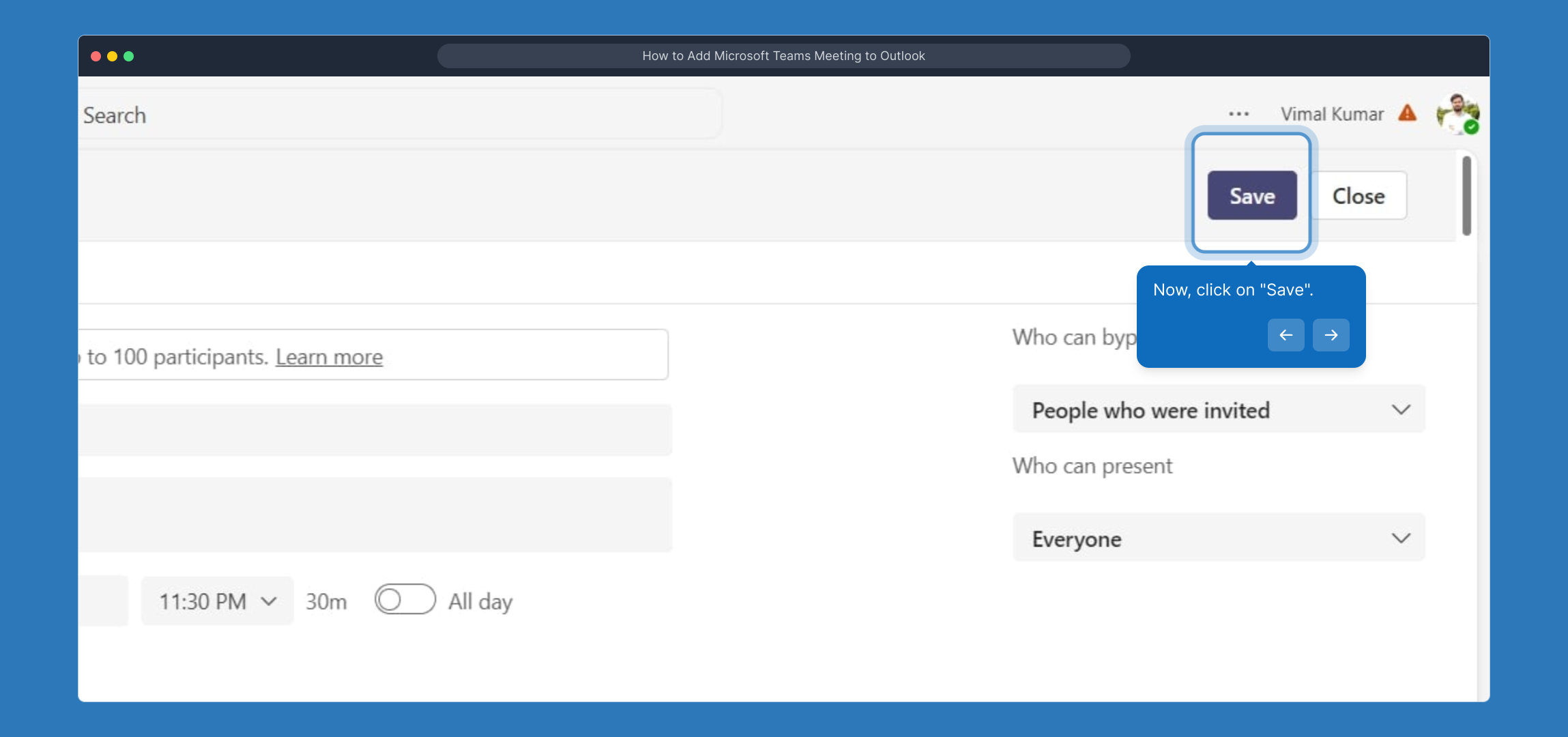
6. Now, click on "Save".
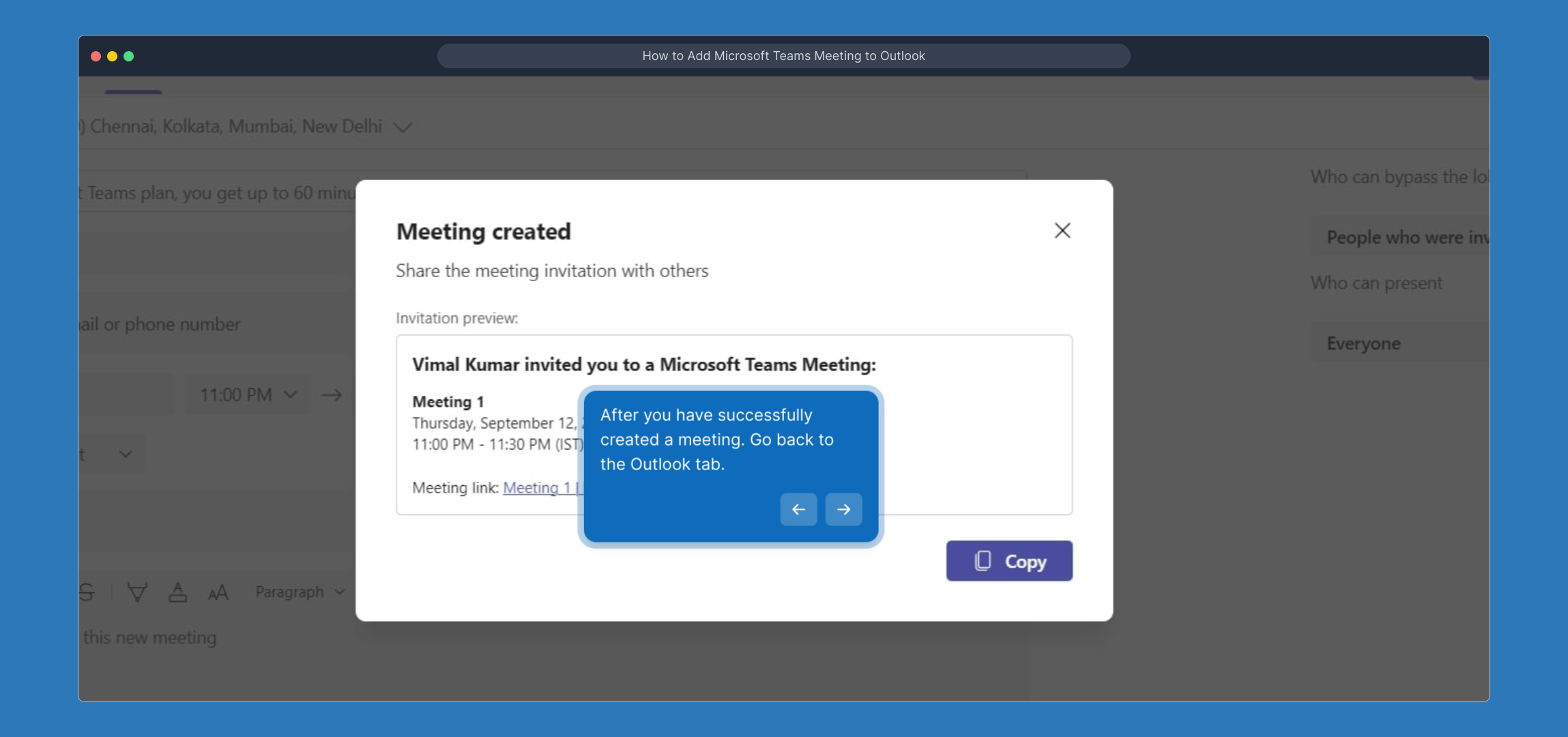
7. After you have successfully created a meeting. Go back to the Outlook tab.
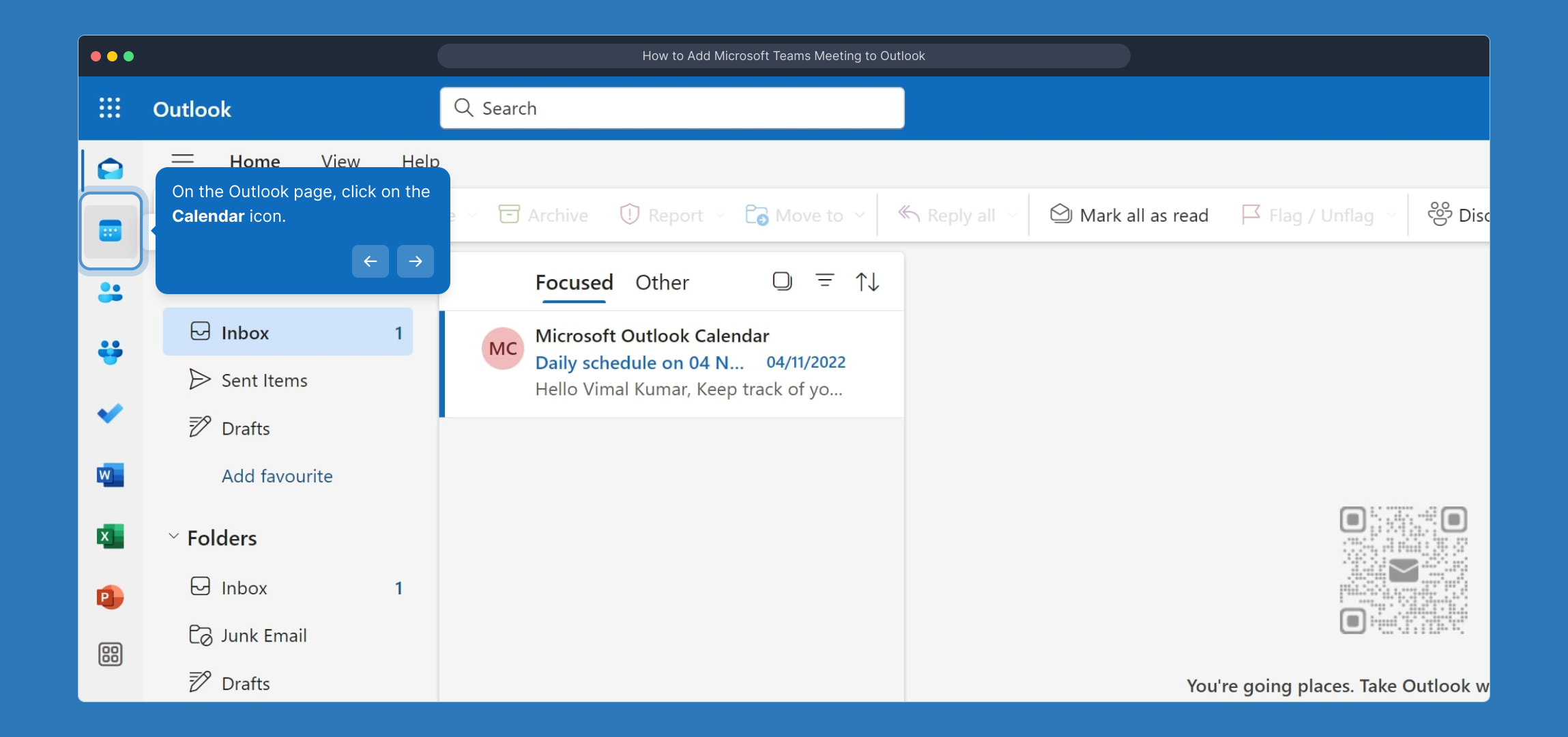
8. On the Outlook page, click on the Calendar icon.
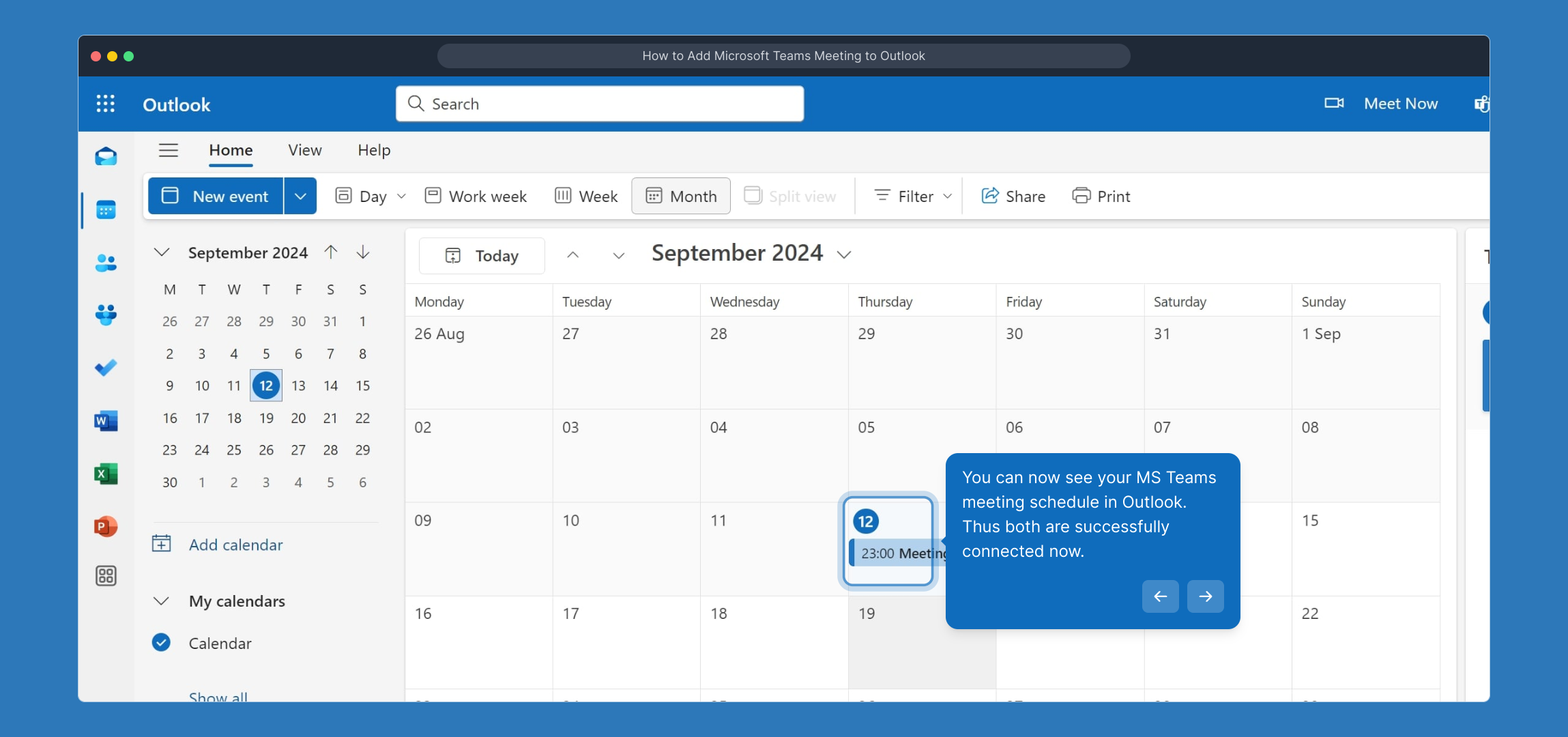
9. You can now see your MS Teams meeting schedule in Outlook. Thus both are successfully connected now.
10. Create a Supademo in seconds
This interactive demo/guided walkthrough on How to Add Microsoft Teams Meeting to Outlook was created using Supademo.
How to Add Microsoft Teams Meeting to Outlook : Step-by-Step Guide
Begin by launching the Outlook application on your computer or accessing it through your web browser. This is where you'll start managing your calendar and connecting your meetings.
Once you’re in Outlook, look for the Teams icon in the sidebar or menu and select it. This will take you to Microsoft Teams, integrated within Outlook.
After clicking the Teams icon, you’ll be automatically signed in and redirected to the Teams interface. Here, find and click the Calendar icon to view and manage your meeting schedule.
Next, start creating a new event by clicking the New Meeting button. This will open a form where you can set up all the details for your upcoming meeting.
Fill in the meeting information such as the title, attendees, date, time, and any other settings you need. This step helps you customize your meeting properly before sending out invites.
When all your meeting details are correctly entered, click the "Save" button to finalize the setup and send invitations to participants.
After successfully scheduling your meeting in Teams, switch back to your Outlook program or browser tab to continue managing your calendar there.
Within Outlook, click on the Calendar icon to open your calendar view. This will allow you to see all your scheduled events, including those created in Teams.
Now you can see your Teams meeting appointments reflected in your Outlook calendar. This confirms that your Microsoft Teams and Outlook calendars are synced and working together seamlessly.
Take advantage of this integration by effortlessly creating a Supademo in seconds, streamlining how you manage your meetings and presentations.
Create your own interactive demos in < 5 mins with Supademo
You can create your own interactive product demo in minutes using Supademo. Drive growth, scale enablement, and supercharge product-led onboarding with Supademo. Sign up for free here with no credit card required.
FAQs
What is the benefit of adding Microsoft Teams meeting to Outlook?
Integrating Microsoft Teams meetings with Outlook allows you to schedule, manage, and join meetings from a single platform, increasing efficiency and reducing the chance of scheduling conflicts.
Do I need to install Microsoft Teams separately to add meetings in Outlook?
If you have the Teams add-in enabled in Outlook, you don’t need to install Teams separately. The integration works automatically when signed in with your Microsoft account.
Can I schedule a Teams meeting from Outlook Web App?
Yes, you can schedule a Teams meeting using the Outlook Web App as long as your Microsoft 365 subscription includes Teams and the add-in is enabled.
How do I enable the Microsoft Teams add-in in Outlook?
Go to Outlook's settings, find the add-ins section, and enable the Microsoft Teams add-in. It may require administrator permissions depending on your organization's setup.
Why doesn’t the Teams icon appear in my Outlook?
The Teams icon may be missing if the add-in is disabled, your Office version is outdated, or if your Microsoft 365 subscription does not include Teams. Check with your IT administrator if necessary.
Can I invite external guests to a Teams meeting scheduled from Outlook?
Yes, you can add external email addresses as attendees in the meeting invite, and they will receive a link to join the Teams meeting via their browser.
Is the Teams meeting link automatically included when I schedule from Outlook?
Yes, when you create a Teams meeting through Outlook using the Teams add-in, a join link is automatically added to the invitation details.
Can I edit Teams meeting details from Outlook after scheduling?
Yes, you can open the meeting invite in Outlook and update details like date, time, or attendees, and the changes will sync with Teams.
What should I do if Outlook and Teams calendars are not syncing?
Check your account sign-in status on both apps and ensure your internet connection is stable. Restarting both applications sometimes resolves sync issues.
Can this integration work with both Windows and Mac versions of Outlook?
Yes, the Microsoft Teams add-in for Outlook is compatible with both Windows and Mac versions, provided you have the latest software updates installed.