1. Begin by opening the Arc Browser on your device.
2. Go to the webpage that you want to save as a bookmark.
3. Use the keyboard shortcut Ctrl + D (Windows) or Cmd + D (Mac). This will bookmark your webpage.
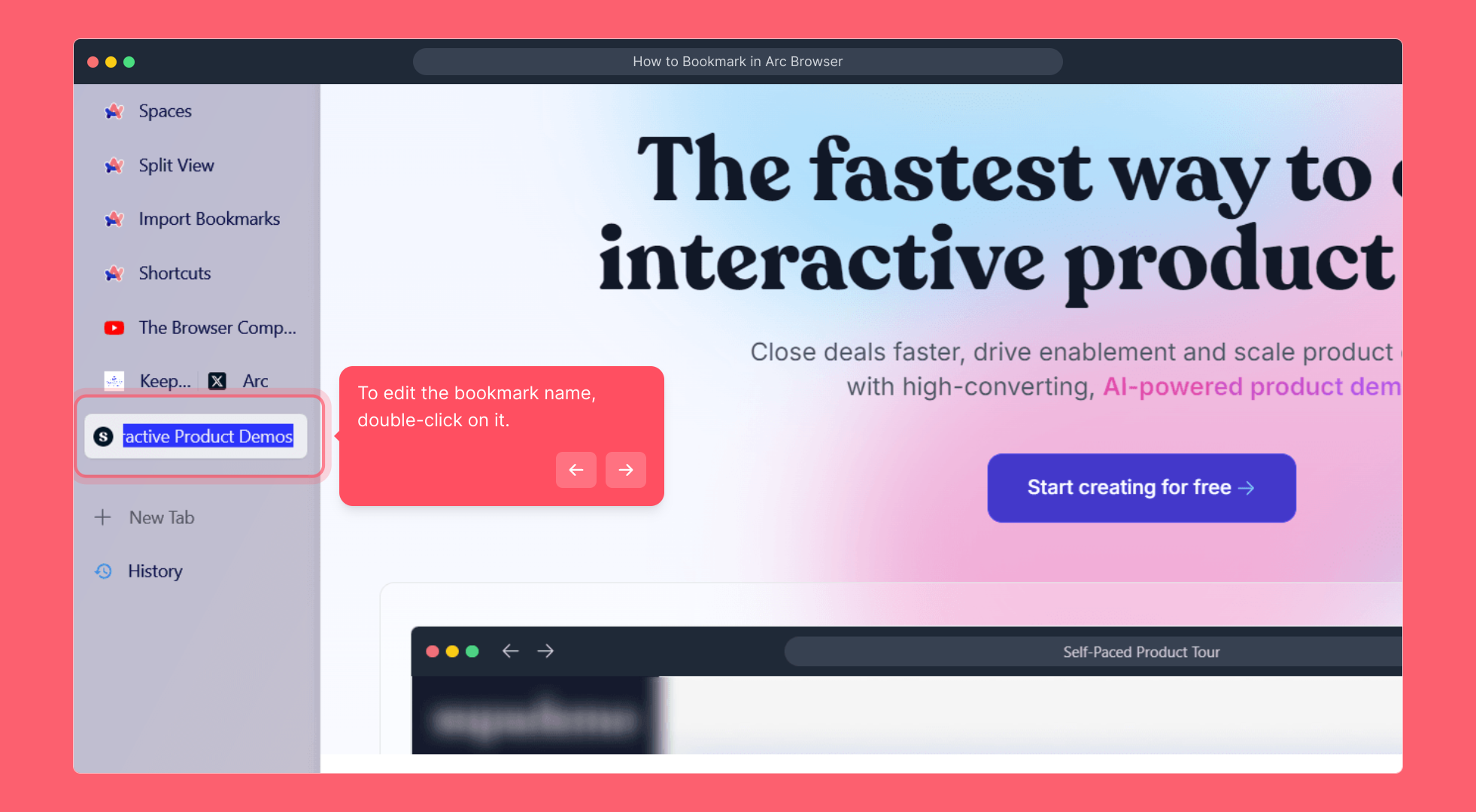
4. To edit the bookmark name, double-click on it.
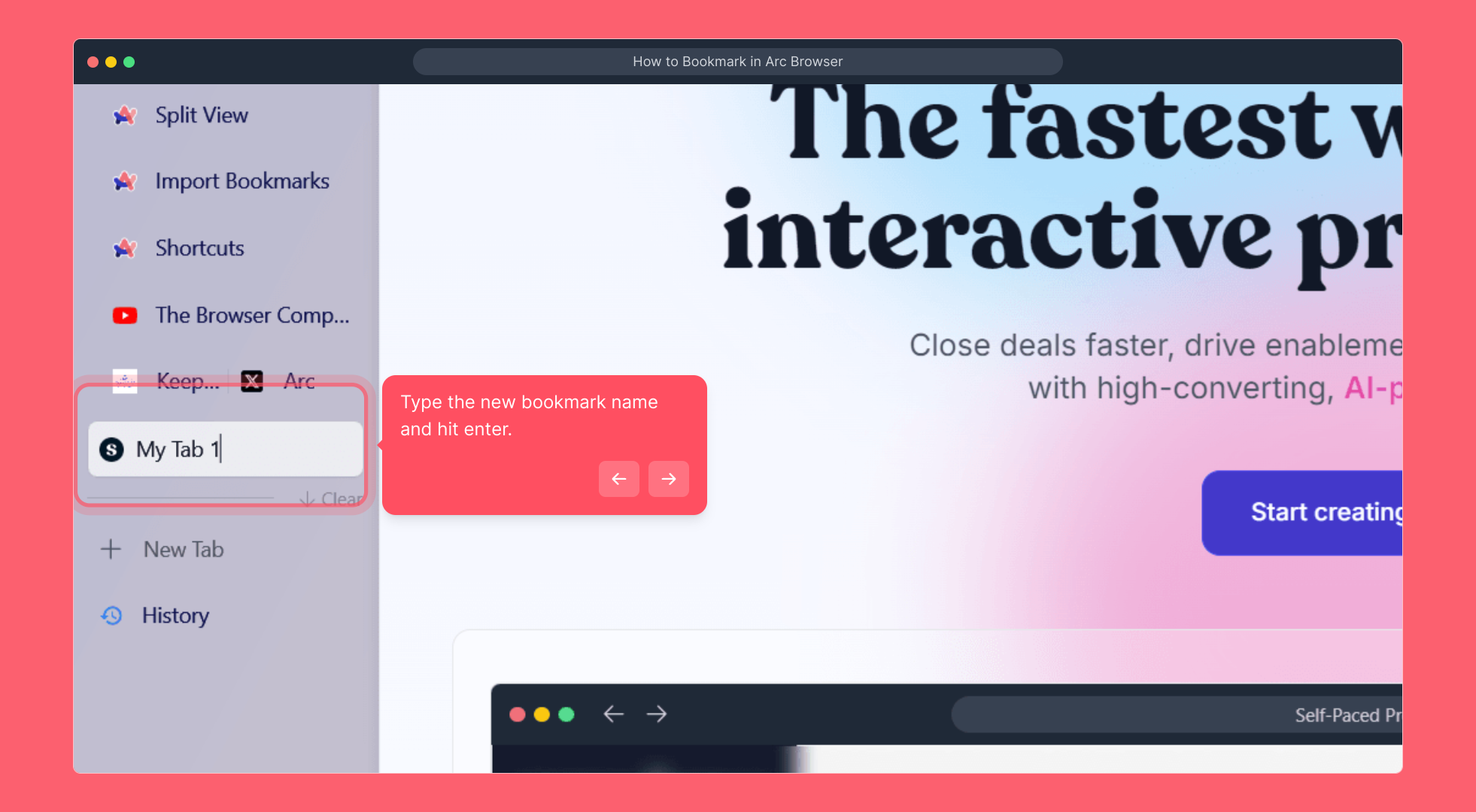
5. Type the new bookmark name and hit enter.
6. That's it. You have successfully bookmarked a webpage on Arc Browser.
7. Enjoyed the guided demo?
This interactive demo/guided walkthrough on How to Bookmark in Arc Browser was created using Supademo.
How to Bookmark in Arc Browser : Step-by-Step Guide
Start by launching the Arc Browser on your device to begin the bookmarking process. This will bring you to your browsing environment where you can manage your favorite sites.
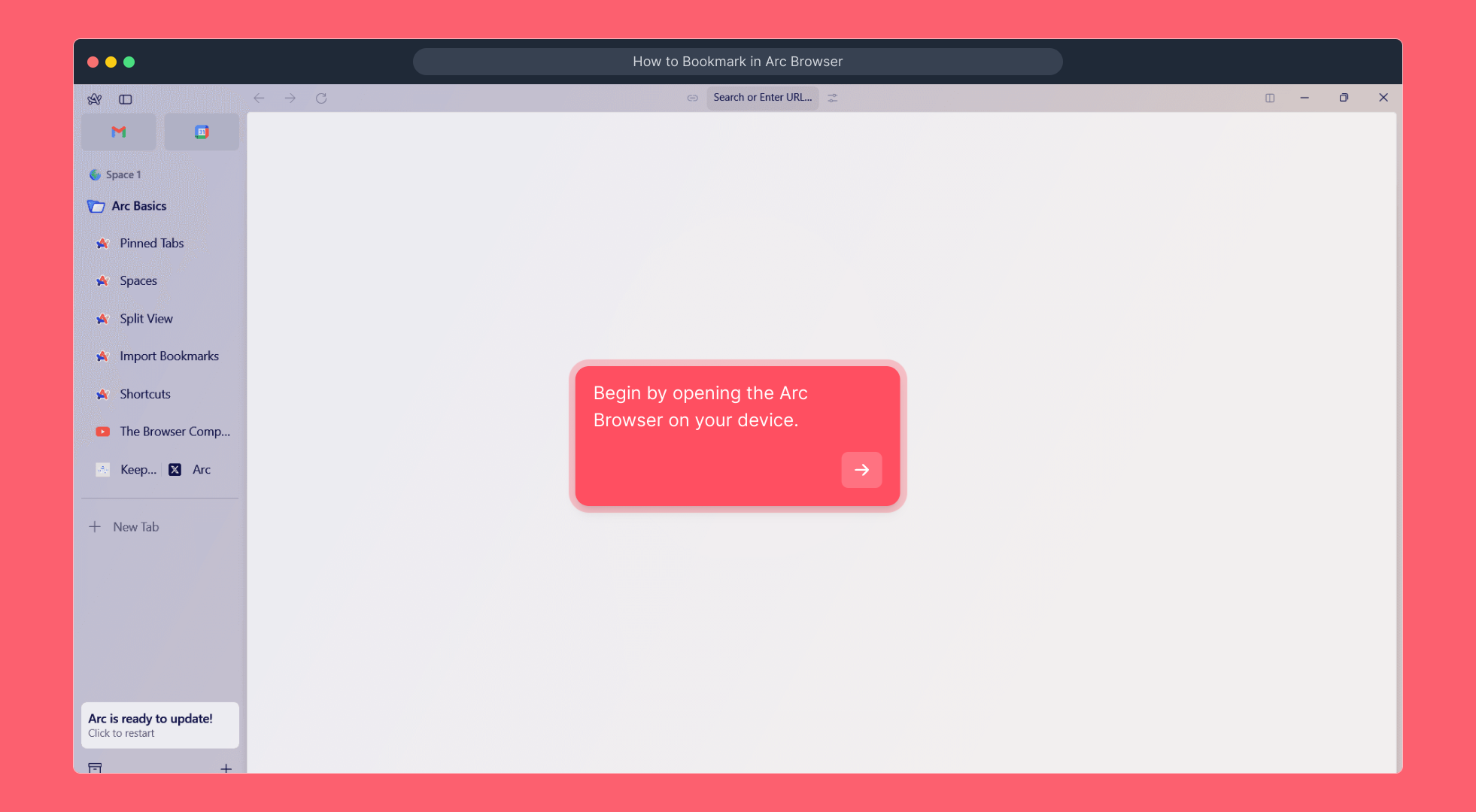
Navigate to the website you wish to save so you can easily access it later. This ensures your bookmark will link directly to the page you want to keep.

Press Ctrl + D on Windows or Cmd + D on Mac to instantly create a bookmark for the current page. This keyboard shortcut is a quick and reliable way to save your favorite sites.

If you want to personalize your bookmark’s label, simply double-click on the bookmark name. This will activate the editing mode where you can make changes.
Enter the new name that makes it easier for you to recognize the bookmark in your list, then press Enter to confirm the update.
You’re all set! Your chosen webpage has now been bookmarked within Arc Browser, making it convenient to return to anytime.

Did you find this guided tour helpful? We hope it made bookmarking easy and straightforward for you.

Create your own interactive demos in < 5 mins with Supademo
You can create your own interactive product demo in minutes using Supademo. Drive growth, scale enablement, and supercharge product-led onboarding with Supademo. Sign up for free here with no credit card required.
FAQs
Commonly asked questions about this topic.
What is the shortcut to bookmark a page in Arc Browser?
How do I rename a bookmark in Arc Browser?
Can I bookmark multiple tabs at once in Arc Browser?
Where can I find my bookmarks in Arc Browser?
Is there a way to import bookmarks from other browsers into Arc?
Does Arc Browser sync bookmarks across devices?
Can I organize bookmarks into folders in Arc Browser?
How do I delete a bookmark in Arc Browser?
Can I add tags or notes to bookmarks in Arc Browser?
Is bookmarking in Arc Browser similar to other popular browsers?

Product Operations Associate
Vimal Kumar helps build and grow Supademo’s team and GTM efforts, with a focus on figuring out growth levers and improving product traction.