How to change and edit font in Google Docs

Changing fonts in Google Docs is one of the most basic formatting tasks you'll perform when creating documents. Whether you're customizing a resume, report, or creative project, knowing how to select and apply different fonts will help you achieve the exact look you need.
Quick summary
In this tutorial, you'll learn how to navigate Google Docs' font menu and apply font changes to your document text. You'll discover where the font options are located and how to make adjustments quickly and efficiently.
Why this matters
Proper font selection impacts readability, professionalism, and visual hierarchy in your documents. Mastering font changes allows you to emphasize key information, maintain brand consistency, and create visually appealing content that engages your audience.
Step-by-step guide
- 1
Access the menu bar
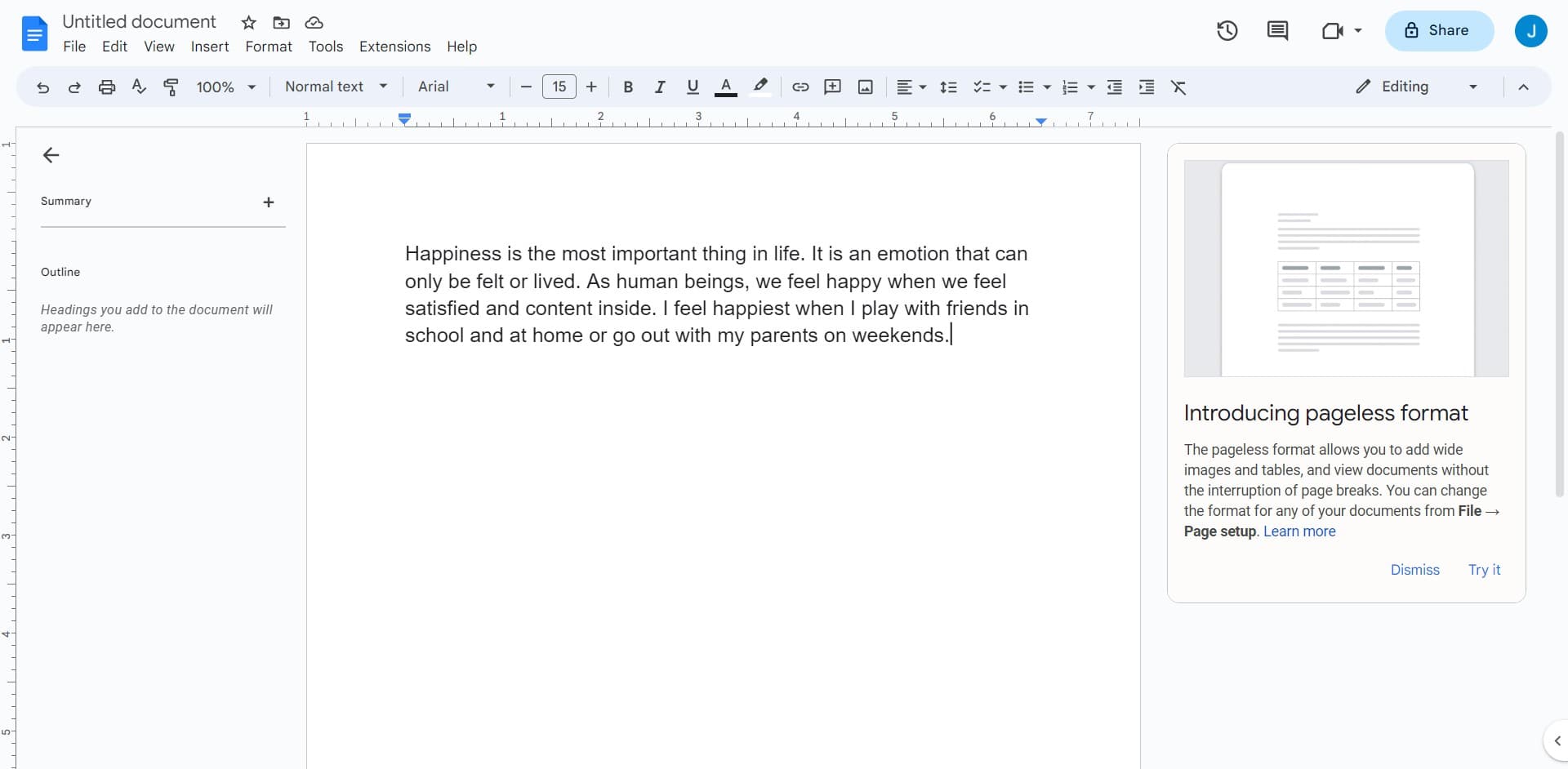
Click on the "File, Edit, View, Insert" menu bar at the top of your Google Docs document. This reveals the primary navigation options for document formatting and editing features.
- 2
Navigate to font options
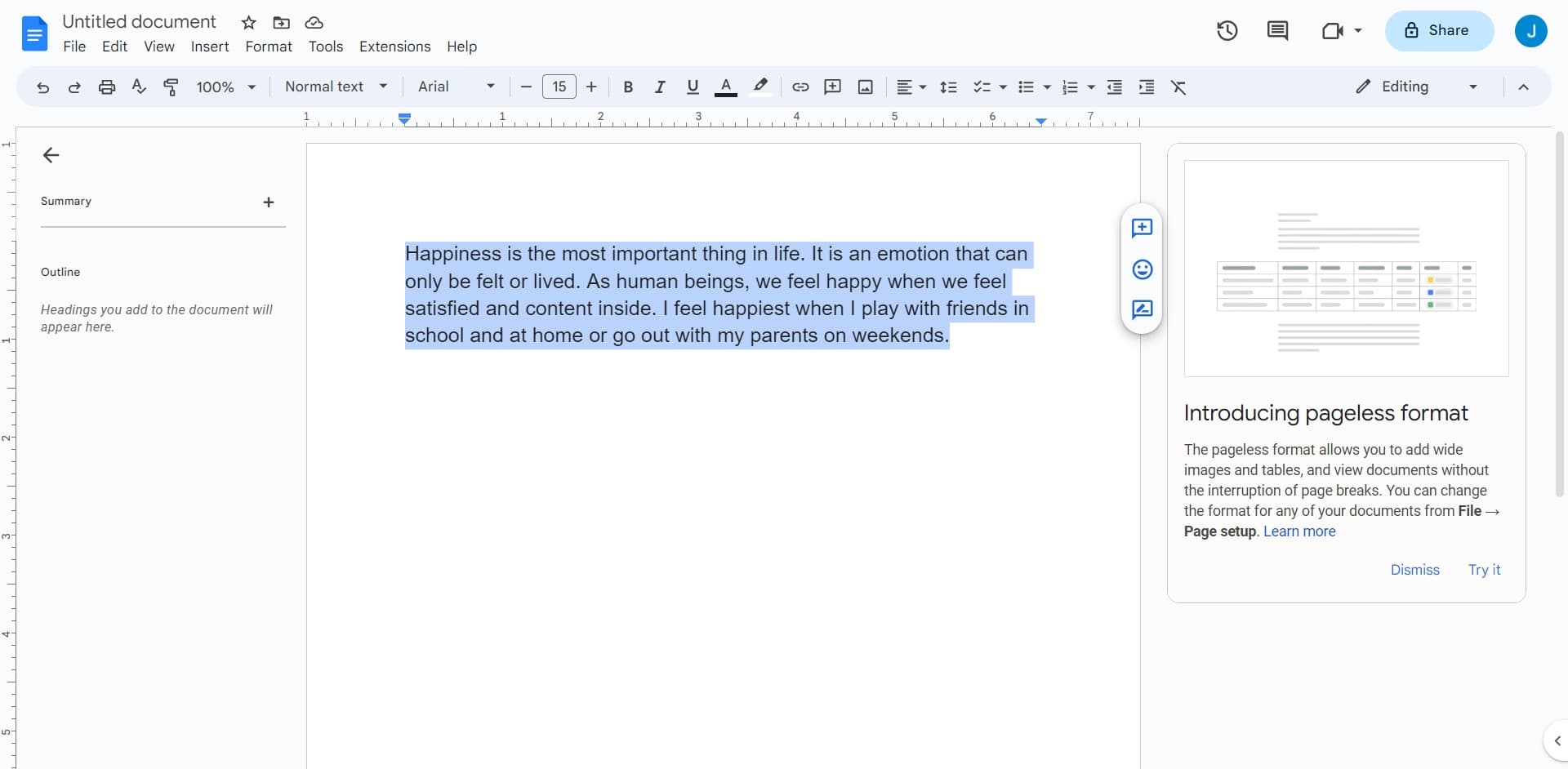
Select the appropriate menu item to access formatting options. This will display the toolbar where font controls are readily available.
- 3
Locate the font dropdown
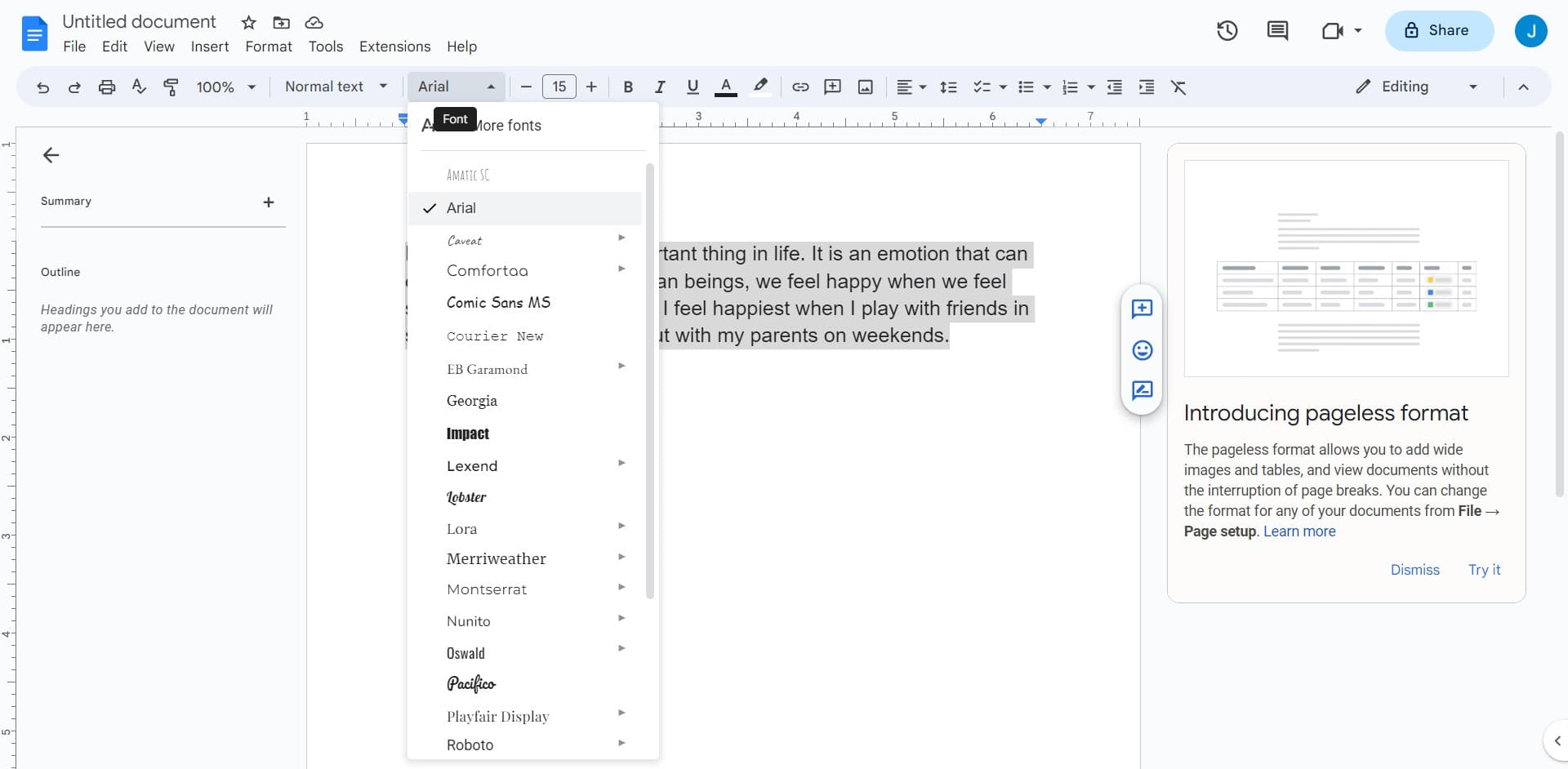
Find the font selector in the toolbar, typically displaying the current font name. Click on this dropdown to view all available font choices.
- 4
Select your desired font
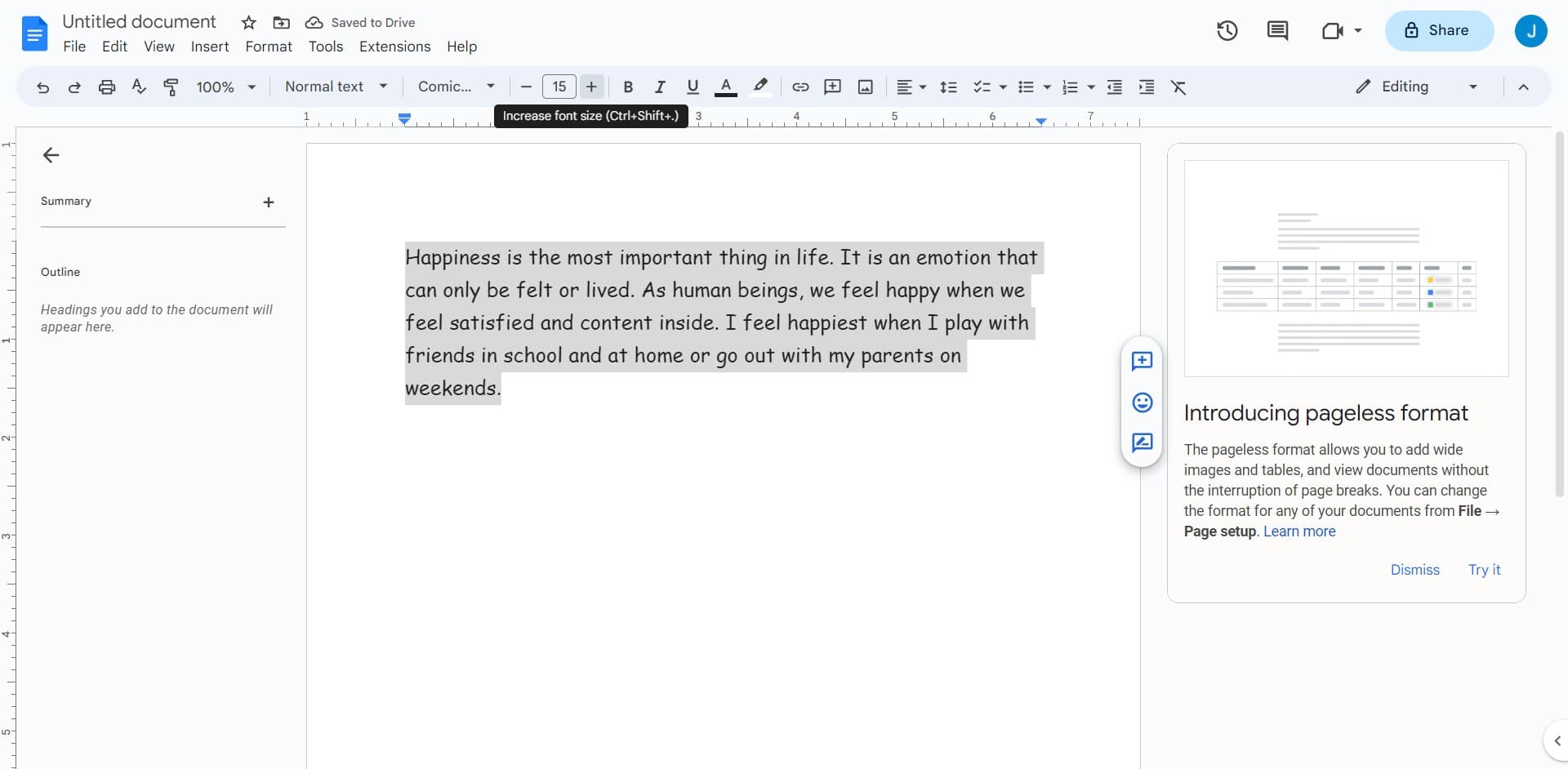
Browse through the list of fonts and click on the one you want to apply. Your selection will immediately update the text formatting in your document.
- 5
Apply font to text
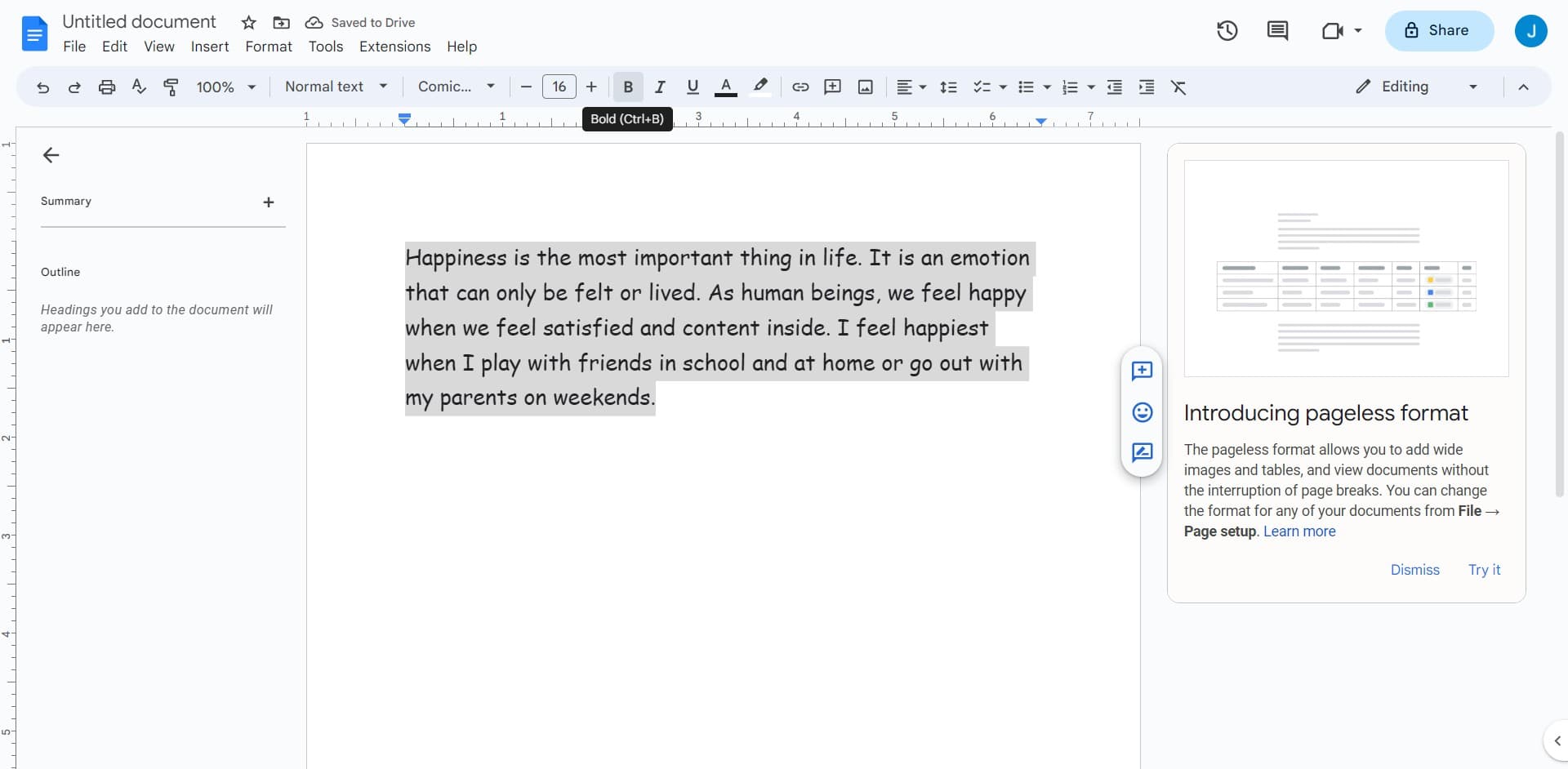
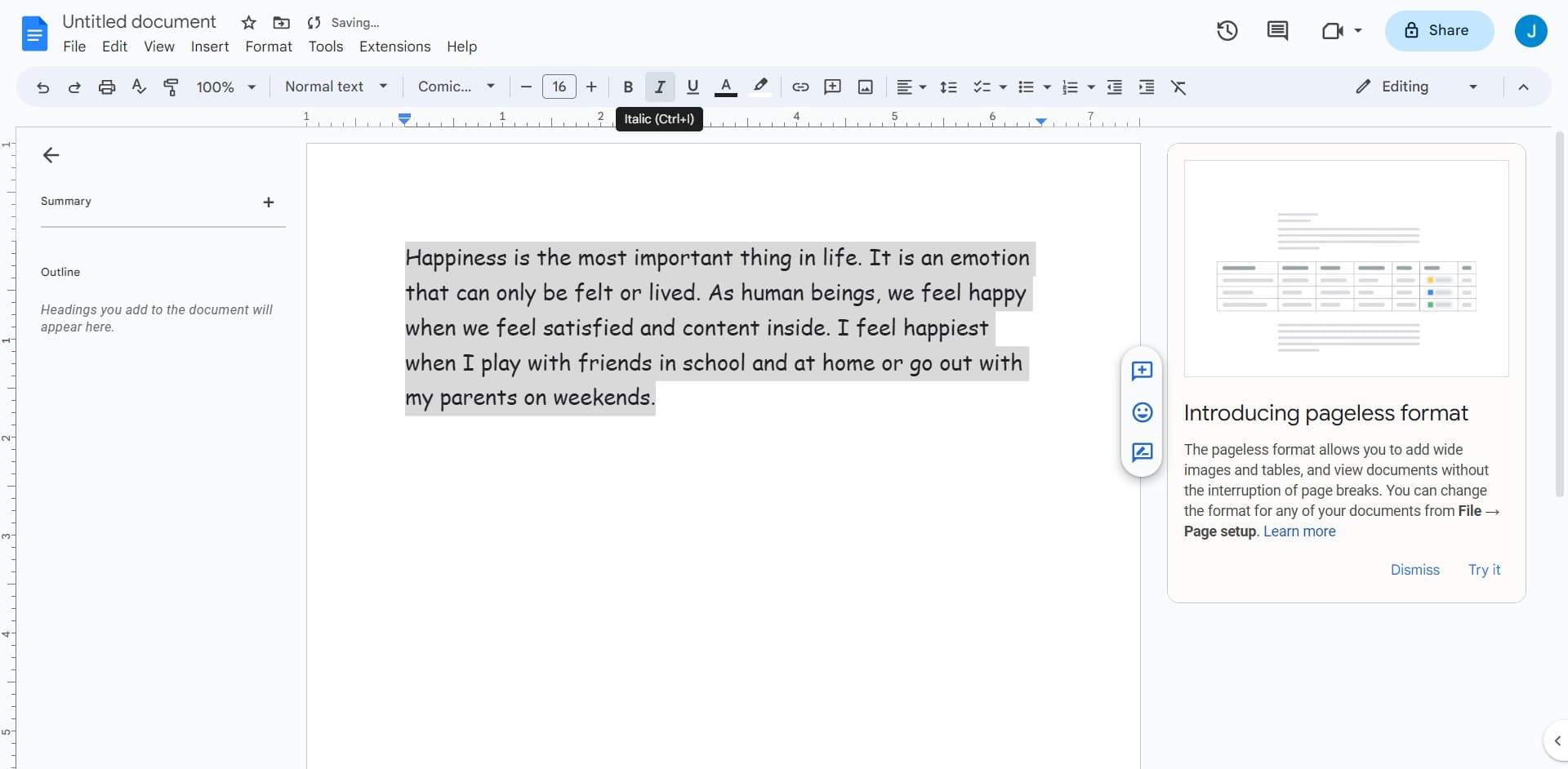
Ensure your text is selected before choosing a font, or select text after applying the font change. The new font will be applied to your chosen content.
- 6
Adjust font size if needed
Use the font size control next to the font dropdown to increase or decrease the text size. This is often paired with the font selector for quick formatting adjustments.
- 7
Confirm your changes
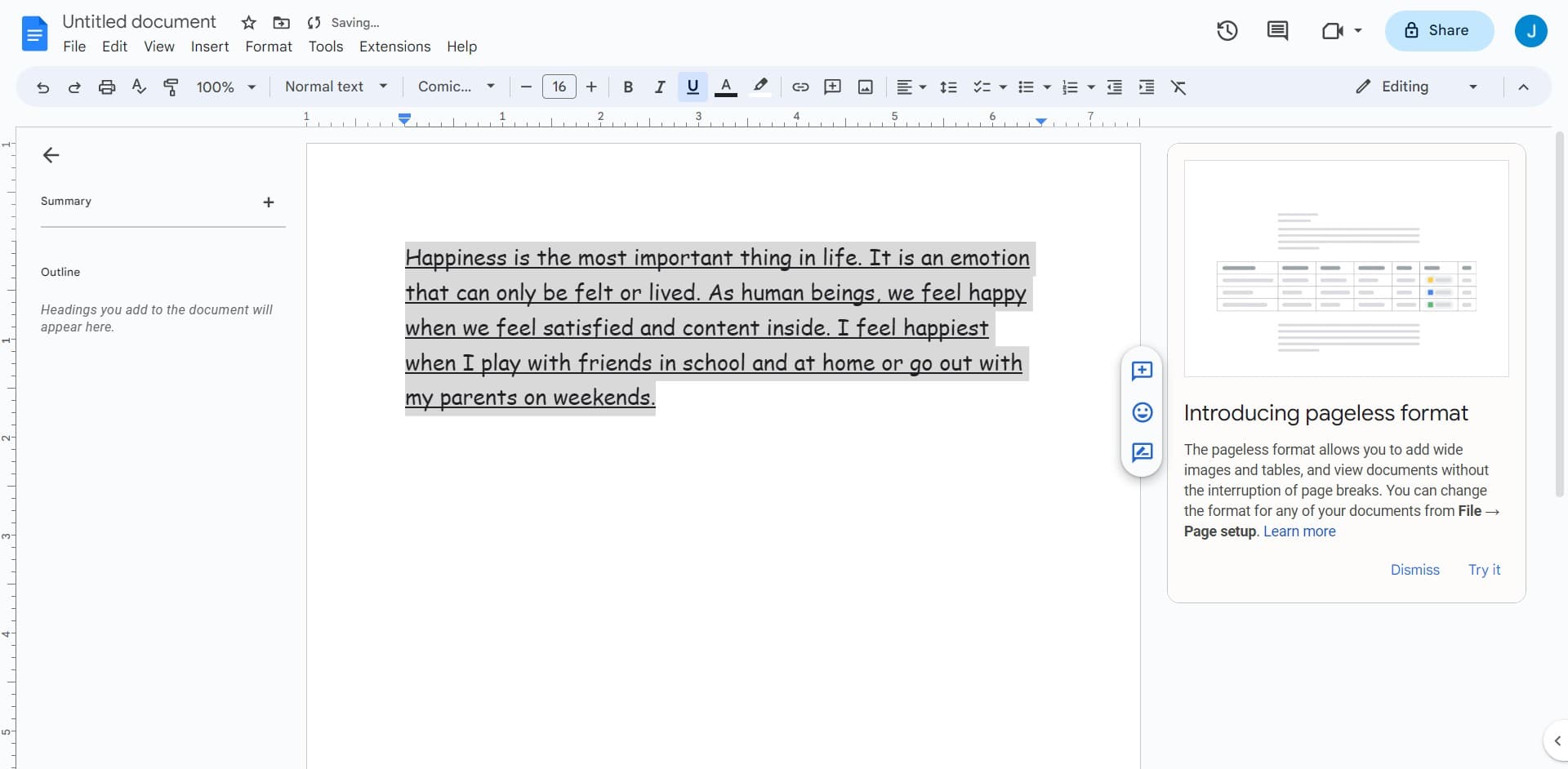
Review your document to ensure the font changes appear as intended. Your formatting will be automatically saved in Google Docs.
Frequently asked questions
Common questions about how to change and edit font in google docs.
Can I apply different fonts to different parts of my document?
Yes, absolutely. Select the specific text you want to format, then choose your font from the dropdown. You can apply different fonts to different sections of your document for varied styling and emphasis.
What fonts does Google Docs offer?
Google Docs provides a wide variety of fonts including common options like Arial, Times New Roman, and Calibri, as well as creative fonts like Playfair Display and Open Sans. You can explore the full list by clicking the font dropdown menu.
How do I make my font changes permanent?
Google Docs automatically saves your formatting changes as you work. To set a default font for all future documents, use the "Default" option in the font menu or set a document template with your preferred formatting.
Can I undo a font change?
Yes, you can undo any font change by pressing Ctrl+Z on Windows or Command+Z on Mac. You can also undo multiple changes by repeatedly using the undo shortcut.
Do font changes affect document sharing or compatibility?
Font changes remain intact when you share your document with others in Google Docs. However, if you download the document as a PDF or different format, ensure the font is compatible with that format to maintain appearance consistency.