
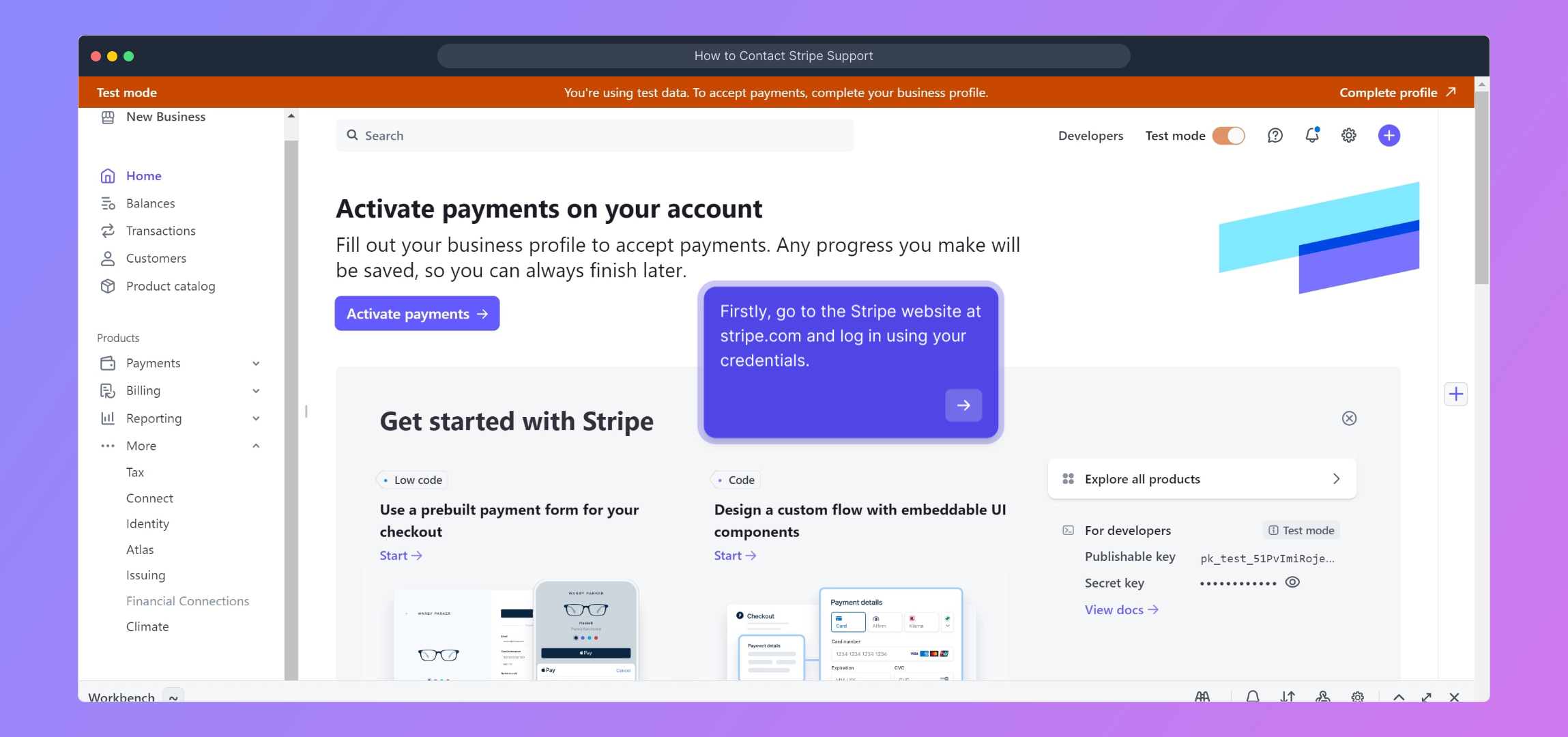
1. Firstly, go to the Stripe website at stripe.com and log in using your credentials.
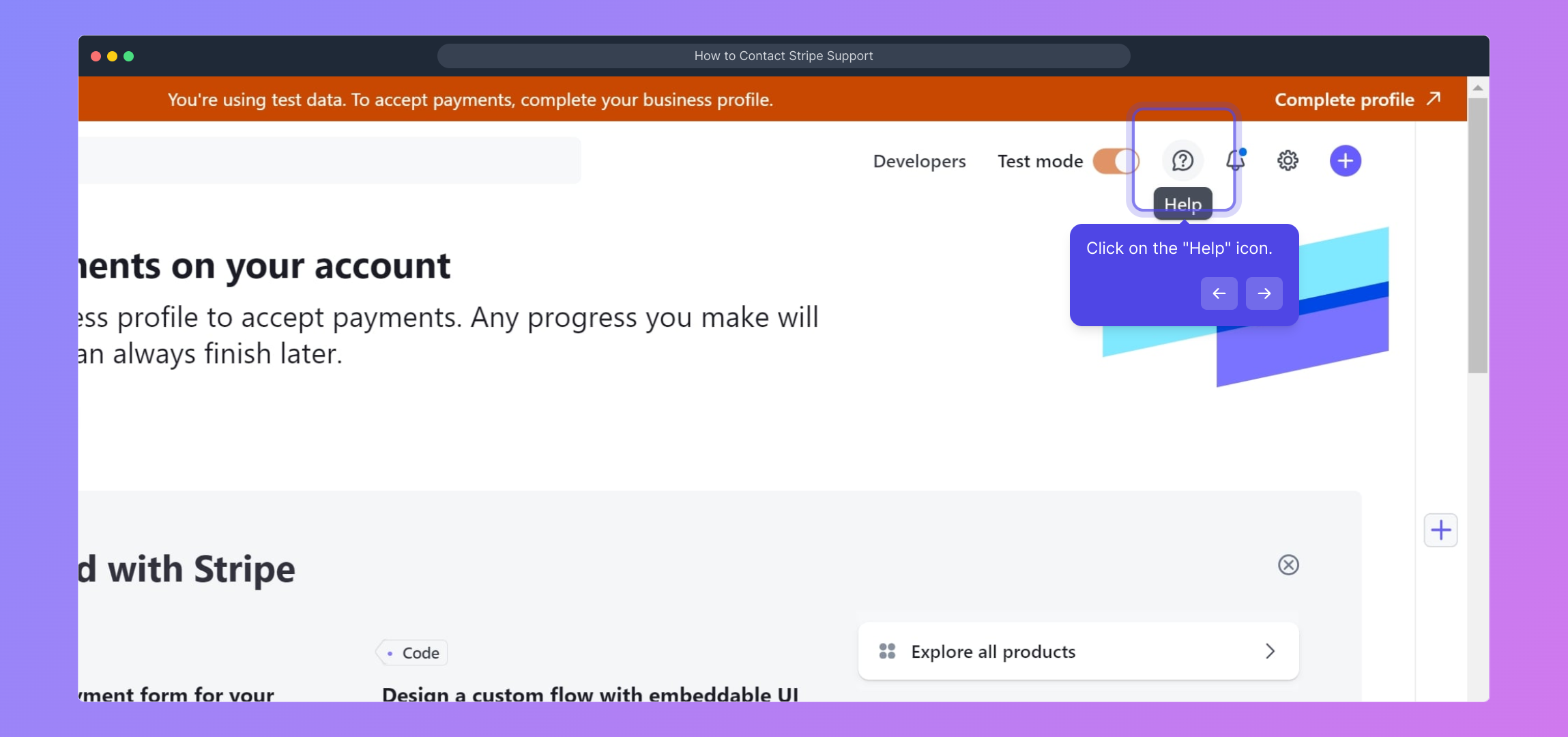
2. Click on the "Help" icon.
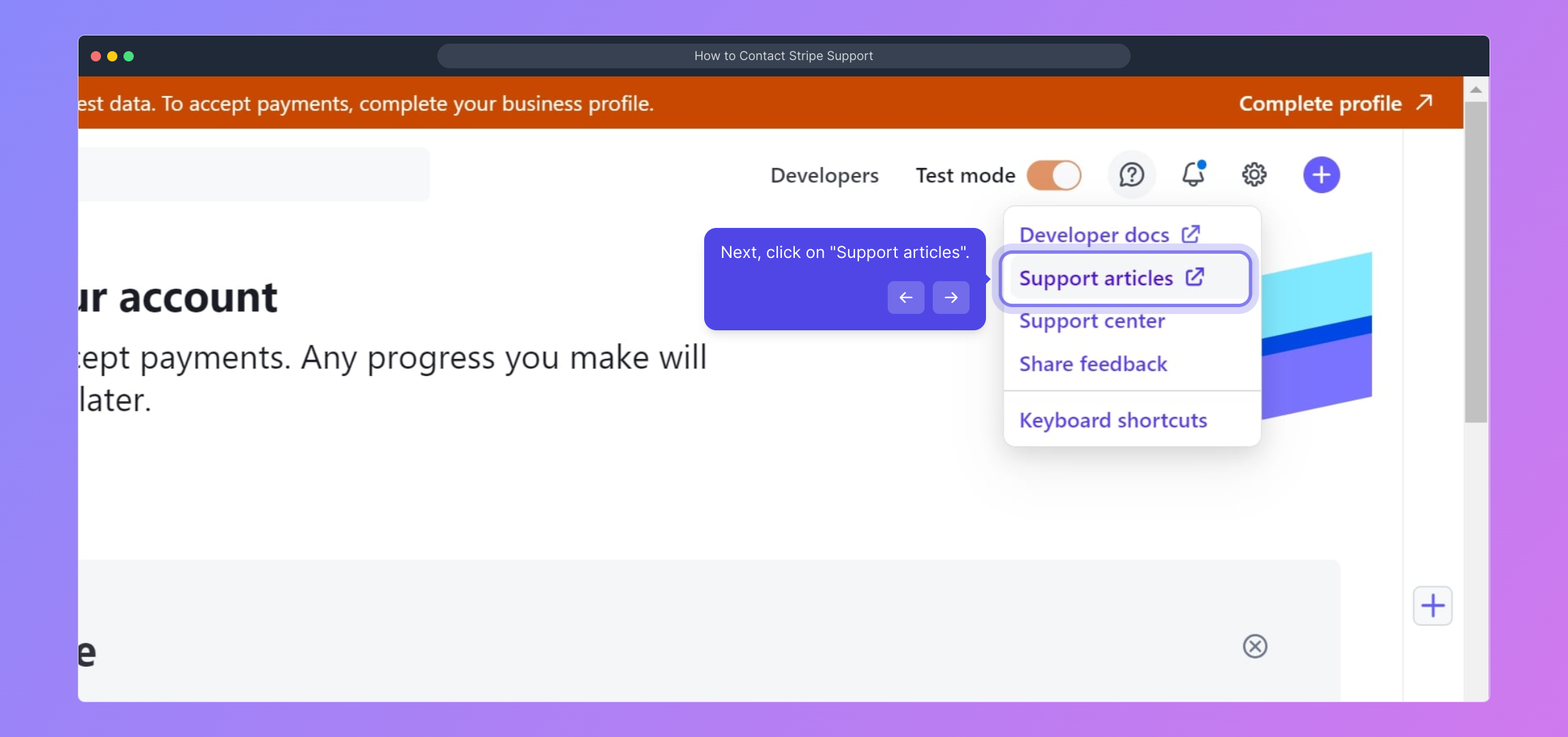
3. Next, click on "Support articles".
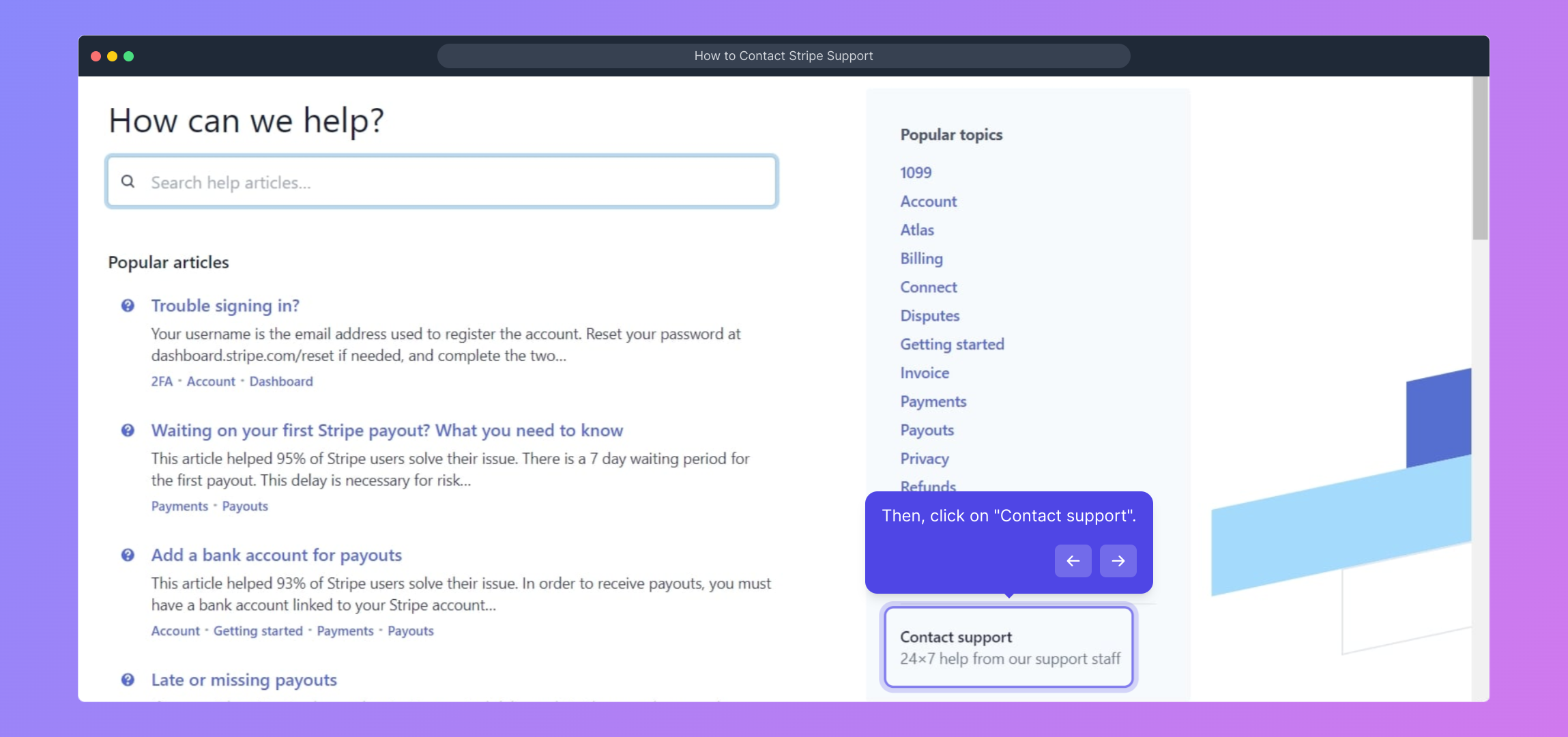
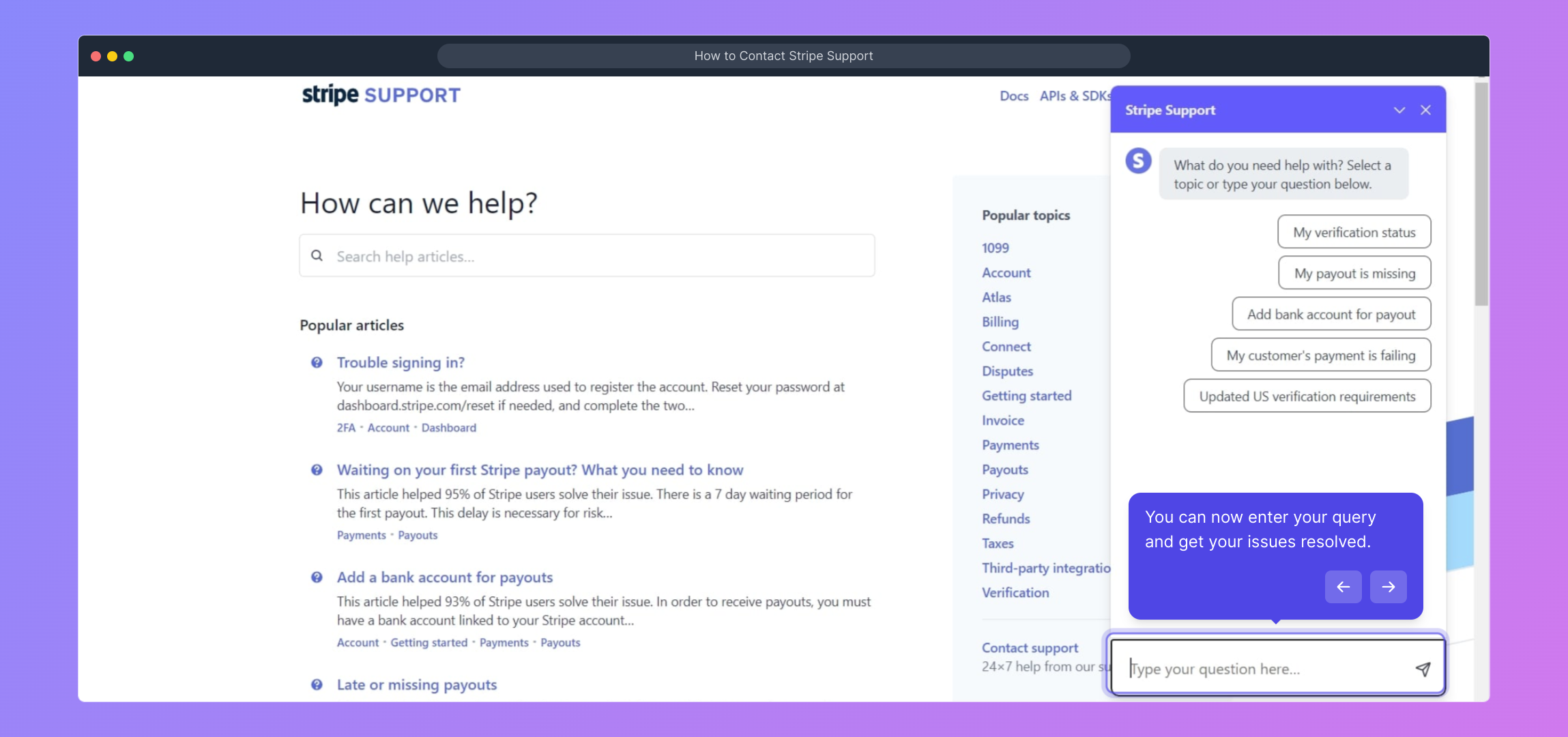
4. Then, click on "Contact support".
5. You can now enter your query and get your issues resolved.
6. Create a Supademo in seconds
This interactive demo/guided walkthrough on How to Contact Stripe Support was created using Supademo.
How to Contact Stripe Support : Step-by-Step Guide
To get started, open your browser and head over to stripe.com. Once there, enter your login details to access your Stripe dashboard where you manage your payments and account settings.
After logging in, look for the "Help" icon located on the top right corner of your dashboard. Clicking this will guide you to a range of support options tailored to your needs.
From the Help menu, select "Support articles" to explore helpful resources and frequently asked questions that can assist you with common issues.
If you don’t find the answer you’re looking for, click on "Contact support" to reach out directly to Stripe’s customer service team for personalized assistance.
At this point, you’ll see a form where you can type in your specific question or issue. Submit your query and the support team will work with you to resolve it as quickly as possible.
If you want to create your own Supademo quickly, this final step shows you how to get everything set up seamlessly in just a few clicks.
Create your own interactive demos in < 5 mins with Supademo
You can create your own interactive product demo in minutes using Supademo. Drive growth, scale enablement, and supercharge product-led onboarding with Supademo. Sign up for free here with no credit card required.
FAQs
Commonly asked questions about this topic.
How do I contact Stripe support if I forget my login credentials?
Can I contact Stripe support without logging in?
What types of issues can Stripe support help me with?
Is Stripe support available 24/7?
How can I track my support request with Stripe?
Does Stripe offer phone support?
Where can I find Stripe’s support articles?
How soon can I expect a response after contacting Stripe support?
Can I escalate my support request if unresolved?
What information should I provide when contacting Stripe support?

Product Operations Associate
Vimal Kumar helps build and grow Supademo’s team and GTM efforts, with a focus on figuring out growth levers and improving product traction.





