How to Create a Macro in Zendesk

Macros in Zendesk automate repetitive support tasks, saving your team time and ensuring consistent responses to common customer inquiries. This guide walks you through creating your first macro from start to finish using Zendesk's Admin Center.
Quick summary
In this tutorial, you'll learn how to navigate to Zendesk's macro settings and create a new macro by accessing the Admin Center, selecting the Macros section, and configuring your automation. By the end, you'll understand the complete workflow for setting up macros to streamline your support operations.
Why this matters
Creating macros reduces manual effort, minimizes response times, and helps maintain quality standards across your support team. Well-designed macros ensure that customers receive timely, accurate answers while allowing your agents to focus on more complex issues that require personal attention.
Step-by-step guide
- 1
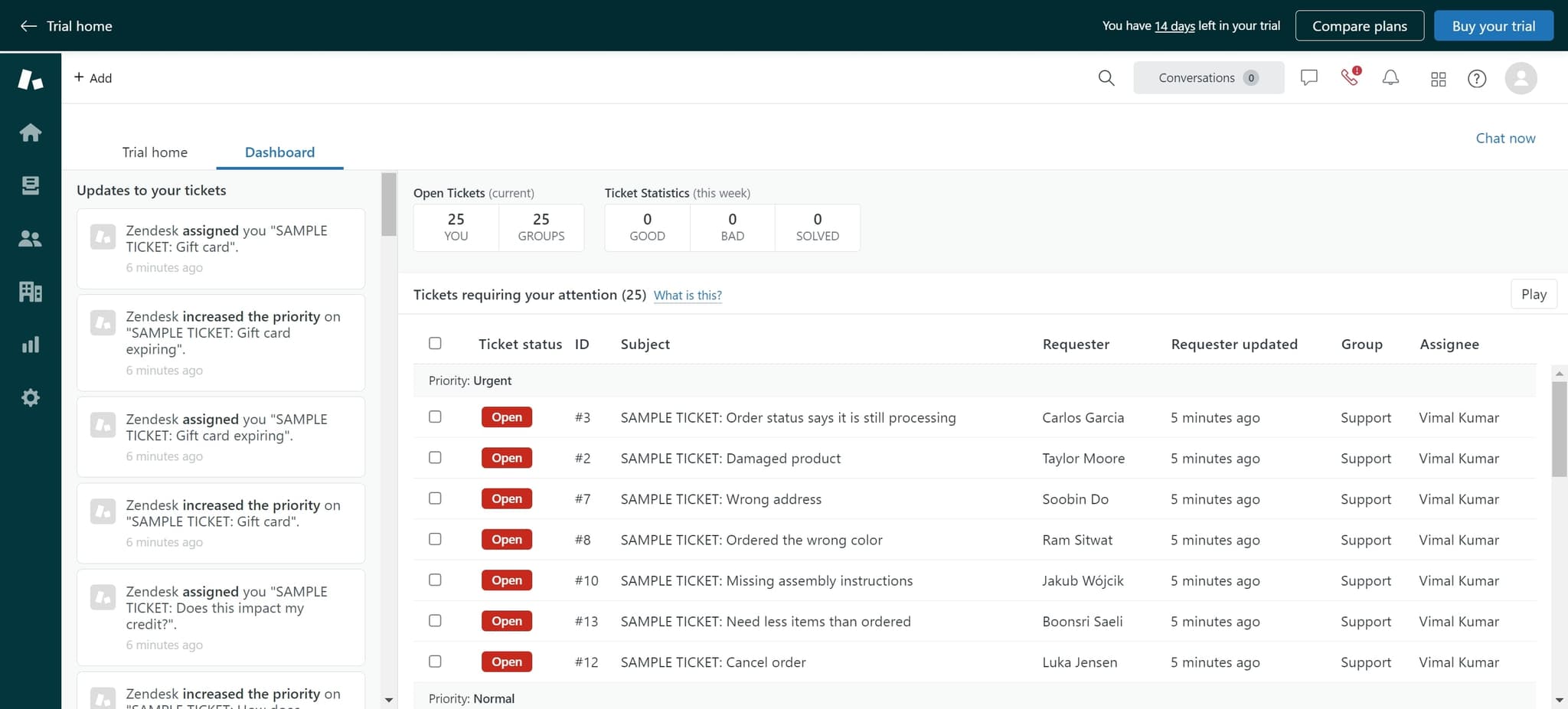
Click on Chat now
Start by locating and clicking the 'Chat now' button to initiate communication with Zendesk support or access the platform's interface. This opens the dialog or window where you can begin the macro creation process.
- 2
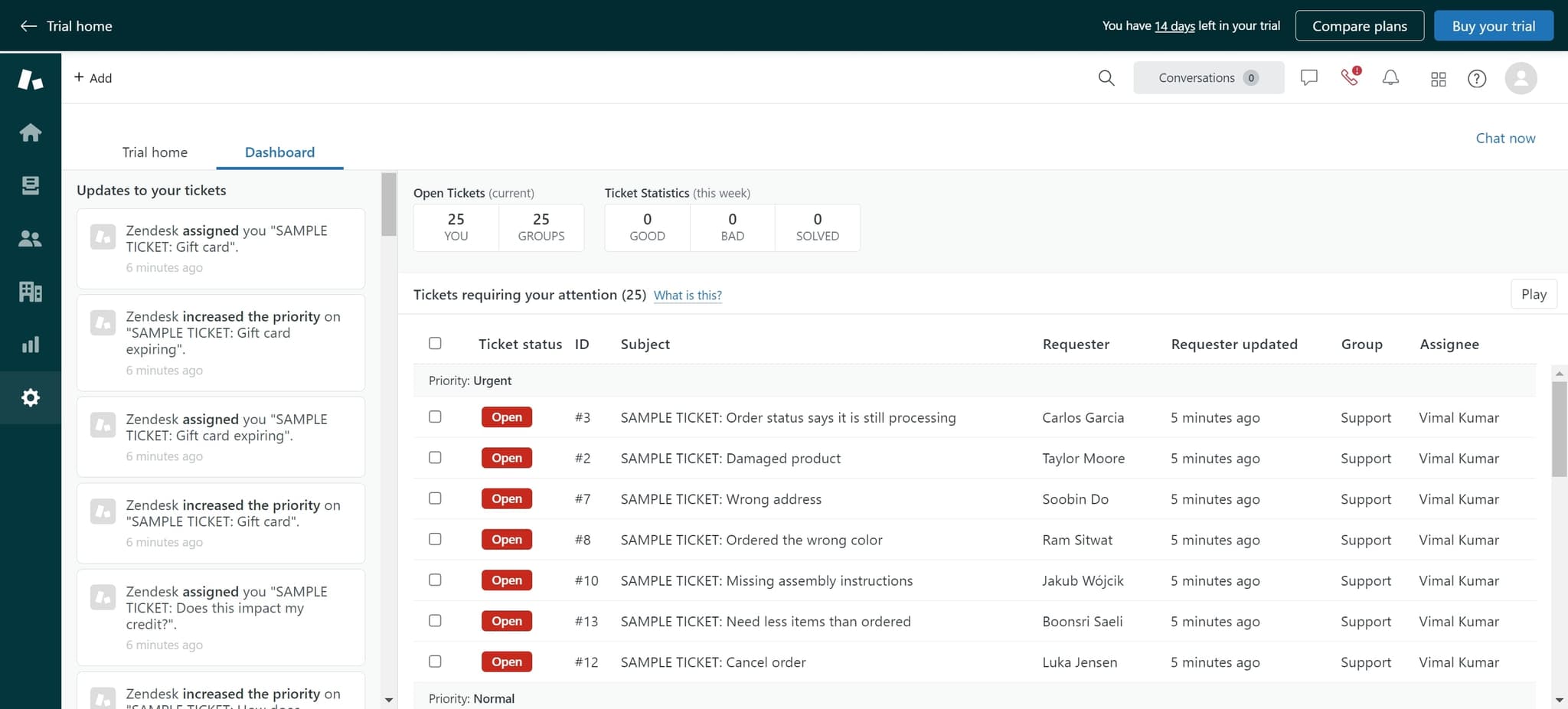
Navigate to the next section
Click on the indicated element to move forward in the setup process. This step advances you toward accessing the administrative tools needed for macro management.
- 3
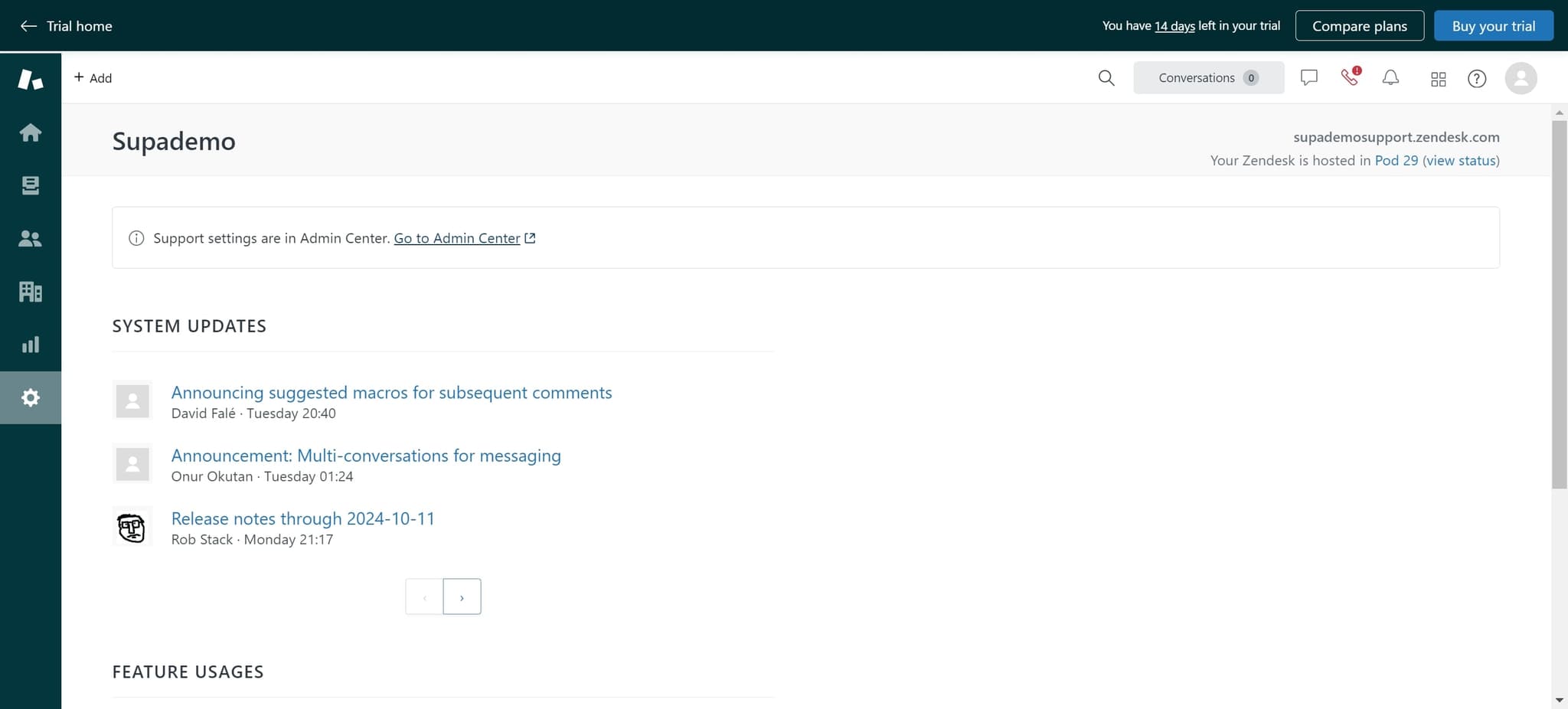
Access the Admin Center
Click on 'Support settings are in Admin Center. Go to Admin Center' to navigate to the administrative dashboard. The Admin Center is where all configuration settings for your Zendesk account, including macros, are managed.
- 4
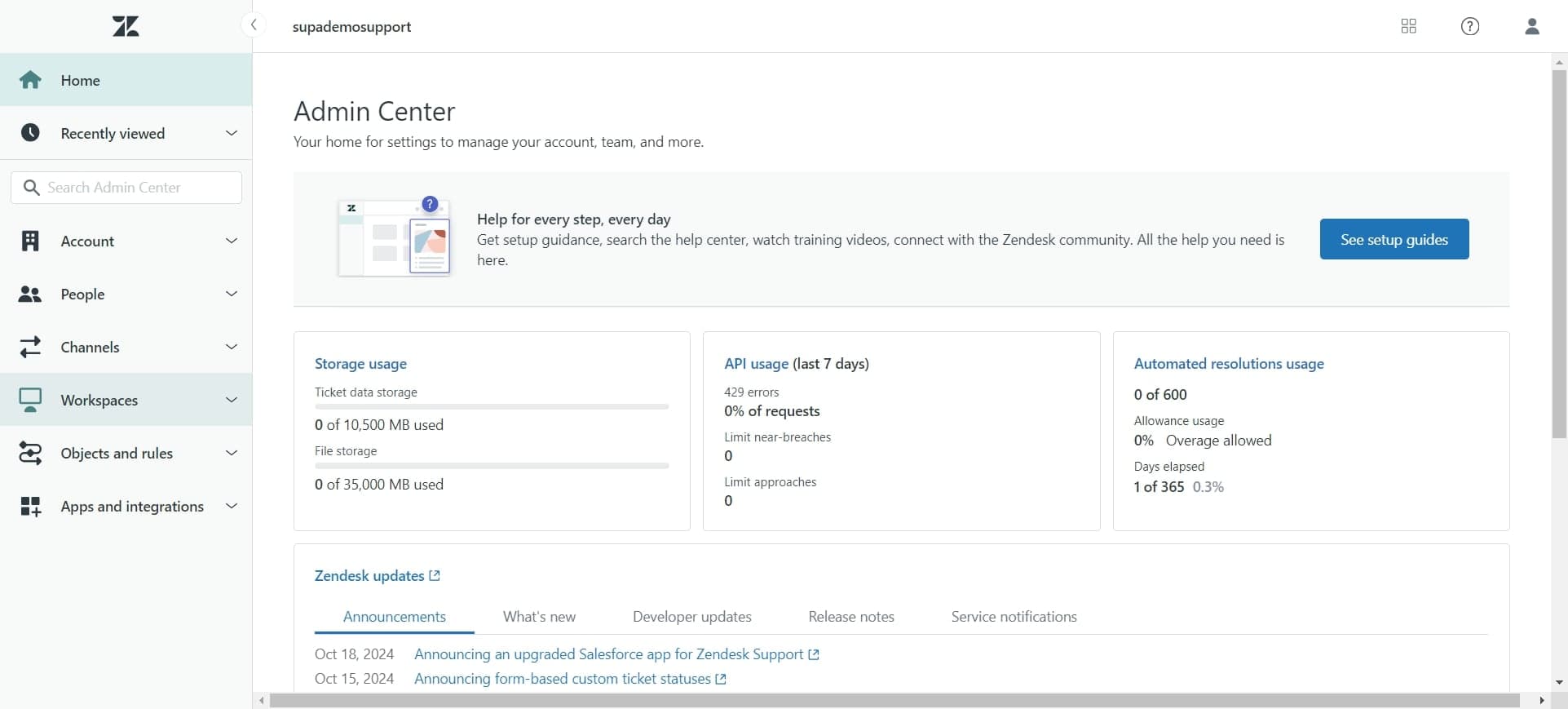
Select Workspaces
Click on 'Workspaces' to view and manage your support workspace settings. Workspaces organize your support operations and contain the macro configurations for your team.
- 5
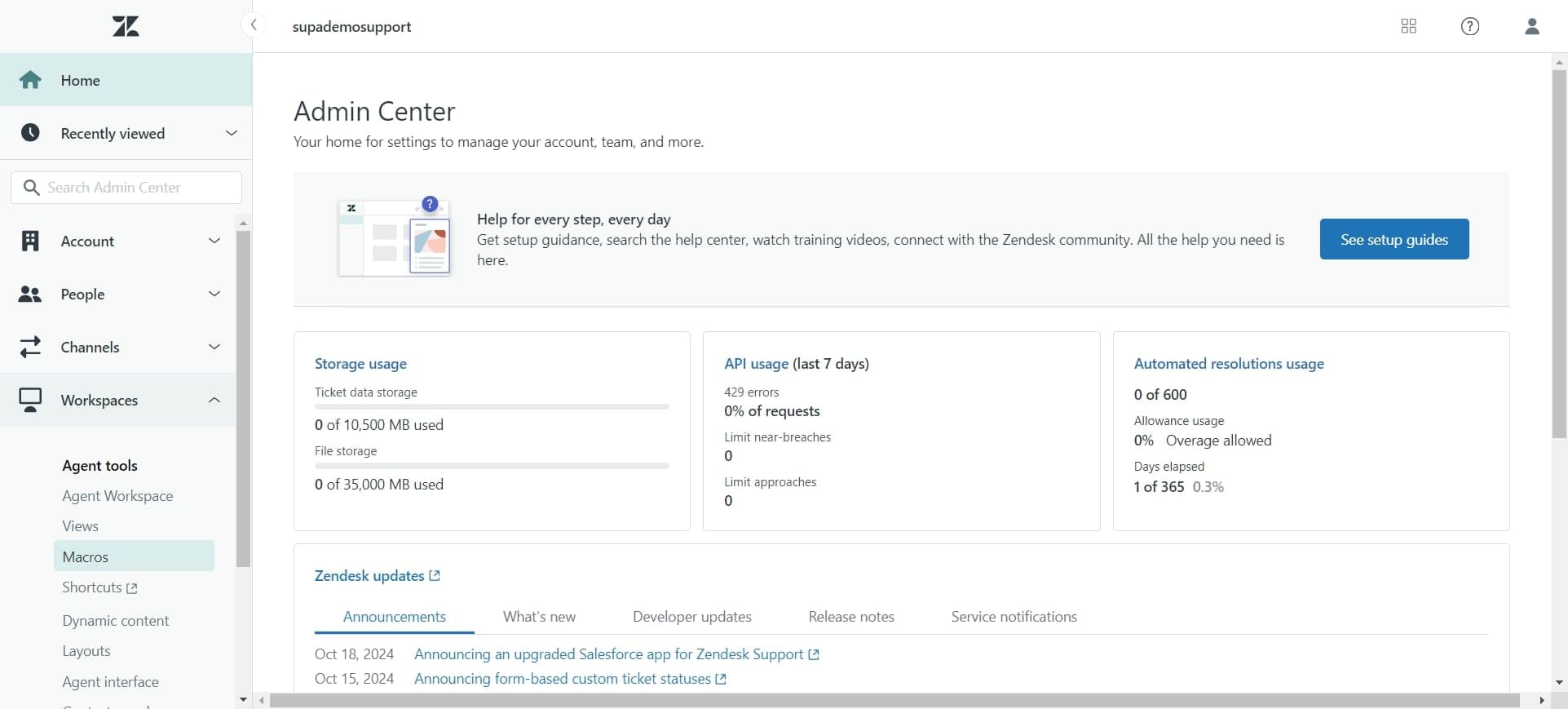
Open the Macros section
Click on 'Macros' to access the macro management interface. Here you'll see all existing macros and have the option to create new ones.
- 6
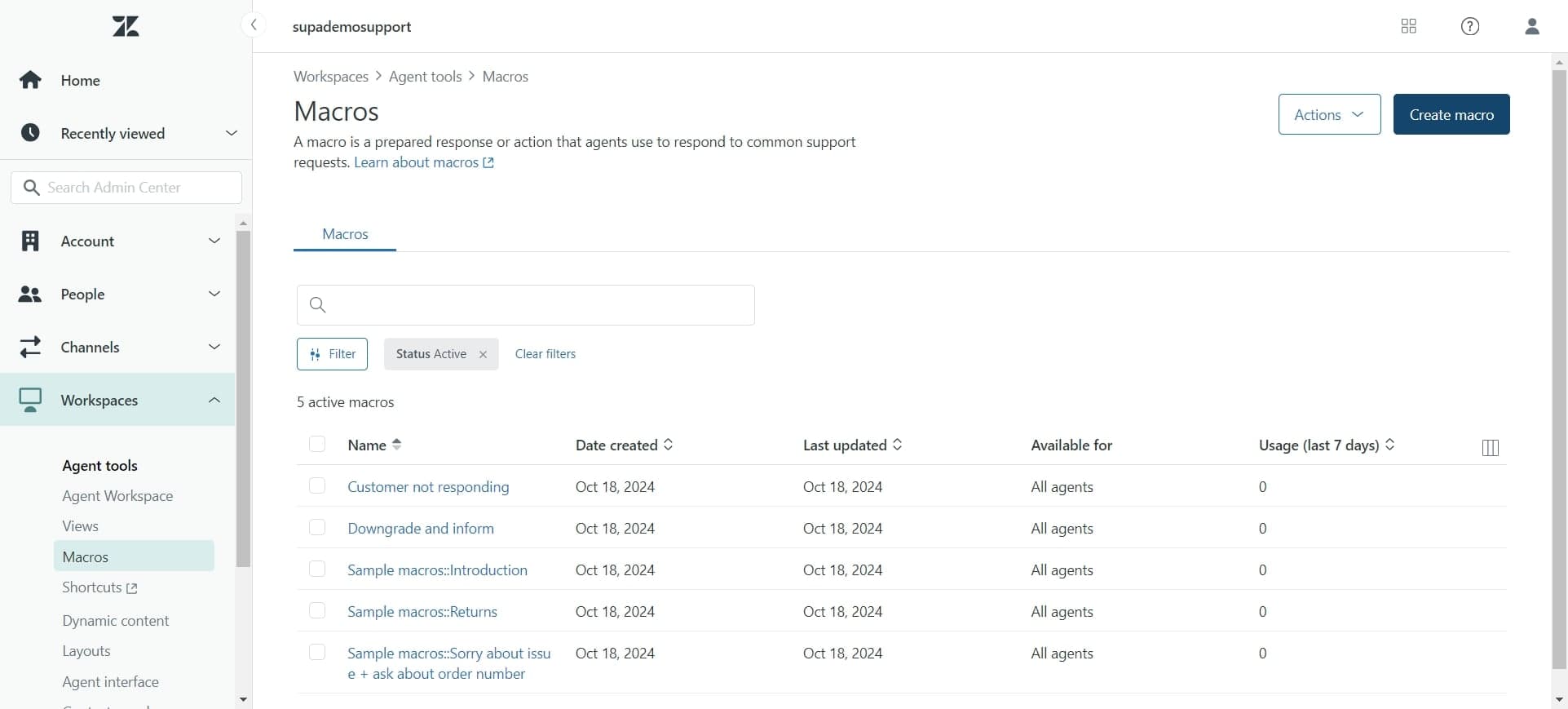
Create a new macro
Click on 'Create macro' to start building a new automation. This opens the macro creation form where you'll define the macro's name, conditions, and actions.
- 7
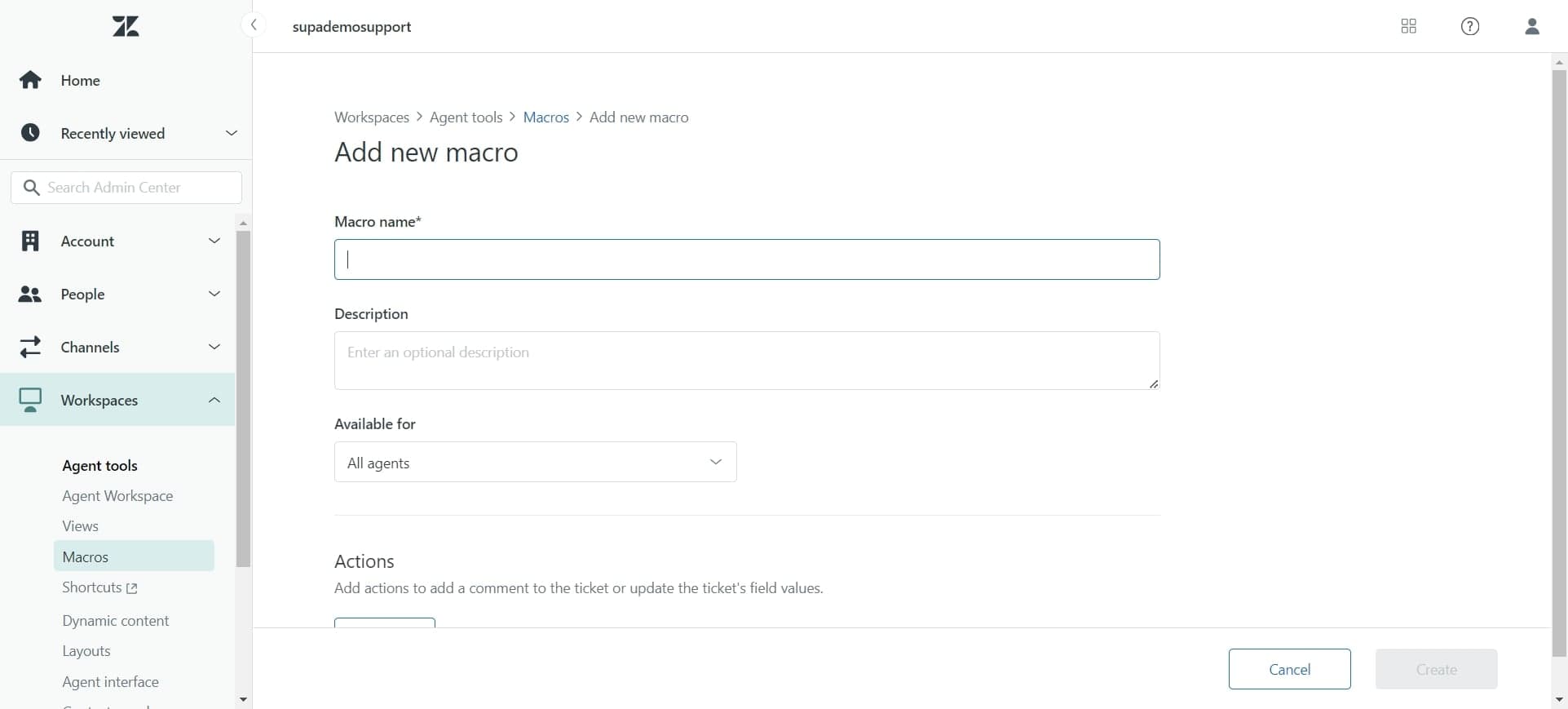
Configure the macro element
Click on the element to begin entering macro details such as the macro title, description, or specific actions you want it to perform. This step allows you to customize the macro's behavior and content.
- 8
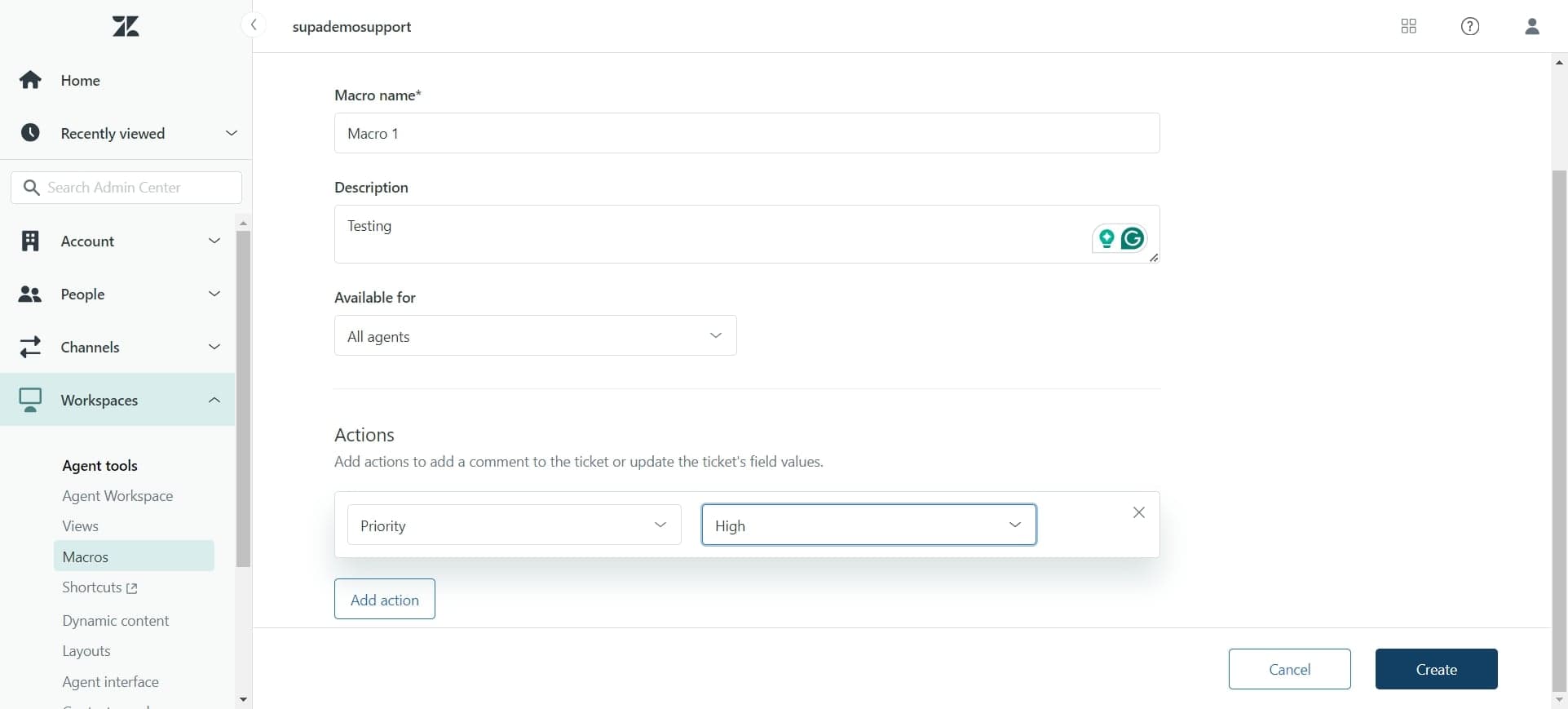
Save the macro
Click on 'Create' to finalize and save your new macro. Your macro is now active and can be used by your support team to automate responses and tasks.
Frequently asked questions
Common questions about how to create a macro in zendesk.
What is a macro in Zendesk?
A macro in Zendesk is an automation tool that performs predefined actions on support tickets, such as adding tags, sending preset responses, or changing ticket status. Macros help agents work more efficiently by reducing the need to manually repeat the same tasks on similar tickets.
Can I edit a macro after creating it?
Yes, you can edit existing macros by returning to the Macros section in the Admin Center, selecting the macro you want to modify, and making your changes. You can update the macro's conditions, actions, and content at any time.
Who can create macros in Zendesk?
Only users with admin or macro management permissions can create and edit macros in Zendesk. Your account administrator can grant these permissions to specific team members as needed.
How do agents use macros once they're created?
Agents can apply macros to tickets from the ticket view by clicking the macro button or selecting from a dropdown menu of available macros. The macro instantly performs all configured actions, such as adding responses or updating ticket properties.
Can I create different macros for different teams or departments?
Yes, you can organize macros by team, department, or function by using clear naming conventions and conditions. You can also restrict macro visibility to specific groups by configuring access permissions through the Admin Center.