How to Create a Poll in Slack

Polls are an effective way to gather quick feedback and opinions from your Slack team. This tutorial walks you through creating a poll using Polly, a popular Slack app that integrates seamlessly into your workspace.
Quick summary
In this tutorial, you'll learn how to set up Polly in Slack and create a multiple-choice poll from start to finish. By the end, you'll be able to launch polls that help facilitate team decisions and gather input efficiently.
Why this matters
Polls streamline decision-making and team engagement by providing a quick, visual way to collect opinions without lengthy threads or meetings. In remote and hybrid teams, polls help ensure everyone's voice is heard and keeps conversations organized and focused.
Step-by-step guide
- 1
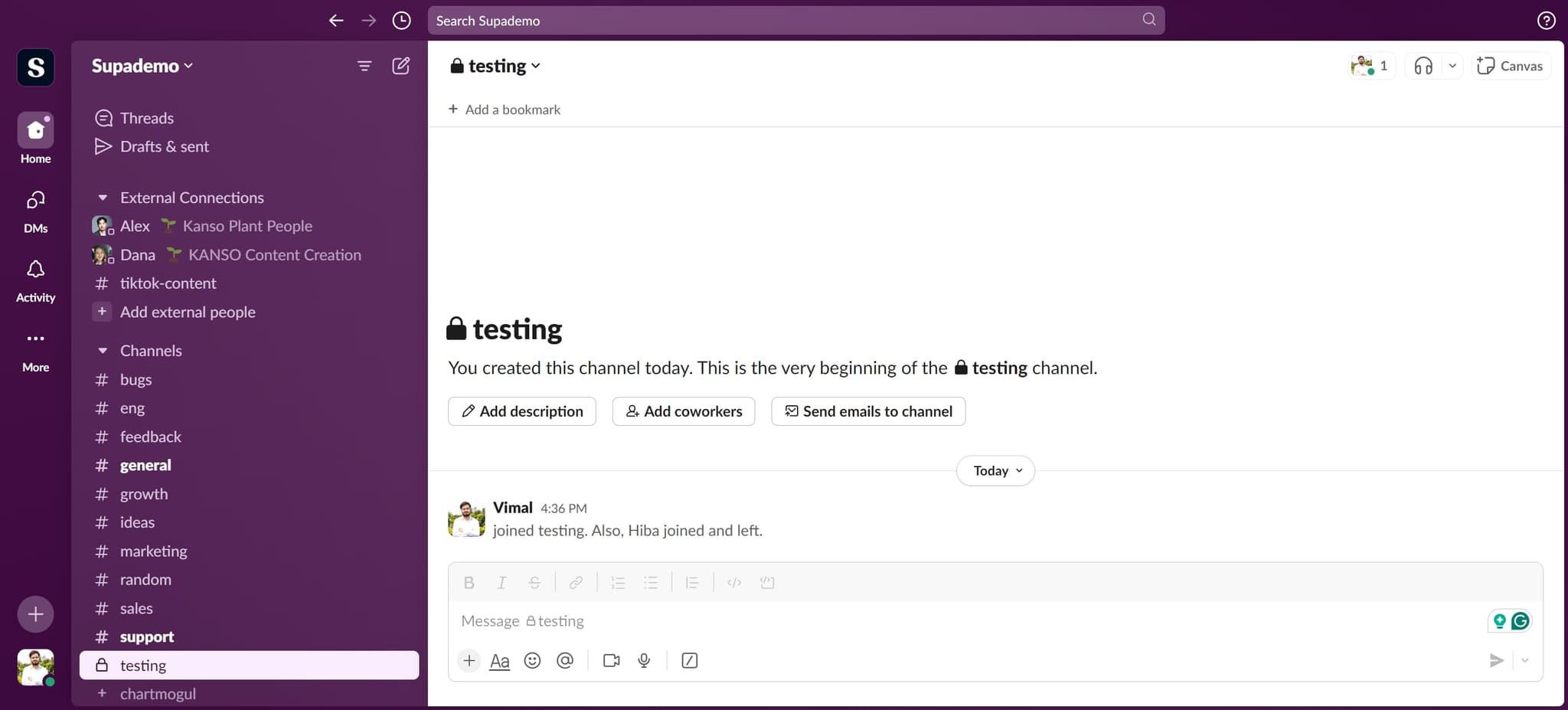
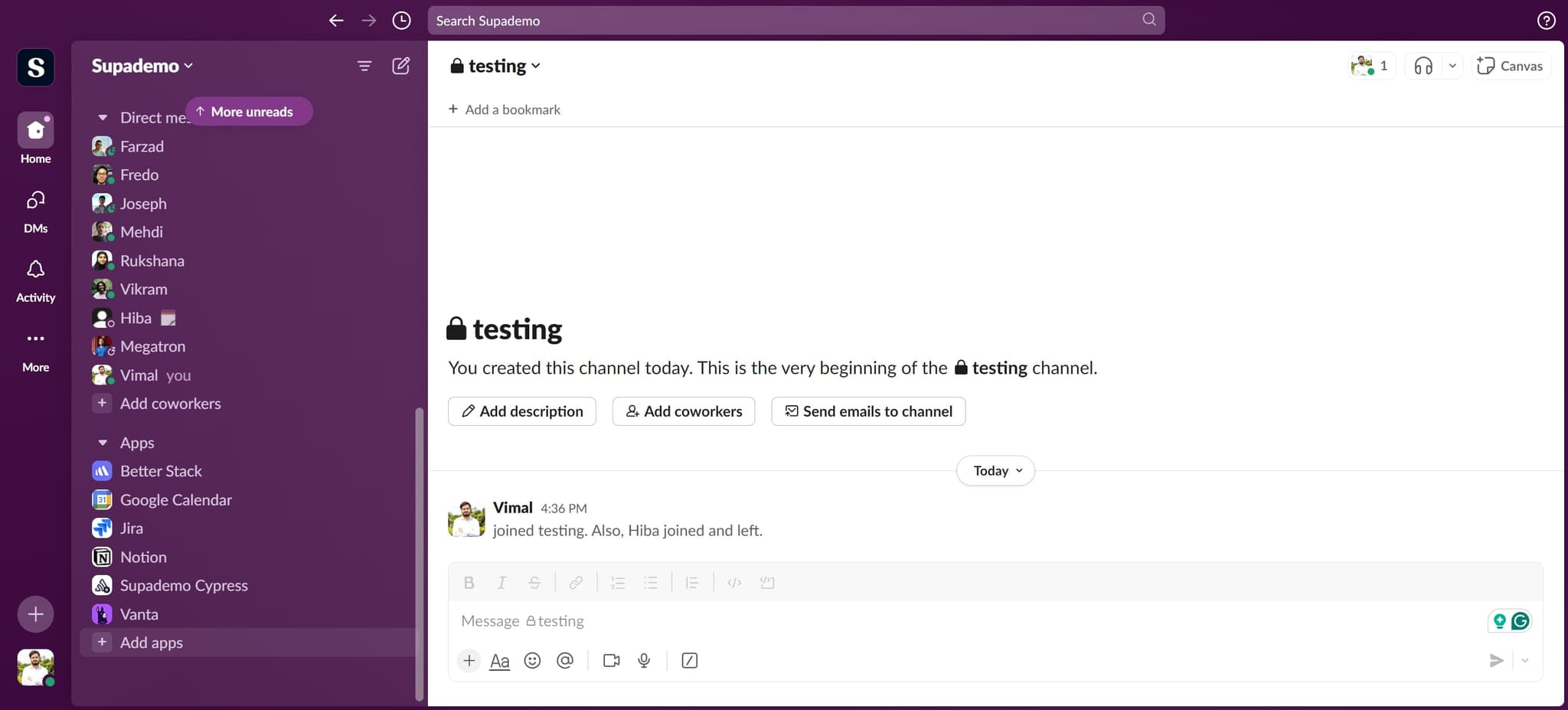
Navigate to the Apps section
Start by clicking on the designated element to access your Slack workspace's apps or integrations menu. This will open the area where you can browse and add new apps to your workspace.
- 2
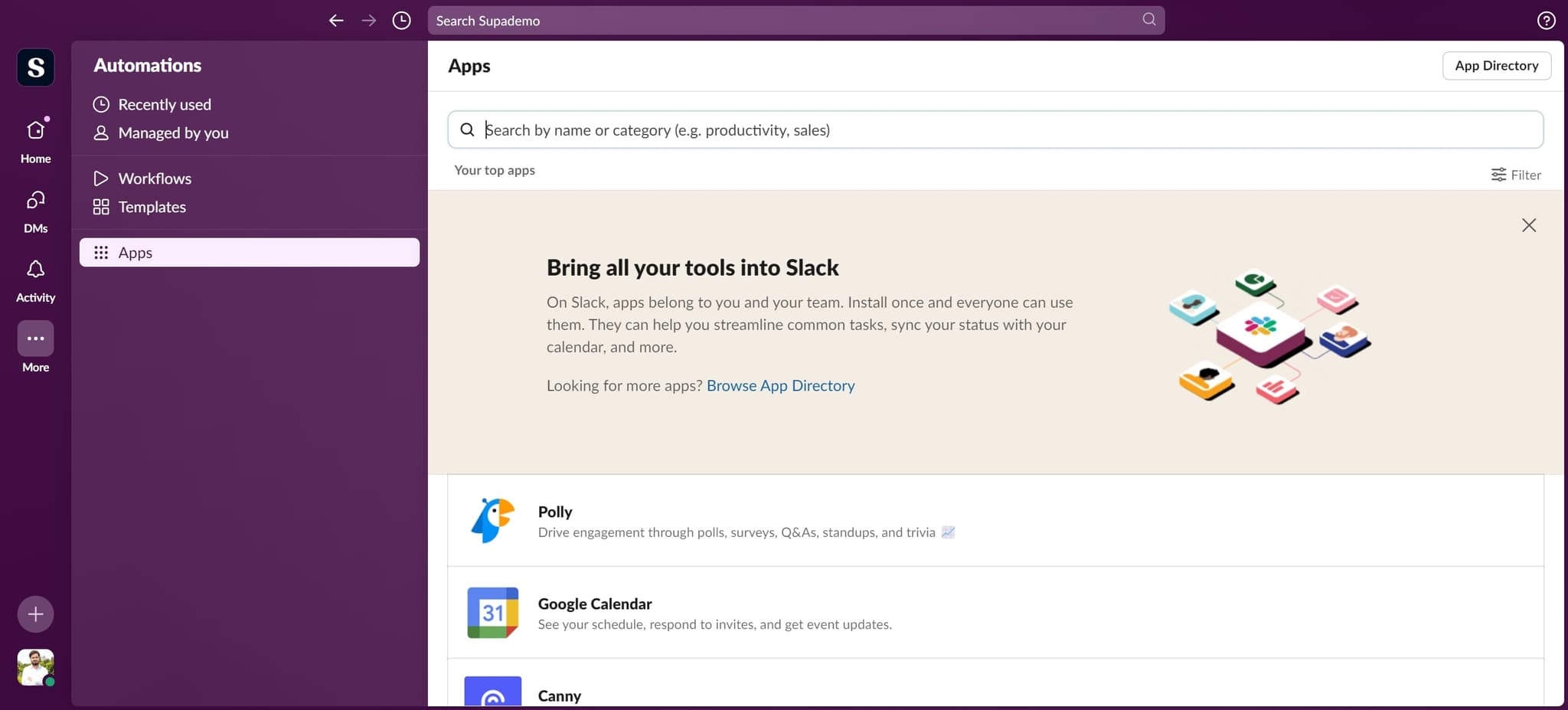
Search for the Polly app
Click on the element to search for available apps. You should now see a search field where you can type to find the Polly app.
- 3
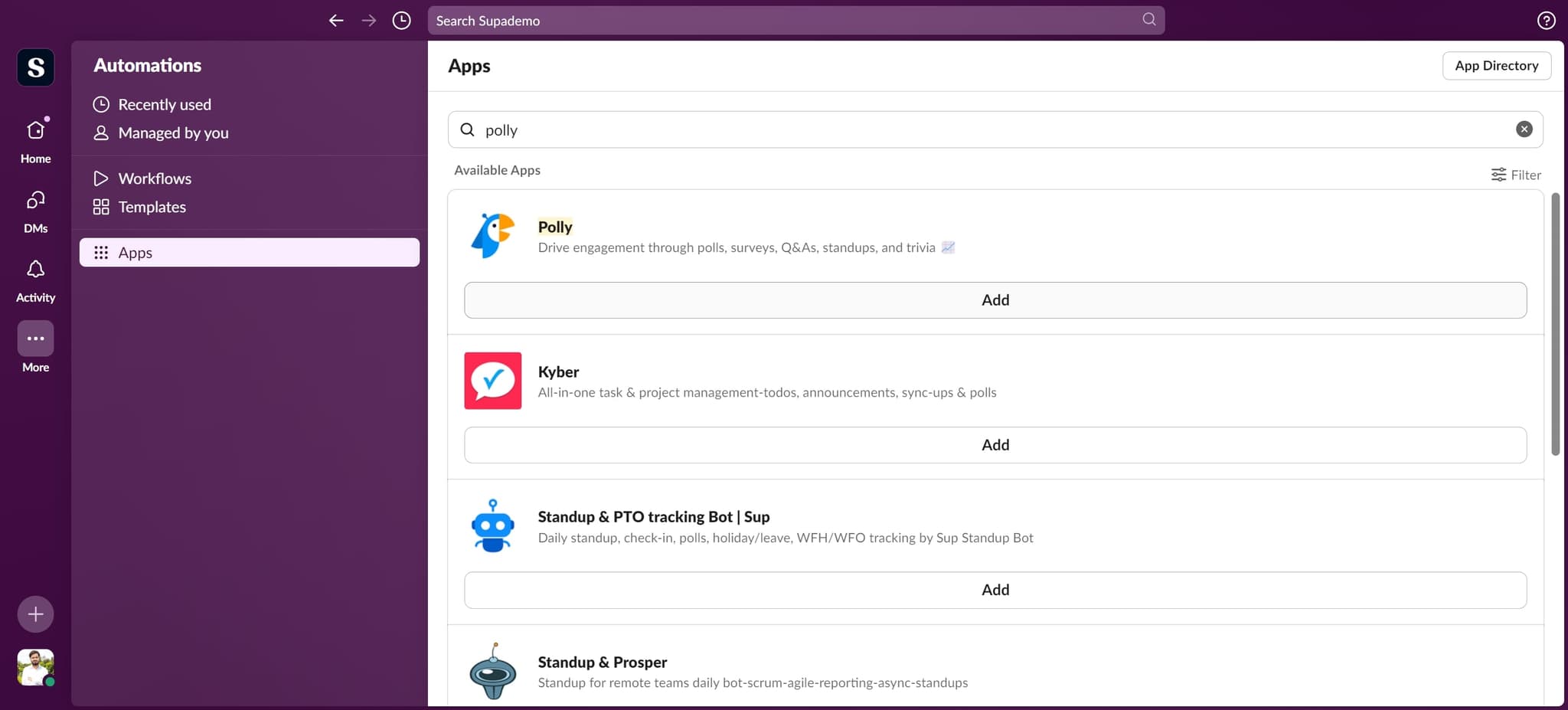
Select Polly from results
Click on the element to select Polly from the search results. This will take you to the Polly app page where you can review its features and permissions.
- 4
Click Add to install
Click on the 'Add' button to install Polly into your Slack workspace. You may be prompted to review and approve the permissions the app needs to function.
- 5
Complete the installation
Click on the element to proceed with finalizing the Polly installation. This step completes the app setup in your workspace.
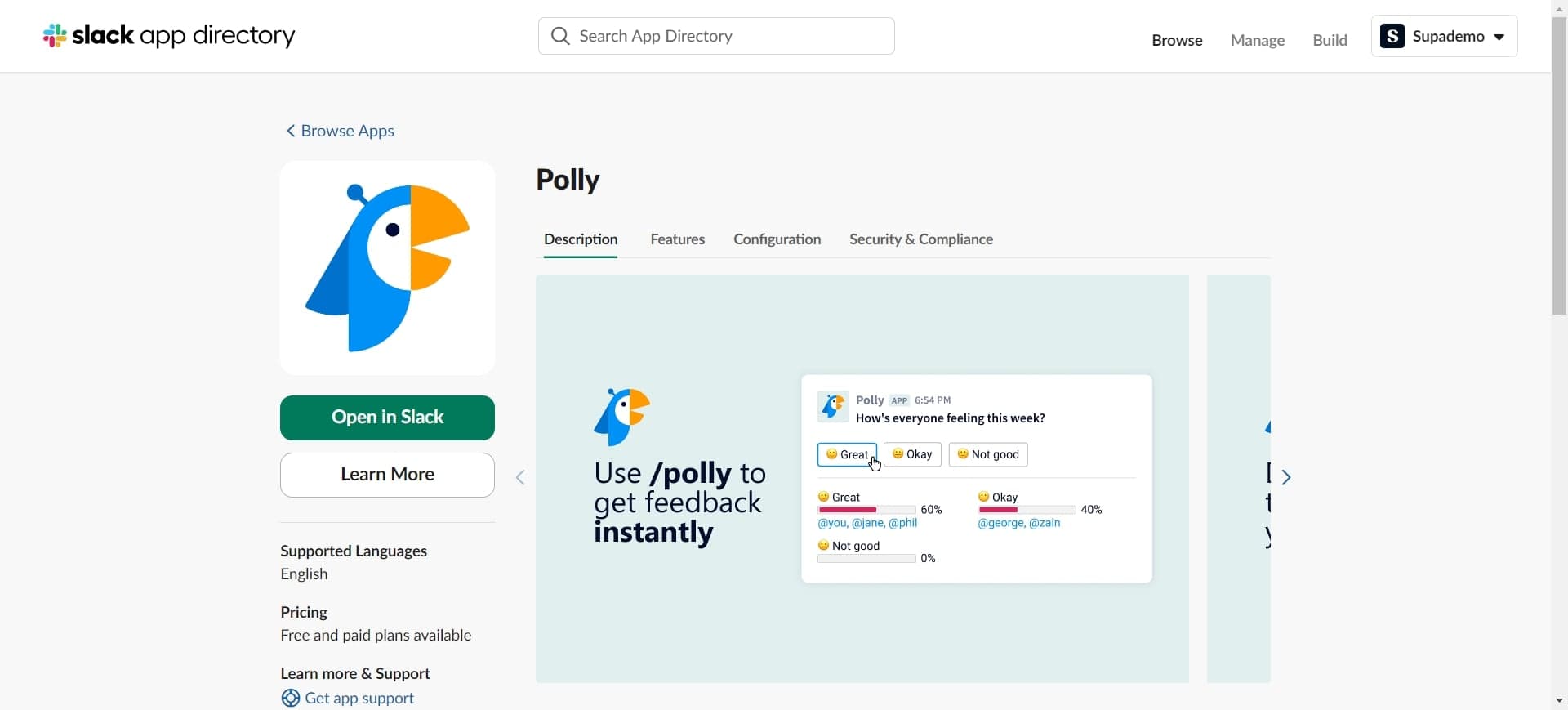
- 6
Open in Slack
Click on 'Open in Slack' to launch the Polly app interface directly in your Slack workspace. This will open the app's main dashboard where you can start creating polls.
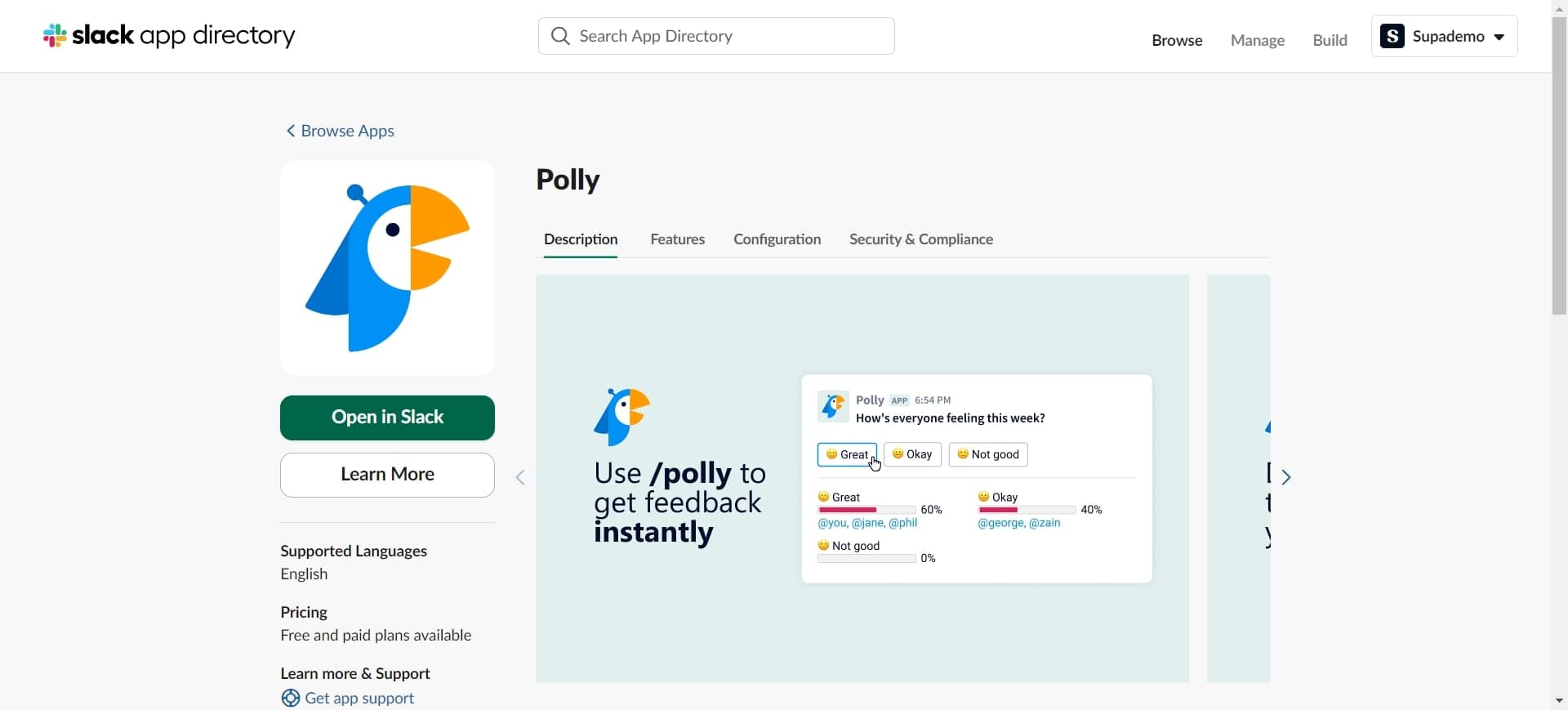
- 7
Choose browser option if needed
Click on 'Or, you can open this link in your browser' if you prefer to access Polly through your web browser instead of the Slack app. Both options provide the same functionality.
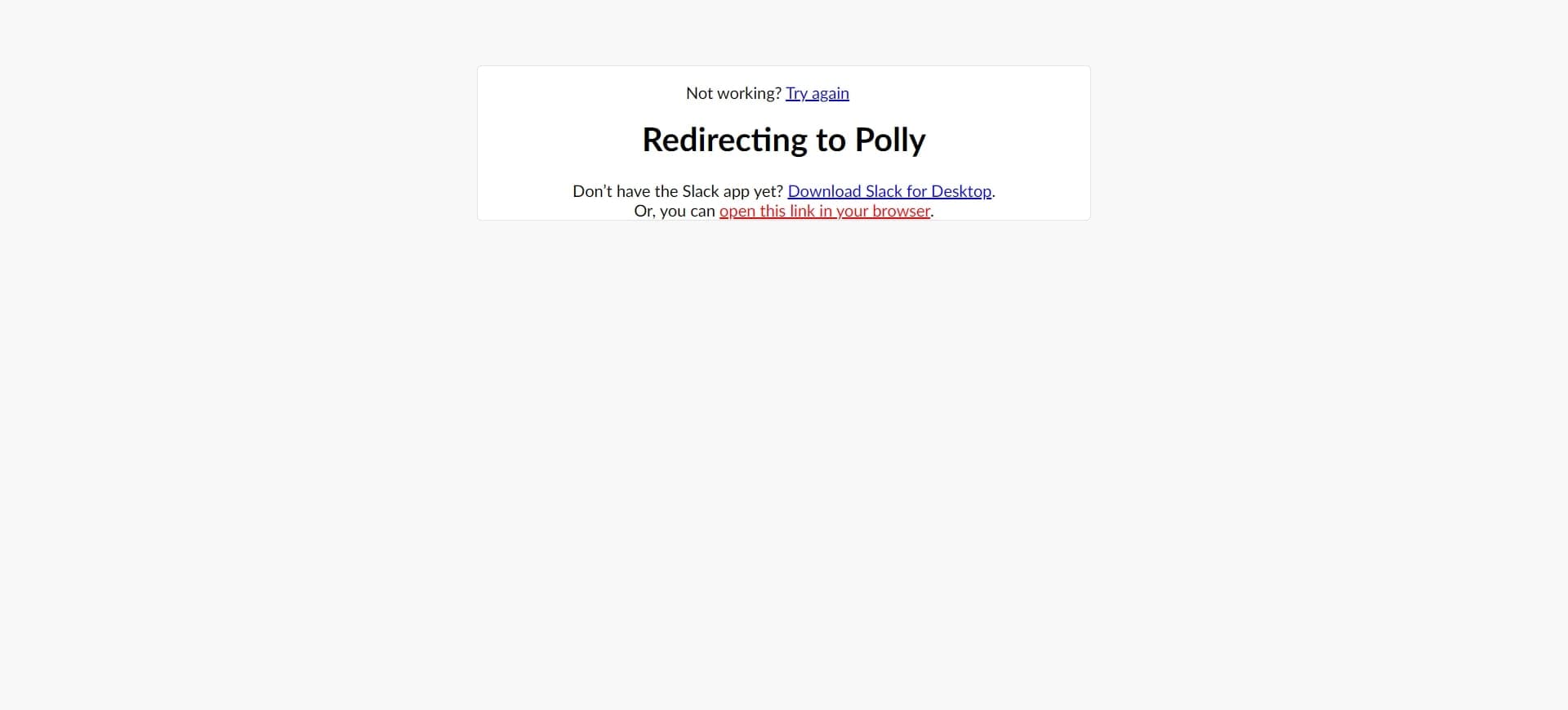
- 8
Access the Polly interface
Click on the element to fully load the Polly dashboard. You'll now see the main interface where poll creation options are available.
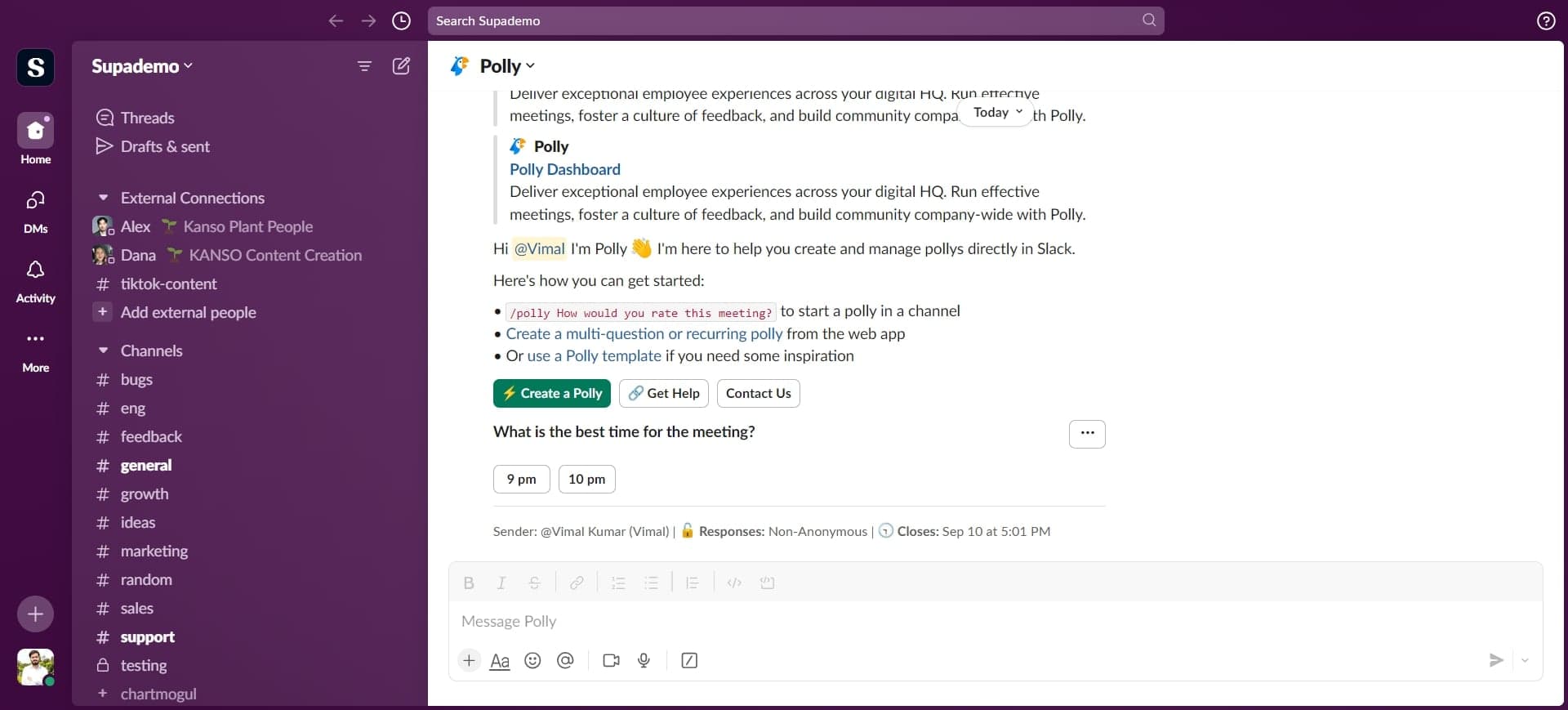
- 9
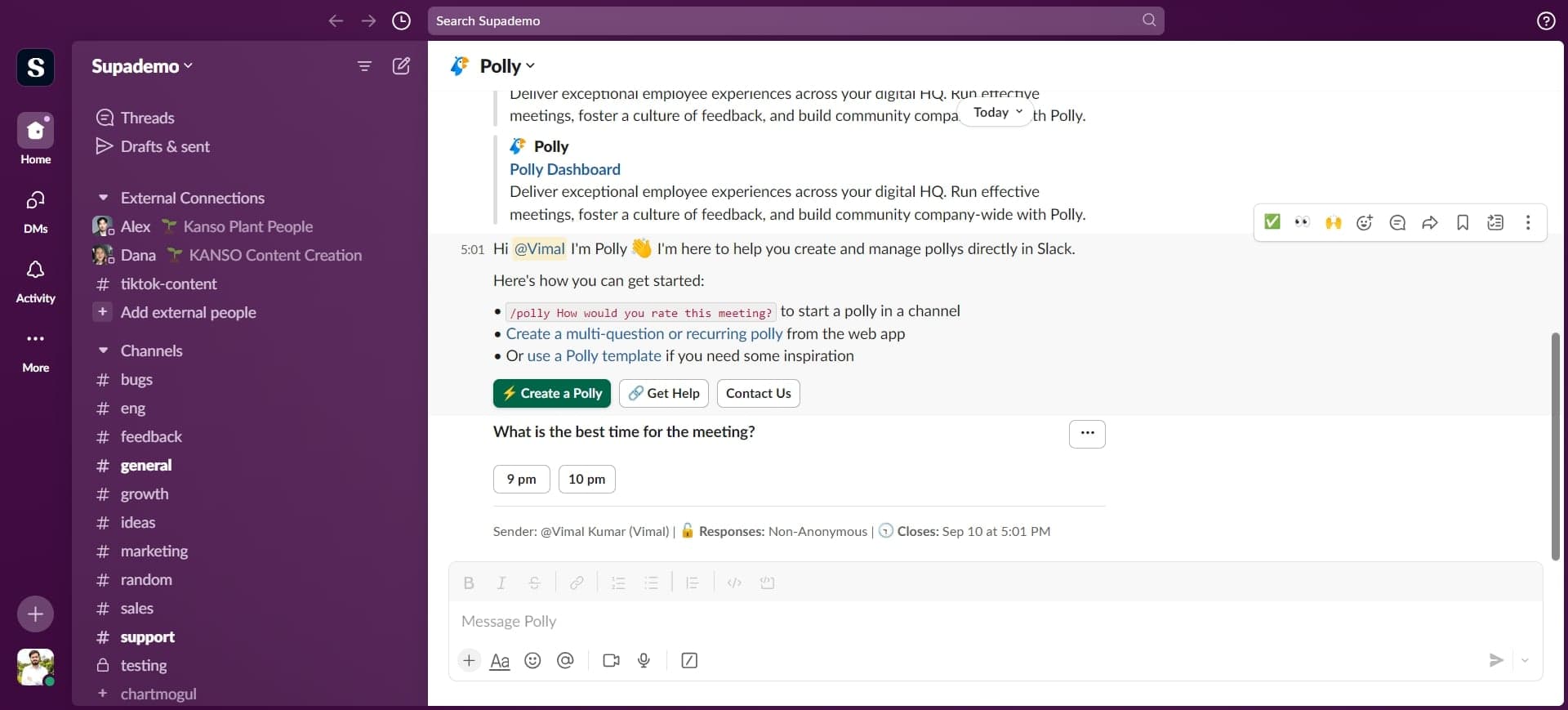
Select Create a Poll
Click on 'Create a Poll' to start building your new poll. This action opens the poll creation form where you'll define your question and options.
- 10
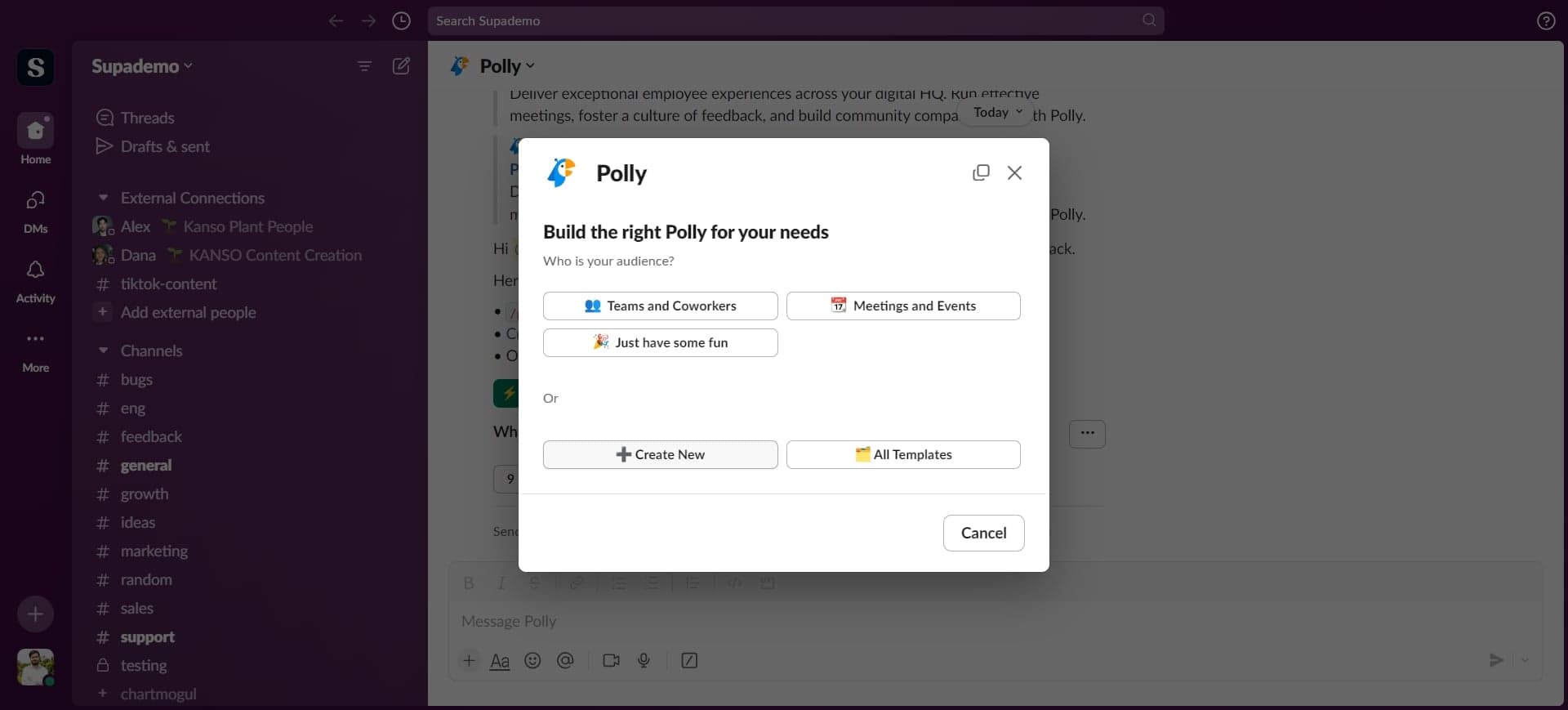
Click Create New
Click on 'Create New' to begin setting up a fresh poll from scratch. You'll now be able to configure the poll's details and format.
- 11
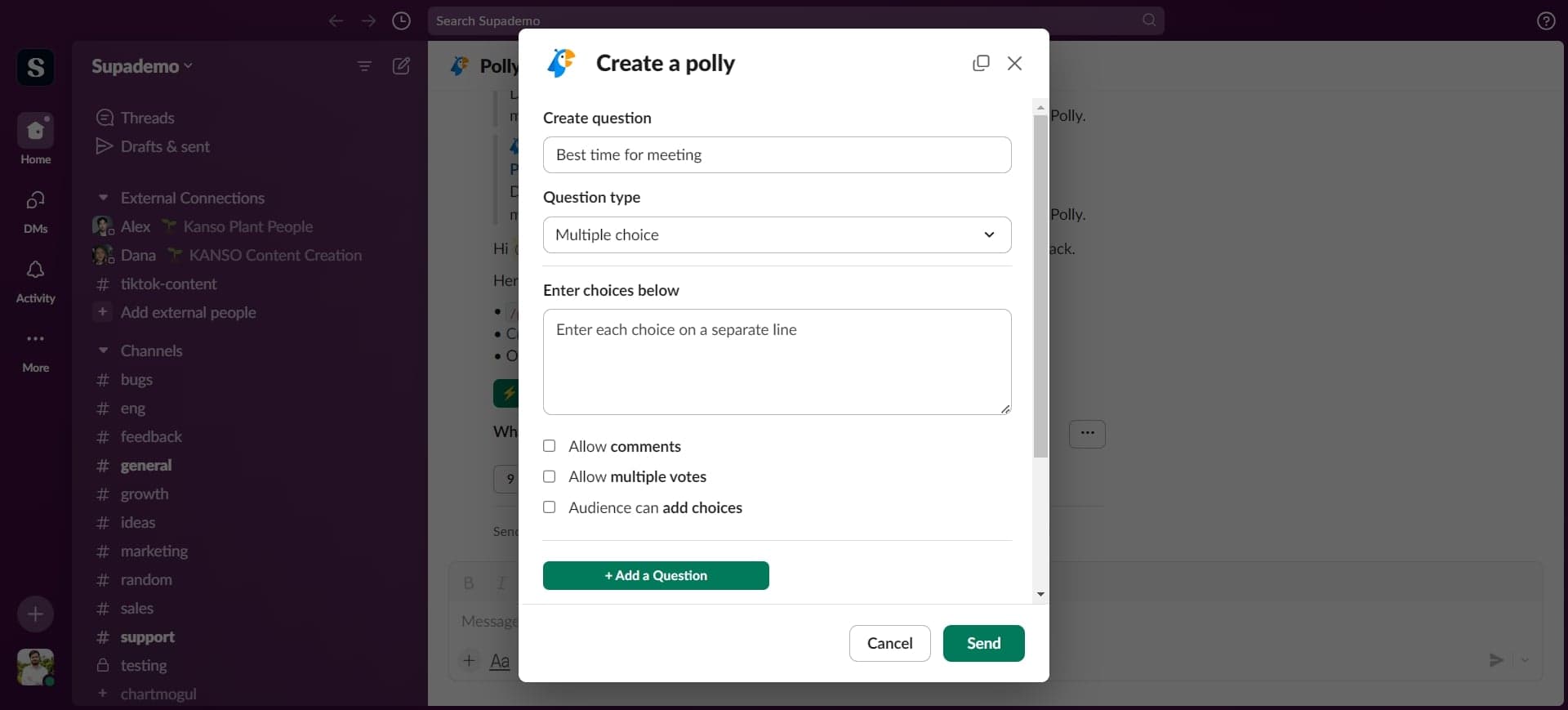
Choose Multiple Choice format
Click on 'Multiple choice' to select this poll type. This format allows respondents to select one answer from several predefined options.
- 12
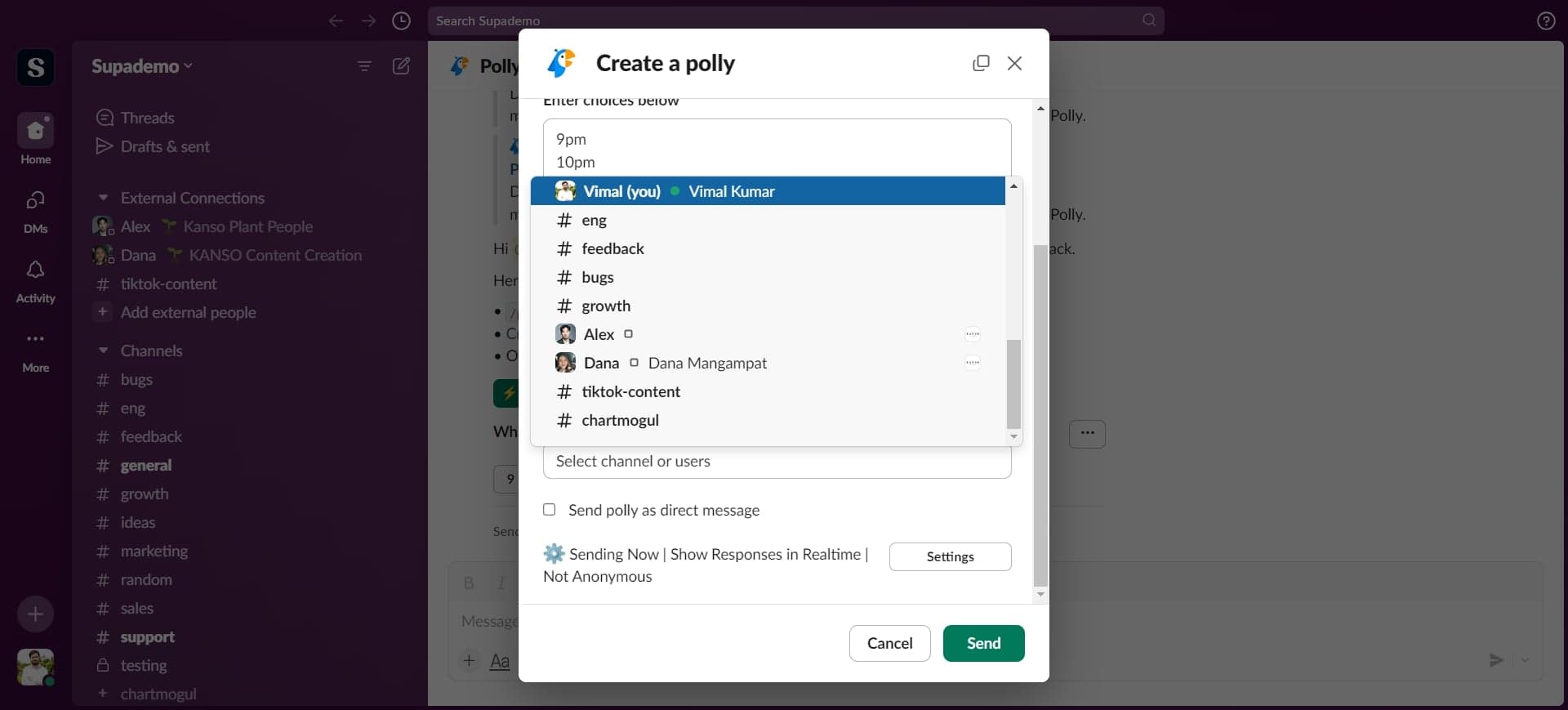
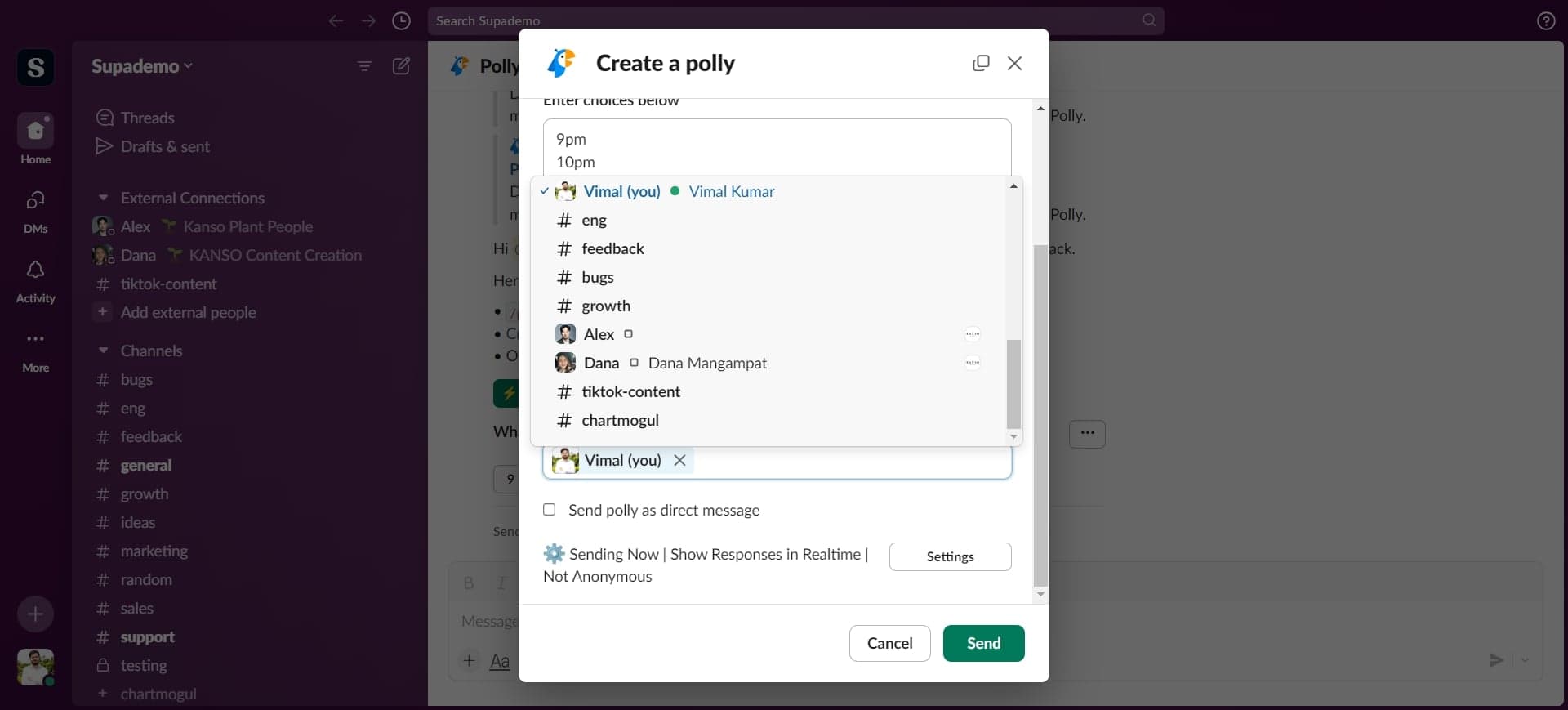
Select poll creator
Click on 'Vimal(you)' to designate yourself as the poll creator. This ensures the poll is attributed to your account and you have full editing permissions.
- 13
Configure poll settings
Click on the element to access additional settings for your poll. Here you can customize options like anonymous responses, display preferences, and other poll parameters.
- 14
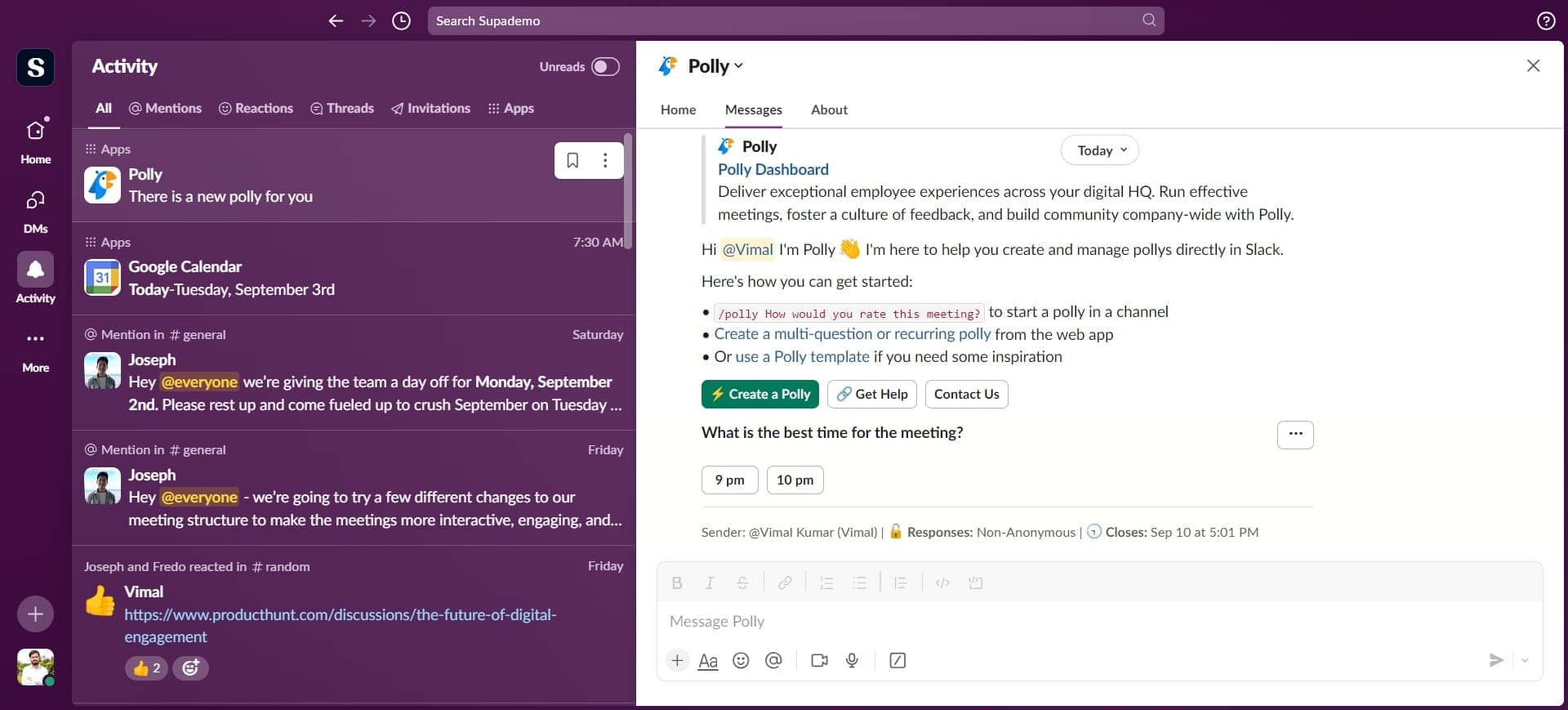
Finalize with Polly
Click on 'Polly' to complete and create your poll. Your poll is now ready to be shared with your Slack channel or team members.
Frequently asked questions
Common questions about how to create a poll in slack.
Typically, only Slack workspace admins can install new apps from the app directory. If you don't have admin access, you can request that your workspace admin install Polly for you. Once installed, any team member can create polls.
Yes, Polly offers anonymous polling options that you can enable during poll creation. This setting allows team members to vote without revealing their identity, which can encourage more honest feedback on sensitive topics.
After creating your poll, you can share it directly to a Slack channel or send it to specific team members. The poll will appear as a message in the selected channel with voting options displayed inline for easy participation.
Polly allows you to edit certain aspects of a poll after creation, such as adding more options or adjusting settings, depending on how many votes it has already received. However, it's generally best to finalize all details before sharing to avoid confusion.
Polls created in Polly remain active indefinitely unless you manually close them. You can close a poll at any time to stop accepting votes and view the final results. This gives you flexibility to run polls for as long as needed.