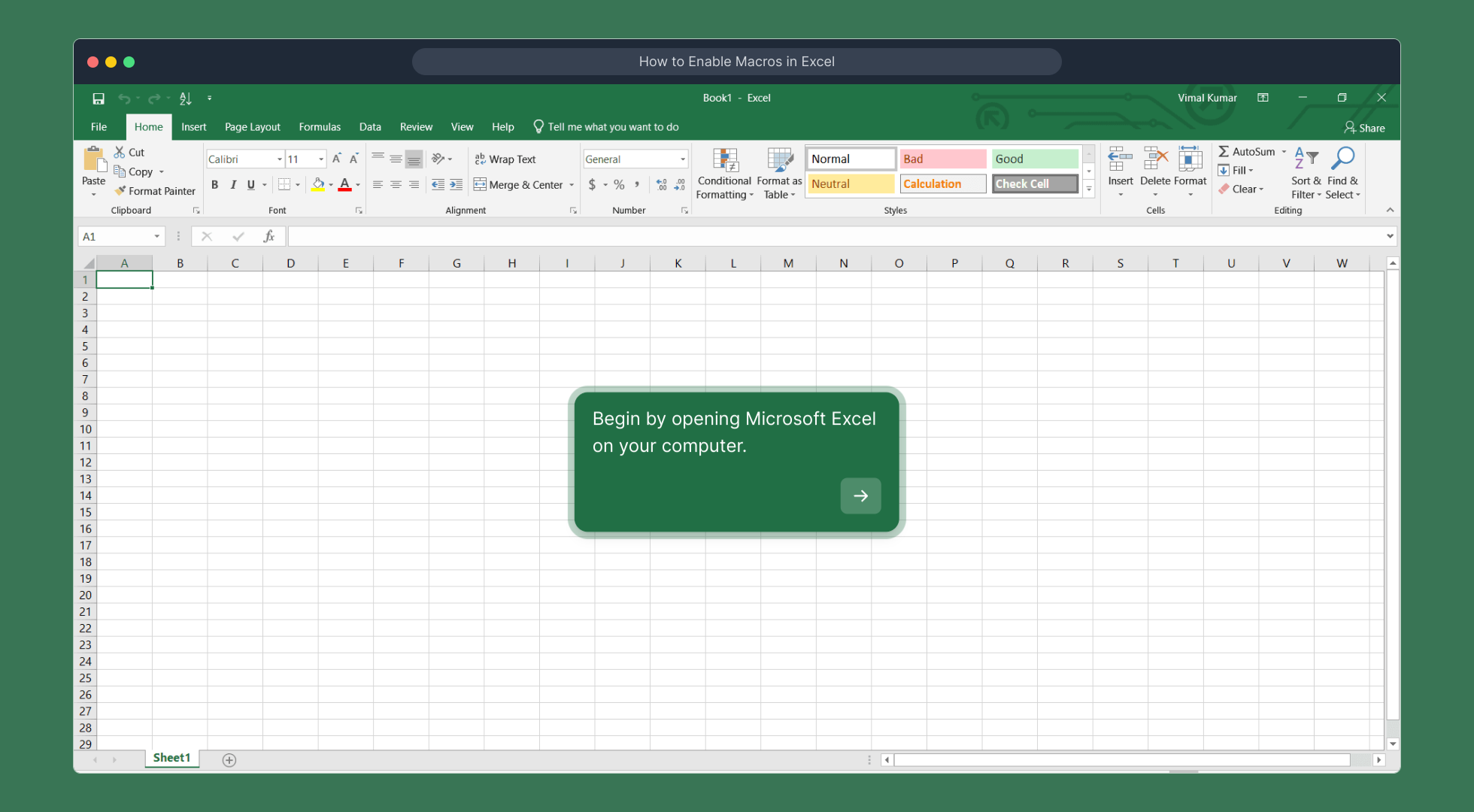
1. Begin by opening Microsoft Excel on your computer.
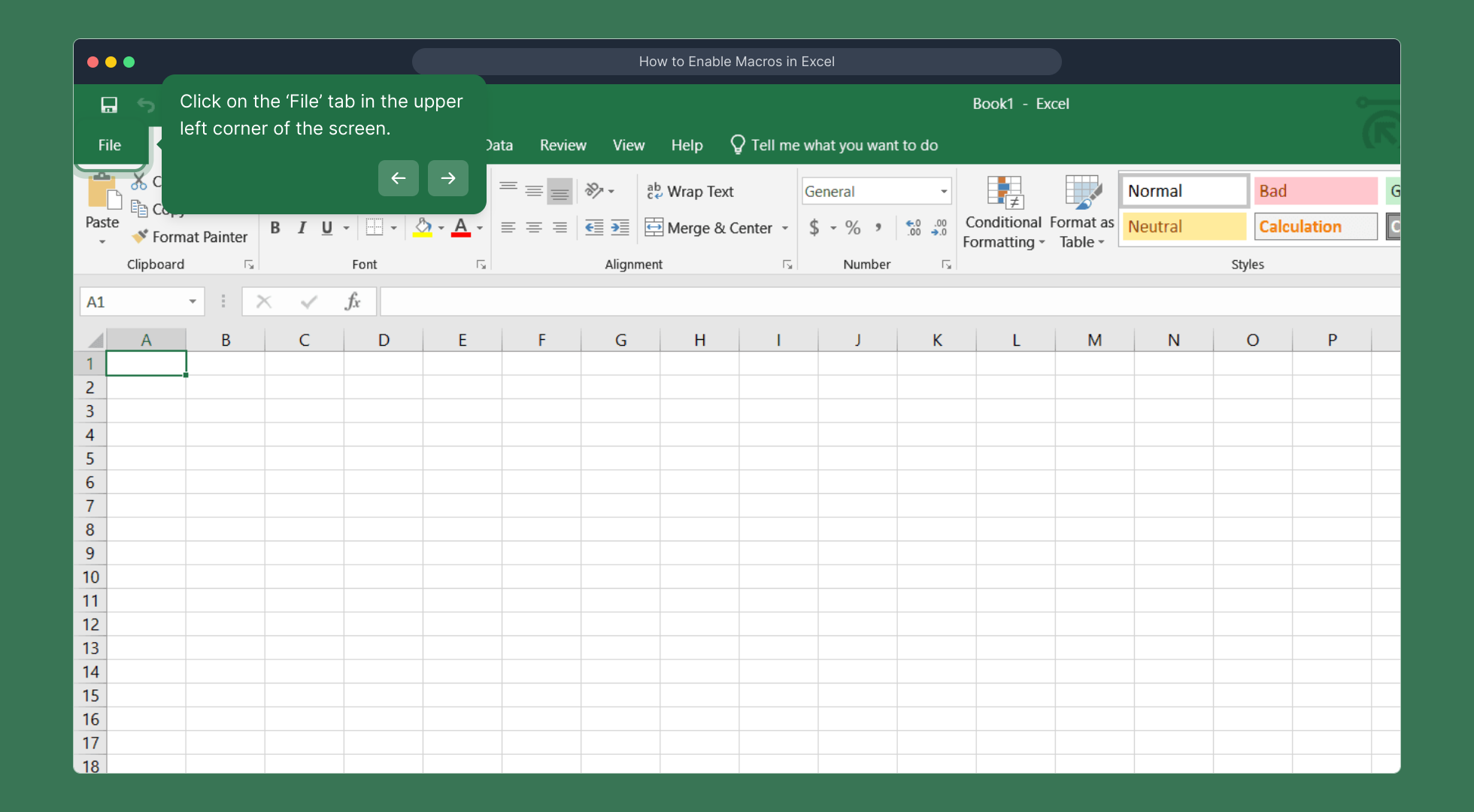
2. Click on the ‘File’ tab in the upper left corner of the screen.
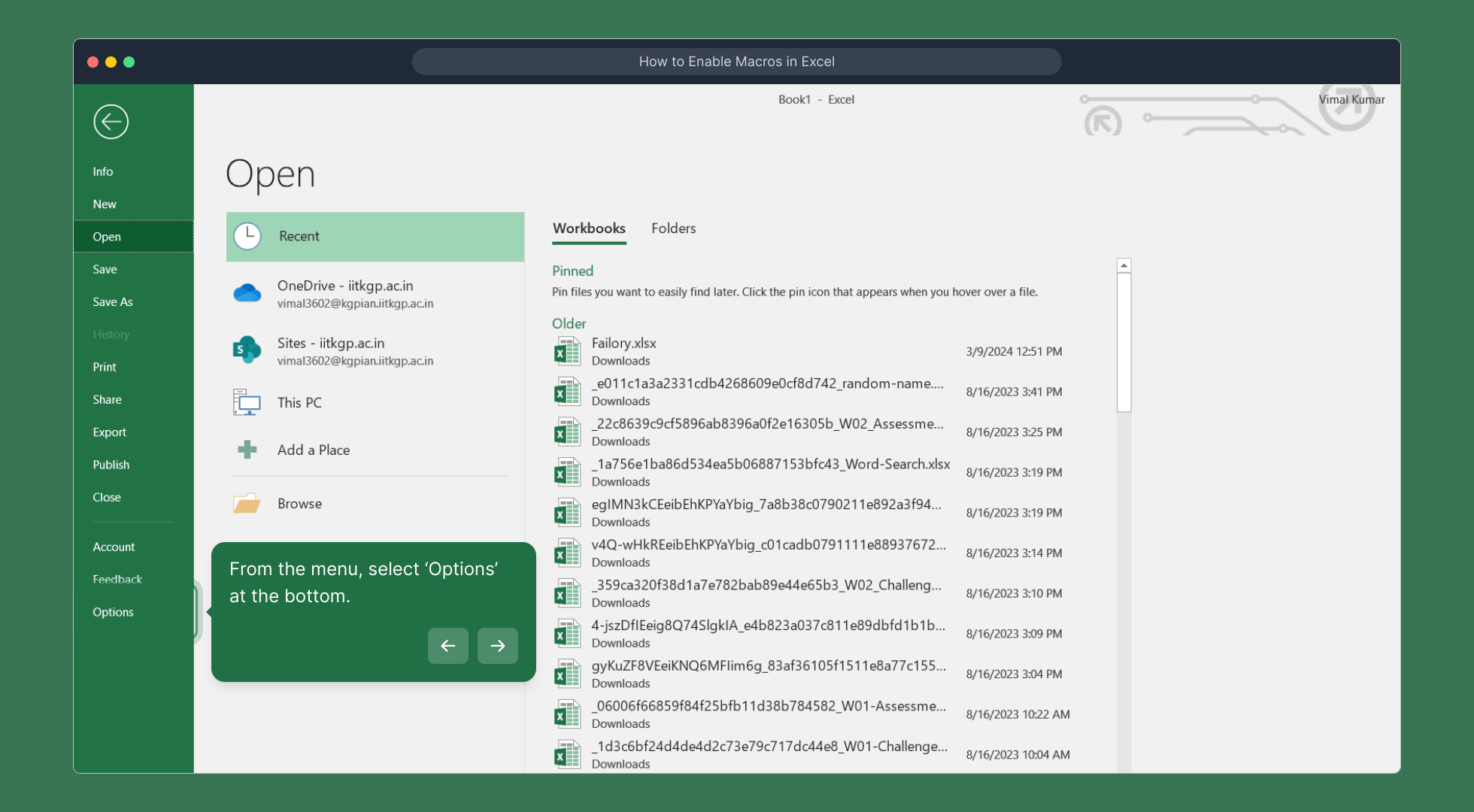
3. From the menu, select ‘Options’ at the bottom.
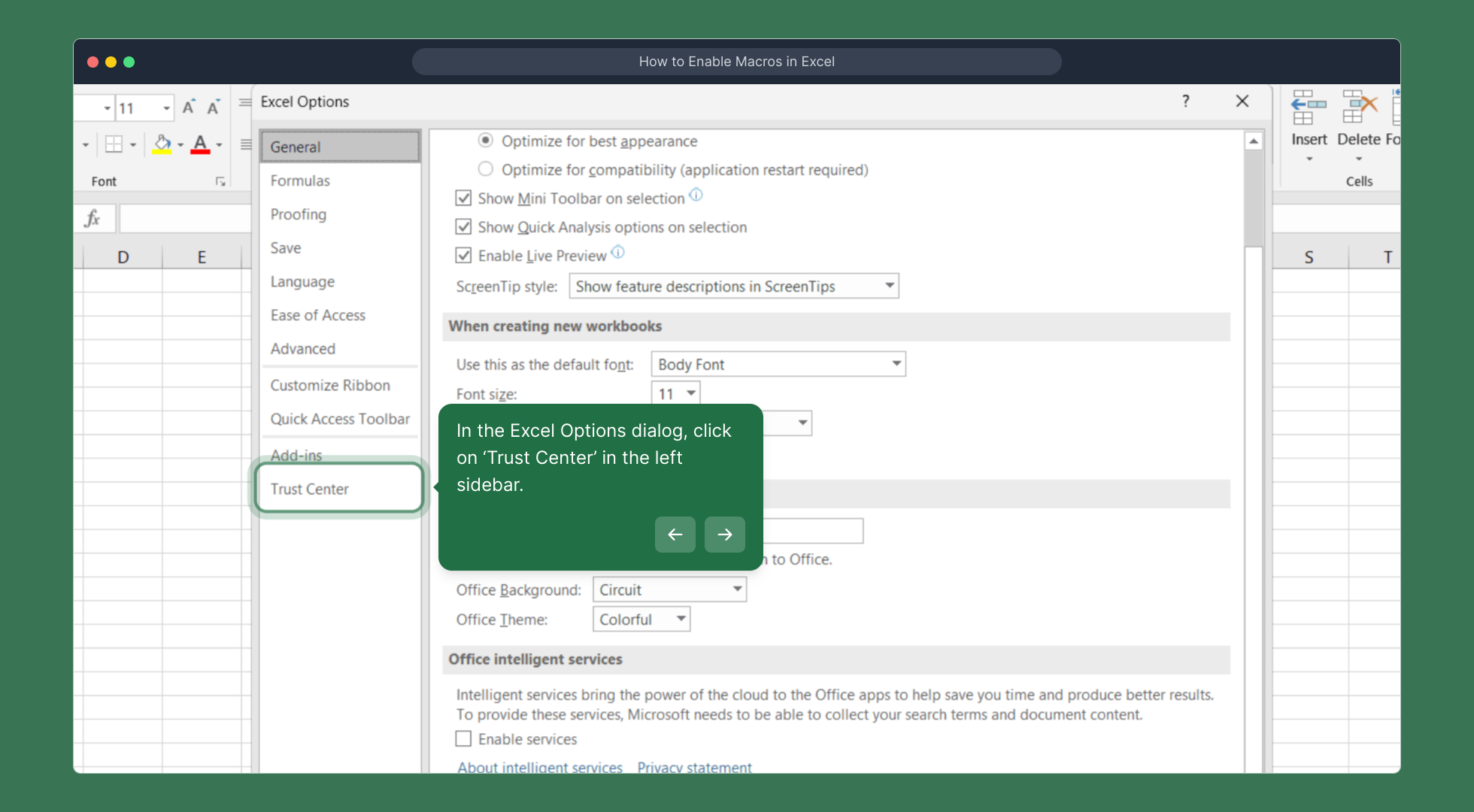
4. In the Excel Options dialog, click on ‘Trust Center’ in the left sidebar.
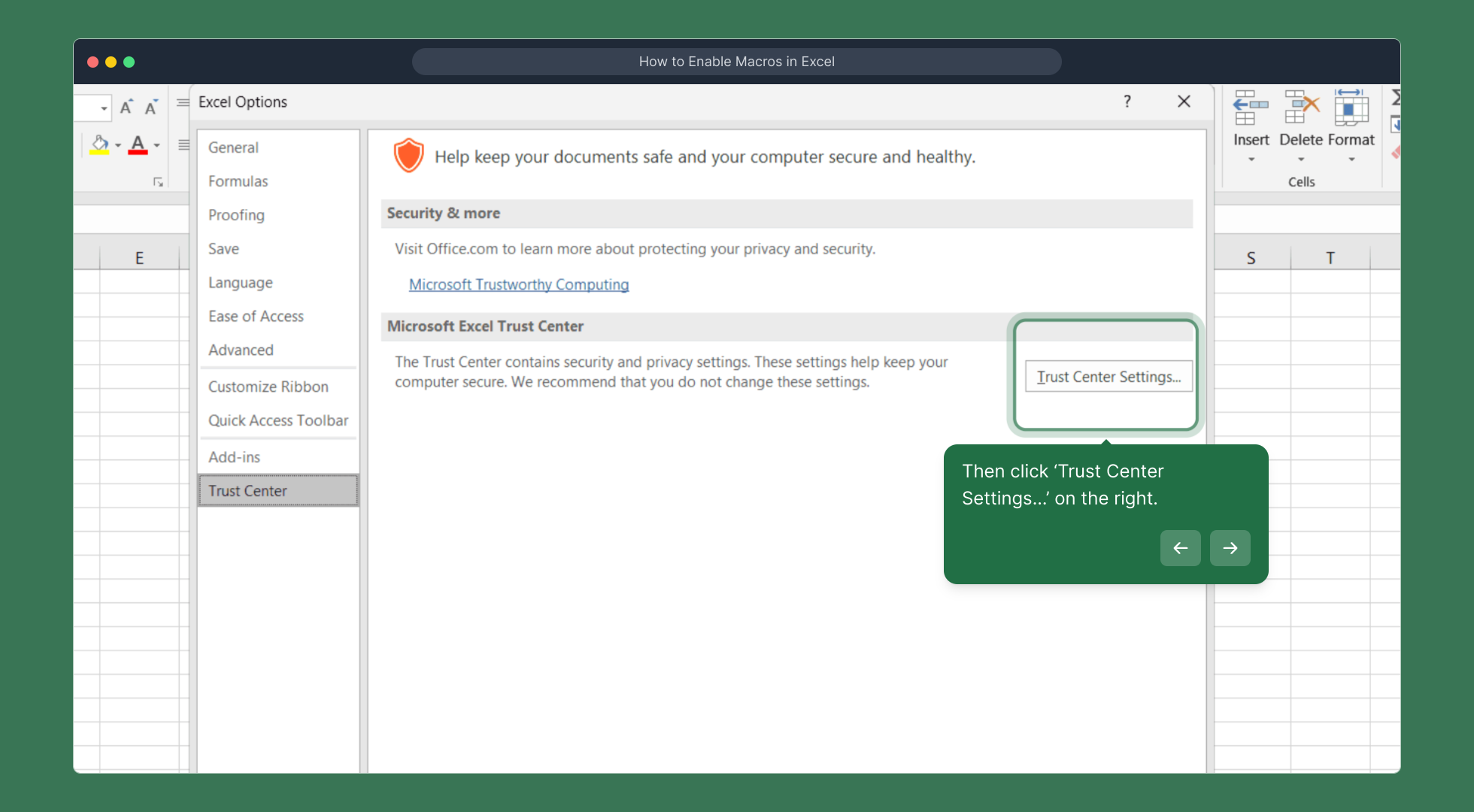
5. Then click ‘Trust Center Settings…’ on the right.
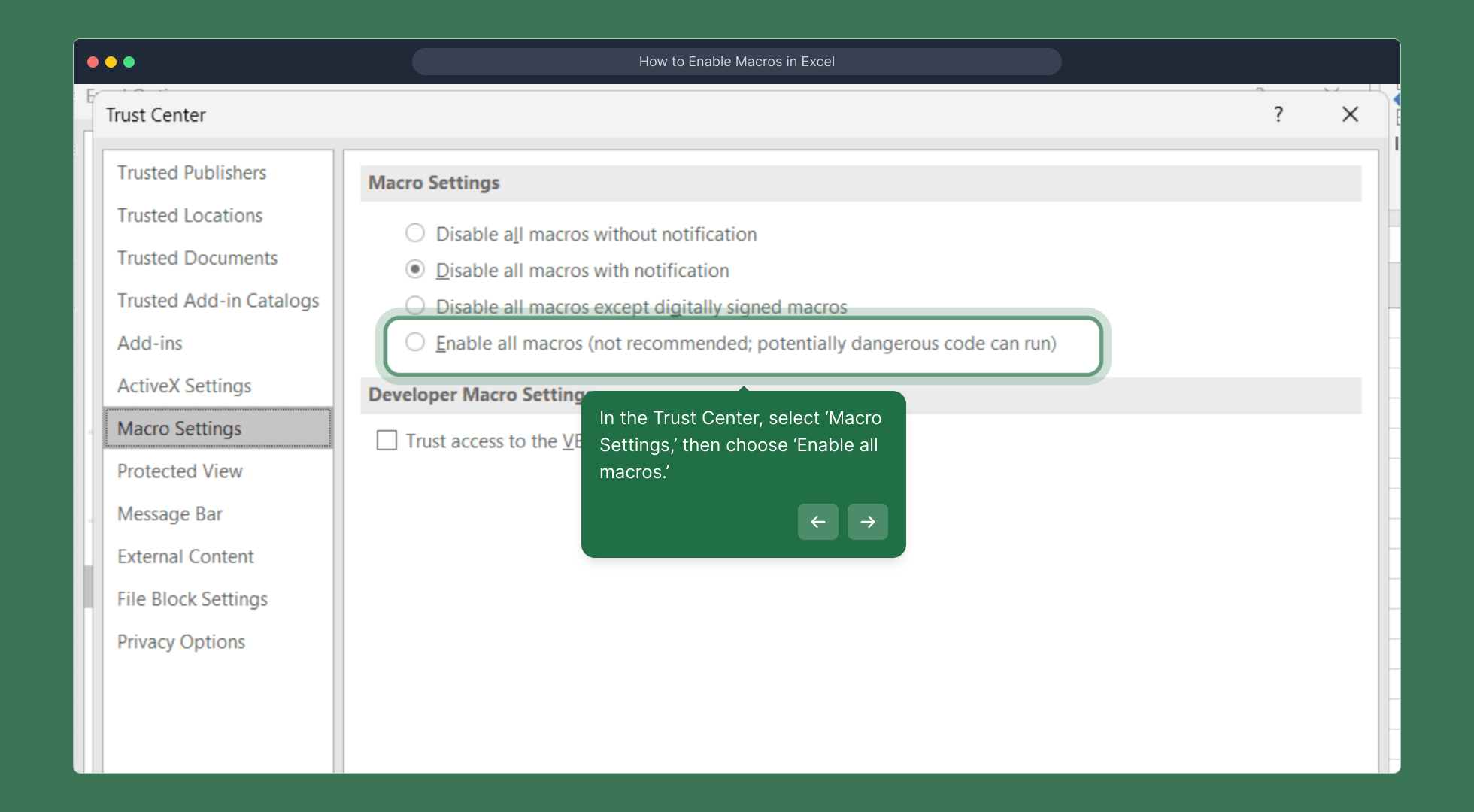
6. In the Trust Center, select ‘Macro Settings,’ then choose ‘Enable all macros.’
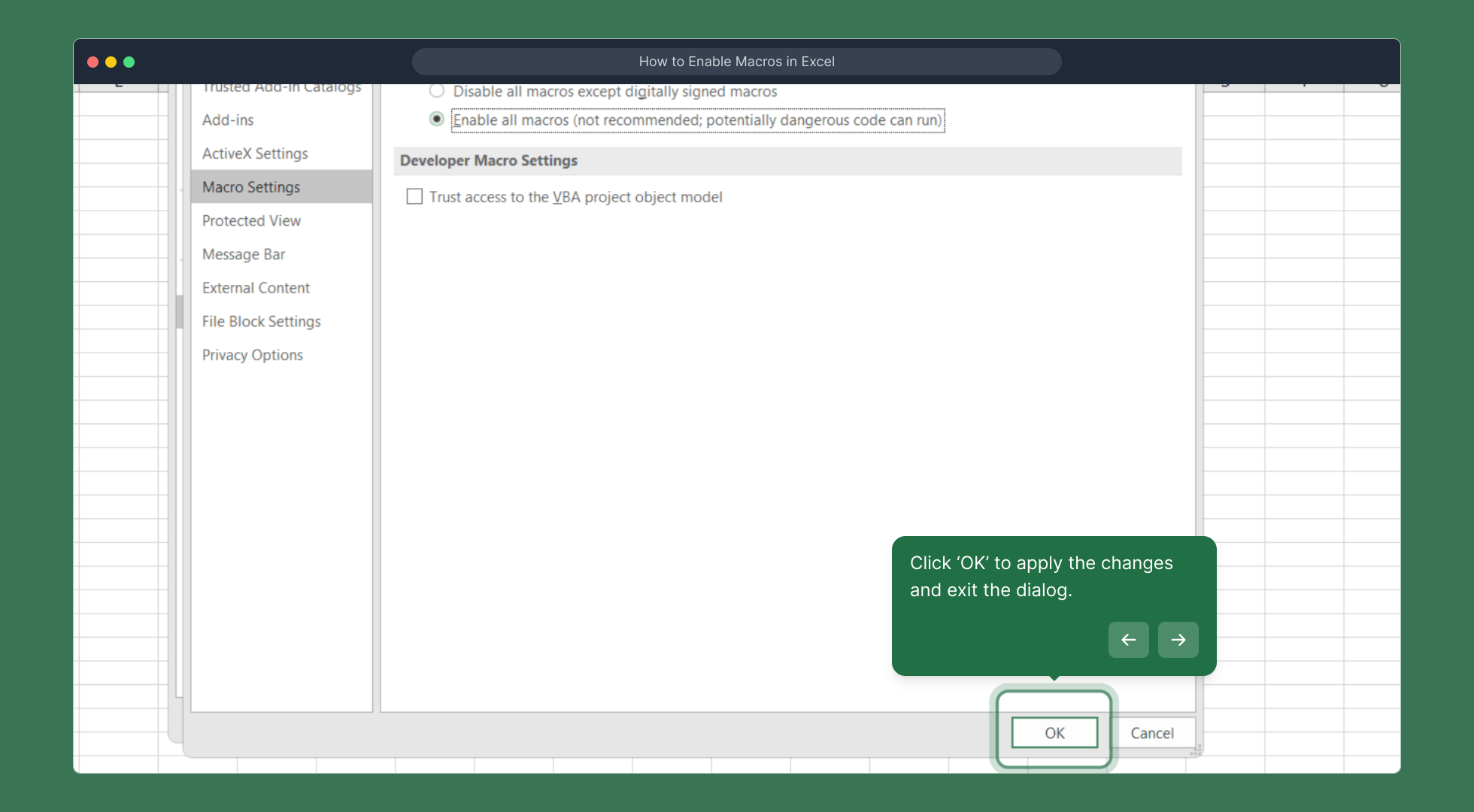
7. Click ‘OK’ to apply the changes and exit the dialog.
8. Enjoyed the guided demo?
This interactive demo/guided walkthrough on How to Enable Macros in Excel was created using Supademo.
How to Enable Macros in Excel : Step-by-Step Guide
Start by launching Microsoft Excel on your computer so you can access your spreadsheets and settings.
Once Excel is open, look to the upper left corner of the window and select the ‘File’ tab. This is where you manage your document and application settings.
From the sidebar menu that appears, scroll down and click on ‘Options.’ This will open a window where you can customize various Excel preferences.
In the Excel Options dialog box, focus on the left-hand side and find the ‘Trust Center’ tab; this section controls your security and privacy settings.
Next, on the right side of the Trust Center page, click on the ‘Trust Center Settings…’ button to delve deeper into the security options Excel offers.
Inside the Trust Center window, select ‘Macro Settings’ from the options, then choose the option to ‘Enable all macros.’ This allows macros to run, which is important if your files use automated functions.
After making these changes, click ‘OK’ to confirm and close the Trust Center, then click ‘OK’ again to exit the Excel Options menu, applying your new settings.
Did you find this walkthrough helpful? We're glad to guide you through these steps to better customize your Excel experience.

Create your own interactive demos in < 5 mins with Supademo
You can create your own interactive product demo in minutes using Supademo. Drive growth, scale enablement, and supercharge product-led onboarding with Supademo. Sign up for free here with no credit card required.
FAQs
Commonly asked questions about this topic.
What are macros in Excel?
Why do I need to enable macros in Excel?
Is enabling all macros safe in Excel?
How can I check my current macro security settings?
Will enabling macros work for all Excel versions?
What happens if I don’t enable macros?
Can I selectively enable macros for specific workbooks?
How do I enable macros on Mac versions of Excel?
Can enabling macros fix issues with Excel add-ins?
How do I disable macros after enabling them?

Vimal Kumar
Product Operations Associate
Vimal Kumar helps build and grow Supademo’s team and GTM efforts, with a focus on figuring out growth levers and improving product traction.




