How to Raise Hand in Zoom

Raising your hand in Zoom is a professional way to indicate you want to speak during meetings, webinars, or large group calls without interrupting the speaker. This feature helps maintain order and ensures everyone gets a chance to participate.
Quick summary
In this tutorial, you'll learn how to raise your hand in Zoom using the meeting controls. We'll walk you through locating the raise hand feature and using it effectively during your video calls.
Why this matters
Raising your hand signals to the host and other participants that you have something to contribute while keeping the meeting organized and respectful. This is especially important in professional settings, webinars, and large meetings where multiple people may want to speak.
Step-by-step guide
- 1
Open the Zoom meeting controls
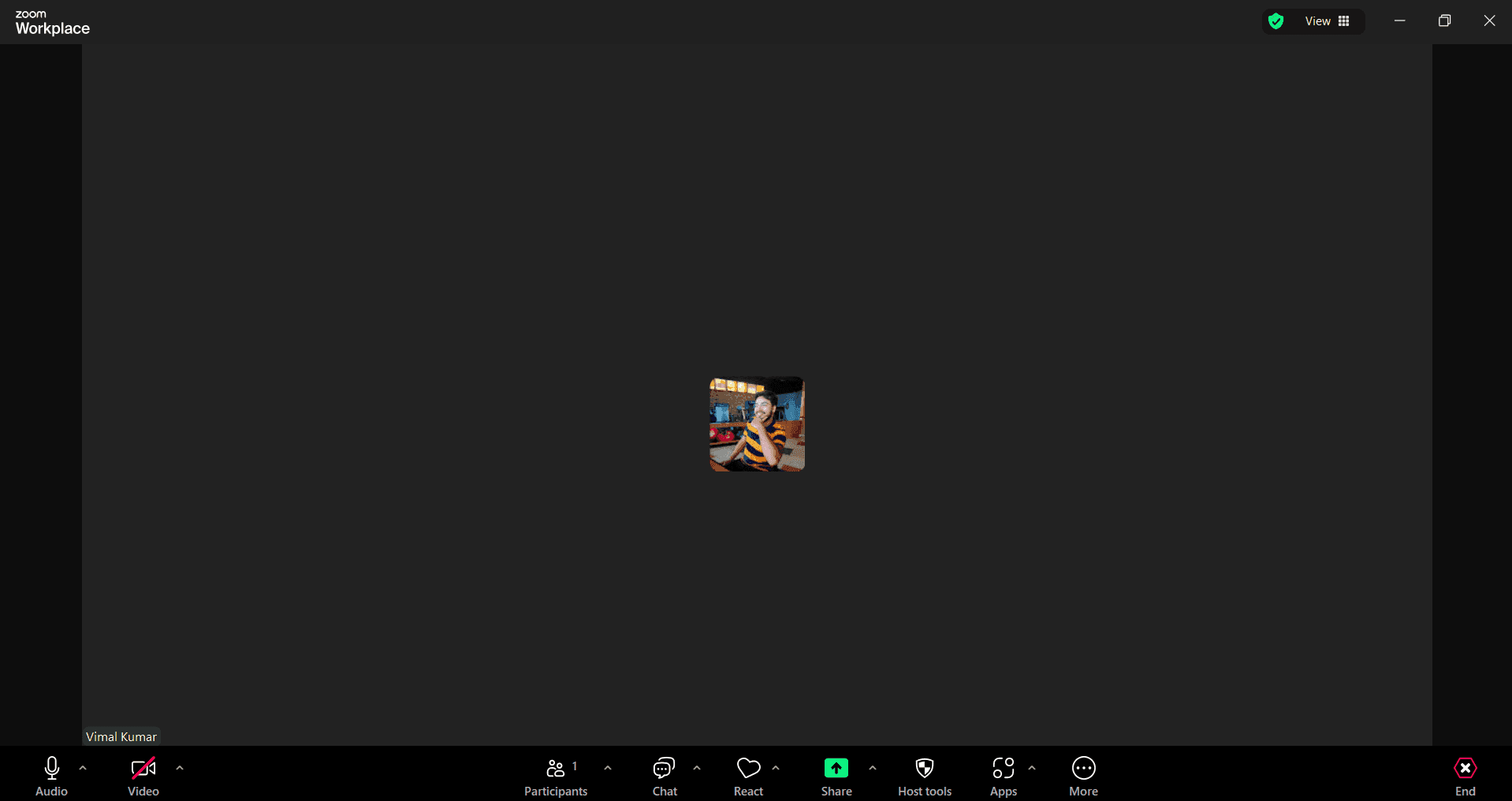
During an active Zoom meeting, look at the bottom of your screen to find the meeting toolbar. If the toolbar is not visible, move your mouse to the bottom of the video window to reveal it.
- 2
Locate the Participants button
In the meeting toolbar, find and click the Participants button, which typically appears as a group of people icon. This opens the participants panel on the right side of your screen.
- 3
Click the Raise Hand option
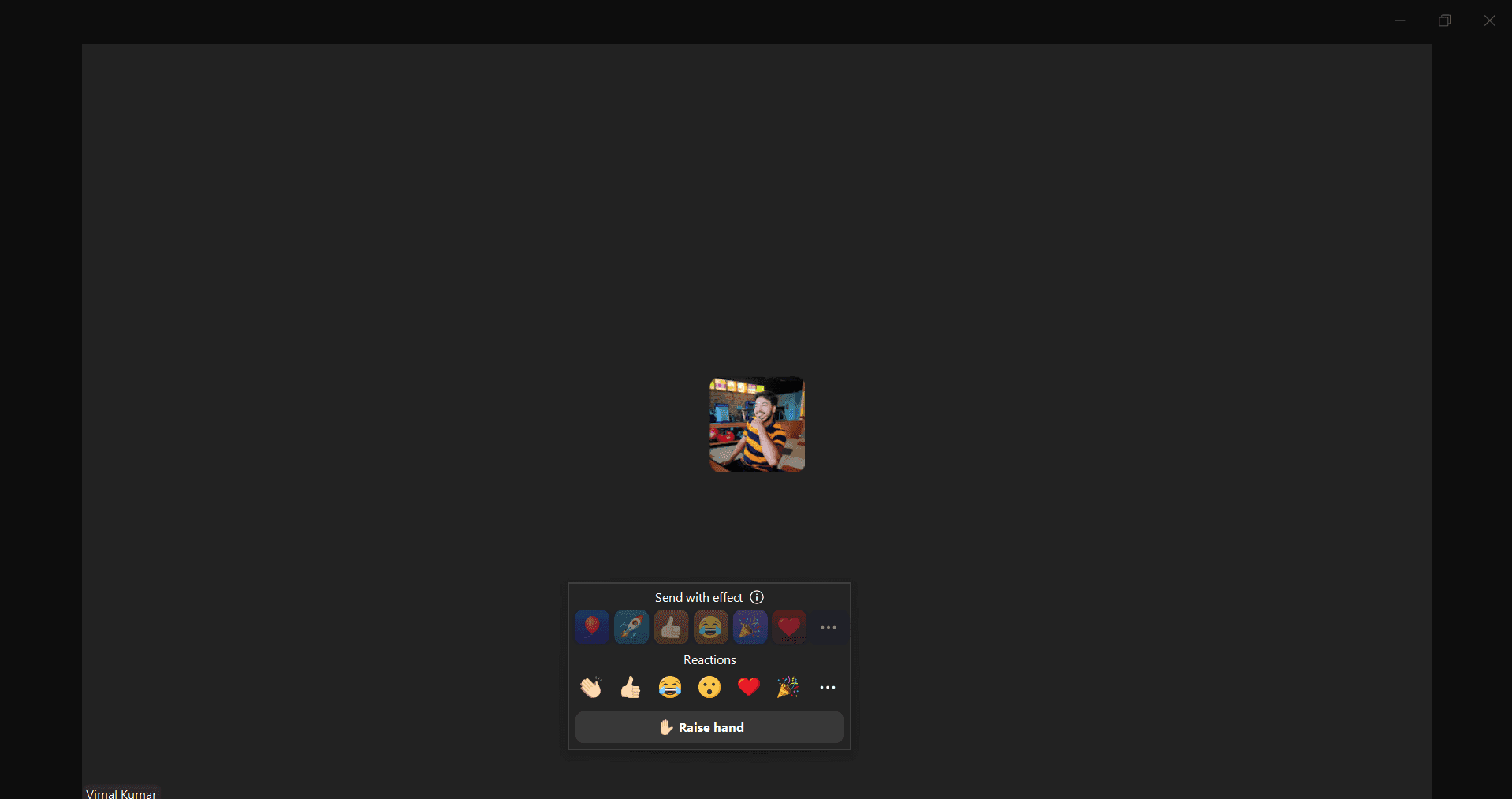
Look for the Raise Hand button in the participants panel or at the bottom of the toolbar, depending on your Zoom version. Click it to raise your hand and notify the host that you want to speak.
- 4
Wait for host recognition
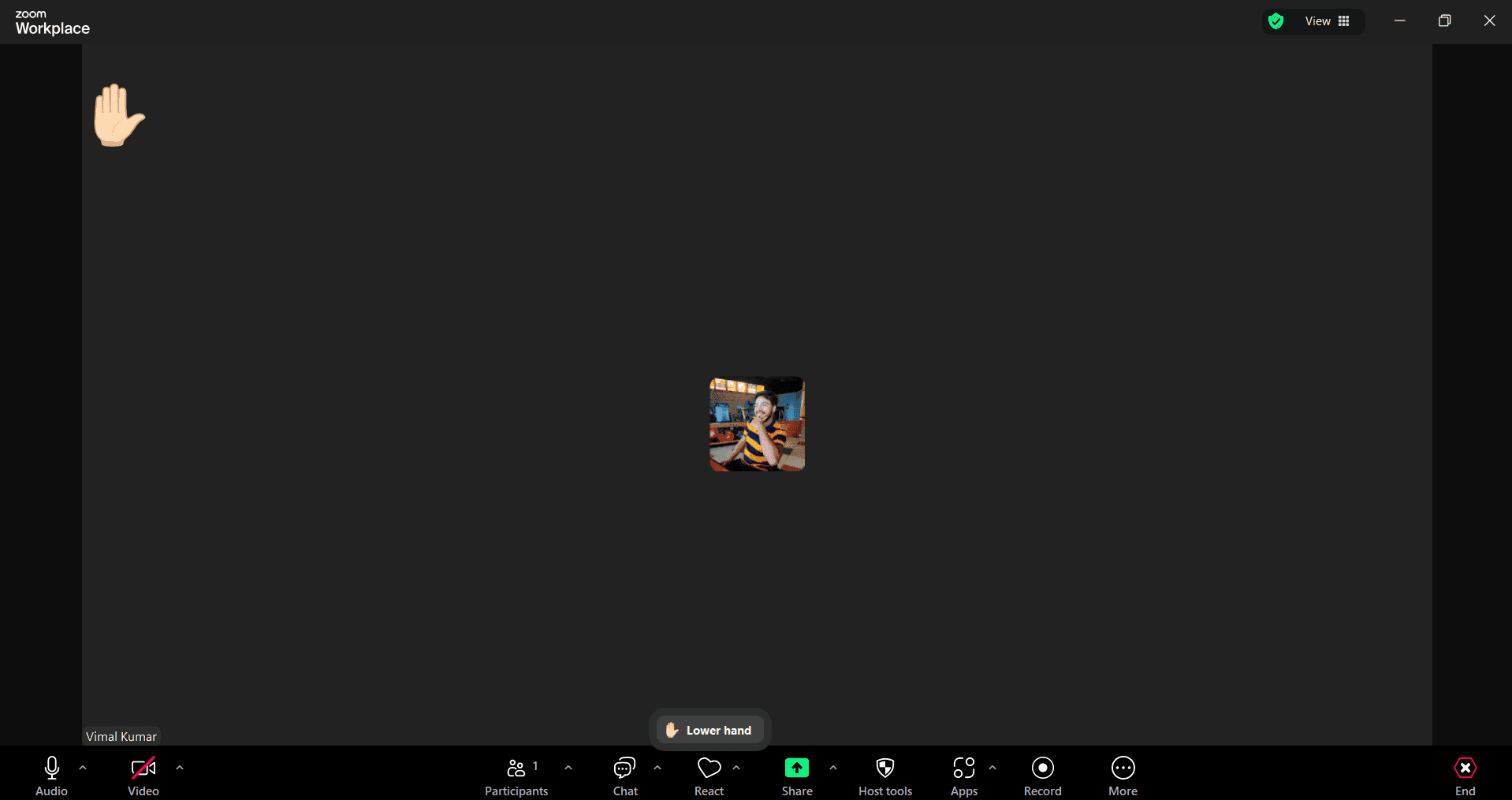
Once you raise your hand, the host will see your name with a raised hand indicator in the participants list. The host may call on you to unmute and speak, or lower your hand manually when they're ready to move forward.
Frequently asked questions
Common questions about how to raise hand in zoom.
Will everyone see when I raise my hand in Zoom?
The host and co-hosts will see your raised hand in the participants list. Depending on meeting settings, other participants may also see it. Your raised hand is most visible to the meeting organizer who can manage speaking order.
How do I lower my hand after raising it?
Click the Raise Hand button again to lower it, or the host can lower it for you from the participants panel. You can also lower it manually if you no longer need to speak or if the host asks you to do so.
Can I raise my hand if I'm on mute?
Yes, you can raise your hand whether you're muted or unmuted. Raising your hand is a separate action from your microphone status and works independently of your audio settings.
What if the Raise Hand button is not visible on my screen?
The raise hand feature may be hidden in the toolbar. Try clicking the More button (three dots) at the bottom of the screen, or open the Participants panel to find the raise hand option there. It may also be unavailable if the host has disabled it for the meeting.
Does raising my hand automatically unmute me?
No, raising your hand does not automatically unmute your microphone. You will need to unmute yourself manually when the host calls on you to speak, unless the host has specific settings that auto-unmute participants.