
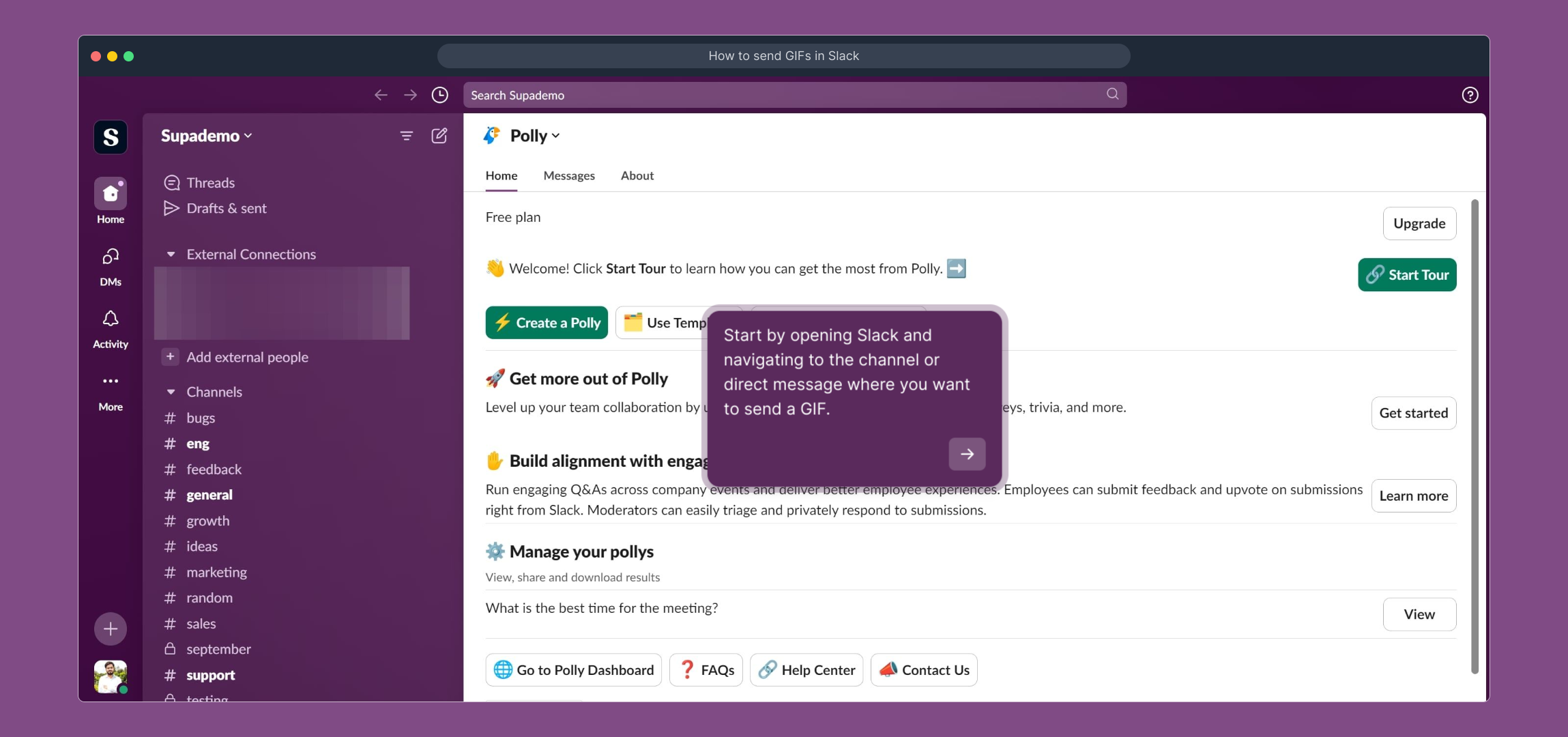
1. Start by opening Slack and navigating to the channel or direct message where you want to send a GIF.
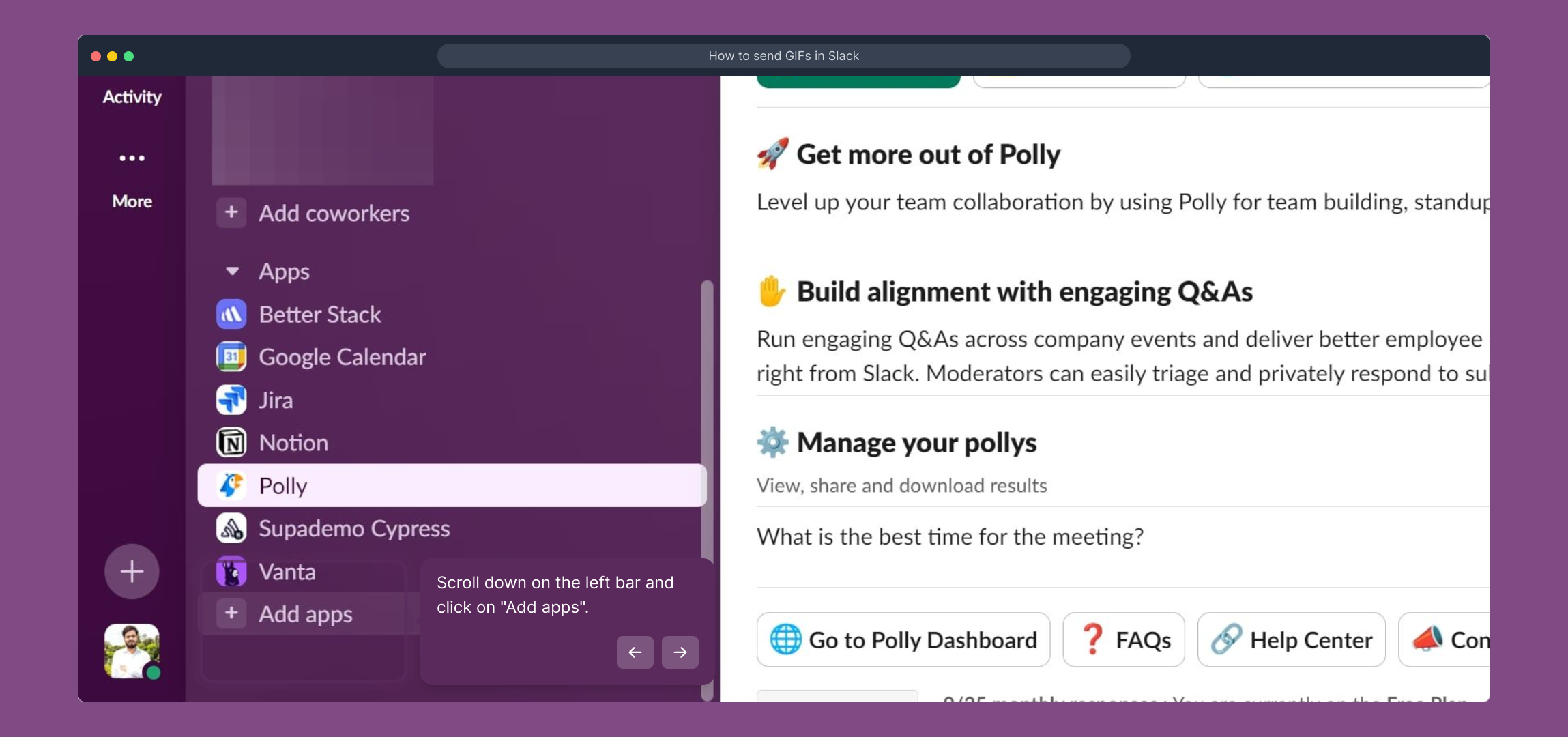
2. Scroll down on the left bar and click on "Add apps".
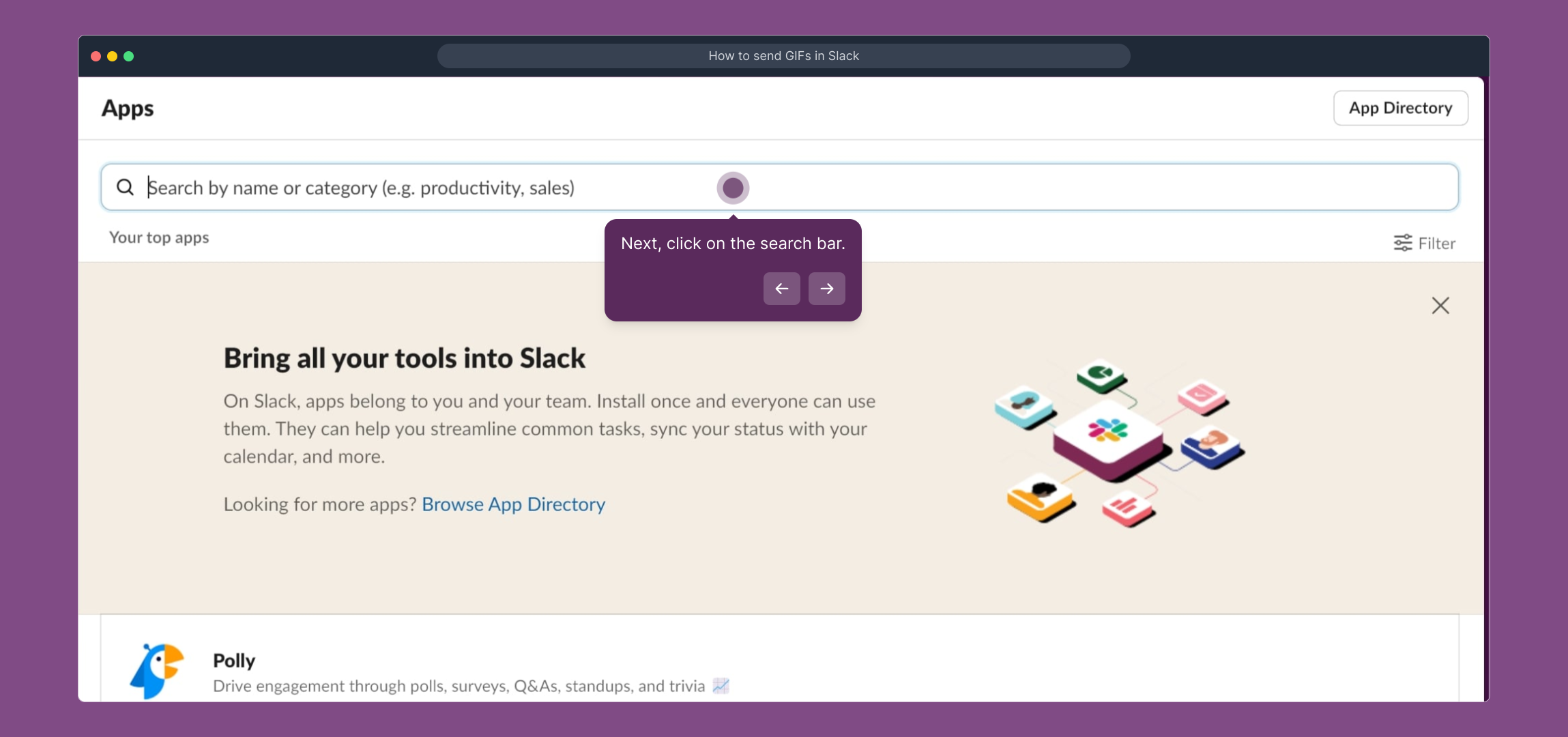
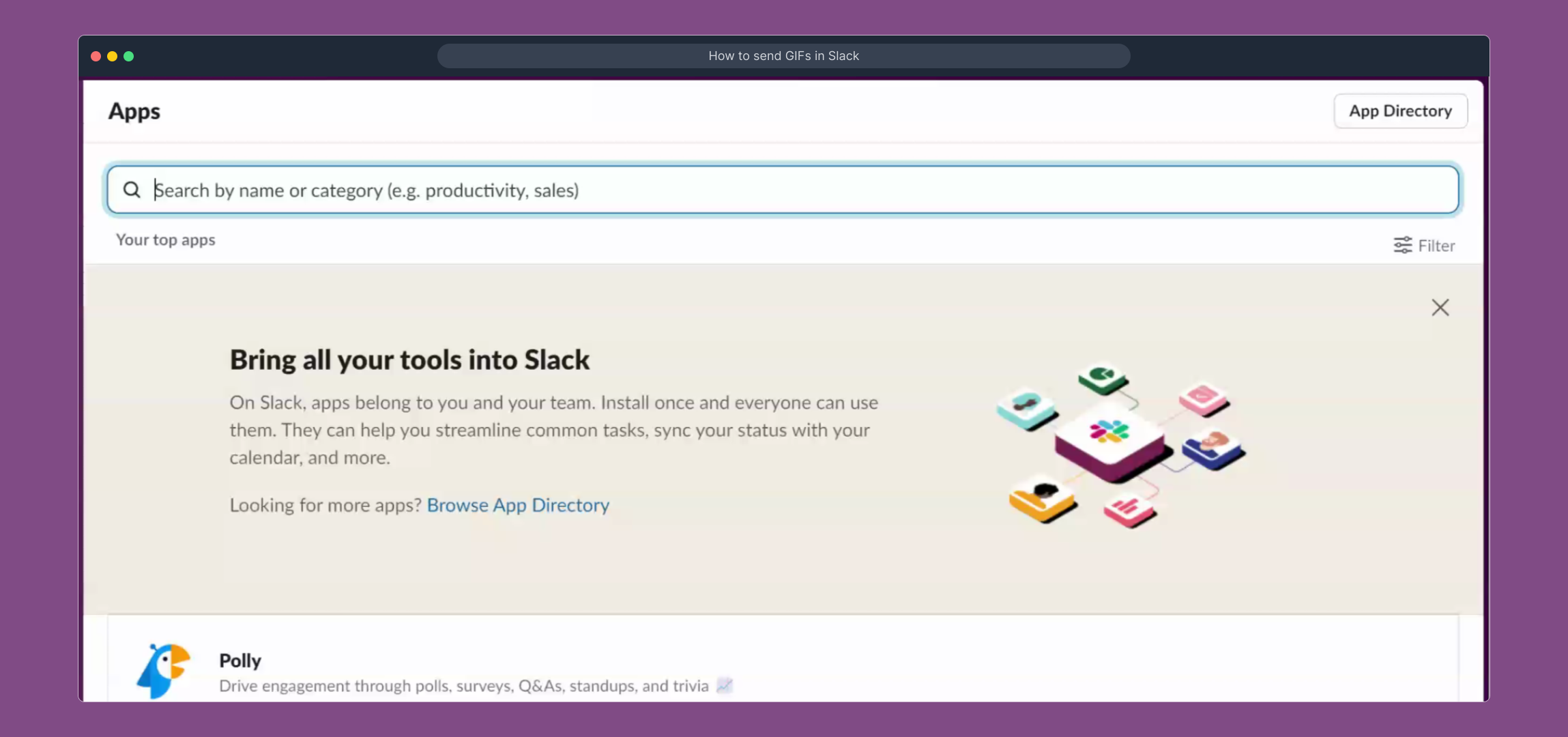
3. Next, click on the search bar.
4. Video Step (
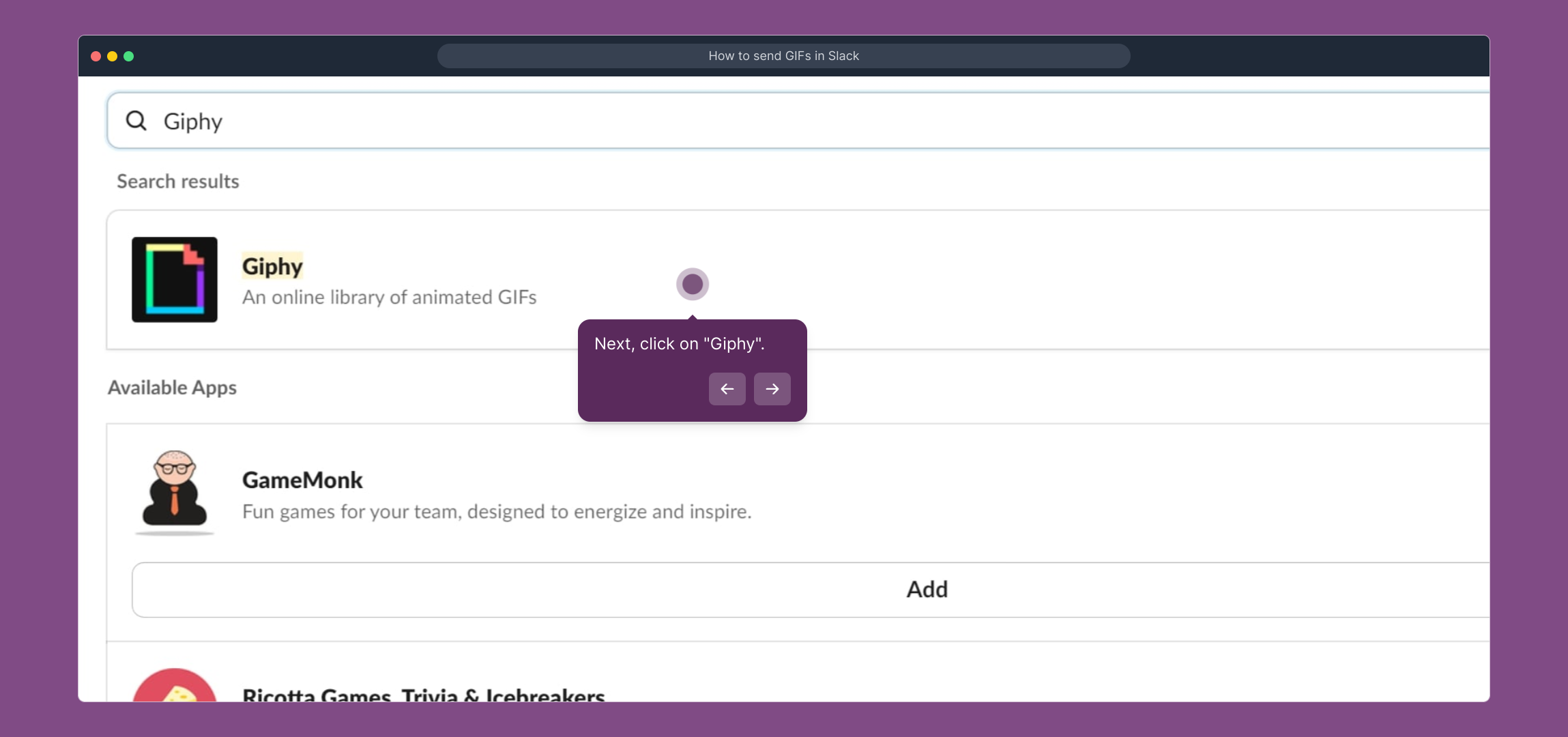
5. Next, click on "Giphy".
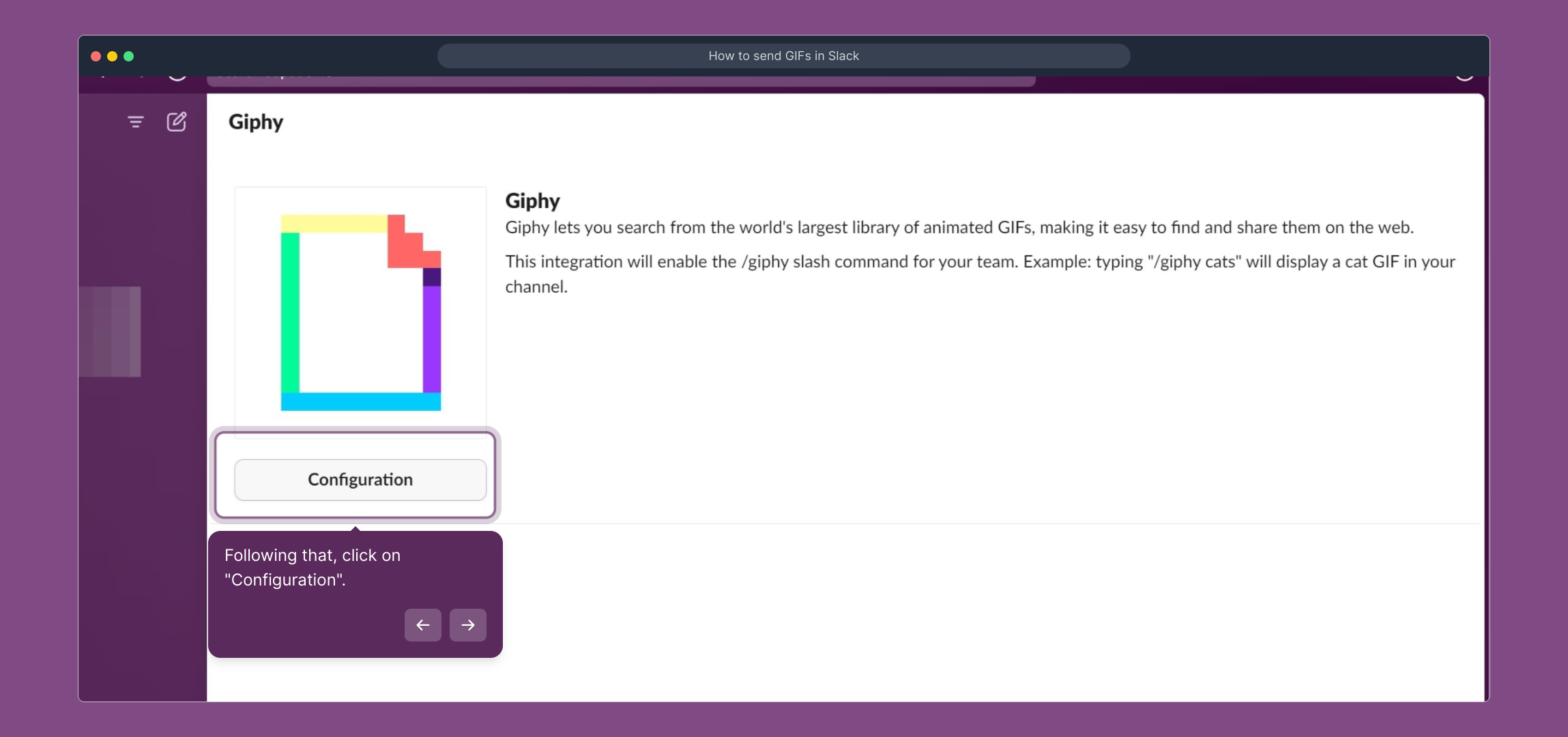
6. Following that, click on "Configuration".
7. Wait until you are re-directed to the Slack app directory and click on "Save Integration".
8. After that, navigate back to Slack and open the channel where you want to send a GIF.
9. Video Step (
10. Video Step (
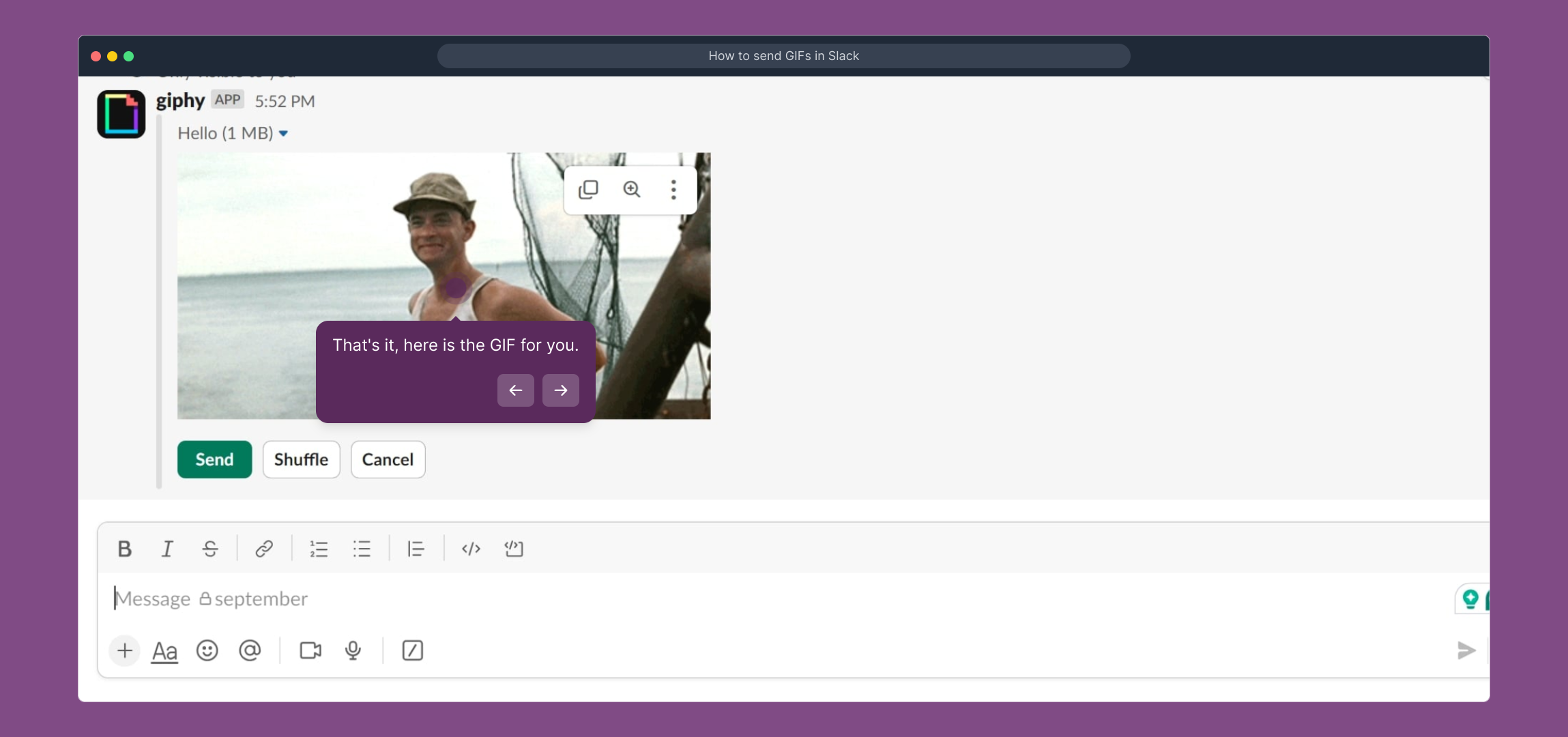
11. That's it, here is the GIF for you.
12. Create a Supademo in seconds
This interactive demo/guided walkthrough on How to send GIFs in Slack was created using Supademo.
How to send GIFs in Slack : Step-by-Step Guide
Begin by launching Slack and go to the specific channel or direct message where you'd like to share a GIF. This is where your GIF will appear once you've added it.
On the left sidebar, scroll down until you find the option labeled "Add apps." Clicking here allows you to browse and integrate new applications to enhance your Slack experience.
Once you're in the apps section, locate the search bar at the top. This is where you can type the name of the app you want to add, making it easier to find.
Video Instruction (
From the list of apps, select "Giphy." This app enables you to easily search for and share GIFs directly within your Slack conversations.
After selecting Giphy, look for and click on the "Configuration" button. This step is necessary to set up how Giphy will work with your Slack workspace.
You will be redirected to the Slack app directory. Here, confirm your choices by clicking the "Save Integration" button to successfully link Giphy to your Slack workspace.

Return to Slack and open the same channel or direct message where you want to share a GIF. You're now ready to start sending fun animated images.

Video Instruction (
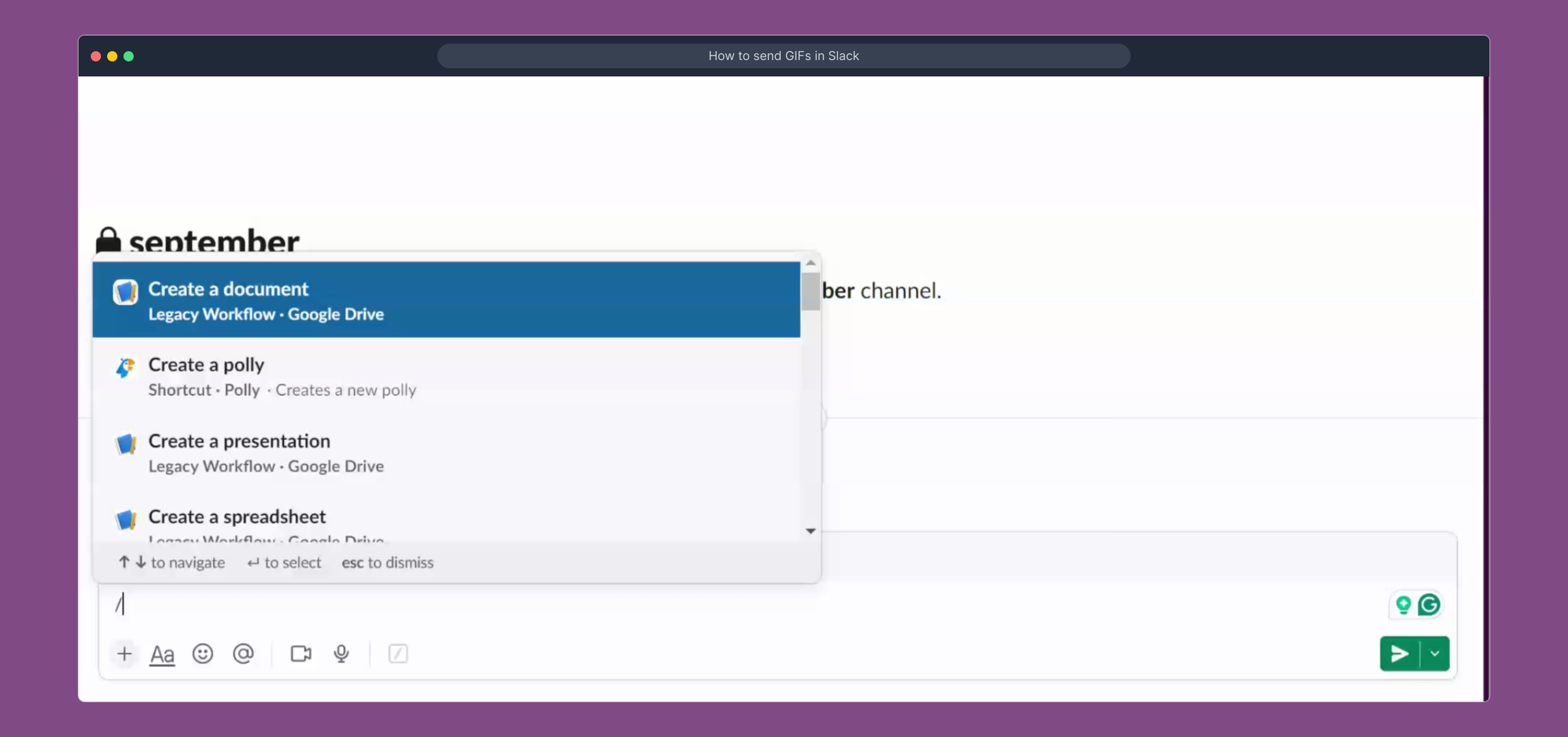
Video Instruction (
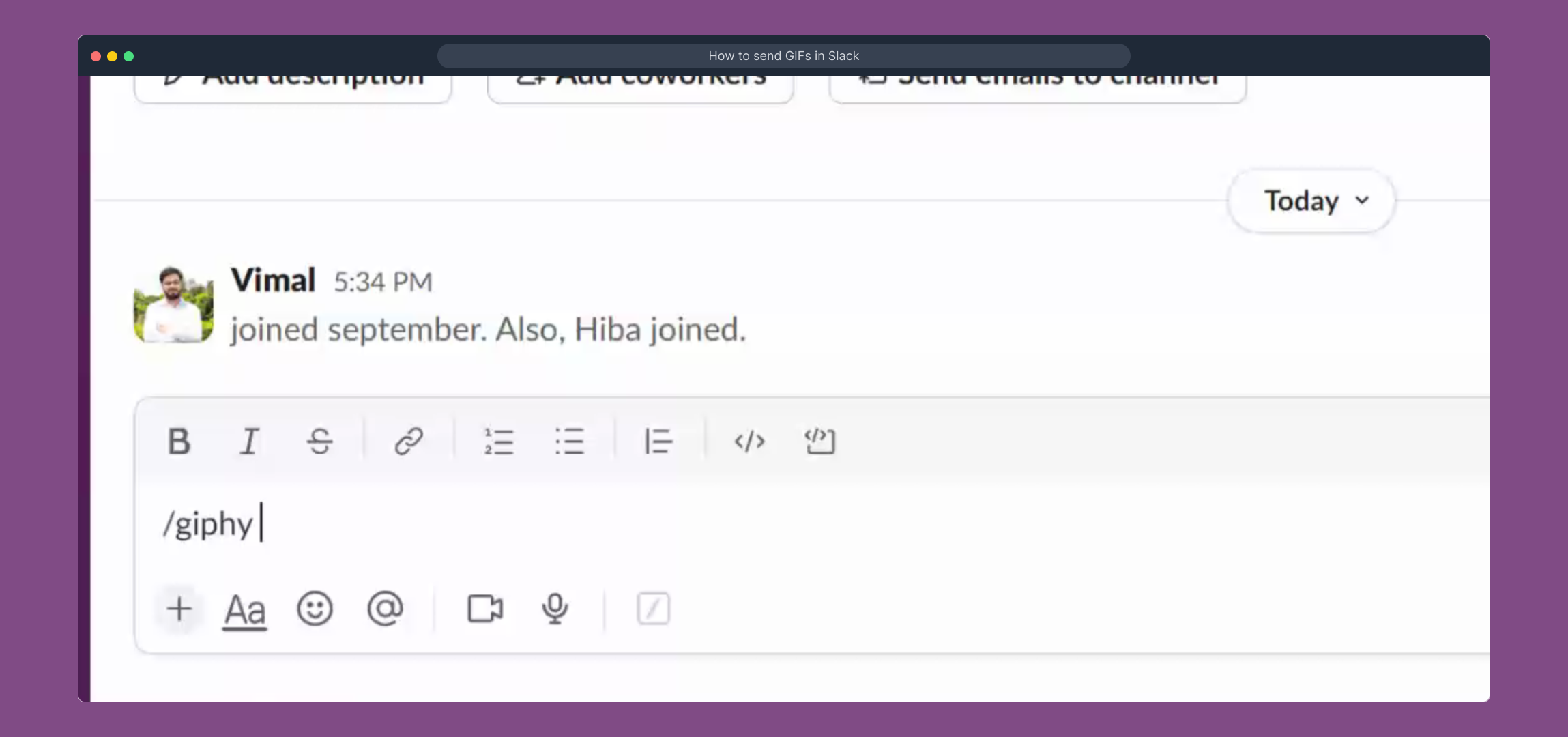
With everything set up, you can now enjoy sending GIFs to your colleagues. Here's an example of a GIF ready to be shared in your conversation.
Create your own Supademo quickly and easily, allowing you to demonstrate workflows and processes with ease.
Create your own interactive demos in < 5 mins with Supademo
You can create your own interactive product demo in minutes using Supademo. Drive growth, scale enablement, and supercharge product-led onboarding with Supademo.
Sign up for free here with no credit card required.
FAQs
Commonly asked questions about this topic.
How do I send a GIF in Slack?
Is Giphy the only way to send GIFs in Slack?
Can I remove or disable Giphy from my Slack workspace?
Do I need admin permissions to add Giphy to Slack?
How do I use the /giphy command after installing Giphy?
Can I preview GIFs before sending them in Slack?
Are there any limitations on GIF size or content in Slack?
Can I customize Giphy’s settings in Slack?
What if the Giphy app is not available in my Slack workspace?
Can animated GIFs auto-play in Slack messages?

Product Operations Associate
Vimal Kumar helps build and grow Supademo’s team and GTM efforts, with a focus on figuring out growth levers and improving product traction.




