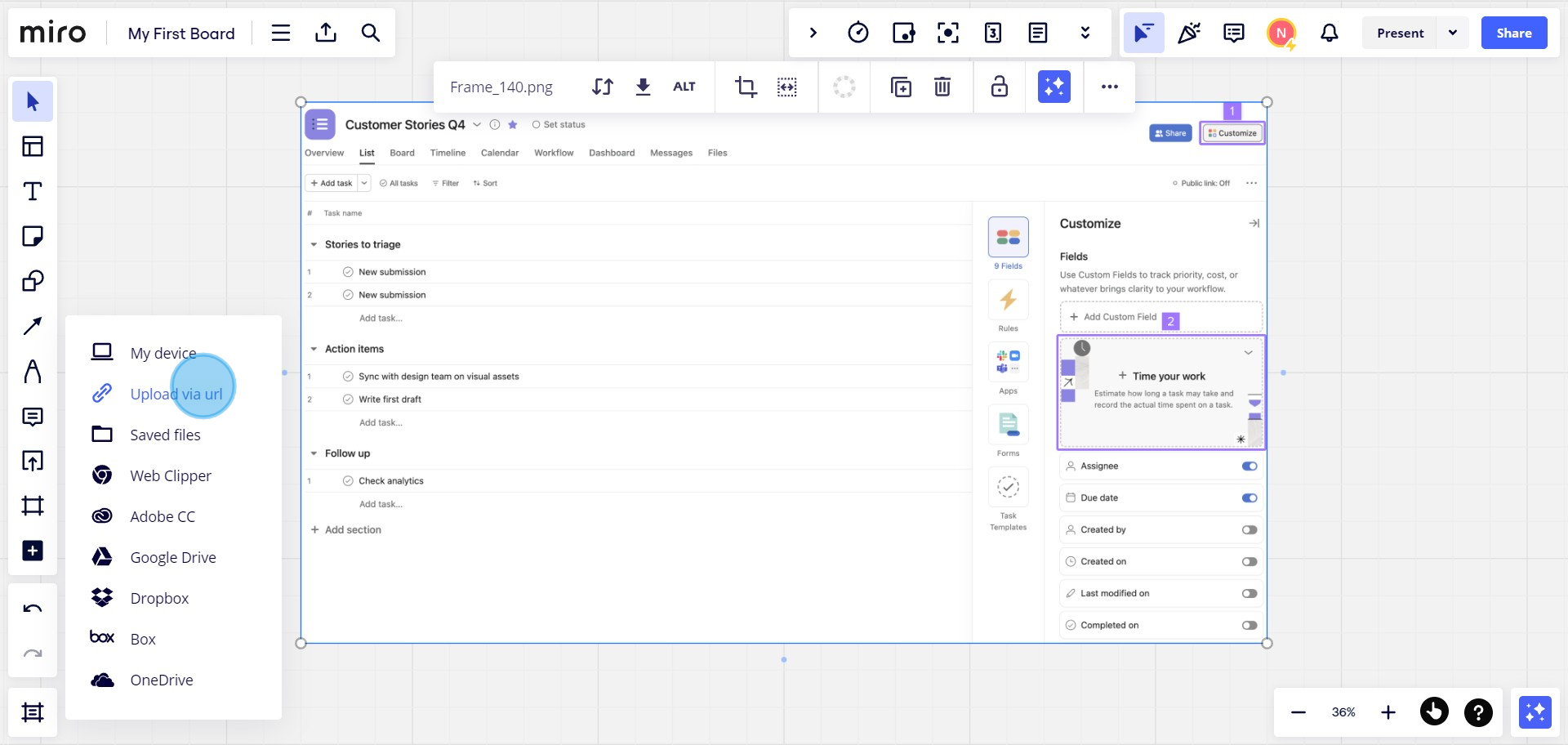
How to upload a file to Miro whiteboard

Nithil Shanmugam
Nithil Shanmugam·
Featured image for How to upload a file to Miro whiteboard

Overview:

Streamline your collaboration on the Miro whiteboard by mastering the art of file uploads. Elevate your teamwork and enhance the visual aspect of your projects by effortlessly incorporating files into the Miro platform. This comprehensive guide offers a step-by-step process, ensuring a seamless and efficient experience in uploading files. Learn how to navigate Miro's file upload features to optimize your collaborative efforts and bring clarity to your visual projects within the Miro whiteboard environment.

Interactive demo powered by Supademo

1. Select the 'My First Board' for opening the whiteboard
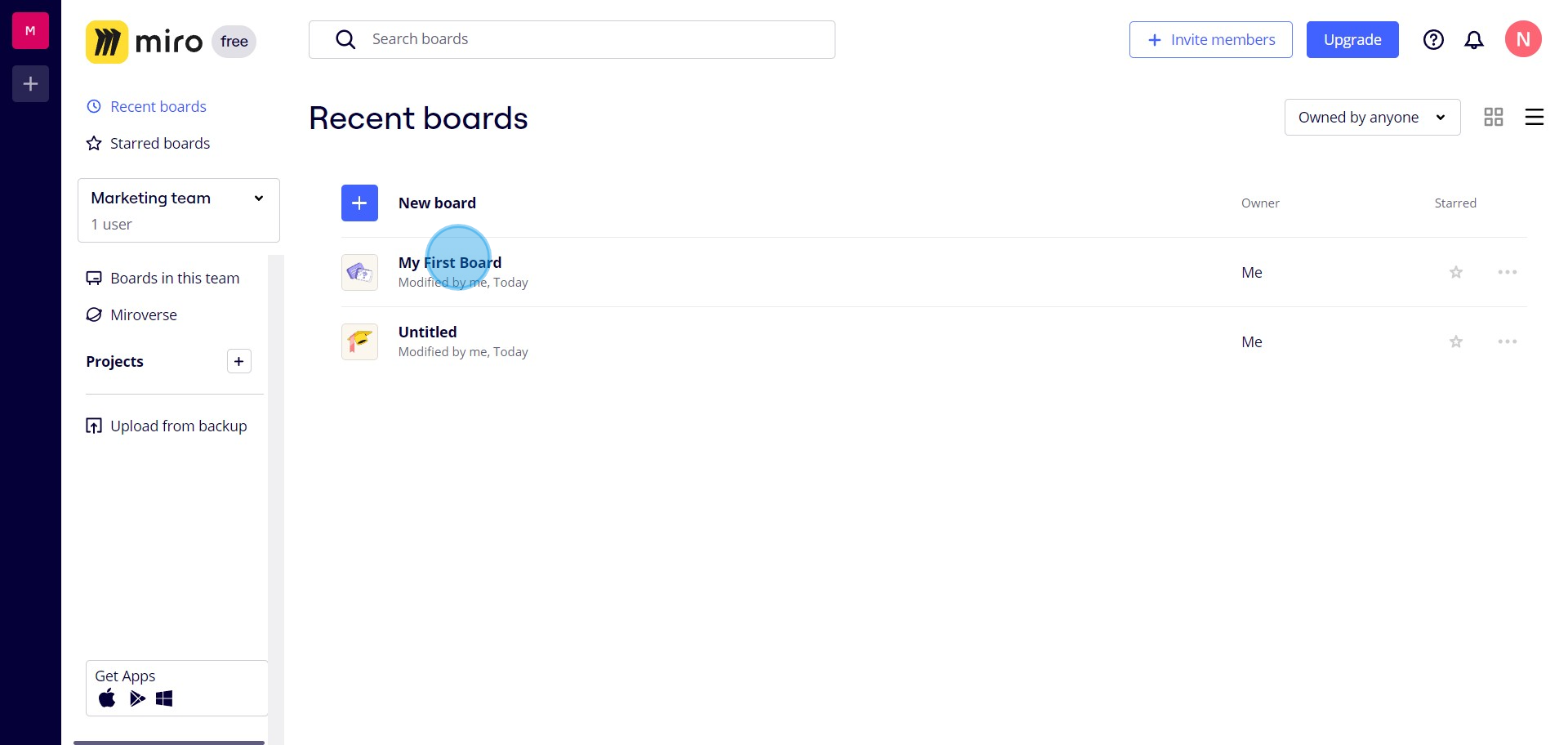
1 Click on "My First Board"

2. Next, navigate to present tools using the button available
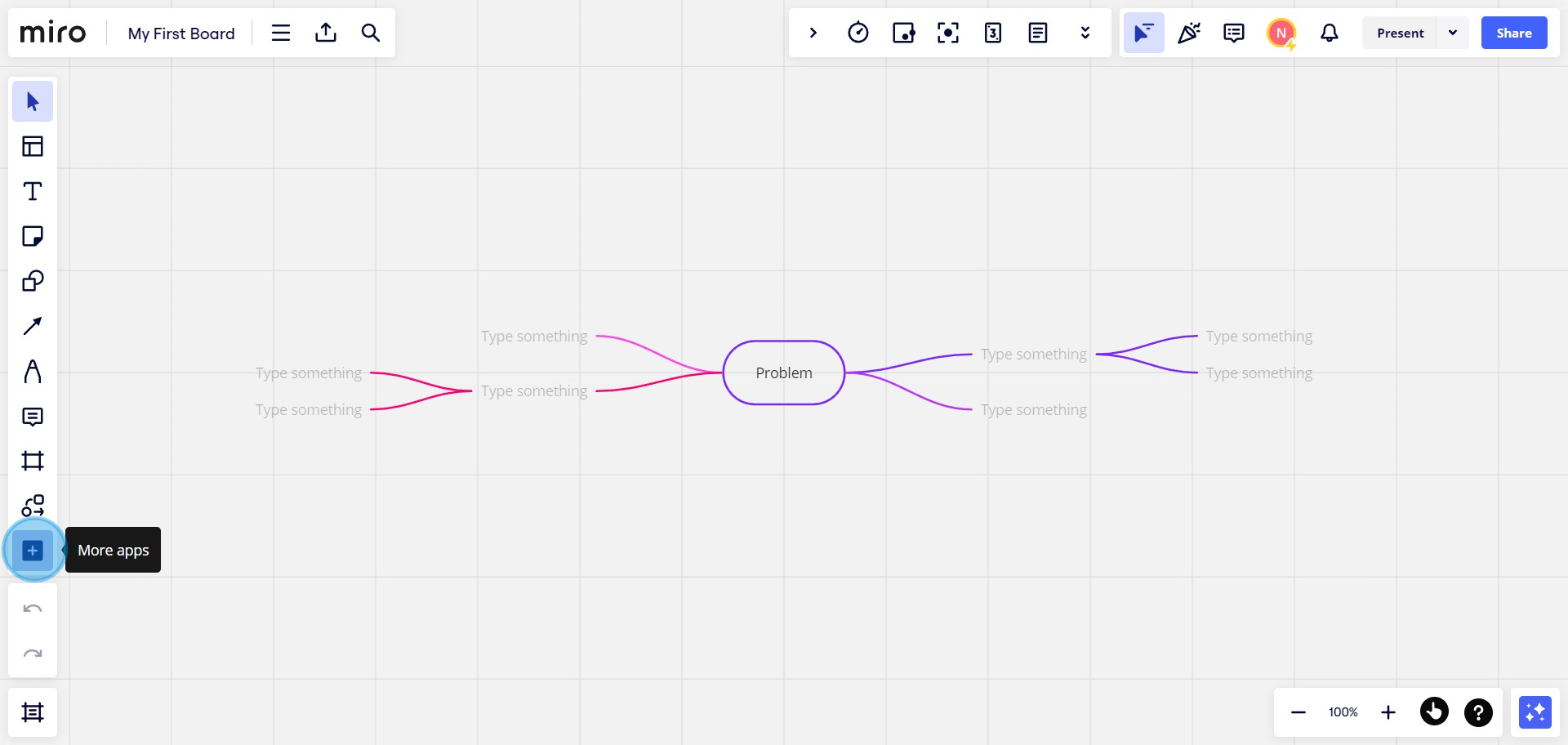
2 Click here

3. Now, type into the provided field to find suitable options
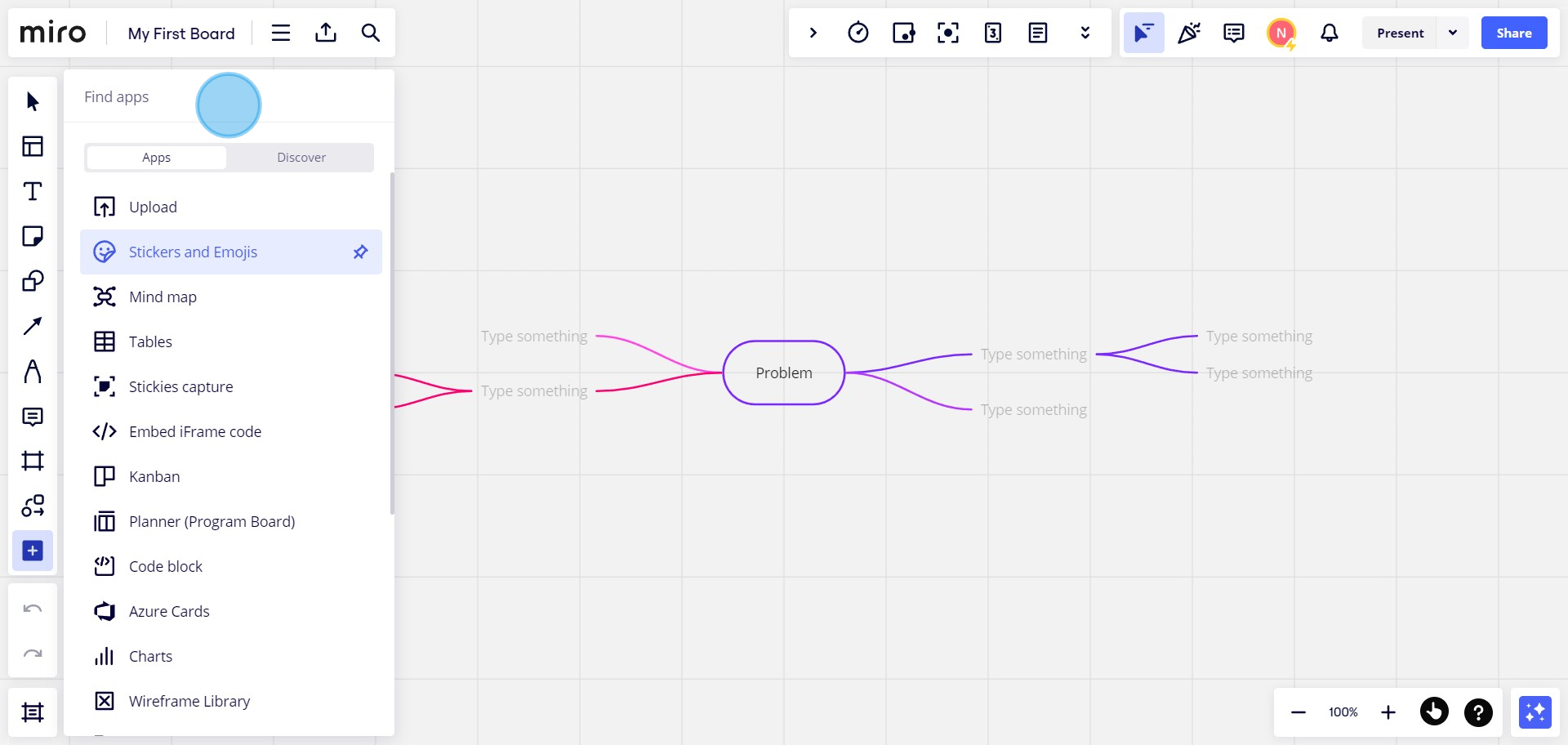
3 Click here

4. Choose 'Upload' from the available options
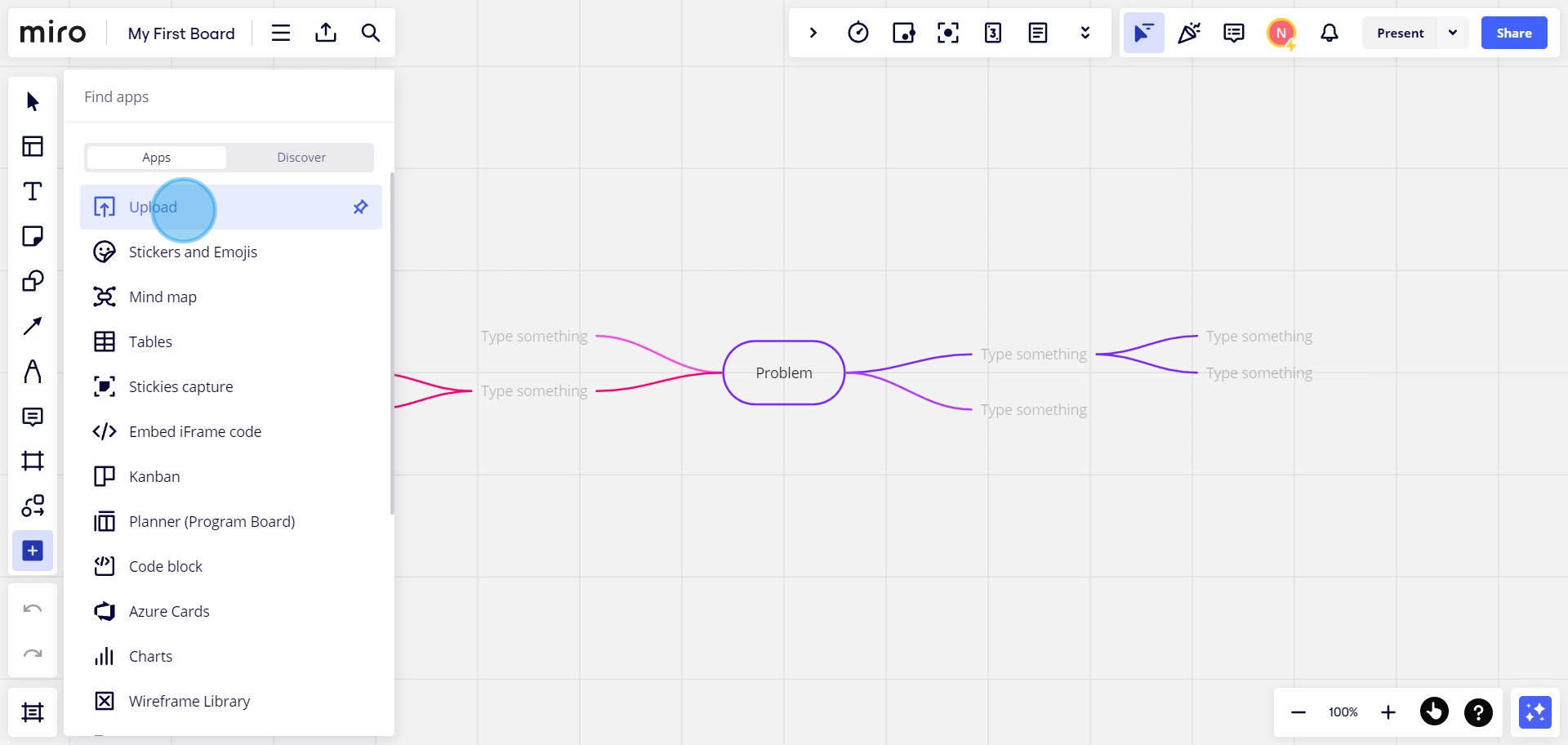
4 Click on "Upload"

5. Proceed by dragging and pinning the 'Upload' bar
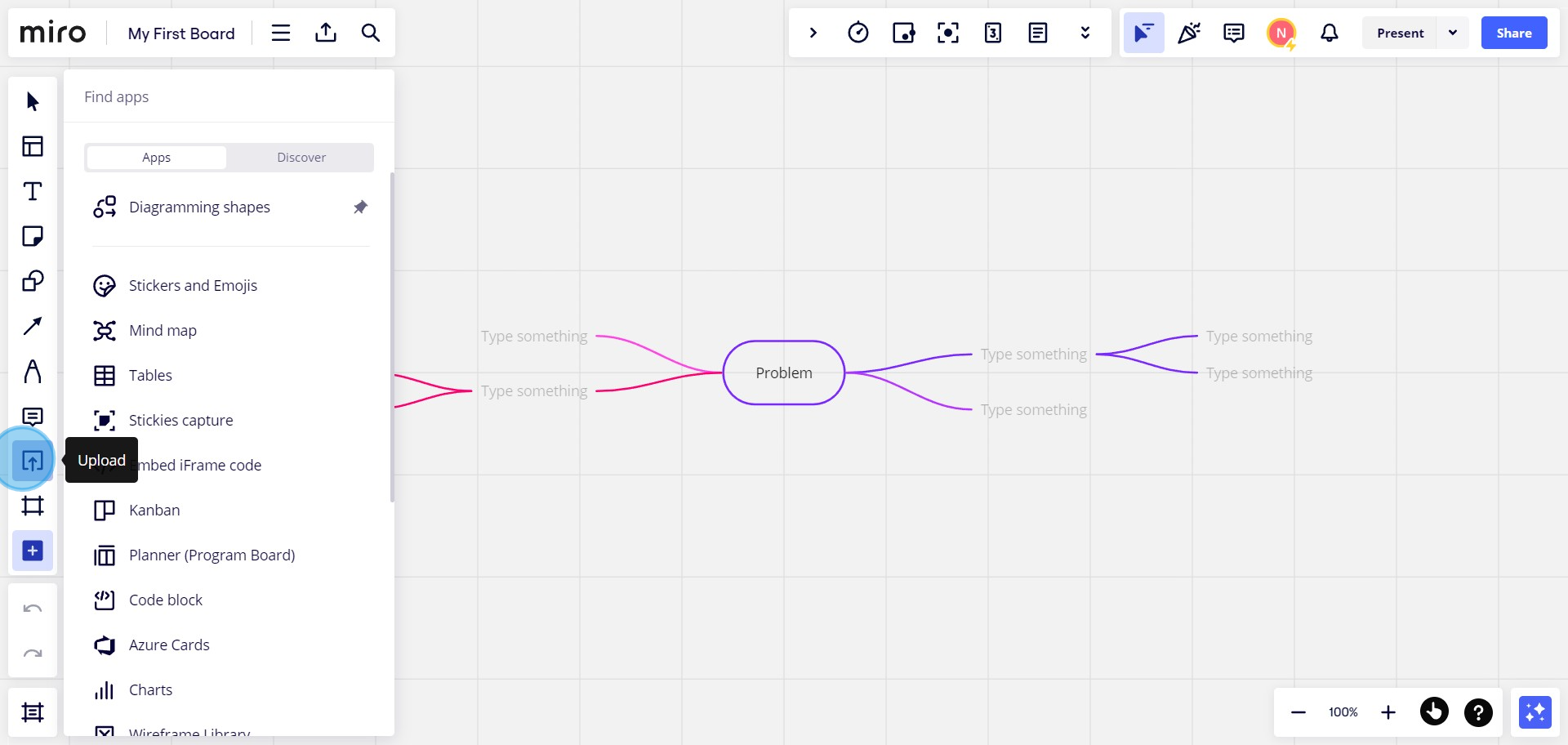
5 Click here

6. You may choose your desired file from 'My device' for upload
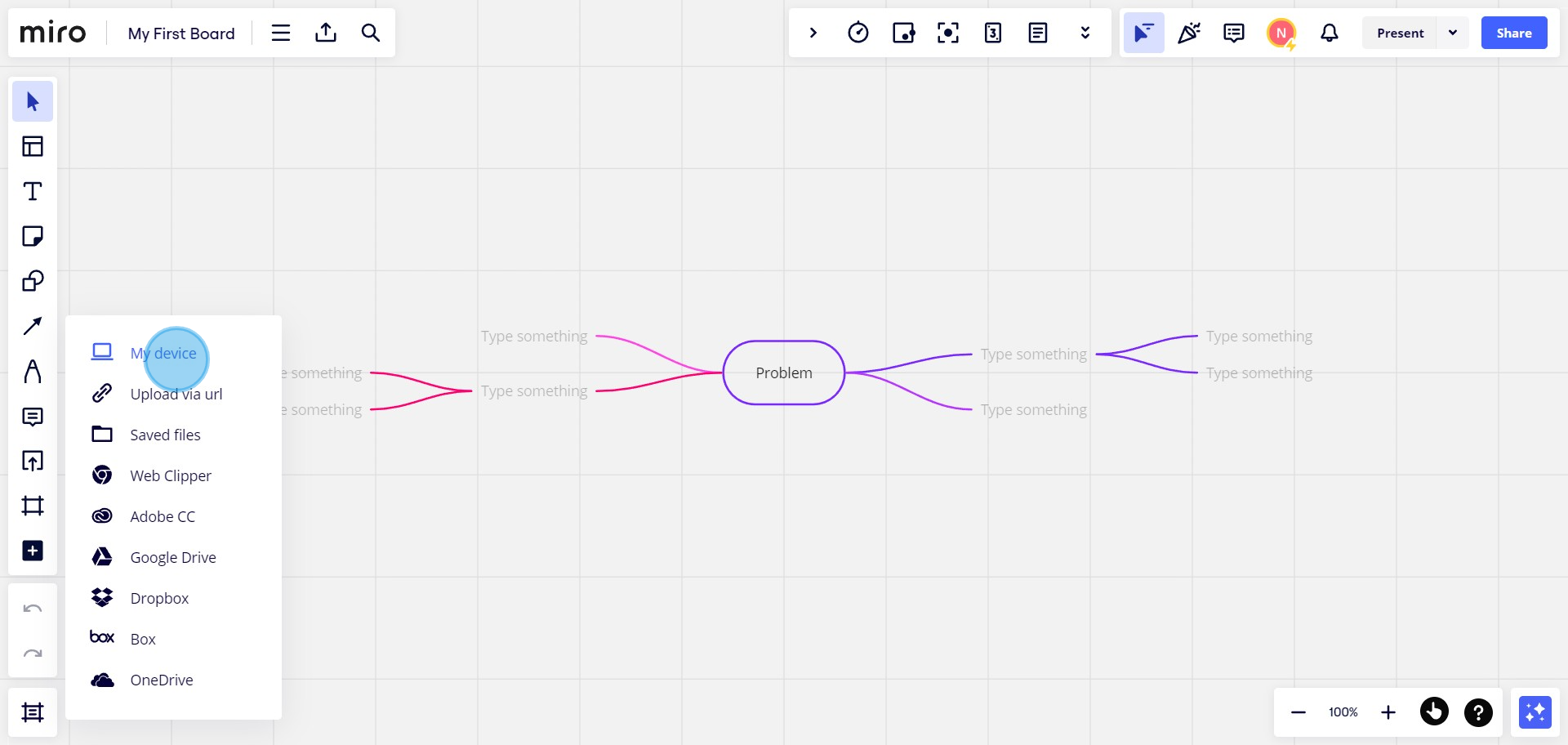
6 Click on "My device"

7. Other file upload options available can be explored with a click
7 Click here
8 Click on "Upload via url"

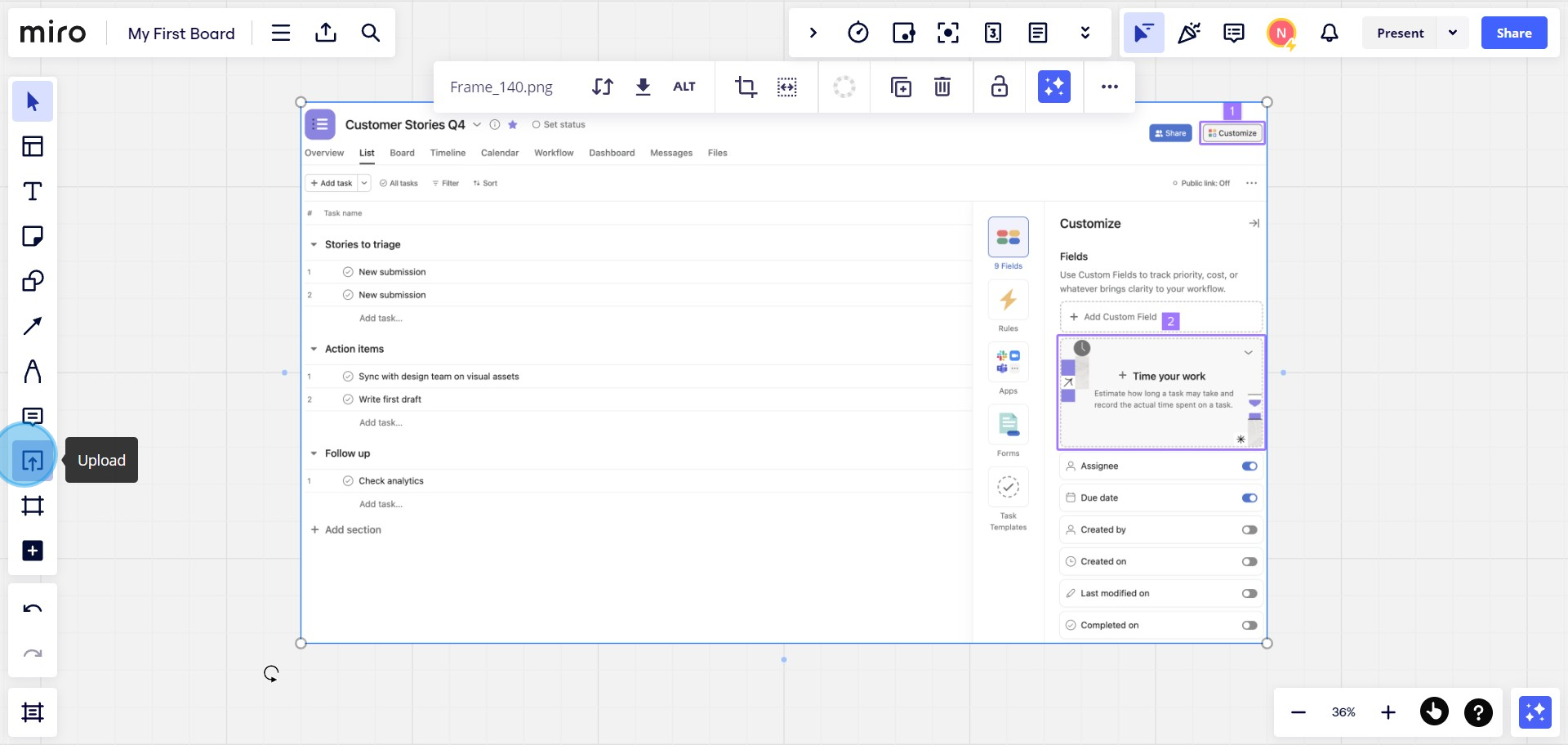
9. Congratulations, your video is now uploaded to the whiteboard
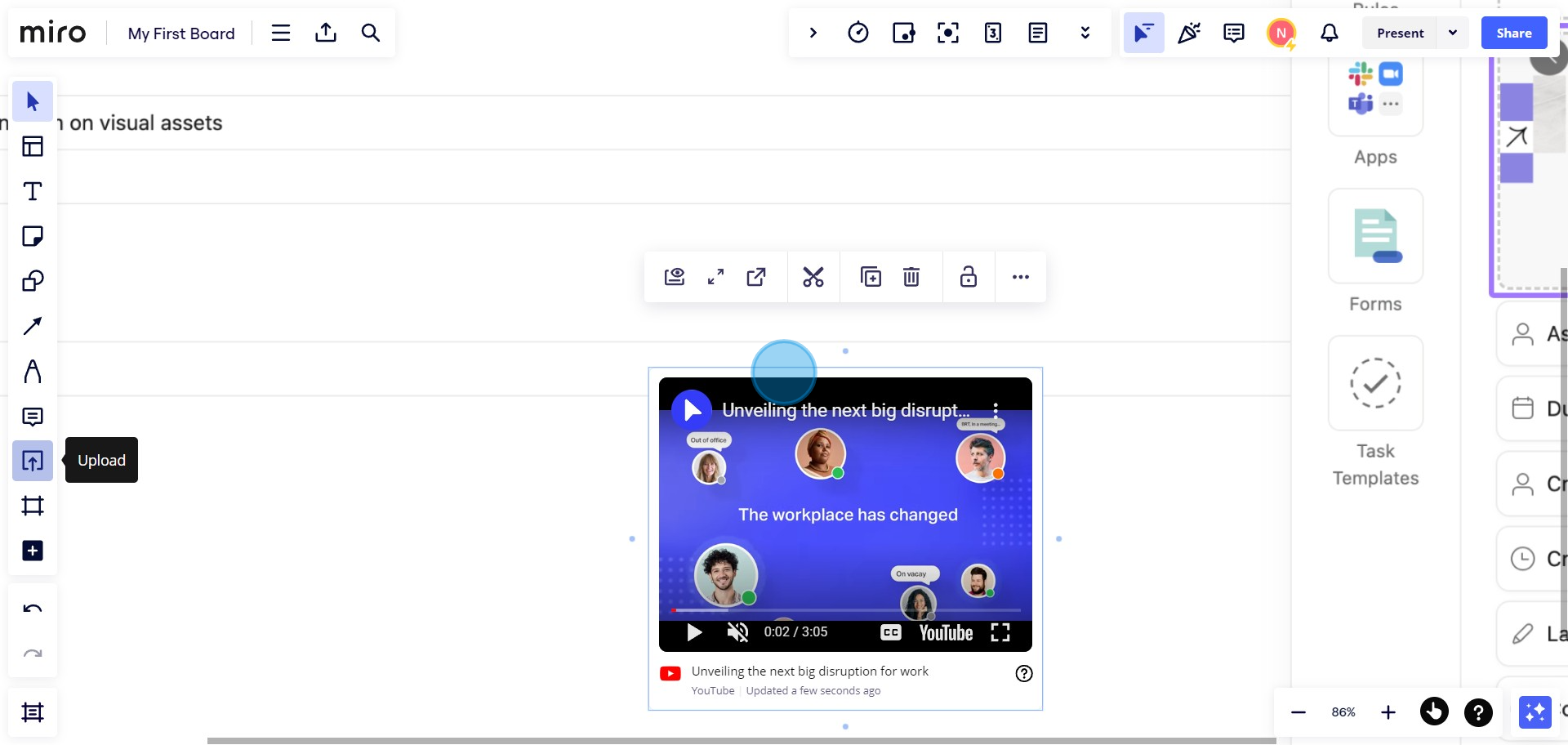
9 Upload

Create your own step-by-step demo

Scale up your training and product adoption with beautiful AI-powered interactive demos and guides. Create your first Supademo in seconds for free.

Frequently Asked Questions about how to upload a file to miro whiteboard

Commonly asked questions about this topic.

What common mistakes should you watch for with upload a file?

The biggest mistake is overcomplicating the setup — adding too many fields, views, or automations before validating the basic workflow. Another common issue is inconsistent naming conventions, which makes searching and filtering unreliable at scale. Finally, skipping regular reviews leads to outdated file to Miro whiteboard data that erodes team trust in the system. Teams that update demos weekly or monthly see ~18% higher impact scores.

What's the best way to onboard new team members to uploading a file to Miro whiteboard?

Combine a brief overview document with a hands-on walkthrough they can follow independently. Interactive walkthroughs are more effective than recorded videos because new hires can proceed step-by-step at their own pace and revisit specific sections. Pair the walkthrough with a simple checklist of tasks to complete during their first week. For context, Supademo holds a 4.7/5 rating on G2 with top marks for ease of use. 81% of teams rate onboarding impact from Supademo as high or very high.

What should a well-structured file to Miro whiteboard include?

A strong file to Miro whiteboard includes clear labels, defined owners, status indicators, and relevant dates or milestones. Avoid including information that belongs elsewhere — keep each element focused on its core purpose. The right level of detail depends on your audience: executives need summaries while team leads need actionable specifics. Learn more about Supademo's features. 54% of top-completing demos use AI voiceover to improve the guided experience.

How do I structure file to Miro whiteboard for clarity and readability?

Use a consistent layout with clear headings, logical groupings, and visual hierarchy. Keep individual items concise — if a file to Miro whiteboard element needs a paragraph of explanation, it probably should be broken into smaller pieces. Color-coding or tagging by category helps teams scan quickly without reading every detail. Learn more about product demonstration software. 81% of teams rate onboarding impact from Supademo as high or very high.

Can I automate parts of uploading a file to Miro whiteboard?

Many project management and productivity tools, including Miro, support workflow automation for repetitive tasks. Common automations include status updates, notifications, recurring task creation, and approval flows. Start with simple automations and expand gradually — over-automating early can create maintenance headaches. This is backed by data — the State of Interactive Demos 2026 report found teams using interactive demos across 3-5 use cases report up to 29% higher impact scores.

Does Miro offer templates for file to Miro whiteboard?

Most modern platforms like Miro include starter templates for common use cases-vs-supademo), including file to Miro whiteboard. Templates save setup time but should be customized to match your team's specific needs — default configurations rarely fit every workflow. Check Miro's template gallery or community library for options relevant to your industry. The average time from recording to publishing a Supademo is just 3.5 minutes. Supademo is rated #1 for easiest setup and fastest implementation on G2.

How can upload a file work?

The most effective guides combine brief written instructions with visual walkthroughs showing each click. Screen recording tools and interactive demo platforms can capture your exact workflow in Miro, creating guides that viewers navigate at their own pace. This approach reduces follow-up questions compared to static screenshots or long text documents. According to Supademo's 2026 report, 78% of teams now use interactive demos across 2+ use cases.
Nithil Shanmugam
Nithil Shanmugam

Content Marketer

Nithil is a startup-obsessed operator focused on growth, sales and marketing. He's passionate about wearing different hats across startups to deliver real value.

More from the blog

How to Remove 'Powered by Shopify'

How to Remove 'Powered by Shopify'

Learn how to easily remove the 'Powered by Shopify' text from your online store with step-by-step instructions and tips to customize your Shopify storefront.

Vimal Kumar
Vimal KumarJan 3, 2026
How to Add Products to Shopify

How to Add Products to Shopify

Learn step-by-step how to add products to your Shopify store effortlessly, including tips on product details, images, pricing, and inventory management to boost your online sales.

Vimal Kumar
Vimal KumarDec 17, 2025
How to Deactivate Your Shopify Store

How to Deactivate Your Shopify Store

Learn step-by-step how to deactivate your Shopify store easily, including important considerations and tips to pause or close your shop without losing data.

Vimal Kumar
Vimal KumarDec 17, 2025
How to Remove 'Powered by Shopify'

How to Remove 'Powered by Shopify'

Learn how to easily remove the 'Powered by Shopify' text from your online store with step-by-step instructions and tips to customize your Shopify storefront.

Vimal Kumar
Vimal KumarDec 17, 2025
How to Create a Shopify Account

How to Create a Shopify Account

Learn step-by-step how to create a Shopify account quickly and easily, set up your online store, and start selling your products in no time.

Vimal Kumar
Vimal KumarDec 17, 2025
How to Create a Stripe Account

How to Create a Stripe Account

Learn how to create a Stripe account quickly and easily with our step-by-step guide, perfect for beginners looking to start accepting online payments.

Vimal Kumar
Vimal KumarDec 17, 2025