How to use the SEMRush advertising research tool

Nithil Shanmugam
Nithil Shanmugam·
How to use the SEMRush advertising research tool

Overview:

Maximize your advertising strategy with the SEMRush Advertising Research Tool. Streamline your workflow by effectively utilizing features to analyze and enhance your ad campaigns. This comprehensive guide offers a seamless walkthrough on harnessing the tool's capabilities, empowering you to optimize efficiency and gain clarity in advertising management within the SEMRush platform. Elevate your advertising endeavors with this user-friendly guide.

Who is SEMrush best suited for?

SEMrush is best suited for a wide range of professionals, including SEO Specialists, Digital Marketers, and Content Strategists. For example, SEO Specialists can use SEMrush for in-depth keyword research and site audits, Digital Marketers can leverage it for tracking competitors and optimizing marketing campaigns, and Content Strategists can use it for content performance analysis and opportunity identification, all benefiting from SEMrush’s comprehensive suite of SEO and digital marketing tools.

How to use the SEMRush advertising research tool

Interactive demo powered by Supademo

1. Locate and click the 'Advertising' button.
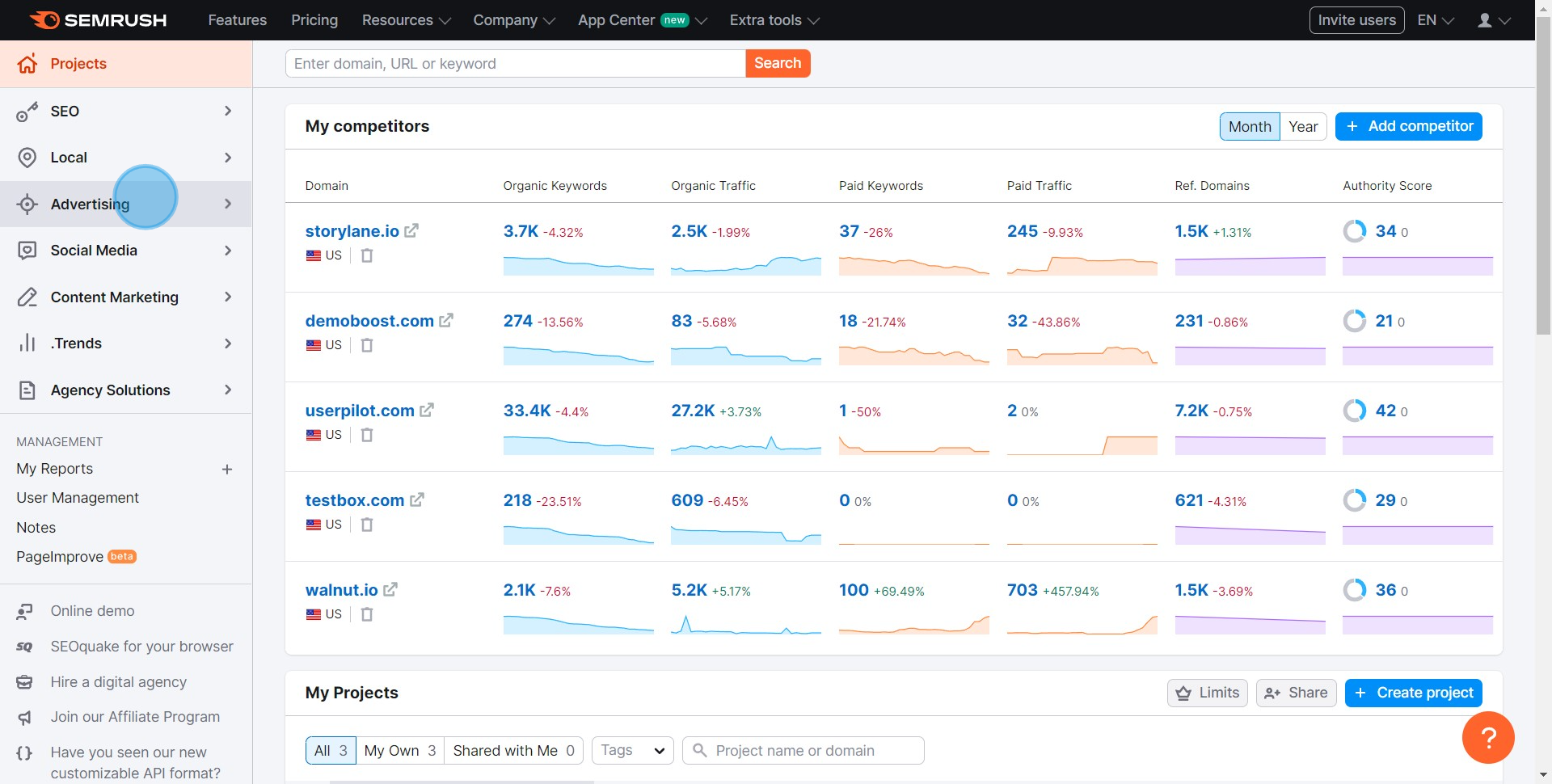
1 Click on "Advertising"

2. Now find and choose 'Advertising Research' option.
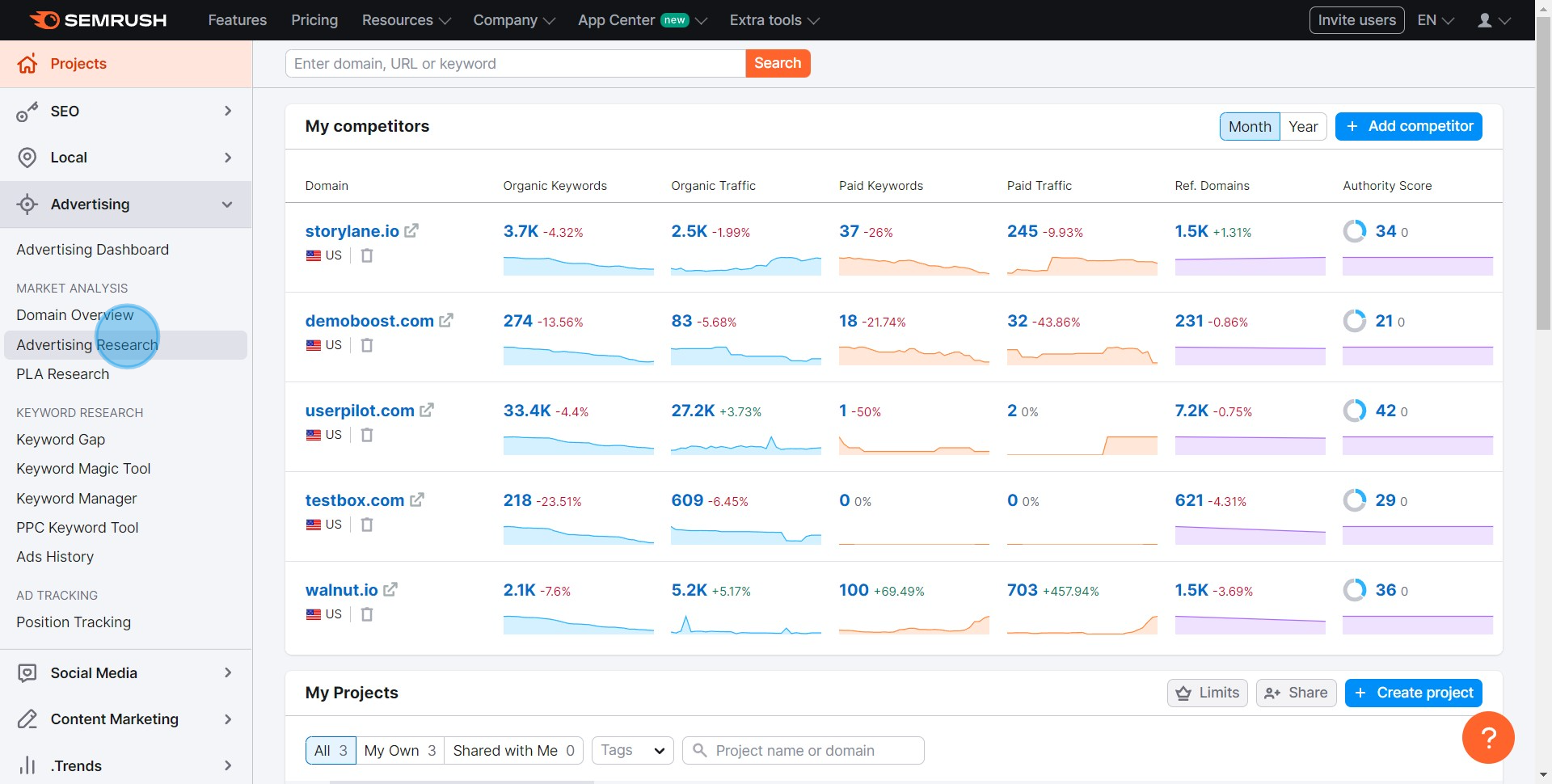
2 Click on "Advertising Research"

3. Into the blank field, type in your domain.
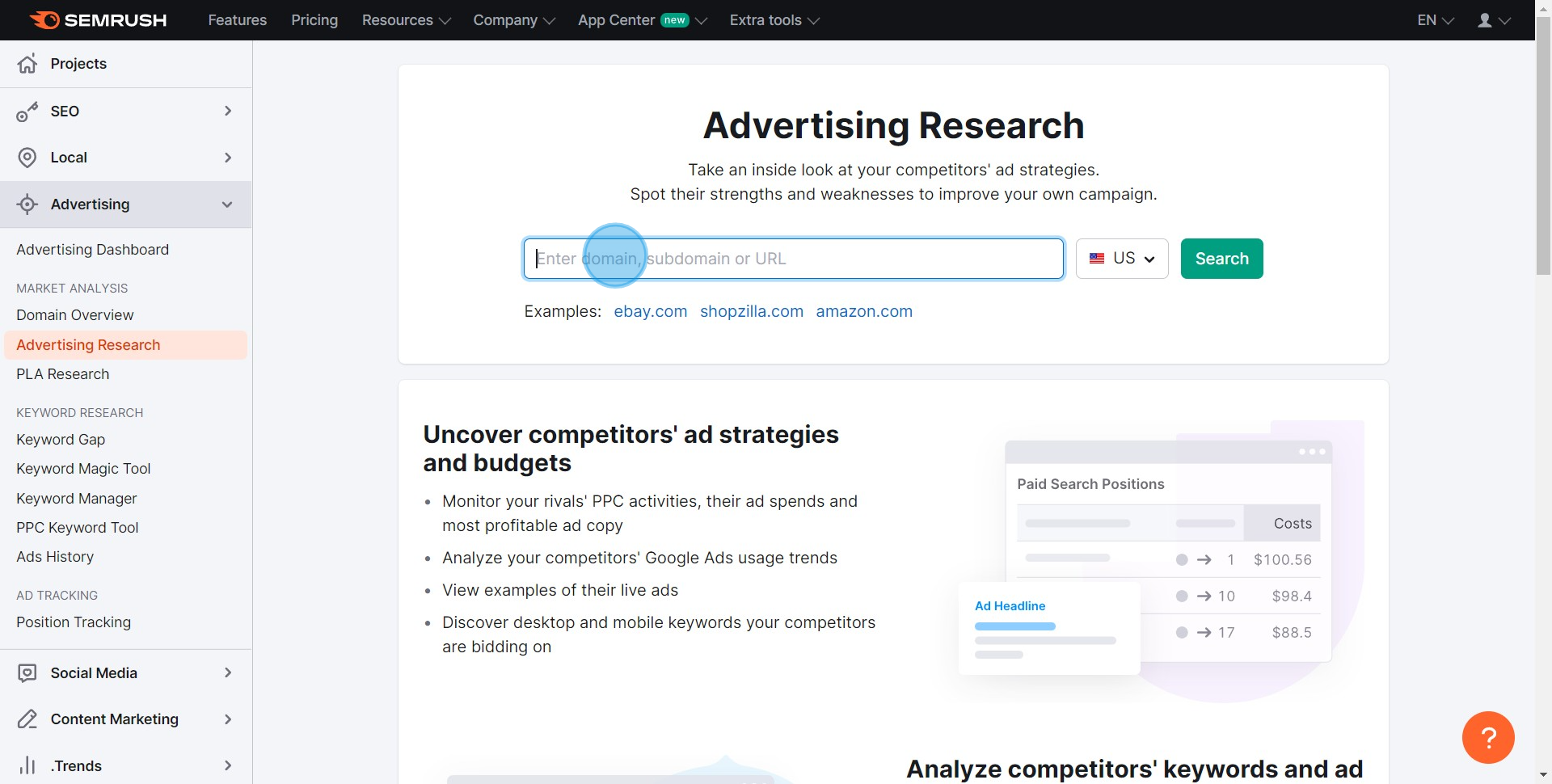
3 Click here

4. Afterwards, select the 'Search' button to proceed.
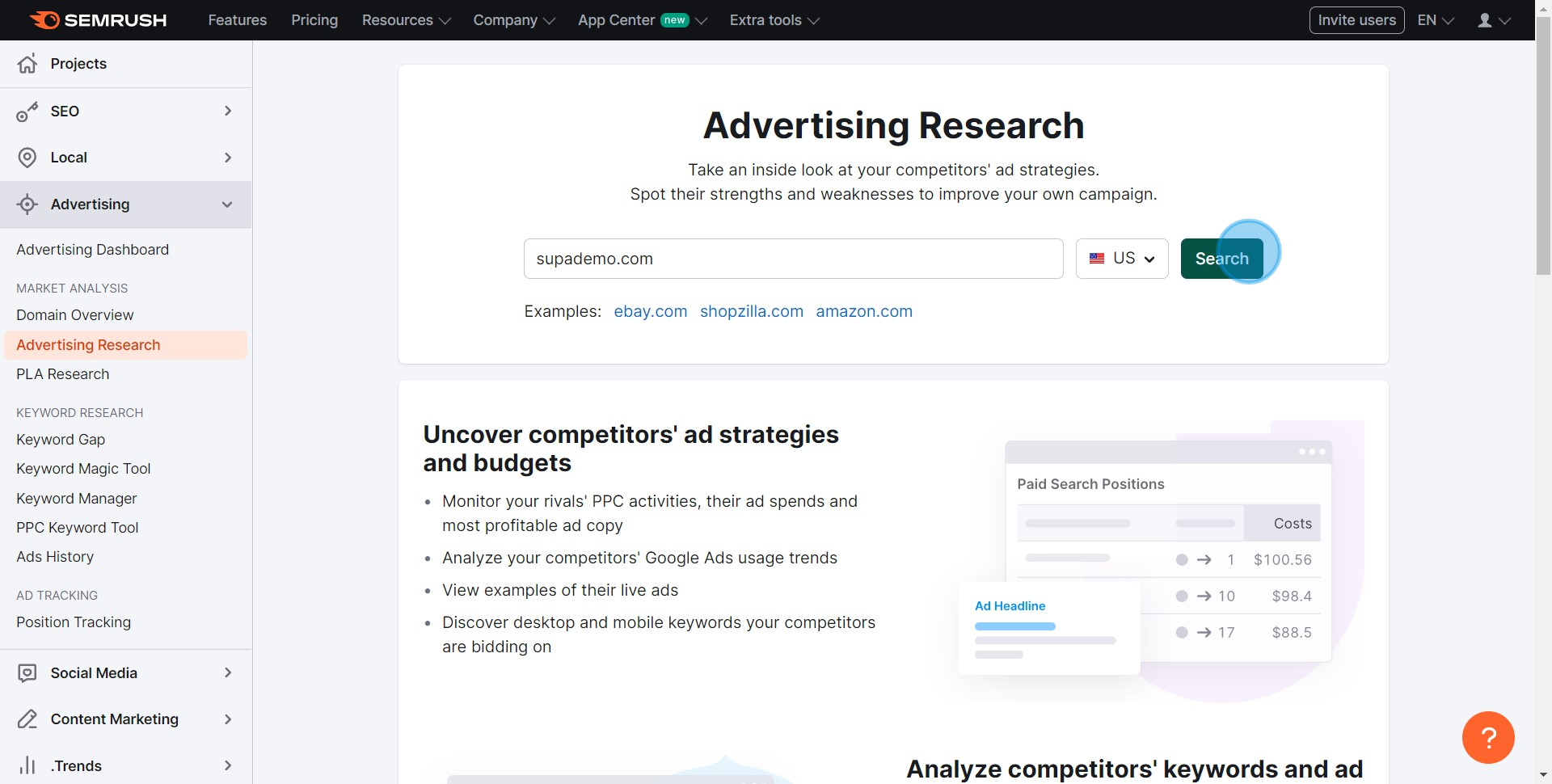
4 Click on "Search"

5. Inspect and interpret available metrics for analysis.
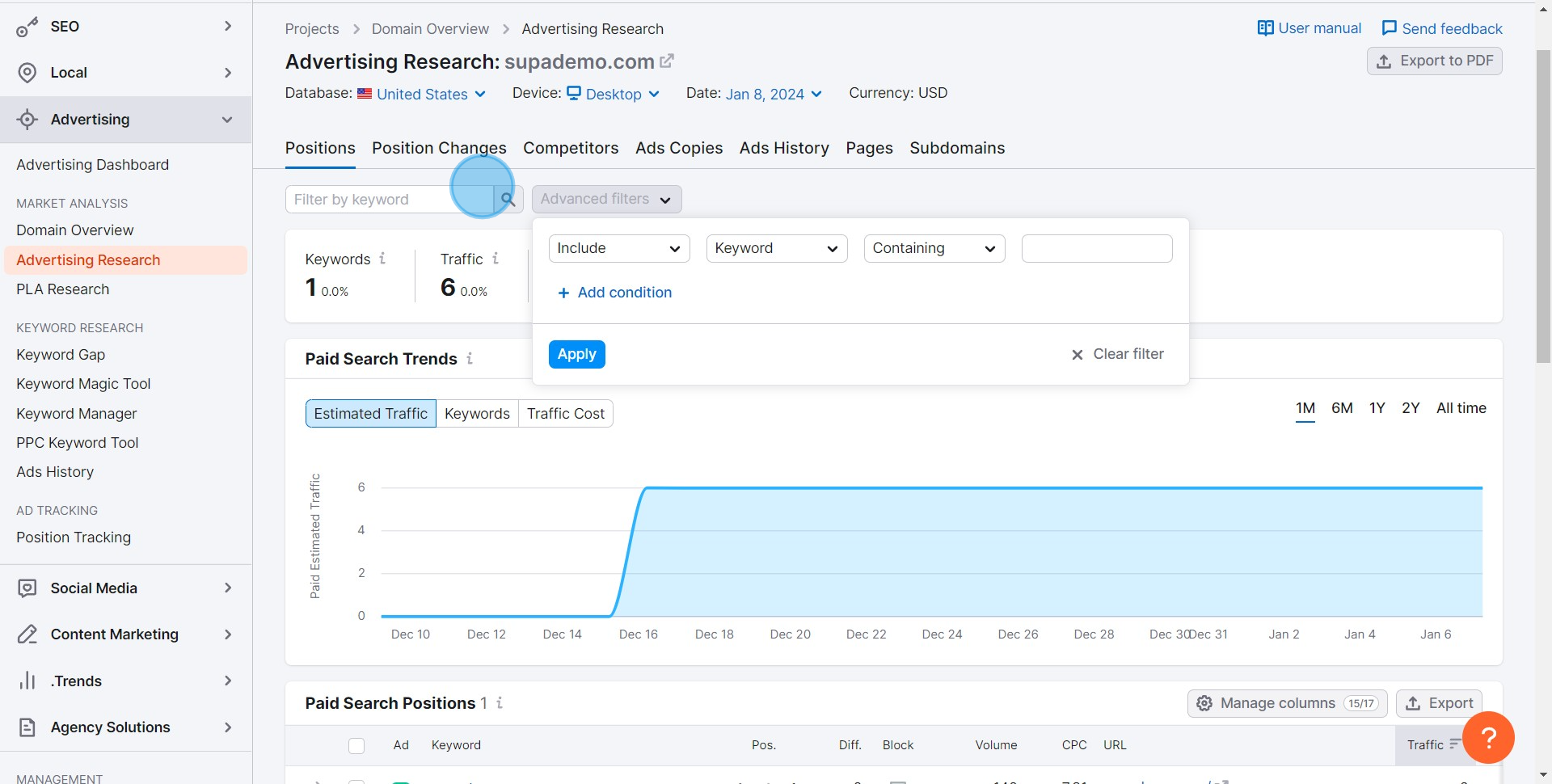
5 Click on "Advanced filters"

6. Next, go to and monitor the 'Competitors' tab.
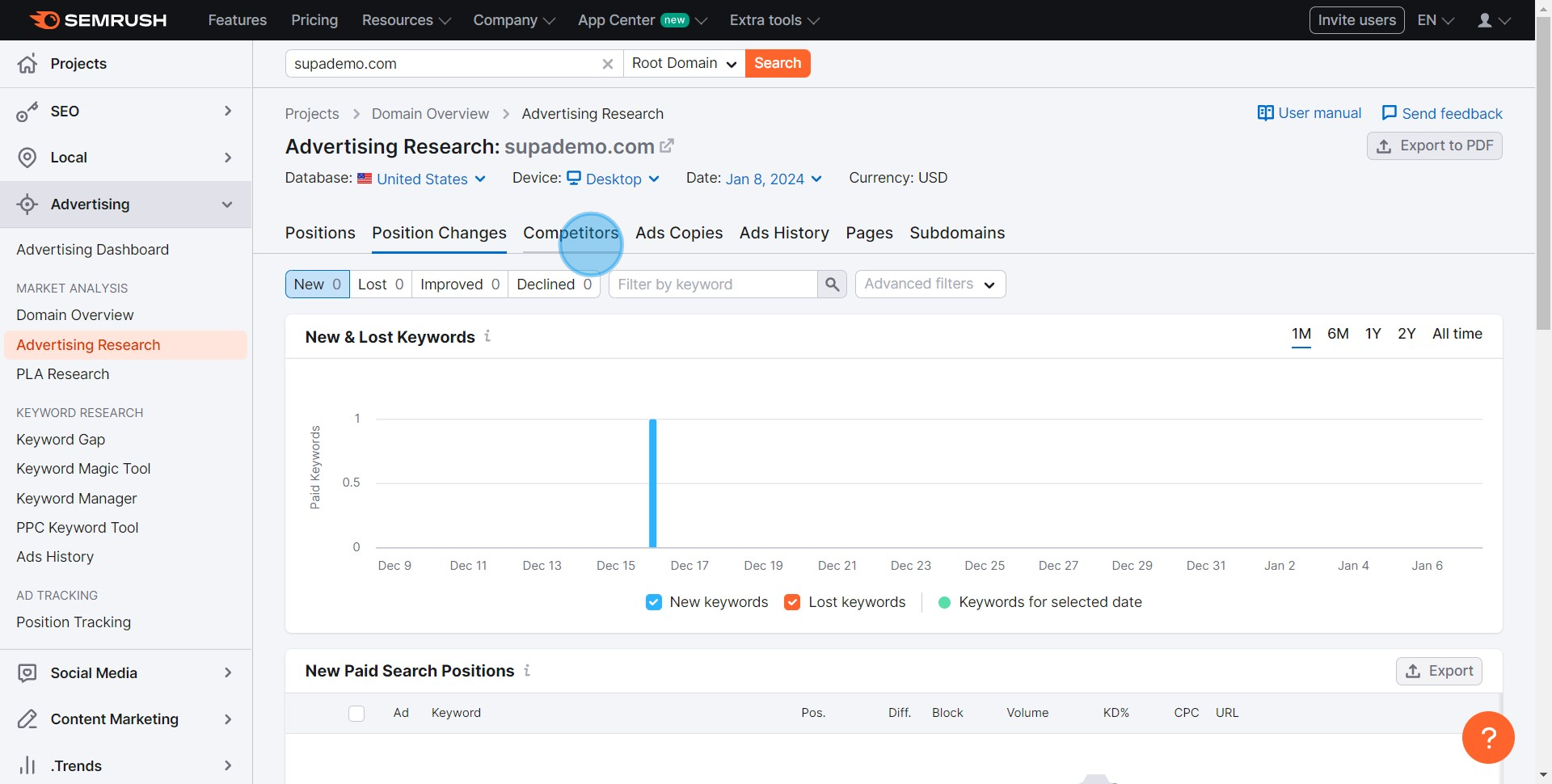
6 Click on "Competitors"

7. Subsequently, navigate to and select 'Ads Copies' tab.
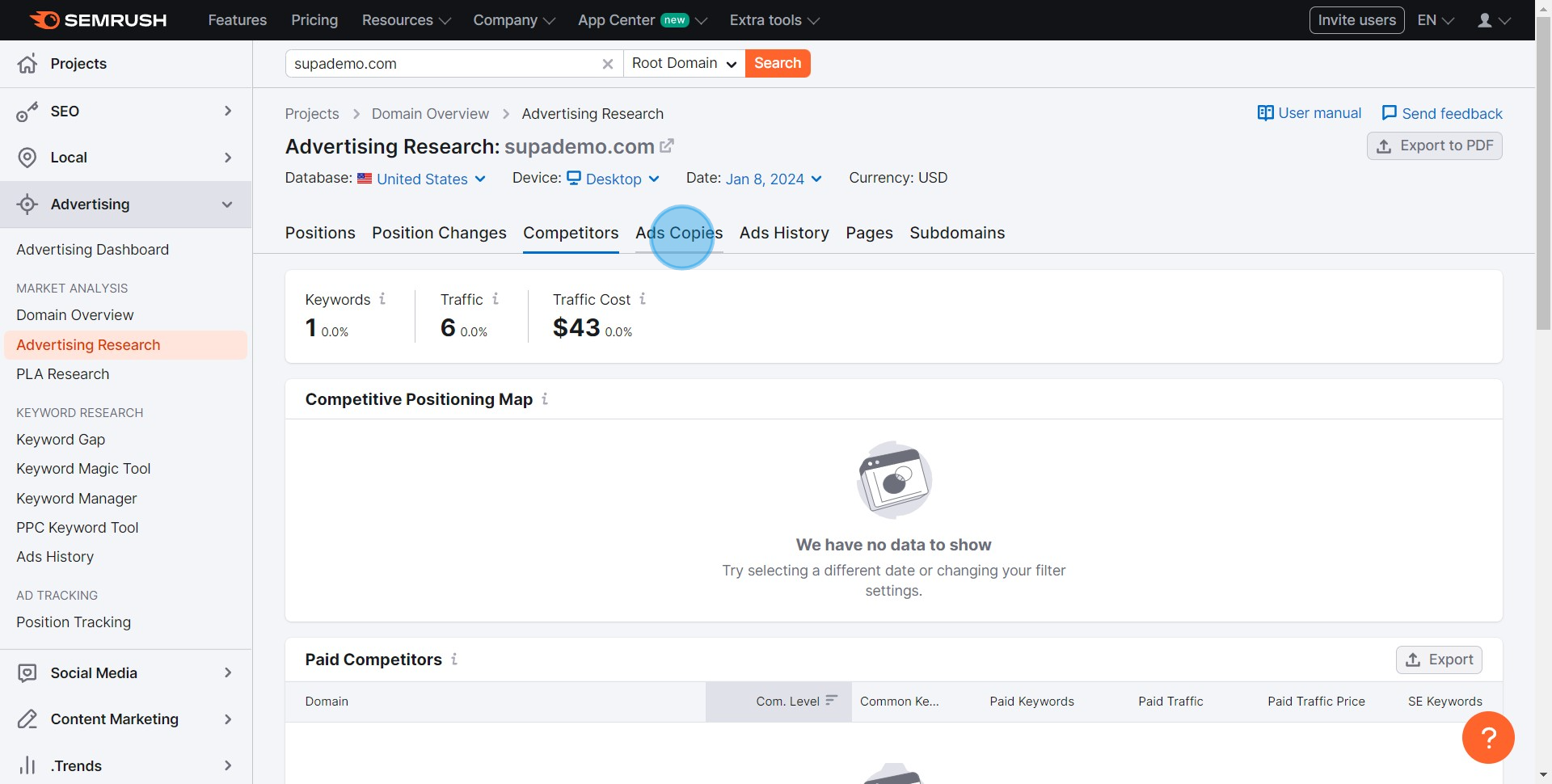
7 Click on "Ads Copies"

8. Move on to the 'Ads History' tab and click it.
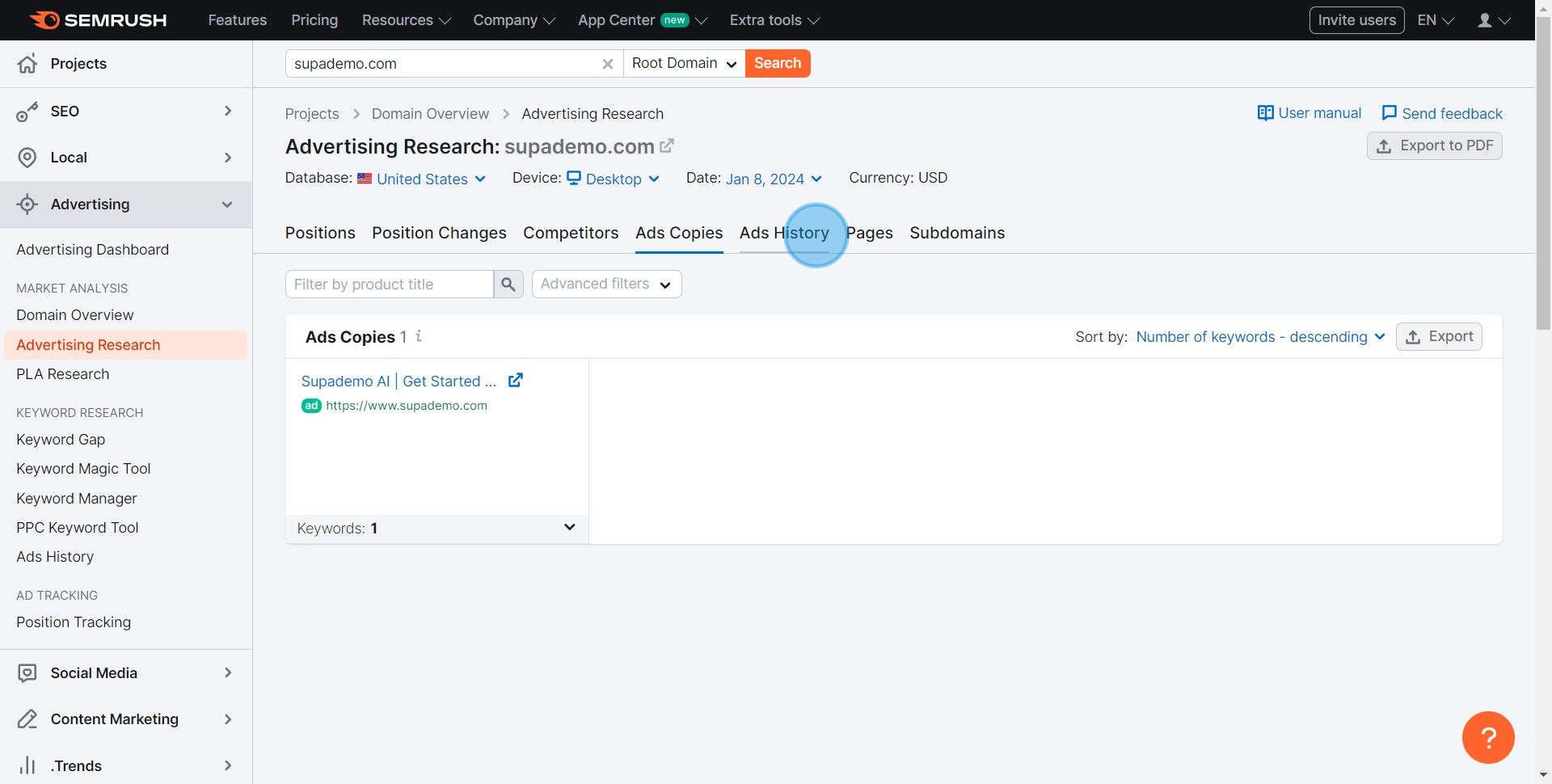
8 Click on "Ads History"

9. Lastly, access and survey the 'Subdomains' tab.
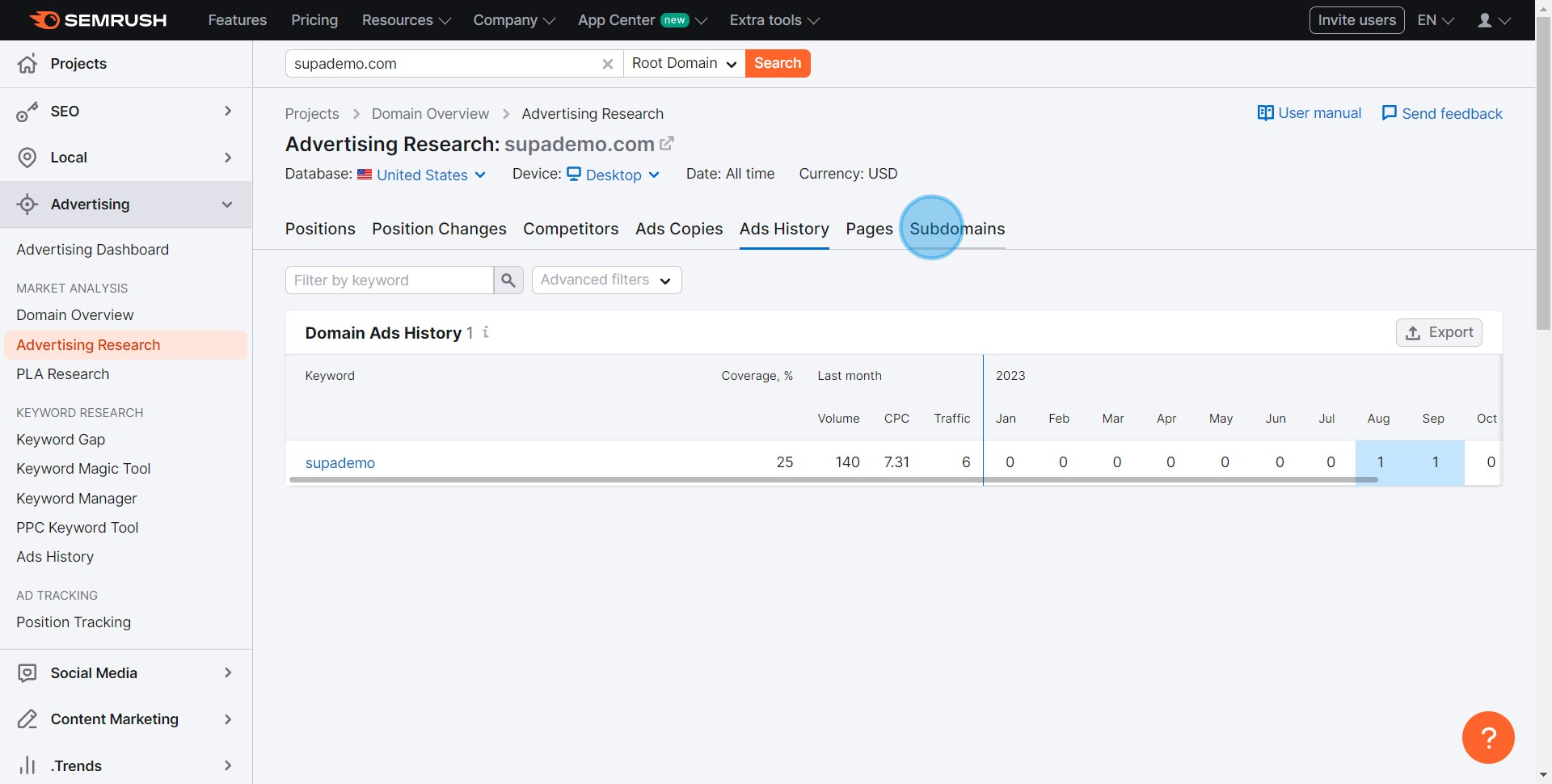
9 Click on "Subdomains"

Common FAQs on SEMrush

Commonly asked questions about this topic.

How do I conduct keyword research using SEMrush?

To conduct keyword research in SEMrush, log in to your account and navigate to the “Keyword Overview” tool under the “Keyword Research” section. Enter a keyword you want to analyze, and SEMrush will provide a detailed report including search volume, keyword difficulty, CPC, and competitive density. You can also use the “Keyword Magic Tool” to explore related keywords, long-tail variations, and keyword suggestions. This tool helps you find additional keywords to target and refine your SEO strategy.

How can I analyze my competitors with SEMrush?

To analyze competitors, use the “Domain Overview” tool by entering your competitor’s domain. This tool provides insights into their organic search traffic, paid search strategies, backlink profile, and top-performing keywords. You can also use the “Organic Research” tool to dive deeper into their organic rankings and discover their top-ranking pages and keywords. The “Backlink Analytics” tool allows you to examine the quantity and quality of their backlinks, helping you identify opportunities to improve your own backlink strategy.

How do I track my website’s SEO performance with SEMrush?

To track your website’s SEO performance, set up a project in SEMrush by going to the “Projects” section and clicking “Create Project.” Enter your domain and configure the project settings. Use tools like “Position Tracking” to monitor your keyword rankings over time, and “Site Audit” to identify and fix technical SEO issues. The “Organic Traffic Insights” tool provides an overview of your traffic trends and sources. Regularly review these reports to assess your SEO performance, track progress, and adjust your strategy as needed.

Create your own step-by-step demo

Scale up your training and product adoption with beautiful AI-powered interactive demos and guides. Create your first Supademo in seconds for free.

Nithil Shanmugam

Nithil Shanmugam

Nithil is a startup-obsessed operator focused on growth, sales and marketing. He's passionate about wearing different hats across startups to deliver real value.

More from the blog

How to Add Products to Shopify

How to Add Products to Shopify

Learn step-by-step how to add products to your Shopify store effortlessly, including tips on product details, images, pricing, and inventory management to boost your online sales.

Vimal Kumar
Vimal KumarDec 17, 2025
How to Deactivate Your Shopify Store

How to Deactivate Your Shopify Store

Learn step-by-step how to deactivate your Shopify store easily, including important considerations and tips to pause or close your shop without losing data.

Vimal Kumar
Vimal KumarDec 17, 2025
How to Remove 'Powered by Shopify'

How to Remove 'Powered by Shopify'

Learn how to easily remove the 'Powered by Shopify' text from your online store with step-by-step instructions and tips to customize your Shopify storefront.

Vimal Kumar
Vimal KumarDec 17, 2025
How to Create a Shopify Account

How to Create a Shopify Account

Learn step-by-step how to create a Shopify account quickly and easily, set up your online store, and start selling your products in no time.

Vimal Kumar
Vimal KumarDec 17, 2025
How to Create a Stripe Account

How to Create a Stripe Account

Learn how to create a Stripe account quickly and easily with our step-by-step guide, perfect for beginners looking to start accepting online payments.

Vimal Kumar
Vimal KumarDec 17, 2025
How to Contact Stripe Support

How to Contact Stripe Support

Learn the easiest ways to contact Stripe support for quick assistance with your payment processing, account issues, and technical questions.

Vimal Kumar
Vimal KumarDec 16, 2025