How to create an event in Livestorm

Creating events in Livestorm is essential for hosting webinars, product demos, and live presentations. This tutorial walks you through the complete process of setting up a new event and inviting team members to collaborate.
Quick summary
In this tutorial, you'll learn how to create a new event in Livestorm, customize its basic details, and add team members to help you manage the session. By the end, you'll have a fully configured event ready to broadcast.
Why this matters
Setting up events correctly ensures your webinars run smoothly and your team has clear roles and responsibilities. Adding team members early allows coordinators, hosts, and moderators to prepare together and deliver a professional experience to your audience.
Step-by-step guide
- 1
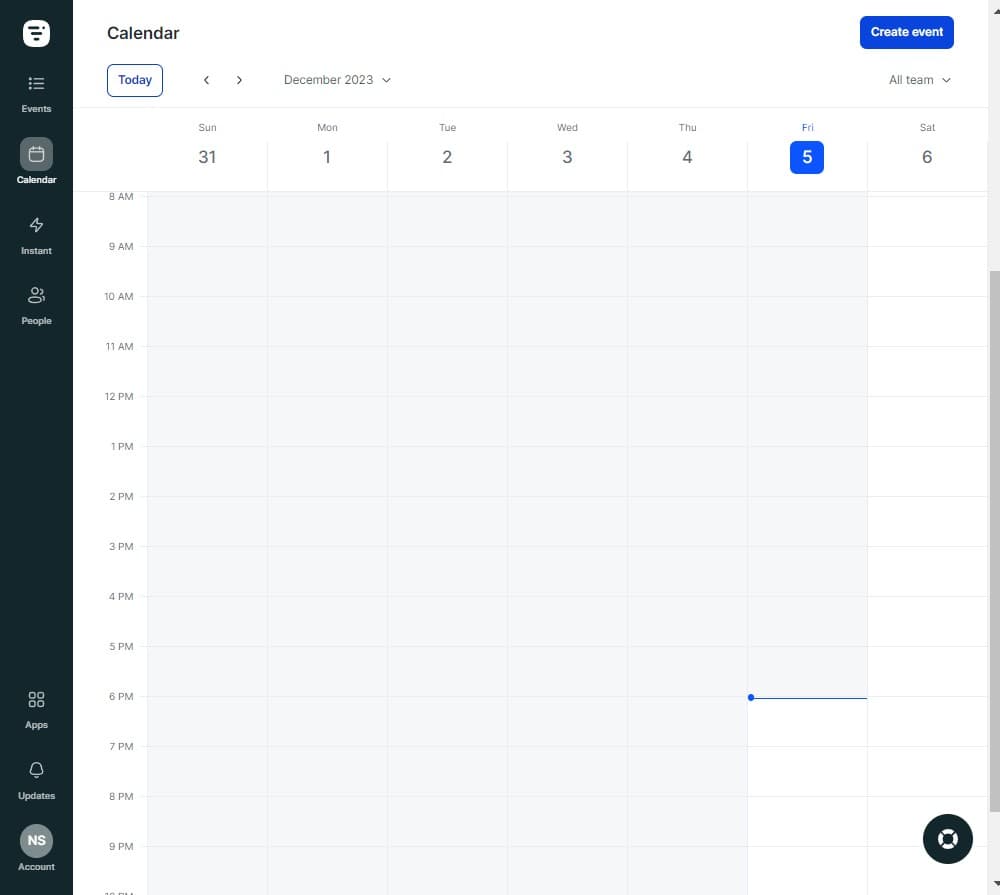
Click on Create event
Start by locating and clicking the "Create event" button in your Livestorm dashboard. This action opens the event creation interface where you'll configure your new session.
- 2
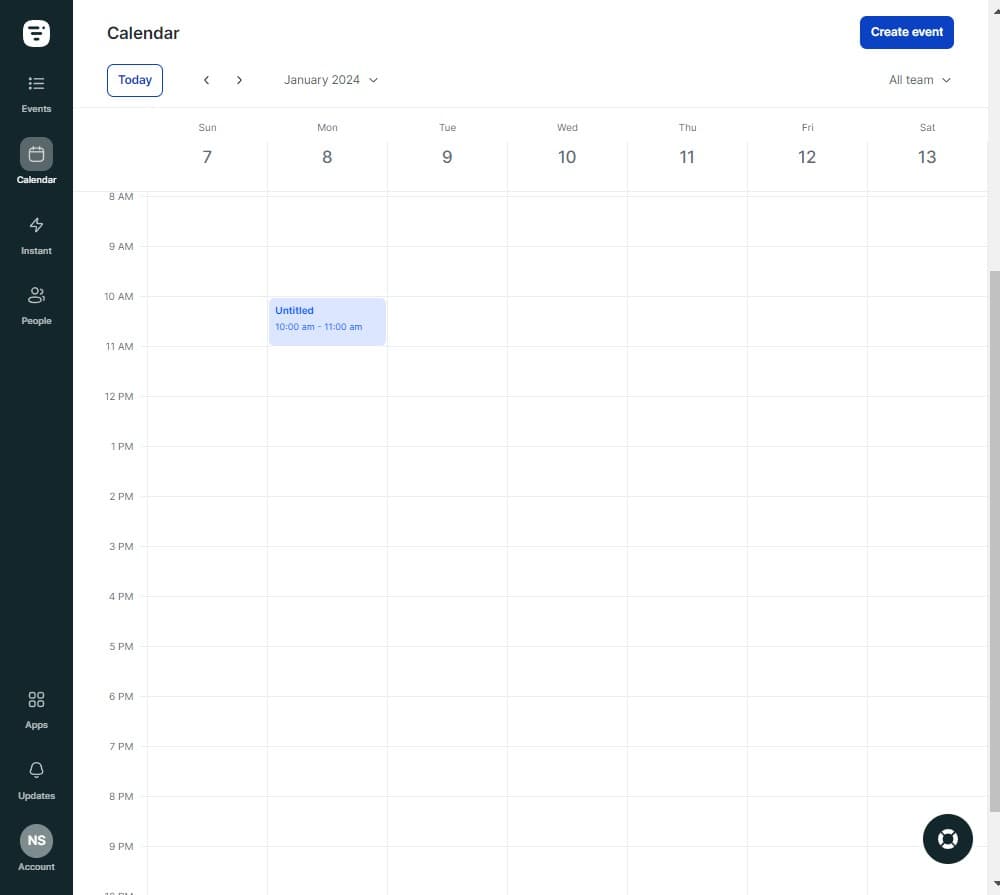
Edit the event title and time
Click on the "Untitled 10:00 am - 11:00 am" field to edit your event's name and adjust the scheduled time. Enter a descriptive title and set the correct start and end times for your event.
- 3
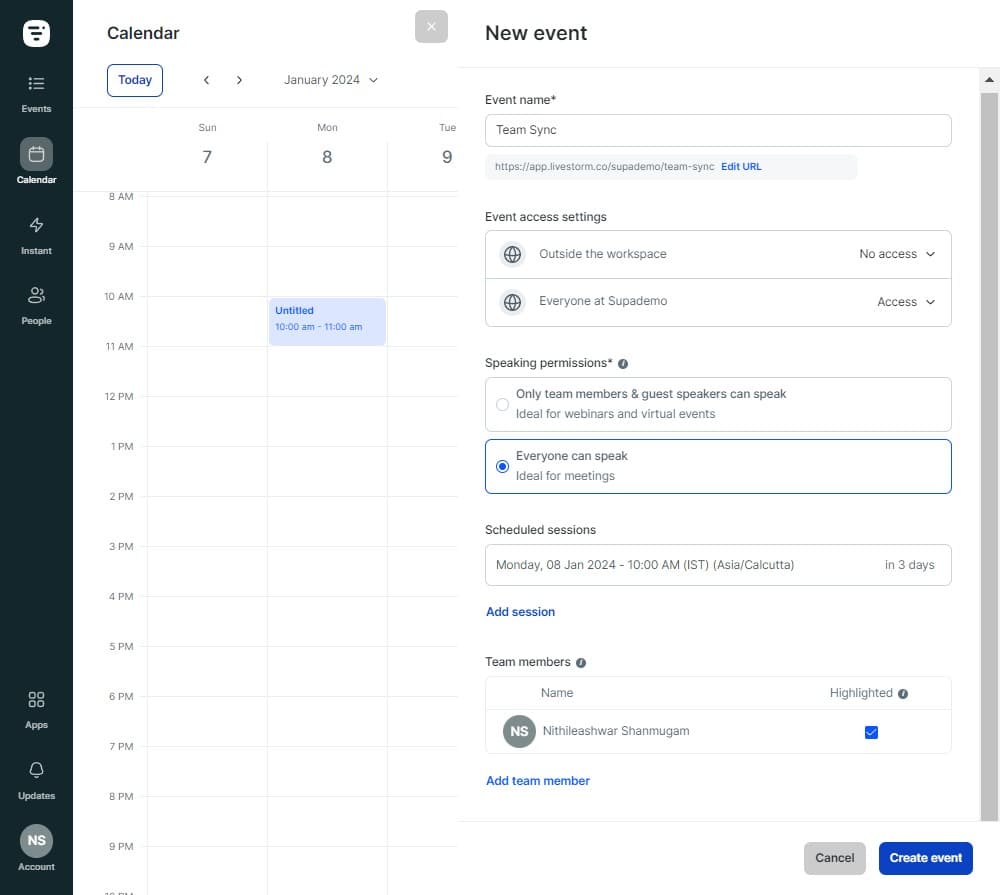
Click on Add team member
Navigate to the team members section and click "Add team member" to begin inviting collaborators to your event. This opens options for selecting or inviting new team members.
- 4
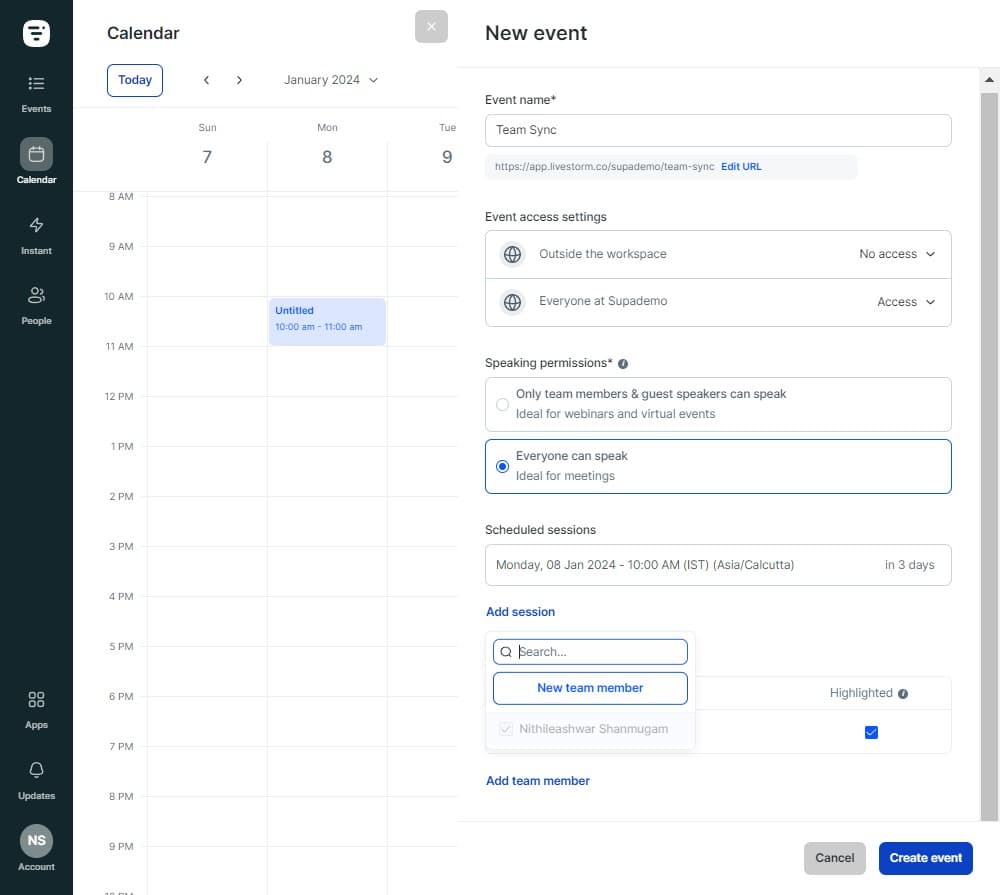
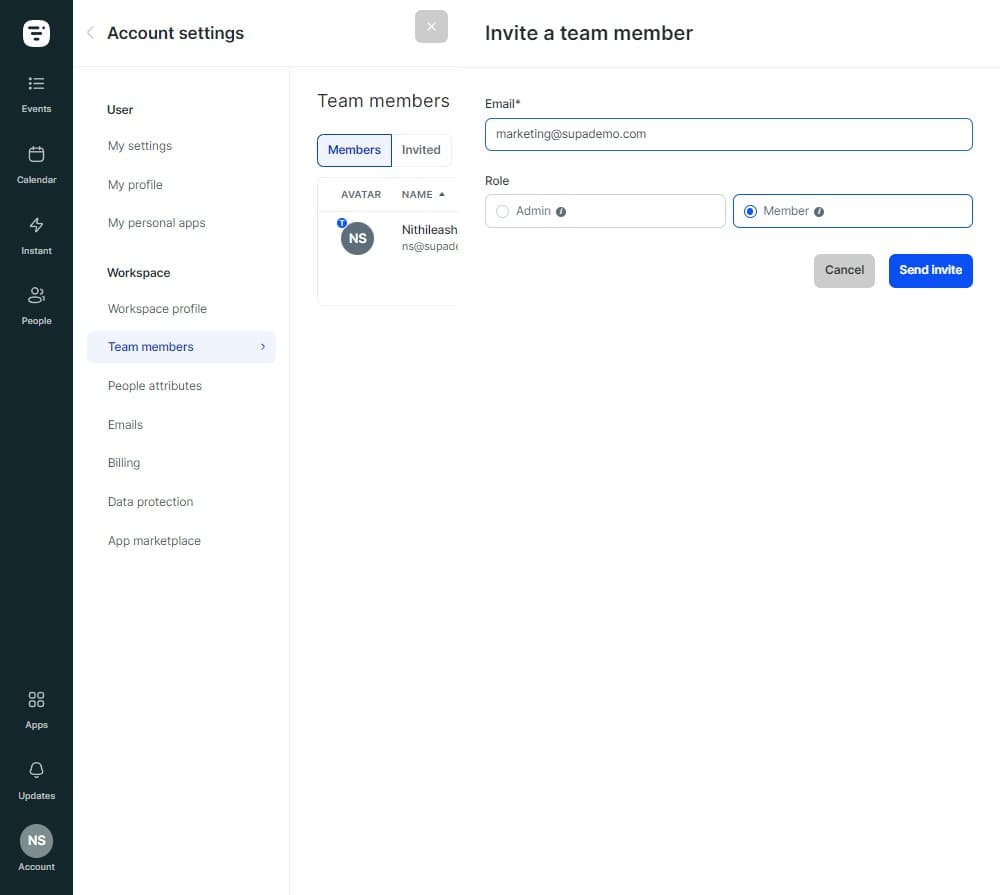
Select New team member
Click on "New team member" to add someone who isn't yet part of your Livestorm workspace. Enter their email address to prepare them for the invitation.
- 5
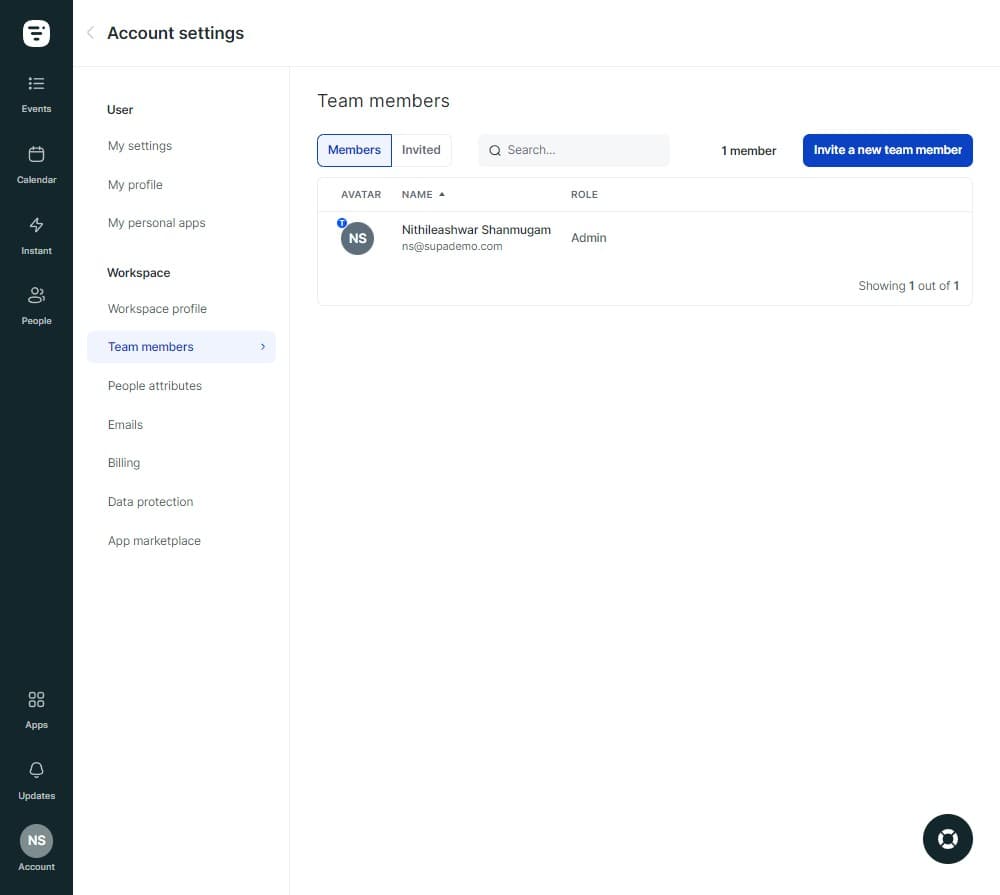
Confirm team members
Click on "Team members" to review the list of people you've added to the event. Verify that all necessary collaborators are included before proceeding.
- 6
Click on Send invite
Click the "Send invite" button to dispatch invitations to all added team members. They'll receive an email with instructions to join the event and their assigned roles.
- 7
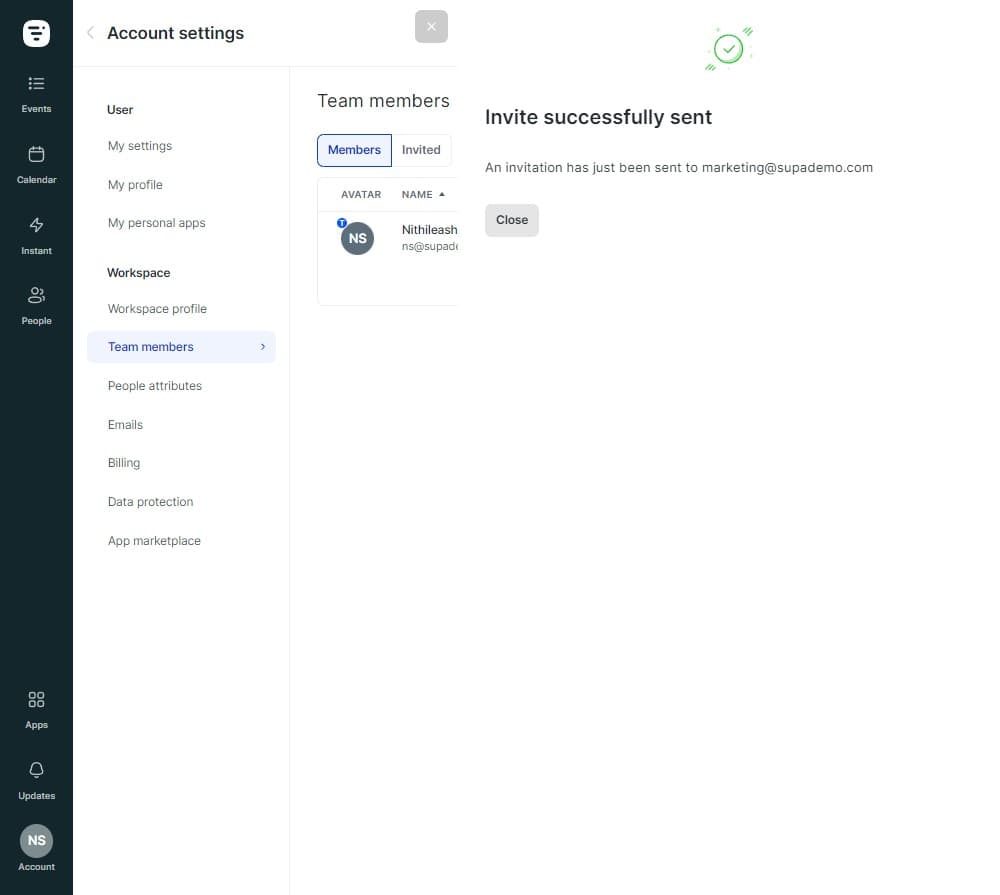
Click Close to finish
Click "Close" to complete the event setup process. Your event is now created and your team members have been notified and can begin collaborating.
Frequently asked questions
Common questions about how to create an event in livestorm.
Yes, you can edit the event time at any point. Simply click on the event details and modify the start and end times as needed. Make sure to notify your team members if you make significant changes to the schedule.
When you send an invite, the team member receives an email notification with a link to join the event. They can accept the invitation and access the event dashboard where they can view details and prepare for the session.
Yes, you can add or remove team members at any time before the event starts. Simply access the event settings and use the "Add team member" option to invite additional collaborators.
Team members will need to have or create a Livestorm account to collaborate on events. The invitation process guides them through account setup if they're new to the platform.
Livestorm typically allows you to assign different roles such as host, moderator, and panelist, each with different permissions and responsibilities. Check your event settings to see the available roles and assign them based on your team's needs.