How to add a table in MS-Word

Tables are essential for organizing data, comparisons, and structured information in Microsoft Word documents. Whether you're creating a report, schedule, or data summary, knowing how to insert and format a table will save you time and improve document readability.
Quick summary
In this tutorial, you'll learn how to add a table to your Microsoft Word document from start to finish. You'll discover multiple methods to insert tables, customize their layout, and adjust formatting to match your document's needs.
Why this matters
Tables transform raw data into clear, scannable formats that enhance document professionalism and reader comprehension. Mastering table insertion in Word enables you to present information efficiently, whether for business reports, academic work, or data-heavy documents.
Step-by-step guide
- 1
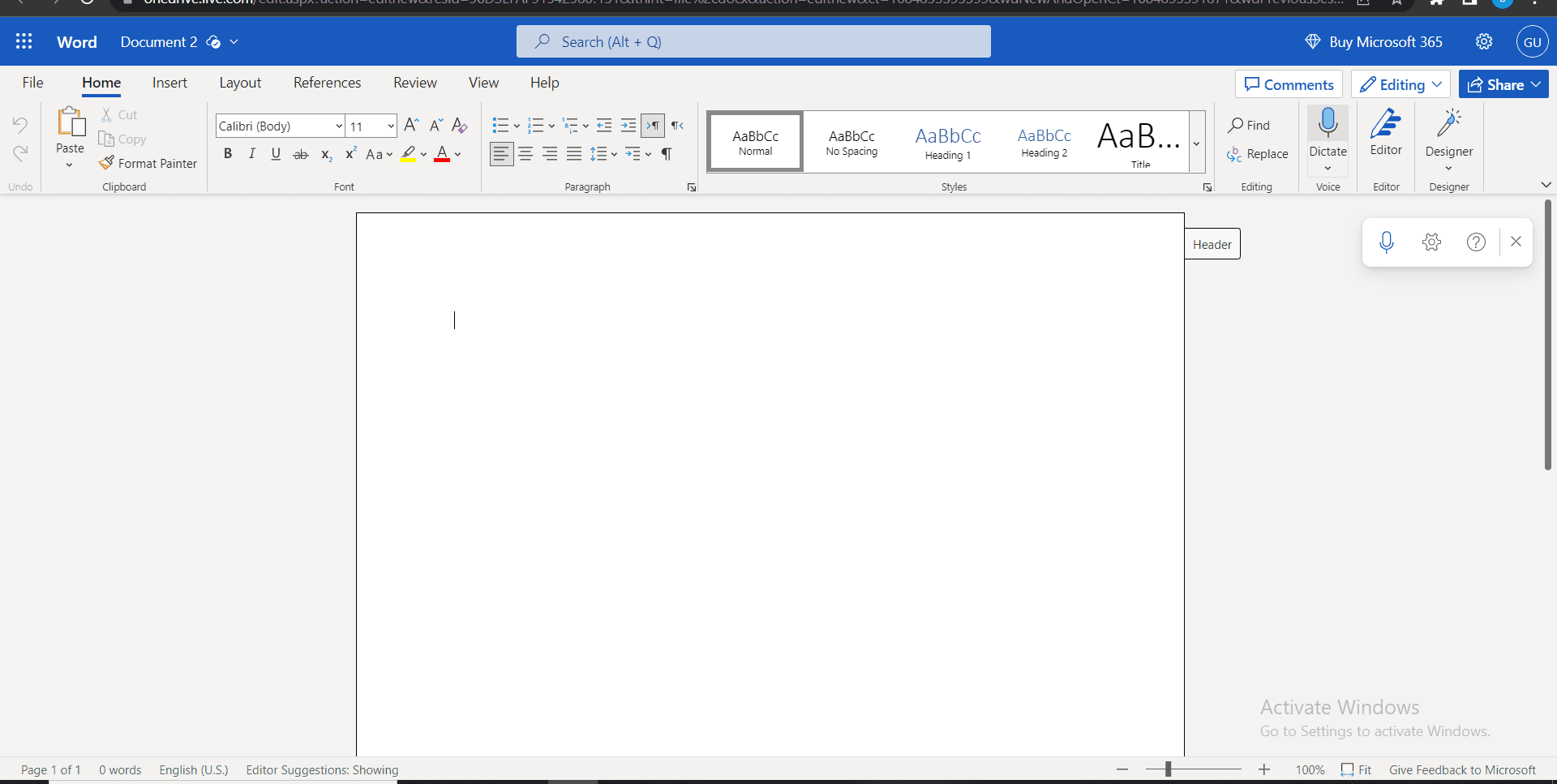
Open Microsoft Word
Launch Microsoft Word on your computer and either open an existing document or create a new one. Position your cursor at the location in the document where you want to insert the table.
- 2
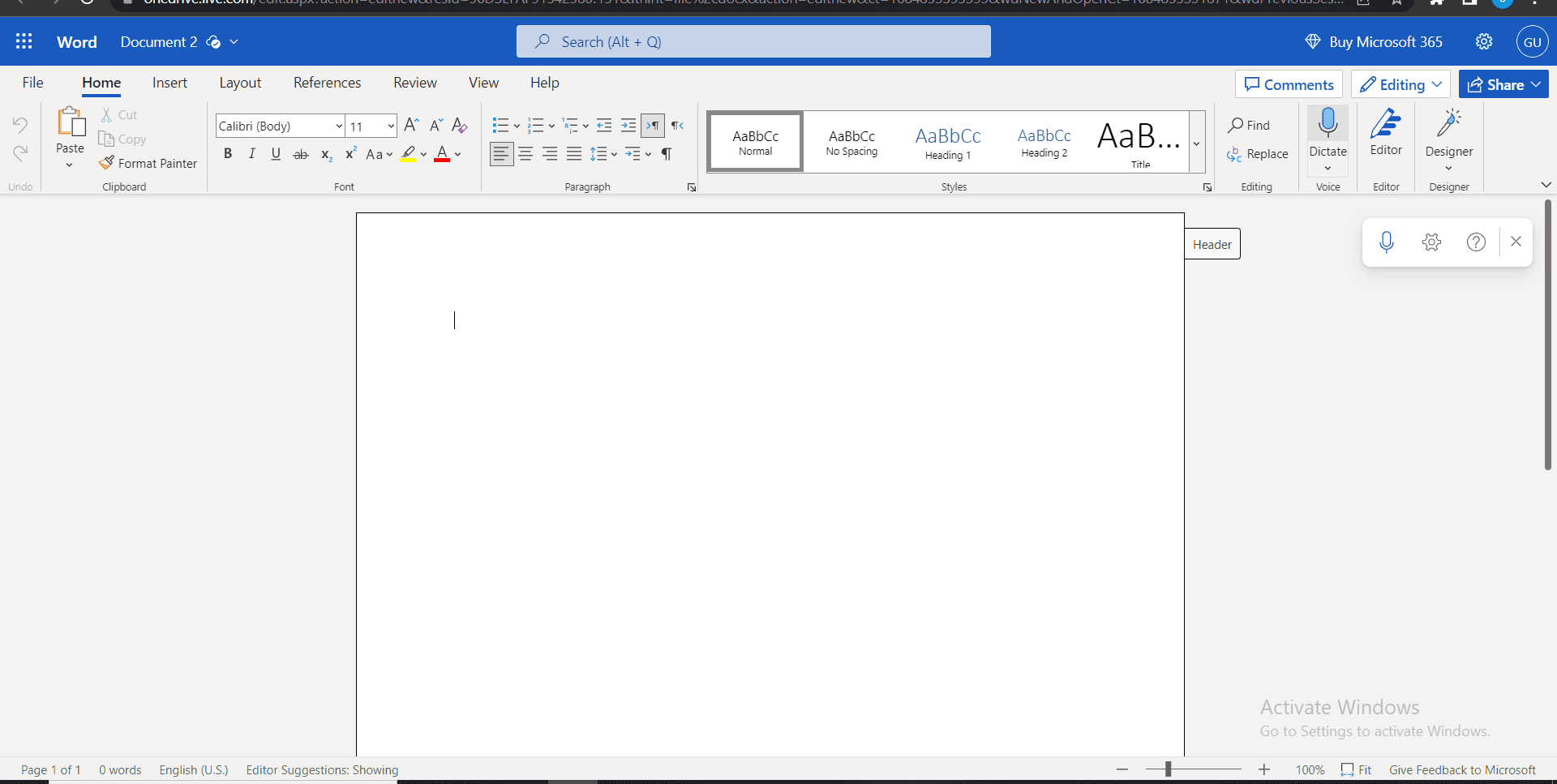
Navigate to Insert Tab
Click on the Insert tab in the ribbon menu at the top of the window. This tab contains all the options for adding elements like tables, images, and shapes to your document.
- 3
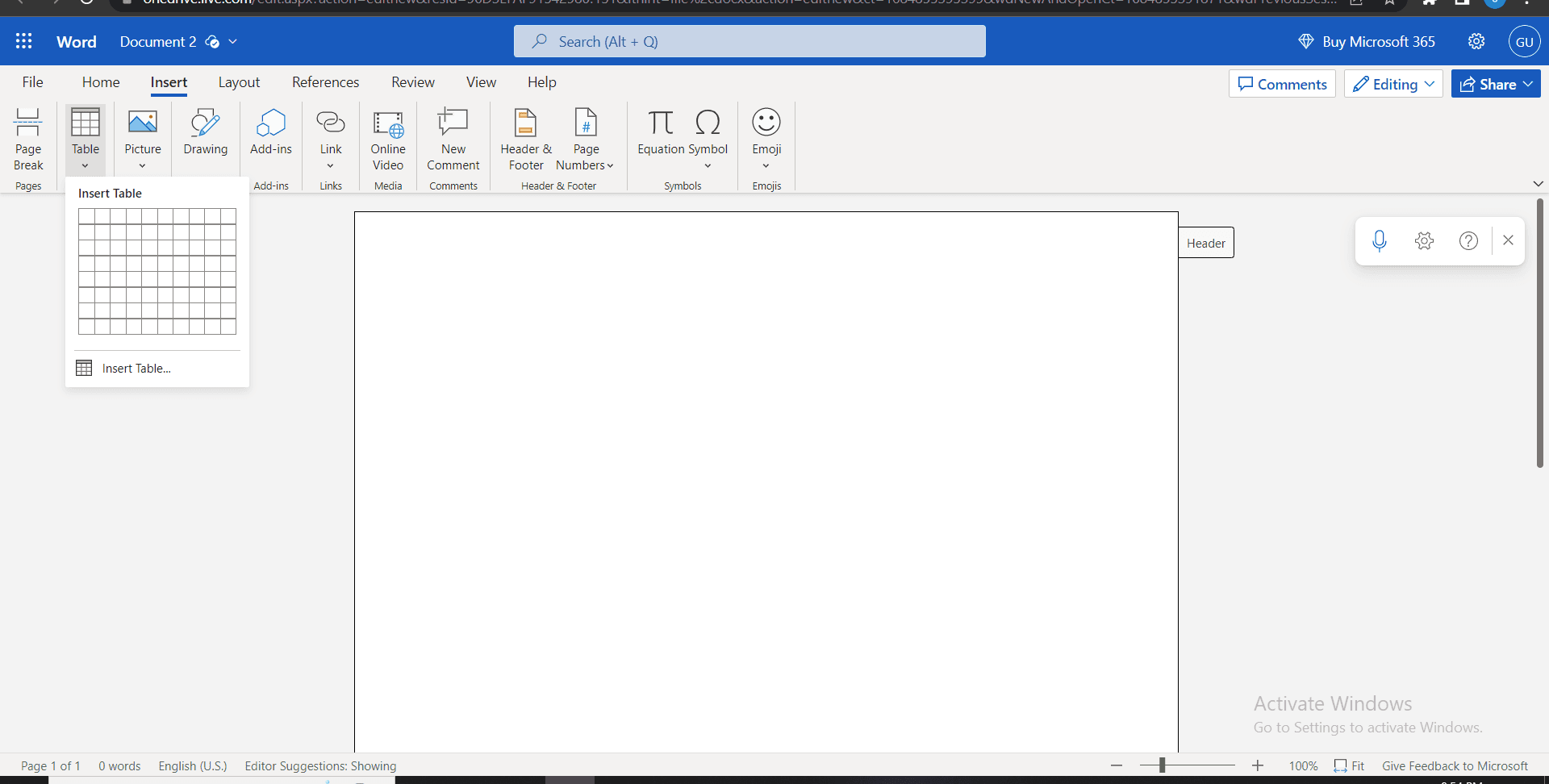
Select Table Option
In the Insert tab, click on the Table button. A dropdown menu will appear showing several options for inserting a table into your document.
- 4
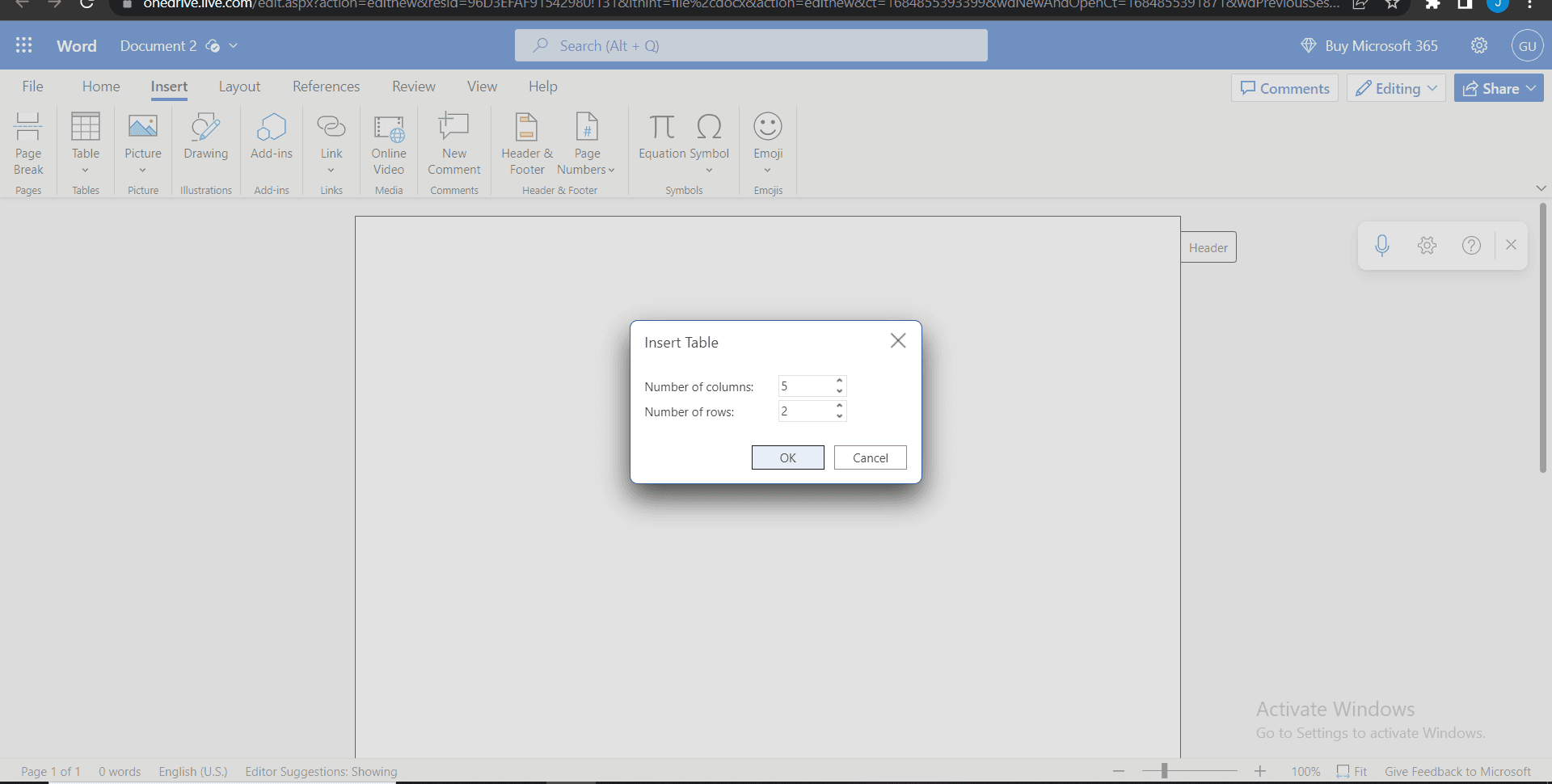
Choose Table Dimensions
Select your desired number of rows and columns from the grid that appears, or click Insert Table for more customization options. Word will insert a table with your specified dimensions into the document.
- 5
Customize Table Format
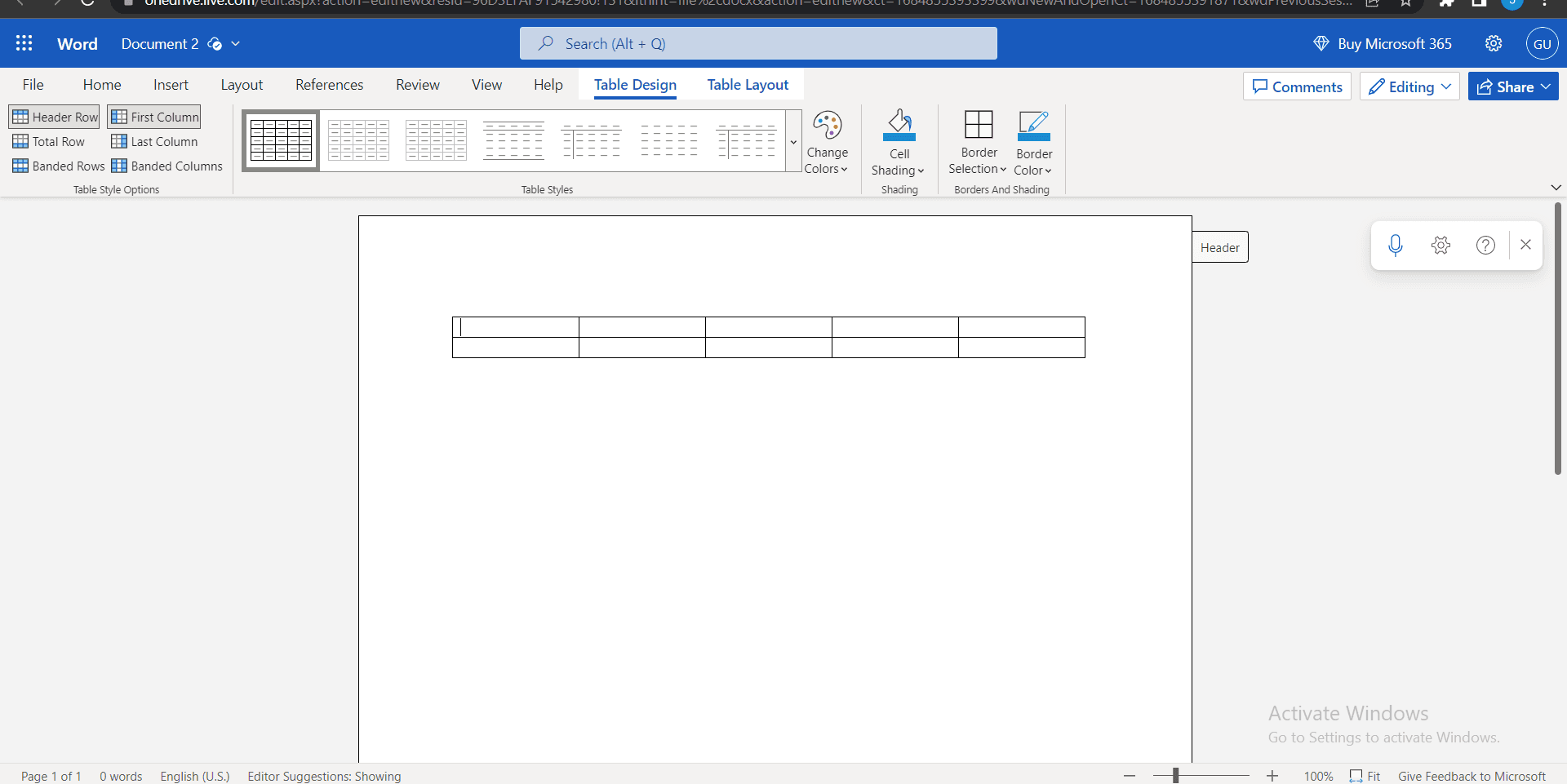
Once the table is inserted, you can adjust column widths, add borders, and apply table styles from the Table Design options that appear. Right-click on the table to access additional formatting options like cell properties and table alignment.
- 6
Add Content to Cells
Click inside any cell and begin typing to add your data or text. Use the Tab key to move between cells and navigate through the table efficiently.
Frequently asked questions
Common questions about how to add a table in ms-word.
Yes, Microsoft Word allows you to convert text into a table. Select the text you want to convert, go to the Insert tab, click Table, and select Convert > Text to Table. Word will automatically parse your text based on delimiters like tabs or commas.
Right-click on any cell in the table and select Insert to add rows or columns. To delete rows or columns, right-click and select Delete, then choose the appropriate option. You can add multiple rows or columns at once by right-clicking and specifying the number.
Use the Table Design tab that appears when you click inside your table. Word offers pre-designed table styles that automatically format headers, alternating rows, and borders. You can further customize colors, fonts, and borders to match your document's style.
Yes, you can manually drag column borders to resize them. Alternatively, right-click on a column, select AutoFit, and choose to fit the column to its contents or to the window width. Double-clicking the column border will auto-fit the column to the content inside.
Yes, Microsoft Word supports nested tables. Click inside a cell where you want to insert a nested table, go to the Insert tab, and select Table. The new table will be created within the selected cell, allowing you to create complex layouts and hierarchical data structures.