How to Create a Zoom Account

Nithil Shanmugam
Nithil Shanmugam·
How to Create a Zoom Account

Overview:

Streamline your virtual communication experience with a step-by-step guide on creating a Zoom account. Optimize your online meetings by easily setting up your Zoom account, ensuring a seamless and efficient process. Enhance your digital collaboration and communication capabilities through this user-friendly guide, designed to provide clarity and efficiency in utilizing Zoom's platform for your virtual interactions.

Who is Zoom best suited for?

Zoom is best suited for a wide range of professionals, including Remote Workers, Educators, and Sales Teams. For example, Remote Workers can use Zoom for virtual meetings and team collaboration, Educators can leverage it for conducting online classes and webinars, and Sales Teams can use it for video conferencing with clients and prospects, all benefiting from Zoom’s reliable video communication and screen-sharing features.

How to Create a Zoom Account

Interactive demo powered by Supademo

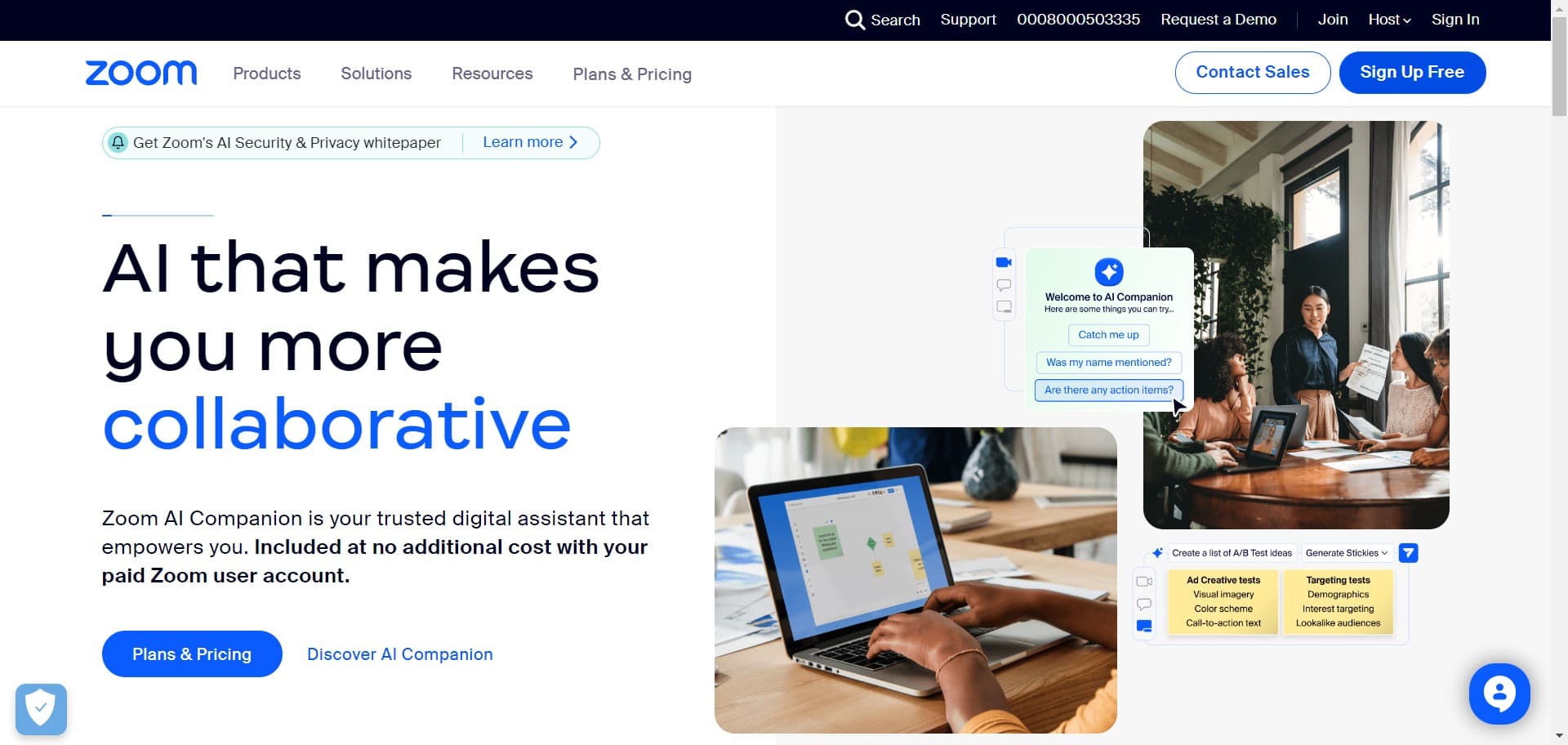
1. Start your Zoom journey by clicking on 'Sign Up Free'.

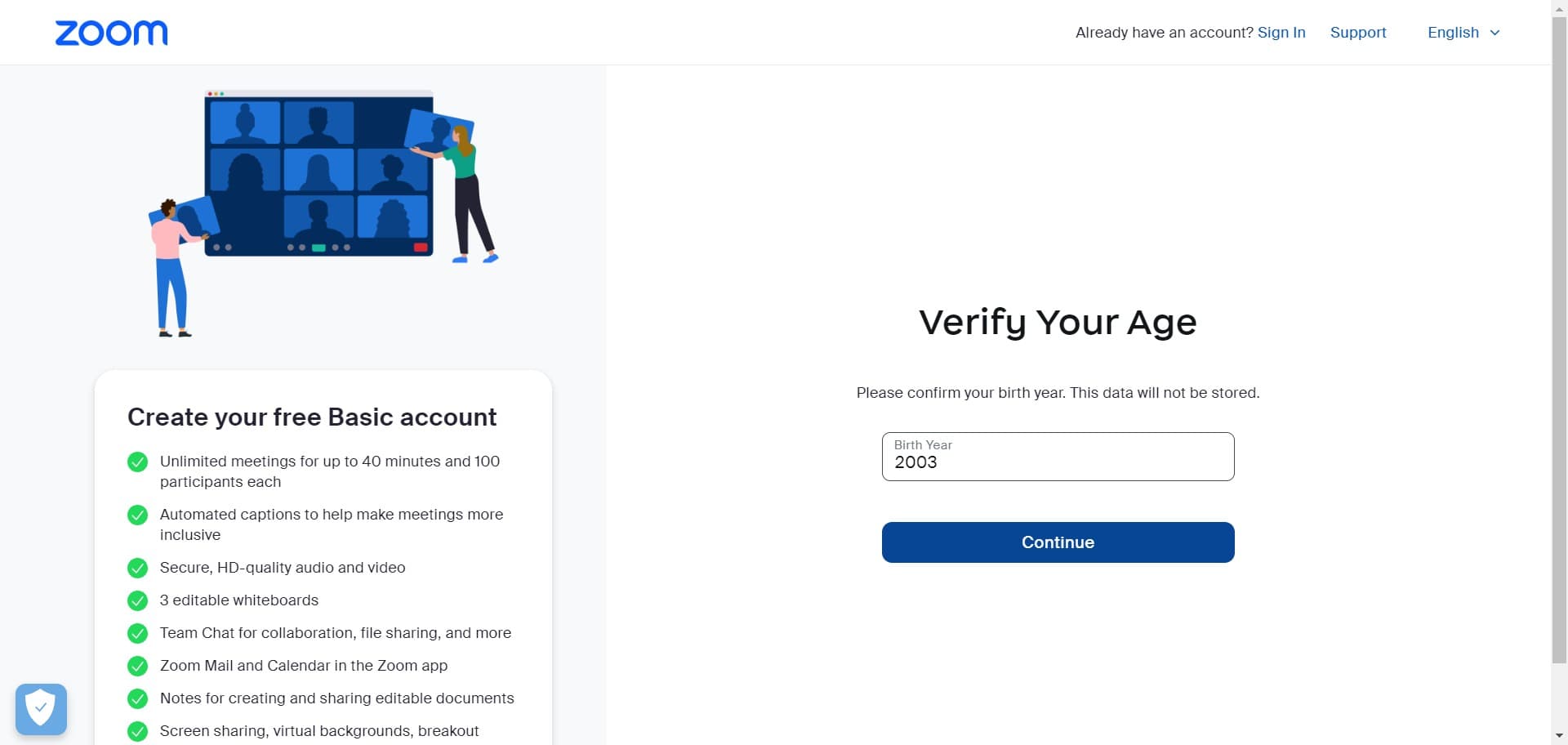
2.Key in your birth year, then tap 'Continue'.

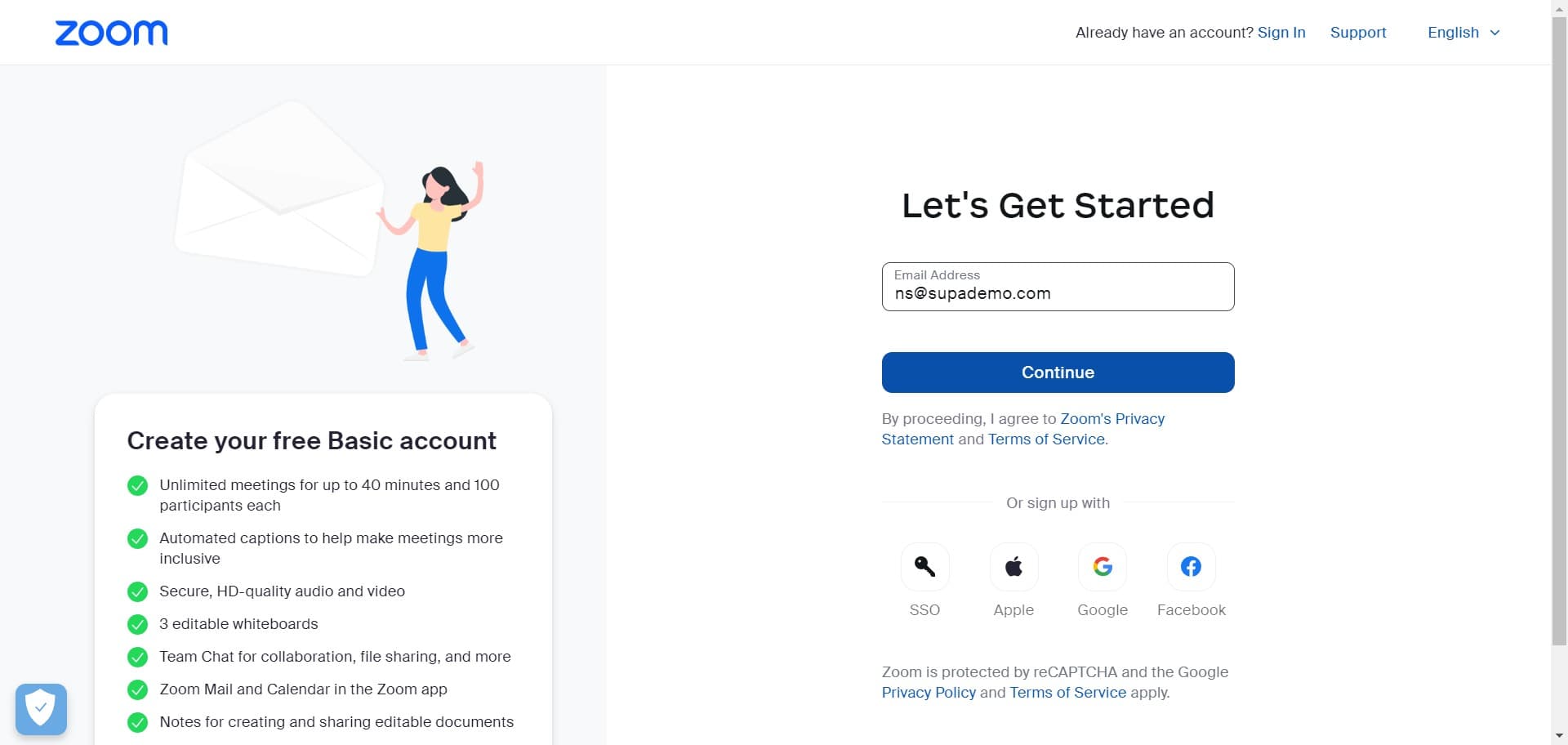
3.Next, provide your email address and proceed with 'Continue'.

4.For the next step, click on the 'Open Gmail' button.

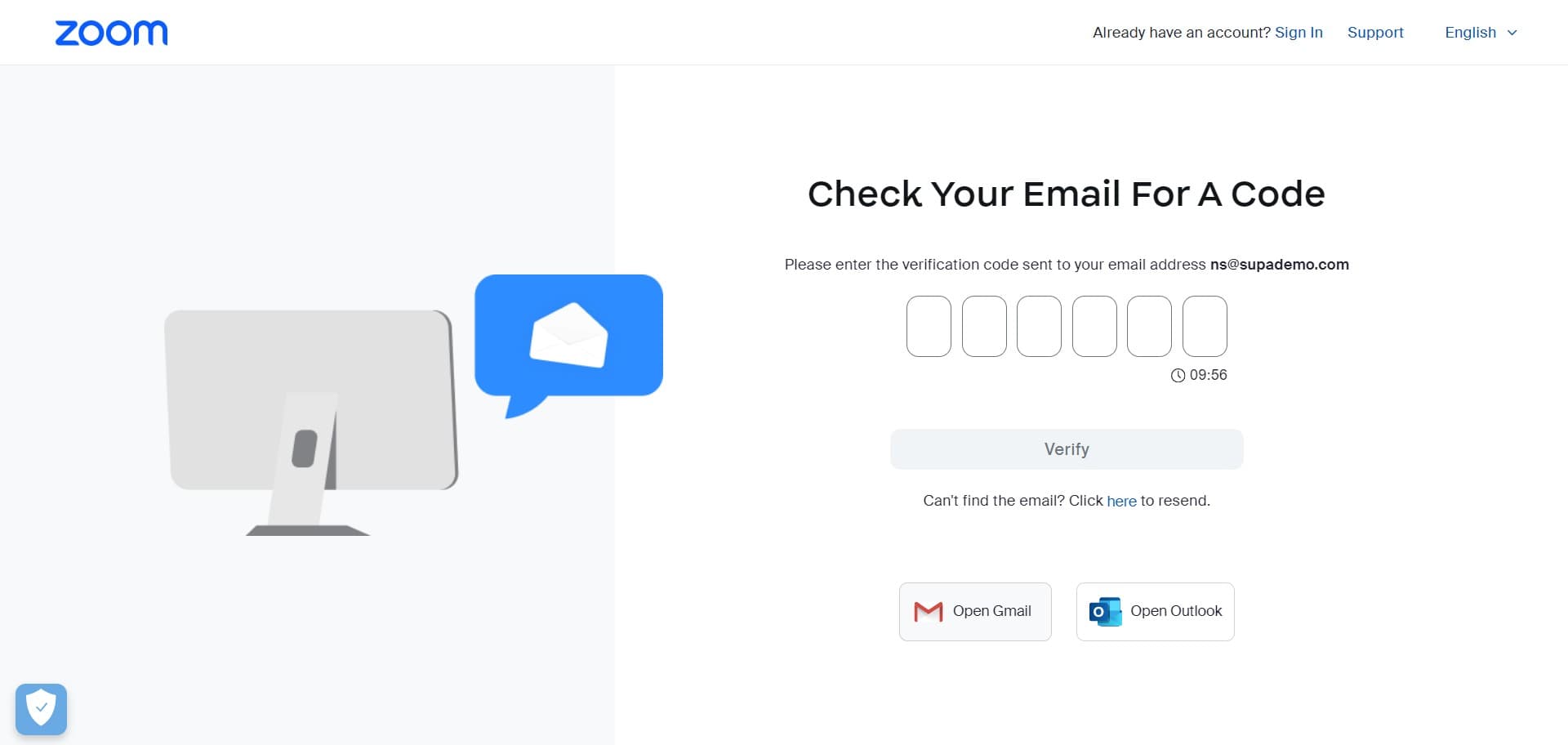
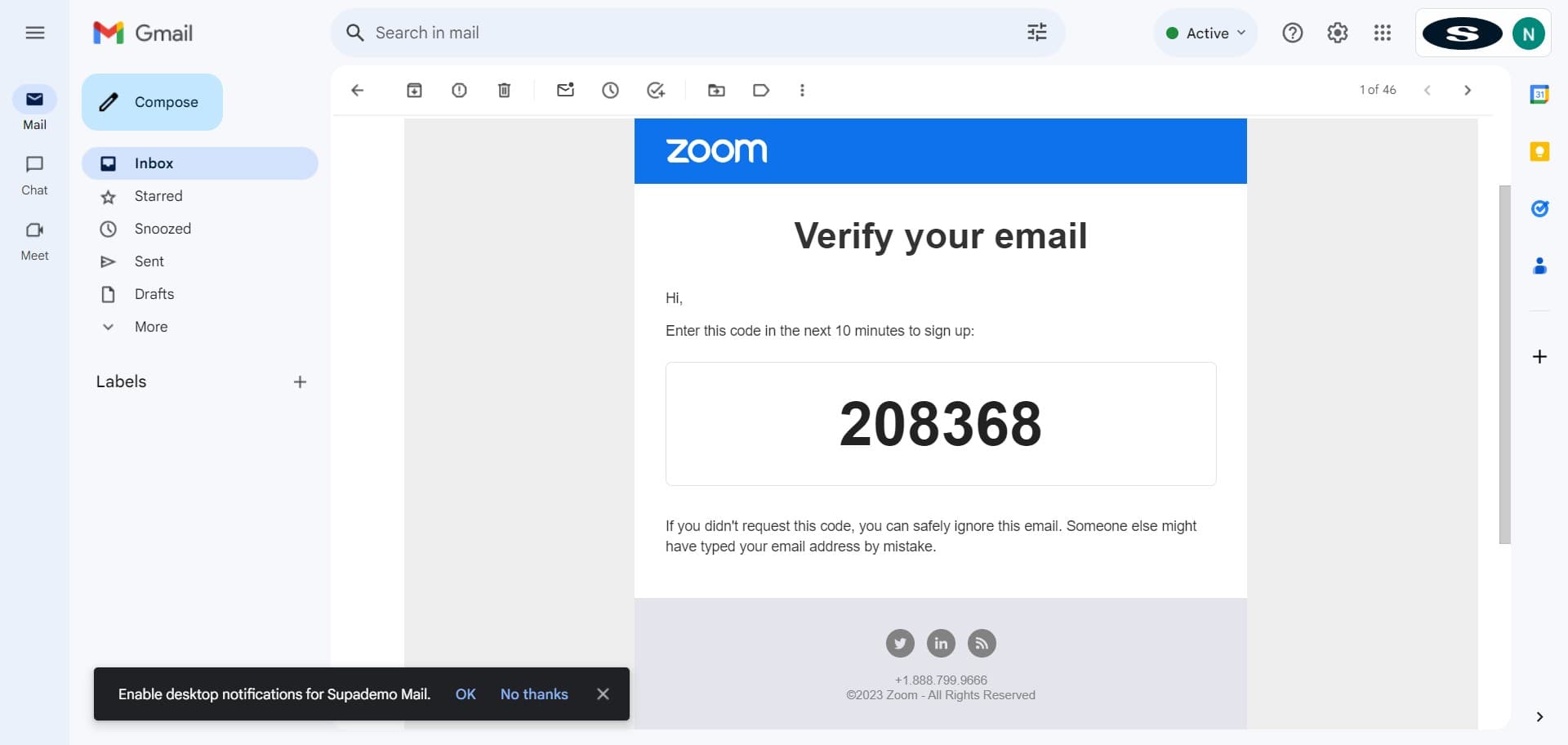
5.Find and copy the provided code from Gmail.

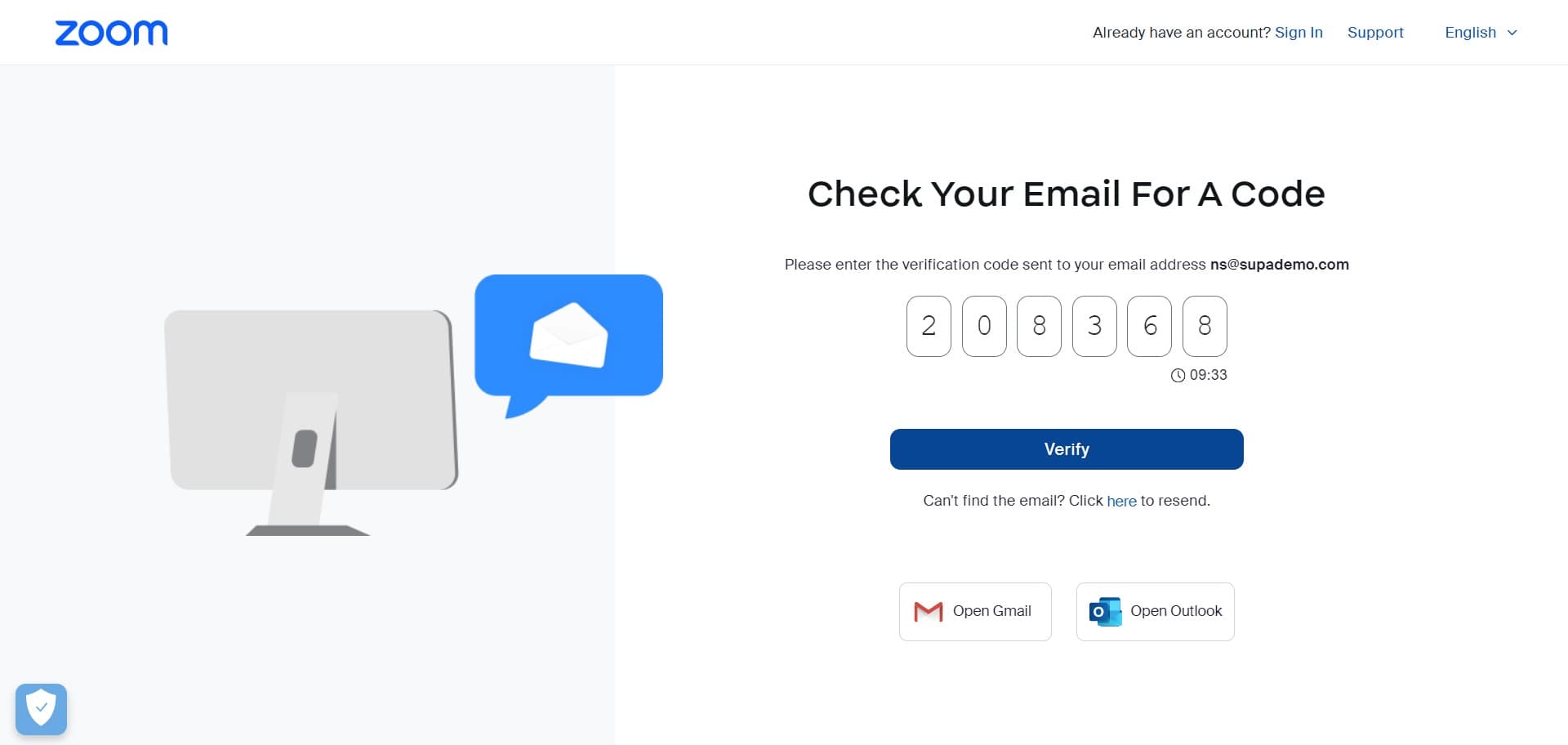
6.Return to Zoom, paste the copied code, then select 'Verify'.

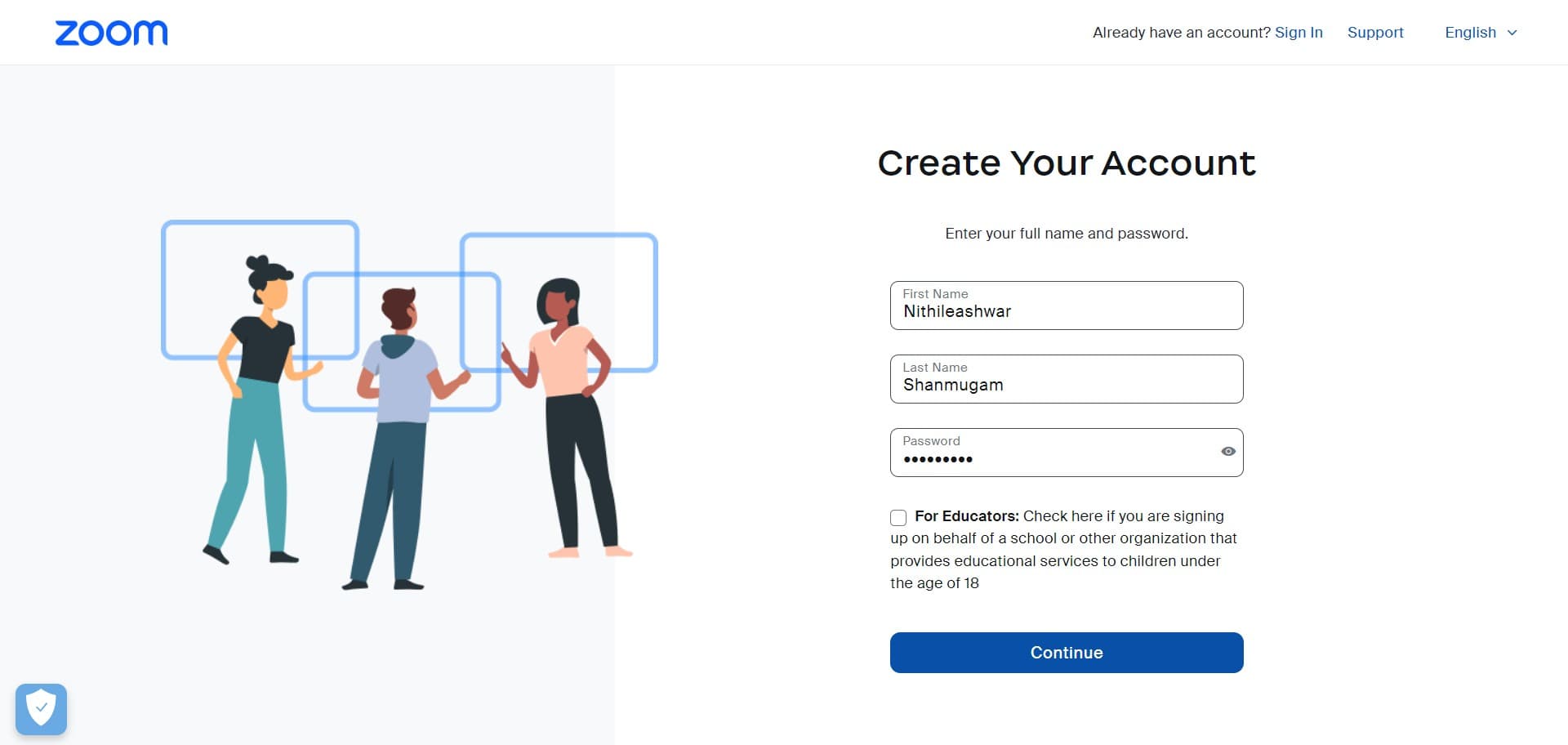
7.Now, fill in the necessary details and click 'Continue'.

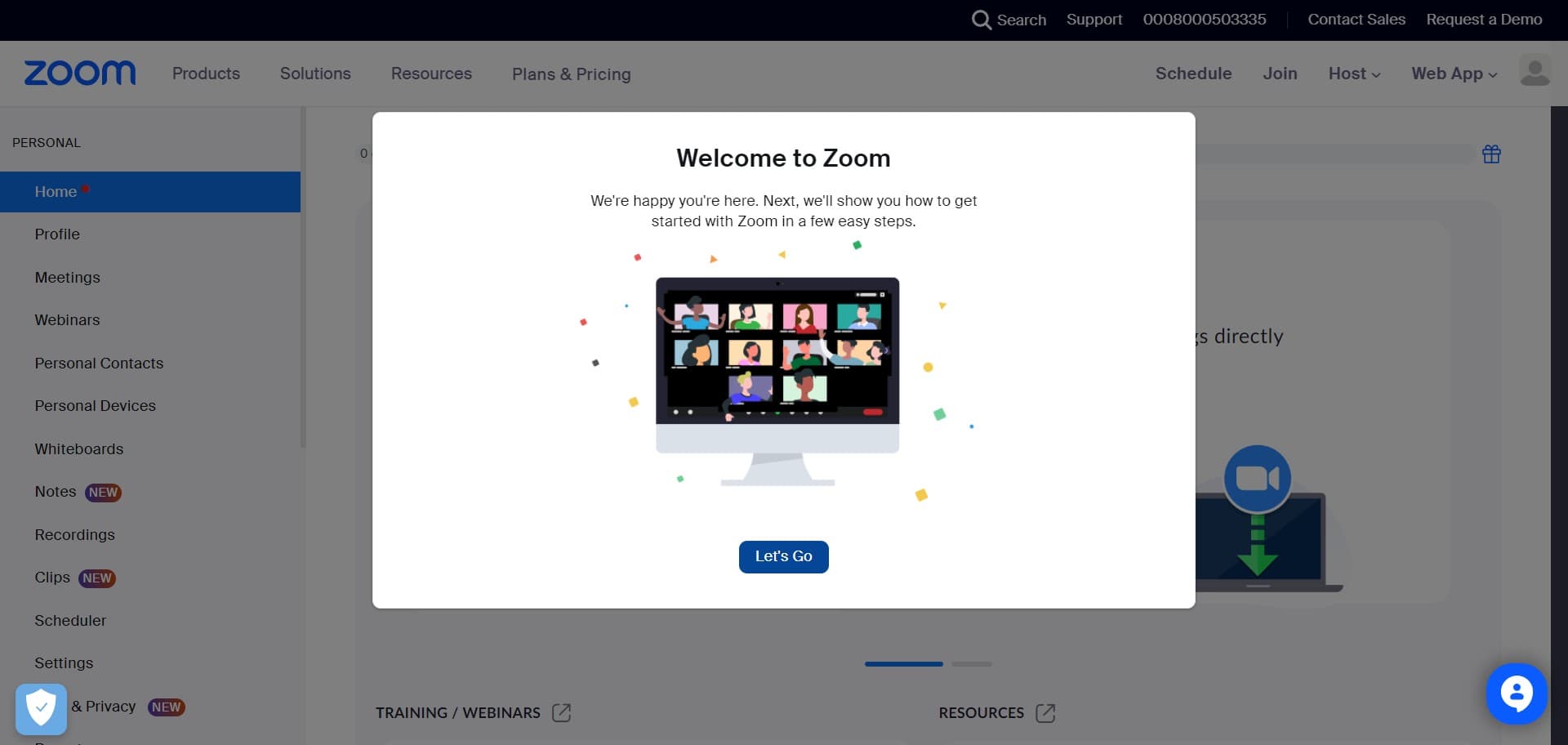
8.Finally, embrace your new Zoom adventure by clicking 'Let's Go'.

Common FAQs on Zoom

Commonly asked questions about this topic.

How do I schedule a meeting in Zoom?

To schedule a meeting in Zoom, start by logging into your Zoom account. Click on the “Schedule a Meeting” button on your dashboard. Fill in the details of your meeting, such as the topic, date, time, and duration. You can also set up recurring meetings, adjust meeting options like requiring a passcode or enabling a waiting room, and choose whether to enable video and audio for participants. Once you’ve configured your meeting settings, click “Save.” You’ll be provided with a unique meeting ID and a link that you can share with participants via email or calendar invitations. You can also integrate Zoom with calendar apps like Google Calendar or Outlook to streamline the scheduling process.

How can I share my screen during a Zoom meeting?

To share your screen during a Zoom meeting, click the “Share Screen” button located in the meeting controls at the bottom of your Zoom window. You’ll be prompted to select which screen or application you want to share. You can choose to share your entire desktop, a specific application window, or a portion of your screen. There are also options to share audio or optimize the screen sharing for video clips. Once you’ve made your selection, click “Share.” Participants will be able to see what you’re sharing, and you can pause or stop screen sharing at any time by clicking the respective buttons in the meeting controls. Zoom also allows multiple participants to share their screens simultaneously if the host enables this option.

What features are available for managing participants during a Zoom meeting?

As the host of a Zoom meeting, you have several tools to manage participants effectively. In the “Participants” panel, you can mute or unmute participants, control their video, and assign roles such as co-host or presenter. You can also use the “Manage Participants” button to access options like putting participants on hold, removing them from the meeting, or locking the meeting to prevent others from joining. Additionally, you can use the “Chat” function to communicate with participants, either individually or with the entire group. Zoom also provides options for breakout rooms, which allow you to split participants into smaller groups for more focused discussions or activities, and then bring them back to the main meeting when needed.

Create your own step-by-step demo

Scale up your training and product adoption with beautiful AI-powered interactive demos and guides. Create your first Supademo in seconds for free.

Frequently Asked Questions about how to create a zoom account

Commonly asked questions about this topic.

Can I automate any part of creating a Zoom Account?

Look for repetitive, rule-based steps that don't require human judgment — these are ideal automation candidates. Start with simple automations like notifications, status updates, and data entry before tackling complex conditional logic. Tools like Zapier, Make, or built-in platform automations can handle most common use cases without custom development. Companies using interactive demos report an average 28% reduction in customer acquisition cost.

What prerequisites do I need before setting up Zoom?

Clarify your goals, audience, and constraints upfront. Understand who will use or consume the output and what decisions it needs to support. Inventory your existing tools and data — building on what you already have is almost always faster than starting from scratch. This is backed by data — the State of best arcade alternatives for 2026s 2026 report found 76% of teams rate internal enablement impact as high or very high.

What are the most common mistakes people make during Zoom setup?

The most frequent mistake is starting without clear requirements — this leads to rework and misaligned expectations. Another pitfall is over-engineering the solution before validating the basic approach works. Finally, skipping documentation means you'll struggle to replicate successes or hand off the process to teammates. 68% of teams rate support and self-service impact from interactive demos as high or very high.

What is the quickest way to get a Zoom account up and running?

Break the process into clear phases: planning, execution, review, and iteration. Start with a minimal viable approach rather than trying to perfect everything upfront. Document each step as you go — this creates a reference for future iterations and makes it easier to delegate or scale the process later. Learn more about Supademo's features. 96.8% of top-performing demos use custom branding to maintain brand consistency.

Why isn't my Zoom account creation working and how do I fix it?

Start with the most recent change — new issues usually trace back to something that just changed. Check platform status pages for known outages, review your settings against interactive manual creation tool, and search community forums for similar reports. If you're stuck, reproduce the issue in a minimal example to isolate the root cause. Supademo integrates with 30+ tools including HubSpot, Salesforce, Slack, and more. The average time from recording to publishing a Supademo is just 3.5 minutes.

Are there third-party tools that can help streamline Zoom registration?

The right tool depends on your team size, budget, and specific requirements. Look for platforms that integrate with your existing workflow rather than requiring a complete process overhaul. Start with free tiers to validate fit before committing to paid plans — switching tools mid-project is expensive and disruptive. Supademo supports AI voiceover in 15+ languages for global teams.

How do I scale creating a Zoom Account across a larger team?

Create clear documentation, templates, and standard operating procedures before scaling. What works for one person often breaks with five — build in quality checks, approval workflows, and role-based permissions early. Interactive walkthroughs help standardize training so every team member follows the same process. To illustrate, VRIFY achieved a 75% reduction in enablement content production time, saving over $100k on staffing costs.
Nithil Shanmugam

Nithil Shanmugam

Nithil is a startup-obsessed operator focused on growth, sales and marketing. He's passionate about wearing different hats across startups to deliver real value.

More from the blog

How to Remove 'Powered by Shopify'

How to Remove 'Powered by Shopify'

Learn how to easily remove the 'Powered by Shopify' text from your online store with step-by-step instructions and tips to customize your Shopify storefront.

Vimal Kumar
Vimal KumarJan 3, 2026
How to Add Products to Shopify

How to Add Products to Shopify

Learn step-by-step how to add products to your Shopify store effortlessly, including tips on product details, images, pricing, and inventory management to boost your online sales.

Vimal Kumar
Vimal KumarDec 17, 2025
How to Deactivate Your Shopify Store

How to Deactivate Your Shopify Store

Learn step-by-step how to deactivate your Shopify store easily, including important considerations and tips to pause or close your shop without losing data.

Vimal Kumar
Vimal KumarDec 17, 2025
How to Remove 'Powered by Shopify'

How to Remove 'Powered by Shopify'

Learn how to easily remove the 'Powered by Shopify' text from your online store with step-by-step instructions and tips to customize your Shopify storefront.

Vimal Kumar
Vimal KumarDec 17, 2025
How to Create a Shopify Account

How to Create a Shopify Account

Learn step-by-step how to create a Shopify account quickly and easily, set up your online store, and start selling your products in no time.

Vimal Kumar
Vimal KumarDec 17, 2025
How to Create a Stripe Account

How to Create a Stripe Account

Learn how to create a Stripe account quickly and easily with our step-by-step guide, perfect for beginners looking to start accepting online payments.

Vimal Kumar
Vimal KumarDec 17, 2025