How to Update Zoom

Keeping Zoom updated ensures you have access to the latest features, security patches, and performance improvements. This guide walks you through the process of updating Zoom on your device.
Quick summary
In this tutorial, you'll learn how to check for available updates and install the latest version of Zoom. You'll understand the complete update workflow from start to finish.
Why this matters
Regular Zoom updates are critical for maintaining security, fixing bugs, and gaining access to new collaboration features. Staying current with updates prevents compatibility issues and ensures your meetings run smoothly.
Step-by-step guide
- 1
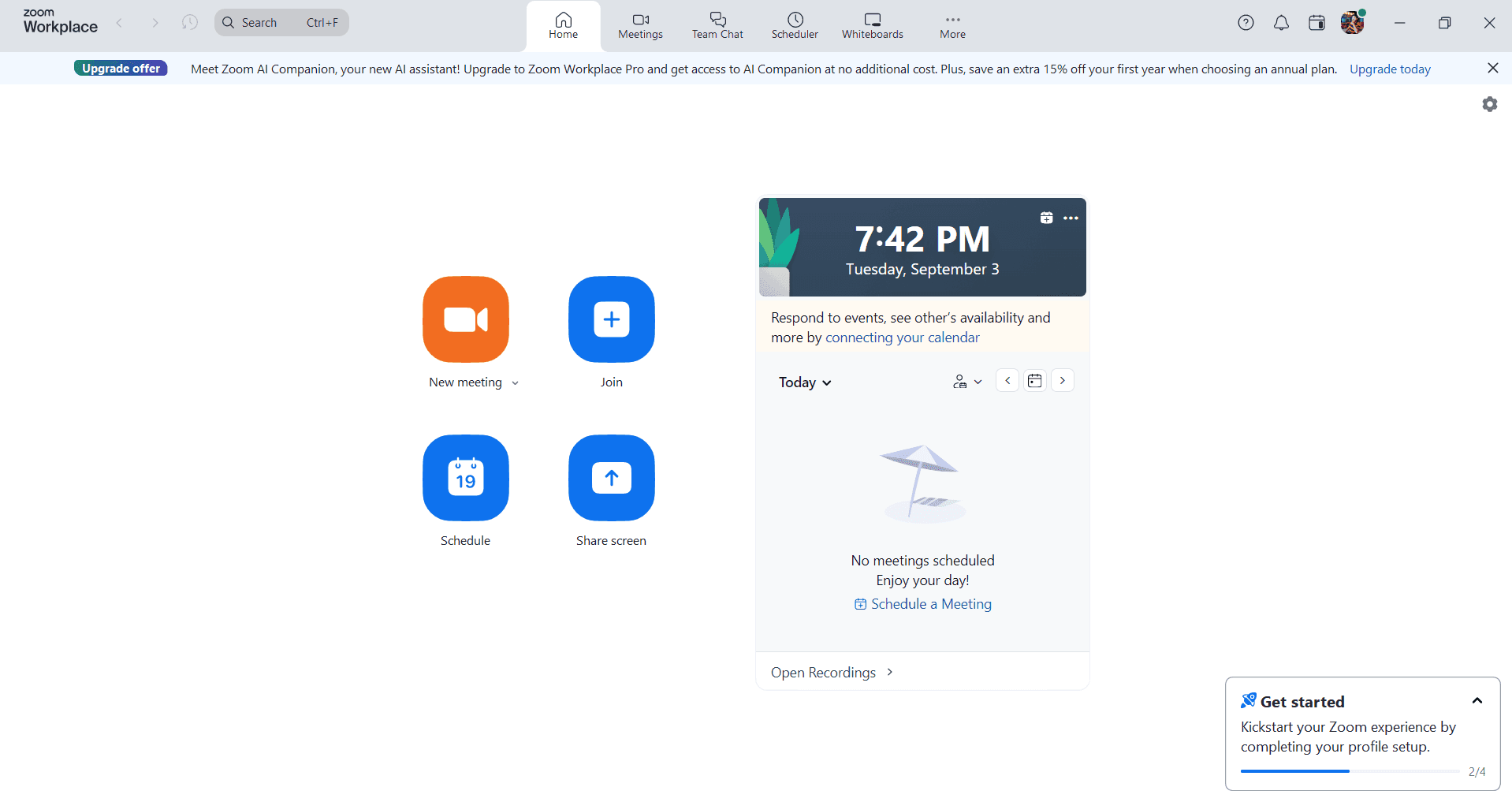
Open Zoom and access settings
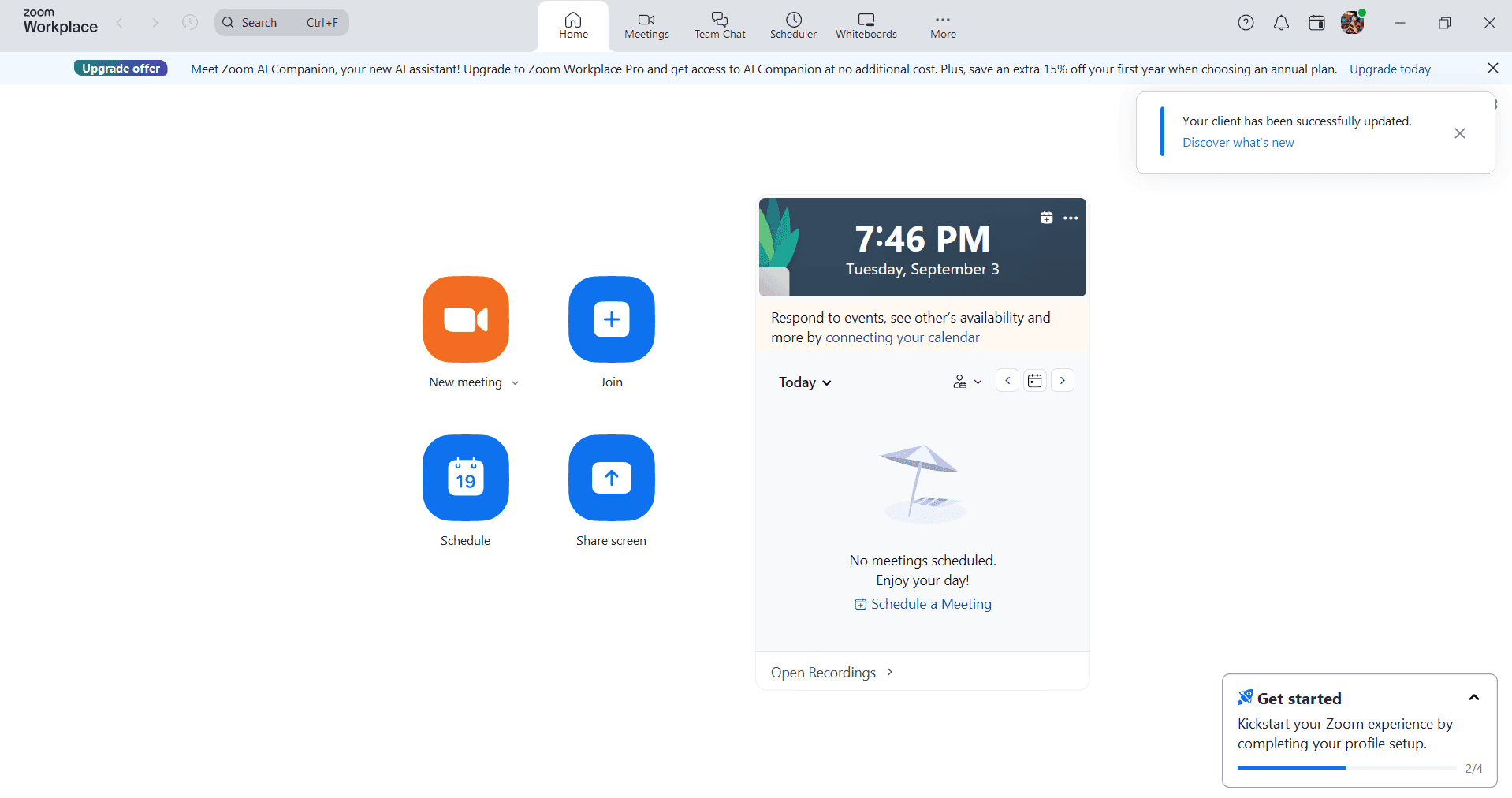
Launch the Zoom application on your device. Look for your profile icon or menu option, typically located in the top-right corner of the window, and click it to reveal the settings menu.
- 2
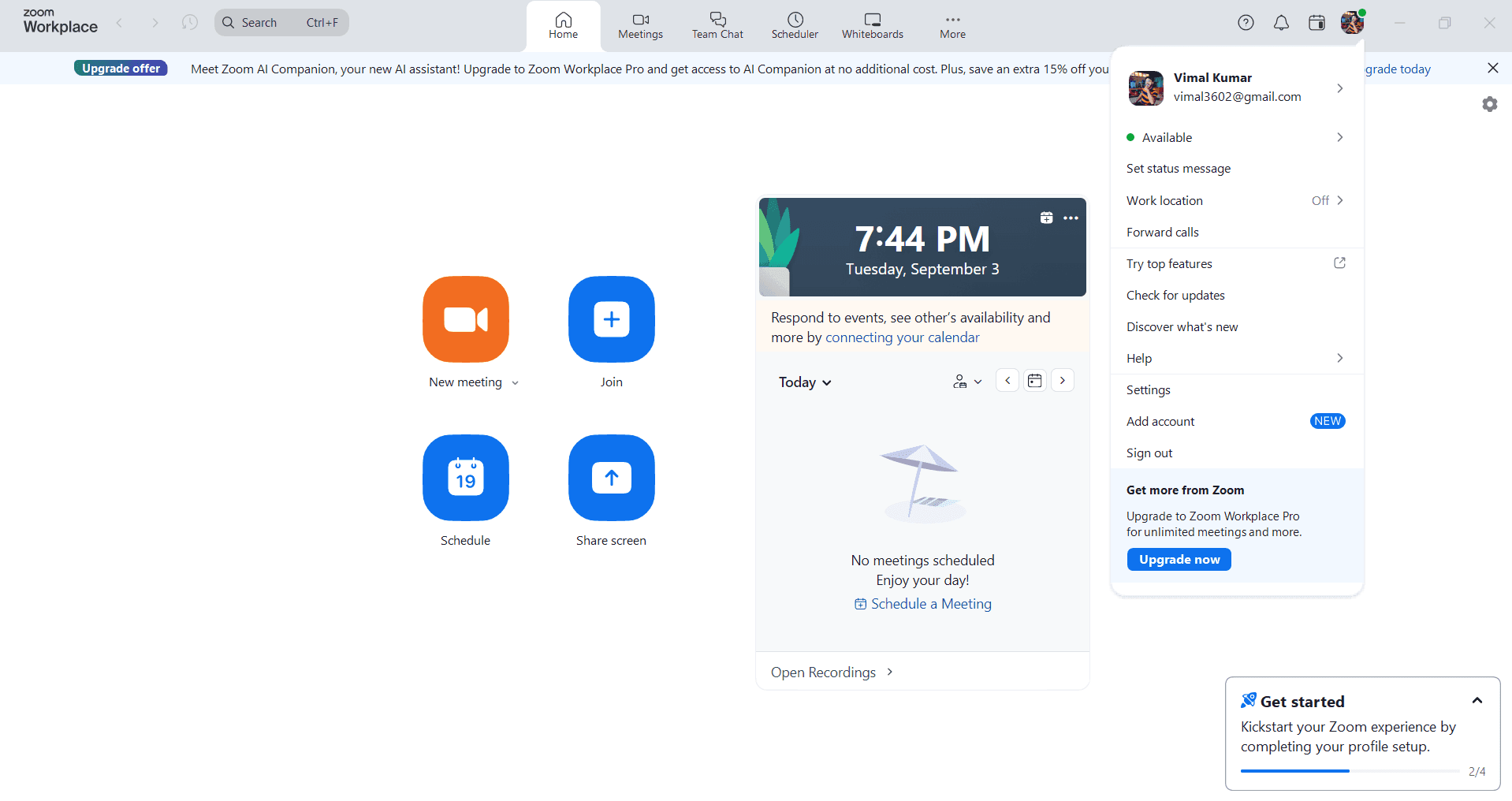
Navigate to the About section
From the menu, select an option related to account settings or application information. This section displays your current Zoom version and check for updates functionality.
- 3
Check for available updates
Click the 'Check for Updates' button to scan for newer versions. Zoom will connect to its servers and display whether an update is available for your system.
- 4
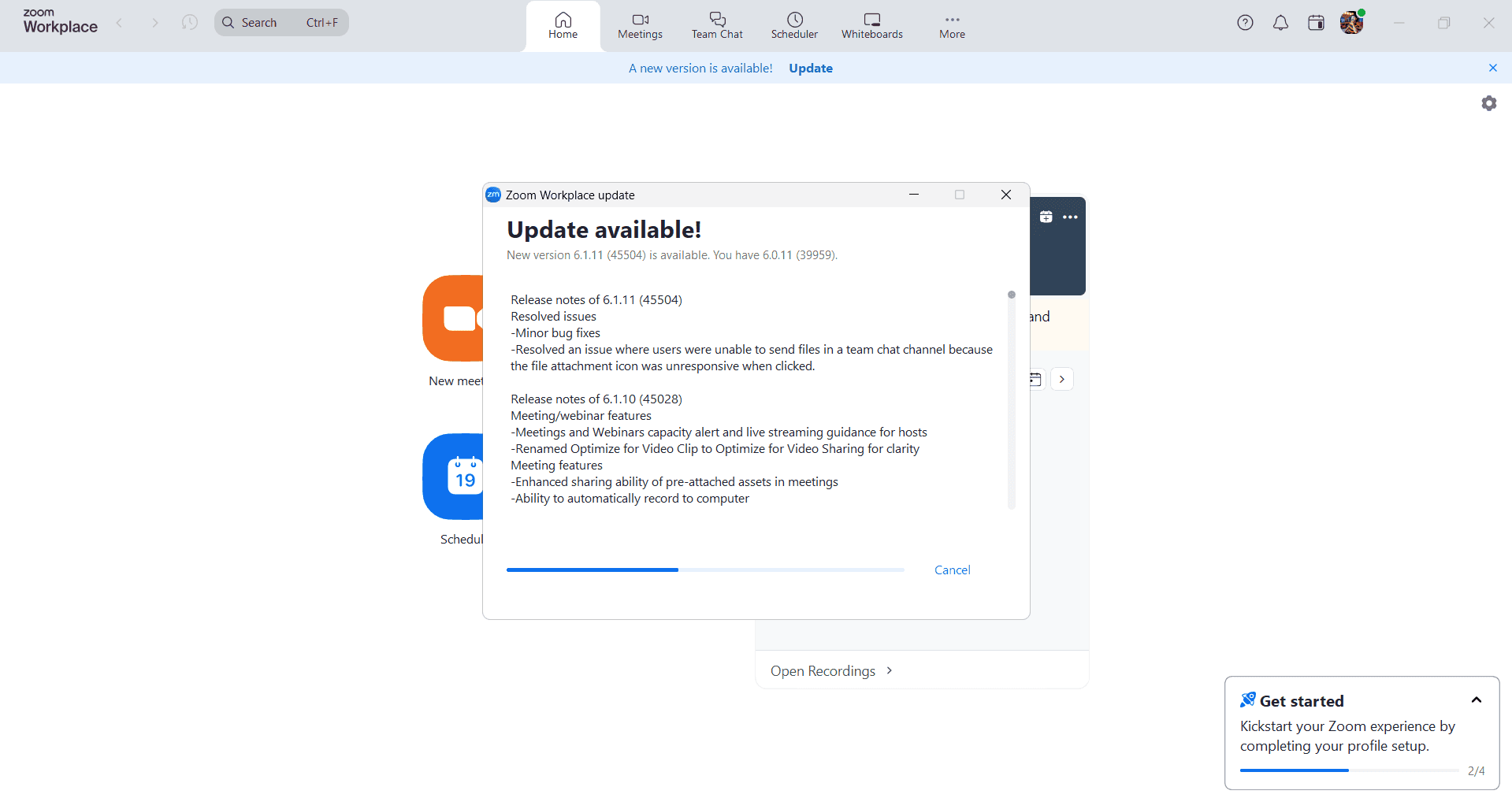
Review update details
Read through the release notes or update information to understand what improvements or fixes are included. This helps you understand what's changing in the new version.
- 5
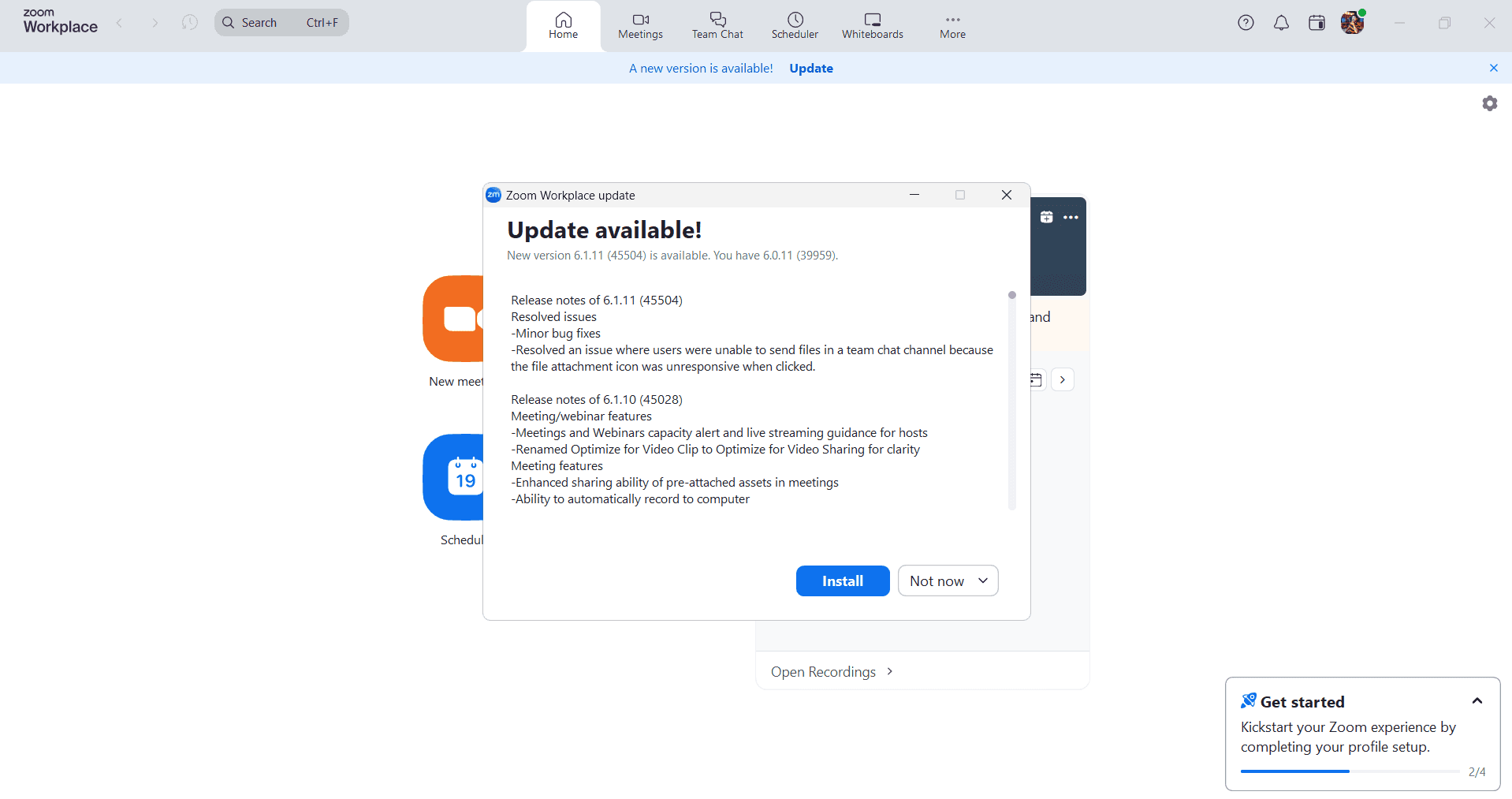
Download the update
Click the 'Download' or 'Update' button to begin downloading the latest version. The download progress will display, and you may be prompted to wait until the process completes.
- 6
Install and restart Zoom
Once downloaded, follow the installation prompts and allow Zoom to complete the setup process. You may need to restart the application or your device to finalize the update.
Frequently asked questions
Common questions about how to update zoom.
You should update Zoom as soon as updates become available, ideally within a few days of release. Regular updates protect your security, fix bugs, and ensure compatibility with other systems and devices.
No, you should not update Zoom during an active meeting as it requires restarting the application. Schedule updates during downtime to avoid interrupting your meetings and collaborate without disruption.
If an update fails, try restarting your device and checking your internet connection. You can also manually download the latest version from Zoom's official website or uninstall and reinstall the application if problems persist.
No, updating Zoom preserves your account settings, preferences, and local recordings. Your profile information and meeting history remain intact after the update completes.
Open Zoom and access the settings menu, then look for the About section or version information. You'll see your current version number displayed clearly, making it easy to compare with the latest available version.