How to add a user in Zapier

Adding users to your Zapier workspace is essential for collaborating with team members and delegating automation tasks. This guide walks you through the process of inviting new members to your Zapier account in just a few clicks.
Quick summary
In this tutorial, you'll learn how to navigate to your workspace settings, access the Members section, and send invitations to new users. By the end, you'll be able to expand your Zapier team and grant colleagues access to your automations.
Why this matters
Managing team access in Zapier enables better collaboration on automation projects and allows you to distribute responsibilities across your organization. Proper user management ensures that the right team members can view, edit, and execute the zaps your business depends on.
Step-by-step guide
- 1
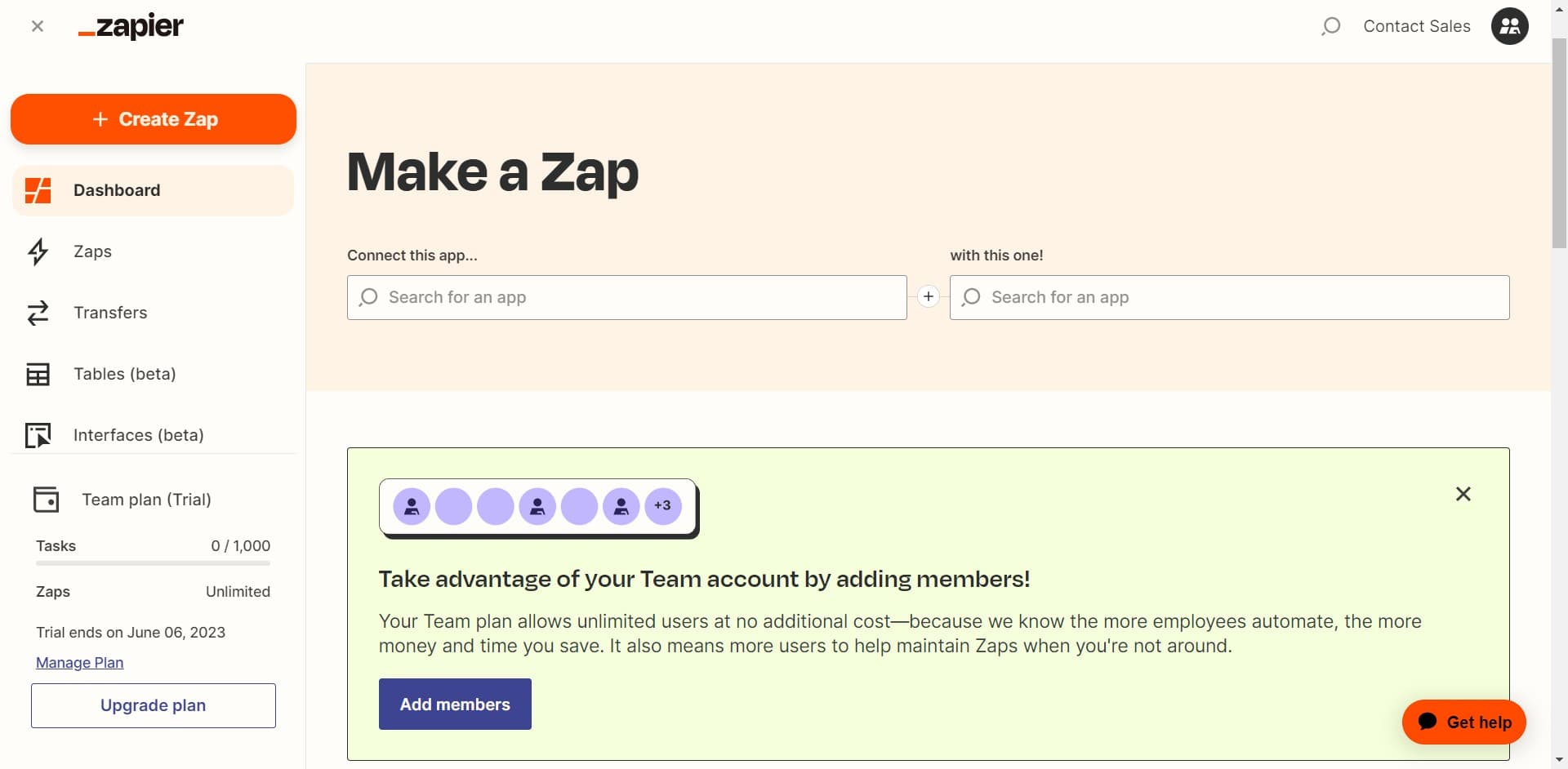
Access your workspace settings
Click on the designated area to begin the user addition process. This opens the main menu where you can manage your account.
- 2
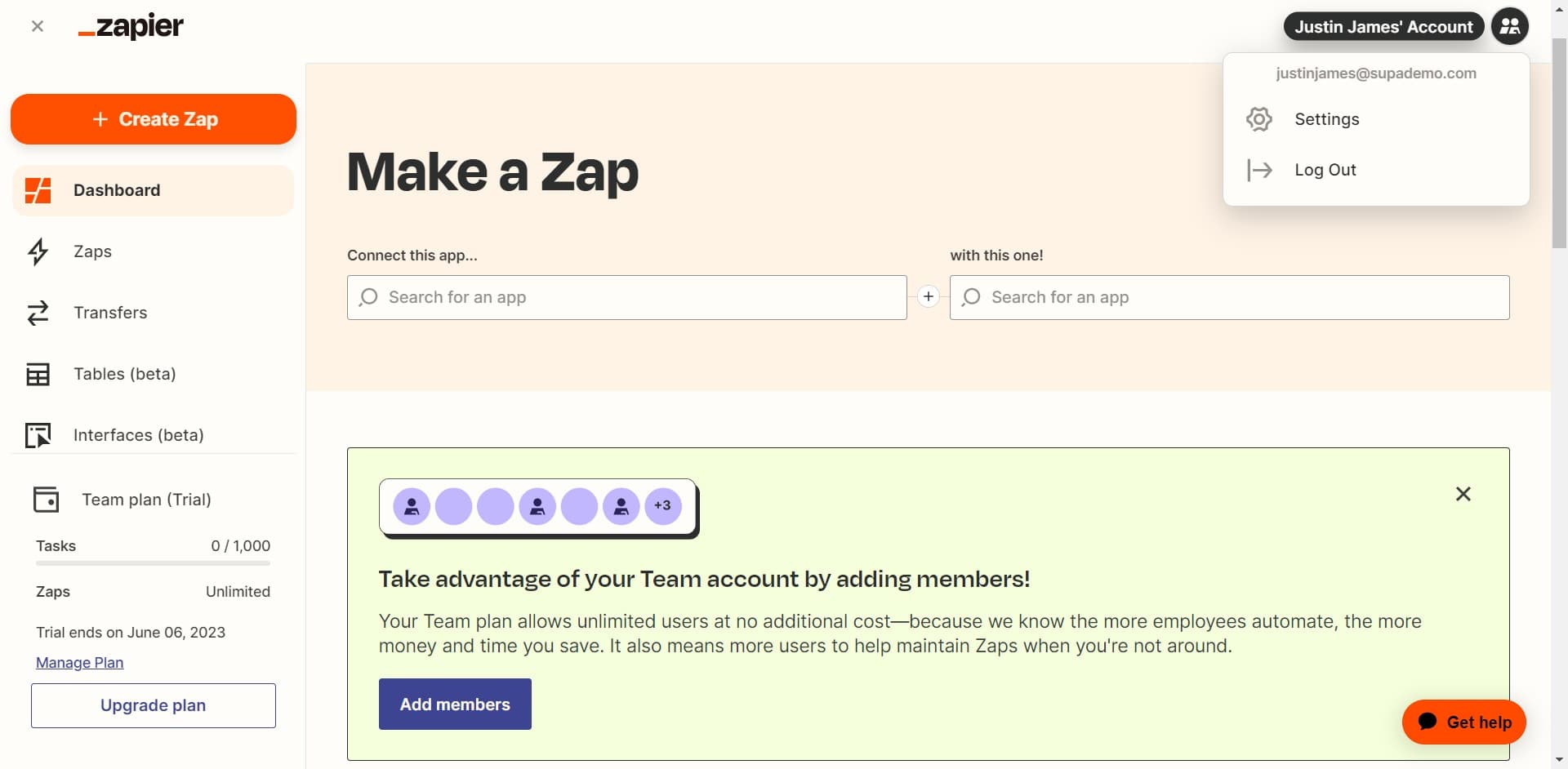
Click on your account image
Select the "Image" option to view your account dropdown menu. This reveals additional options including workspace settings.
- 3
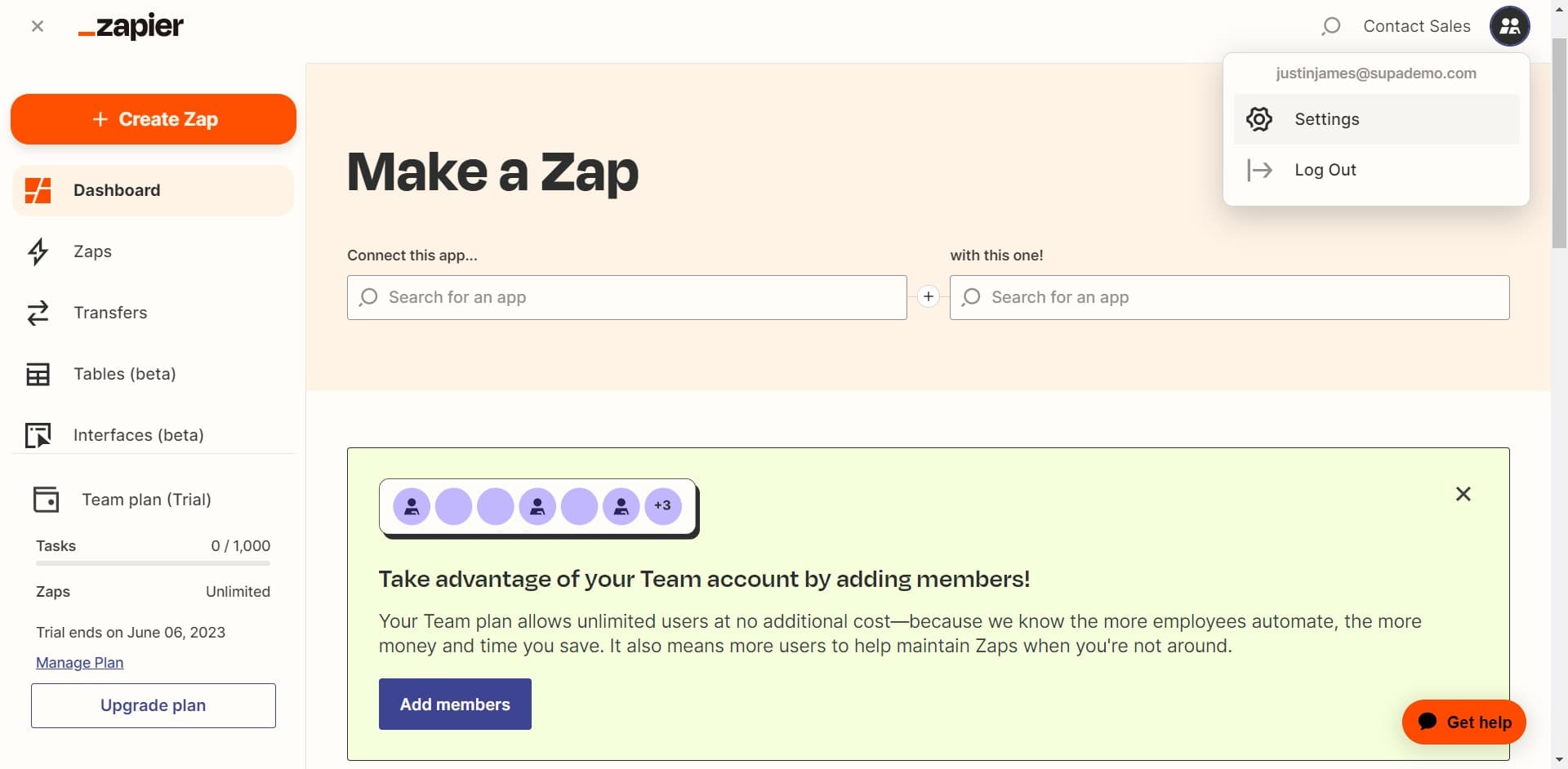
Open the Settings menu
Click on "Settings" to access your workspace configuration options. You'll now see various management tools for your Zapier account.
- 4
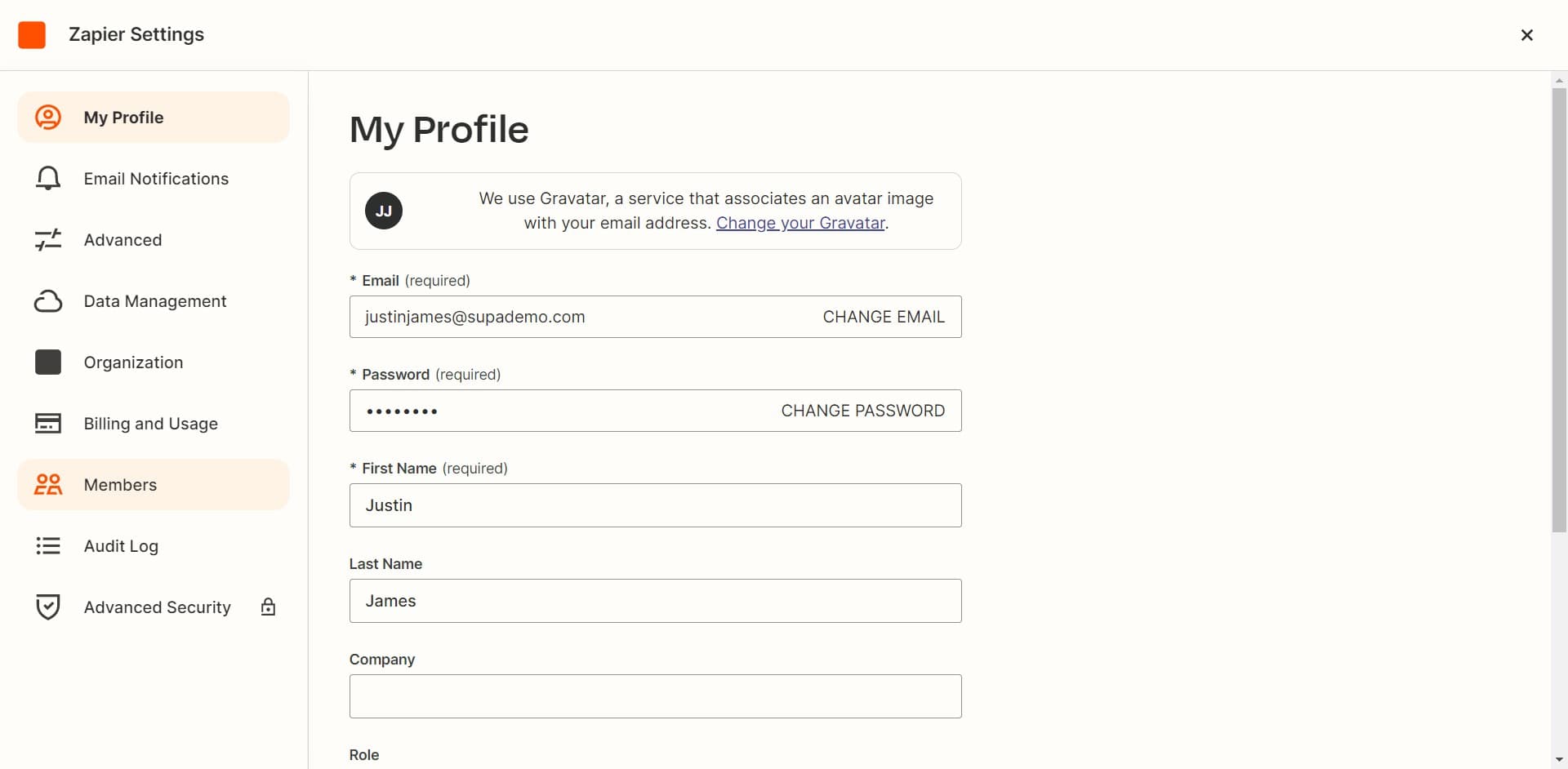
Navigate to Members section
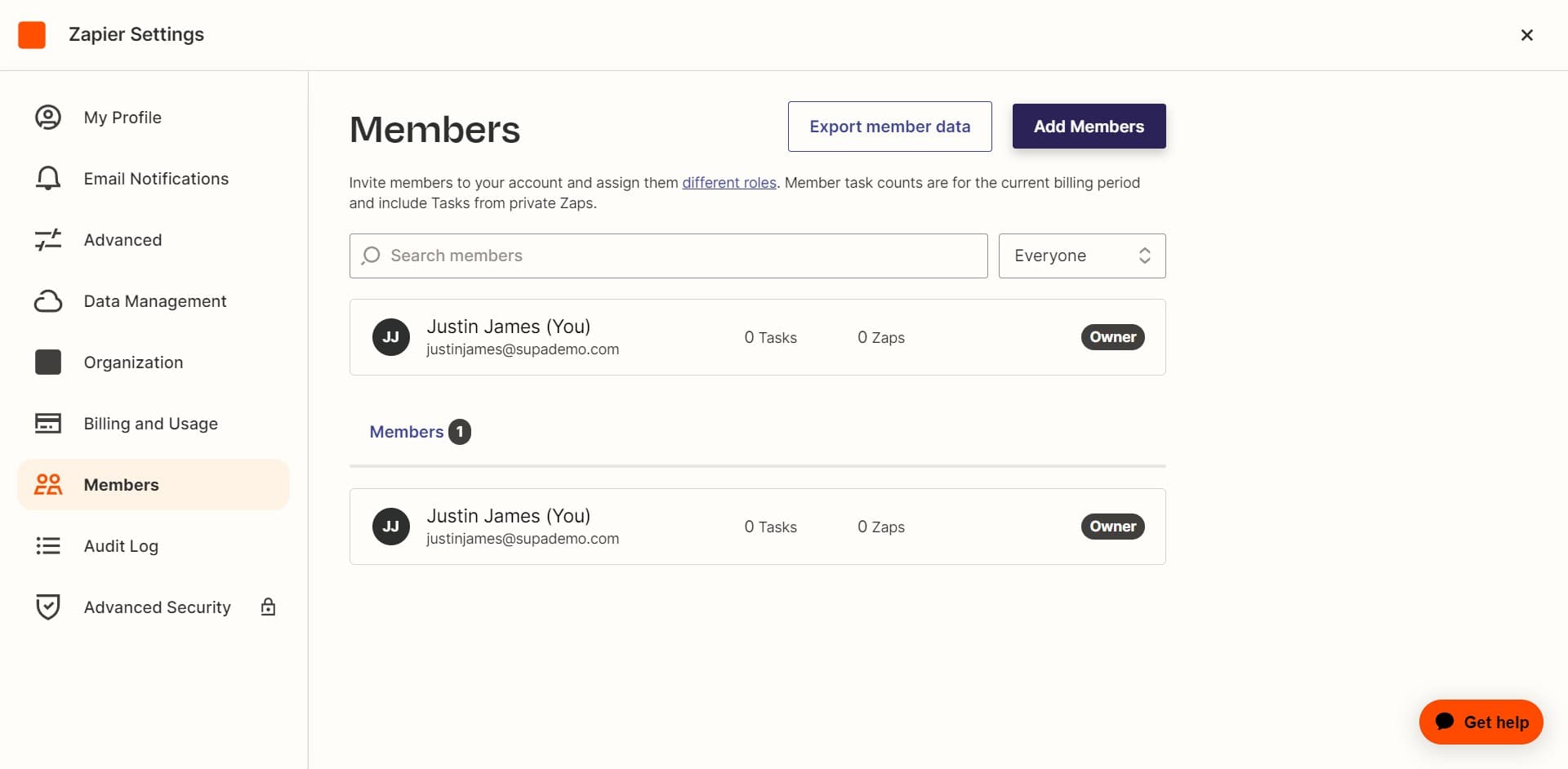
Click on "Members" to view the current users in your workspace. This page displays all active members and allows you to manage access permissions.
- 5
Select Add Members option
Click on "Add Members" to open the invitation interface. This prepares the system to receive new user information.
- 6
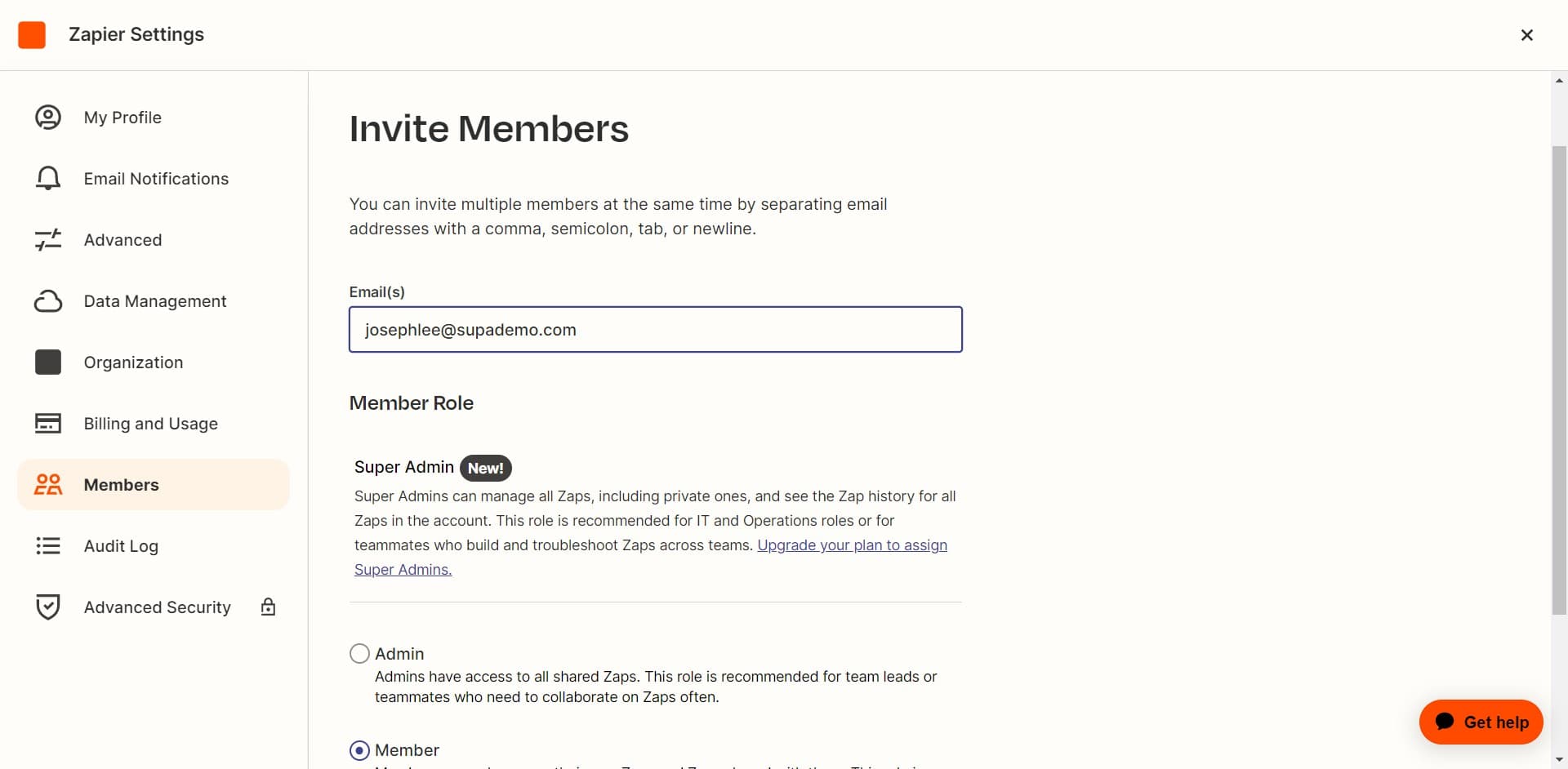
Enter user information
Click in the designated field and enter the email address or details of the person you want to invite. Ensure the information is accurate before proceeding.
- 7
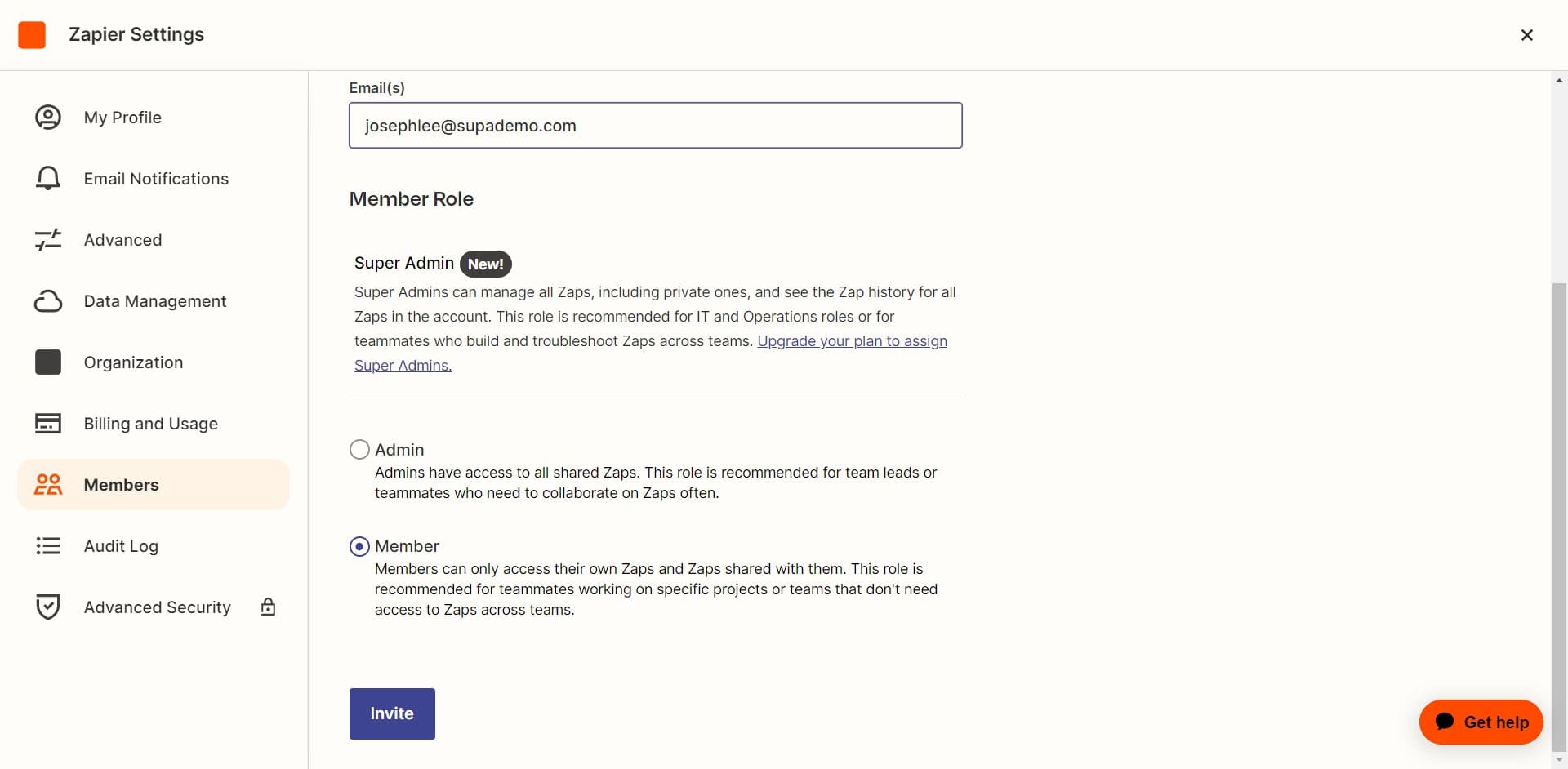
Send the invitation
Click on "Invite" to send the user invitation. The new member will receive an email with instructions to join your Zapier workspace.
Related guides
Frequently asked questions
Common questions about how to add a user in zapier.
The invited user will receive an email with a link to accept the invitation and join your Zapier workspace. They'll need to click the link and follow the onboarding process to gain access to your account.
The standard invitation process adds users one at a time through the Members section. If you need to invite multiple team members, you can repeat the process for each person's email address.
New members can typically view and interact with zaps depending on your workspace settings. You may be able to assign different permission levels or roles to different team members from the Members management page.
Yes, you can manage user access from the Members section. Look for options to edit or remove members, allowing you to maintain control over who has access to your Zapier automations.
Check their spam or junk mail folder, as the invitation may have been filtered. You can also try resending the invitation from the Members page, or verify that the email address you entered is correct.