How to create a zap in Zapier

Zapier automates repetitive tasks by connecting your favorite apps without writing code. Creating a zap is the foundation of any automation workflow, allowing you to trigger actions across multiple platforms instantly. This guide walks you through the essential steps to build your first zap from start to finish.
Quick summary
In this tutorial, you'll learn how to create a zap in Zapier by setting up a trigger event, selecting an action, and testing your automation. By the end, you'll understand the core components needed to connect apps and automate workflows that save time and reduce manual work.
Why this matters
Creating zaps is critical for businesses looking to eliminate manual data entry, sync information between tools, and streamline cross-app communication. A well-designed zap can save hours per week by automating routine tasks, improving team productivity, and reducing the risk of human error. Whether you're managing customer data or organizing team notifications, mastering zap creation is essential for effective automation.
Step-by-step guide
- 1
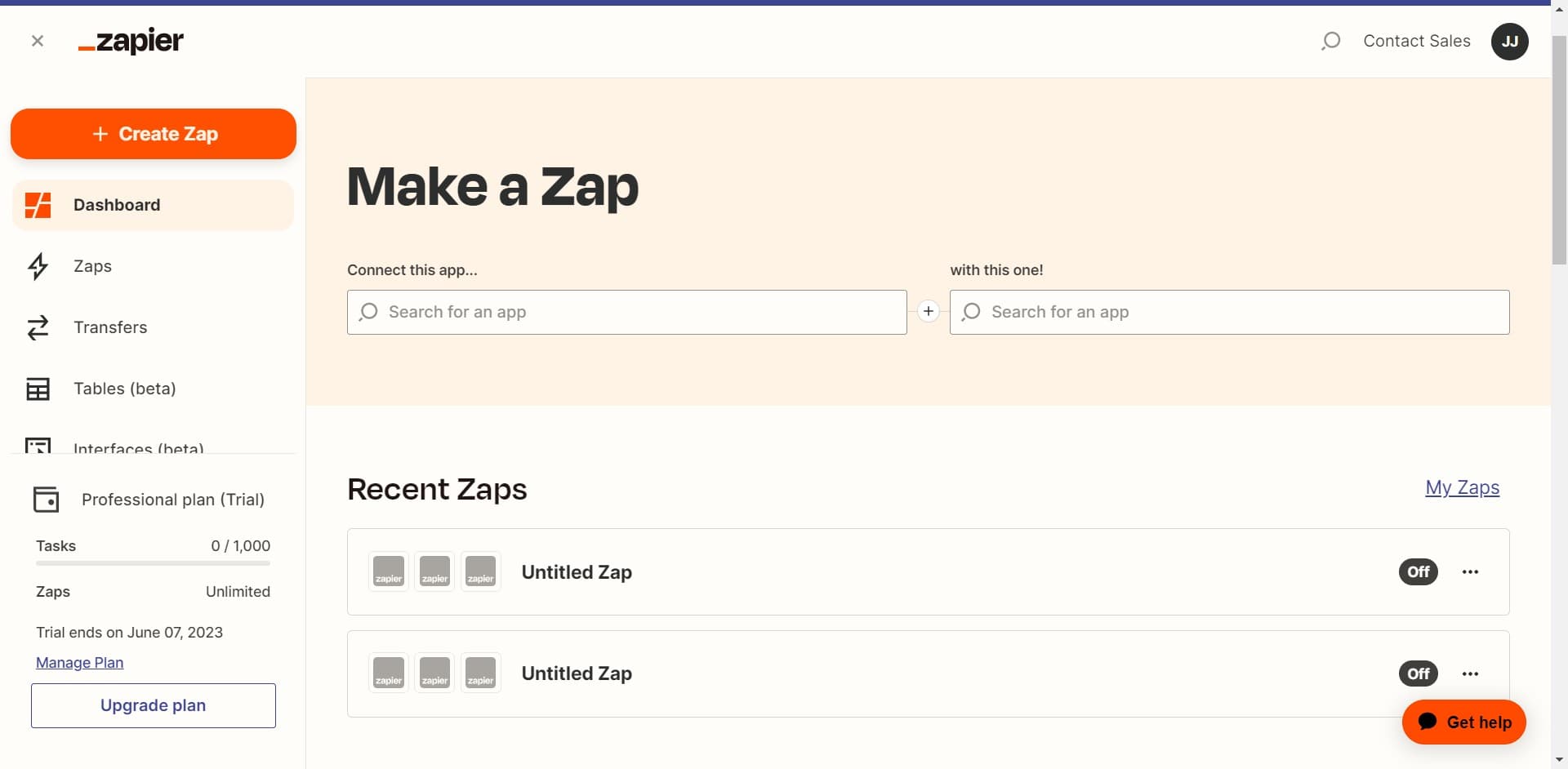
Navigate to the Zapier dashboard
Start by accessing your Zapier account and opening the main dashboard. This is where you'll find the central hub for managing all your automations.
- 2
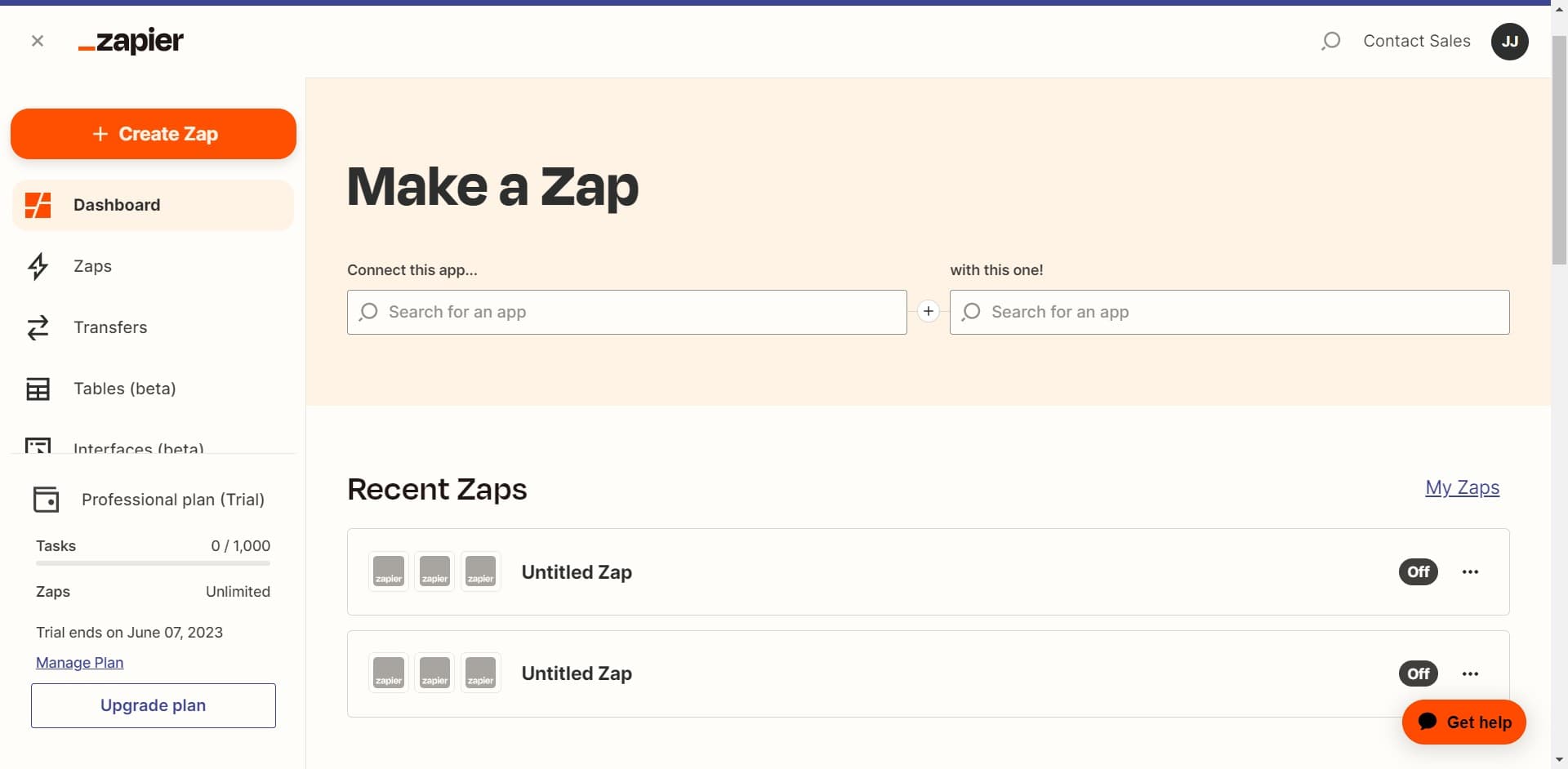
Click on Create Zap
Select the 'Create Zap' button to begin building a new automation. This action opens the zap editor interface where you'll define your trigger and action steps.
- 3
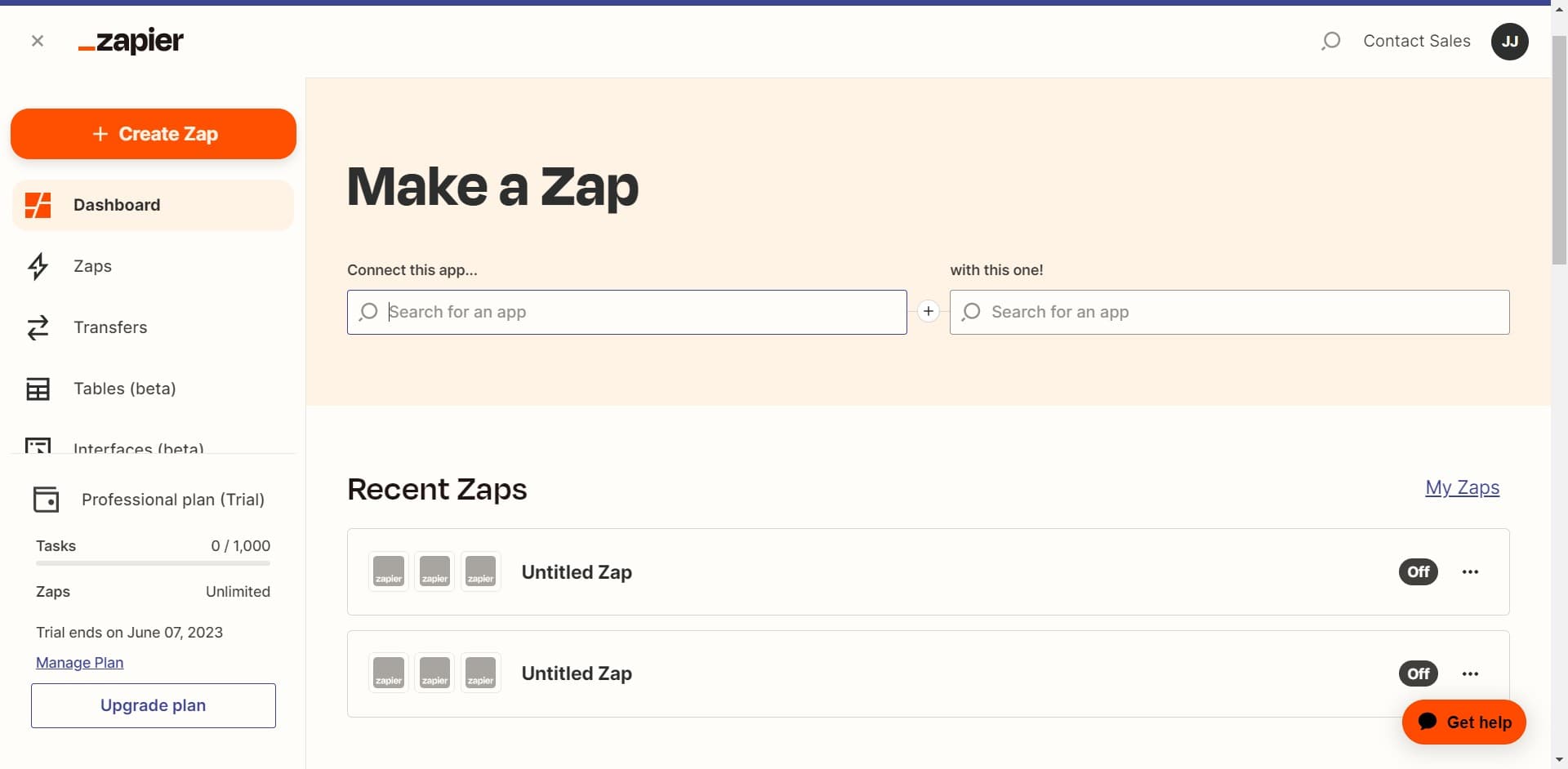
Connect your first app
Choose the app you want to use as the starting point for your automation. This will be the app that detects the event triggering your zap.
- 4
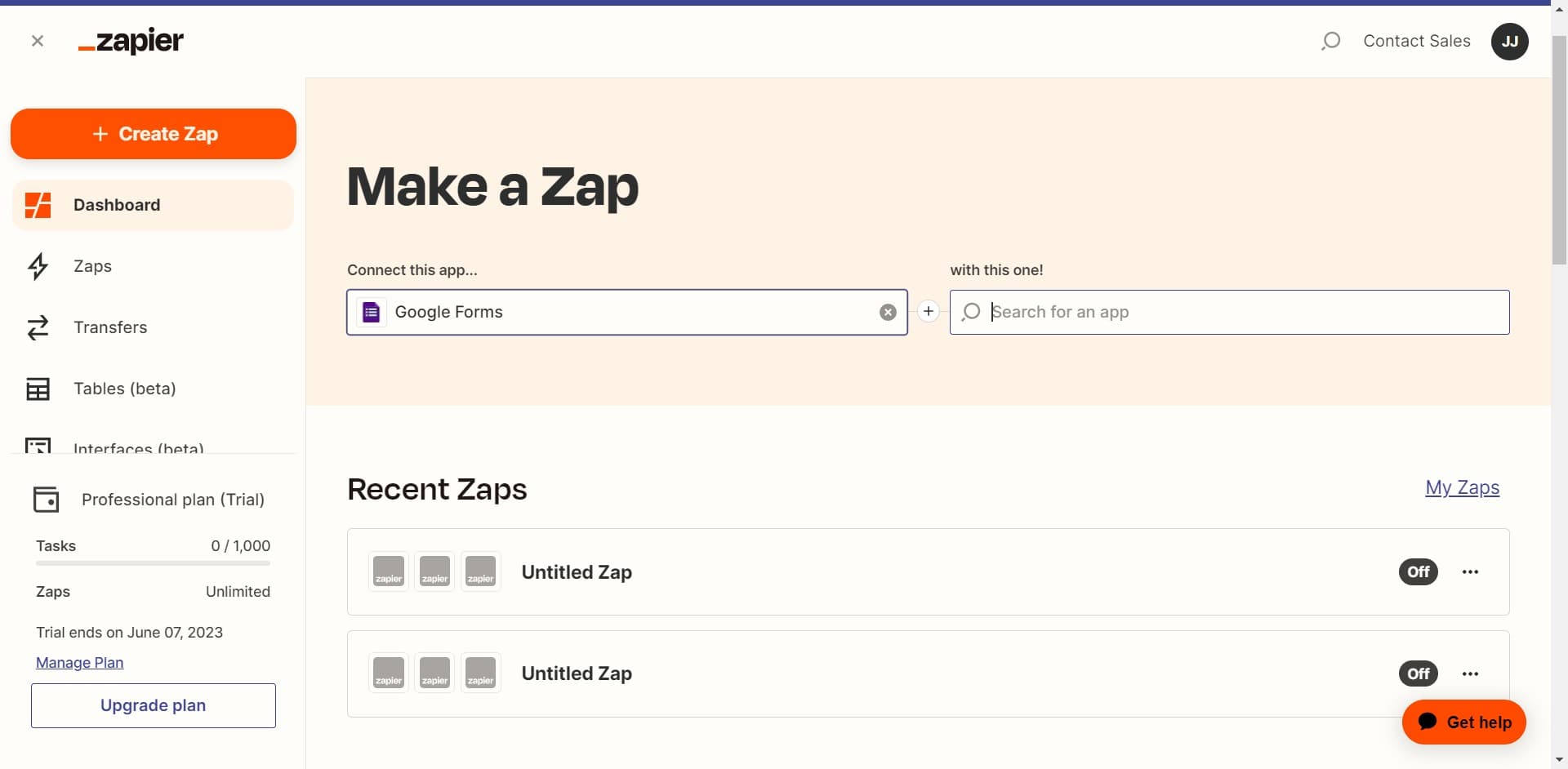
Configure additional app settings
Set up any necessary authentication or connection details for your selected app. Zapier may require you to grant permission to access your app account.
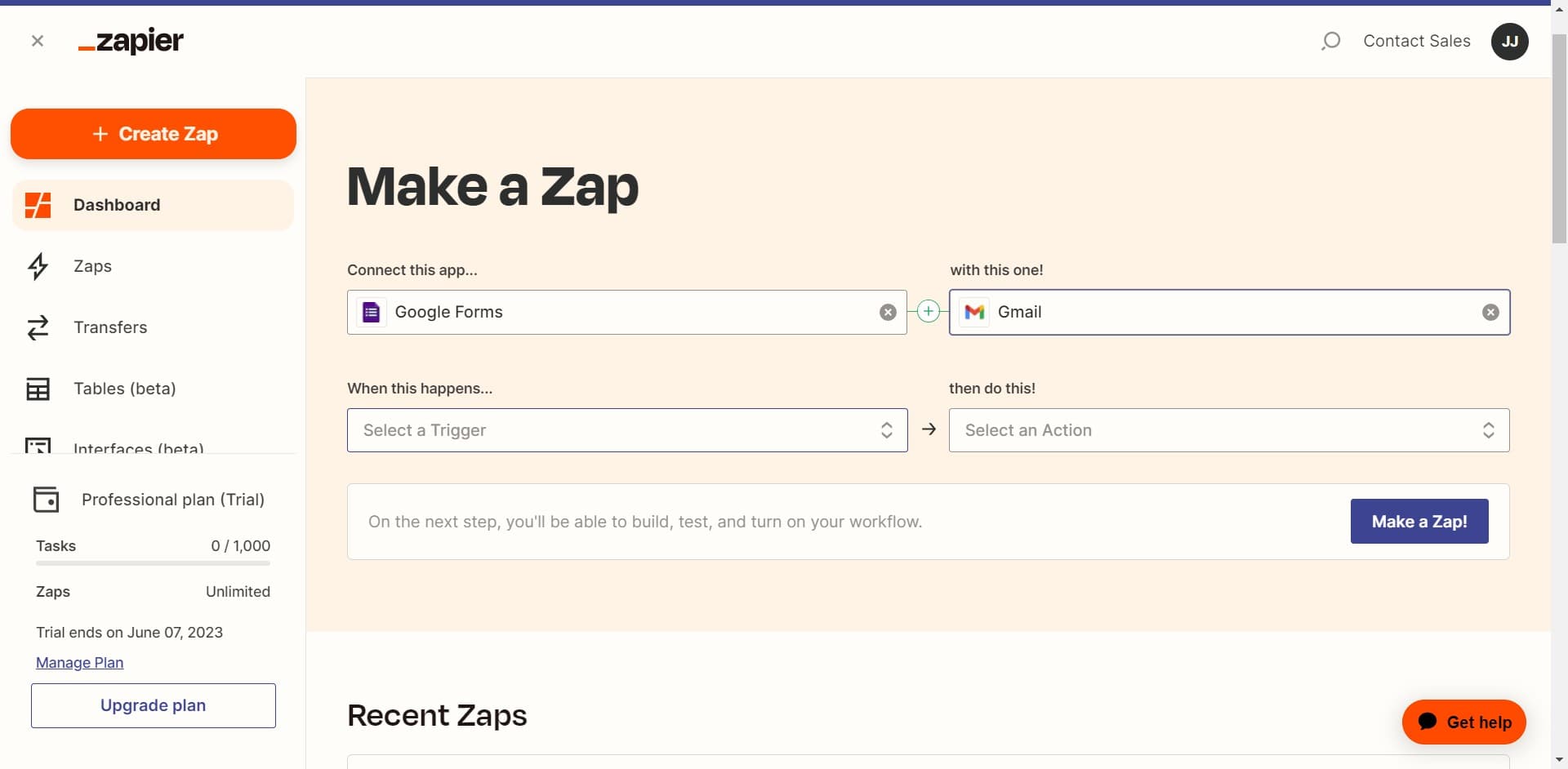
- 5
Select a Trigger
Define the specific event that will initiate your zap, such as a new email, form submission, or database entry. The trigger is the condition that starts the entire automation workflow.
- 6
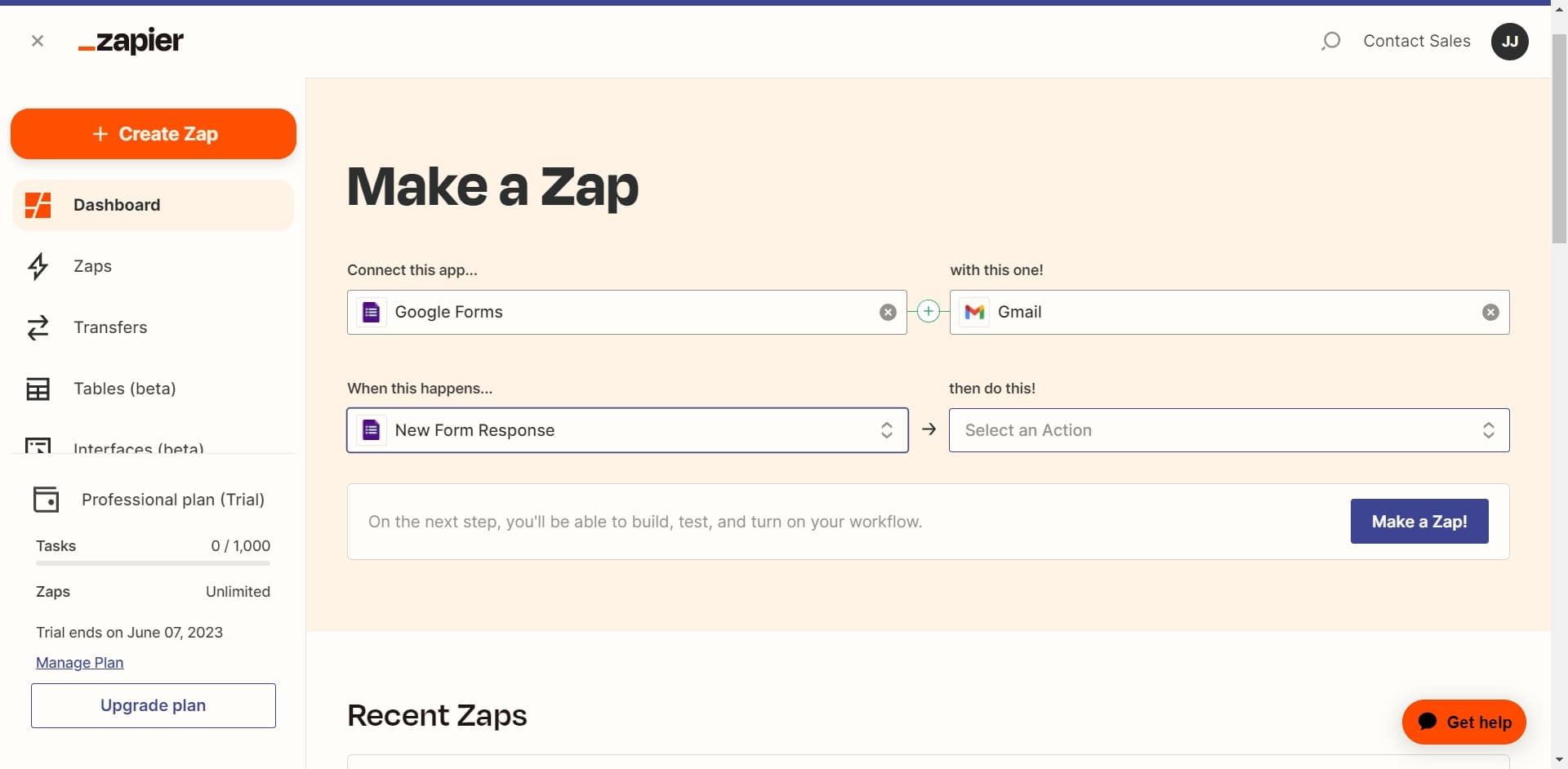
Select an Action
Choose what should happen when your trigger event occurs, such as creating a record, sending a notification, or updating data in another app. You can add multiple actions to create more complex workflows.
- 7
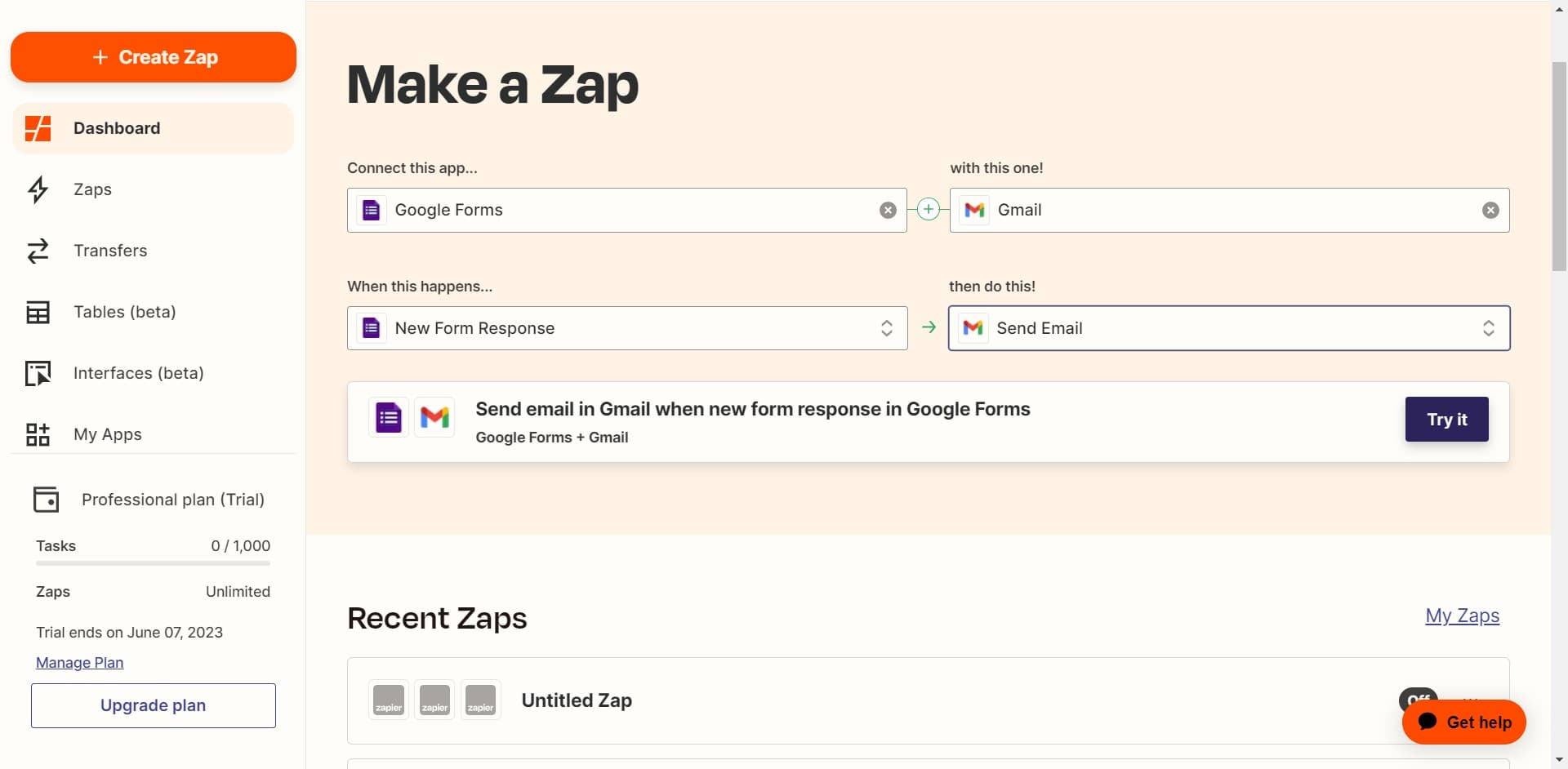
Test your zap
Click 'Try it' to run a test of your automation with sample data. This ensures your zap works correctly before you turn it on for real-world use.
Related guides
Frequently asked questions
Common questions about how to create a zap in zapier.
A trigger is the event that starts your zap, such as receiving a new email or form submission. An action is what happens next, like creating a record or sending a message. Every zap needs at least one trigger and one action to function.
Yes, Zapier provides a 'Try it' feature that lets you test your zap with sample data before activating it. This helps you verify that the trigger and action are working as expected without affecting your live data.
You can add multiple actions to a zap depending on your Zapier plan. Free plans typically allow one or two actions, while paid plans support unlimited actions. This lets you create complex workflows that perform several tasks in sequence.
If a zap fails during execution, Zapier logs the error and typically retries the action. You'll receive notifications about failed tasks, and you can review the error details in your zap's activity log to troubleshoot and fix the issue.
Yes, after creating and testing your zap, you must explicitly turn it on for it to start running automatically. You can toggle your zap on or off at any time from the zap editor, giving you full control over when your automation is active.