How to Add Microsoft Teams Meeting to Outlook

Adding Microsoft Teams meetings directly to your Outlook calendar streamlines scheduling and ensures all participants have the meeting link readily available. This integration eliminates the need to manually copy and paste meeting details, saving time and reducing the chance of errors.
Quick summary
In this tutorial, you'll learn how to seamlessly add a Microsoft Teams meeting to an Outlook calendar event. You'll navigate through the Teams meeting creation process, copy the meeting link, and save it to your calendar for easy access.
Why this matters
Integrating Teams meetings with Outlook ensures that meeting invitations include all necessary connection details, reducing confusion among attendees. This workflow is essential for maintaining organized schedules and enabling remote teams to join meetings without delays or technical issues.
Step-by-step guide
- 1
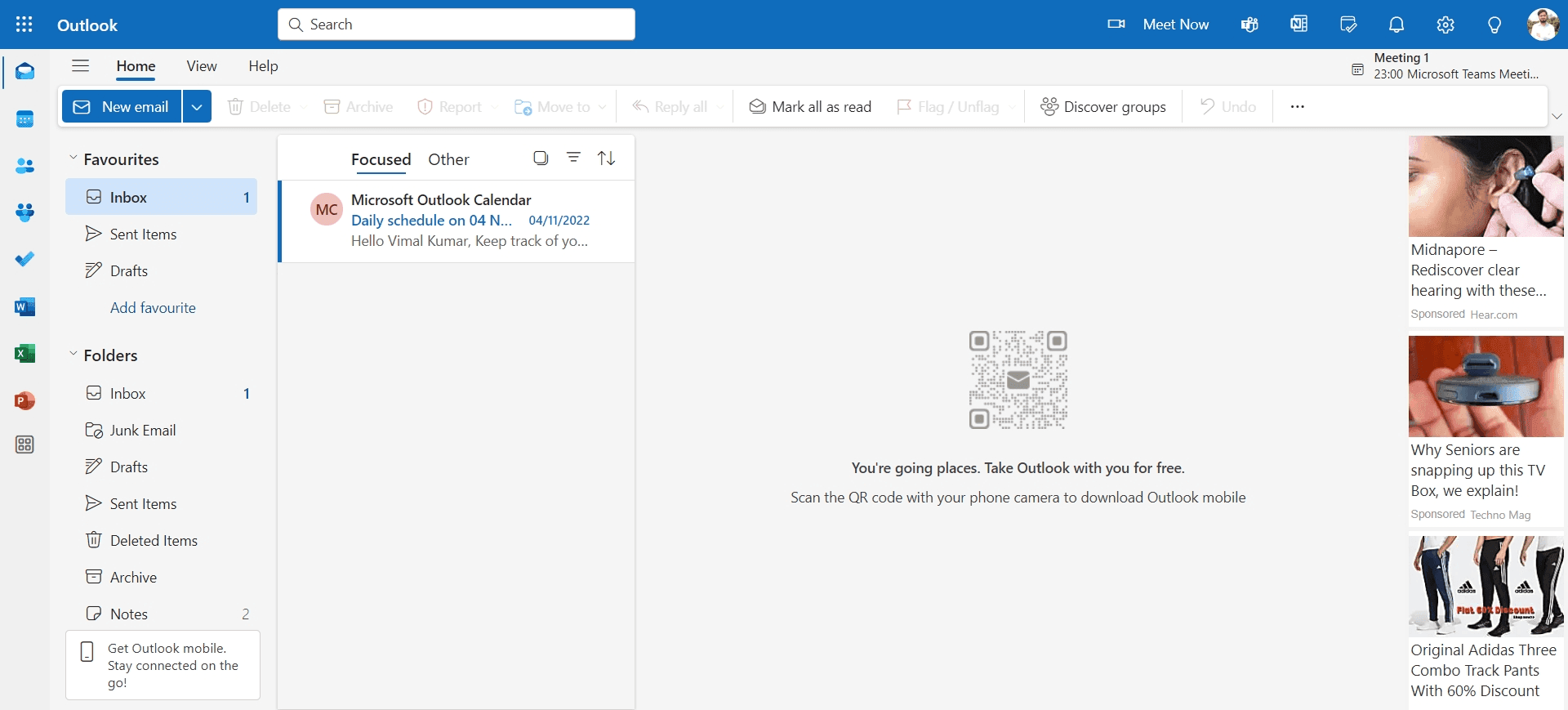
Open Microsoft Teams
Launch Microsoft Teams on your device. You'll see the Teams home screen with your recent conversations and teams listed.
- 2
Upload meeting details
Begin the process by uploading or preparing the meeting information you want to add to Outlook. This ensures all relevant details are available for the calendar integration.
- 3
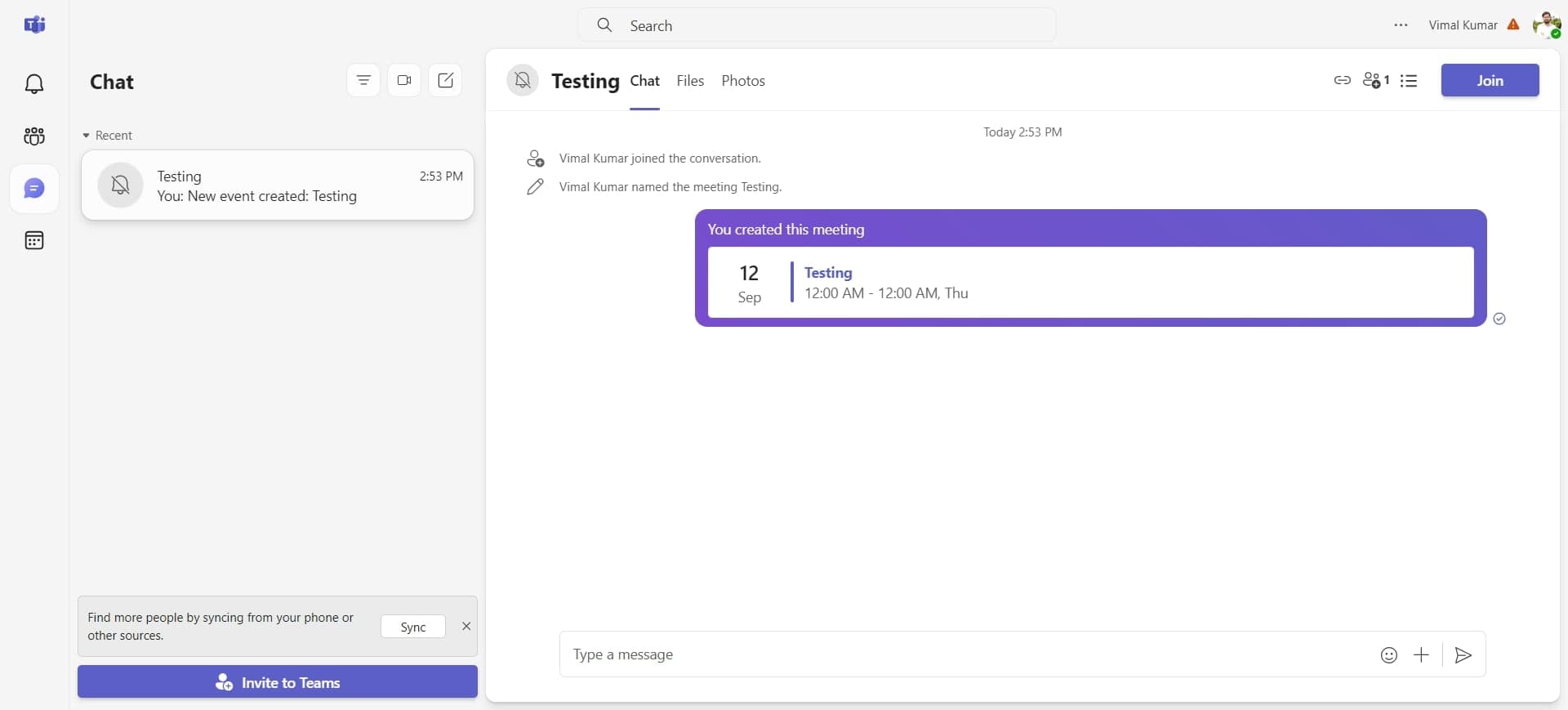
Click on the appropriate element
Locate and click on the element that will allow you to create or configure your Teams meeting. This typically appears as a meeting creation option or button in your Teams interface.
- 4
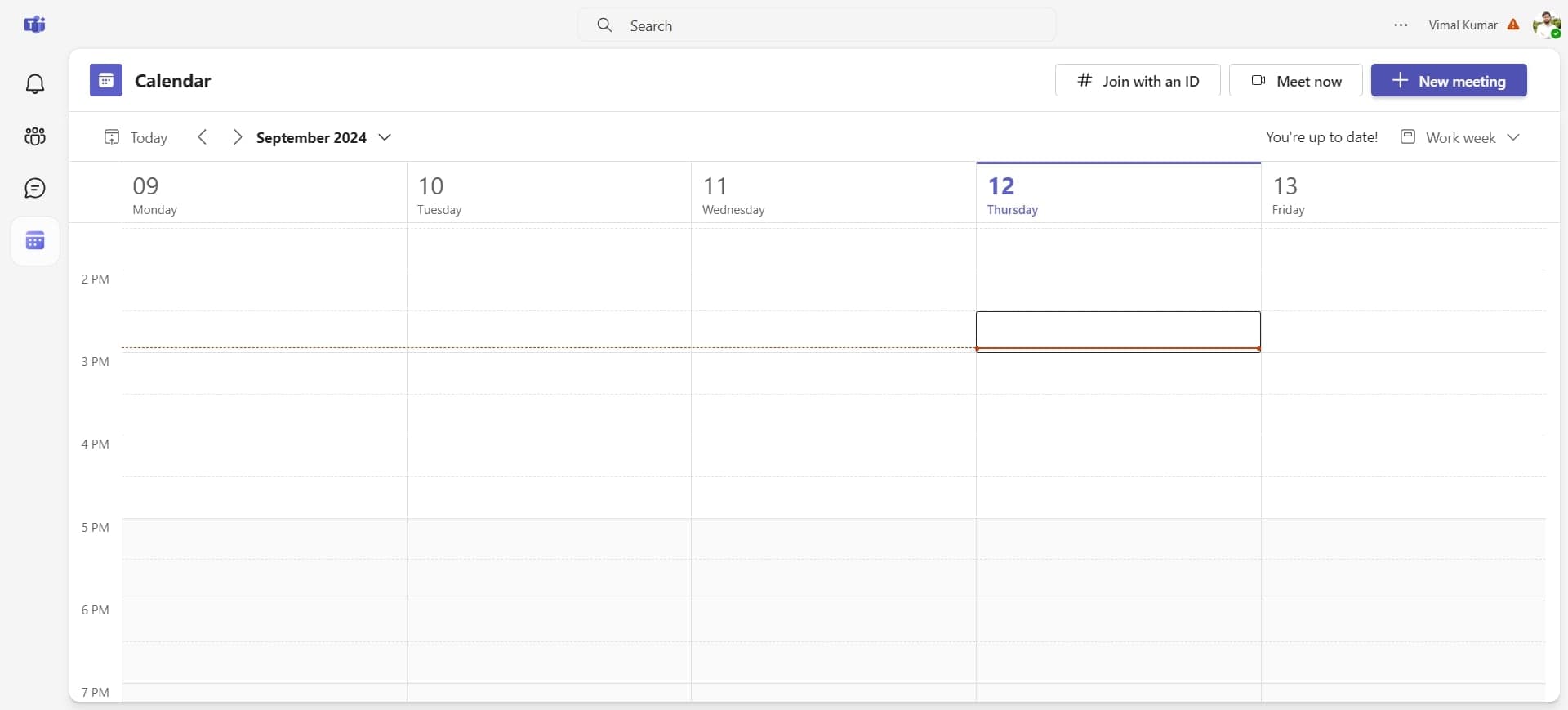
Click on the next element
Progress to the next step by clicking the designated element. This advances you further in the Teams meeting setup process.
- 5
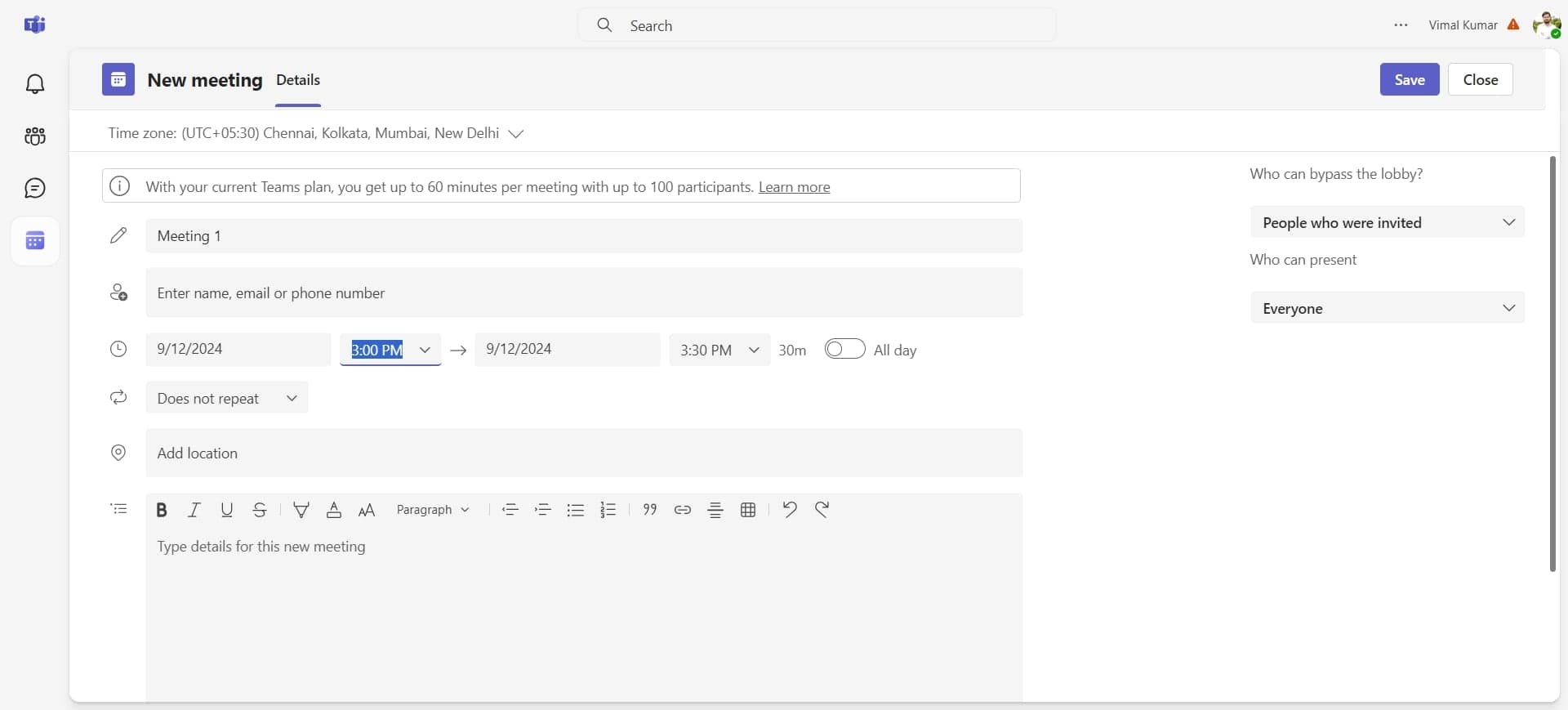
Click to proceed
Continue the workflow by clicking the indicated element. You're moving closer to generating your Teams meeting link.
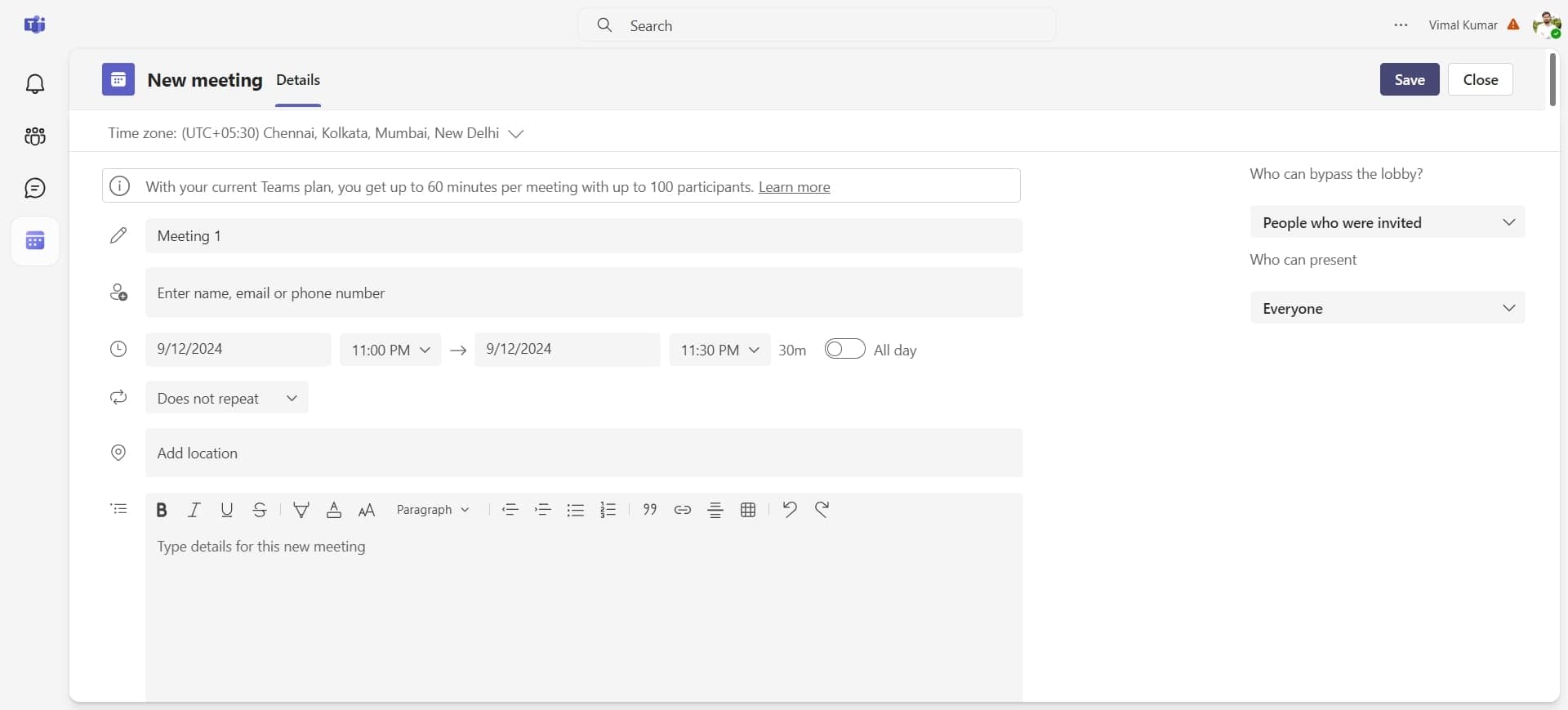
- 6
Click on Save
Click the Save button to preserve your Teams meeting configuration. Your meeting details are now stored and ready to be shared.
- 7
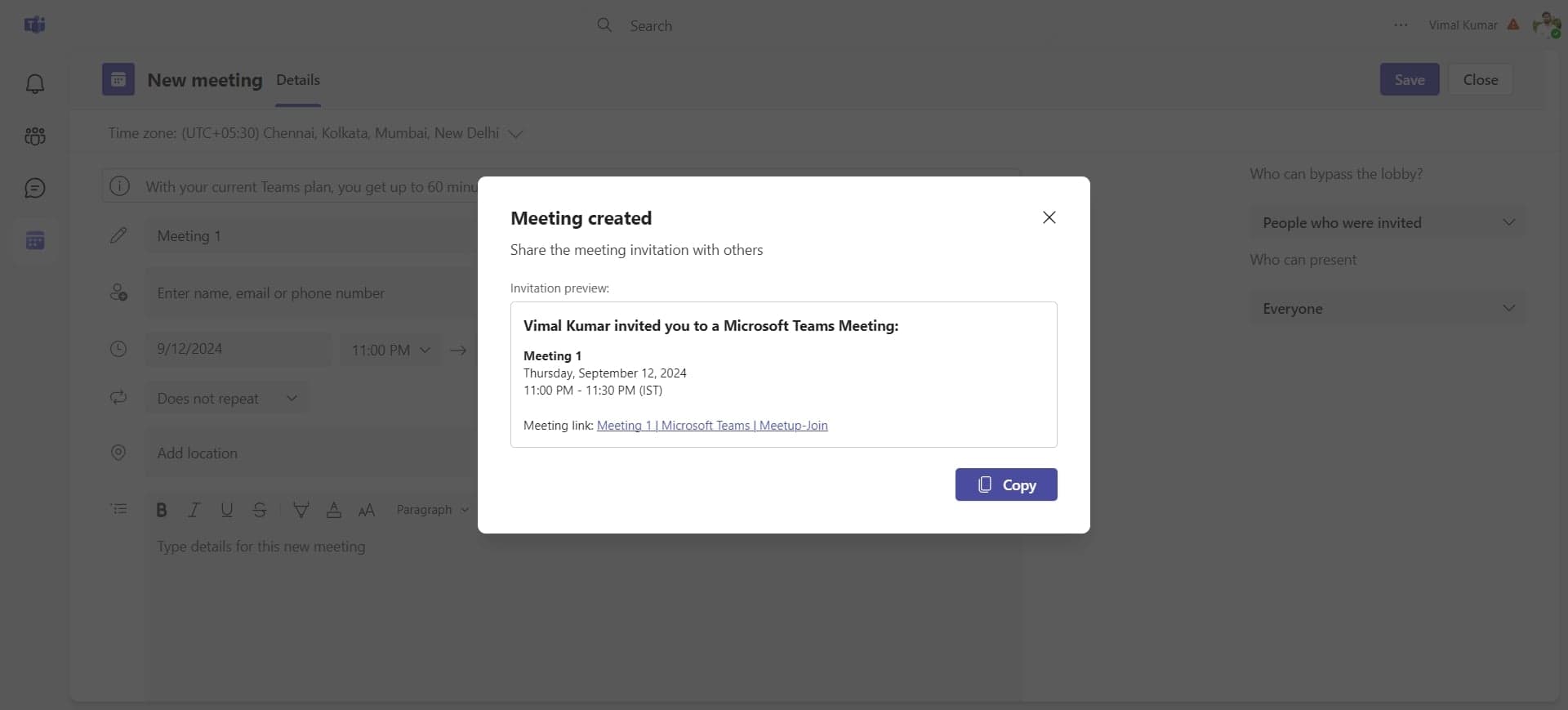
Click on Copy
Click the Copy button to copy your Teams meeting link to your clipboard. This link contains all the necessary information for participants to join the meeting.
- 8
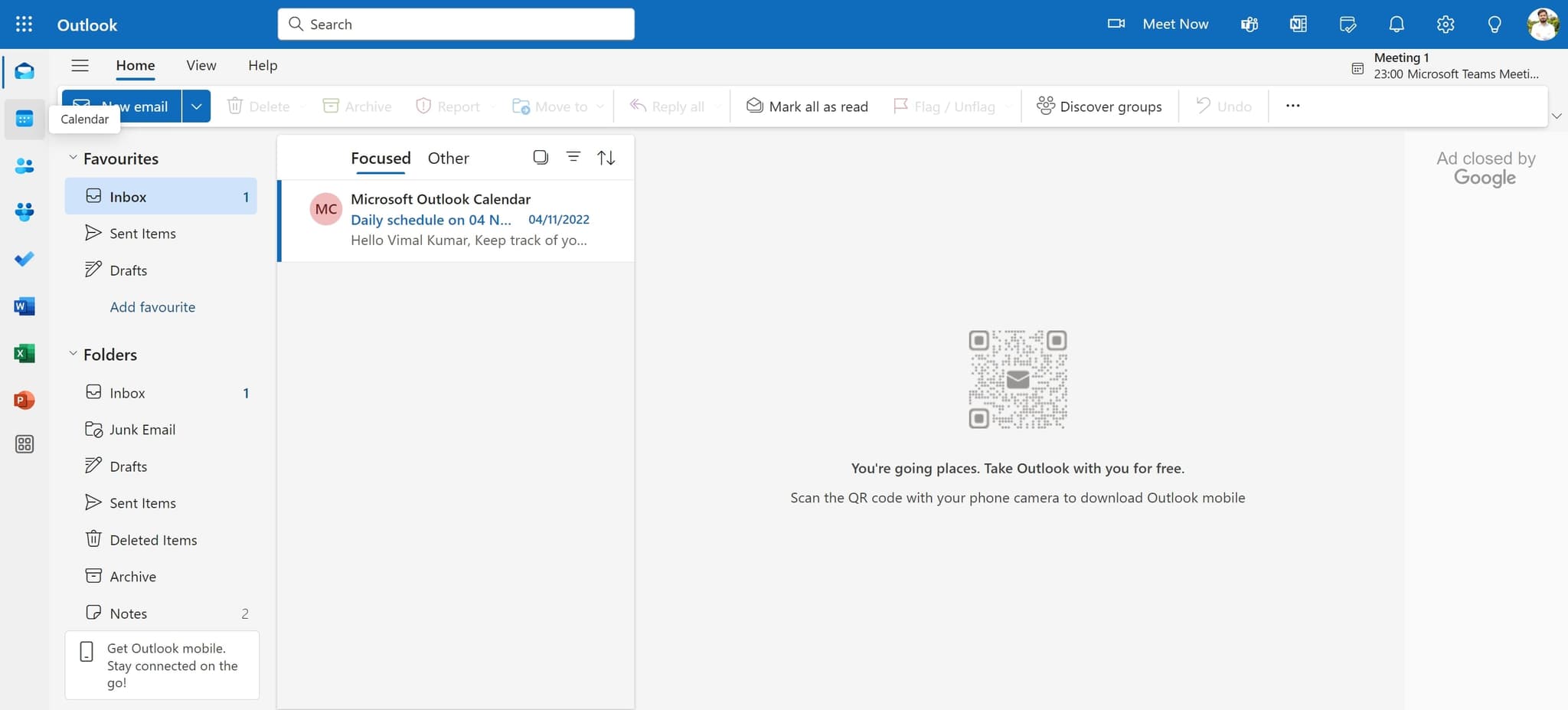
Click to navigate
Click the indicated element to proceed to the next stage of the workflow. You're now preparing to add the meeting to Outlook.
- 9
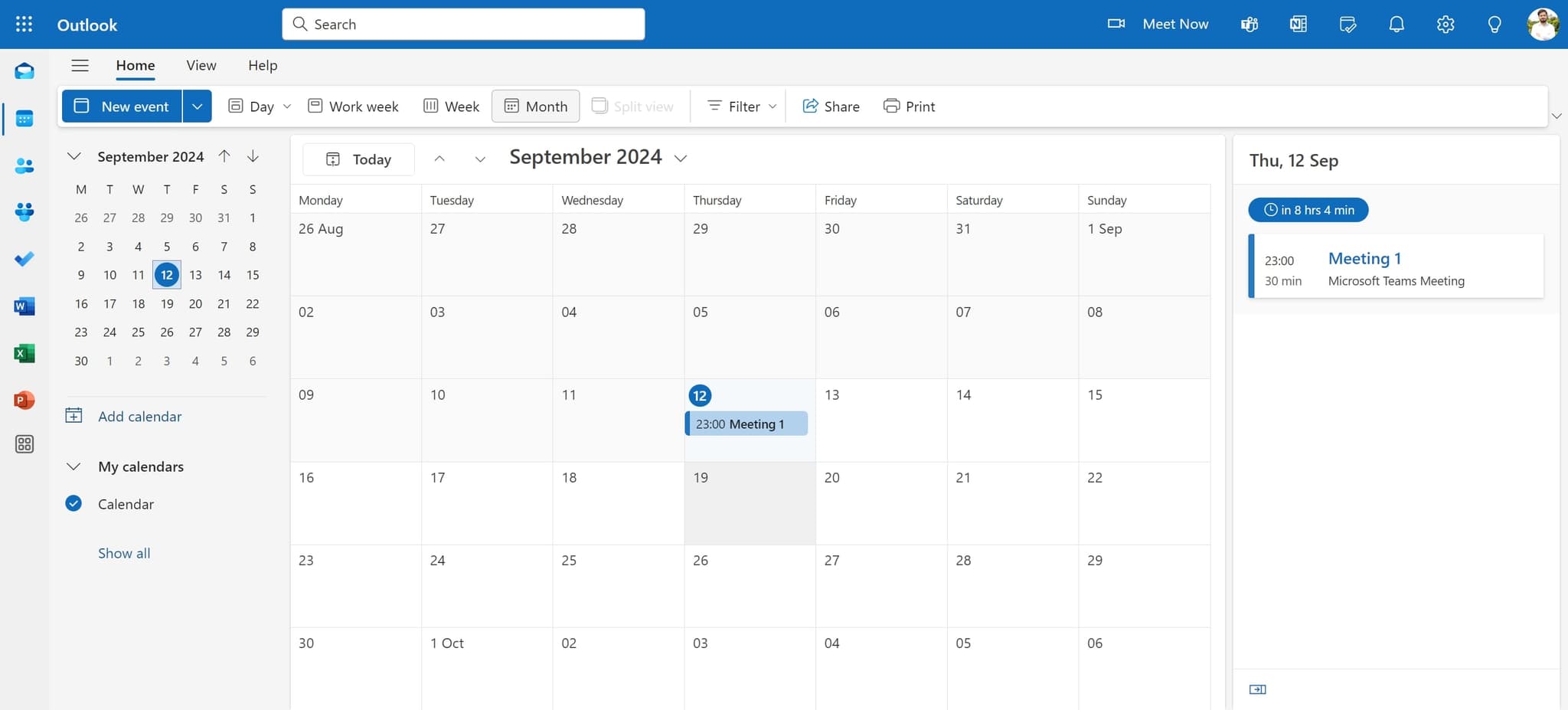
Select the date field
Click on the date field showing 19 to specify which date your Teams meeting should appear on your Outlook calendar. This ensures the meeting is scheduled for the correct day.
Frequently asked questions
Common questions about how to add microsoft teams meeting to outlook.
Can I add a Teams meeting to an existing Outlook calendar event?
Yes, you can add a Teams meeting link to an existing Outlook event by editing the event details and pasting the meeting link into the location or description field. This allows attendees to join the Teams meeting directly from their calendar invitation without creating a new event.
Will attendees automatically receive the Teams meeting link when I invite them through Outlook?
When you copy the Teams meeting link and include it in your Outlook calendar invitation, attendees will see the link in the event details. They can click the link directly from the invitation to join the meeting at the scheduled time.
What should I do if the Teams meeting link doesn't paste correctly into Outlook?
Try copying the link again directly from Microsoft Teams using the Copy button. Ensure you're pasting it into a text field within the Outlook event, such as the location or description field, where hyperlinks are supported.
Can I modify the Teams meeting after adding it to my Outlook calendar?
Yes, you can modify the Teams meeting settings directly in Microsoft Teams at any time. Changes made in Teams will be reflected, but you may need to update the meeting link in Outlook if significant changes occur to ensure attendees have the most current information.
Is there a difference between adding a Teams meeting link manually versus using integration?
Manually copying and pasting the Teams meeting link gives you full control over how it appears in your Outlook event, while full integration typically automates this process. Both methods ensure attendees can access the Teams meeting from their calendar invitation.