How to Send a Zoom Invite

Sending a Zoom invite is one of the most essential tasks for scheduling meetings and ensuring participants can easily join. Whether you're organizing a team standup, client call, or webinar, knowing how to send invites efficiently saves time and reduces coordination friction.
Quick summary
In this tutorial, you'll learn how to generate and send Zoom meeting invites to participants. We'll walk through each step of the process so you can quickly share meeting details and get everyone connected.
Why this matters
Properly sending Zoom invites ensures participants have all the information they need to join on time, reducing no-shows and technical delays. Clear, complete invites with meeting links, times, and access details are critical for professional communication and meeting success.
Step-by-step guide
- 1
Open Zoom and log in
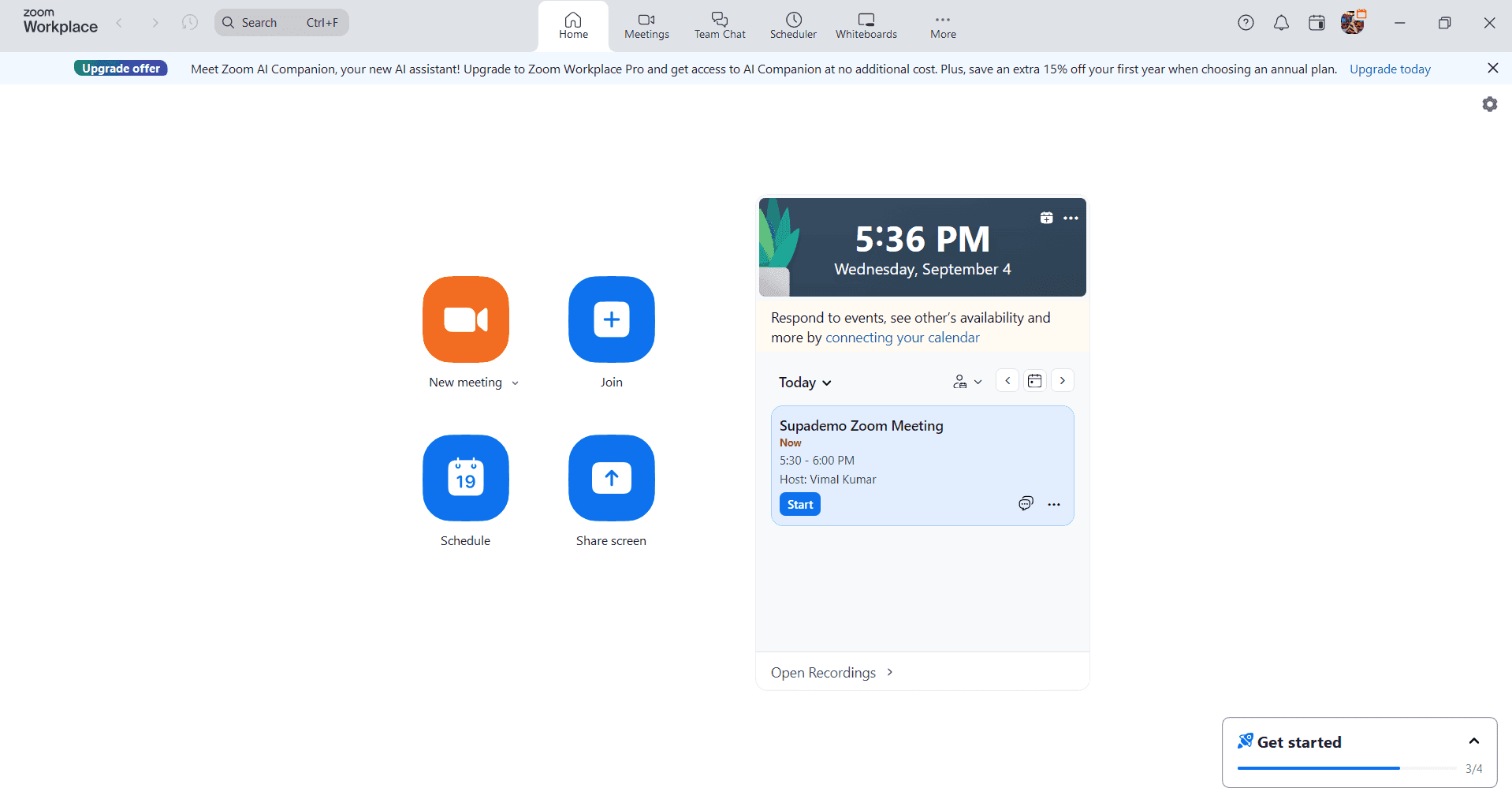
Launch the Zoom application and sign in with your credentials. You'll be taken to the home screen where you can access scheduling and meeting options.
- 2
Click Schedule a Meeting
From the home screen, select the Schedule a Meeting button. This opens the meeting setup form where you can configure details like title, date, time, and duration.
- 3
Configure meeting details
Fill in your meeting title, select the date and time, and set the duration. You can also enable features like waiting room, recording, or video settings depending on your needs.
- 4
Add participants and invitees
In the invitee field, enter the email addresses of participants you want to invite. You can add multiple email addresses separated by commas or semicolons.
- 5
Send the invite
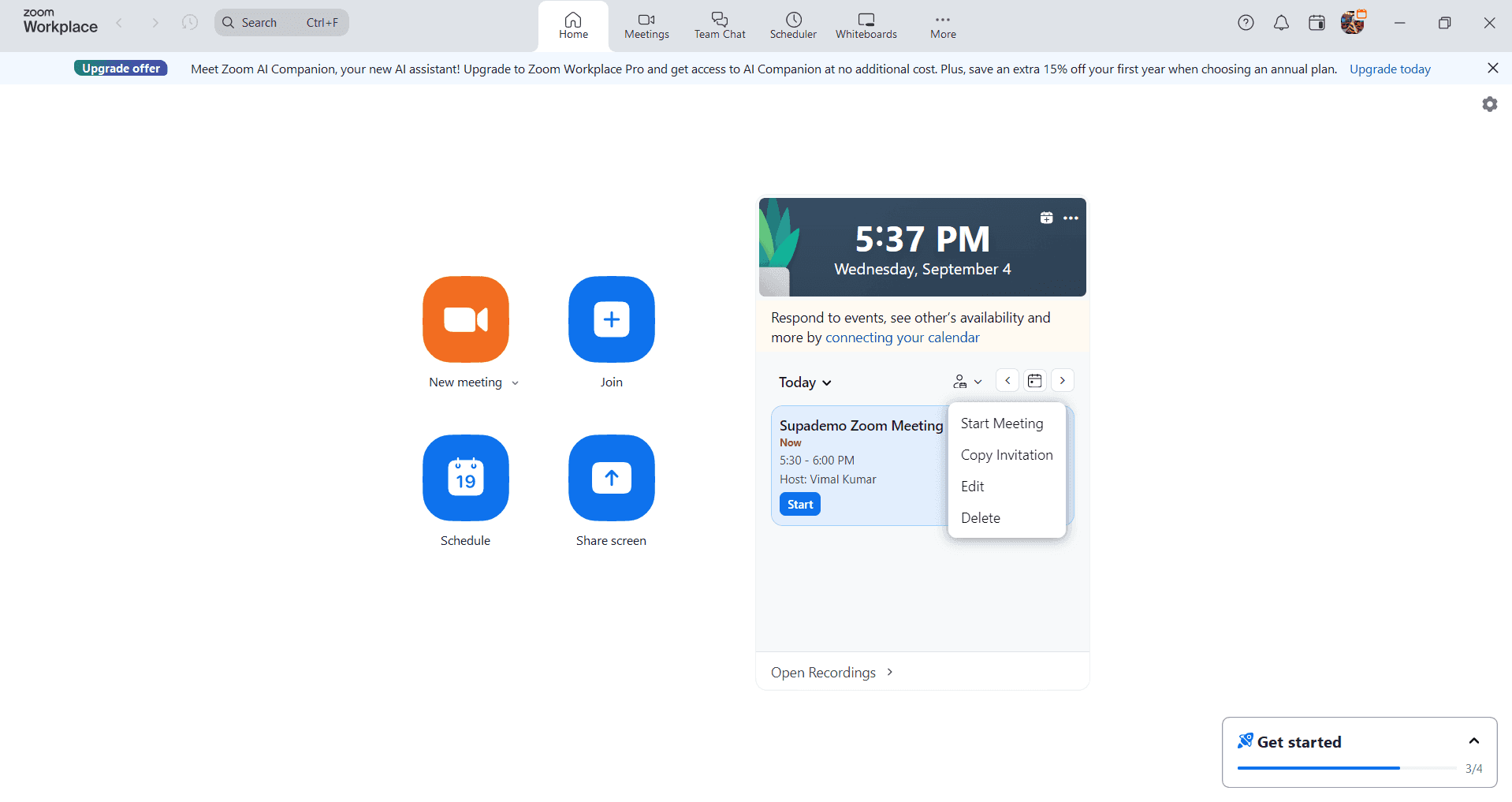
Click the Save button to finalize your meeting setup. Zoom will automatically send invites to all listed participants with the meeting link, time, and join instructions included.
Frequently asked questions
Common questions about how to send a zoom invite.
Yes. Open the meeting in your Zoom dashboard, click Edit, and add participant email addresses in the invitee field. You can then resend the invite or copy the meeting link to share manually through other channels.
A Zoom invite typically includes the meeting title, date, time, timezone, meeting link, meeting ID, passcode if enabled, and dial-in numbers for audio participants. Participants receive this information via email and can click directly to join.
Yes. In the meeting setup form, look for the option to add a personal message or description. This allows you to include custom instructions, agenda details, or other relevant information that participants will see in their invite.
Go to your Zoom dashboard, find the meeting, and click the Invite button. You can then resend the invite to specific participants or copy and share the meeting details through email or messaging platforms.
If you edit the meeting and add new participants after initial creation, Zoom will send invites to only the newly added email addresses. Previously invited participants will not receive duplicate invites unless you manually resend them.