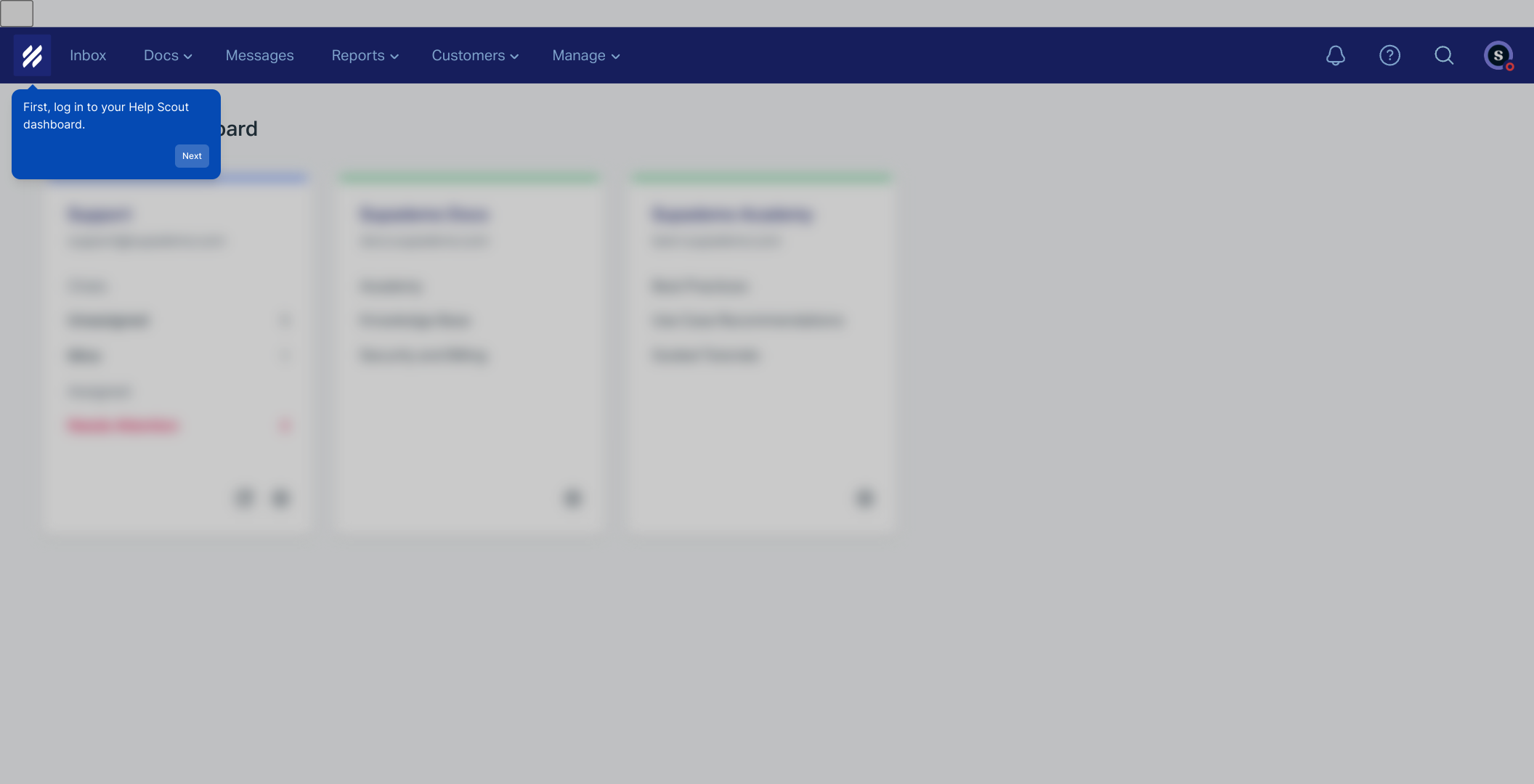
1. First, log in to your Help Scout dashboard.
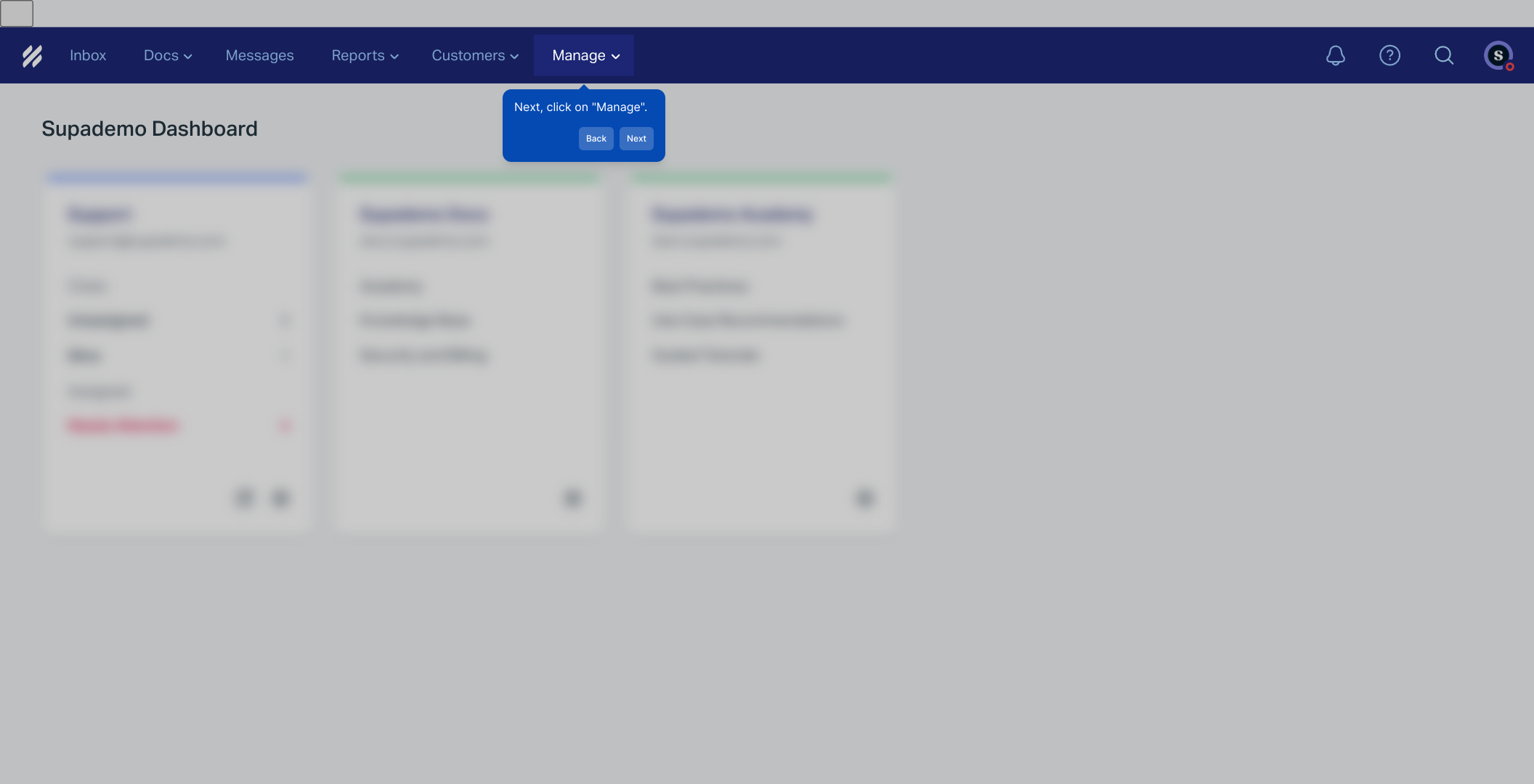
2. Next, click on "Manage".
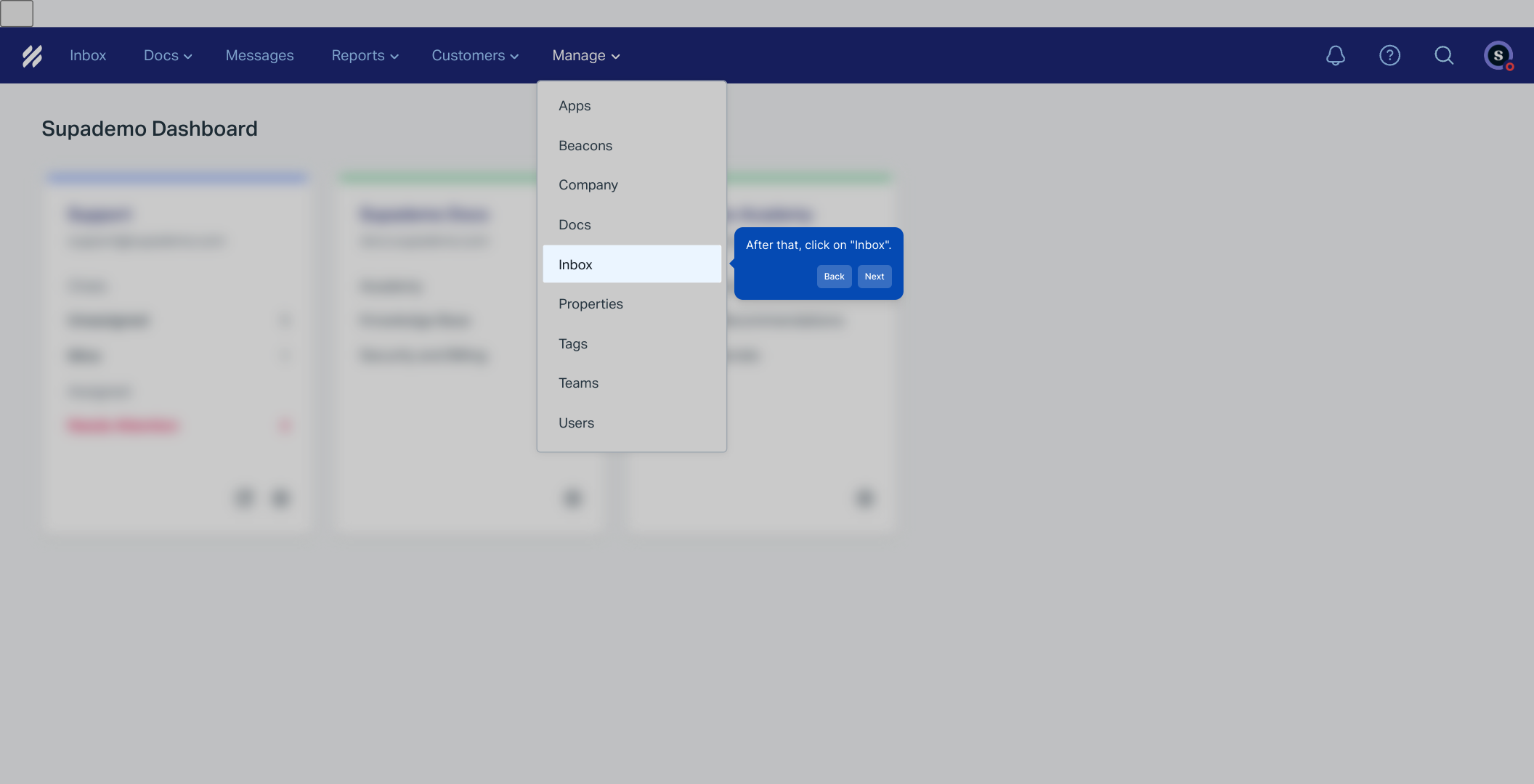
3. After that, click on "Inbox".
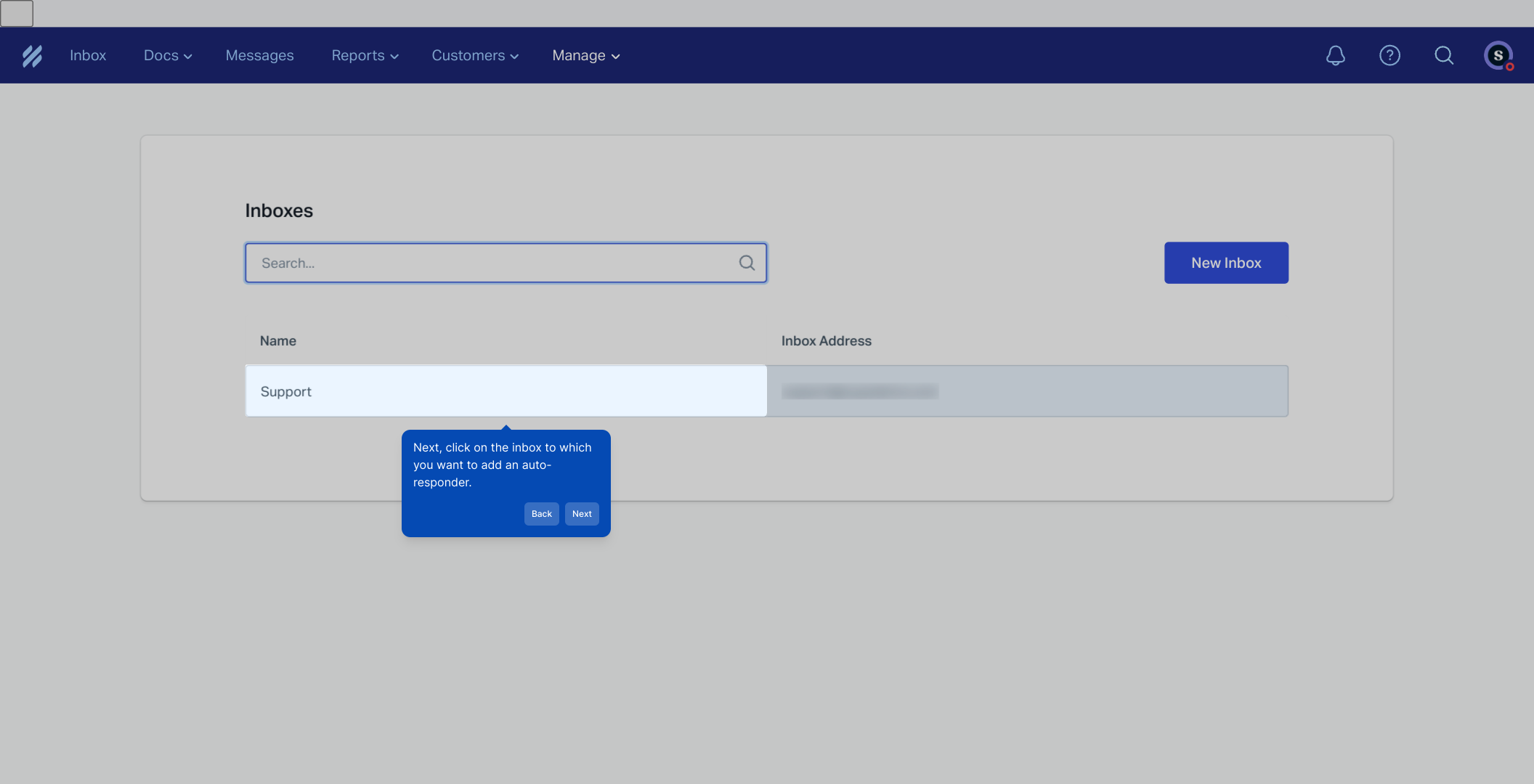
4. Next, click on the inbox to which you want to add an auto-responder.
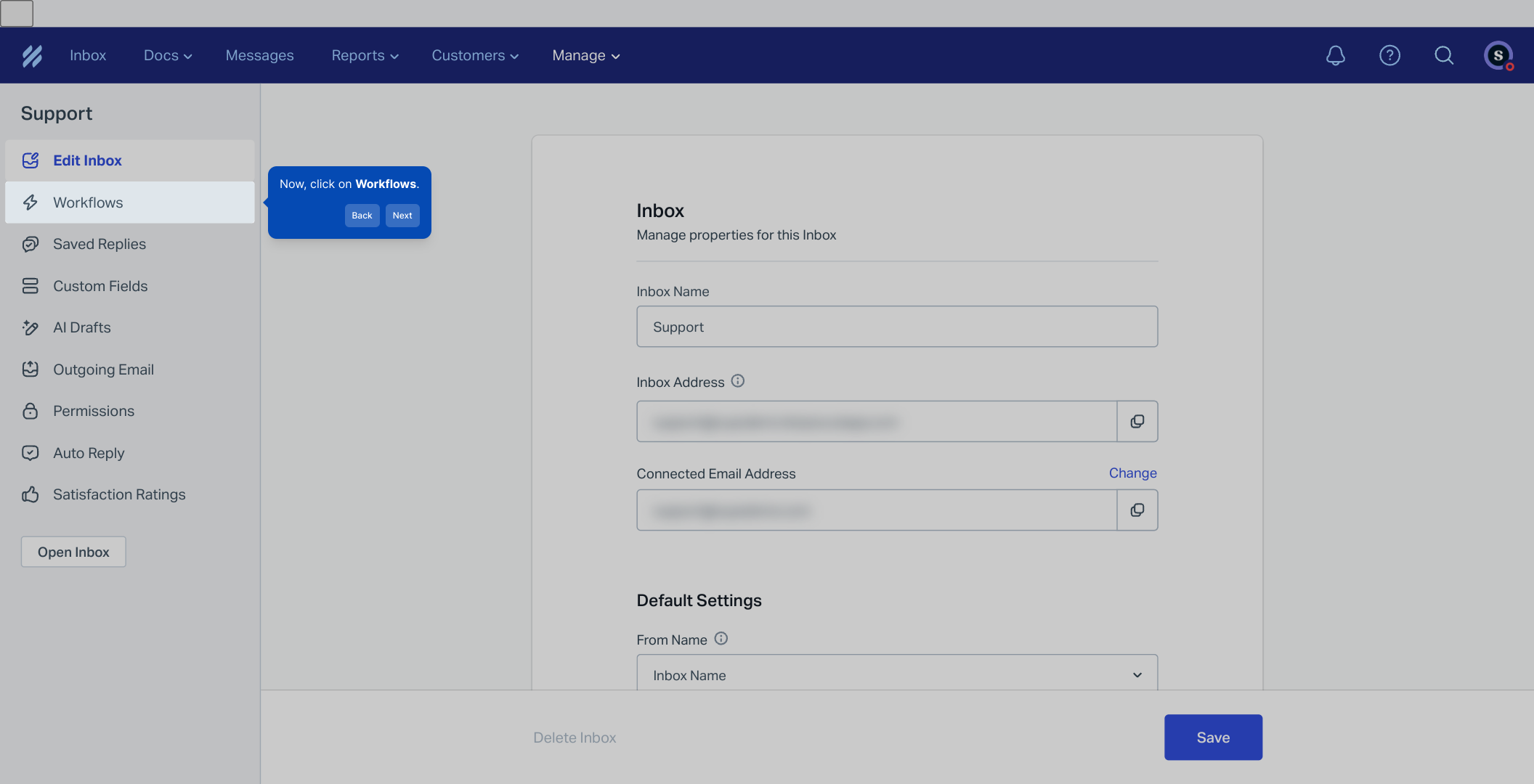
5. Now, click on Workflows.
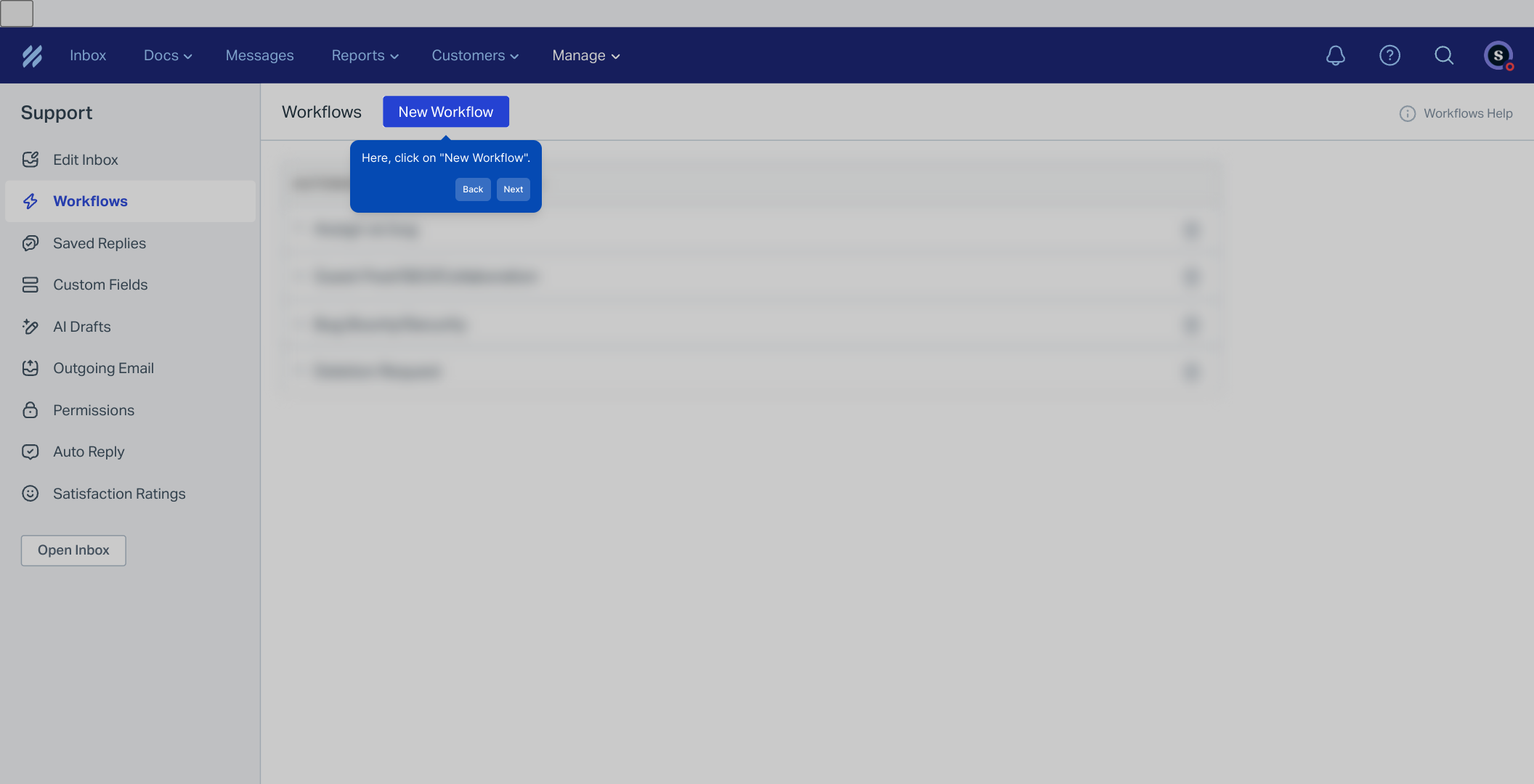
6. Here, click on "New Workflow".
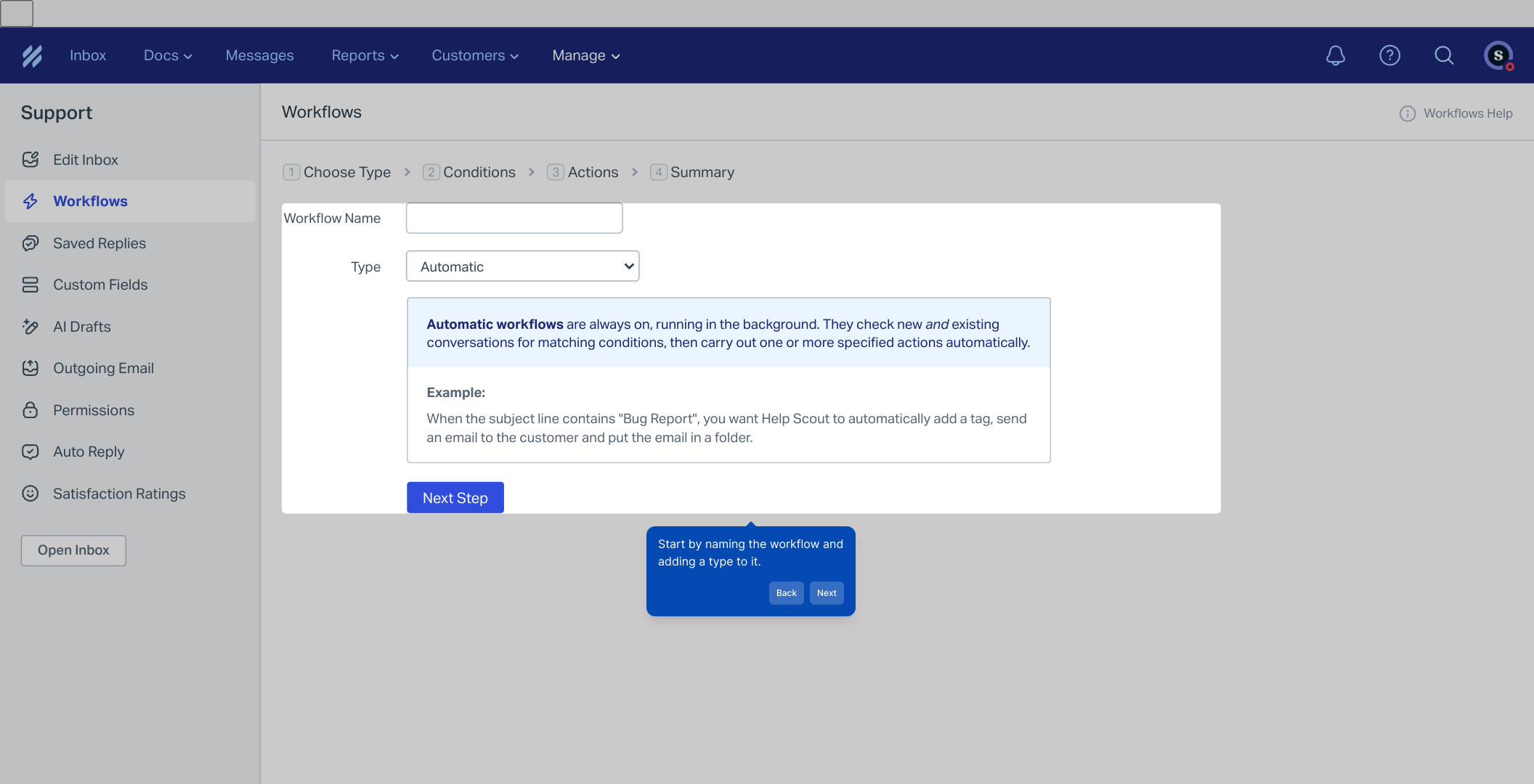
7. Start by naming the workflow and adding a type to it.
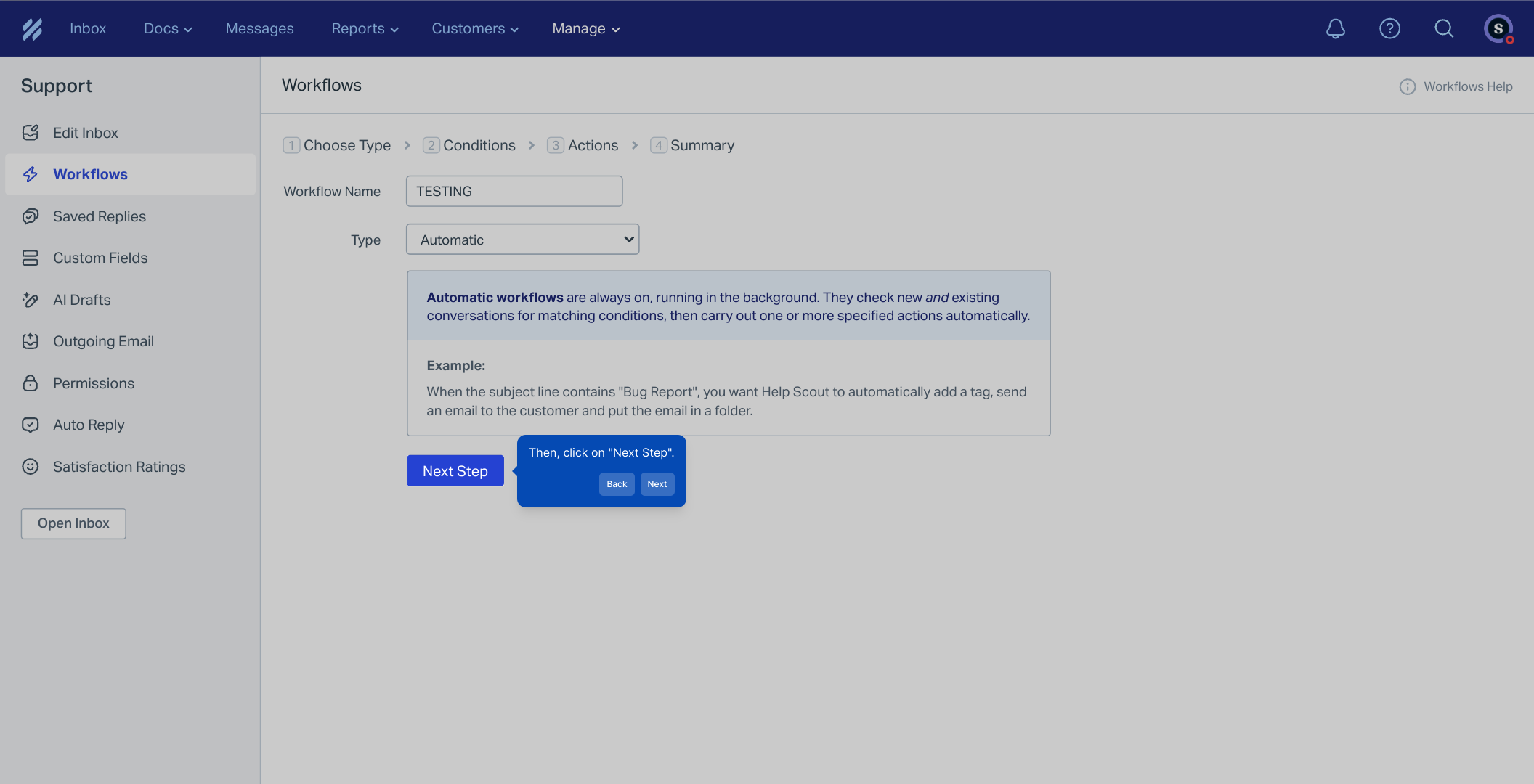
8. Then, click on "Next Step".
9. After, click on "Select a Condition".
10. Add the condition as per your needs.
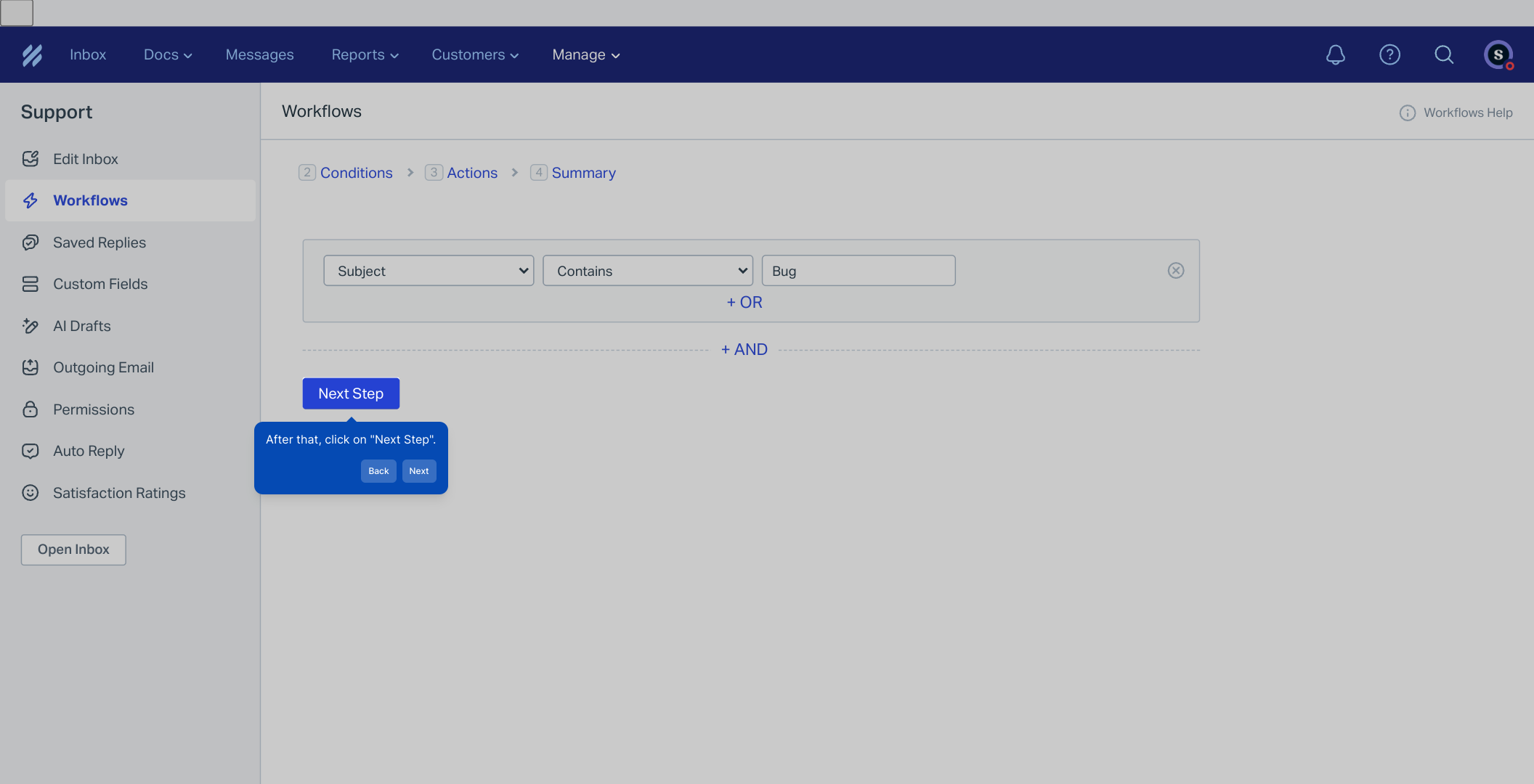
11. After that, click on "Next Step".
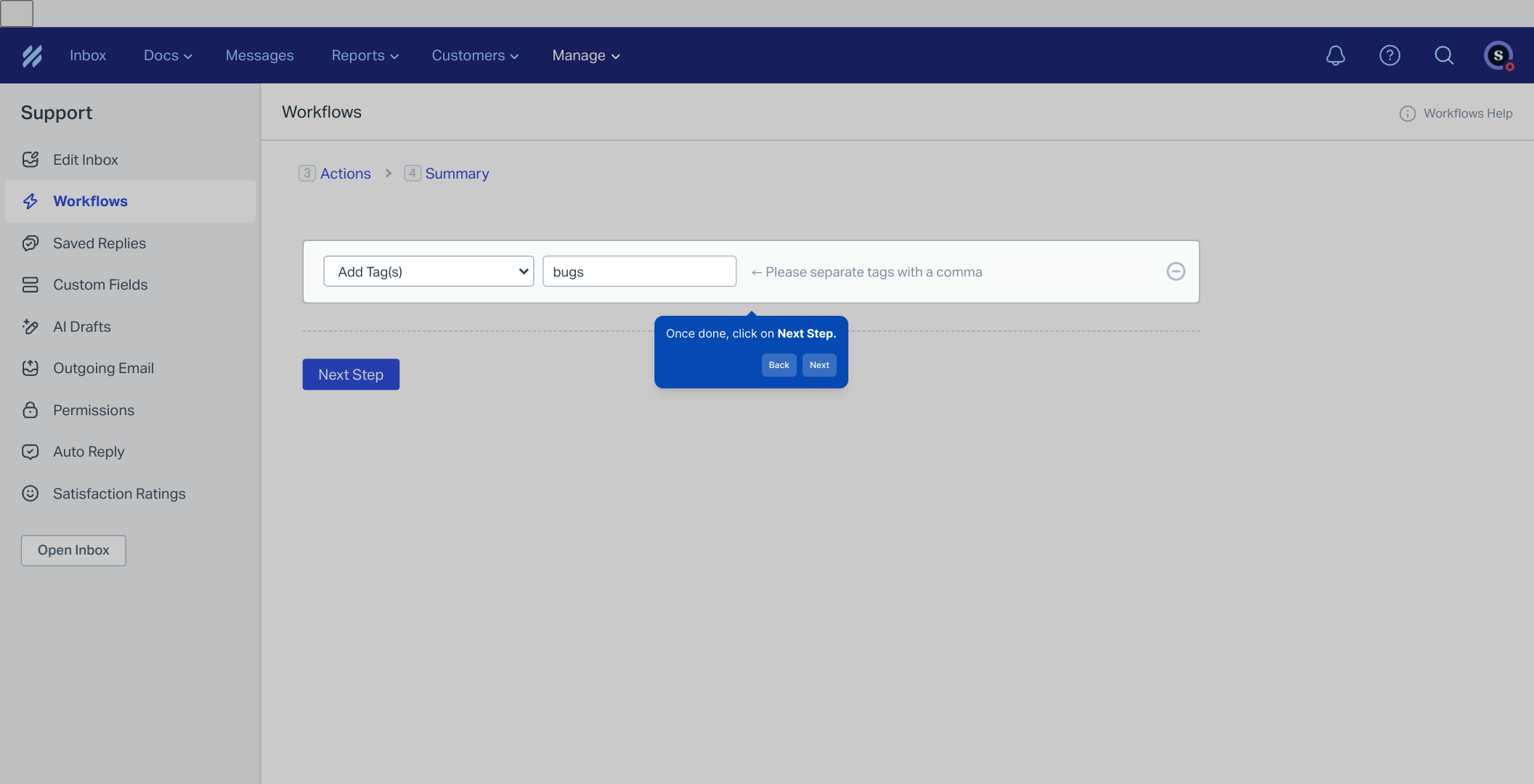
12. Next, click on "Select an Action" and add an action.
13. Once done, click on Next Step.
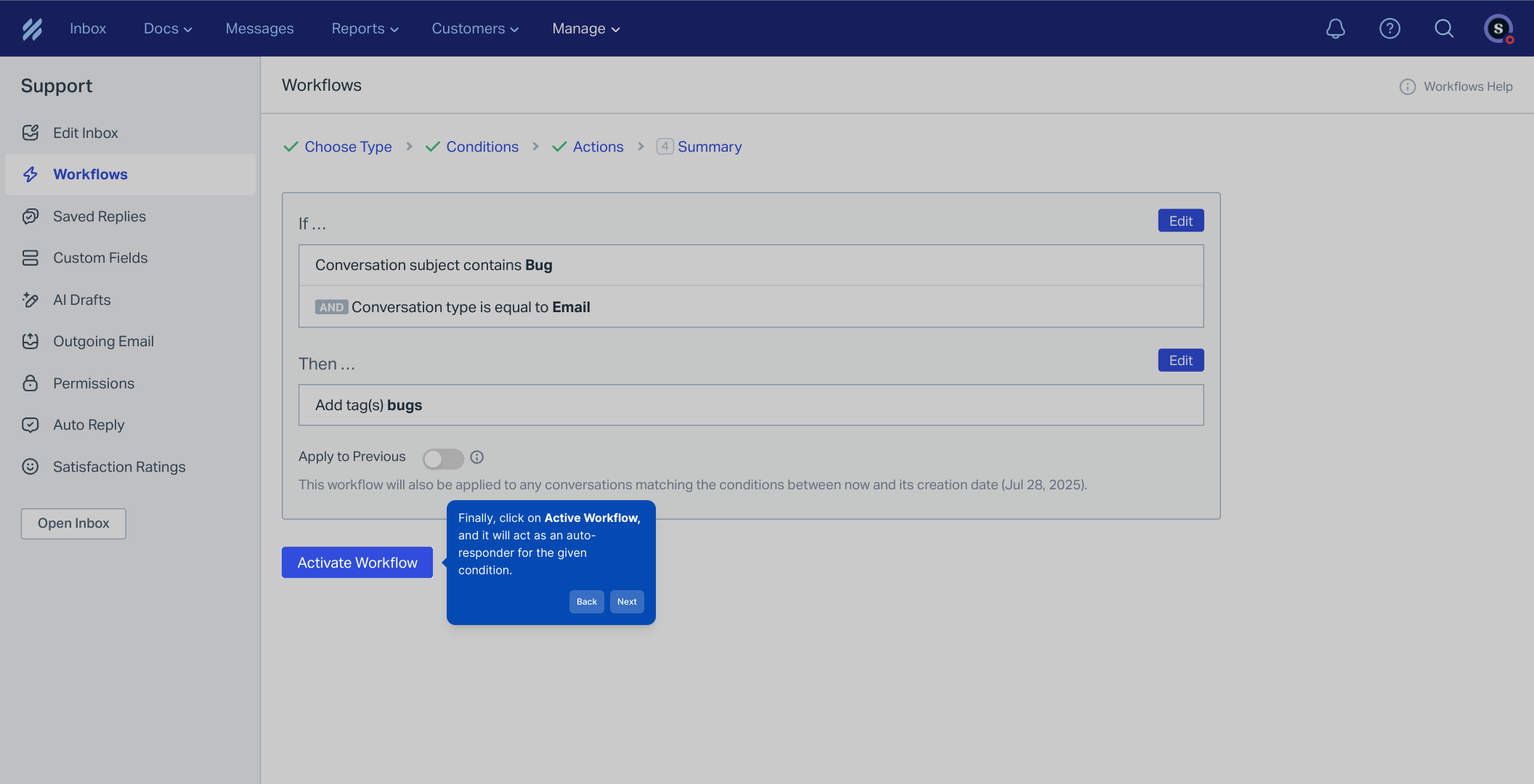
14. Finally, click on Active Workflow, and it will act as an auto-responder for the given condition.
15. Create a Supademo in seconds
This interactive demo/guided walkthrough on How to Set Up Auto-Responders in HelpScout was created using Supademo.
How to Set Up Auto-Responders in HelpScout : Step-by-Step Guide
Start by logging into your Help Scout account to access the main dashboard where you manage your support operations.
Once you’re on the dashboard, find and select the “Manage” option in the sidebar to begin configuring your settings.
Inside the Manage section, navigate to the “Inbox” tab where all your communication channels are listed.
Here, choose the specific inbox you want to set up with an auto-responder. This ensures responses go to the right place.
Next, select Workflows from the menu to open the automation options related to your inbox.
To create a new automation, click on the “New Workflow” button, which lets you start customizing the auto-responder.
Begin by giving your workflow a clear name and select the type that best describes the action you want it to perform.
Once you’ve set the name and type, proceed by clicking the “Next Step” button to move forward with your setup.
Now, select “Choose a Condition” to specify when this workflow should trigger in your inbox.
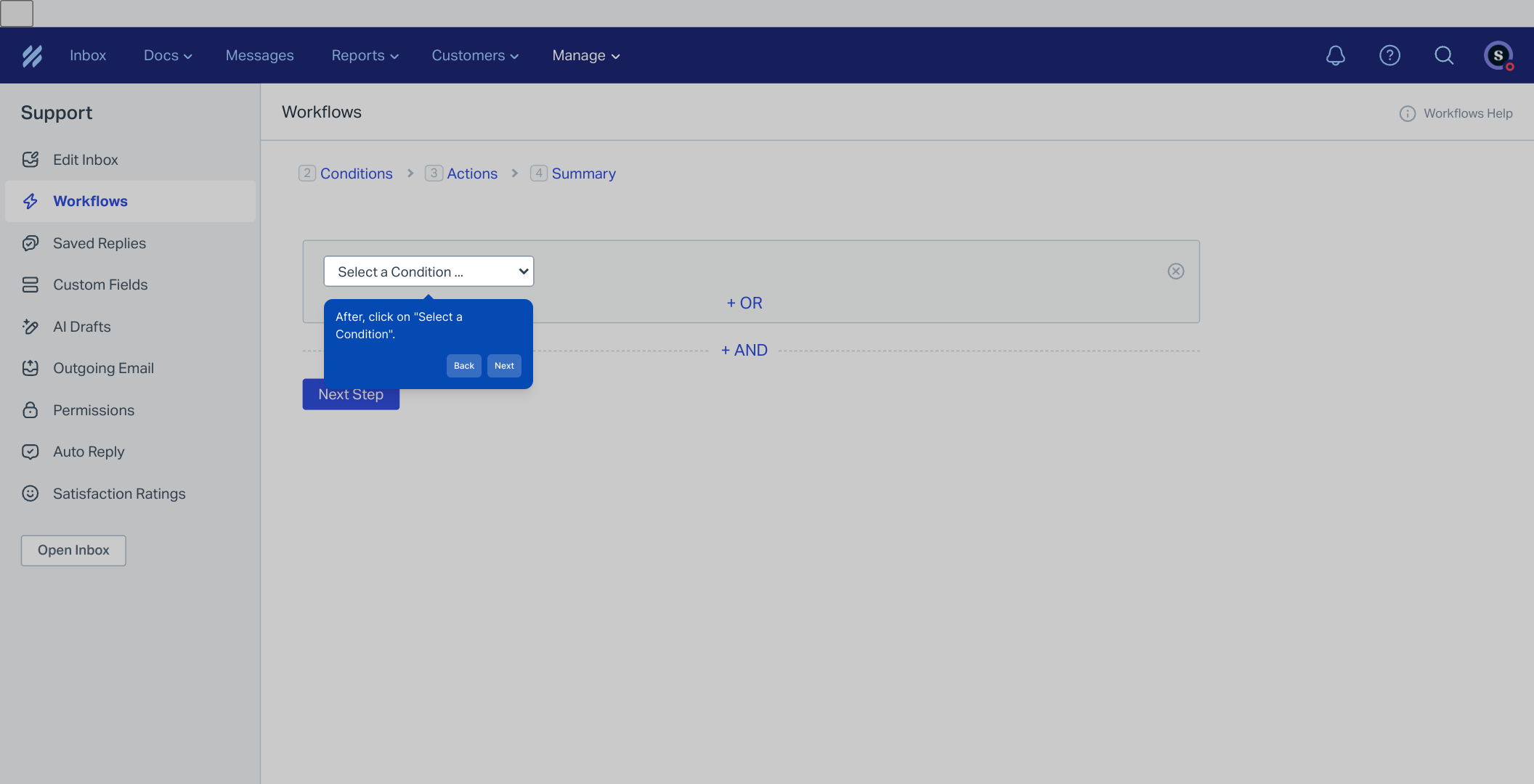
Define the condition carefully based on your requirements — this controls what types of messages will activate the auto-response.
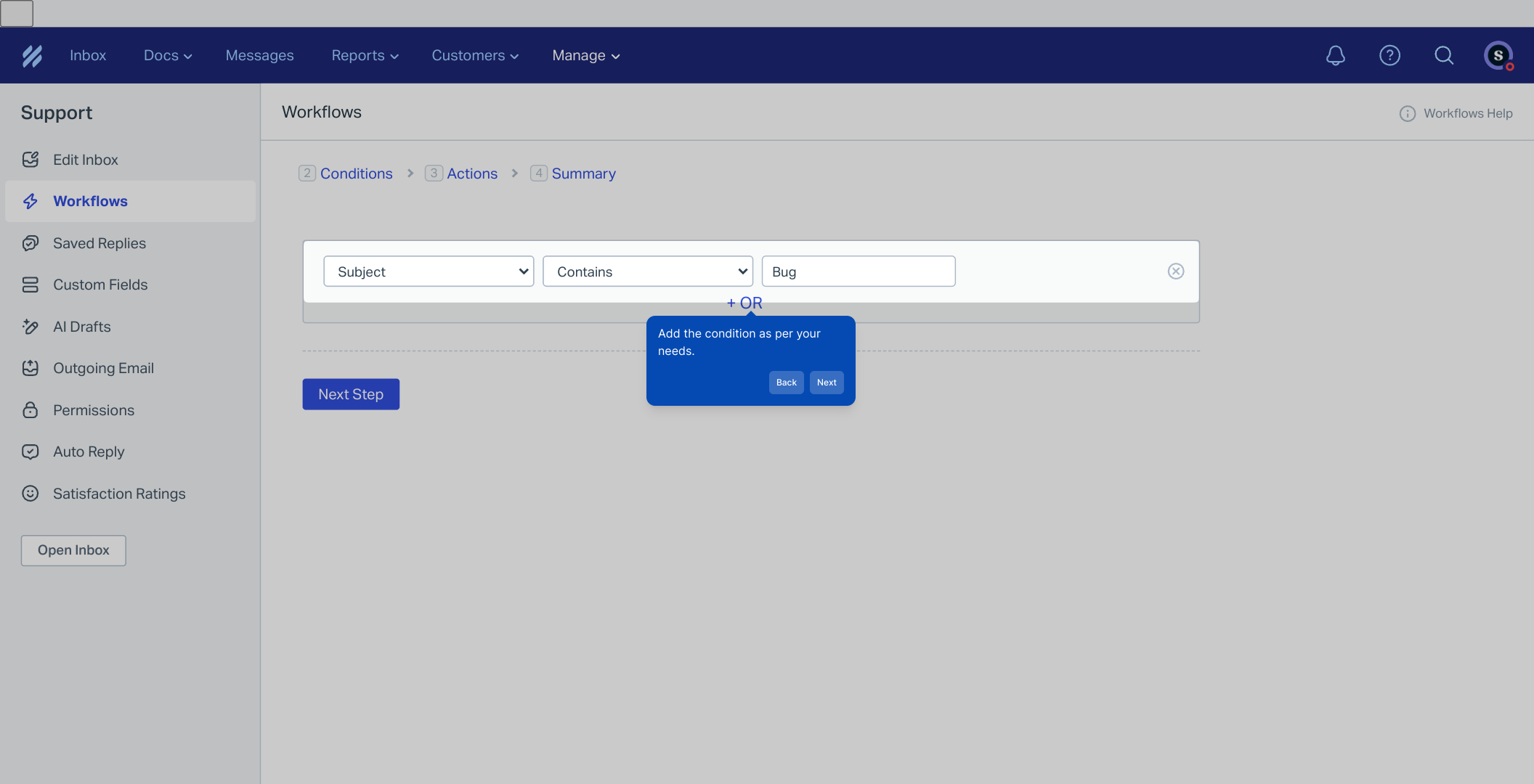
After setting your condition, click “Next Step” to continue refining your workflow.
Then, select “Choose an Action” to decide what the auto-responder should do when the condition is met.
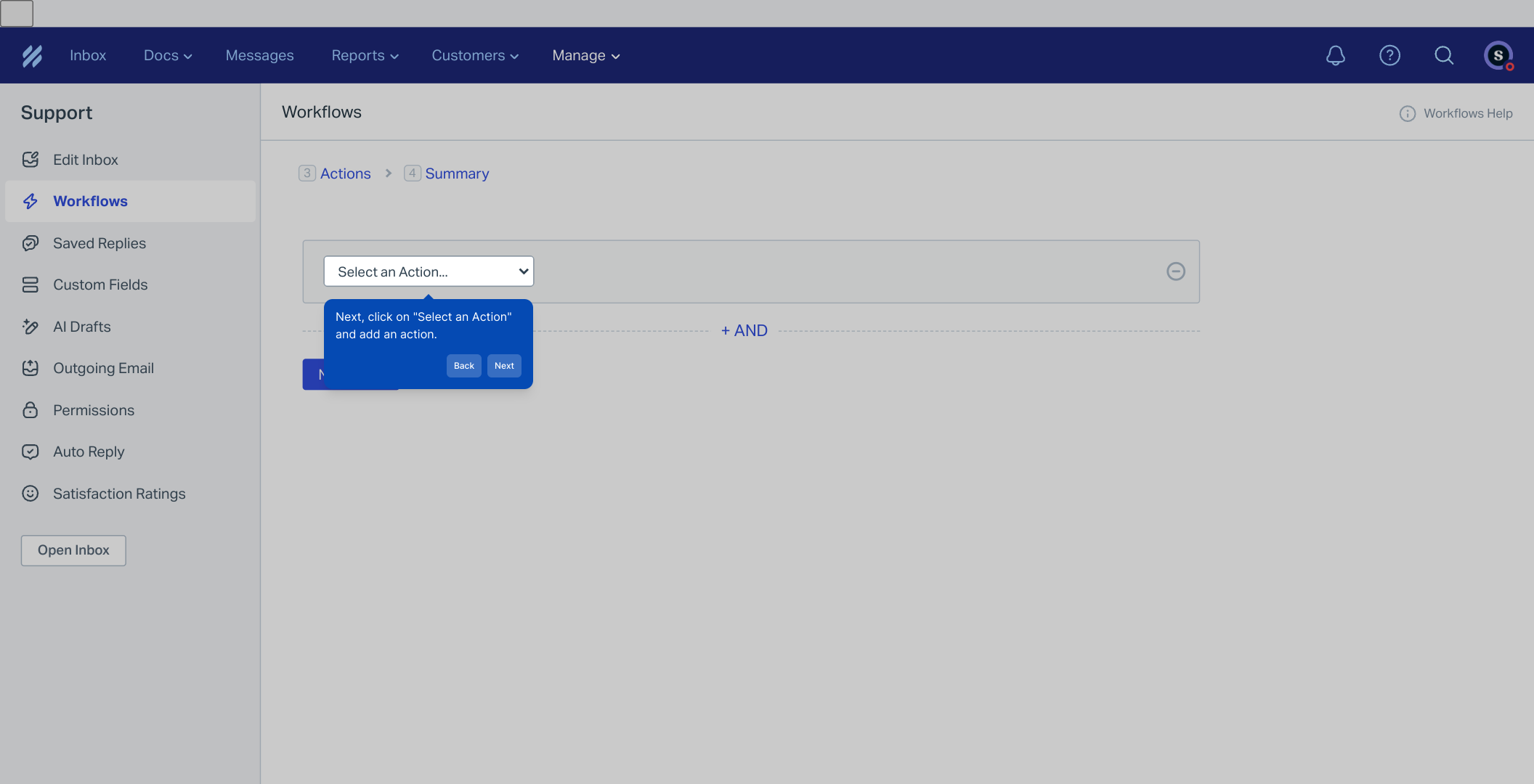
Once you’ve added the appropriate action, continue by clicking on the Next Step button to proceed.
Finally, activate the workflow by clicking Active Workflow. This enables your auto-responder to start handling messages automatically based on your settings.
That’s it! You’ve now quickly created a Supademo workflow to automate your customer inbox interactions.
Create your own interactive demos in < 5 mins with Supademo
You can create your own interactive product demo in minutes using Supademo. Drive growth, scale enablement, and supercharge product-led onboarding with Supademo.
Sign up for free here with no credit card required.
FAQs
Commonly asked questions about this topic.
What are auto-responders in HelpScout?
How do I create a new workflow for an auto-responder?
Can I customize the message sent by the auto-responder?
What types of conditions can trigger an auto-responder?
Is there a way to test my auto-responder before activating?
How quickly does an auto-responder send messages after a trigger?
Can I have multiple workflows acting as auto-responders in one inbox?
Will auto-responders interfere with manual replies from my support team?
Are auto-responders available on all HelpScout plans?
How can I modify or deactivate an existing auto-responder?

Product Operations Associate
Vimal Kumar helps build and grow Supademo’s team and GTM efforts, with a focus on figuring out growth levers and improving product traction.