How to Set Your Interview Preferences in Dover

Setting your interview preferences in Dover allows you to customize how you schedule and conduct interviews with candidates. This guide walks you through configuring your interview settings to match your hiring process and team needs.
Quick summary
In this tutorial, you'll learn how to access Dover's interview preference settings and configure key options that control your interview workflows. By the end, you'll have customized Dover to align with your organization's hiring standards and candidate experience expectations.
Why this matters
Properly configured interview preferences ensure consistency across your hiring process and help candidates understand what to expect. Setting these preferences upfront saves time during recruitment cycles and reduces friction when scheduling and conducting interviews.
Step-by-step guide
- 1
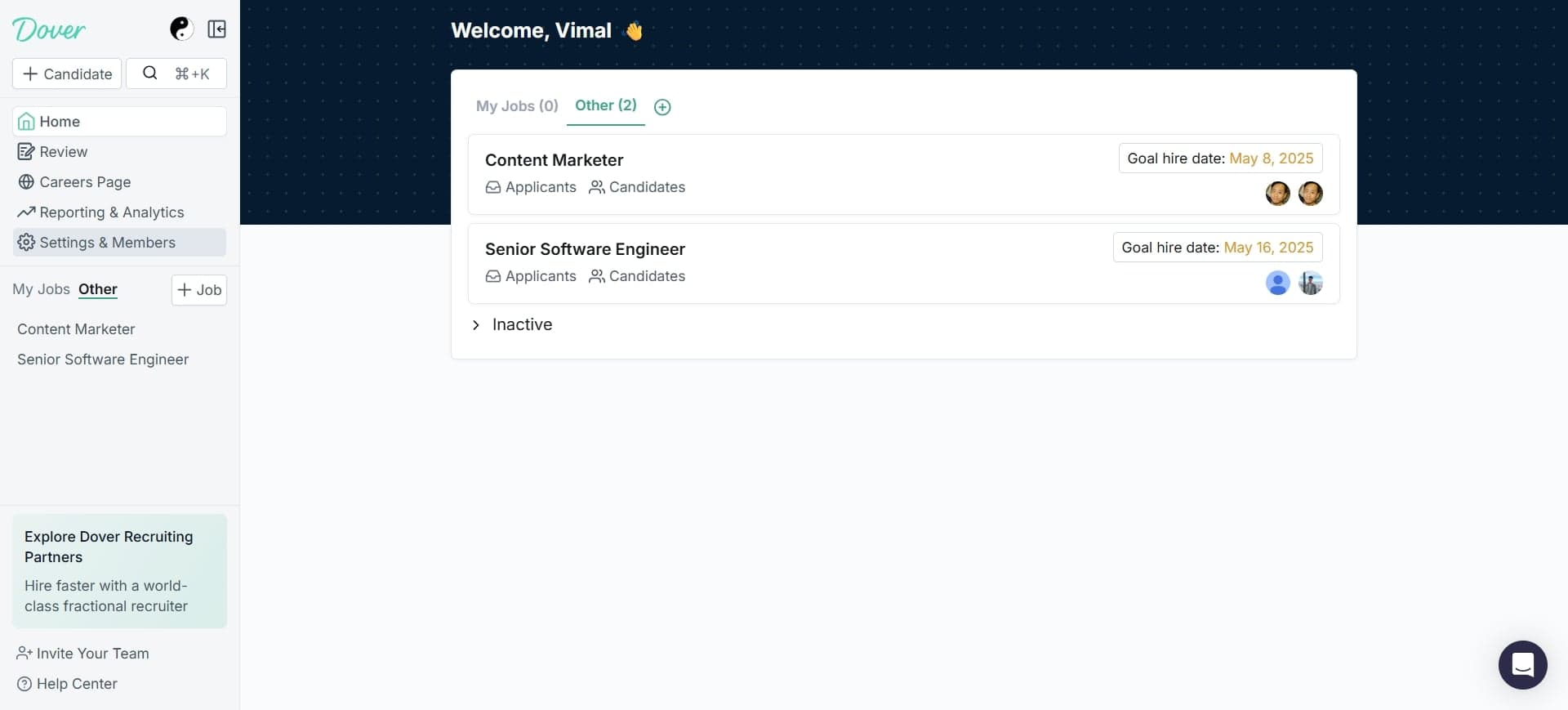
Open Dover and access settings
Launch Dover and navigate to your account or organization settings. Look for the settings icon or menu option, typically located in the top navigation bar or sidebar.
- 2
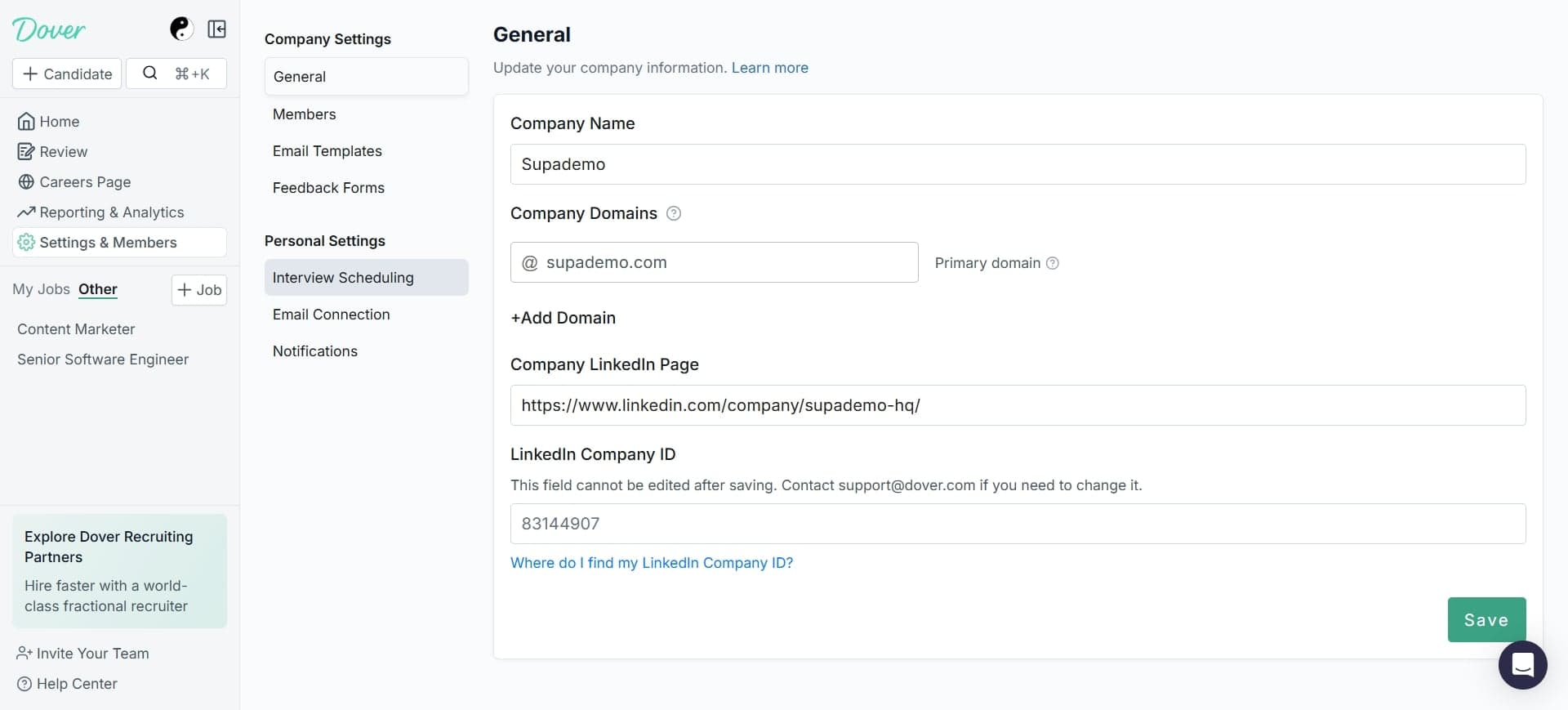
Locate interview preferences section
Find the interview preferences or interview settings option within the main settings menu. This section controls how your interviews are configured and presented to candidates.
- 3
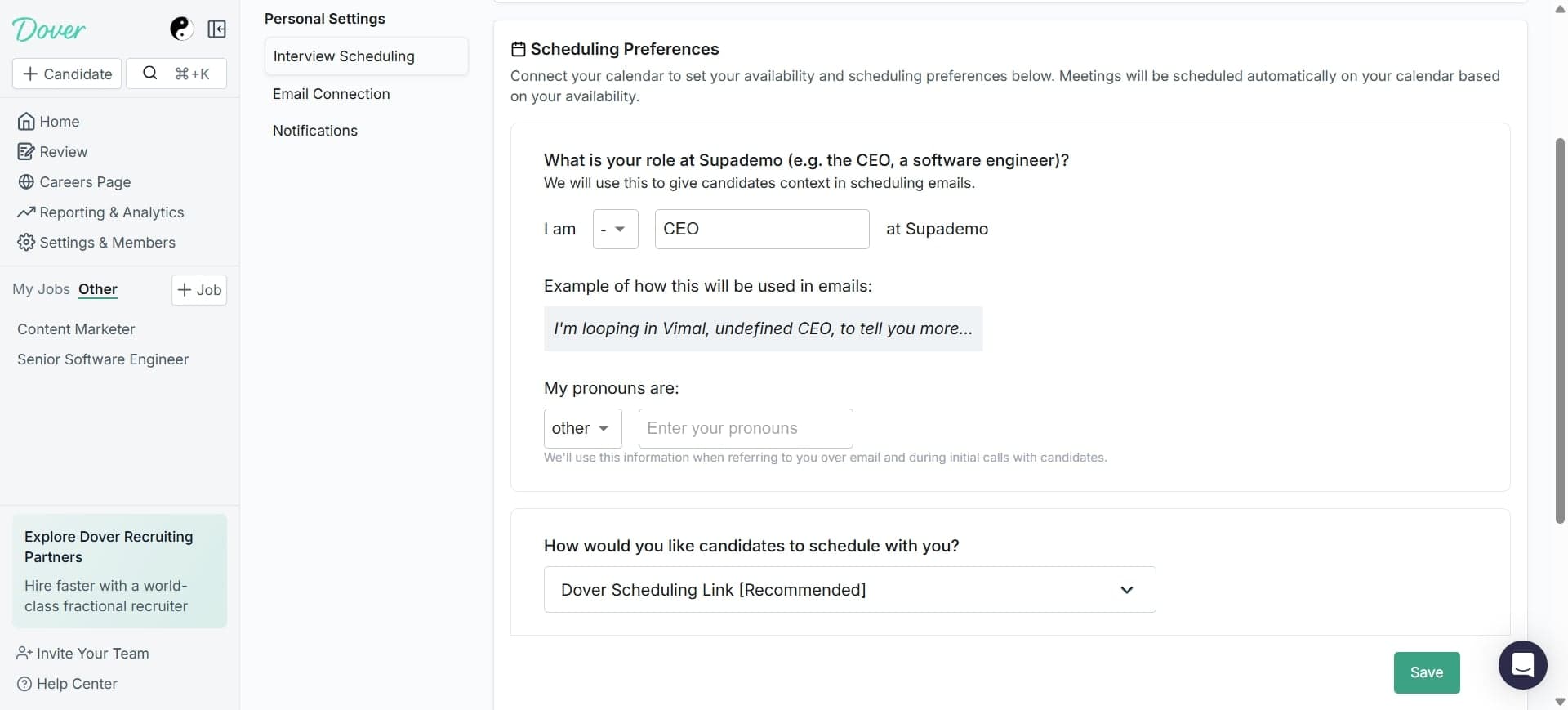
Configure interview format
Select your preferred interview format from available options such as video, phone, or one-way video. Choose the format that best aligns with your recruiting workflow and candidate experience goals.
- 4
Set interview duration
Specify the default length for interviews in minutes. This duration will be communicated to candidates and helps manage your interview calendar efficiently.
- 5
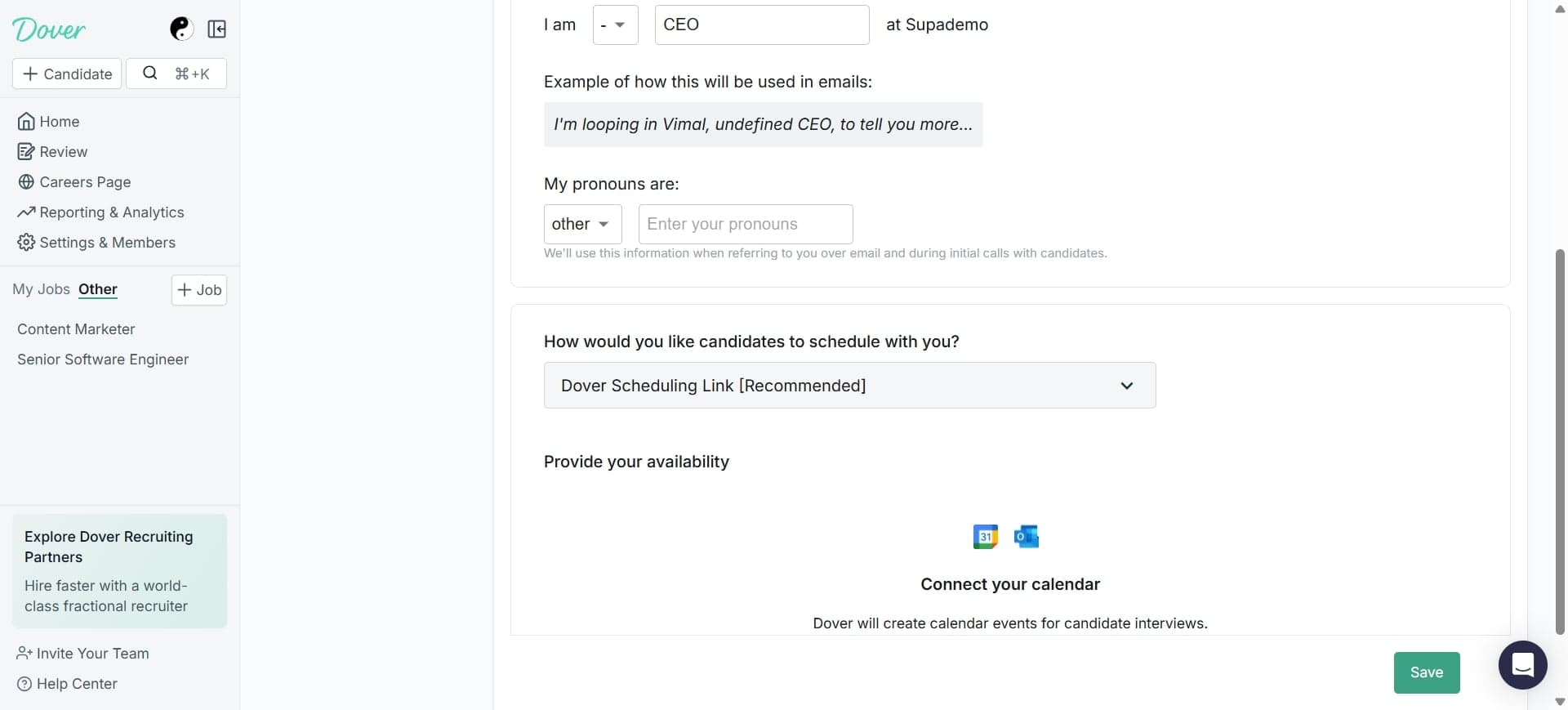
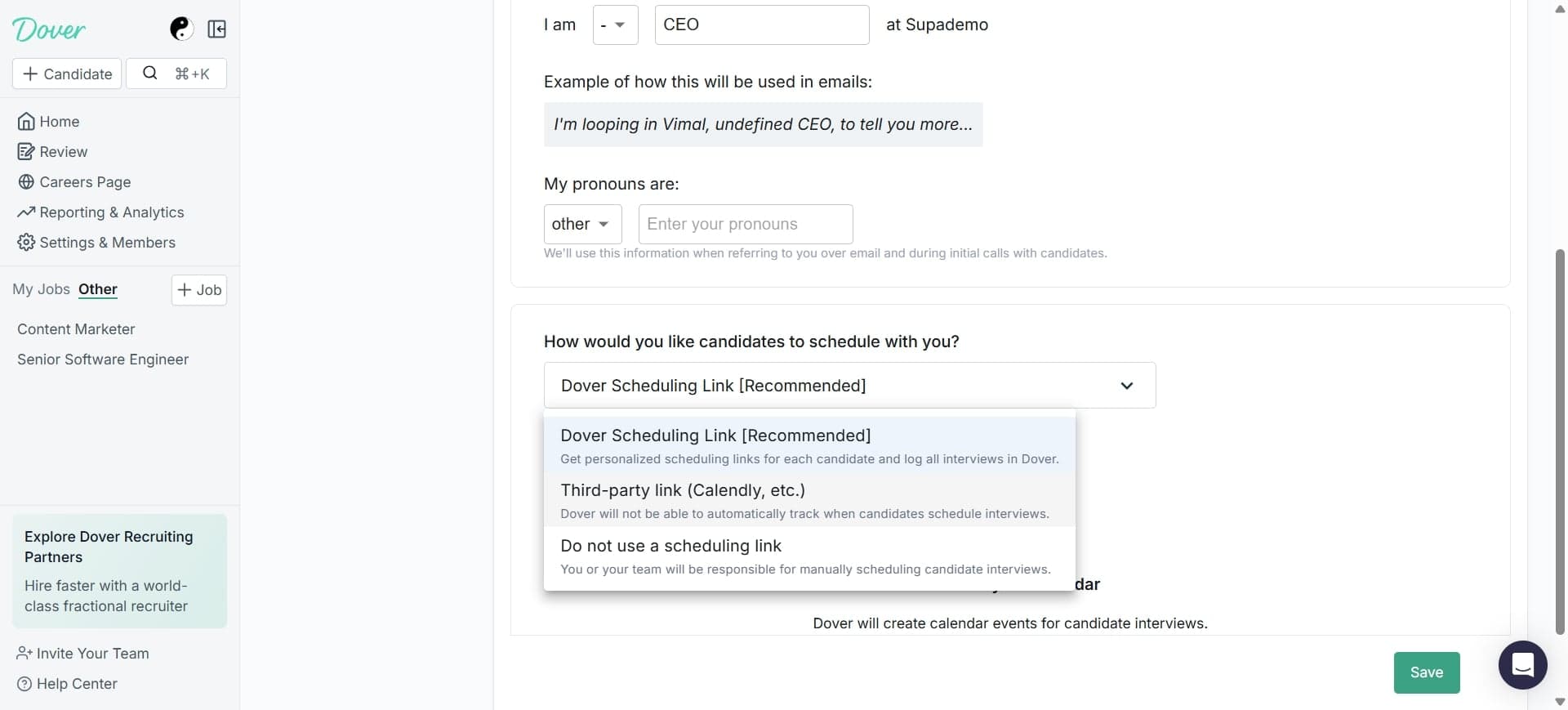
Define interview availability
Set your available time slots and days for conducting interviews. Dover will use these preferences when candidates book interview times, preventing scheduling conflicts.
- 6
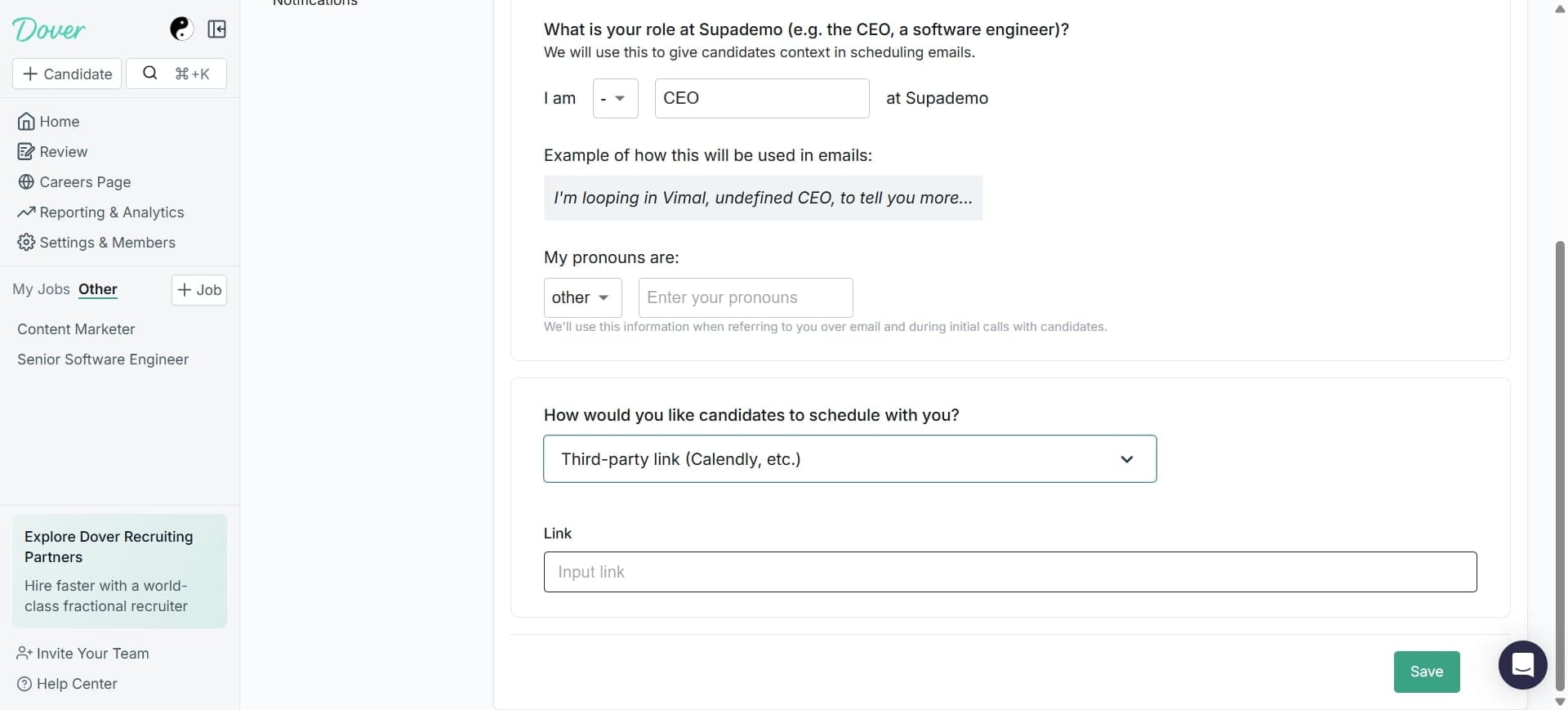
Configure follow-up settings
Choose your preferences for post-interview communications and feedback collection. This may include automated reminders, feedback forms, or candidate status updates.
- 7
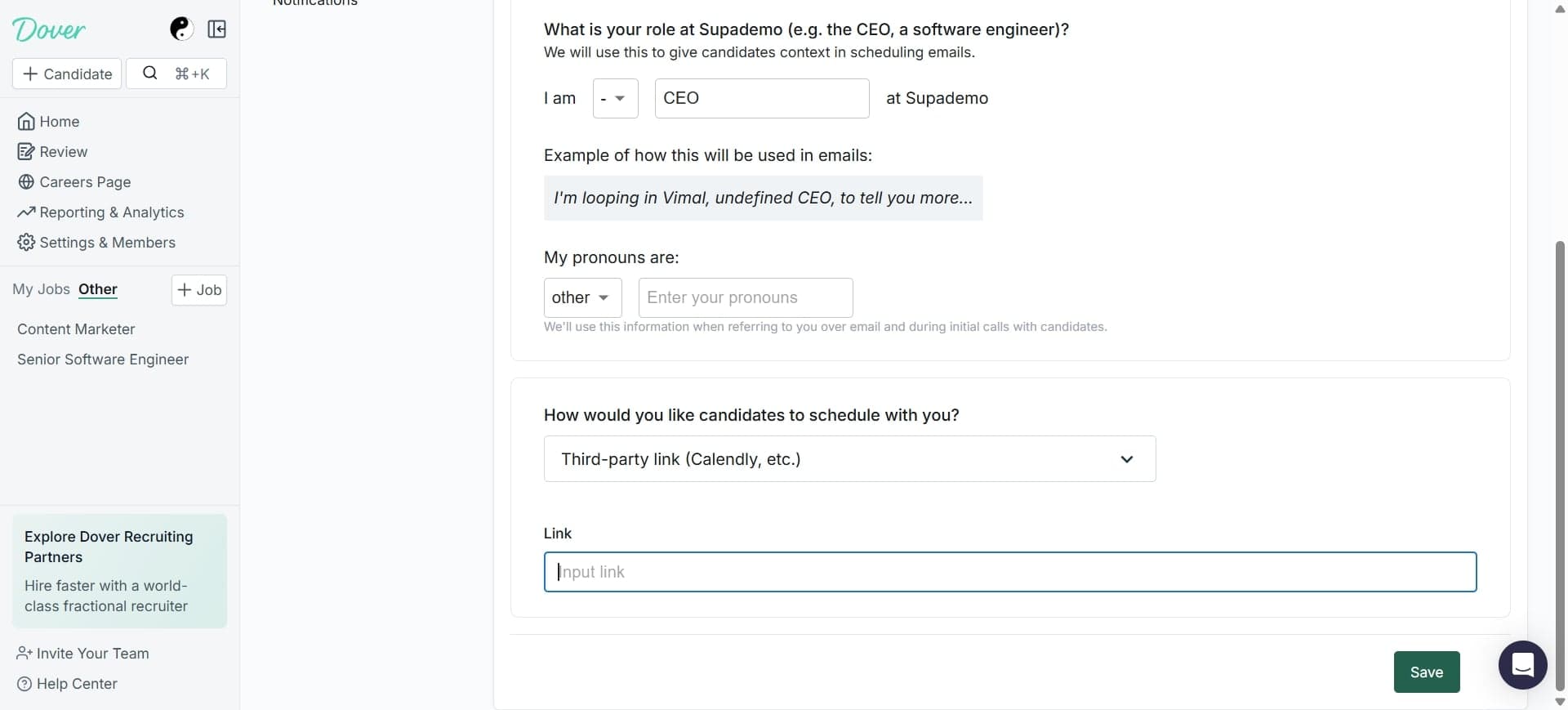
Save your preferences
Review all configured settings and click the save button to apply your interview preferences. Dover will now use these settings for all future interview scheduling.
Frequently asked questions
Common questions about how to set your interview preferences in dover.
Can I change my interview preferences after setting them?
Yes, you can modify your interview preferences at any time by returning to the interview preferences section in your Dover settings. Changes will apply to future interviews, though existing scheduled interviews will retain their original configuration unless manually updated.
Do my interview preferences apply to all team members?
Interview preferences can typically be set at both the individual and organizational level in Dover. Check your account settings to determine if you're configuring personal preferences or organization-wide defaults that other team members will inherit.
What interview formats does Dover support?
Dover generally supports multiple interview formats including live video interviews, phone interviews, and one-way video interviews where candidates record responses. The specific formats available may depend on your Dover plan and organization settings.
Can candidates see my interview preferences?
Candidates will see relevant information about your interview format, duration, and availability when booking interview times. However, they may not see your full preference settings—only the details necessary to schedule their interview.
How far in advance should I set my interview availability?
It's best to set interview availability at least one to two weeks in advance to give candidates adequate time to schedule. You can update your availability on a rolling basis as your calendar needs change.