How to Use Perplexity AI

Perplexity AI is a powerful search and research tool that combines the capabilities of a search engine with AI-powered answers. This tutorial guides you through the essential workflow of discovering information, uploading content, and sharing your findings with others.
Quick summary
In this tutorial, you'll learn how to navigate Perplexity AI's core features, including initiating searches, uploading documents or files, and sharing your results. You'll master the complete workflow from discovery through collaboration.
Why this matters
Efficiently using Perplexity AI can significantly accelerate your research and information-gathering process. Being able to upload custom content and share discoveries makes it an invaluable tool for teams, students, and professionals who need fast, AI-powered insights.
Step-by-step guide
- 1
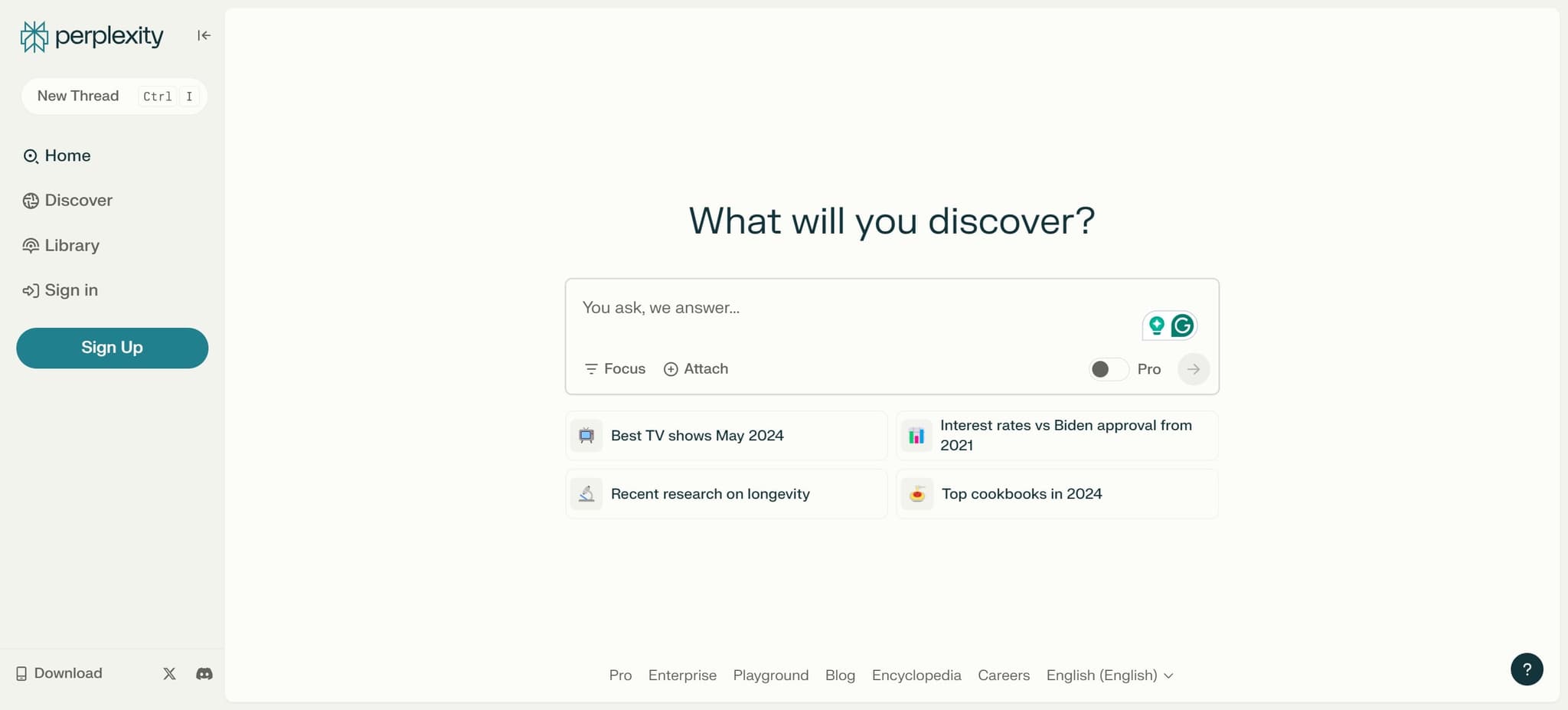
Start by discovering content
Click on the "What will you discover?" button to begin your session. This opens Perplexity AI's main search interface where you can start asking questions or exploring topics.
- 2
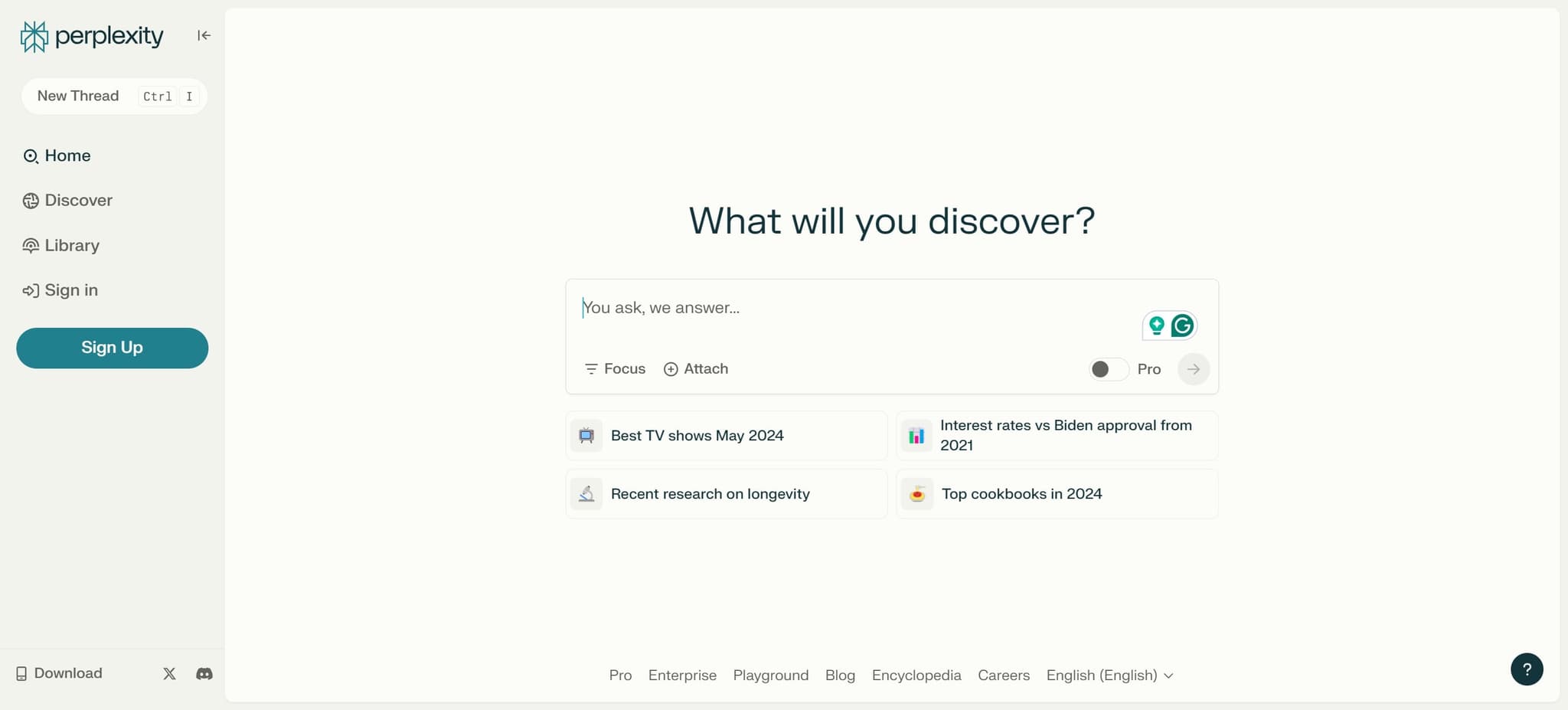
Navigate to the upload section
Click the designated button to access the upload feature. This prepares the interface for you to add external files or documents to your search context.
- 3
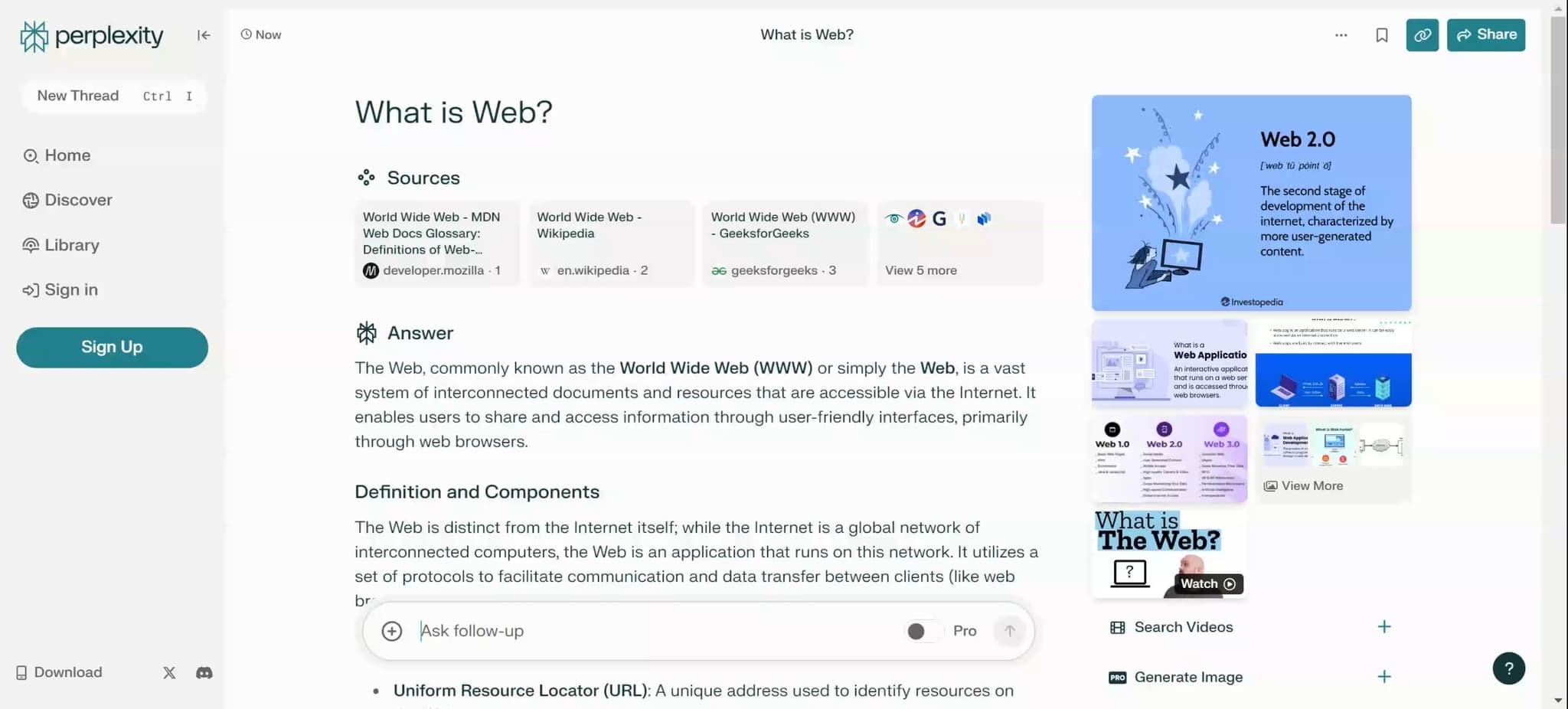
Upload your document or file
Select and upload the document or file you want to analyze or reference. Perplexity will process this content and incorporate it into your research workflow.
- 4
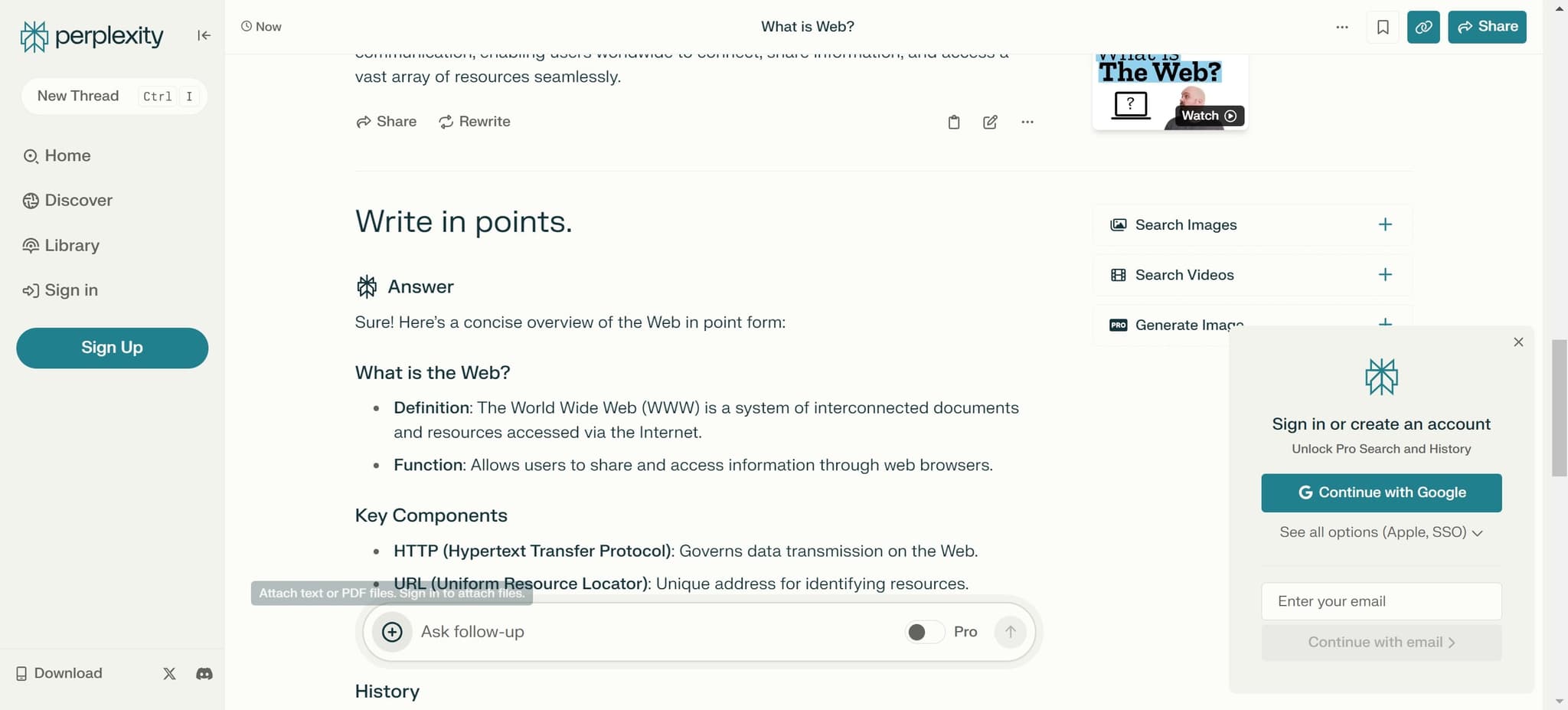
Confirm the upload completion
Once your file finishes uploading, click the confirmation button. This step ensures your document is ready to be used in your queries and analysis.
- 5
Access the sharing options
Click on "Share" to access collaboration and sharing features. This allows you to send your findings, documents, or search results to colleagues or collaborators.
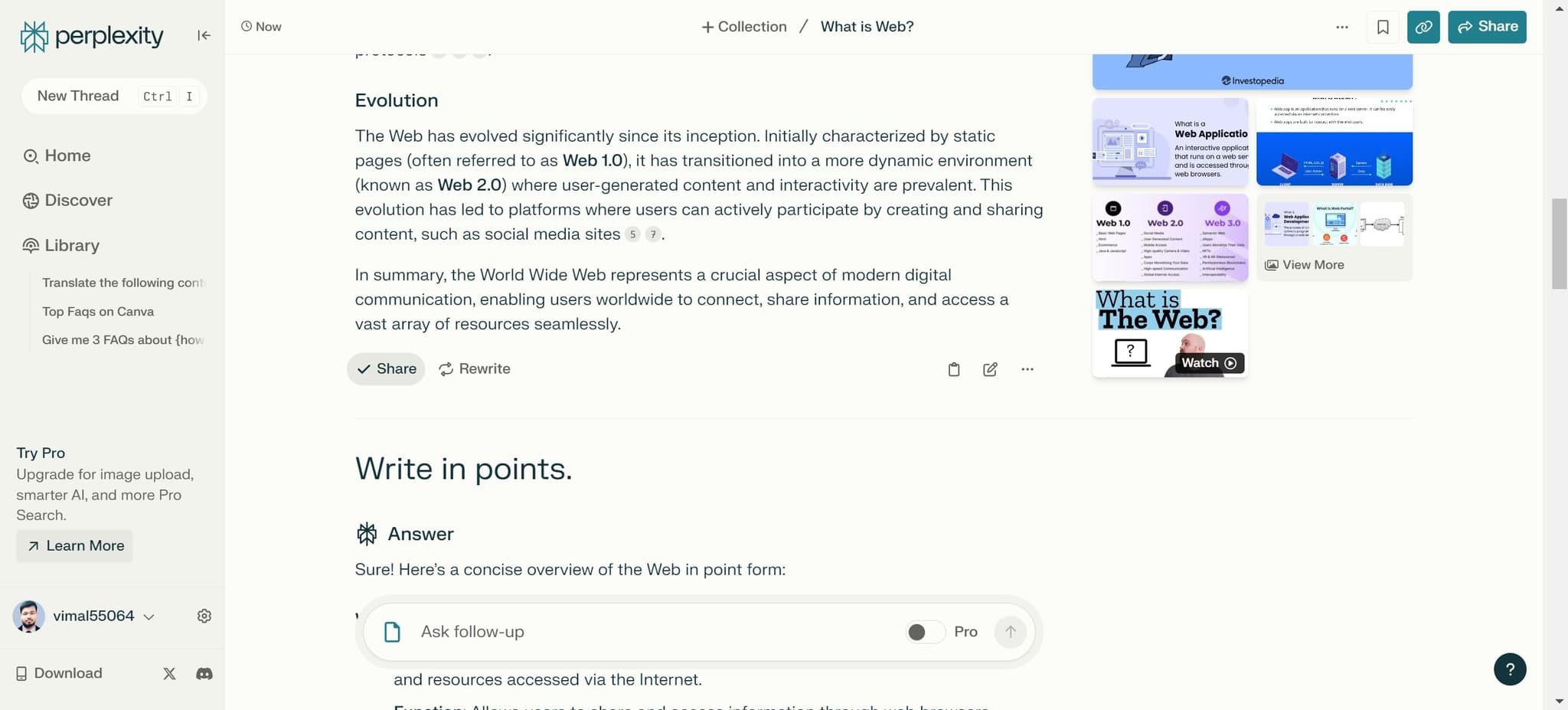
- 6
Upload additional content if needed
Use this second upload option to add more files or documents to your project. You can add multiple resources to create a comprehensive research package.
- 7
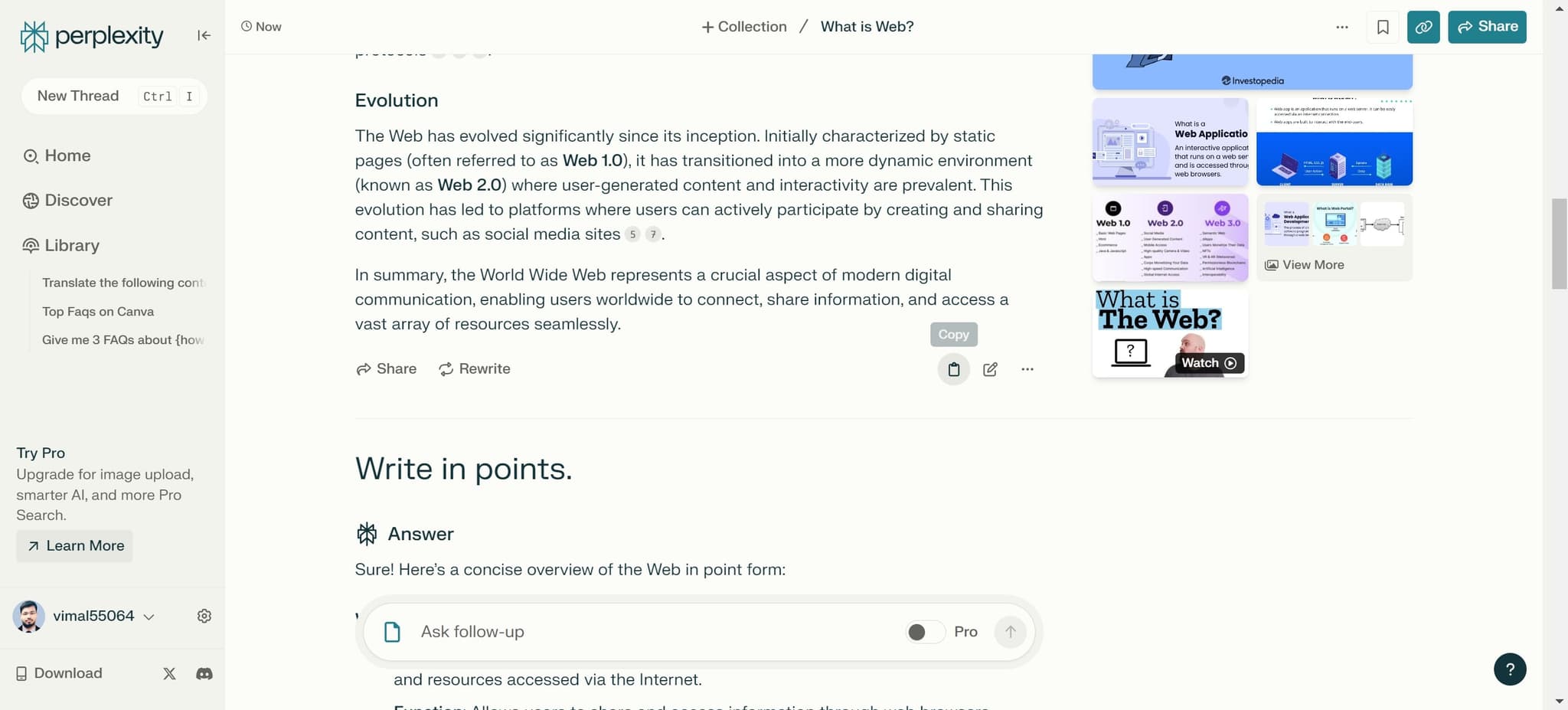
Complete your sharing workflow
Click the final button to finalize and send your shared content. Your collaborators will now have access to all uploaded documents and findings you've prepared.
Frequently asked questions
Common questions about how to use perplexity ai.
What types of files can I upload to Perplexity AI?
Perplexity AI supports a variety of file formats including PDFs, images, and text documents. The platform can process these files to understand their content and incorporate them into your research queries. Check Perplexity's documentation for the complete list of supported formats and file size limits.
Can I share my research with multiple people at once?
Yes, Perplexity's sharing feature allows you to share your findings with multiple collaborators. When you click Share, you'll have options to add multiple email addresses or generate a shareable link that you can distribute to your team.
Is there a limit to how many documents I can upload?
While Perplexity AI allows multiple uploads, there may be limits based on your account type or file sizes. For the most accurate information about upload limits, refer to your account settings or Perplexity's support documentation.
Can I edit or delete uploaded files after uploading?
Most platforms like Perplexity allow you to manage your uploaded files through your project settings. You can typically delete files you no longer need, though options for editing depend on the file type and platform features.
What happens when I share my research with someone?
When you share your research, the recipient gains access to your findings, uploaded documents, and the context of your queries. They can view and potentially collaborate on the research depending on the sharing permissions you set. Always verify that you're comfortable sharing the content before sending it.