How to add a new field in Airtable

Adding fields to your Airtable tables is essential for organizing and capturing the data your team needs. Whether you're expanding an existing project or building a new data structure, Airtable makes it simple to introduce new fields without disrupting your workflow.
Quick summary
In this tutorial, you'll learn how to add a new field to an Airtable table by navigating to your project, accessing the field creation interface, and configuring your new column. By the end, you'll be able to extend your table structure to accommodate additional data types and information.
Why this matters
New fields allow you to capture additional context and details about your projects, making your database more comprehensive and useful for reporting and analysis. Adding fields dynamically ensures your Airtable workspace evolves with your team's changing needs without requiring manual data migration.
Step-by-step guide
- 1
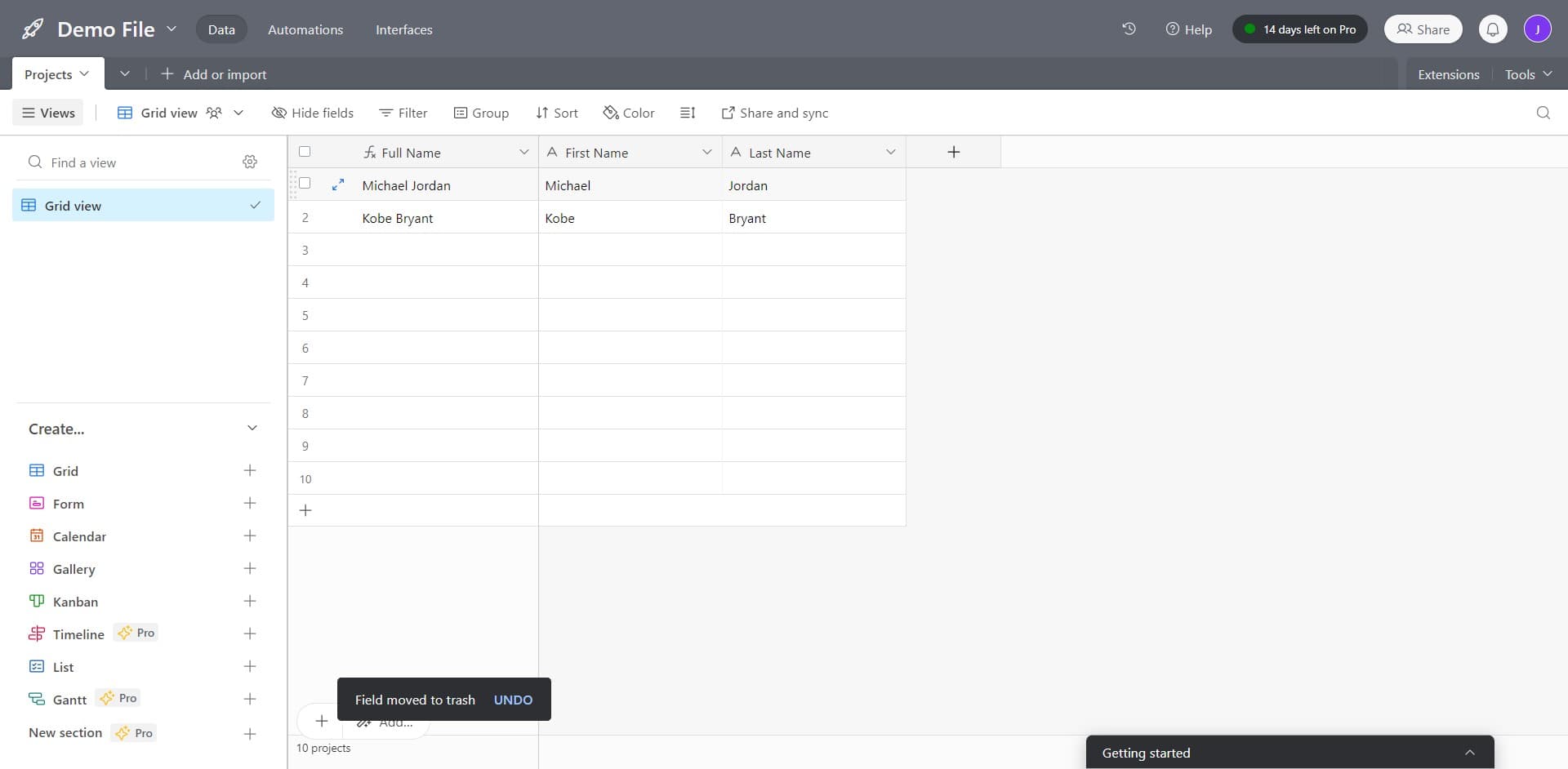
Click on Projects or Add/Import
Begin by clicking on the Projects section, or select Add or import if you're creating a new base. This action opens the interface where you can manage your tables and their structure.
- 2
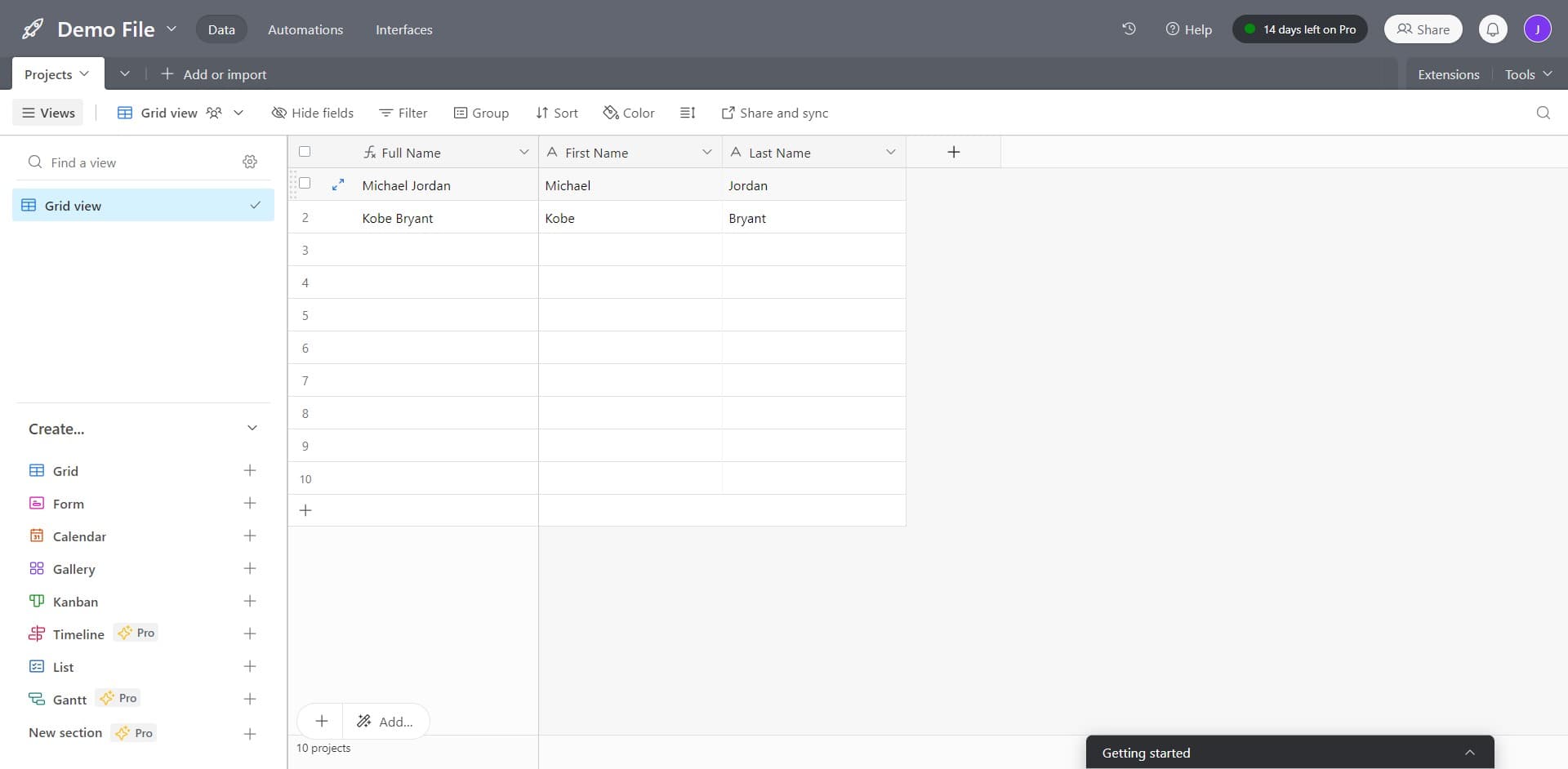
Access the field creation interface
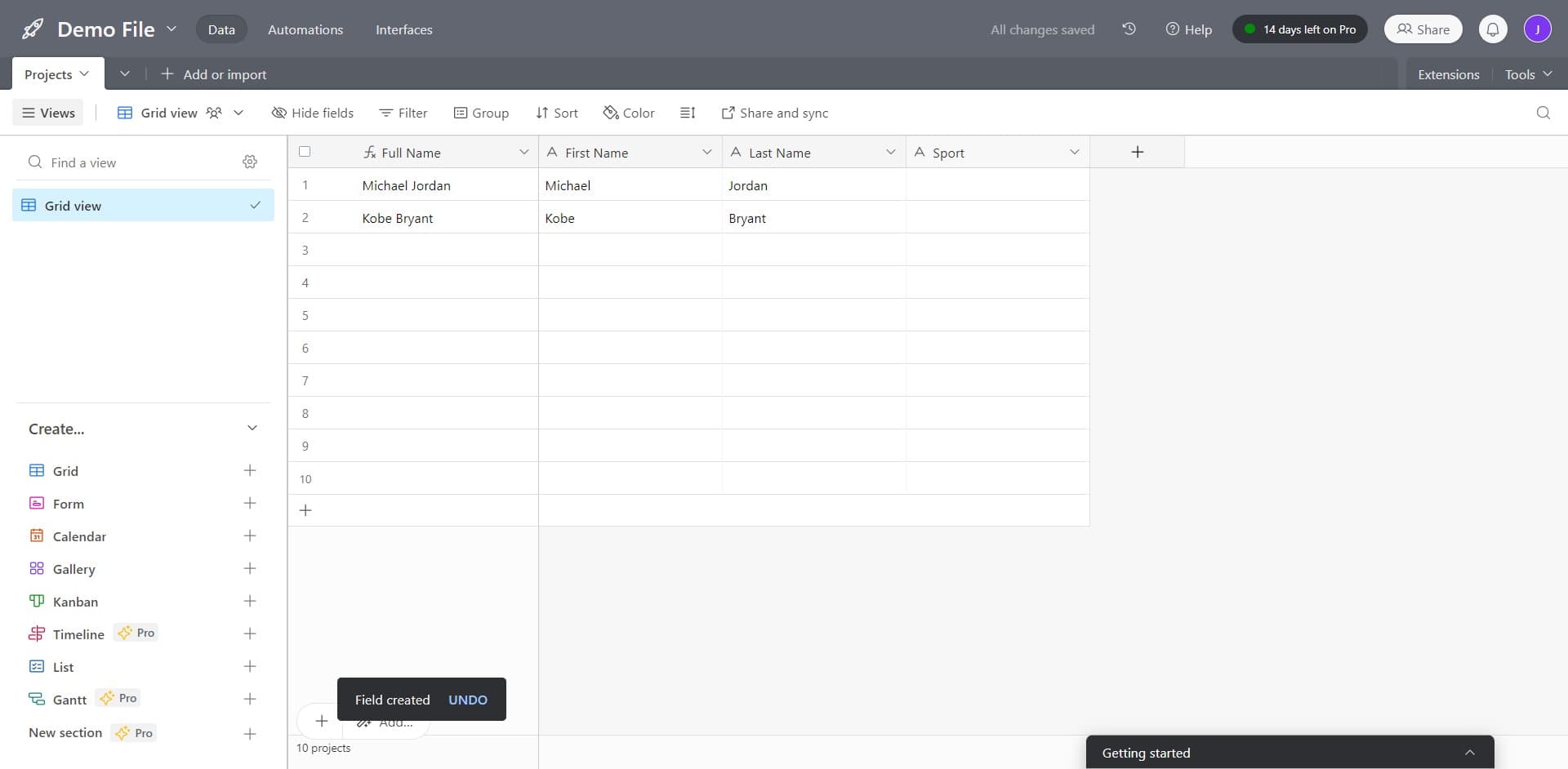
Look for and click the designated area to begin adding a new field. This typically appears as a plus icon or button in the table header area where you can extend your columns.
- 3
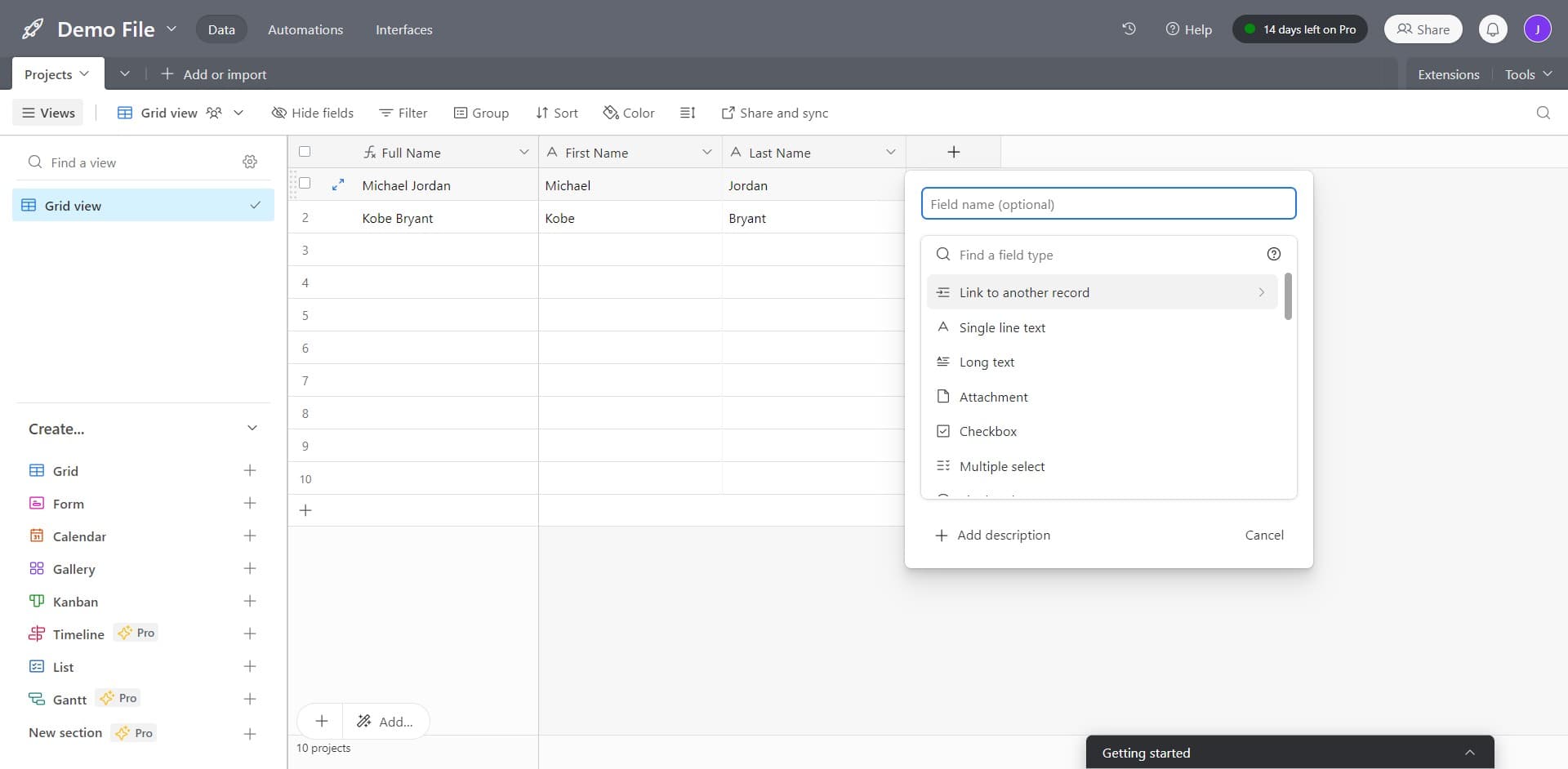
Configure the field type
Select the appropriate field type for the data you want to capture, such as text, number, date, or select options. Airtable will display a menu of available field types to choose from.
- 4
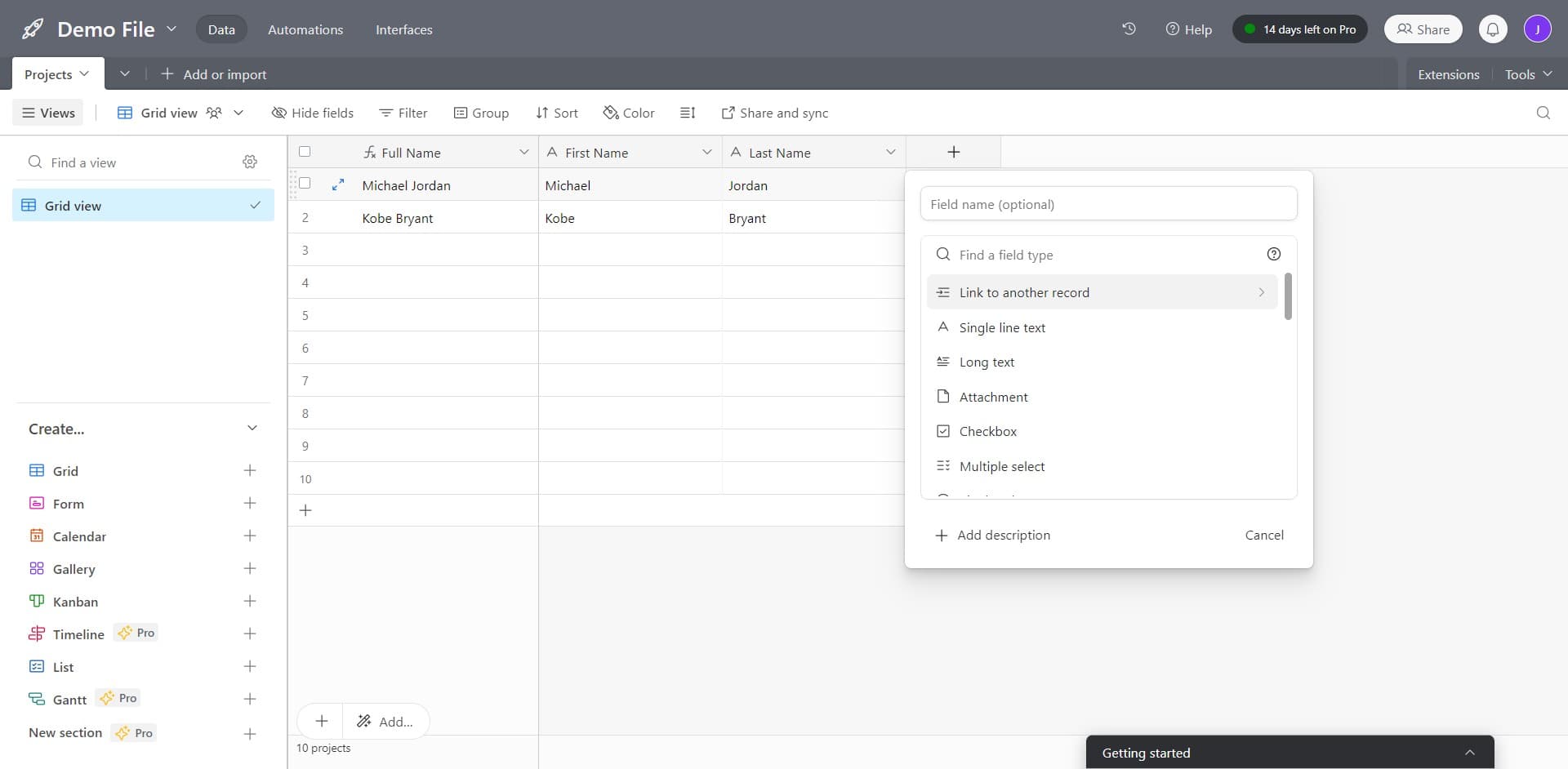
Complete the field setup
Finalize any additional configuration options specific to your chosen field type, such as field name and default properties. Once configured, confirm your selection to add the field to your table.
- 5
Confirm with Sport or your field name
Select or enter your field name, such as Sport, to complete the field creation process. The new field will now appear as a column in your Airtable table, ready for data entry.
Frequently asked questions
Common questions about how to add a new field in airtable.
Yes, absolutely. Adding new fields to an existing table does not affect your current data. All existing records remain intact, and the new field will simply appear as an empty column that you can populate going forward.
Airtable offers a wide variety of field types including text, long text, number, checkbox, select, multiple select, date, phone number, email, URL, currency, percent, duration, rating, and formula fields. Each type is optimized for different kinds of data and use cases.
You can change a field type by clicking on the field header dropdown and selecting Field type. Be aware that converting between incompatible types may result in data loss, so Airtable will warn you before making drastic conversions.
Yes, you can easily reorder fields by dragging and dropping the column headers in your table view. This allows you to organize your fields in any order that makes sense for your workflow.
Airtable allows up to 500 fields per table in most plans, which is sufficient for most use cases. If you find yourself approaching this limit, it may be worth reconsidering your table structure or breaking data into multiple related tables.