How to freeze columns in Airtable

Freezing columns in Airtable keeps important reference columns visible as you scroll horizontally through your data. This feature is essential for maintaining context when working with wide tables that extend beyond your screen.
Quick summary
In this tutorial, you'll learn how to freeze columns in Airtable to keep key fields visible while scrolling. By the end, you'll be able to lock columns in place so your reference data stays accessible no matter how far right you navigate.
Why this matters
Freezing columns improves data entry efficiency and reduces errors by keeping critical information like IDs, names, or dates constantly visible. This is particularly valuable when managing large datasets with many columns, allowing you to maintain context and accuracy throughout your workflow.
Step-by-step guide
- 1
Click the freeze columns button
Locate and click the freeze columns control in your Airtable interface. This button typically appears in the field header area and allows you to initiate the column freeze feature.

- 2
Drag to adjust first column
Click and drag the adjustment handle to set which columns you want to freeze. The frozen columns will remain visible as you scroll horizontally through the rest of your table.
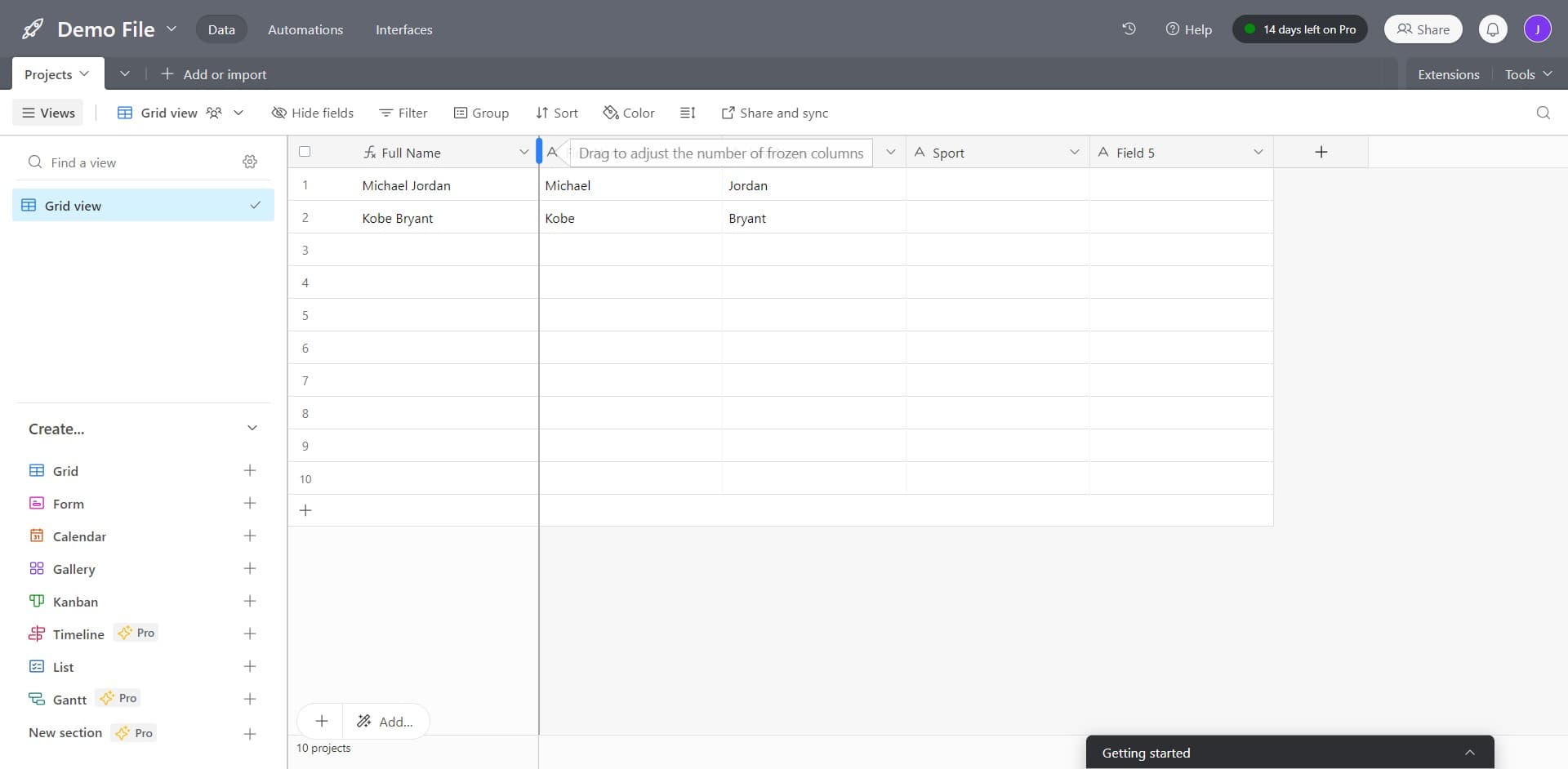
- 3
Drag to adjust second column
Continue dragging the adjustment handle to refine your freeze boundary. You can expand or contract the frozen area to include multiple columns as needed for your workflow.

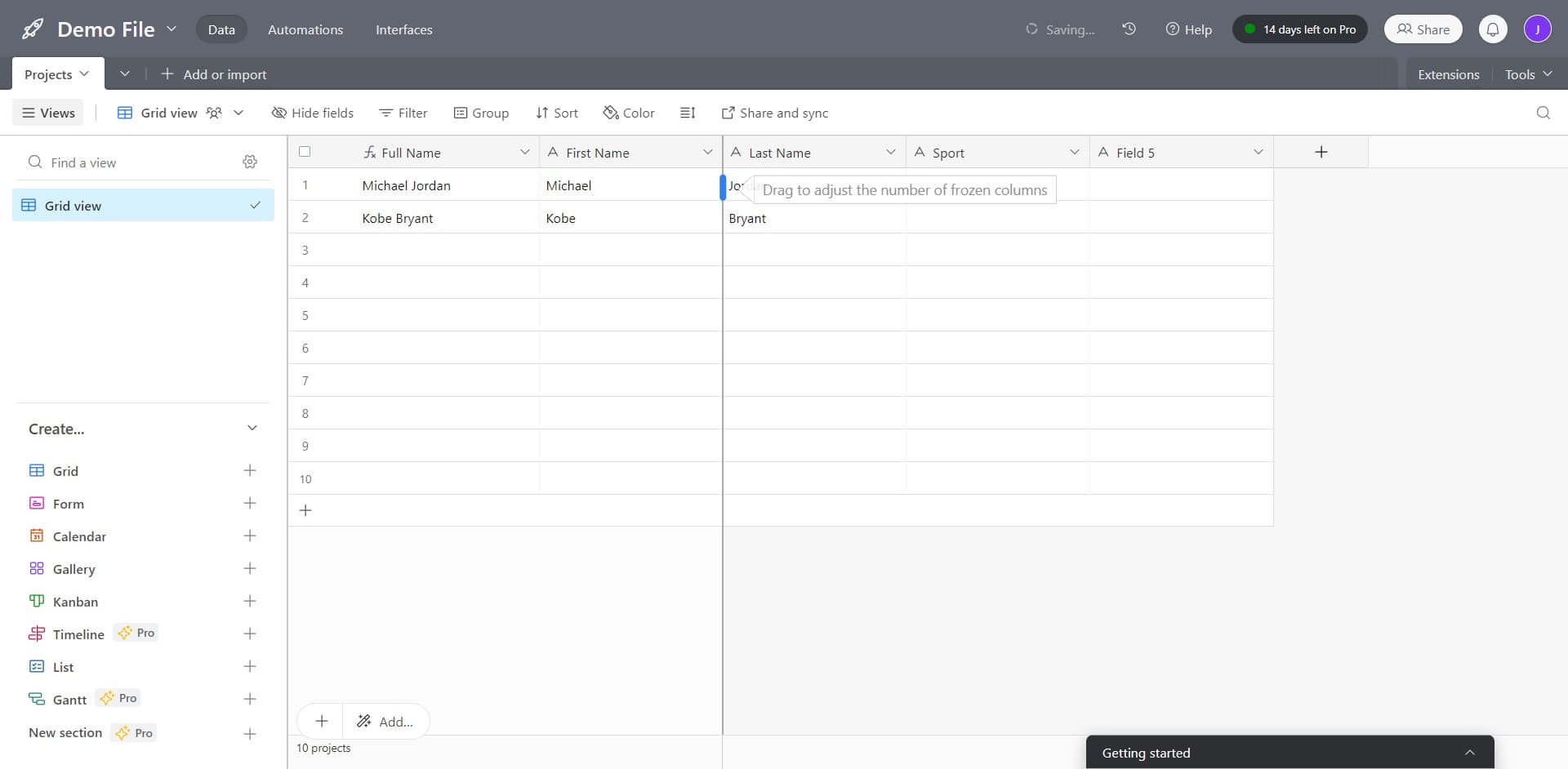
- 4
Drag to adjust final column
Make your final adjustment to the freeze boundary by dragging the handle to your desired position. Once positioned correctly, your frozen columns will be locked in place.
Frequently asked questions
Common questions about how to freeze columns in airtable.
You can freeze one or multiple columns in Airtable, depending on your needs. The platform allows you to set a freeze boundary that keeps everything to the left of that point visible while you scroll right through the remaining columns.
Column freezing functionality in Airtable is primarily designed for desktop use. Mobile apps have different layouts that may not support traditional column freezing, so you may need to work with your table on a desktop for this feature.
Column freeze settings are typically user-specific and don't affect how other collaborators view the table. Each user can customize their own freeze settings independently without impacting shared views.
Make sure you're using a supported view type that allows column freezing, such as the grid view. Some view types in Airtable may not support this feature, so switching to grid view should make the control available.
Yes, you can set column freezing in Airtable views, and these settings are often preserved with that view. This means when you return to the view, your frozen columns will remain in place as configured.