How to add records in Airtable

Adding records in Airtable is a fundamental skill for building and managing databases. Whether you're tracking projects, organizing data, or collaborating with your team, knowing how to efficiently create new records will streamline your workflow.
Quick summary
In this tutorial, you'll learn how to add records in Airtable by navigating to your base, selecting a table, and creating new entries. By the end, you'll be able to quickly populate your Airtable base with new data and customize fields as needed.
Why this matters
Adding records is a core operation in Airtable that allows you to build dynamic databases and maintain accurate, up-to-date information. Mastering this workflow enables faster data entry, better team collaboration, and more effective project management across your organization.
Step-by-step guide
- 1
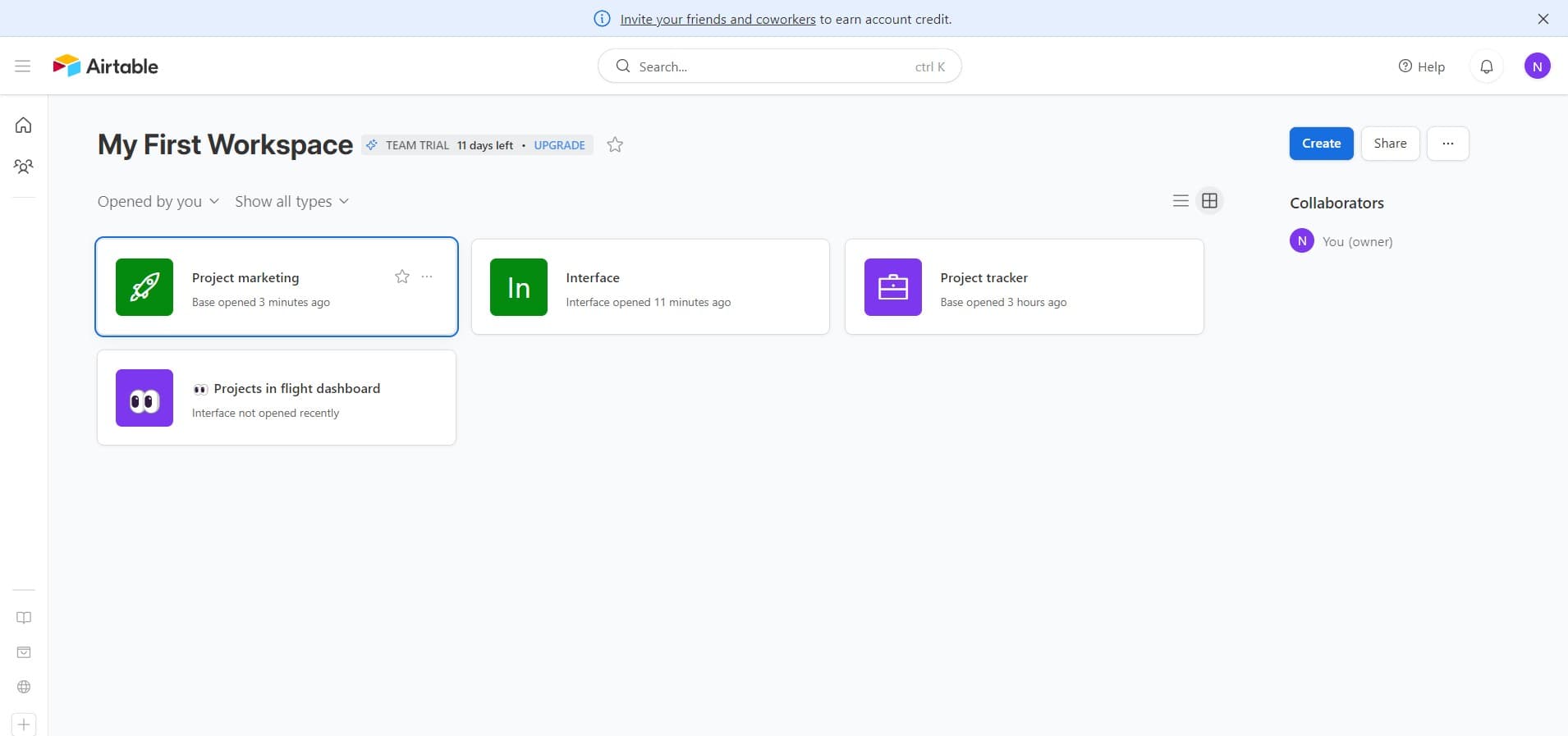
Click on Project marketing
Navigate to your Airtable workspace and select the 'Project marketing' base. This will open the base containing your tables and existing records that you'll work with.
- 2
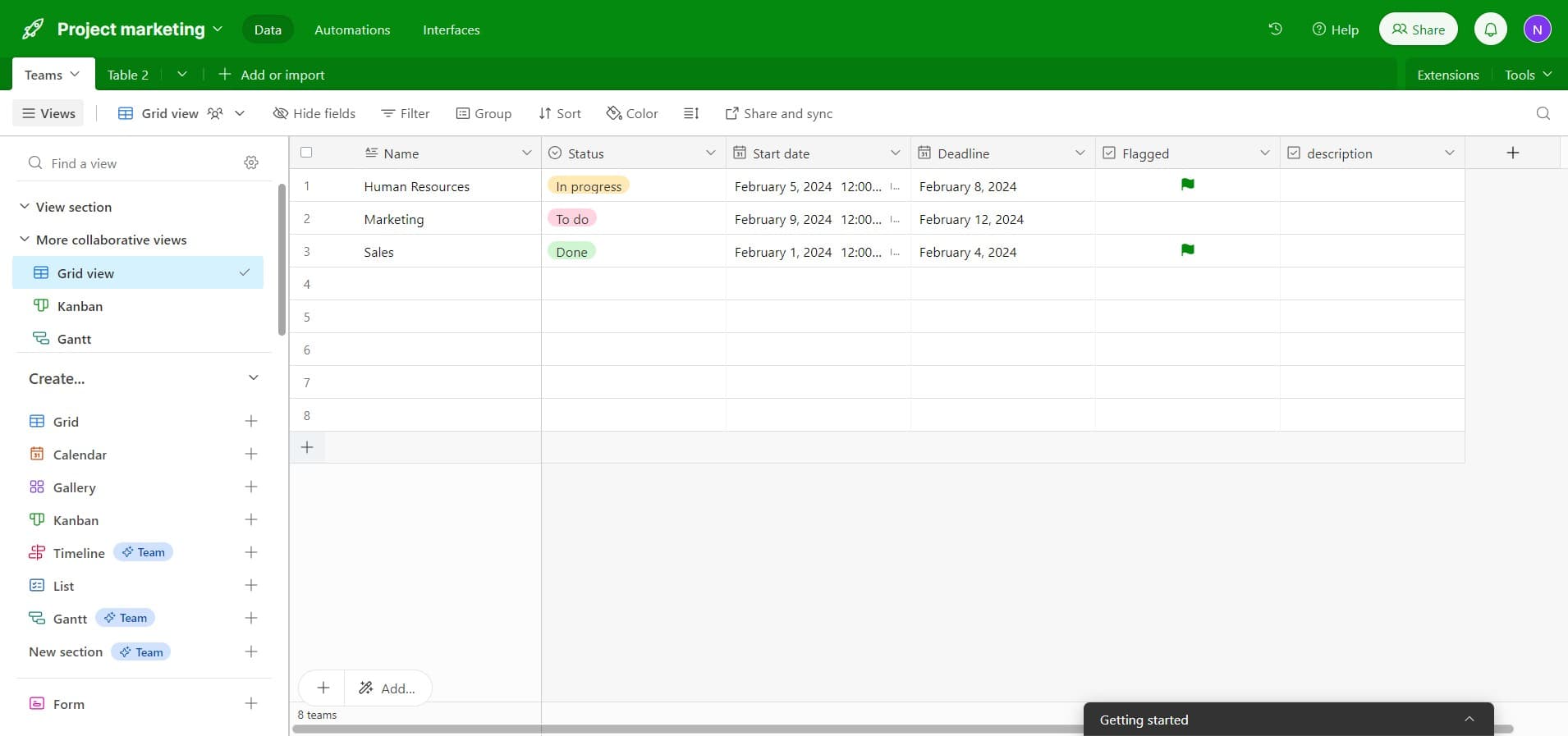
Access the add record option
Look for the button or option to add a new record within your selected table. This is typically located at the bottom of your table view or in a dedicated menu area.
- 3
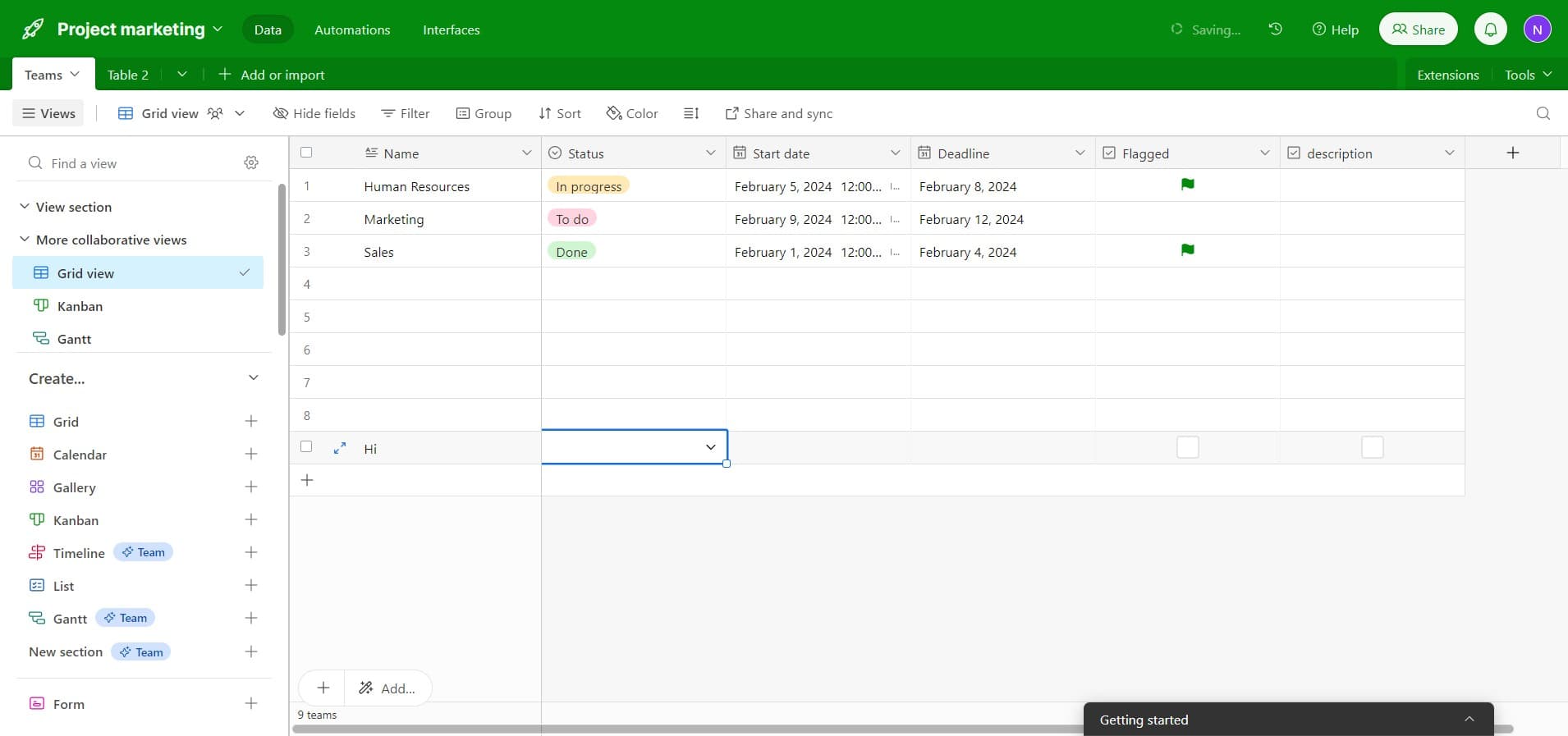
Enter record details
Fill in the required fields for your new record with the appropriate information. Each field may have different data types such as text, numbers, dates, or dropdowns depending on how your base is configured.
- 4
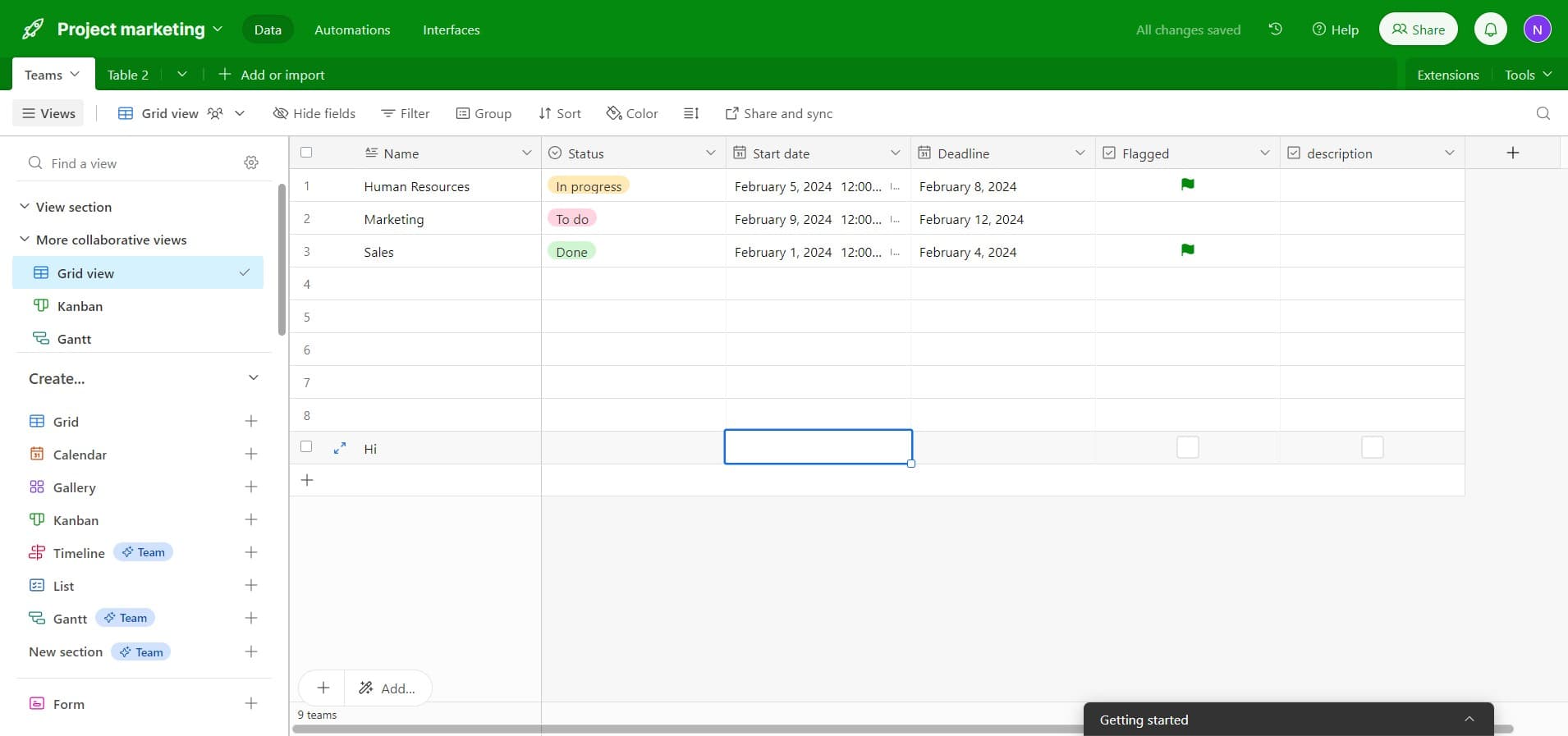
Save the new record
Once you've entered all necessary information, save the record to add it to your Airtable base. The record will now appear in your table and be accessible to other team members with appropriate permissions.
Frequently asked questions
Common questions about how to add records in airtable.
Can I add records in bulk to Airtable?
Yes, Airtable supports bulk import through CSV files or direct copy-paste from spreadsheets. You can also use Airtable's API or automation features to create multiple records at once. This is particularly useful when migrating data from other systems or performing batch operations.
What happens if I don't fill in all the fields when adding a record?
You can leave fields empty when creating a record, and you can always edit them later. However, if a field is marked as required by your base owner, you'll need to complete it before saving. Required fields are typically indicated with an asterisk or other visual marker.
Can I duplicate an existing record instead of creating one from scratch?
Yes, Airtable allows you to duplicate records, which is helpful when creating similar entries. Simply right-click on an existing record or use the expand view to find the duplicate option. This saves time when you need multiple records with similar information.
Is there a limit to how many records I can add to a base?
Airtable's limits depend on your plan type. Free plans allow unlimited records, while paid plans may have specific limits. Check your plan details in the Airtable account settings to understand any applicable restrictions for your workspace.
How do I add records on mobile devices?
Airtable's mobile app allows you to add records on the go using the same process as the desktop version. Simply open your base on the mobile app, select a table, and use the add record button to create new entries while away from your computer.