How to create a table in Airtable

Creating a table in Airtable is the first step to organizing and managing your data effectively. Whether you're building a project tracker, inventory system, or content calendar, tables are the foundation of every Airtable base. This guide walks you through the entire process from setup to completion.
Quick summary
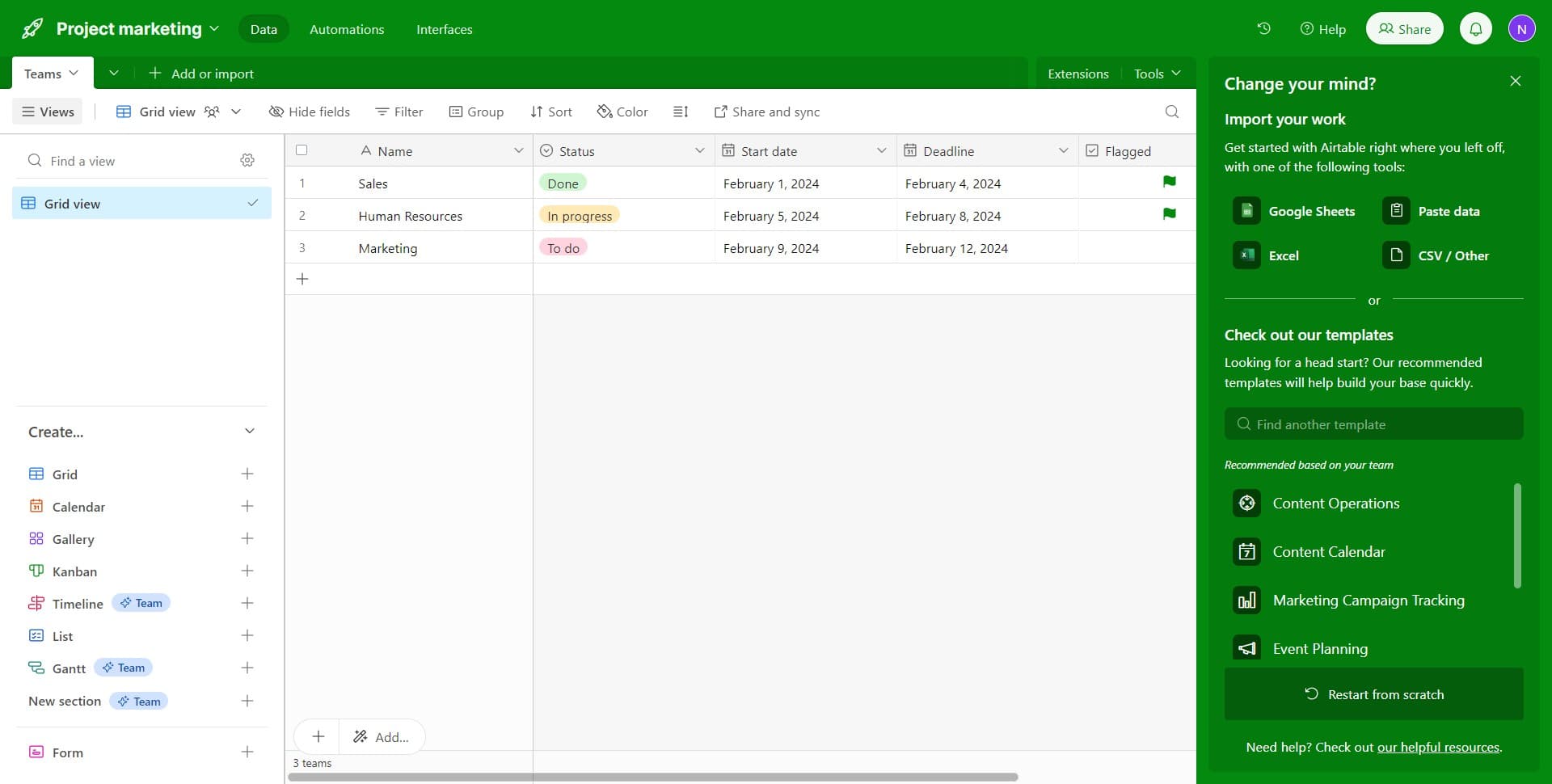
In this tutorial, you'll learn how to create a new table in Airtable by setting up a base, configuring your workspace, and customizing field types to match your needs. You'll complete the setup process by defining key fields like status and team assignments, ensuring your table is ready for data entry.
Why this matters
Tables are essential for organizing information in Airtable, and setting them up correctly from the start saves time and prevents restructuring later. Properly configured tables with appropriate field types enable better filtering, sorting, and collaboration across your team. Getting this foundational step right ensures your base scales as your project grows.
Step-by-step guide
- 1
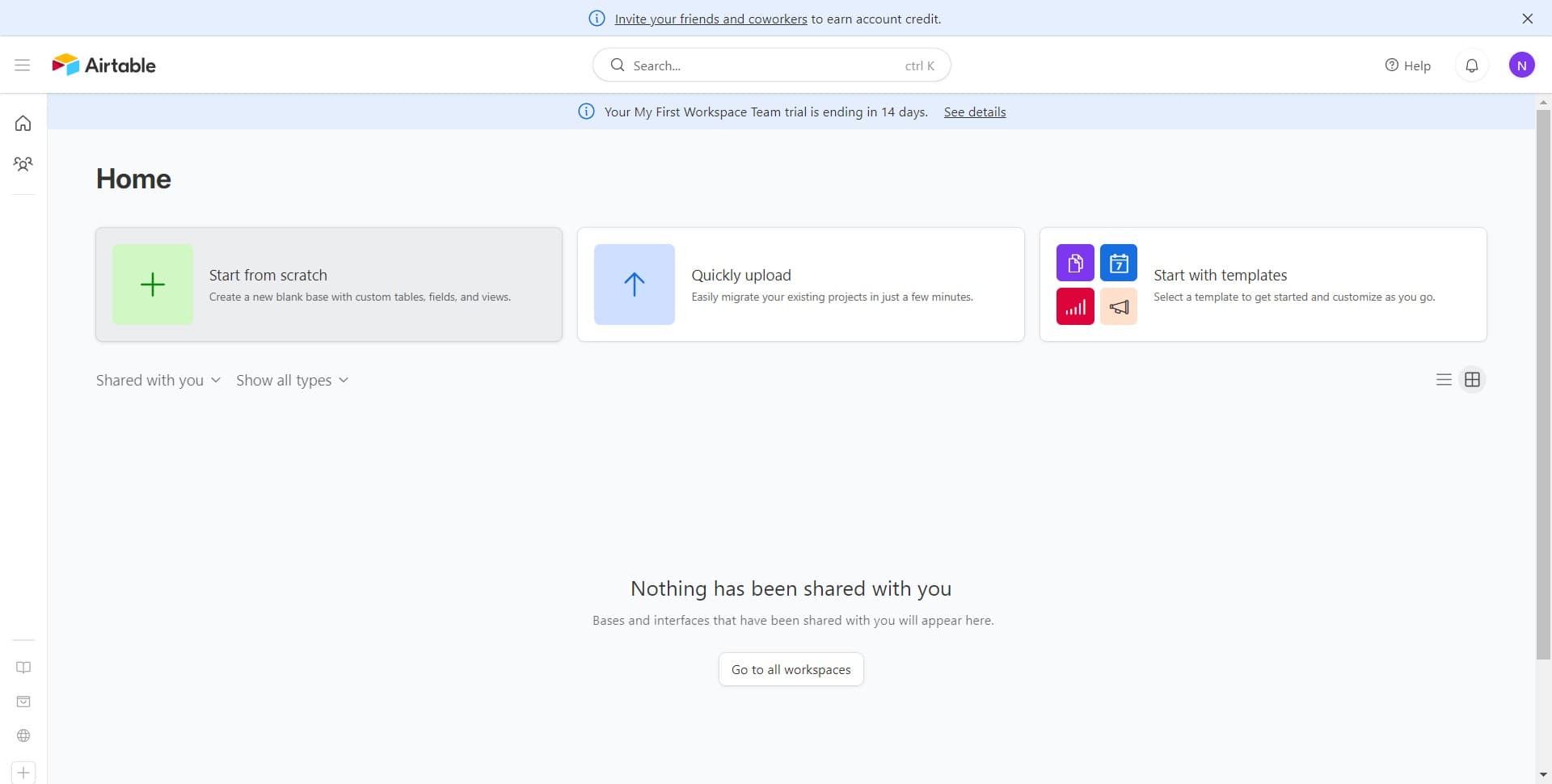
Click to create a new base
Start by clicking on the 'Create a new base' option in your Airtable workspace. This initializes the process of setting up a new table and base for your project.
- 2
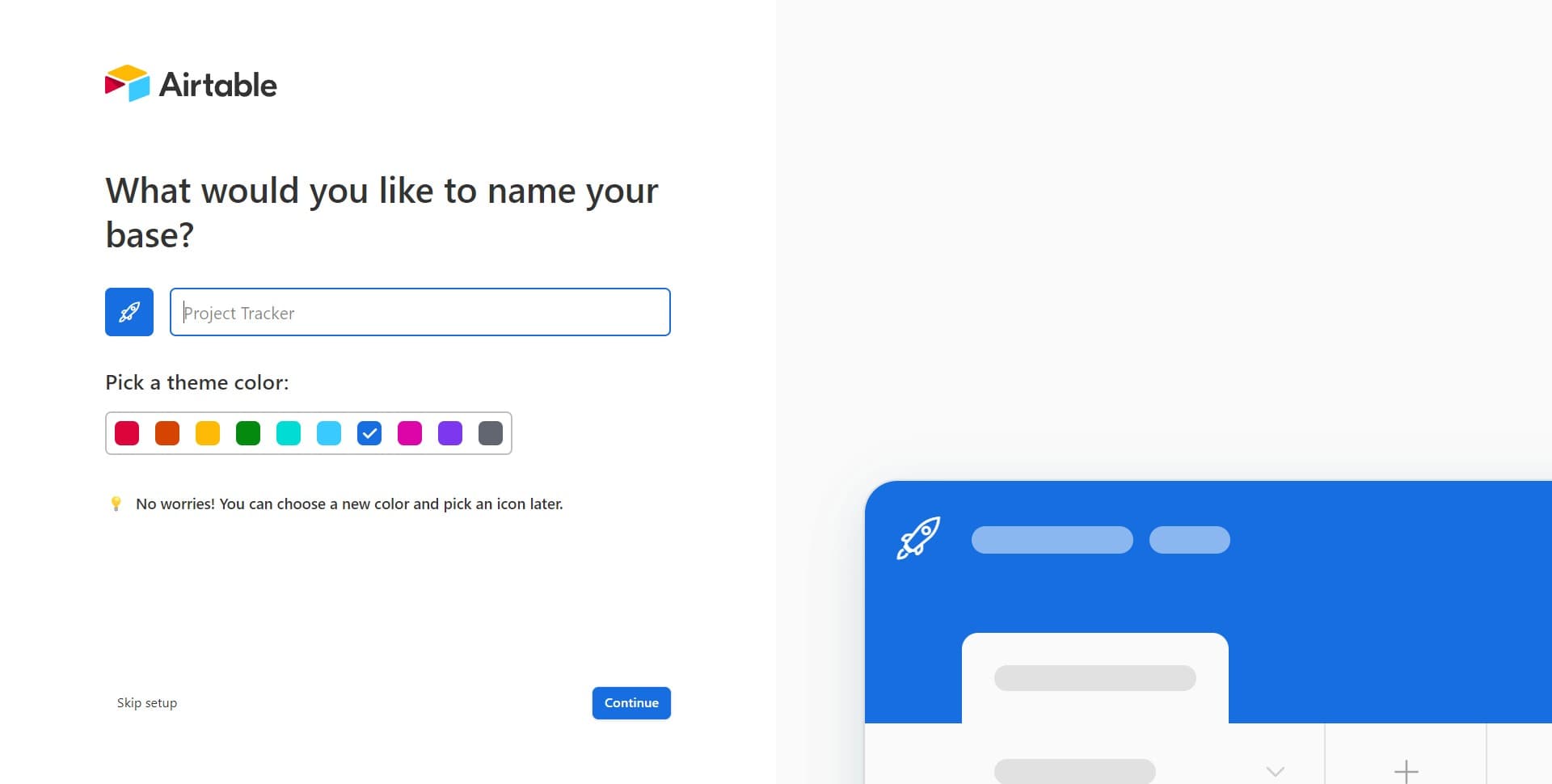
Select your base setup method
Click on the indicated option to choose how you'd like to set up your base. You'll see different creation options available at this stage.
- 3
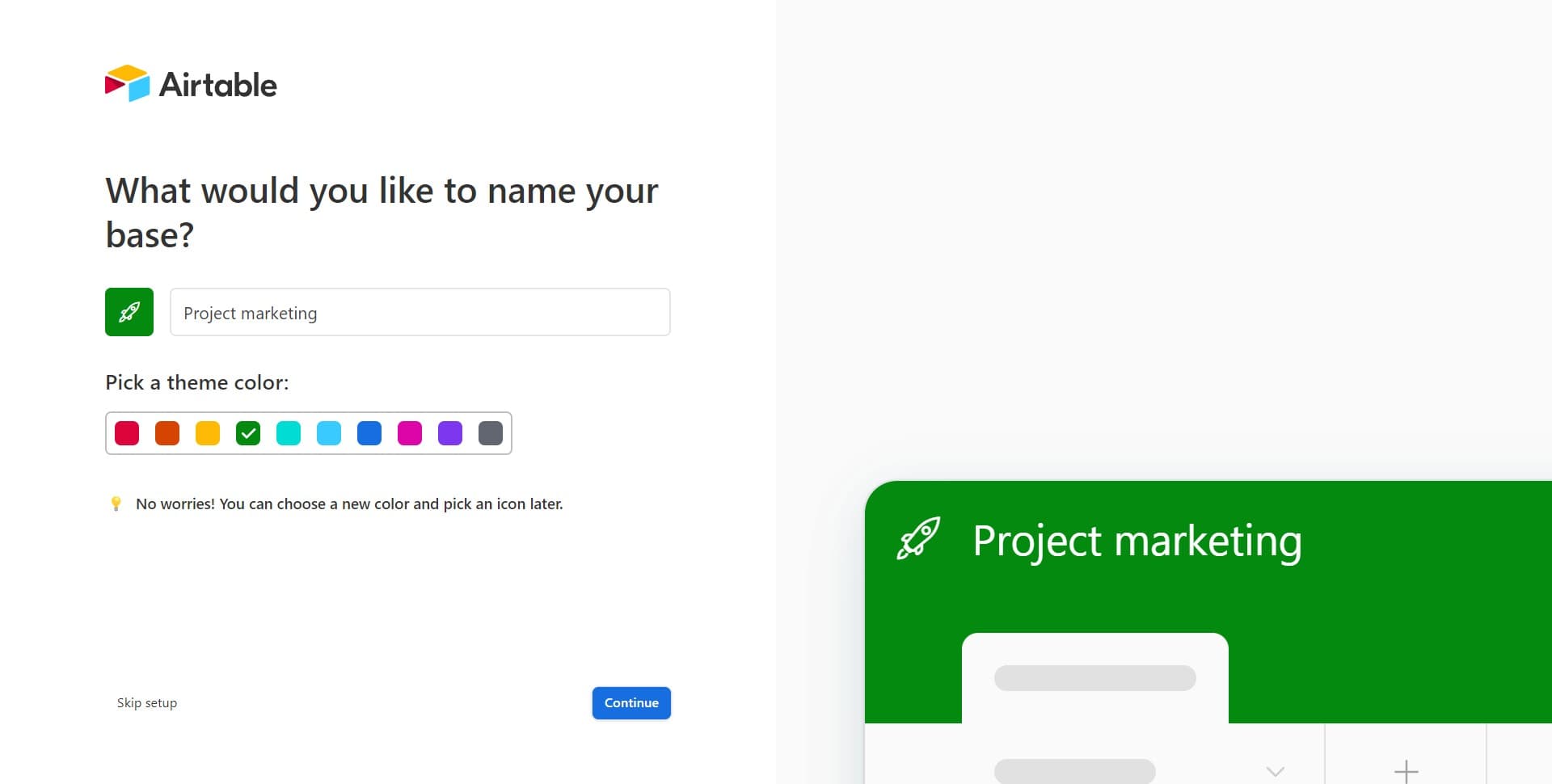
Click Continue to proceed
Click the 'Continue' button to move forward with your base configuration. This confirms your selection and takes you to the next setup step.
- 4
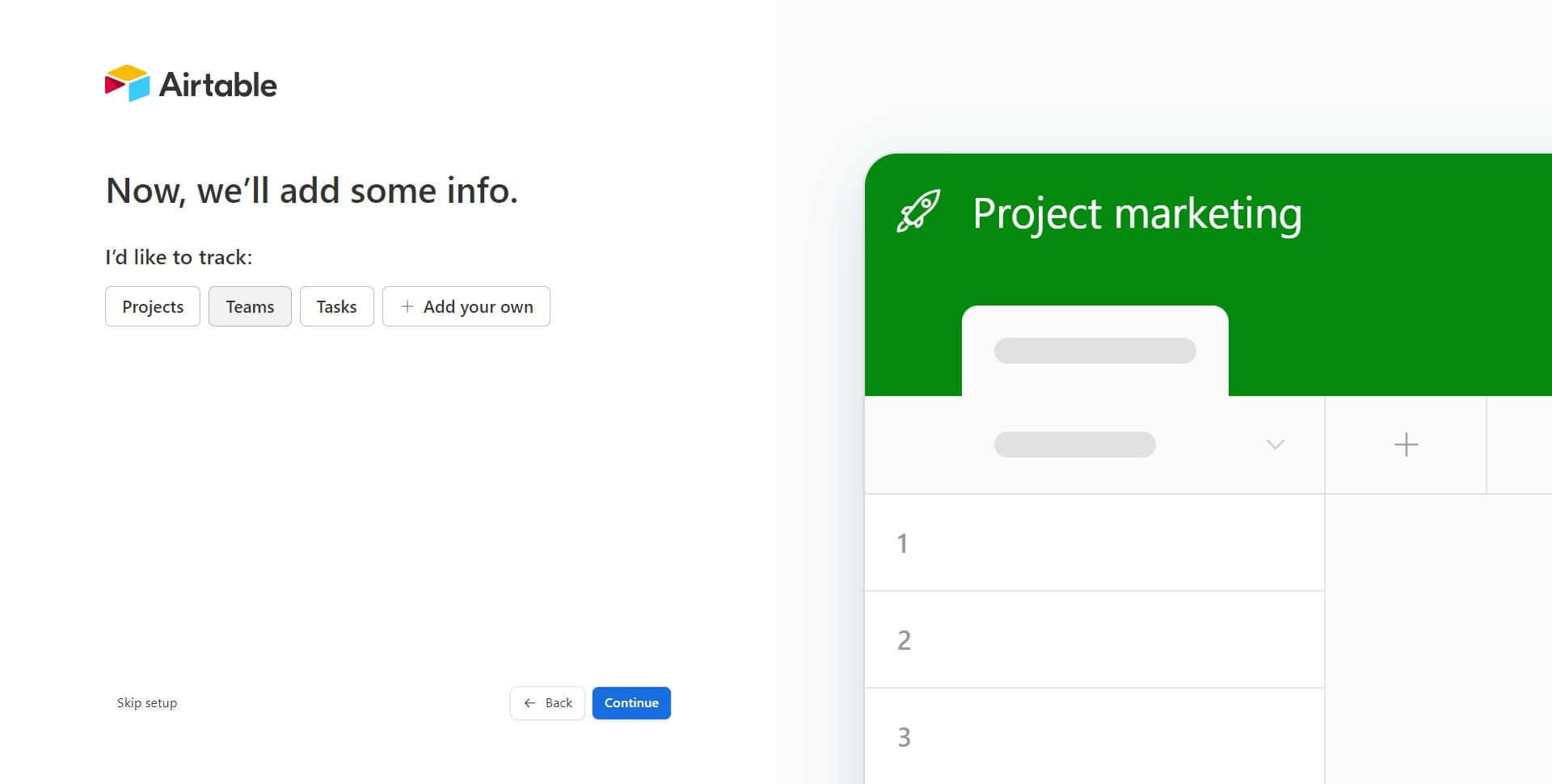
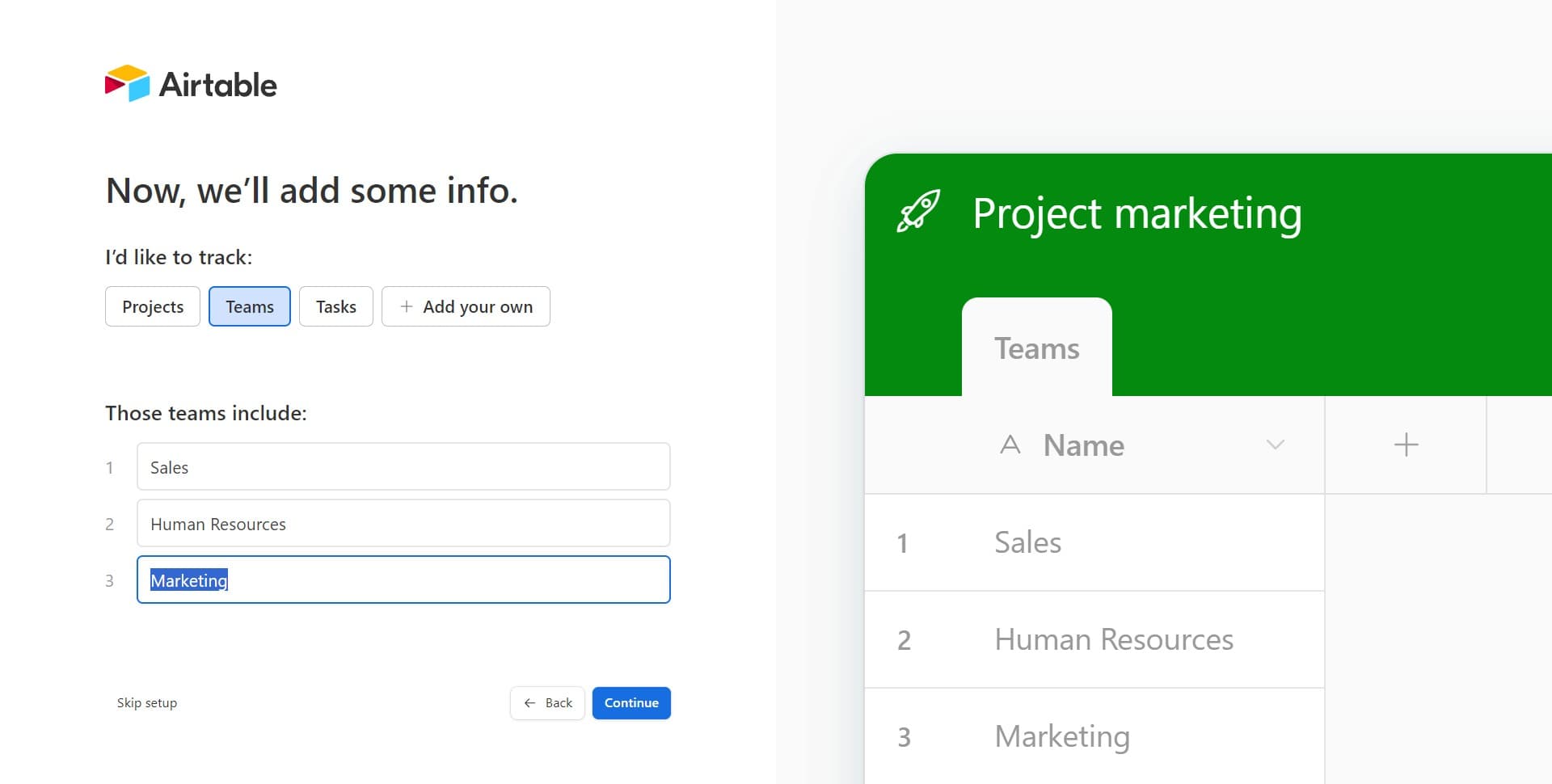
Select Teams as your first field
Click on 'Teams' to add this field type to your table. This creates a field for assigning or categorizing records by team, which is useful for collaboration and organization.
- 5
Confirm field selection
Click the indicated option to confirm adding the Teams field to your table. This applies the field configuration and prepares for the next customization.
- 6
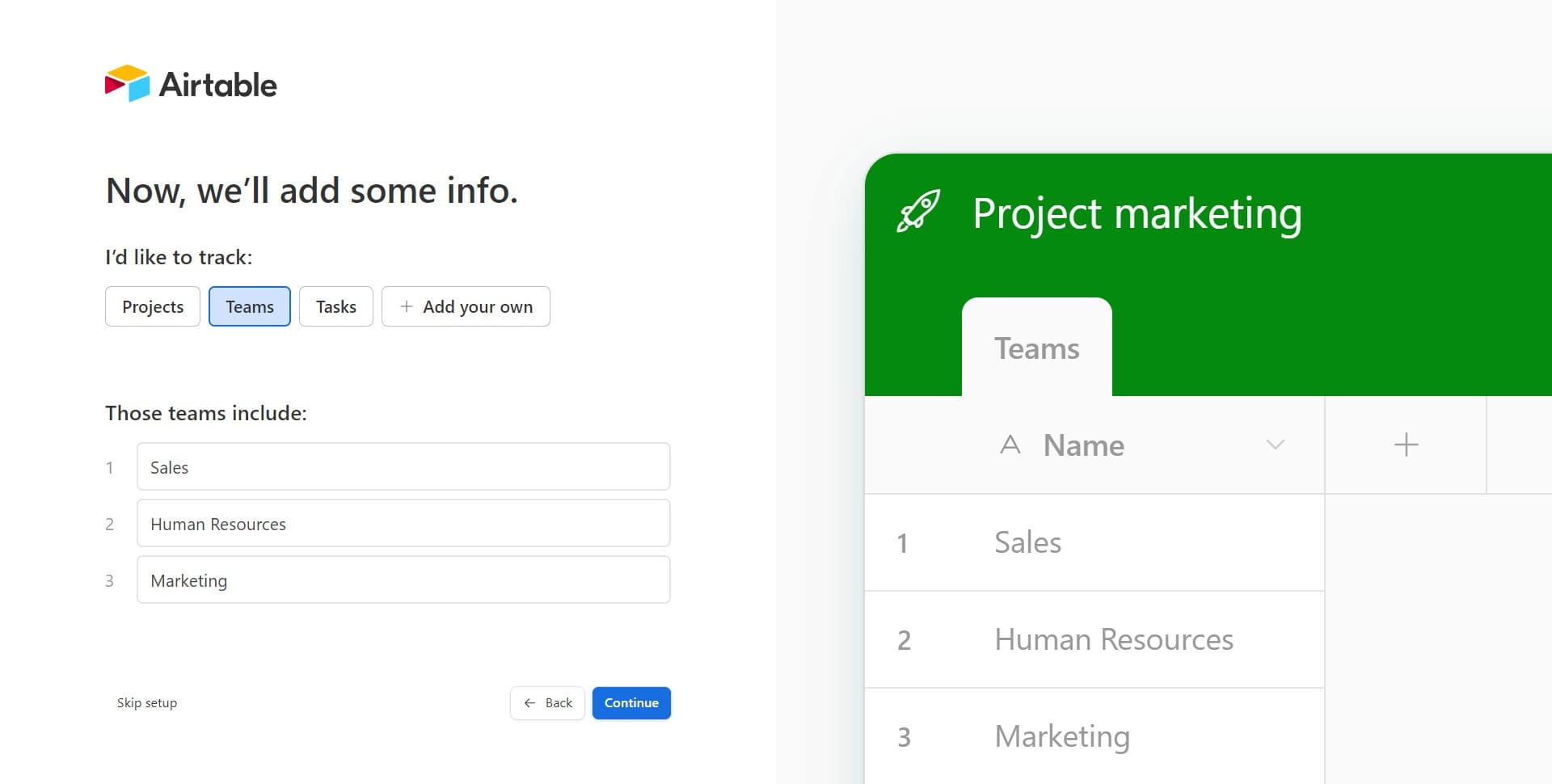
Click Continue to next step
Click 'Continue' to advance in the table setup process. You're now ready to configure additional fields for your table.
- 7
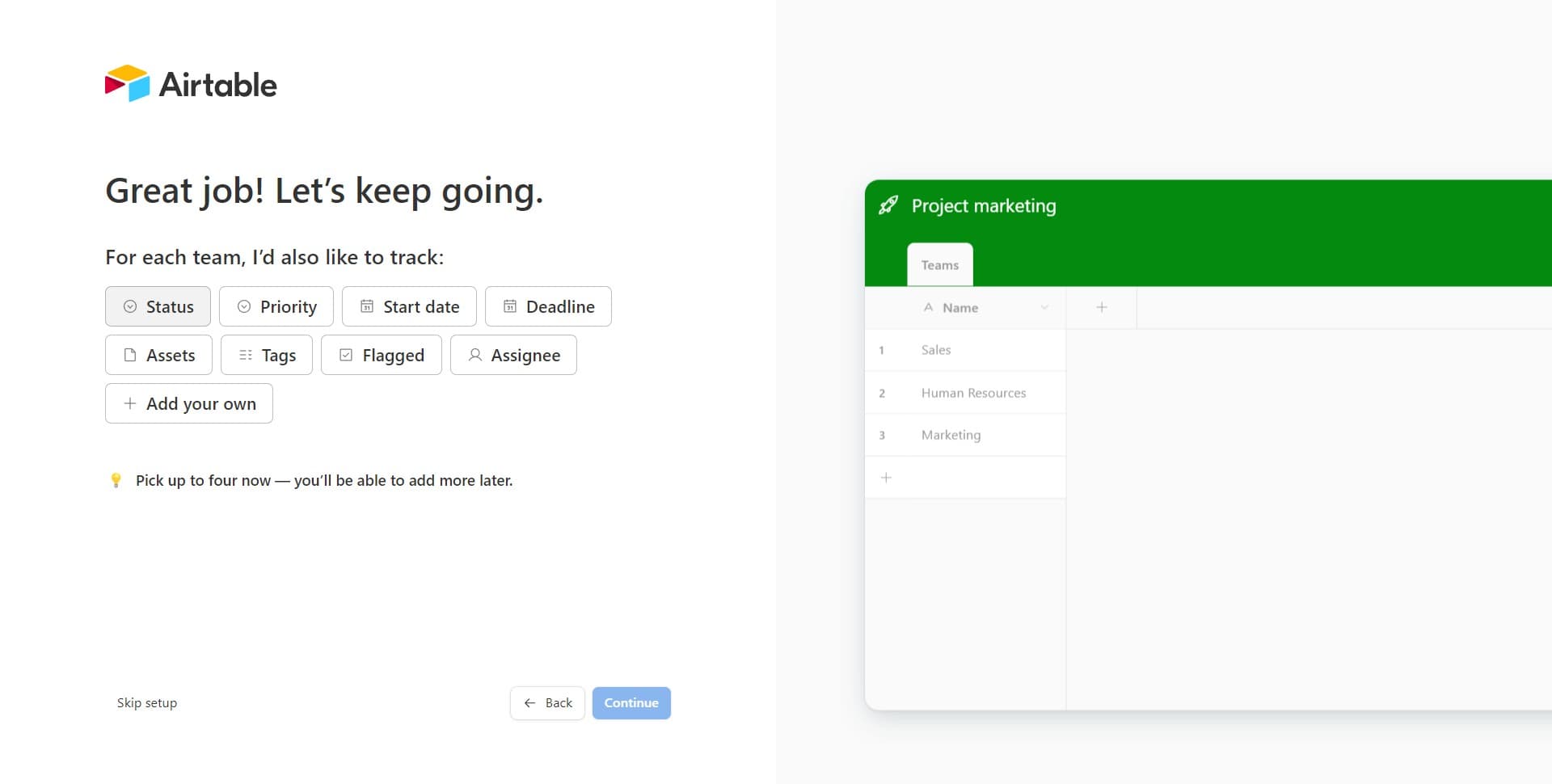
Add Status field to table
Click on 'Status' to add a status field to your table. This field type allows you to track the state or progress of items with predefined options.
- 8
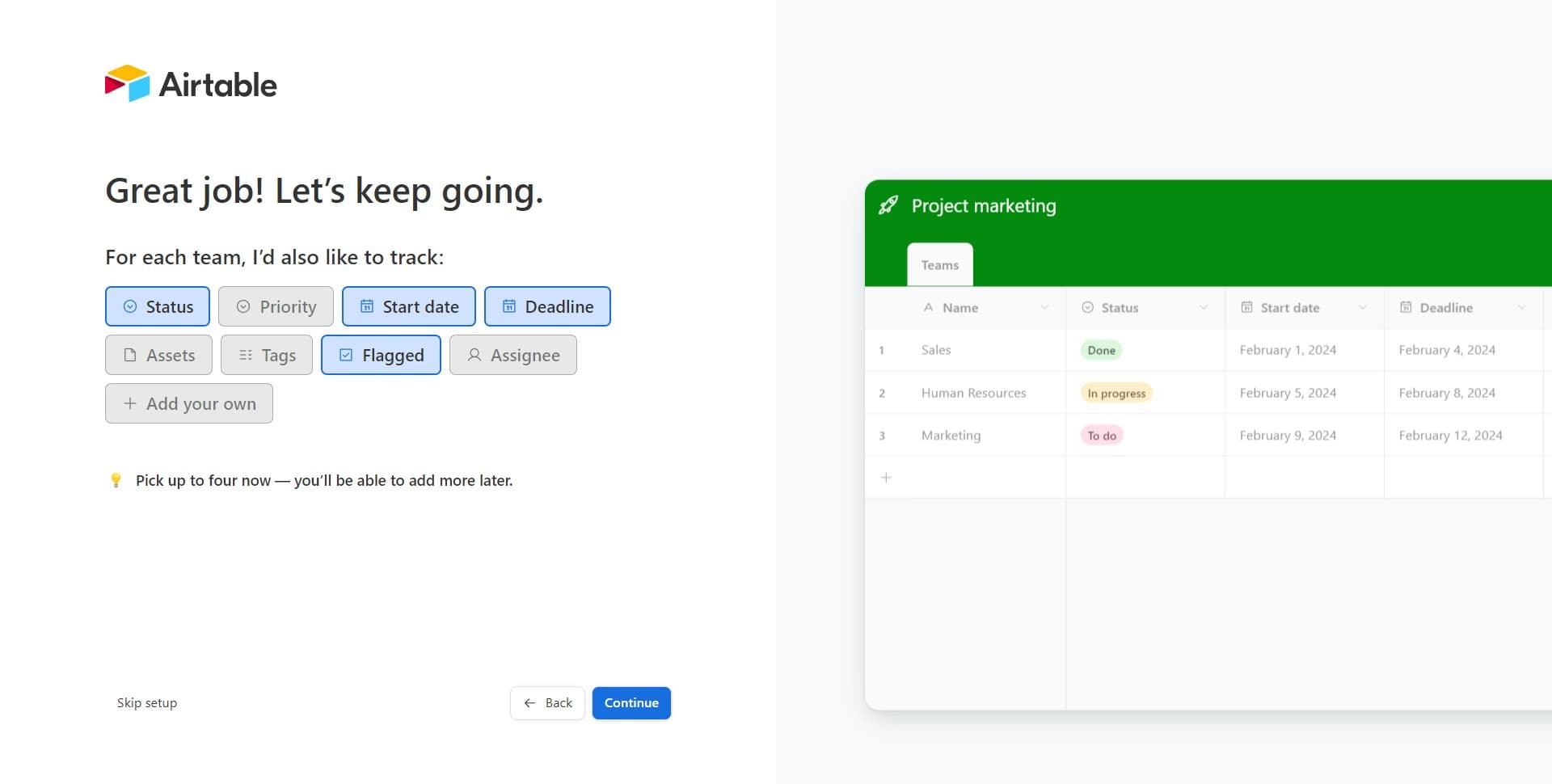
Confirm and continue setup
Click 'Continue' to apply the Status field to your table. You're nearing completion of the table configuration process.
- 9
Click Done to finalize table
Click the 'Done' button to complete the table creation process. Your new table is now ready to use with all configured fields in place.
Frequently asked questions
Common questions about how to create a table in airtable.
Yes, you can add, edit, or remove fields at any time after creating your table. Click the plus icon next to the last column header or right-click on a column to access field management options. Airtable allows full flexibility in customizing your table structure even after you've started entering data.
Each field type in Airtable serves different purposes. For example, Status fields offer predefined options for tracking progress, while Teams fields enable collaboration and assignment features. Choosing the right field type ensures your data is properly formatted and that you can use Airtable's filtering and automation features effectively.
You can create multiple tables within a single base, and they can be linked together using relationship fields. This allows you to organize related data across different tables while maintaining connections between them, making it ideal for complex projects.
Yes, Airtable offers multiple view options including grid view, calendar view, kanban view, and gallery view. You can also customize colors, sorting, filtering, and field visibility to match your workflow preferences. Different views display the same data in different formats depending on how you want to work with it.
Airtable plans come with different record limits depending on your subscription level. Free accounts allow up to 1,200 records per base, while paid plans offer significantly higher limits. You can check your plan details in your account settings to see your specific record allowance.