How to create an automation in Airtable

Automations in Airtable help you streamline repetitive tasks and trigger actions based on specific conditions. This guide walks you through setting up an automation that sends an email when a form is submitted, saving time and improving workflow efficiency.
Quick summary
In this tutorial, you'll learn how to create an automation in Airtable that responds to form submissions. You'll configure triggers, select tables and forms, and set up email notifications with advanced logic options.
Why this matters
Automations eliminate manual work by instantly responding to events like form submissions. This ensures timely communication, reduces human error, and allows your team to focus on higher-value tasks instead of repetitive notifications.
Step-by-step guide
- 1
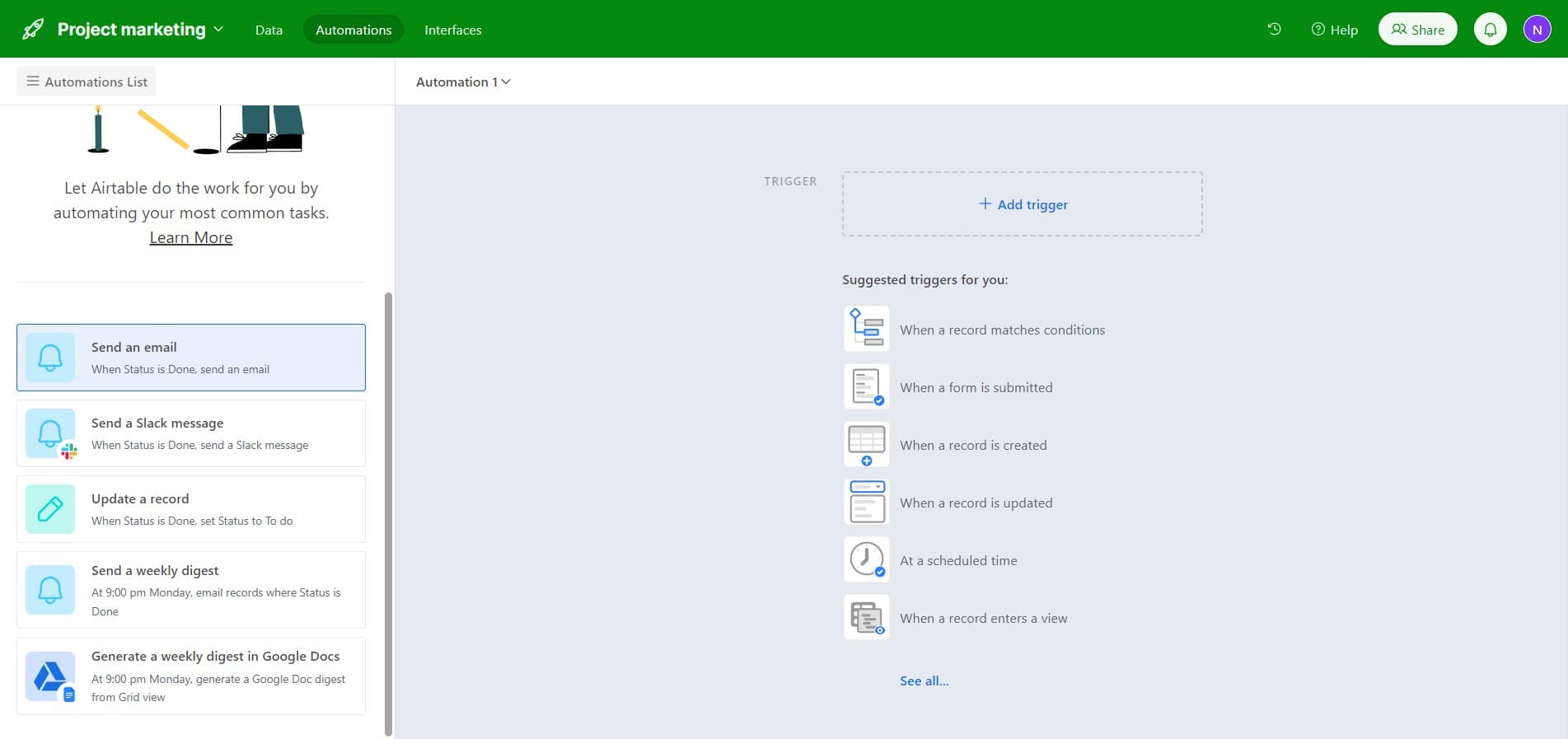
Access the email action
Begin by clicking on 'Send an email' to initiate the email action for your automation. This action will form the core response when your trigger condition is met.
- 2
Upload necessary files
Click the Upload button to attach any files or assets needed for your automation workflow. This step prepares any supporting documents or resources.
- 3
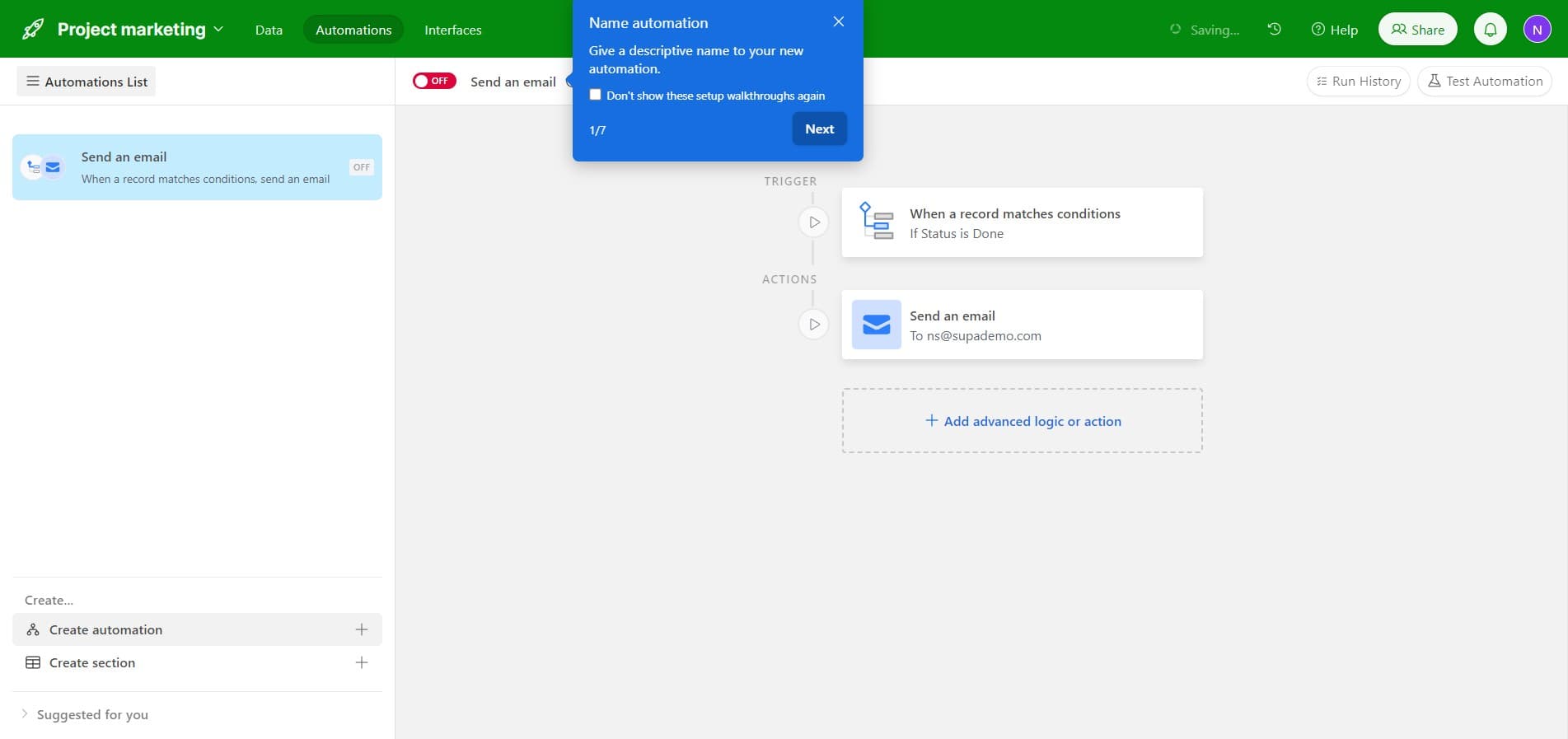
Proceed to configuration
Click the designated navigation element to move forward in the automation setup process. This advances you through the configuration wizard.
- 4
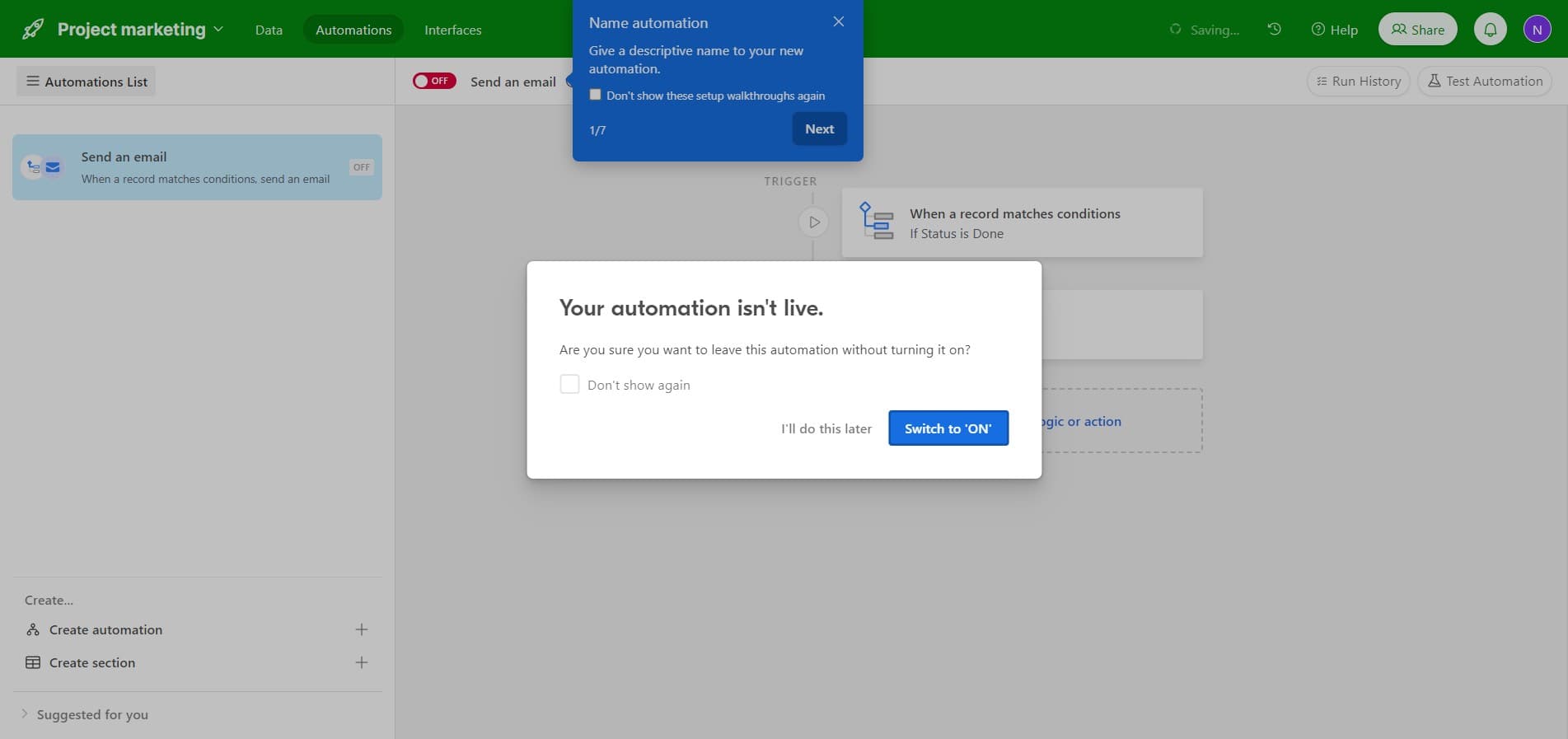
Enable the automation
Click on 'Switch to ON' to activate your automation. Once enabled, the automation will begin monitoring for your specified trigger conditions.
- 5
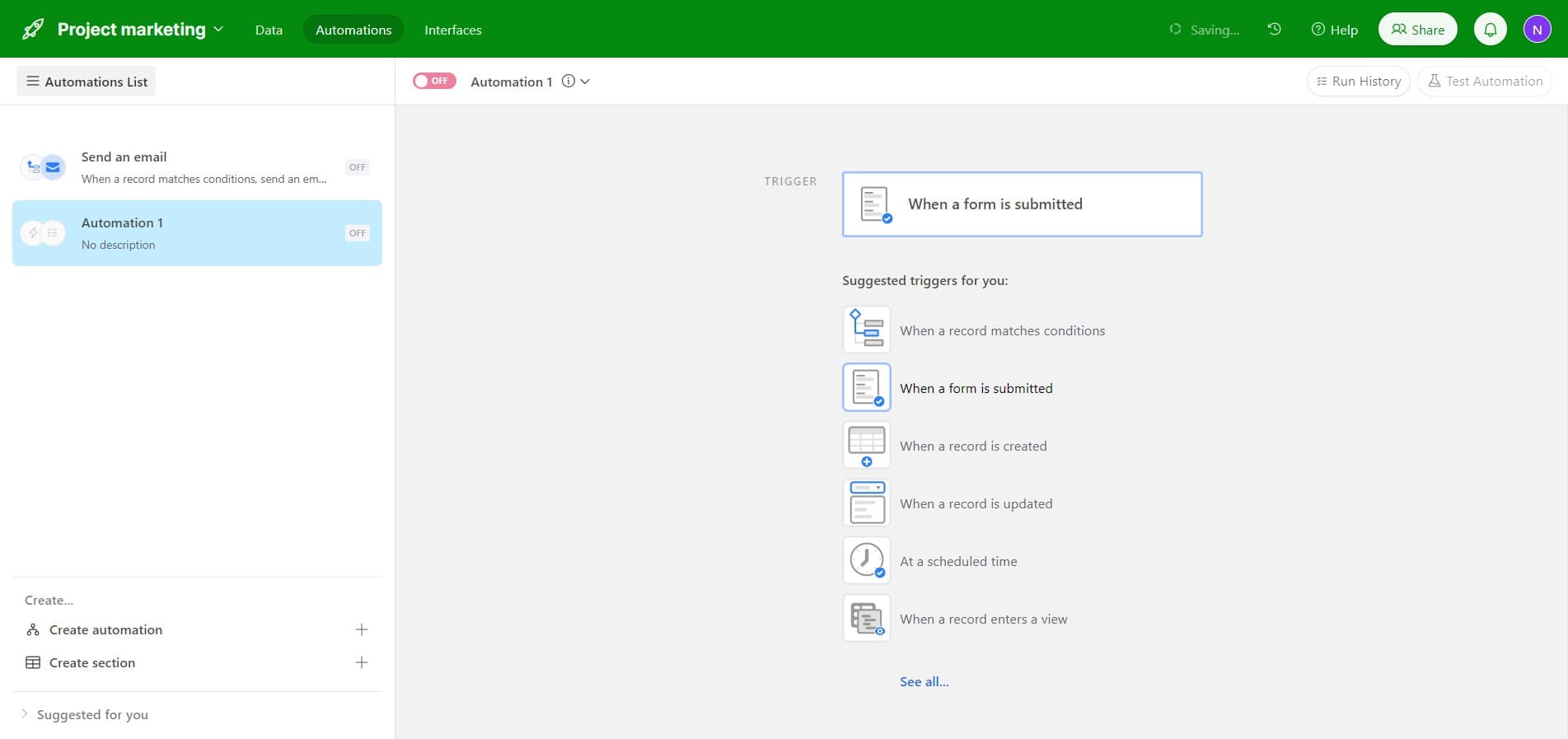
Select form submission trigger
Click on 'When a form is submitted' to set this as your trigger event. This tells Airtable to activate the automation whenever someone submits a form.
- 6
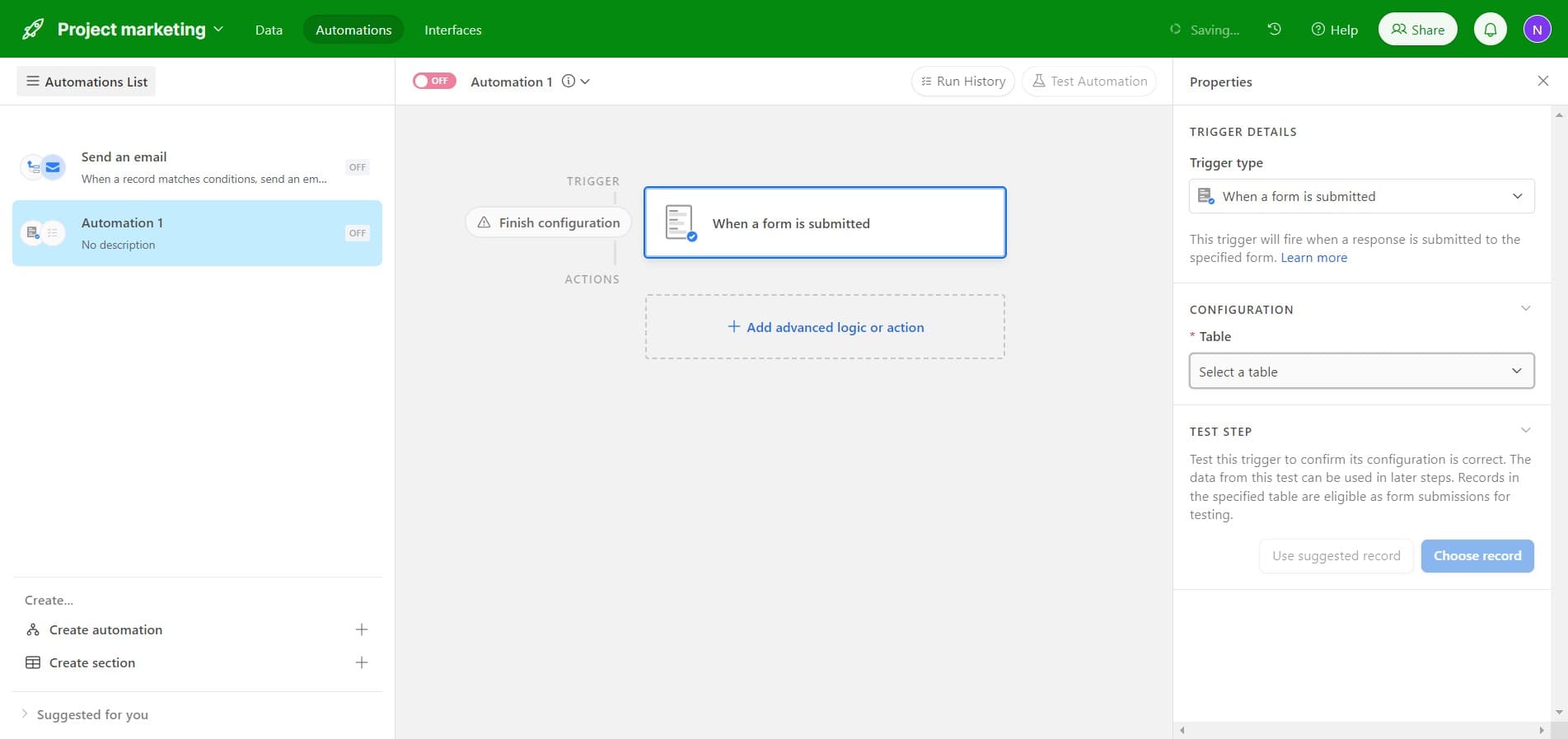
Choose your target table
Click on 'Select a table' and choose the table where form submissions will be recorded. This determines which data source feeds into your automation.
- 7
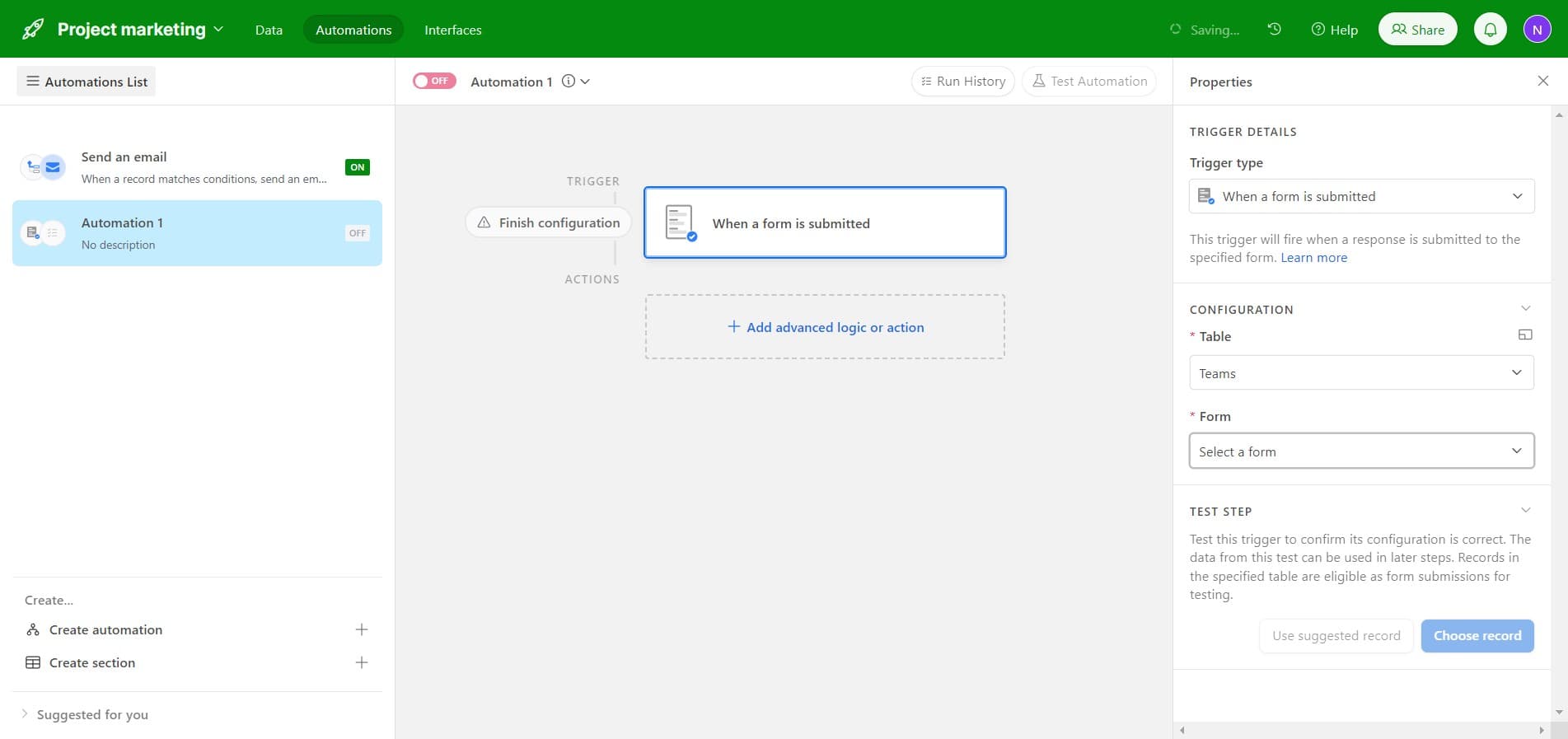
Specify the form
Click on 'Select a form' to identify which specific form should trigger this automation. You can select from existing forms linked to your chosen table.
- 8
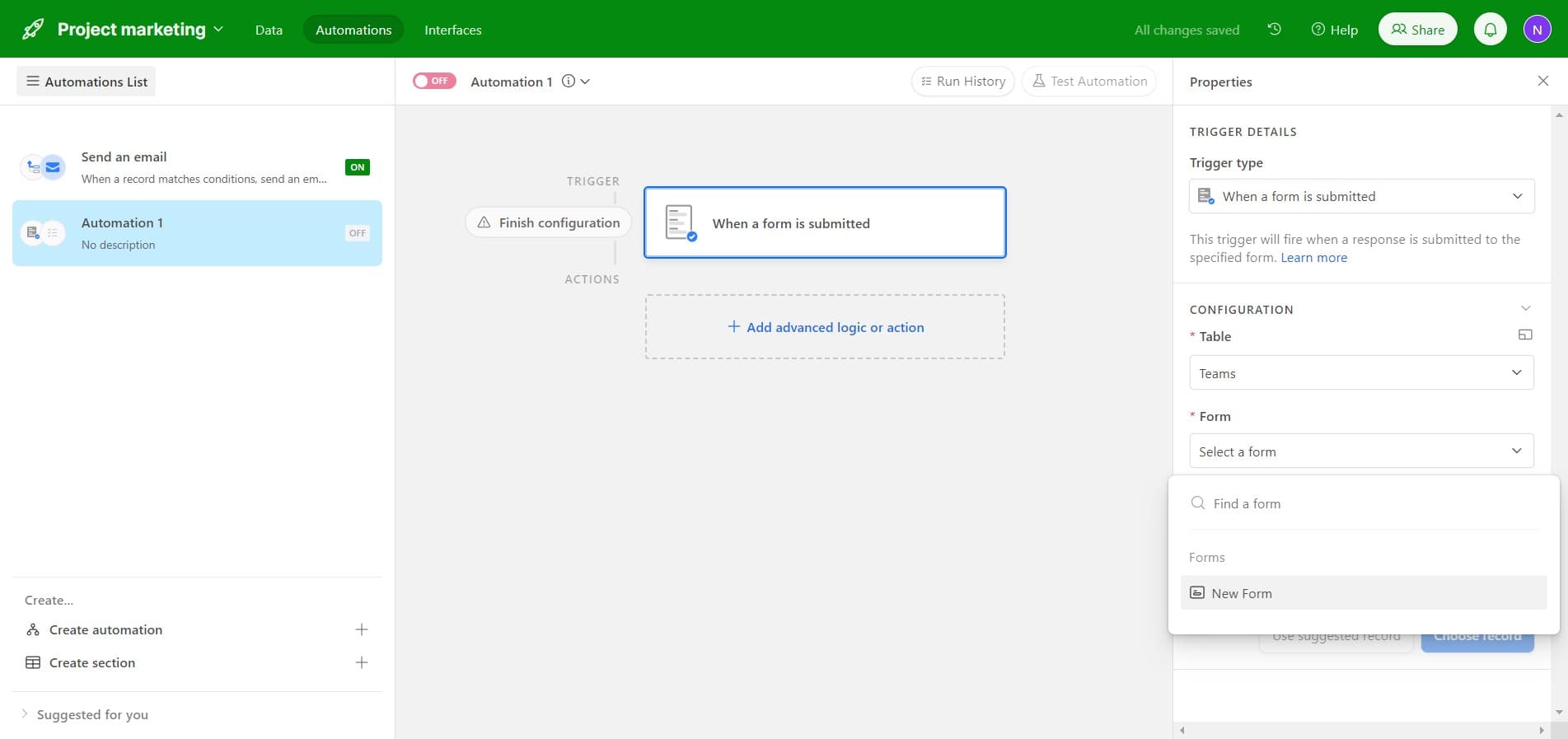
Create a new form
Click on 'New Form' if you need to create a fresh form for this automation. This opens the form builder to define fields and submission requirements.
- 9
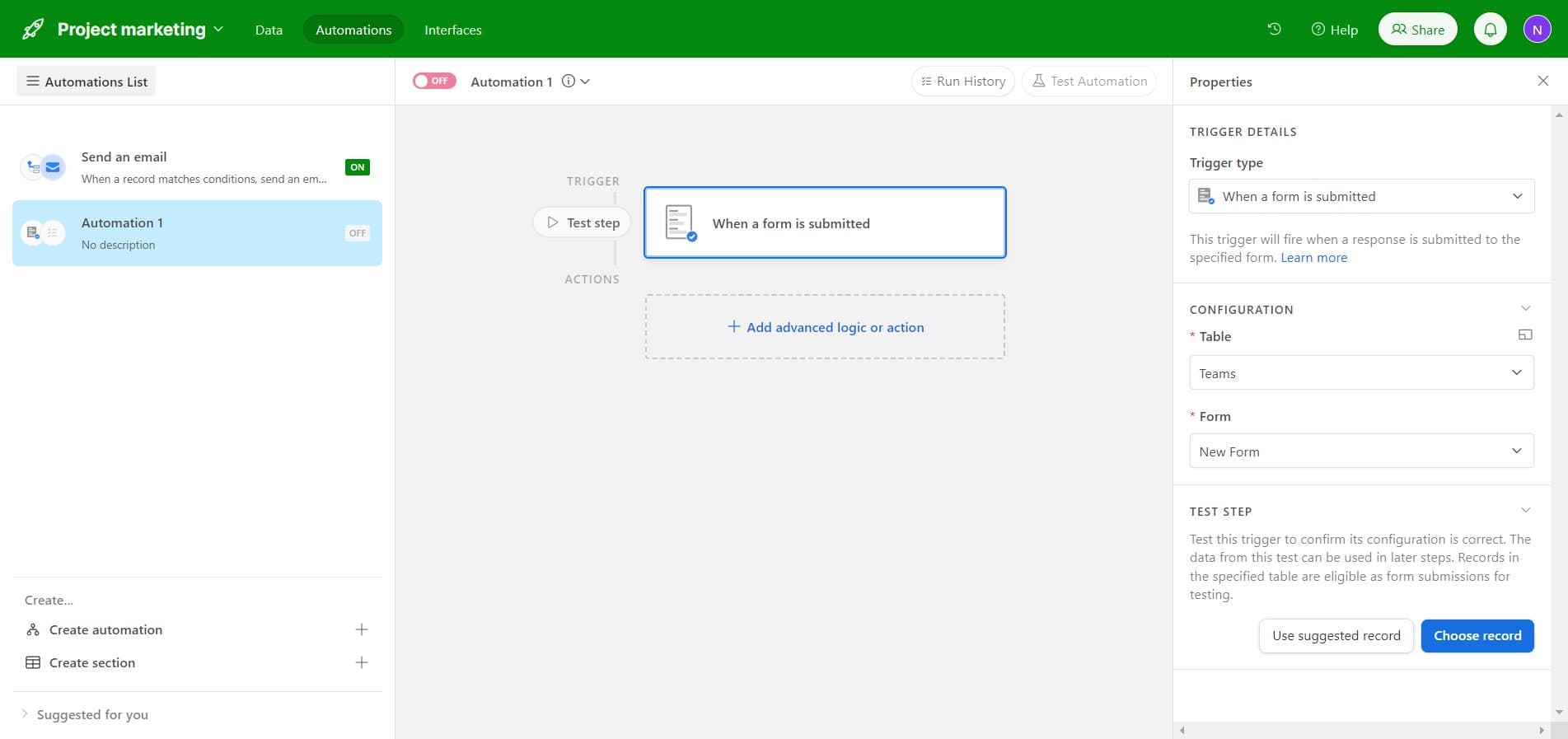
Use suggested record
Click on 'Use suggested record' to let Airtable recommend which record to reference in your automation. This simplifies configuration by auto-selecting relevant data from the submission.
- 10
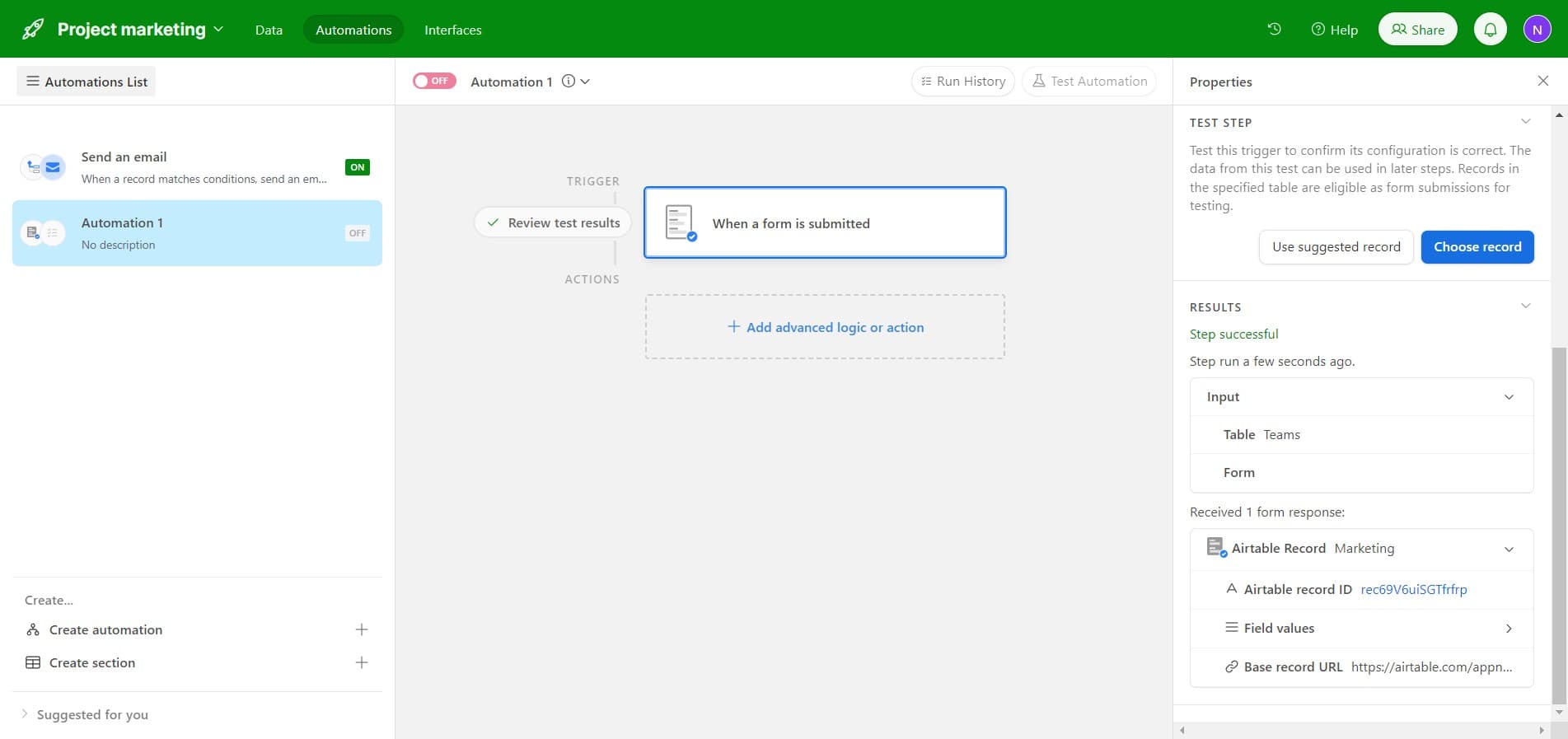
Add advanced logic or action
Click on 'Add advanced logic or action' to incorporate conditional logic or additional steps. This allows you to create more sophisticated workflows with multiple conditions and actions.
- 11
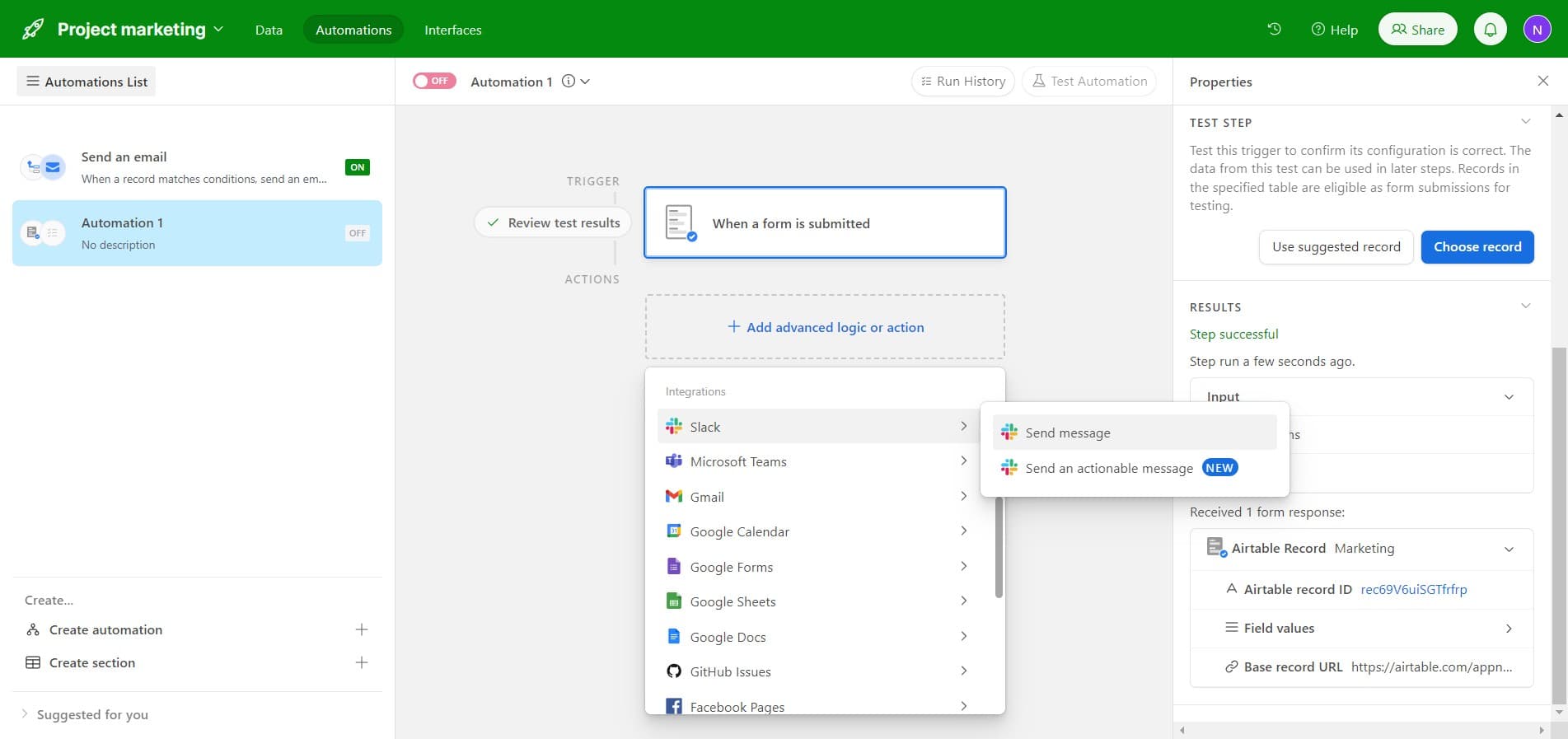
Select message action
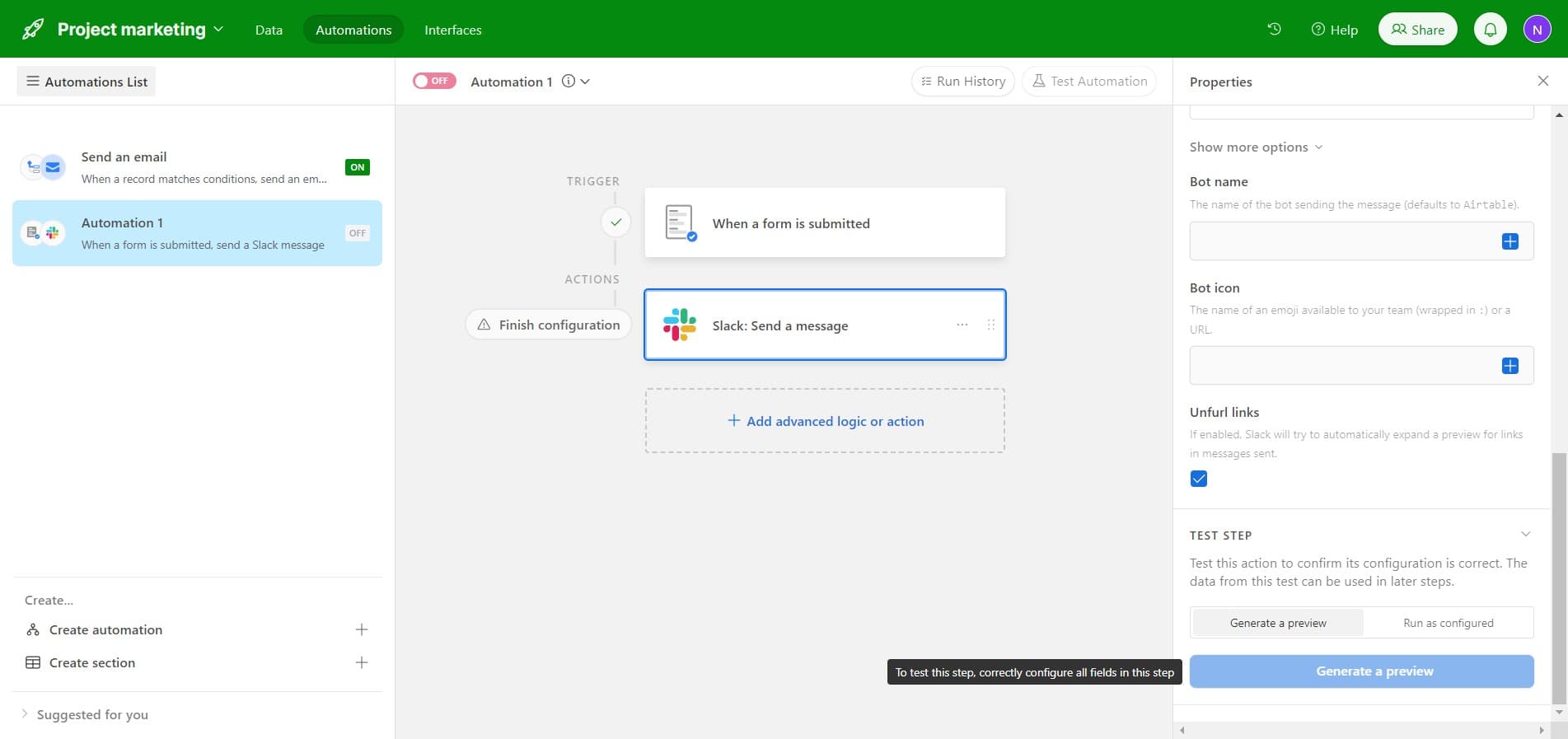
Click on 'Send message' to add a messaging component to your automation. This action works alongside your email to provide additional notification options.
- 12
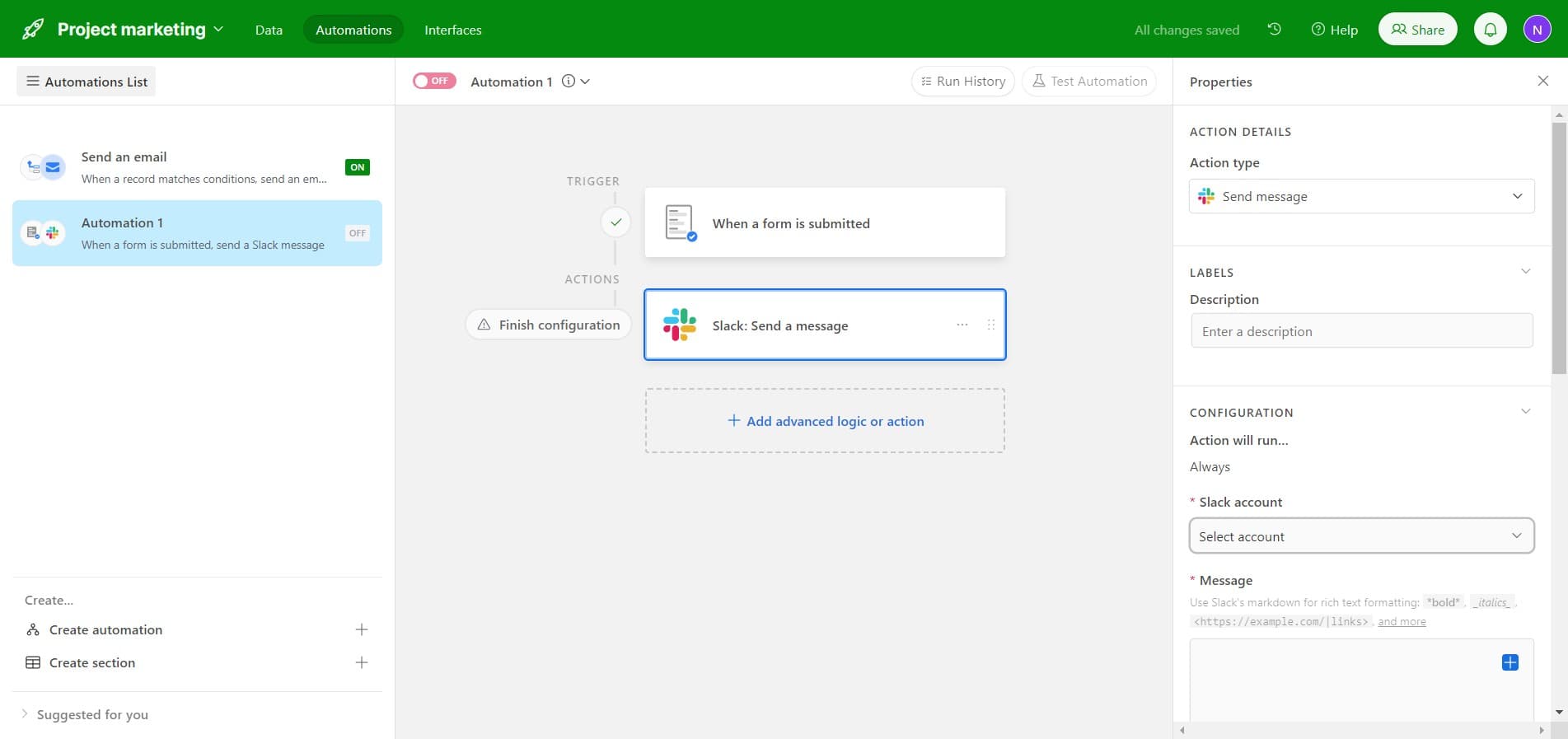
Choose account for messaging
Click on 'Select account' to specify which communication account should send the message. This ensures the message is sent from the correct channel or service.
- 13
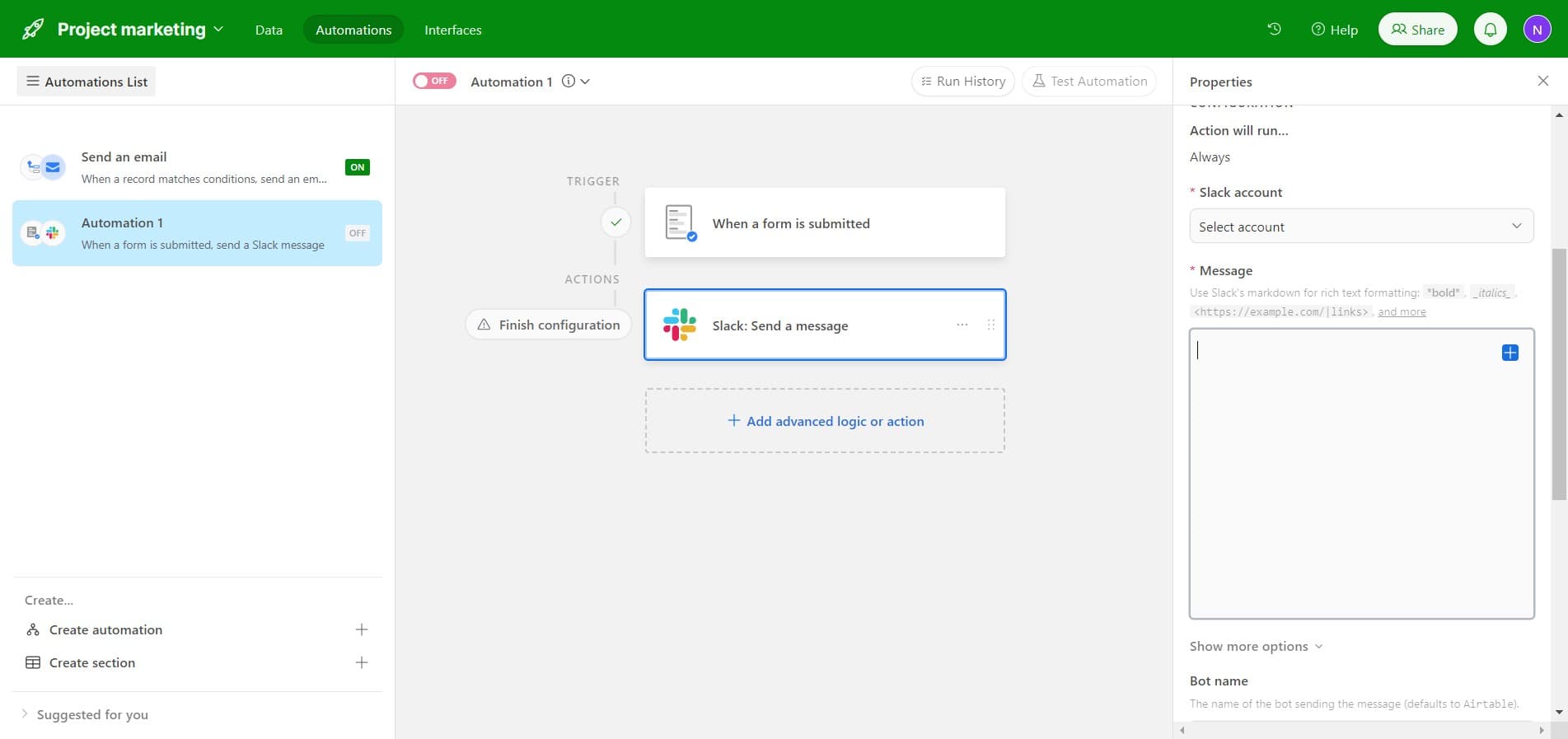
Complete account selection
Confirm your account selection to finalize the messaging configuration. This step locks in which account credentials will be used for sending messages.
- 14
Generate automation preview
Click on 'Generate a preview' to see a test run of your automation before it goes live. This helps you verify that the email and messaging will work as intended when triggered.
Frequently asked questions
Common questions about how to create an automation in airtable.
Yes, Airtable allows you to create multiple automations on a single table. Each automation can have different triggers and actions, giving you flexibility to automate various workflows. You can manage all automations from the Automations tab.
If an automation doesn't trigger, check that it's switched ON and that your trigger conditions are correctly configured. Verify the form is linked to the correct table and that the submission actually meets your specified conditions. You can also check the automation history logs for debugging.
Yes, you can customize email content by inserting field values from the submitted form. Most email actions allow you to use dynamic placeholders that pull data from the record, making emails personalized and context-specific.
Automation limits depend on your Airtable plan. Free and lower-tier plans have restrictions on the number of automation runs per month, while premium plans offer higher limits. Check your current plan's specifications for exact numbers.
Use the 'Generate a preview' feature to see a test run of your automation with sample data. This shows you exactly what the email will look like and confirms all actions execute in the correct order before the automation goes live.