How to Add a Column in Excel

Adding columns to your spreadsheet is one of the most common tasks in Excel. Whether you need to insert a new data field or reorganize your worksheet, mastering this skill will streamline your spreadsheet management and keep your data organized efficiently.
Quick summary
In this tutorial, you'll learn how to insert a new column into your Excel spreadsheet in just a few clicks. By following these straightforward steps, you'll be able to add columns exactly where you need them and maintain your worksheet structure.
Why this matters
Inserting columns is essential for data organization and analysis. As your spreadsheet grows or your data requirements change, you'll frequently need to add new columns to accommodate additional information, formulas, or categories without disrupting your existing data.
Step-by-step guide
- 1
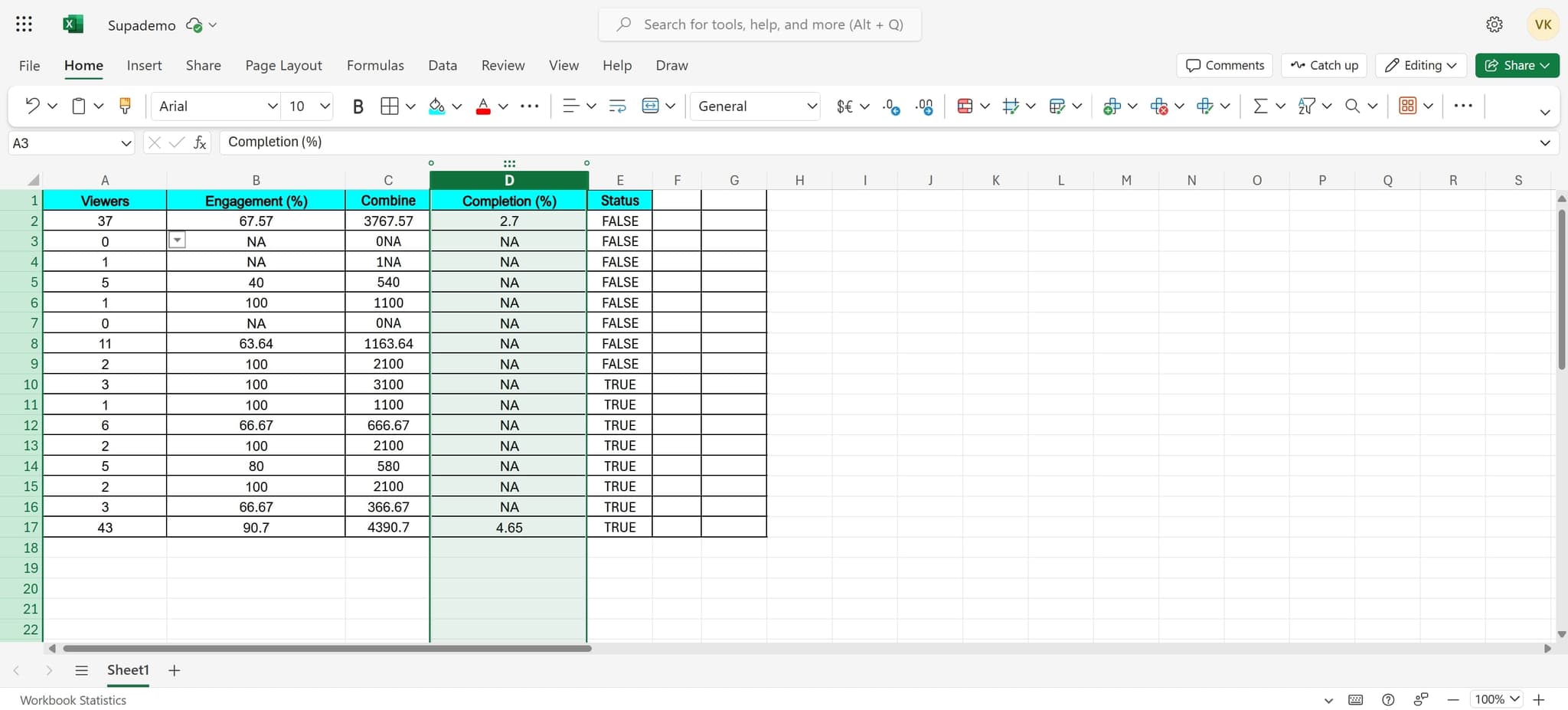
Open your Excel spreadsheet
Start by opening the Excel file you want to edit. Make sure you have the correct spreadsheet loaded and visible on your screen before proceeding.
- 2
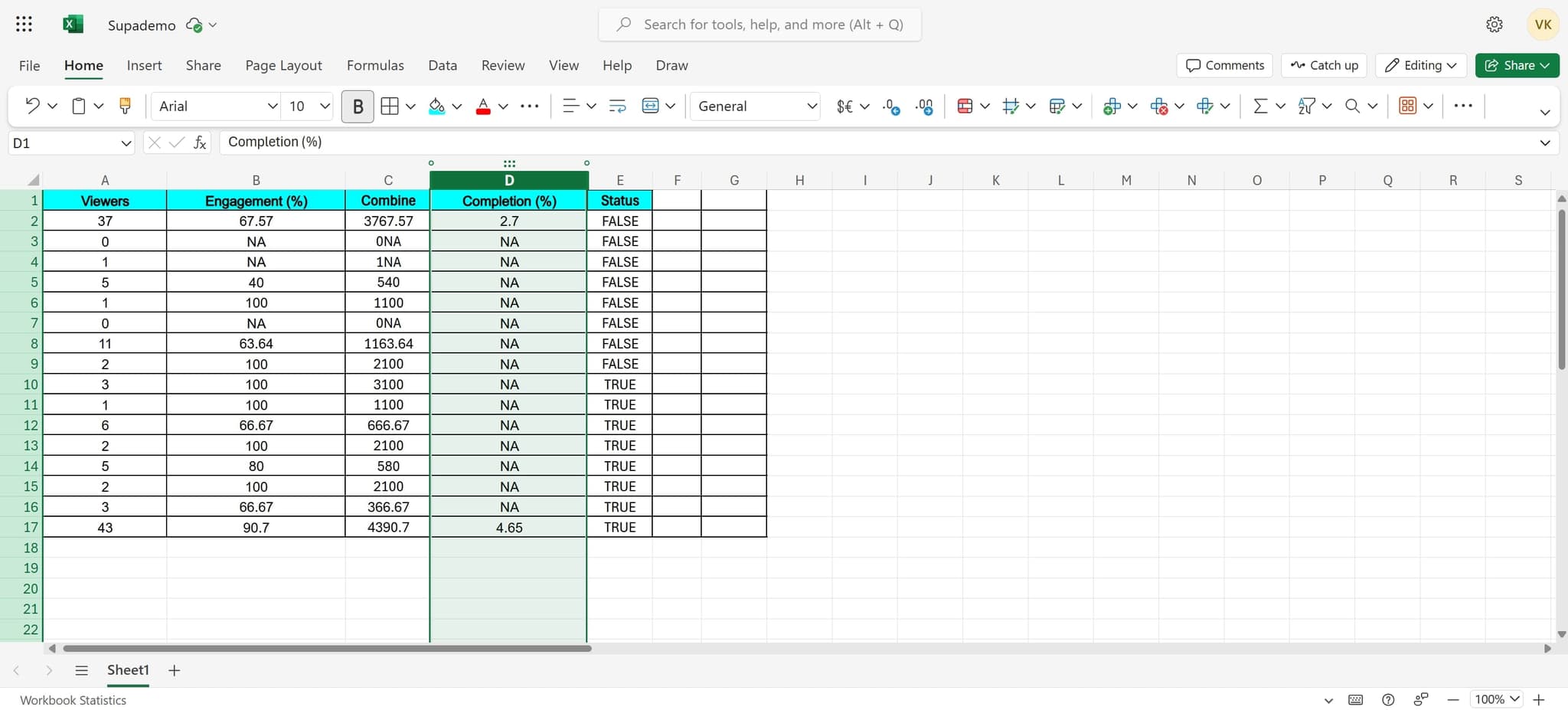
Select the target column
Click on the column header where you want to insert a new column. This will highlight the entire column, indicating it's been selected.
- 3
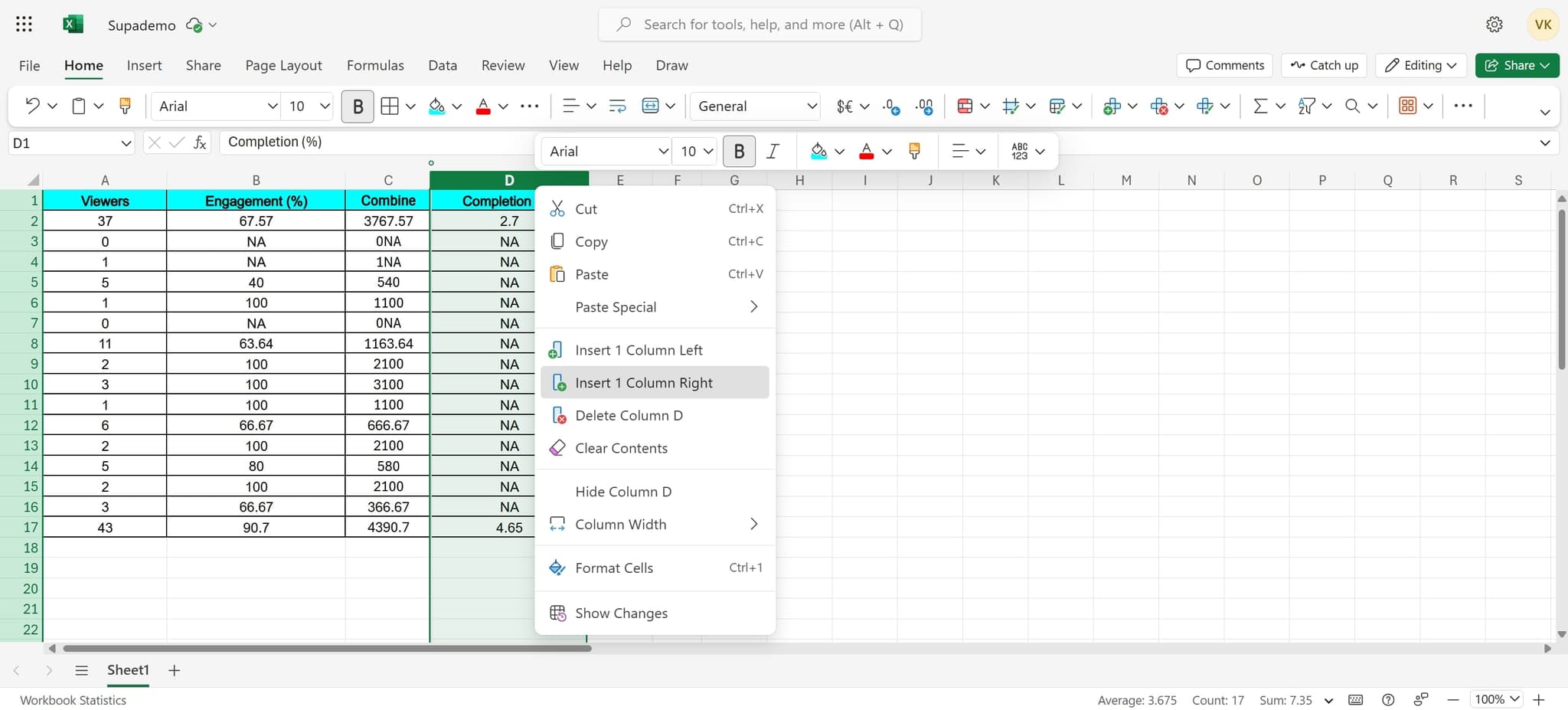
Insert column to the right
Right-click on the selected column to open the context menu, then click on 'Insert 1 Column Right'. Excel will immediately insert a new blank column to the right of your selected column.
- 4
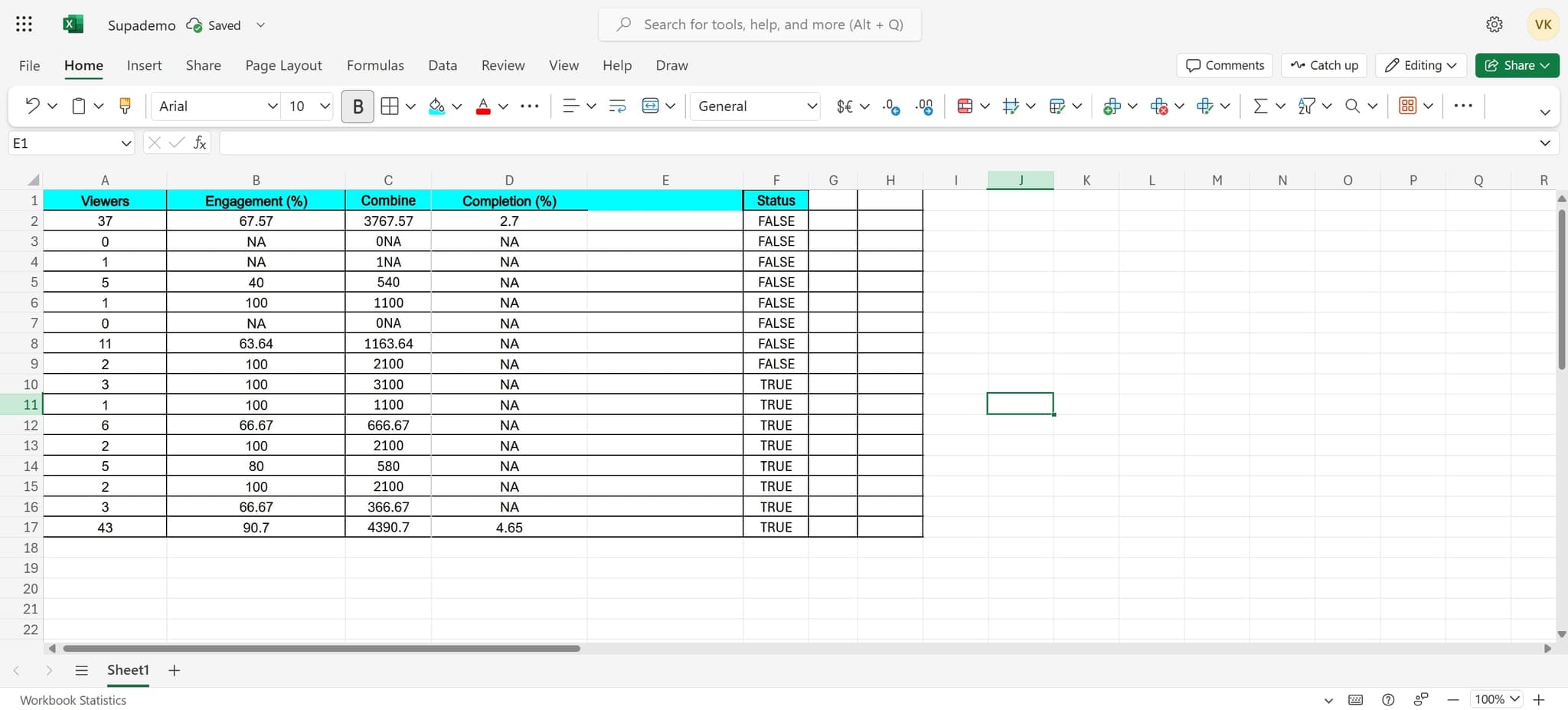
Confirm the insertion
Verify that the new column has been added in the correct location. Your existing data will shift appropriately, and you can now begin entering data or formulas in the new column.
Frequently asked questions
Common questions about how to add a column in excel.
Yes, you can insert multiple columns simultaneously by selecting multiple columns before inserting. Click on the first column header, then hold Shift and click on the last column header you want to select. Right-click and choose Insert to add as many columns as you selected.
When you insert a column right, the new column appears to the right of your selected column, and your existing data shifts right. When you insert a column left, the new column appears to the left of your selection, shifting your data left instead.
Excel automatically adjusts cell references in your formulas when you insert a column. Formulas that reference columns to the right of the insertion point will update their column letters accordingly, so your calculations should remain intact.
Yes, you can quickly undo a column insertion by pressing Ctrl+Z (or Cmd+Z on Mac) immediately after inserting. This will restore your spreadsheet to its previous state.
While there's no single keyboard shortcut for inserting columns, you can select a column and use the right-click menu or access the Insert menu from the ribbon. Some users also use Alt+I then C on Windows for the Insert menu, followed by the column option.