How to Divide in Excel

Division is one of the fundamental mathematical operations you'll perform in Excel, whether you're analyzing financial data, calculating averages, or processing scientific measurements. This guide walks you through the essential steps to divide numbers in Excel using formulas and functions. You'll learn how to set up your data and execute division operations efficiently.
Quick summary
In this tutorial, you'll learn how to create division formulas in Excel, starting from opening your spreadsheet through uploading data and executing division calculations. By the end, you'll be able to divide values in cells and apply this skill to real-world data analysis tasks. You'll understand the syntax and best practices for writing reliable division formulas.
Why this matters
Division calculations are critical for business analysis, financial reporting, and data interpretation across countless industries. Mastering this skill in Excel allows you to automate calculations, reduce errors, and analyze data at scale rather than performing manual calculations. Whether you're calculating ratios, percentages, or unit costs, efficient division formulas save time and improve accuracy.
Step-by-step guide
- 1
Click to begin the process
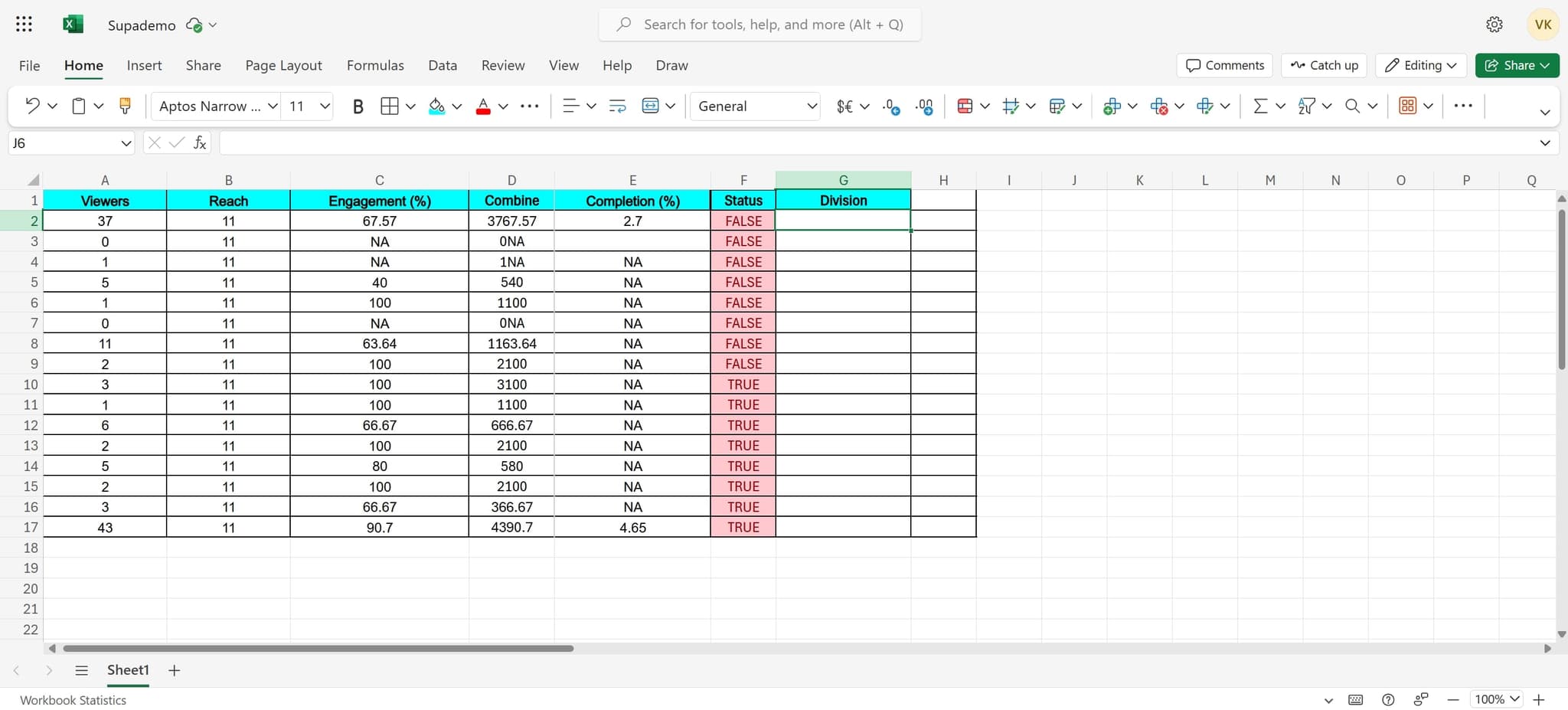
Start by clicking on the designated element in Excel to initialize your workspace. This action prepares the spreadsheet for entering your division formula or accessing the division tools.
- 2
Upload your data
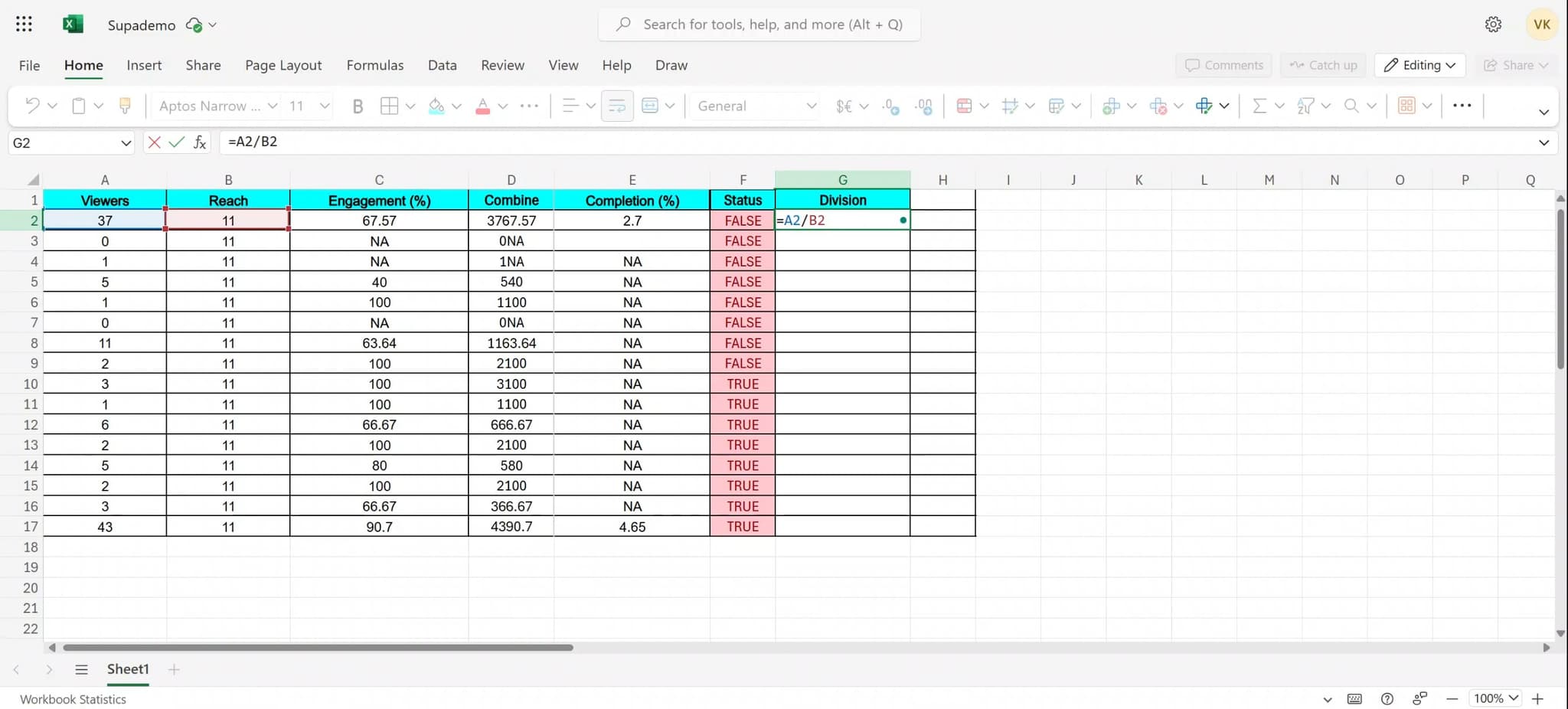
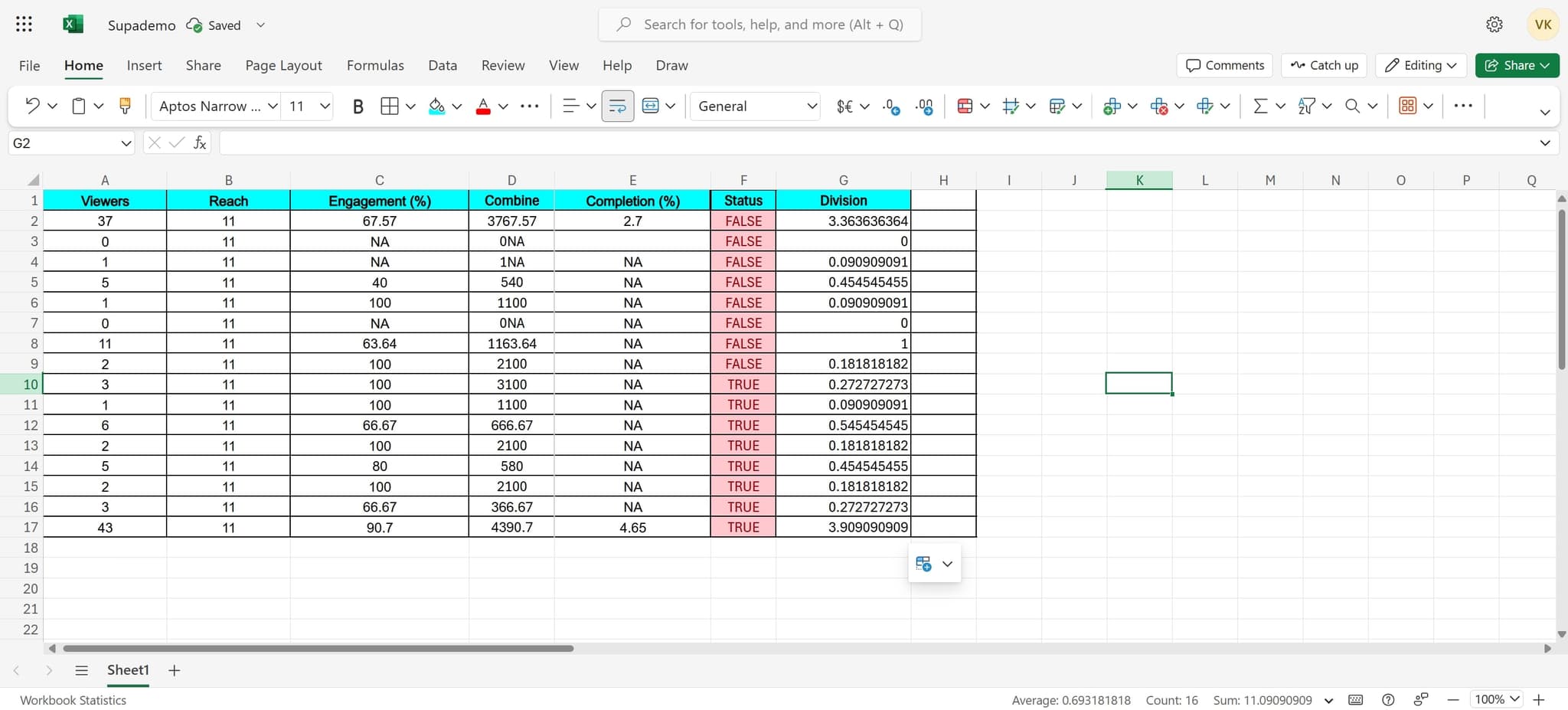
Import or paste your data into Excel that you want to perform division operations on. Ensure your numbers are in separate cells where you plan to reference them in your division formula.
- 3
Upload additional data if needed
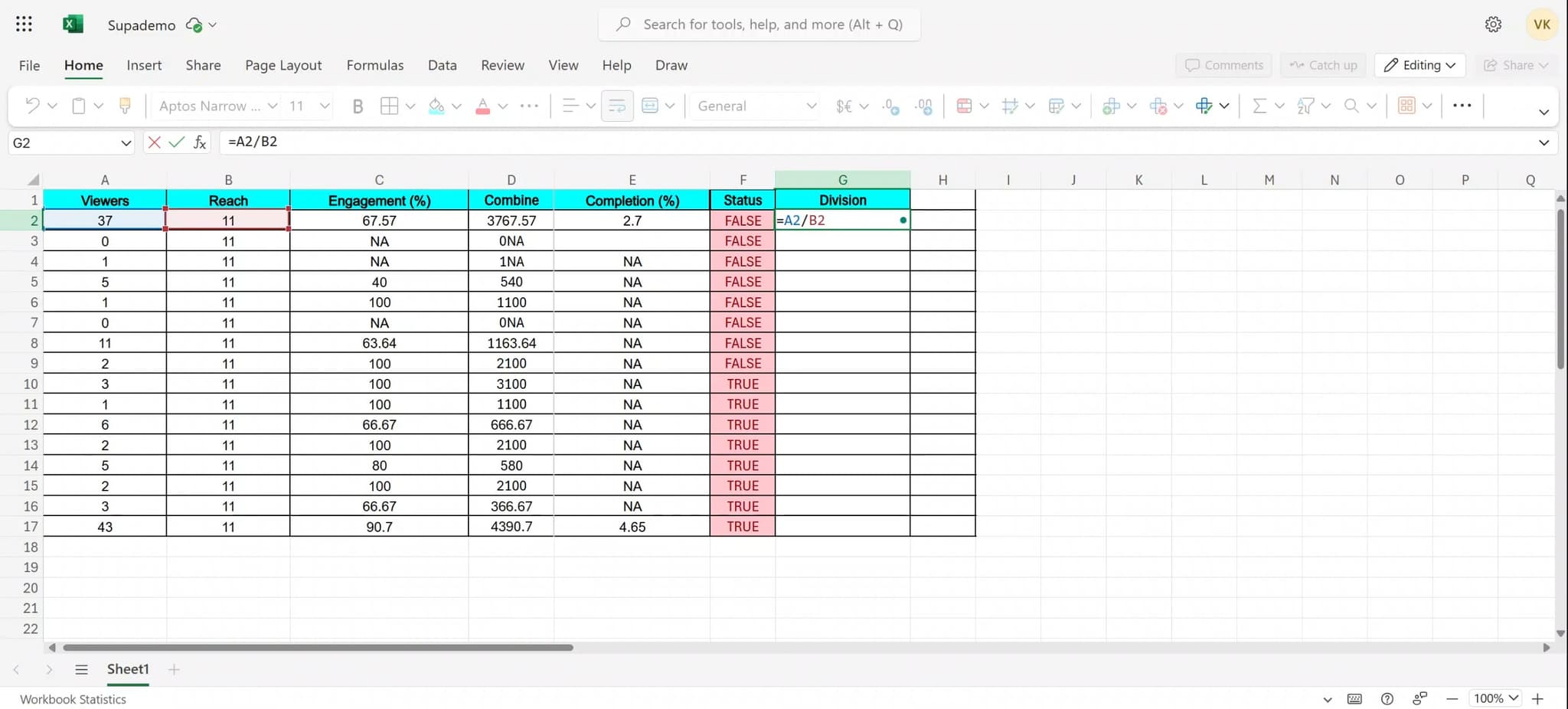
If you have multiple datasets or additional values required for your division calculations, upload or enter them into the spreadsheet. Organization of your data will make creating formulas more straightforward.
- 4
Click on the target cell
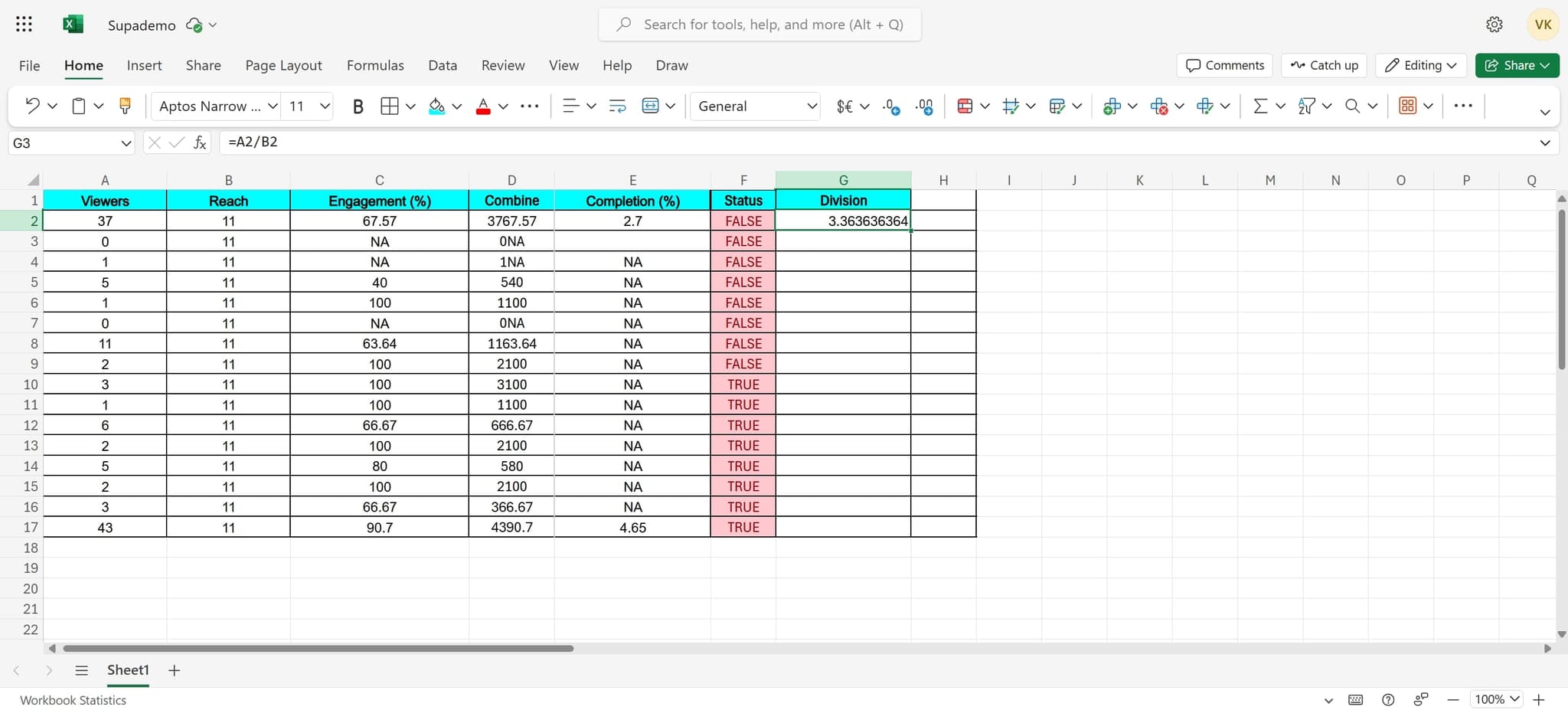
Select the cell where you want the division result to appear. This is where Excel will display the quotient of your division operation.
- 5
Execute the division formula
Enter your division formula using the forward slash (/) operator or click to confirm the formula entry. Excel will immediately calculate and display the result in your selected cell.
Frequently asked questions
Common questions about how to divide in excel.
The basic division formula in Excel is =A1/B1, where A1 is the dividend and B1 is the divisor. You can replace these cell references with any cells containing your numbers, or use specific numbers directly in the formula like =100/5.
Yes, you can divide an entire column by a single value. Enter the formula in the first cell (e.g., =A1/B$1 with an absolute reference to the divisor), then copy the formula down to all rows. This applies the same divisor to each value in the column.
Excel will display a #DIV/0! error if you attempt to divide by zero, as division by zero is mathematically undefined. To prevent this error, use the IFERROR function to create a formula like =IFERROR(A1/B1, 'message') to handle the error gracefully.
Enter a division formula in one cell referencing the first row of data (e.g., =A1/B1), then copy this formula to the right and down to cover all your data columns and rows. Excel will automatically adjust the cell references relative to each position.
Yes, division can be combined with other functions for more complex calculations. For example, you can use =SUM(A1:A10)/B1 to divide a sum by a value, or nest division within functions like ROUND to control decimal places in your results.