How to Move Columns in Excel

Moving columns in Excel is a fundamental skill that helps you reorganize your data for better analysis and presentation. Whether you're cleaning up a spreadsheet or preparing data for reports, knowing how to reposition columns efficiently saves time and reduces errors.
Quick summary
In this tutorial, you'll learn how to move columns in Excel by selecting and repositioning them within your spreadsheet. You'll discover the quickest methods to reorganize your data layout without losing any information.
Why this matters
Reorganizing columns is essential when you need to group related data together, prepare sheets for stakeholders, or follow a specific data structure required by your organization. Mastering this skill ensures your spreadsheets remain organized and easy to navigate for analysis and sharing.
Step-by-step guide
- 1
Open Excel and access your spreadsheet
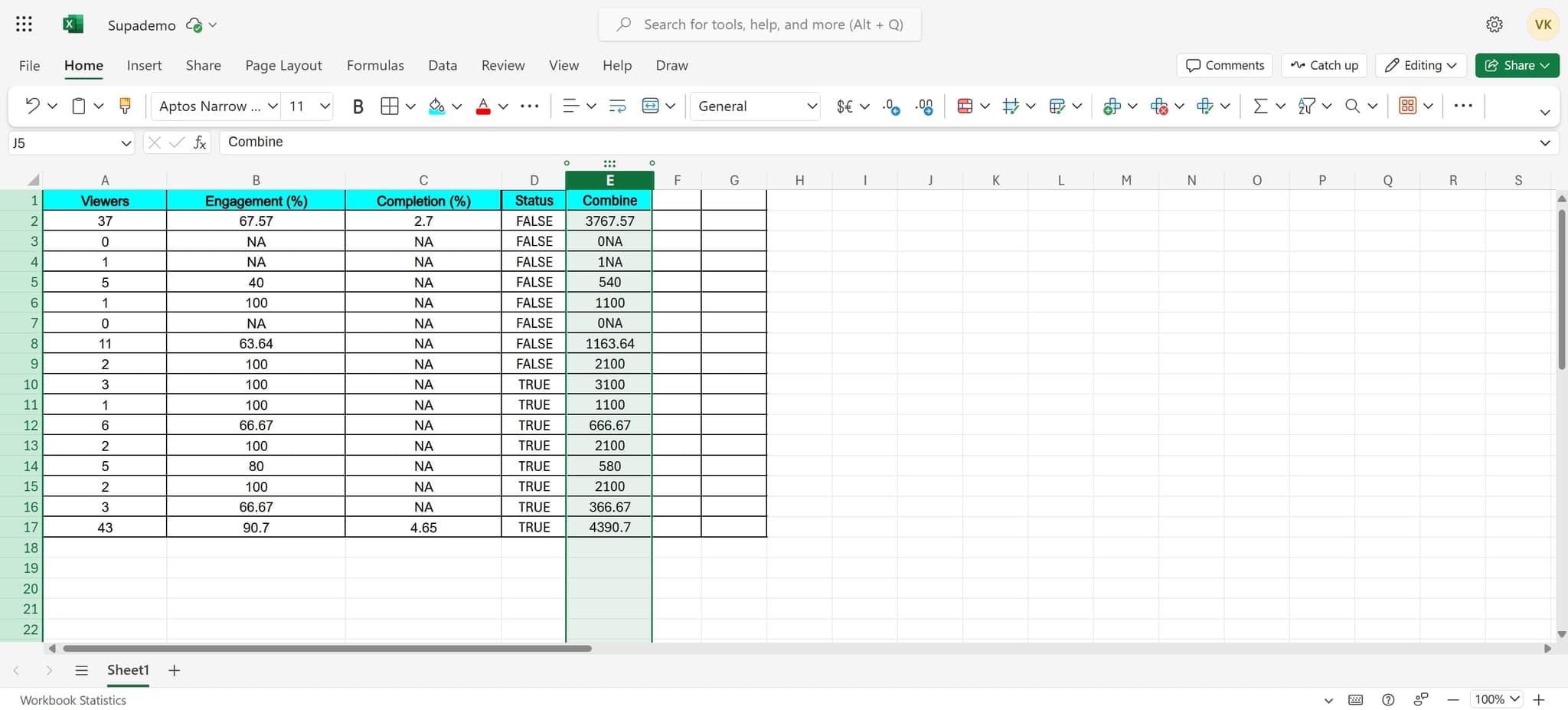
Launch Microsoft Excel and open the spreadsheet containing the columns you want to move. Ensure your data is visible and ready for editing.
- 2
Upload your file or create new data
Upload an existing file or begin working with your current spreadsheet. Make sure all columns you plan to move are properly populated with data.
- 3
Click on the column to select it
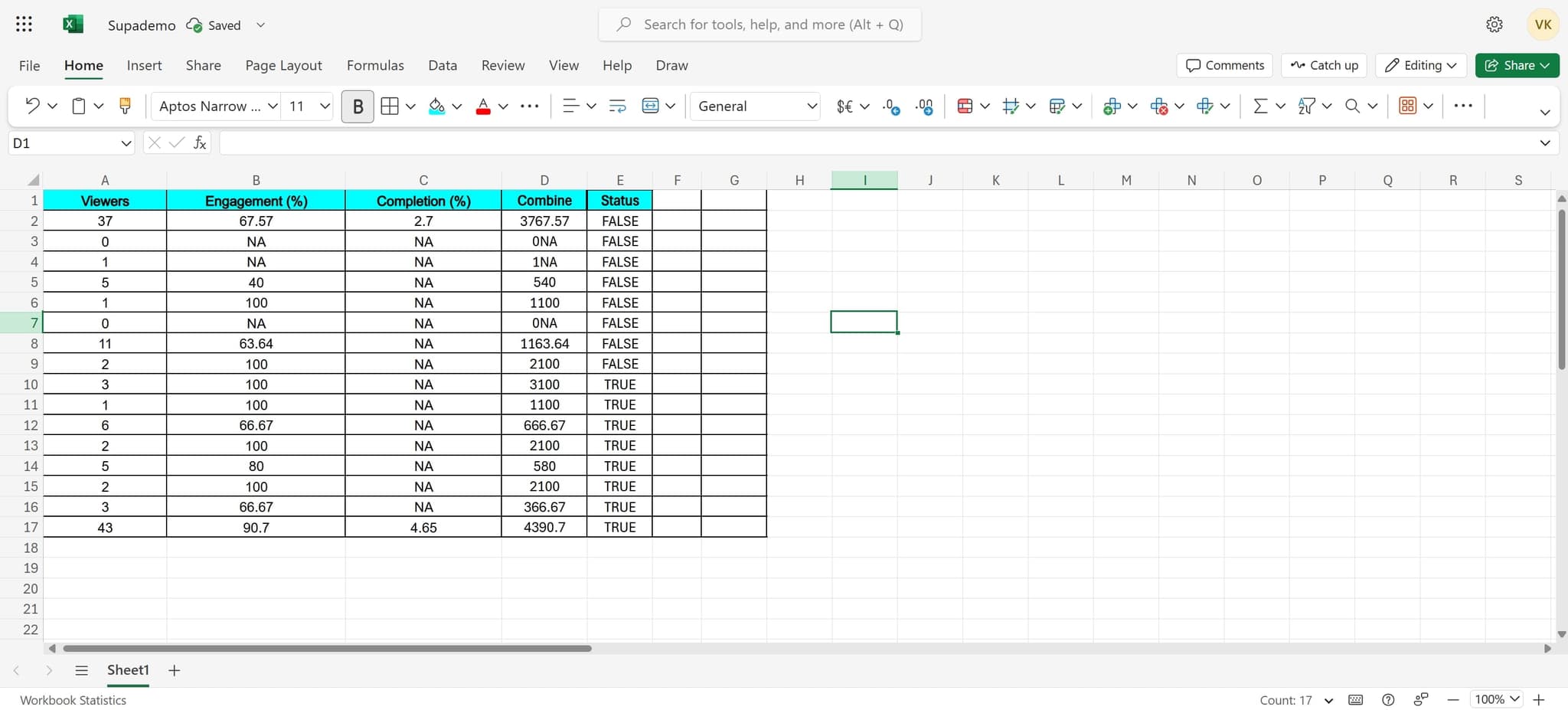
Click on the column header letter to select the entire column you want to move. The selected column will highlight in blue, indicating it's ready for action.
Frequently asked questions
Common questions about how to move columns in excel.
Yes, you can select multiple adjacent columns by clicking the first column header and dragging to the last column you want to move. You can also hold Ctrl and click individual column headers to select non-adjacent columns, though moving non-adjacent columns requires a different approach.
Moving a column removes it from its original location and places it elsewhere, while copying creates a duplicate in the new location while keeping the original. In Excel, you can move columns by cutting and pasting, or by dragging the column header to a new position.
Excel automatically updates cell references in formulas when you move columns. However, if you have hardcoded column letters in your formulas, you may need to manually update those references to ensure accuracy.
Press Ctrl+Z immediately after moving the column to undo the action. Excel will restore the column to its original position along with any associated data and formulas.
If a worksheet is protected, you typically cannot move columns unless the protection settings allow it. Contact your spreadsheet administrator or unprotect the sheet using the appropriate password to enable column movement.