How to Export Tickets from Freshdesk

Exporting tickets from Freshdesk allows you to back up your support data, analyze trends, or integrate information into external systems. This guide walks you through the process of exporting your tickets efficiently using Freshdesk's built-in export functionality.
Quick summary
In this tutorial, you'll learn how to navigate Freshdesk's export features, select the tickets you want to export, configure export settings, and download your data in the desired format. By the end, you'll be able to export tickets for reporting, compliance, or data migration purposes.
Why this matters
Exporting tickets is essential for maintaining data backups, complying with record-keeping requirements, and conducting performance analysis across your support operations. Regular exports ensure you have access to your historical ticket data independent of your Freshdesk account and enable seamless data migration when needed.
Step-by-step guide
- 1
Log in to your Freshdesk account
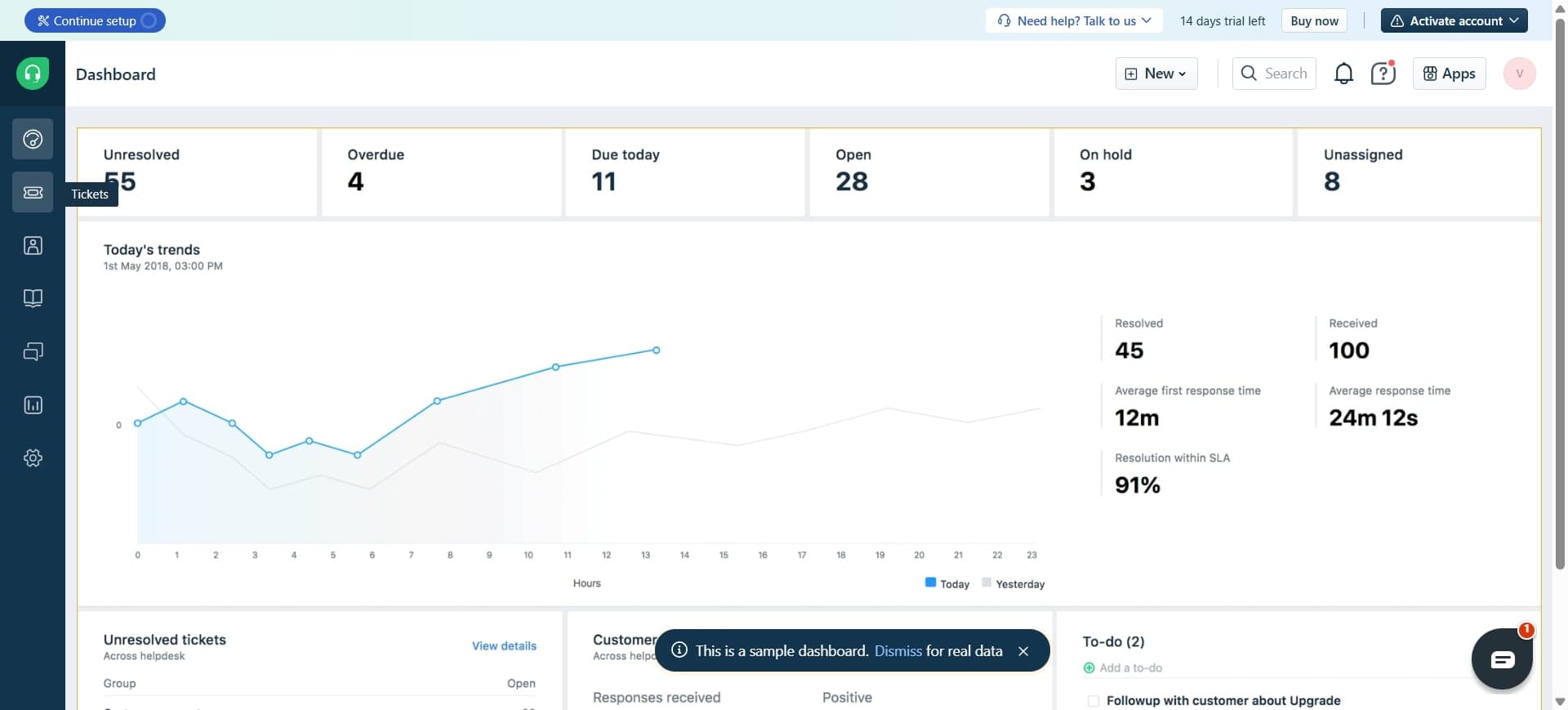
Navigate to Freshdesk and sign in with your credentials. You'll be taken to your dashboard where you can access the main menu.
- 2
Navigate to the Tickets section
From the main menu, click on Tickets to view your complete ticket list. This displays all support tickets in your system with filtering and sorting options.
- 3
Apply filters to select tickets
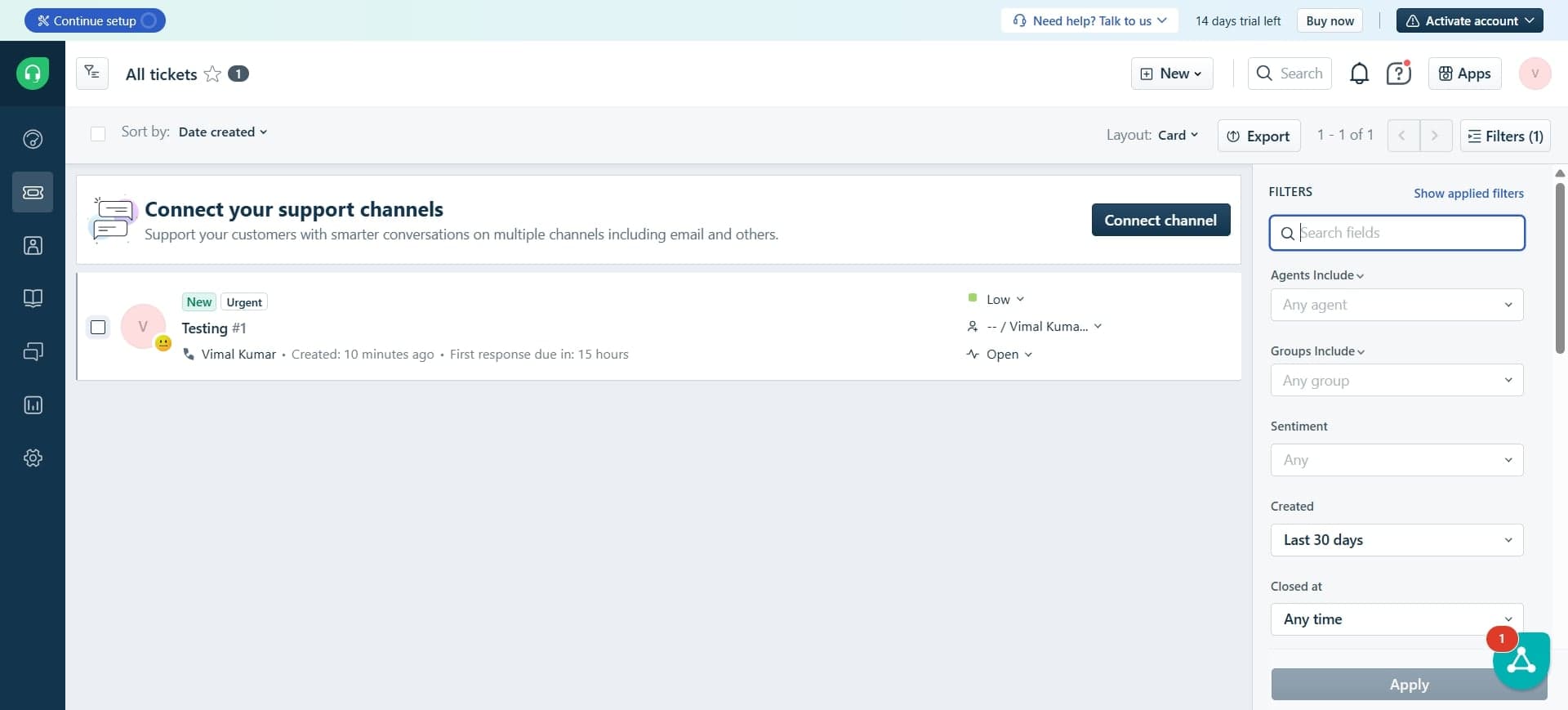
Use the filter options to narrow down which tickets you want to export. You can filter by status, priority, assignee, date range, or custom fields to export only relevant data.
- 4
Access the export option
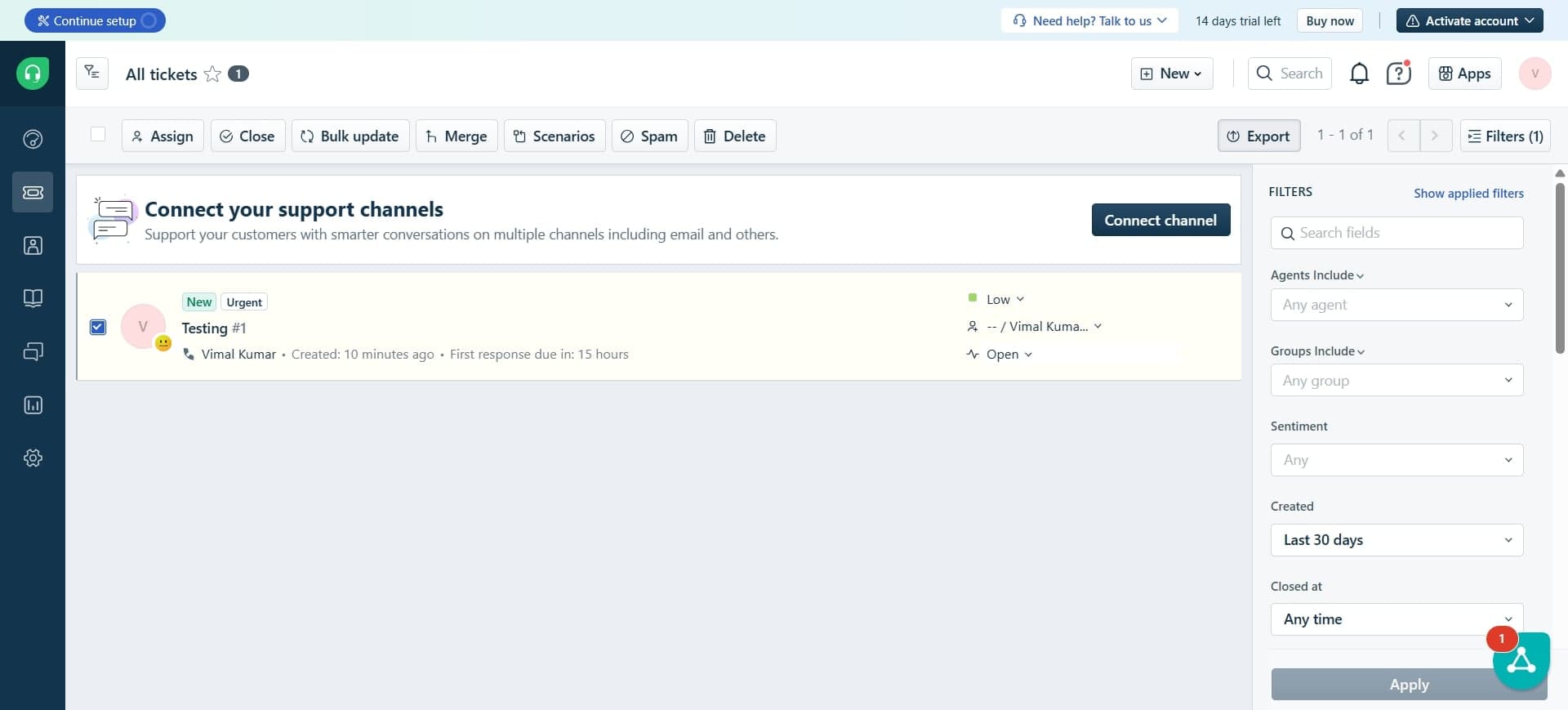
Look for the export button or menu option in the toolbar. This is typically represented by a download icon or export link near the top of your ticket list.
- 5
Configure export settings
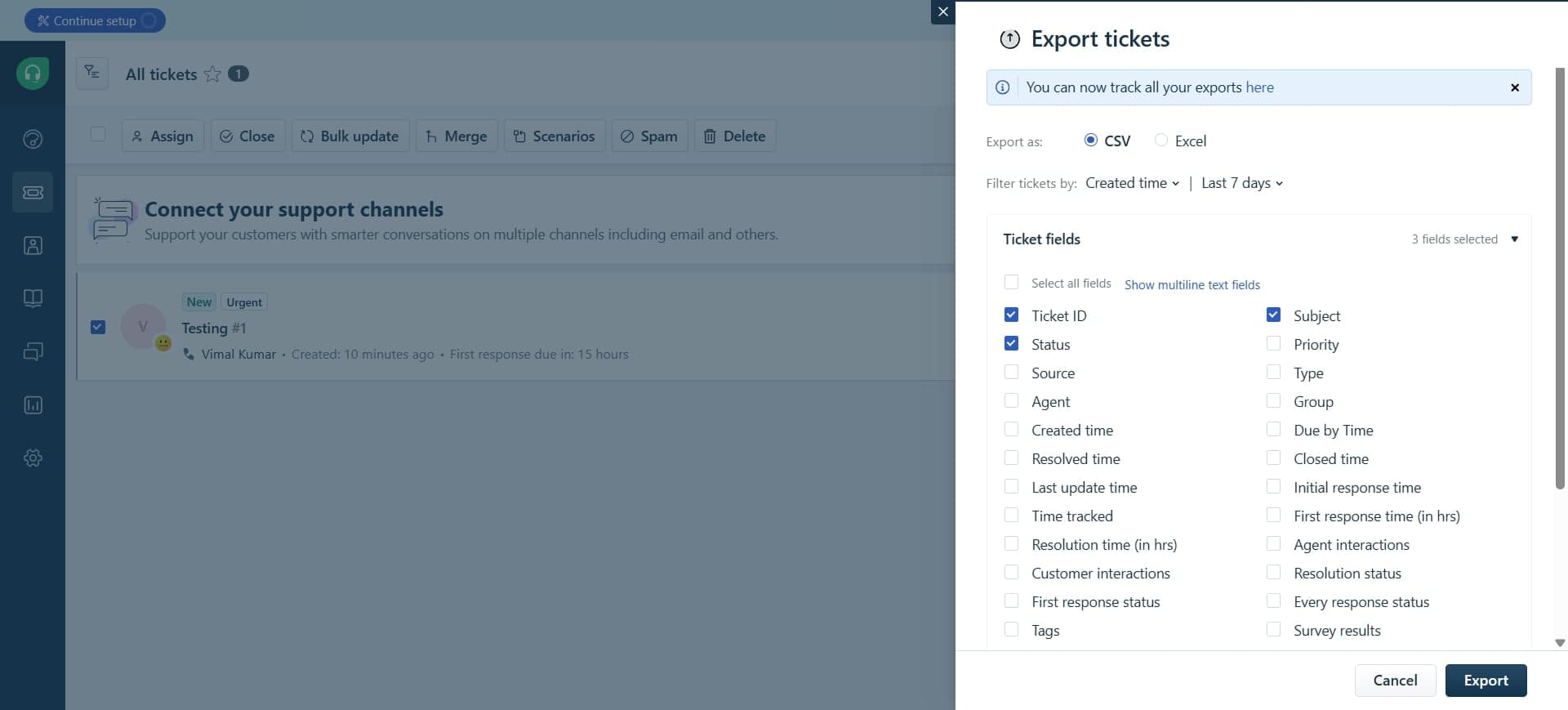
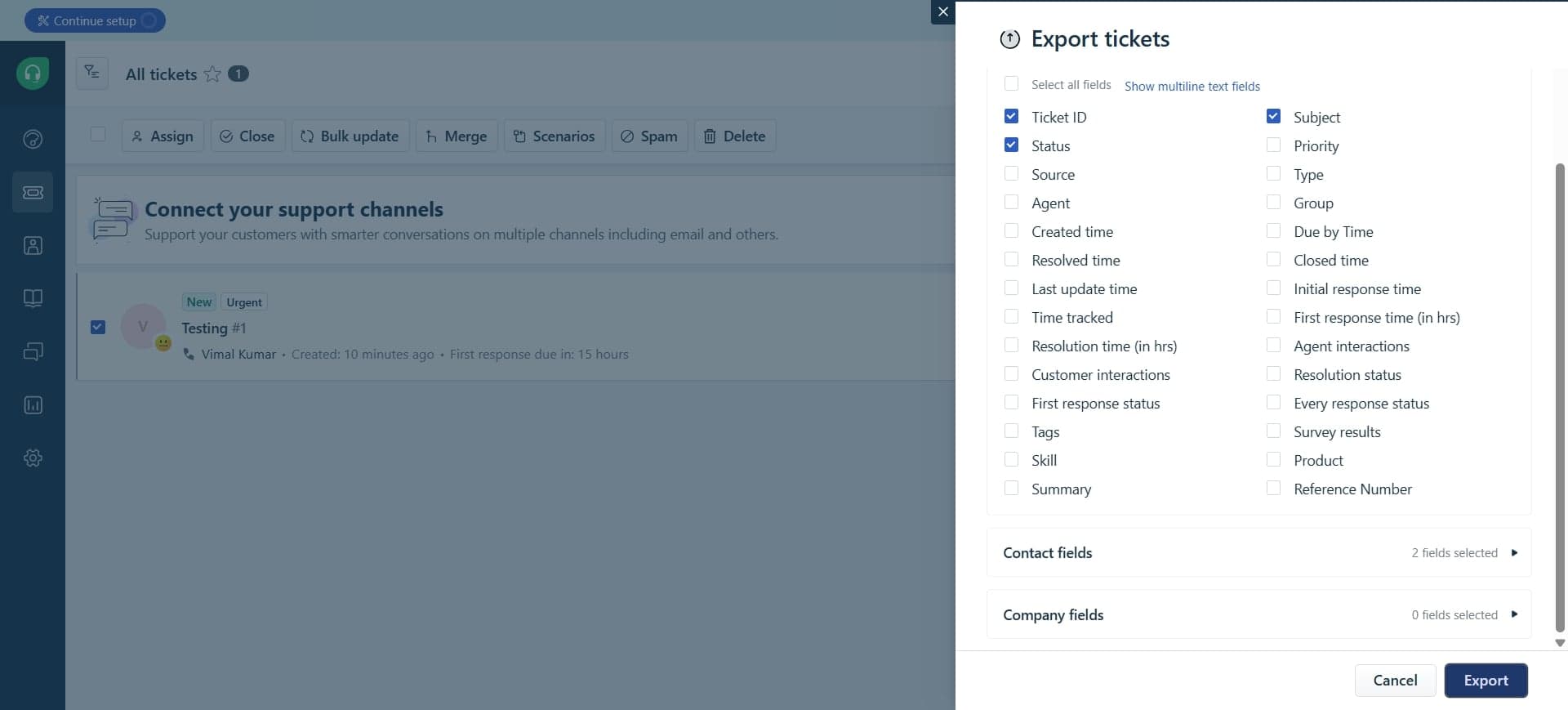
Select your preferred export format, such as CSV or Excel, and choose which ticket fields to include in the export. You may also specify additional options like date format or field separators.
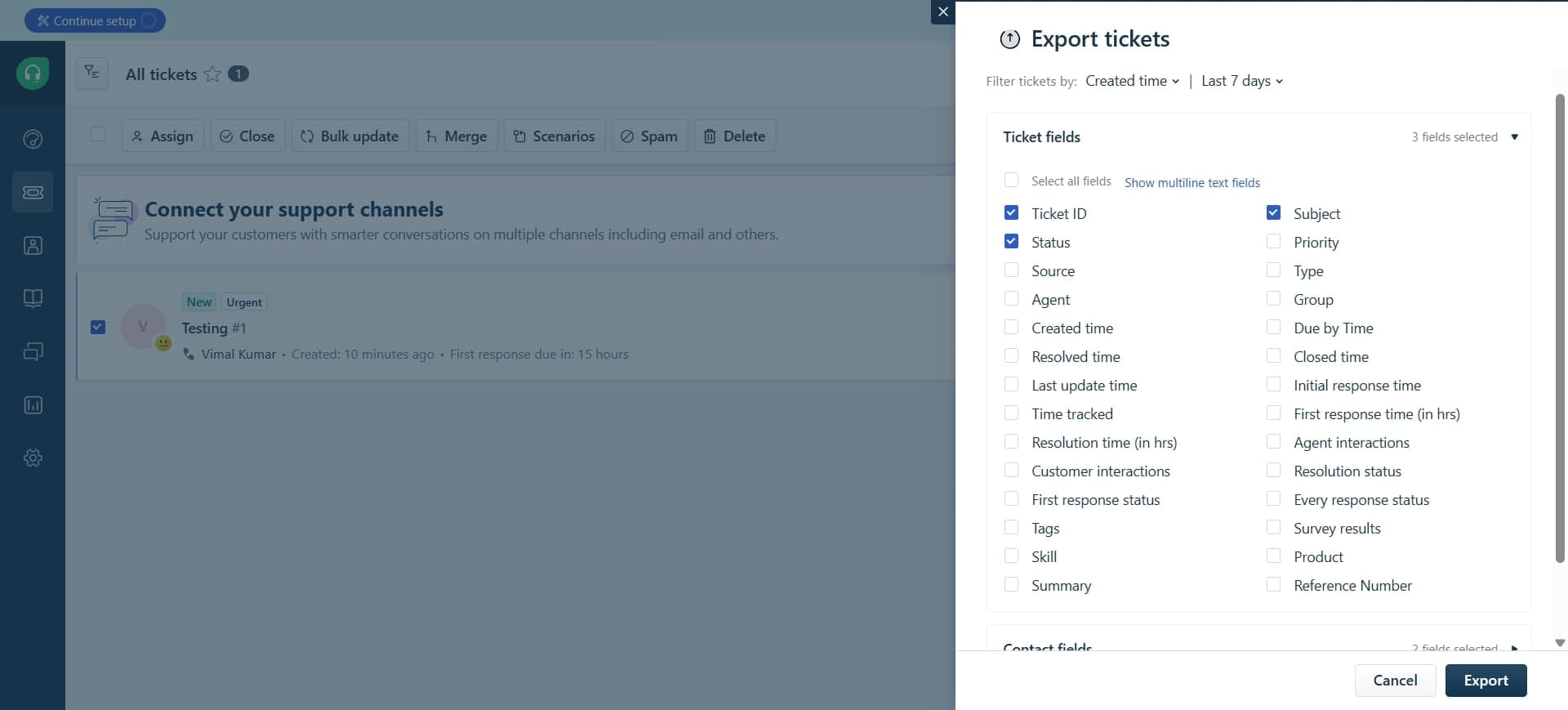
- 6
Download your exported file
Click the export or download button to generate and download your ticket file. The file will be saved to your device and ready for use in other applications or for storage.
Frequently asked questions
Common questions about how to export tickets from freshdesk.
Freshdesk supports exporting tickets in CSV and Excel formats. CSV is ideal for data analysis and integration with external tools, while Excel provides a formatted spreadsheet that's easier to review visually. Choose the format that best fits your intended use case.
Yes. You can use Freshdesk's filter options to specify the date range before exporting. Simply apply date filters to your ticket view, and only the tickets within that range will be included in your export.
Freshdesk typically allows you to export large volumes of tickets, but very large exports may take some time to process. If you encounter limits, try exporting in smaller batches by applying more specific filters.
You can choose from standard fields like ticket ID, subject, status, priority, and assignee, as well as custom fields specific to your account. The export settings will show you all available fields to select from before downloading.
The backup frequency depends on your business needs. For critical support operations, consider monthly or quarterly exports. If you process high volumes of tickets daily, more frequent exports provide better protection against data loss.