How to Merge Tickets in Freshdesk

Merging tickets in Freshdesk helps consolidate related customer issues into a single conversation thread, reducing clutter and improving team efficiency. This guide walks you through the process of identifying duplicate or related tickets and combining them seamlessly within Freshdesk.
Quick summary
In this tutorial, you'll learn how to merge multiple tickets in Freshdesk by locating duplicate conversations, accessing the merge function, and consolidating them into one primary ticket. You'll understand how to select which ticket becomes the master record and how related discussions are organized after merging.
Why this matters
Merging tickets prevents duplicate work, ensures customers don't receive multiple responses to the same issue, and maintains a clean ticket queue. This workflow is essential for support teams managing high volumes of inquiries, as it streamlines communication and gives agents a complete view of the customer interaction history.
Step-by-step guide
- 1
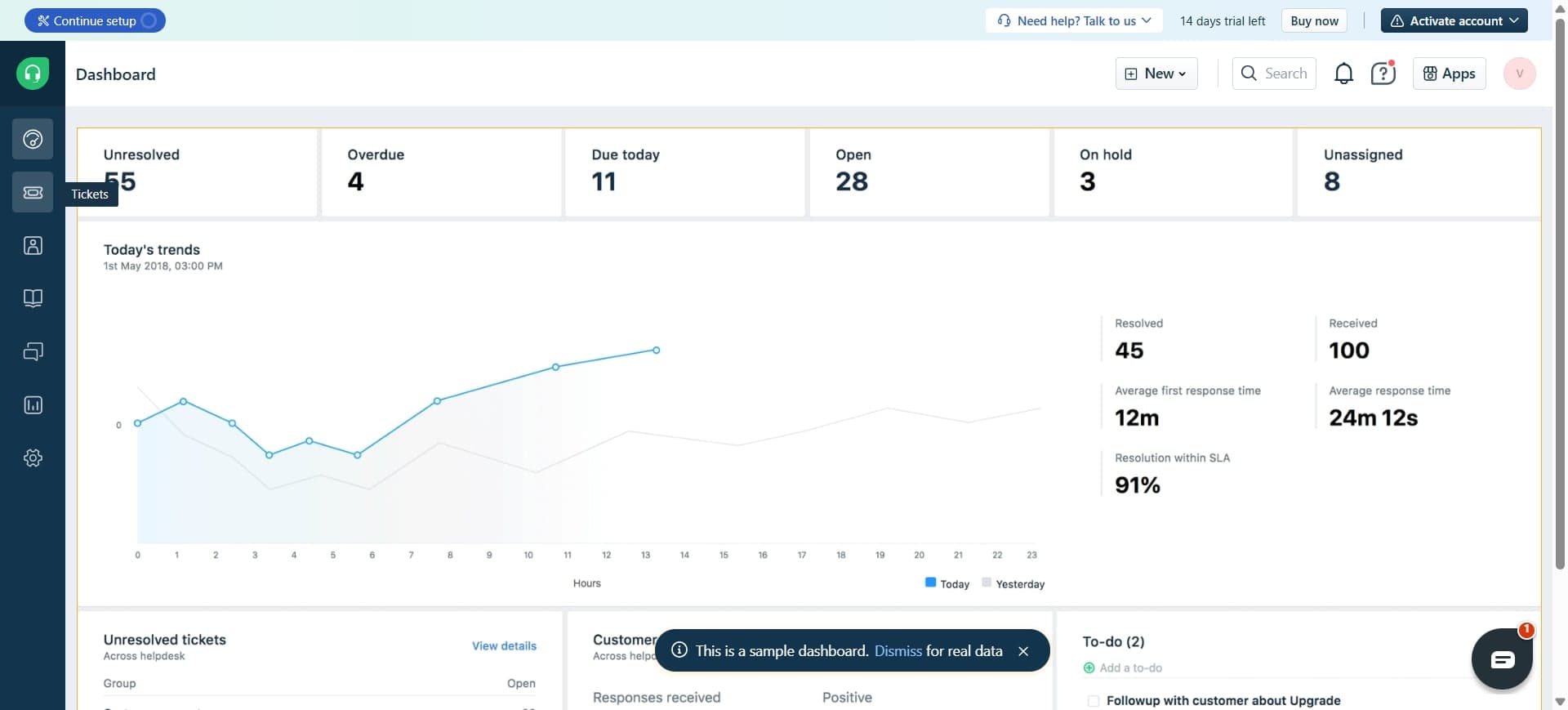
Navigate to your ticket queue
Open Freshdesk and go to your support tickets section. You'll see a list of all open and closed tickets with details like customer name, subject, and status.
- 2
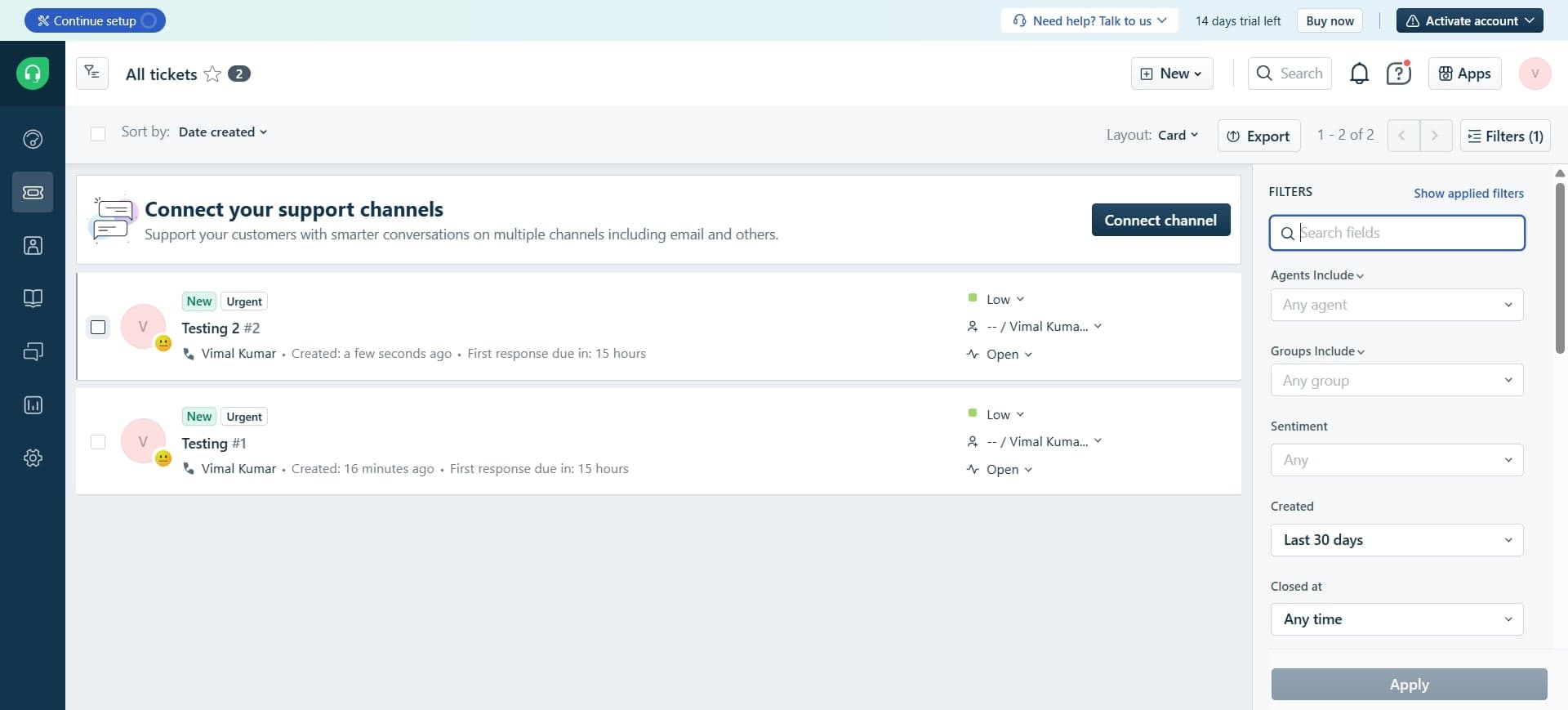
Identify duplicate or related tickets
Review your ticket list and locate tickets that refer to the same customer issue or conversation. Look for similar subjects, same customer, or tickets referencing each other.
- 3
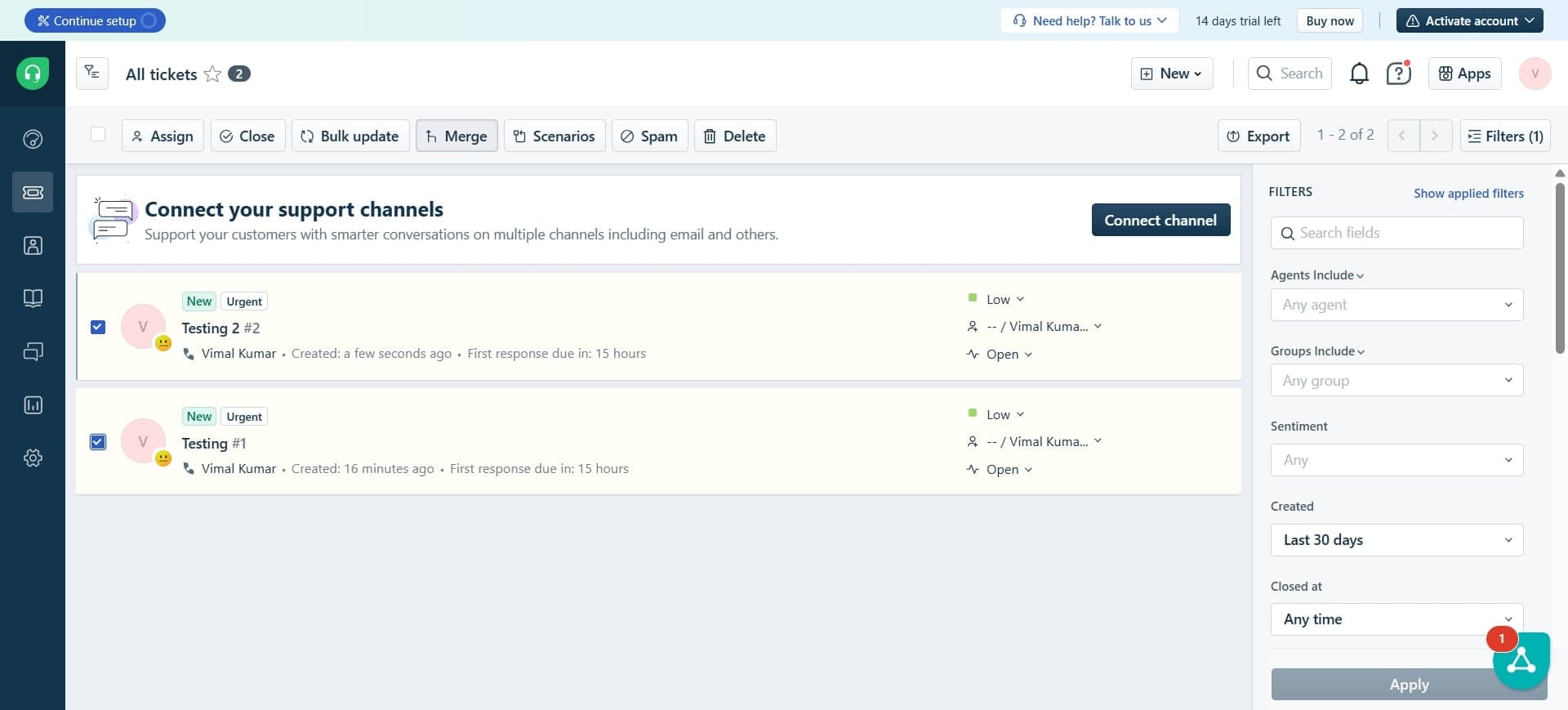
Select the primary ticket
Click on one of the tickets you want to merge—this will become your main ticket that retains all merged information. All other tickets will be linked to this primary record.
- 4
Access the merge option
Look for the merge or actions menu, typically found in the ticket details pane. Click on the merge tickets option to initiate the merging process.
- 5
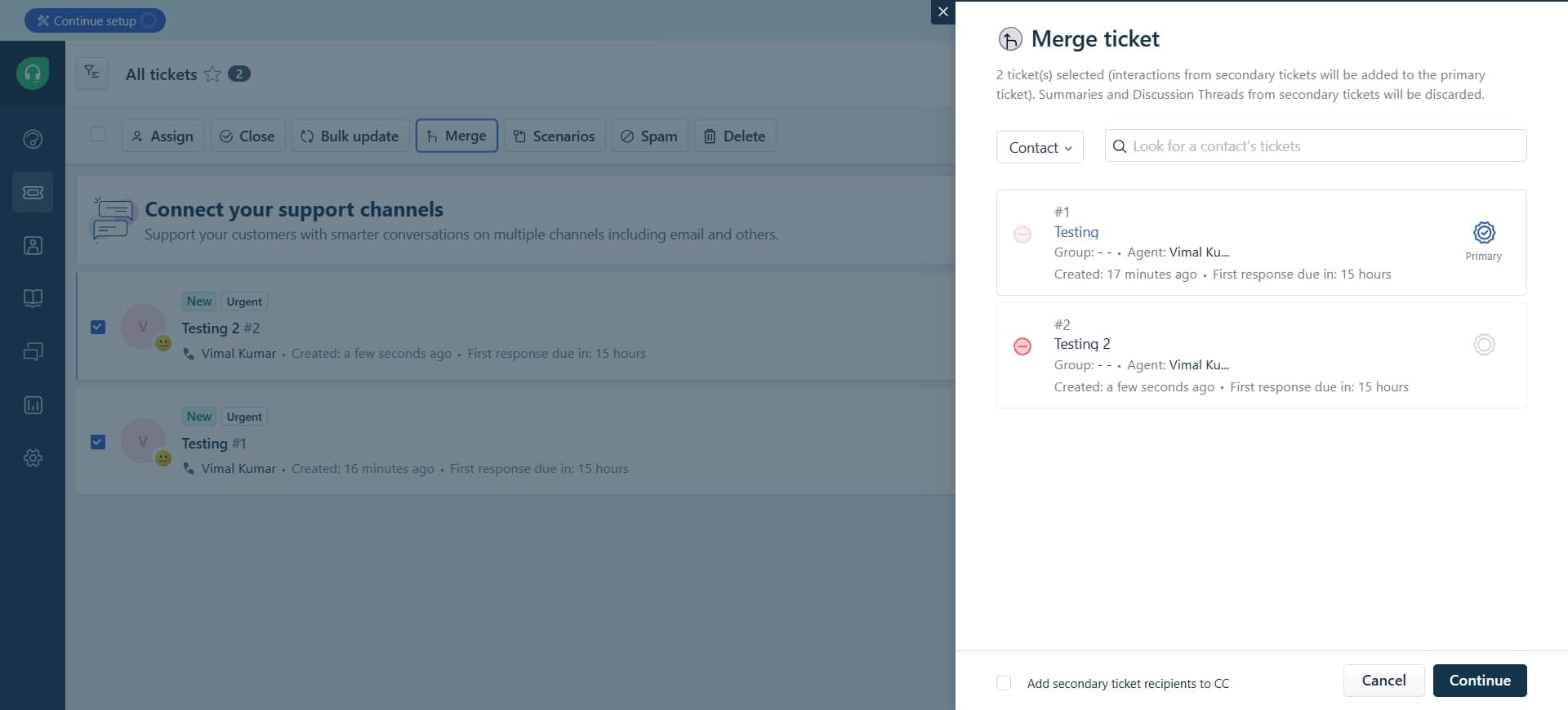
Select tickets to merge
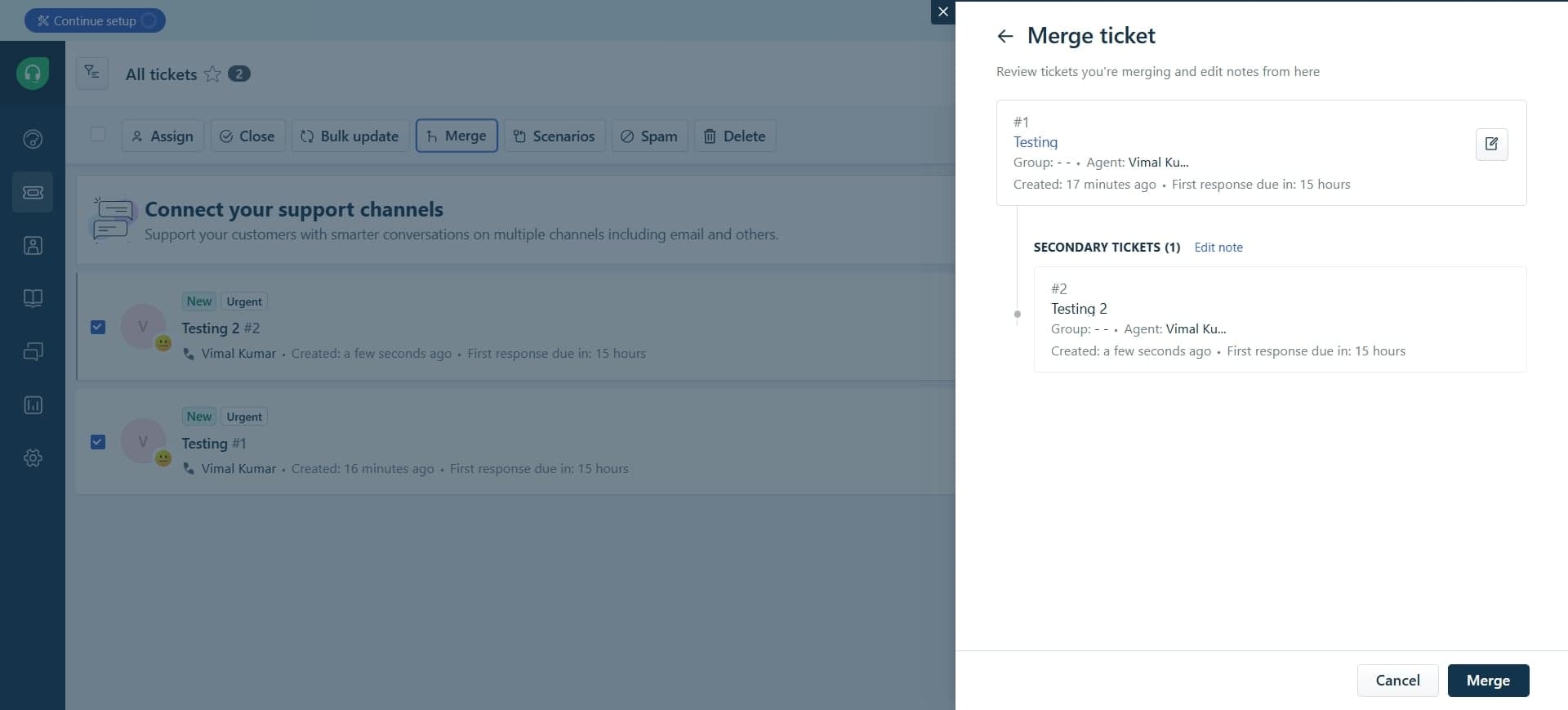
Choose the additional tickets you want to combine with your primary ticket. Freshdesk will show you a preview of how conversations will be consolidated.
- 6
Confirm and complete the merge
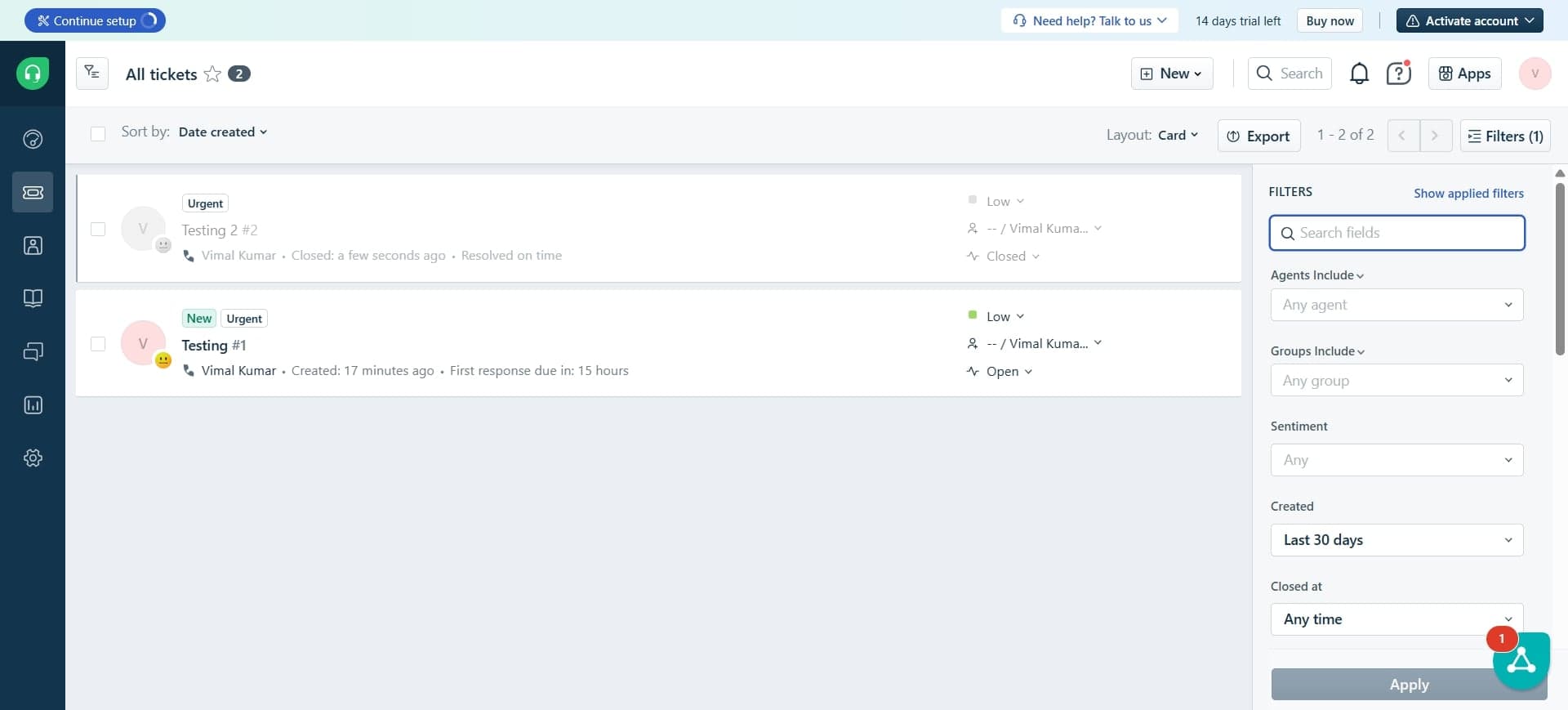
Review the merge details and click confirm. All selected tickets will now be merged into the primary ticket, with conversation histories organized chronologically.
Frequently asked questions
Common questions about how to merge tickets in freshdesk.
Freshdesk does not have a built-in undo function for merged tickets. Before merging, verify you've selected the correct tickets. If you need to separate them, contact Freshdesk support as it may require manual intervention by their team.
When you merge tickets, the primary ticket retains its properties like ticket ID, creation date, and custom fields. The secondary tickets' information is consolidated into the conversation thread, but their individual properties are not retained separately.
No, Freshdesk only allows you to merge tickets belonging to the same customer. If tickets are from different customers, they must remain separate. This ensures customer privacy and maintains accurate support records.
You can merge multiple tickets into one primary ticket, though the exact limit may depend on your Freshdesk plan. Most plans allow merging several tickets simultaneously, but it's recommended to verify the limit in your account settings.
Customers receive notifications about ticket merges if configured in your Freshdesk settings. The merged conversation appears as a single thread in their support portal, giving them a complete view of their issue history and all interactions.