How to create a Dashboard in Gainsight

Creating a dashboard in Gainsight allows you to centralize key metrics and insights for your customer success team in one customizable view. This tutorial walks you through the process of building your first dashboard, from initialization through configuration and setting it as your default view.
Quick summary
In this tutorial, you'll learn how to create a new dashboard in Gainsight by accessing the dashboard creation interface, selecting a template, configuring your dashboard settings, and designating it as your default dashboard for quick access.
Why this matters
Dashboards are essential for customer success teams to monitor adoption metrics, track customer health, and make data-driven decisions at a glance. Having a well-configured default dashboard ensures your team can quickly access the most important information without manual setup each time they log in.
Step-by-step guide
- 1
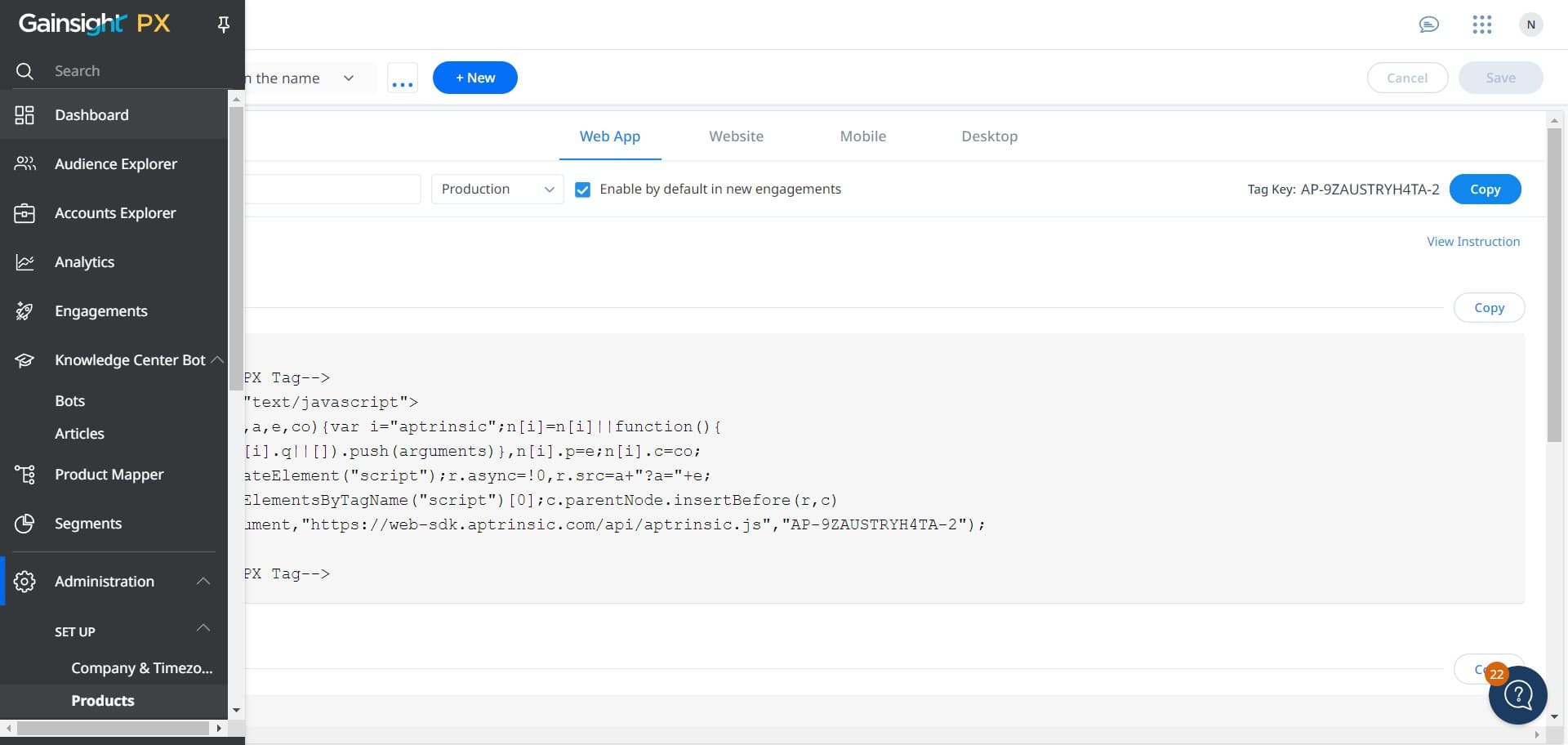
Access the dashboard creation interface
Click on the designated area to begin creating a new dashboard. This will open the dashboard creation workflow where you can start configuring your new dashboard.
- 2
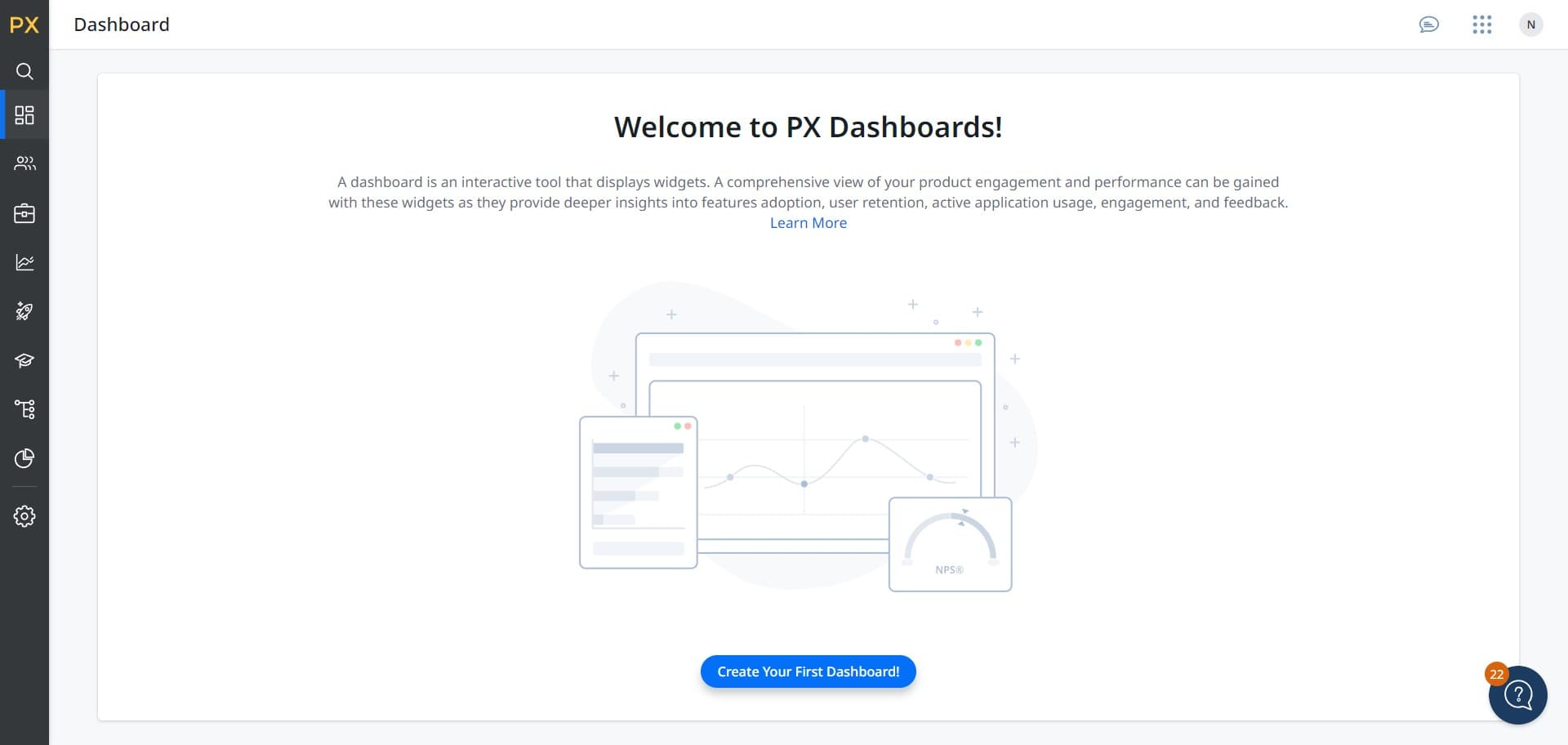
Click on Create Your First Dashboard
Select the 'Create Your First Dashboard!' option to proceed with the dashboard setup. This button initiates the template selection and configuration process.
- 3
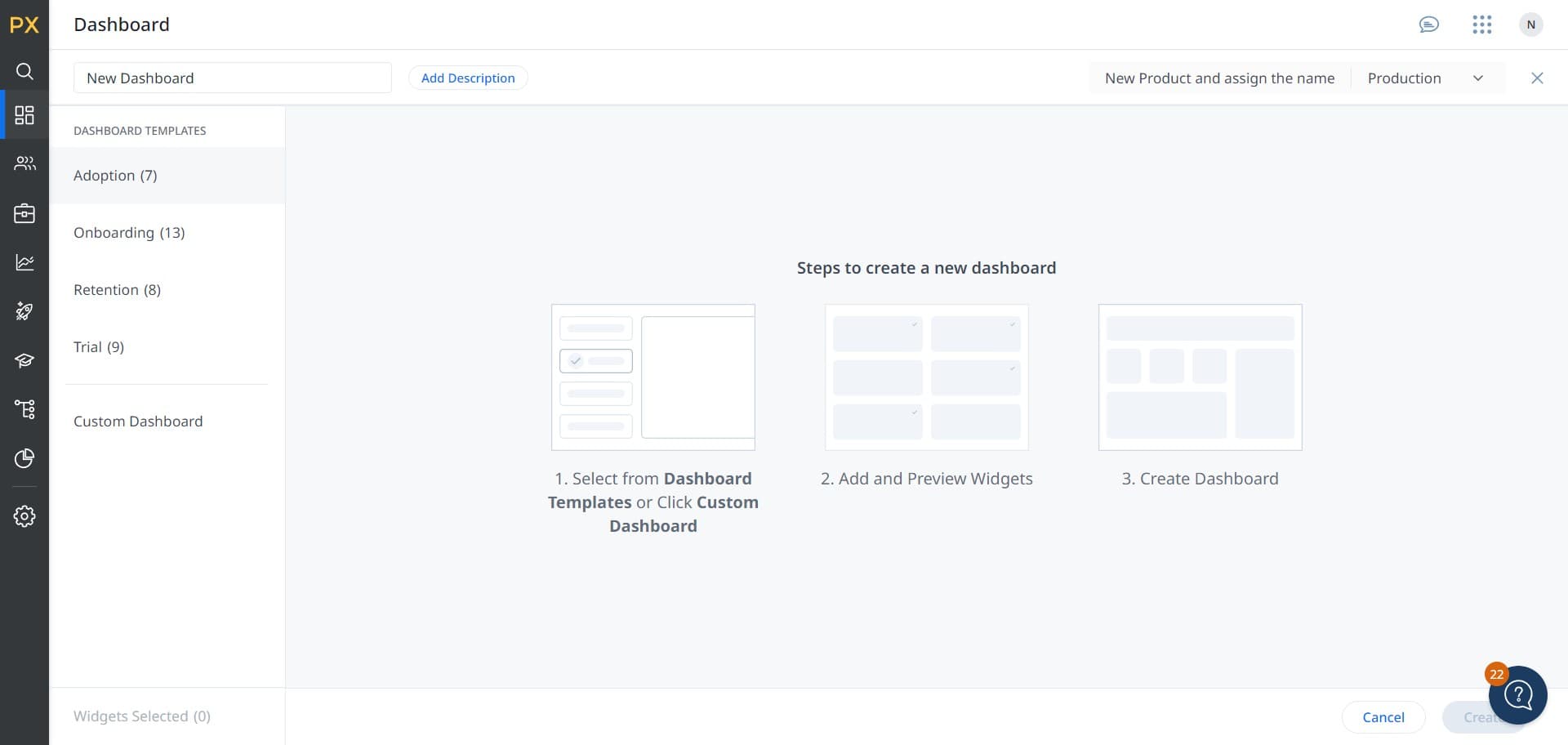
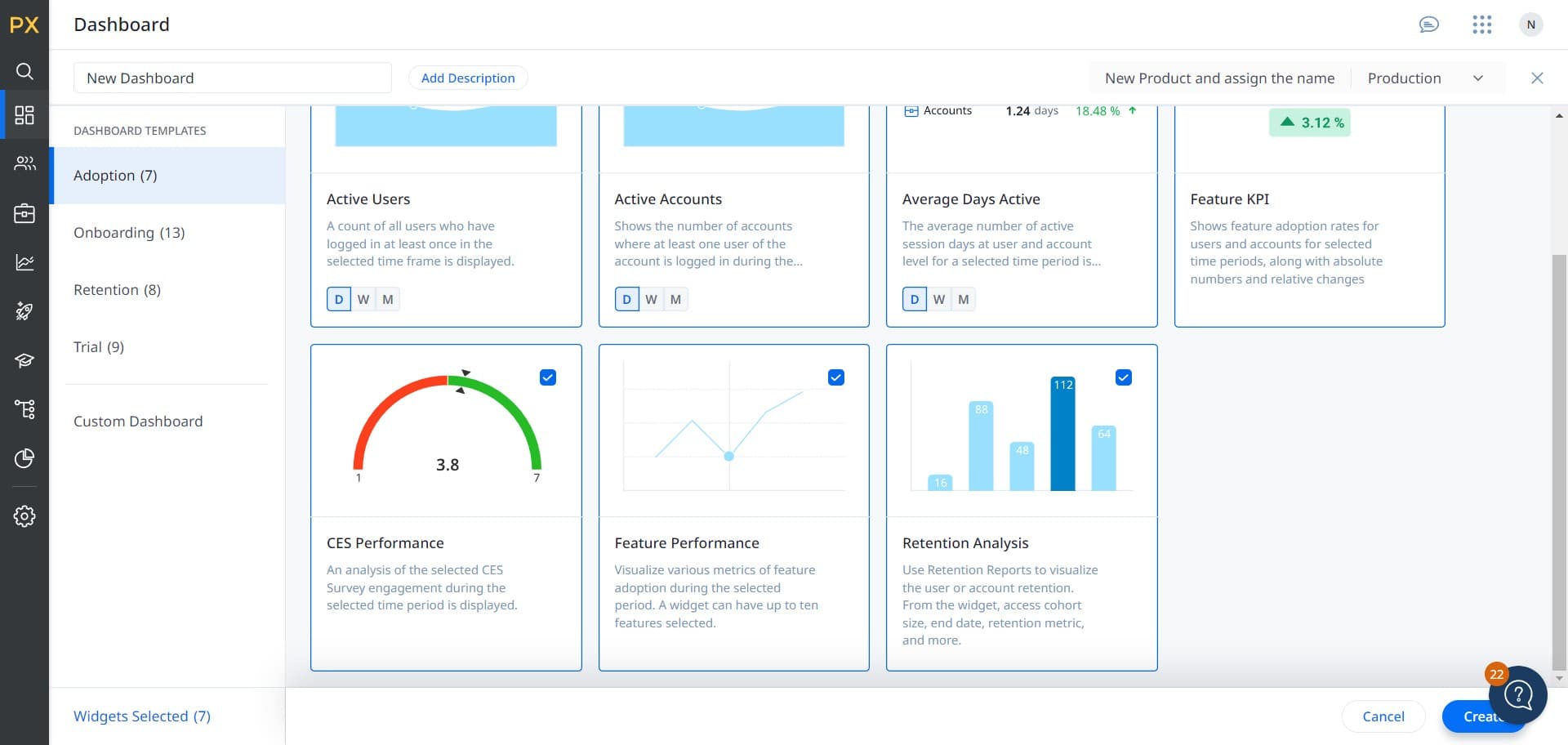
Select the Adoption template
Choose the 'Adoption' template to populate your dashboard with adoption-focused widgets and metrics. This template is designed to track customer adoption trends and engagement data.
- 4
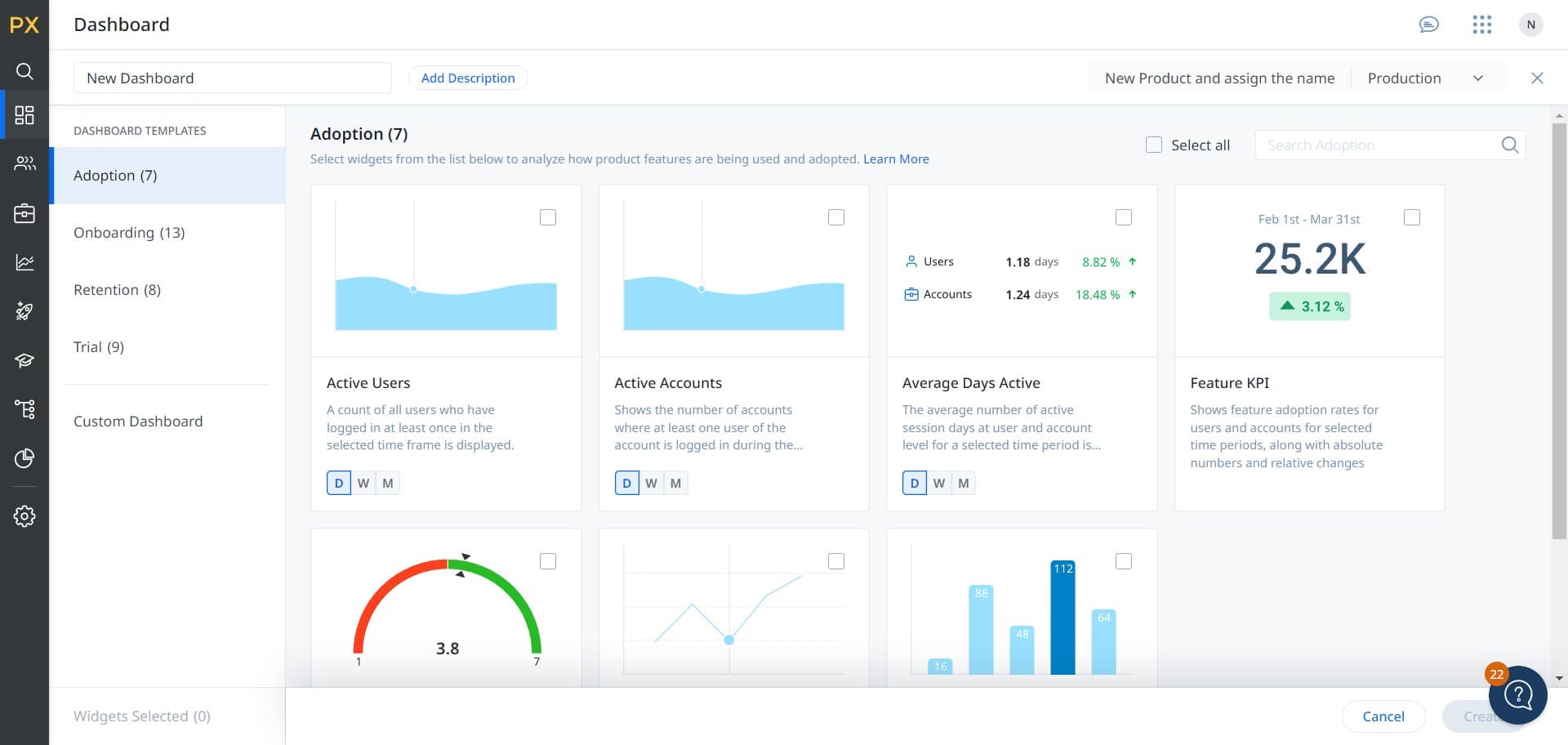
Configure dashboard settings
Click on the configuration area to adjust your dashboard layout, widgets, and display preferences. Customize the dashboard to show the metrics most relevant to your team's needs.
- 5
Finalize dashboard creation
Click the 'Create' button to save your new dashboard with the selected configuration. Your dashboard will now be available in your Gainsight workspace.
- 6
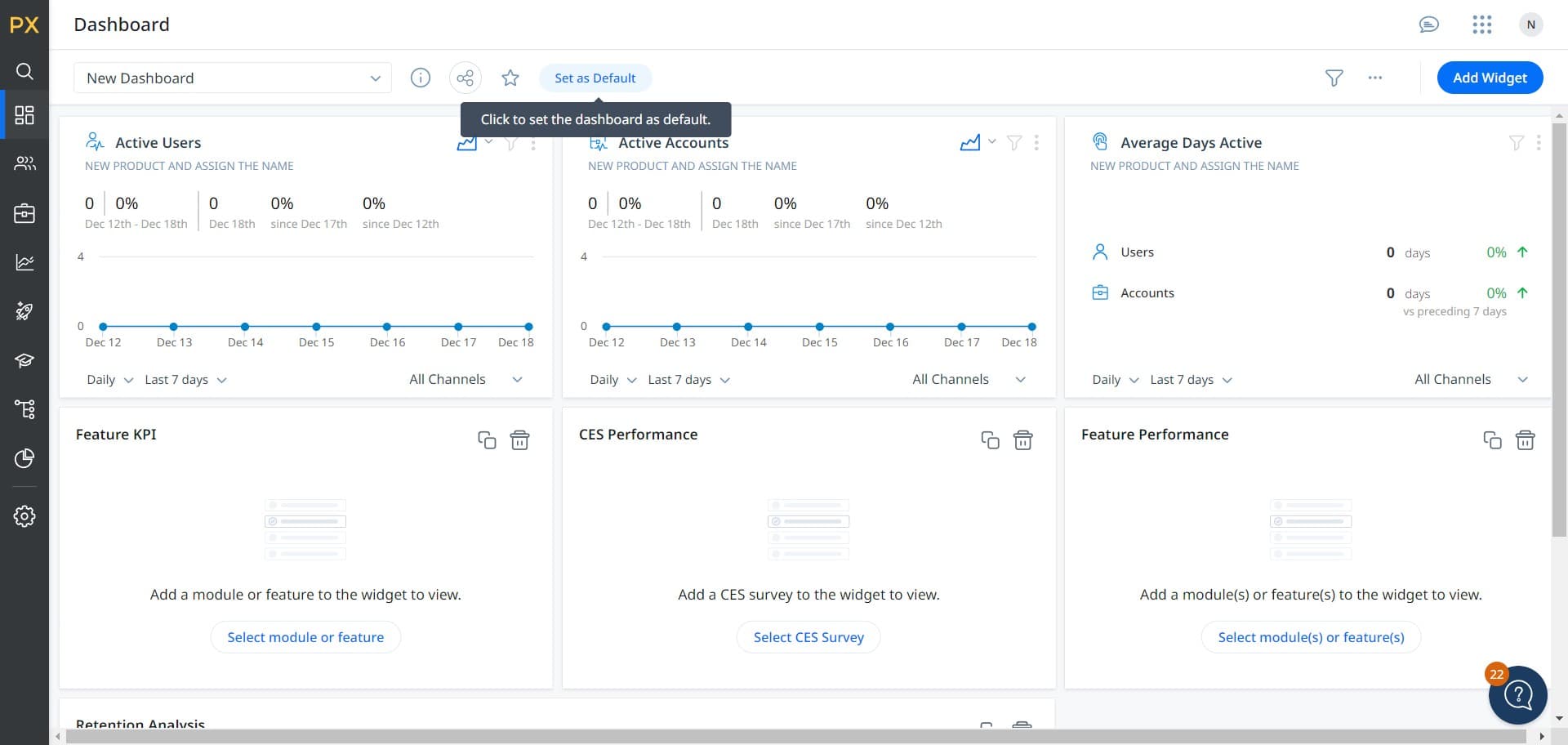
Set as default dashboard
Click on 'Set as Default' to make this dashboard your primary view when you log into Gainsight. This ensures the dashboard displays automatically for all users who access it.
Frequently asked questions
Common questions about how to create a dashboard in gainsight.
Yes, you can customize the Adoption template after creating your dashboard. Gainsight allows you to add, remove, or modify widgets, change the layout, and adjust which metrics are displayed. You can access these settings through your dashboard's edit or configuration options.
Setting a dashboard as default makes it the primary view that loads automatically when users log into Gainsight. Simply saving a dashboard makes it available in your dashboard list but doesn't set it as the automatic startup view. Only one dashboard can be set as default per user or team.
Yes, each user can set their own default dashboard based on their individual needs and role. This allows customer success managers, executives, and support teams to each have their preferred dashboard display when they log in.
The Adoption template typically includes widgets for tracking feature usage, user engagement levels, adoption rates over time, and feature adoption trends. The specific metrics depend on your Gainsight configuration and the data available in your system.
Yes, you can create multiple dashboards in Gainsight for different purposes and teams. After creating your first dashboard, you can create additional dashboards using similar steps or by duplicating and modifying existing dashboards.