How to create a Product tag in Gainsight

Product tags in Gainsight help you organize and categorize your products for better tracking and segmentation. This guide walks you through the complete process of creating a new product tag so you can efficiently manage your product portfolio within your Gainsight instance.
Quick summary
In this tutorial, you'll learn how to create a product tag in Gainsight from start to finish. You'll navigate to the product tags section, create a new tag, name it appropriately, and save it to your system.
Why this matters
Product tags are essential for organizing your product catalog and enabling more targeted customer success strategies. By tagging products, you can better segment your customer base, create focused health scores, and run more relevant customer engagement campaigns. This foundational setup supports more sophisticated customer data management and reporting in Gainsight.
Step-by-step guide
- 1
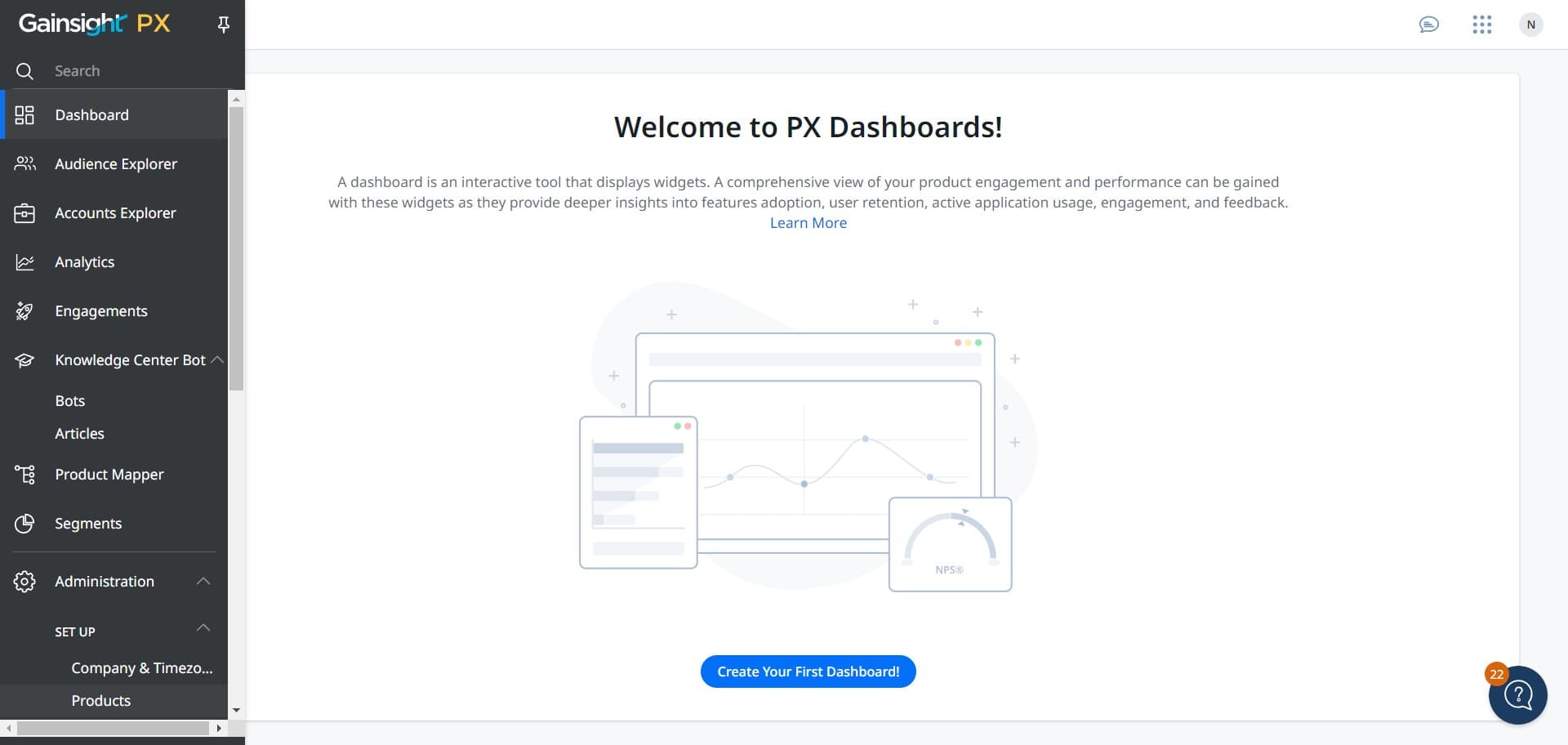
Navigate to the tags section
Start by clicking on the designated area to access the products or tags management section in Gainsight. This will open the interface where you can manage all your product configurations.
- 2
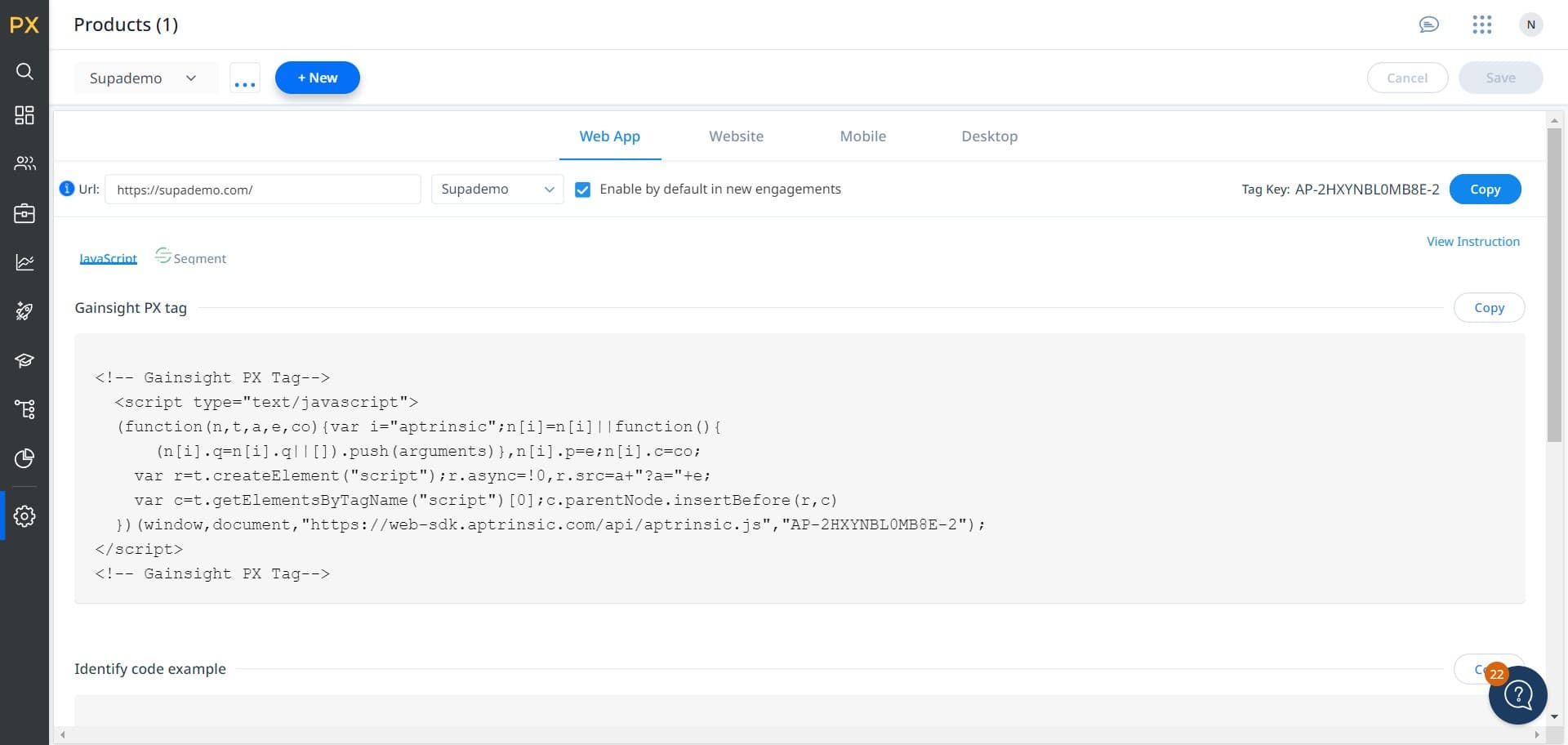
Click on + New
Select the '+ New' button to begin creating a new product tag. This action will initiate the tag creation workflow.
- 3
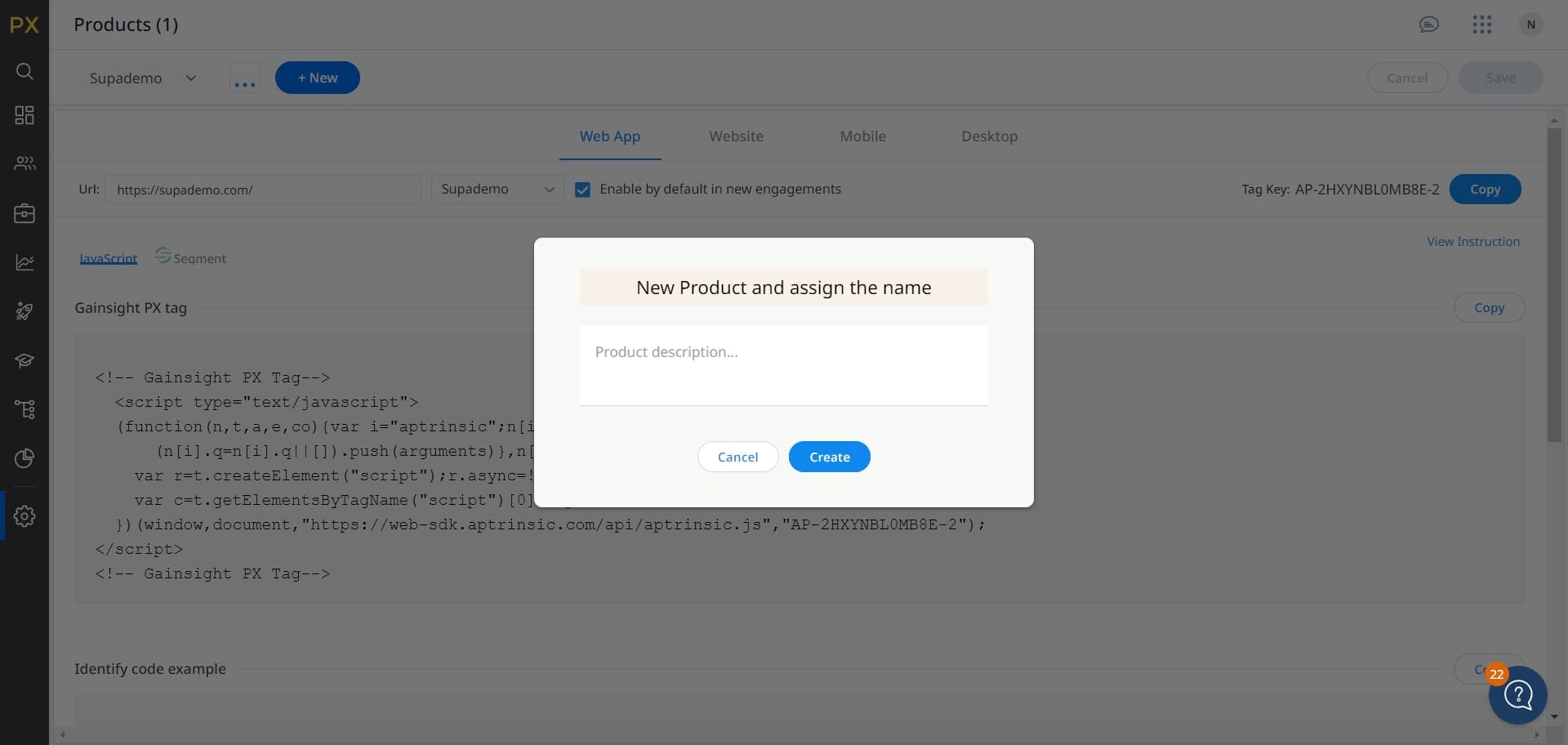
Access the tag creation form
Click on the indicated area to open the form where you'll enter your product tag details. You should now see fields where you can configure your new tag.
- 4
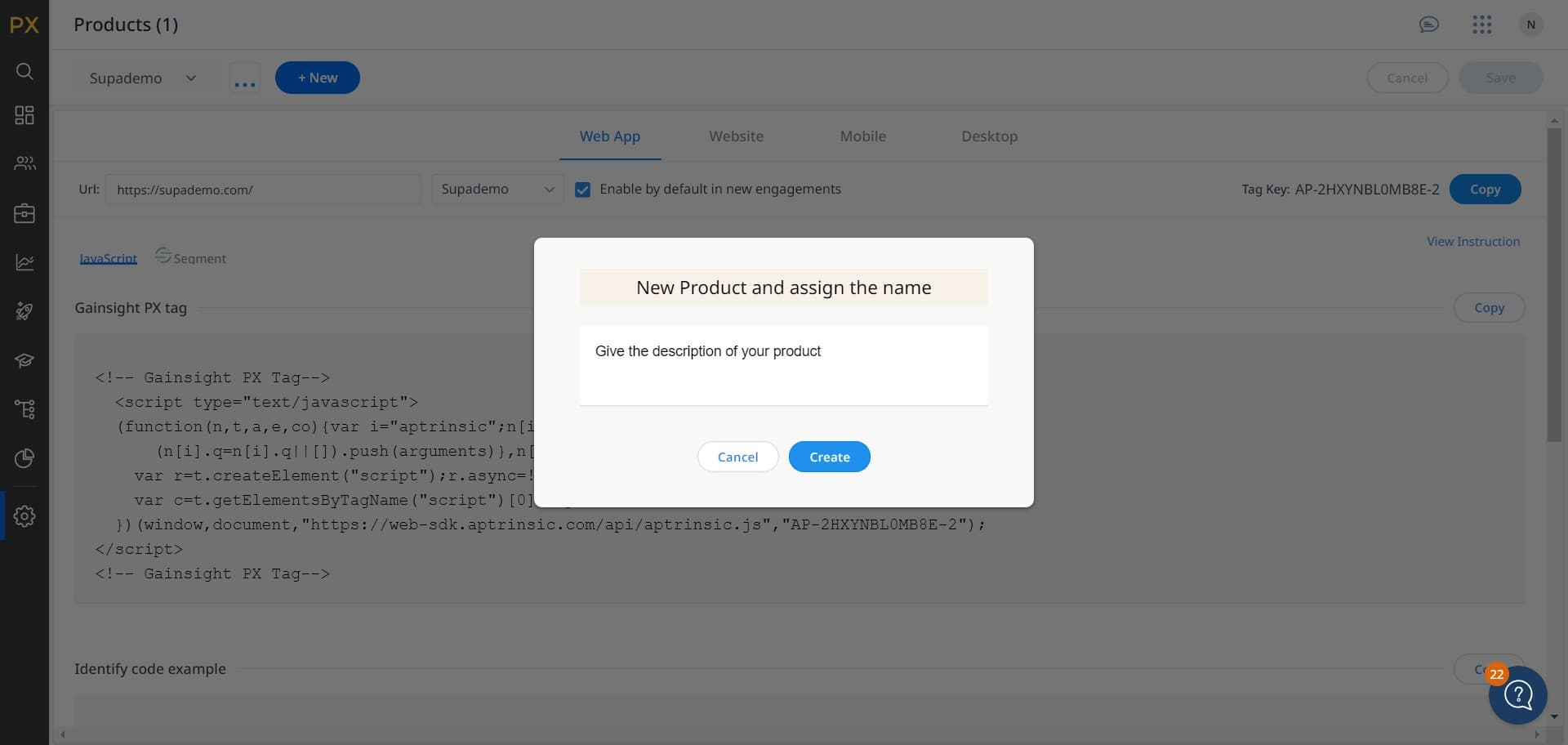
Click on Create
Select the 'Create' button to confirm your initial tag configuration. This moves you forward in the tag setup process.
- 5
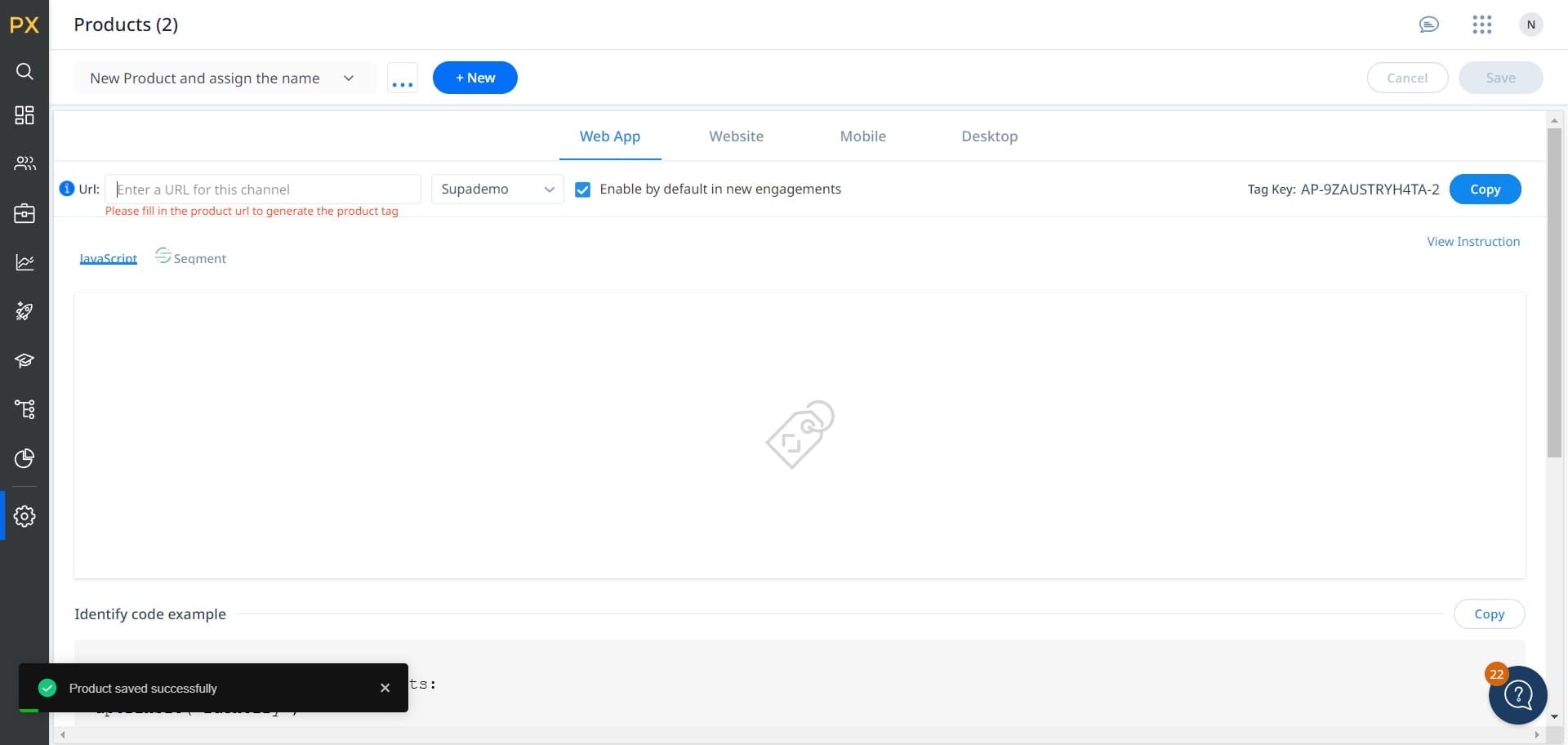
Select the tag field
Click on the specified location to select or configure the tag field for your new product tag. This step prepares the tag for customization.
- 6
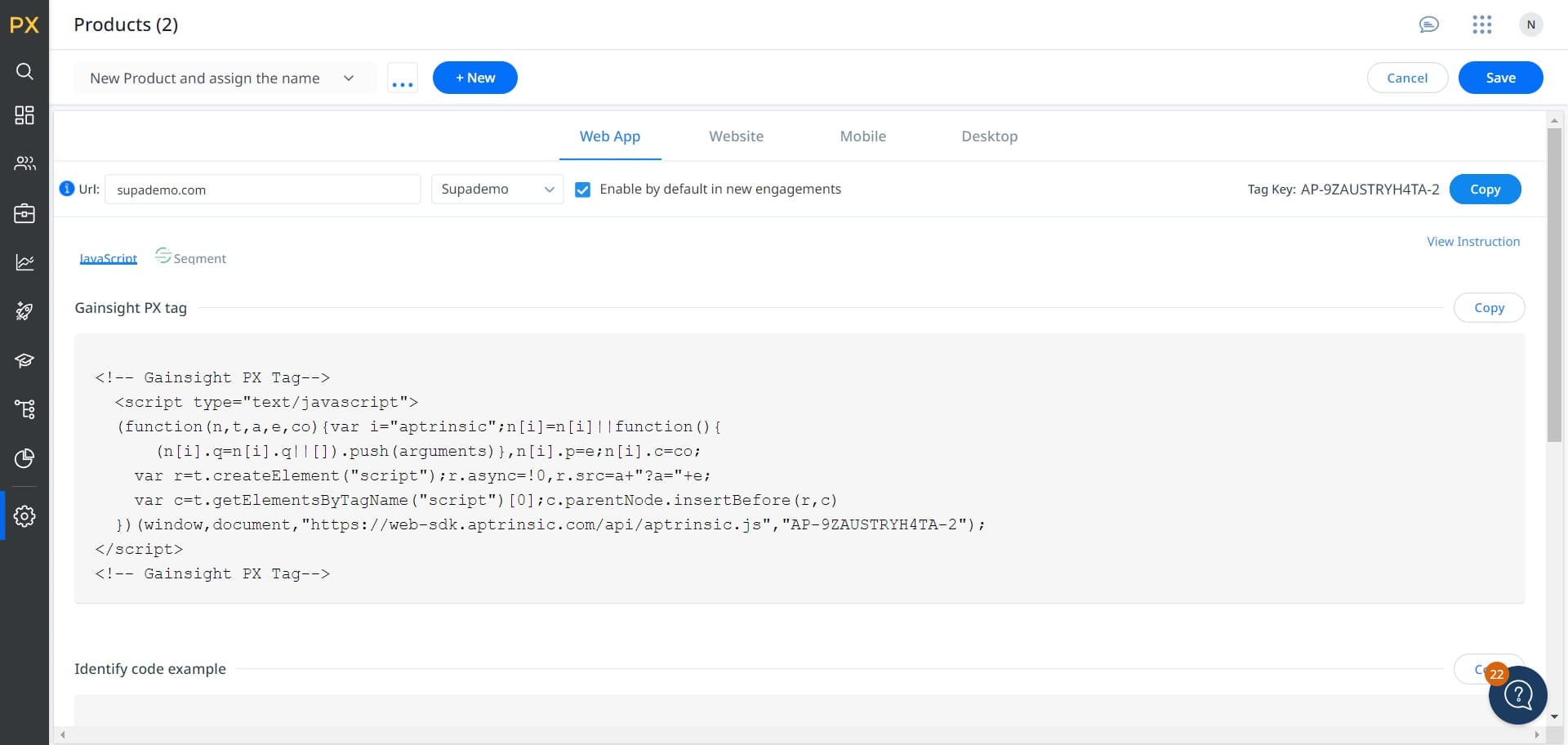
Choose or enter the tag name
Click on 'Supademo' or the relevant field to select or enter the name for your product tag. You can use an existing tag name or enter a new one that reflects your product classification.
- 7
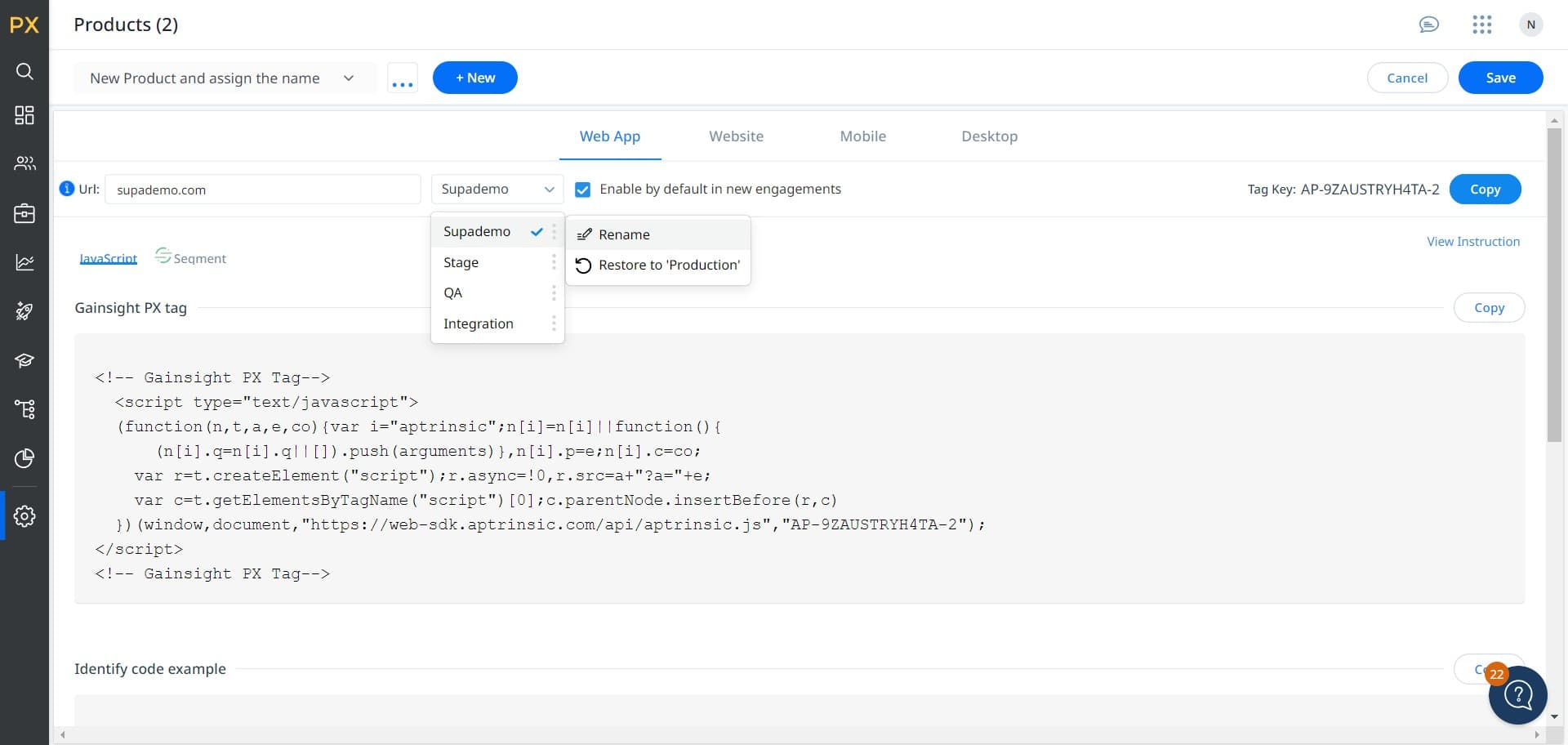
Click on Rename
Select the 'Rename' option if you need to modify the tag name to better match your product naming conventions. This allows you to customize the tag label before saving.
- 8
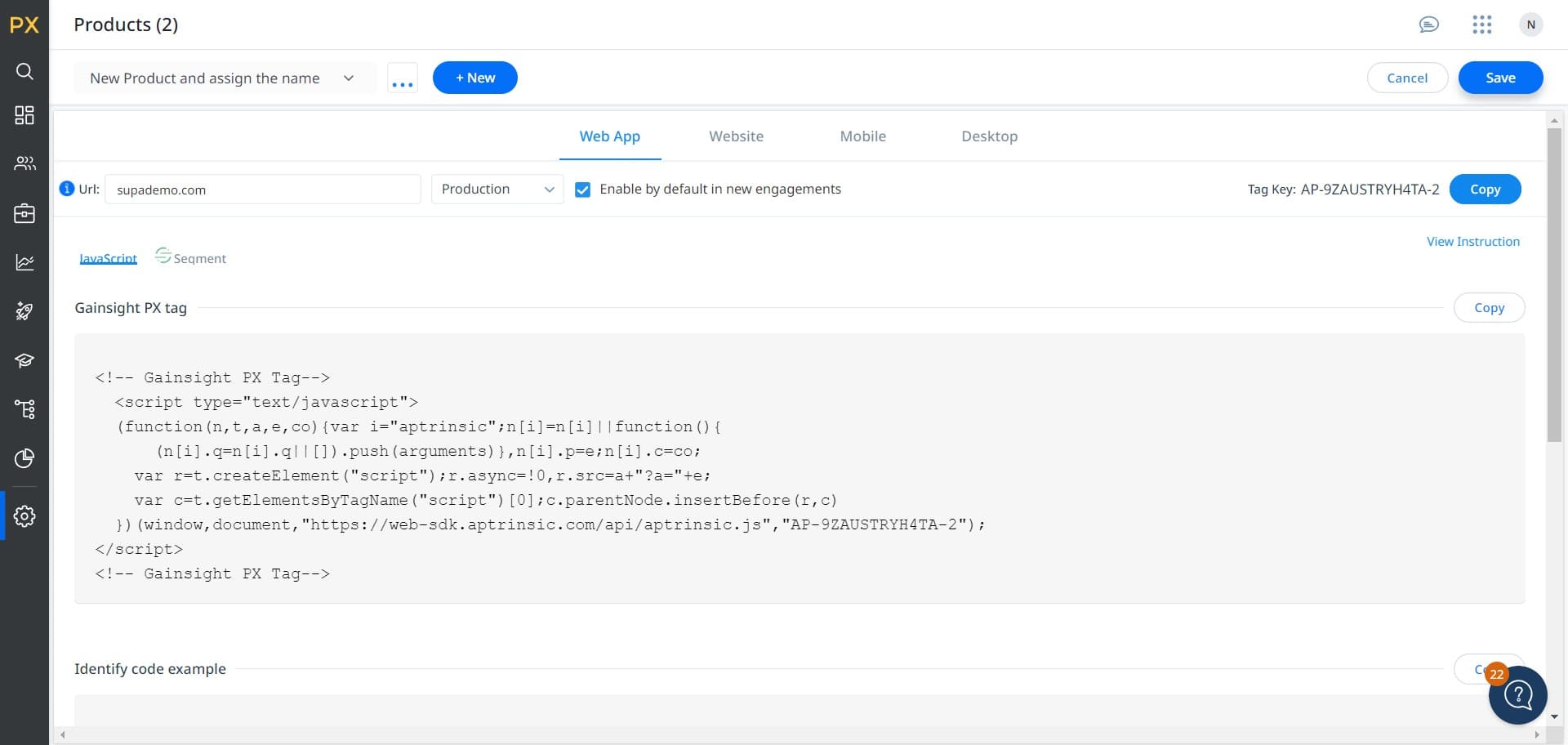
Save the product tag
Click on 'Save' to finalize and store your new product tag in Gainsight. Your tag is now active and available for use in product segmentation and customer success workflows.
Frequently asked questions
Common questions about how to create a product tag in gainsight.
Product tags are organizational labels that help you categorize and segment your products within Gainsight. They enable you to run targeted health scores, segment customers by product type, and create more focused customer success initiatives based on product groupings.
Yes, most product tags can be edited or deleted after creation, though the ability to do so may depend on your Gainsight permissions and whether the tag is actively in use. Check with your Gainsight administrator if you encounter restrictions on modifying existing tags.
Gainsight typically allows you to create multiple product tags to suit your organizational structure. The specific limit may depend on your Gainsight subscription level and configuration, so consult your instance settings or administrator for any constraints.
It's generally best practice to create your product tag structure first before adding individual products to Gainsight. This ensures you have a consistent tagging system in place and can immediately assign tags to new products as you add them.
Yes, product tags are designed to be reusable across multiple products. You can assign the same tag to many products, allowing you to group related products together for reporting, segmentation, and customer success activities.