How to Add Tags to Tickets in HelpScout

Tags in Help Scout help you organize, categorize, and quickly identify tickets based on type, priority, or status. Learning how to add tags efficiently streamlines your support workflow and makes it easier to filter and manage customer conversations at scale.
Quick summary
In this tutorial, you'll learn how to add tags to tickets in Help Scout. You'll discover how to apply single or multiple tags, access tagging options from different views, and use tags to organize your support queue effectively.
Why this matters
Tagging tickets is essential for support teams that handle high volumes of customer requests. Tags enable you to segment tickets by topic, urgency, or customer type, making it faster to prioritize work, run reports, and ensure nothing falls through the cracks.
Step-by-step guide
- 1
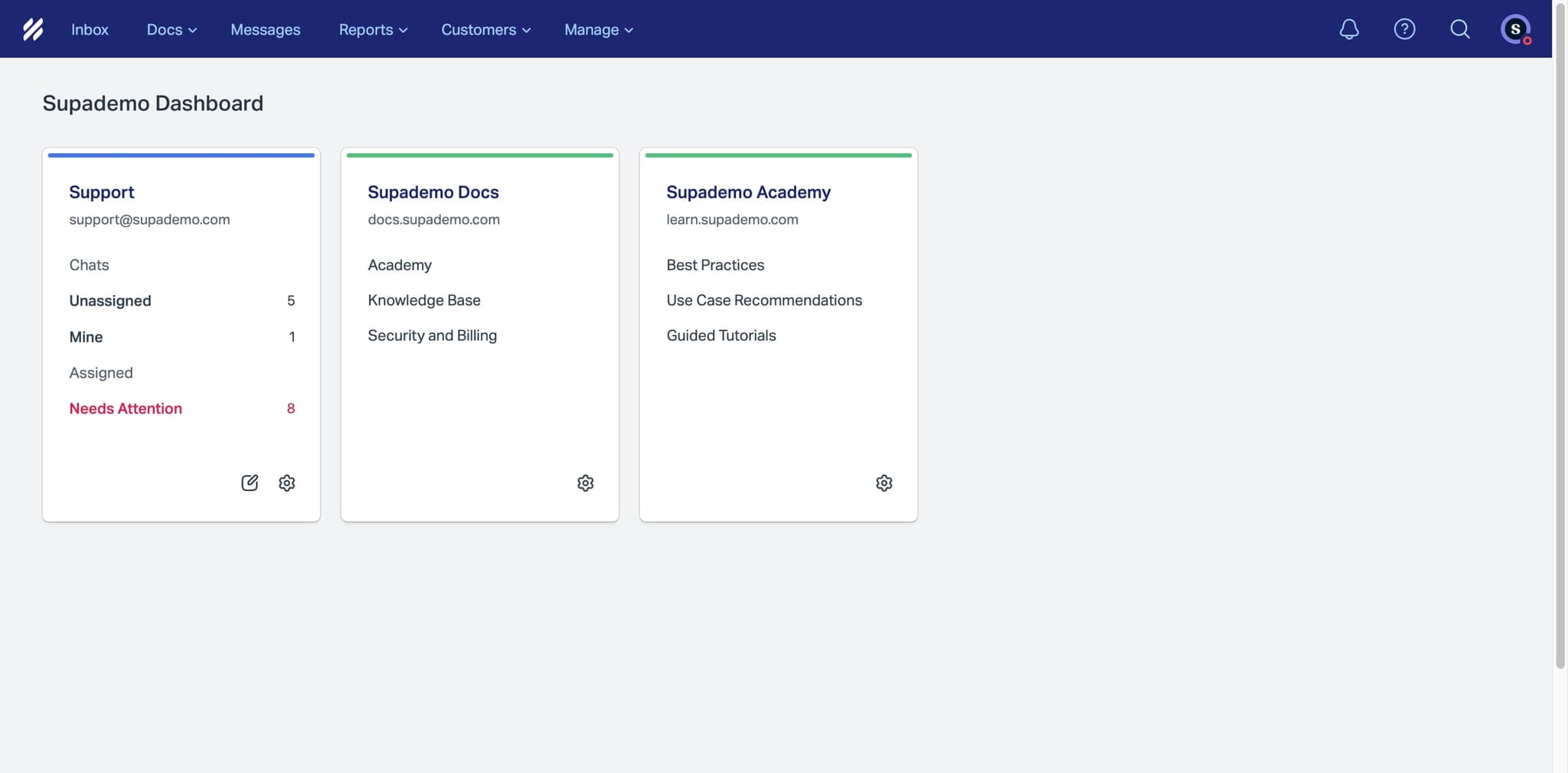
Open a ticket in Help Scout
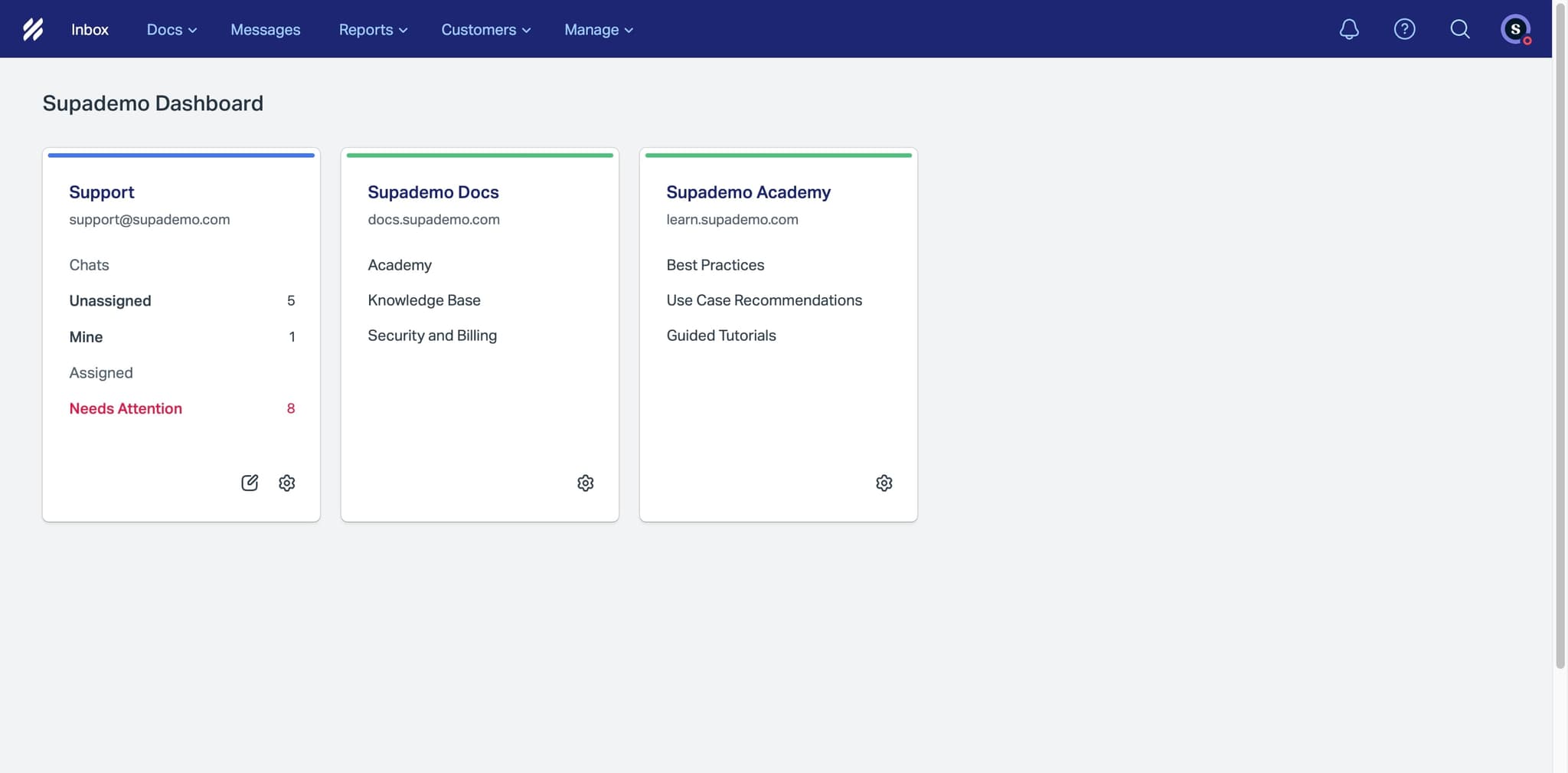
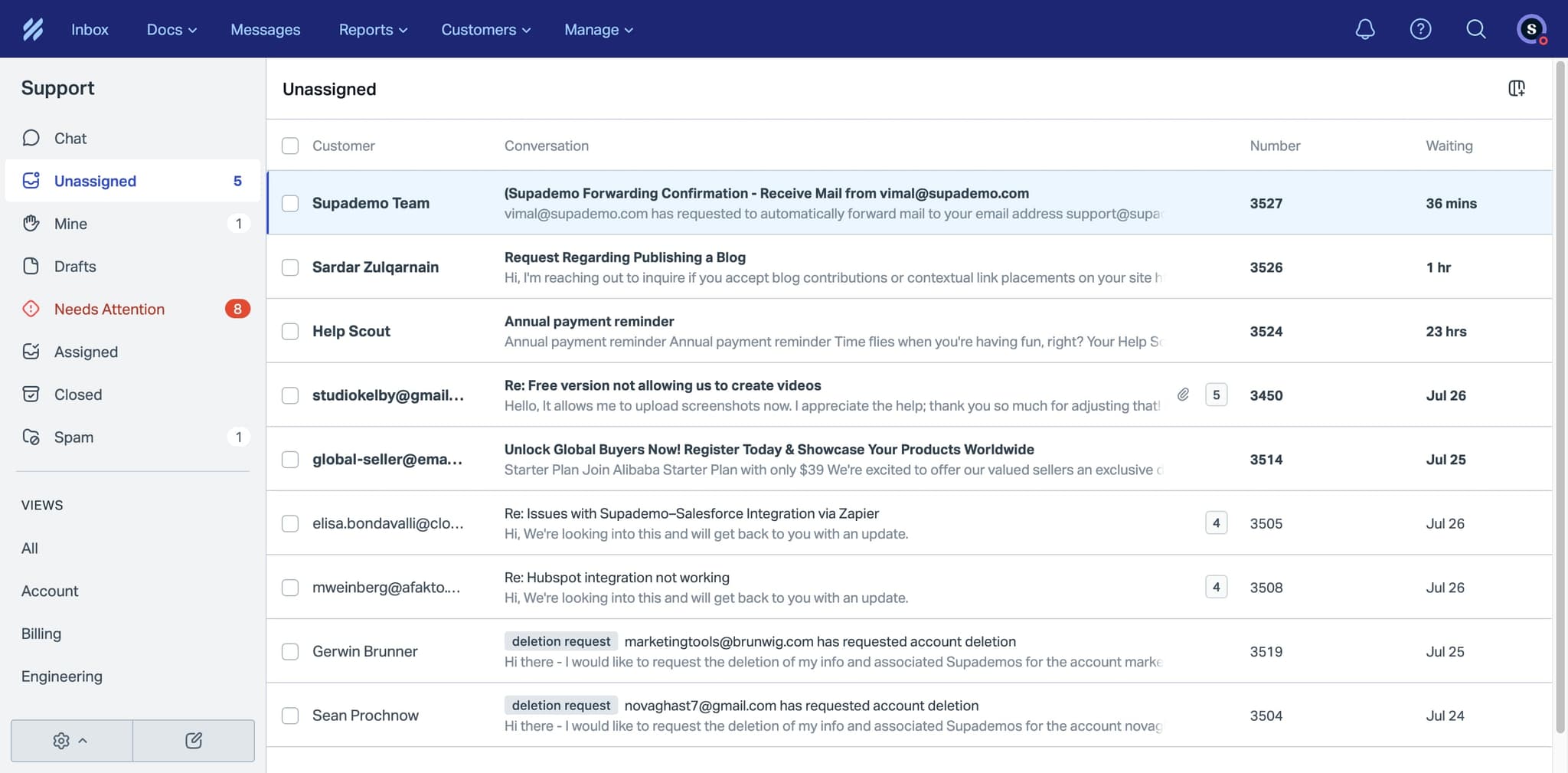
Navigate to your Help Scout inbox and click on a ticket you want to tag. The ticket details pane will open, showing the full conversation and metadata options.
- 2
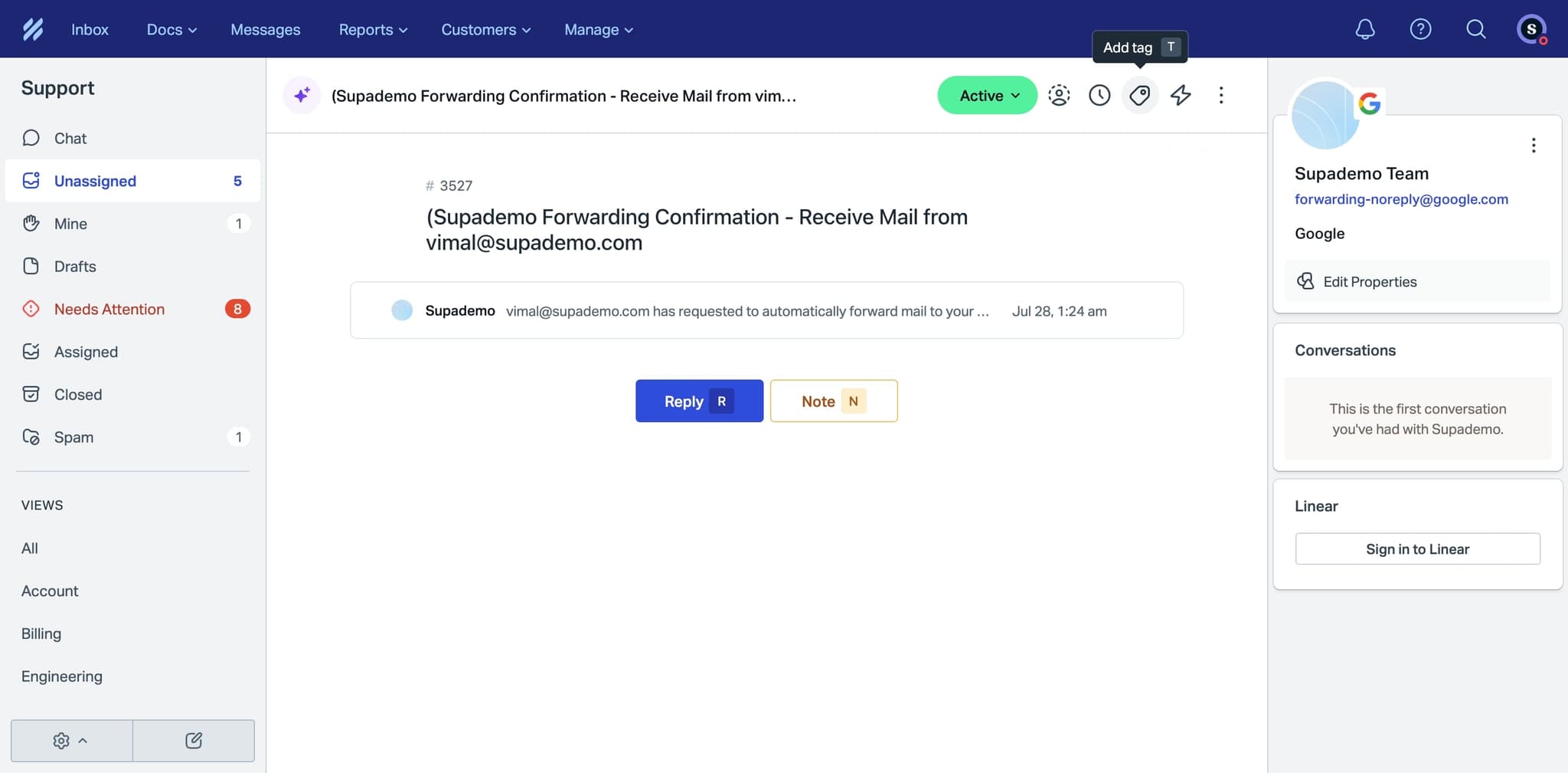
Locate the tags field in the ticket panel
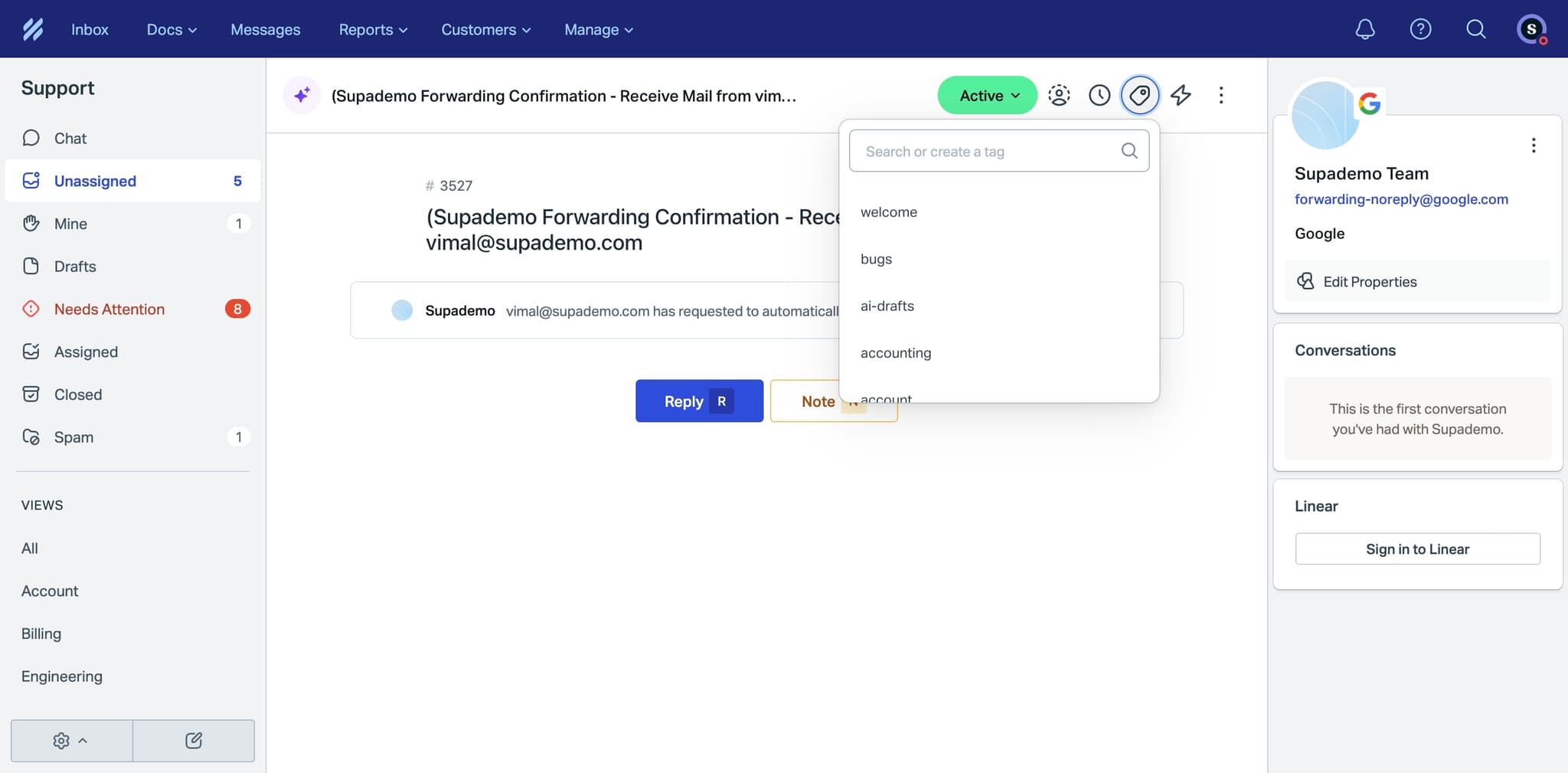
Look for the Tags section on the right side of the ticket details. This field displays any existing tags and provides an input area to add new ones.
- 3
Click the tags input area to activate it
Click on the tags field to focus it and reveal available tag options. You'll see a dropdown list of existing tags or the ability to create a new one.
- 4
Select or type a tag name
Choose a tag from the dropdown list by clicking it, or type a new tag name directly. You can add multiple tags to a single ticket by repeating this process.
- 5
Confirm the tag is applied to the ticket
The tag will appear in the tags field immediately upon selection or creation. The ticket is now tagged and can be filtered and searched using that tag.
Frequently asked questions
Common questions about how to add tags to tickets in helpscout.
Yes, Help Scout allows you to add multiple tags to one ticket. Simply click the tags field and select or create additional tags as needed. This helps you categorize tickets across different dimensions, such as topic, priority, and customer segment.
When you click the tags field, you can type a new tag name that doesn't exist in your current tag list. Help Scout will recognize the new entry and create the tag automatically when you confirm it. New tags are then available for future use across your mailbox.
Yes, you can remove a tag from a ticket by clicking the X icon next to the tag name in the tags field. To rename or delete tags across your entire Help Scout account, use the Tags management section in your Mailbox settings.
Use the Search and Filter options in your Help Scout inbox to find tickets with specific tags. You can filter by single tags or combine multiple tag filters to narrow down your ticket queue and focus on specific work categories.
Tags are specific to each individual mailbox in Help Scout. If you manage multiple mailboxes, you'll need to set up tags separately for each one. This allows you to customize tagging schemes based on the needs of each support team or customer segment.