How to Customize Your HelpScout Mailbox

Help Scout mailboxes are the central hub for managing customer conversations and support workflows. Customizing your mailbox settings ensures your team works efficiently and maintains a consistent support experience tailored to your business needs.
Quick summary
In this tutorial, you'll learn how to configure key Help Scout mailbox settings, including team members, email forwarding, automation rules, and custom fields. By the end, your mailbox will be optimized for your team's specific support processes.
Why this matters
Proper mailbox customization reduces response times, minimizes manual tasks, and ensures all team members follow consistent communication standards. A well-configured mailbox helps prevent missed conversations, automates repetitive workflows, and keeps customer data organized for faster resolution.
Step-by-step guide
- 1
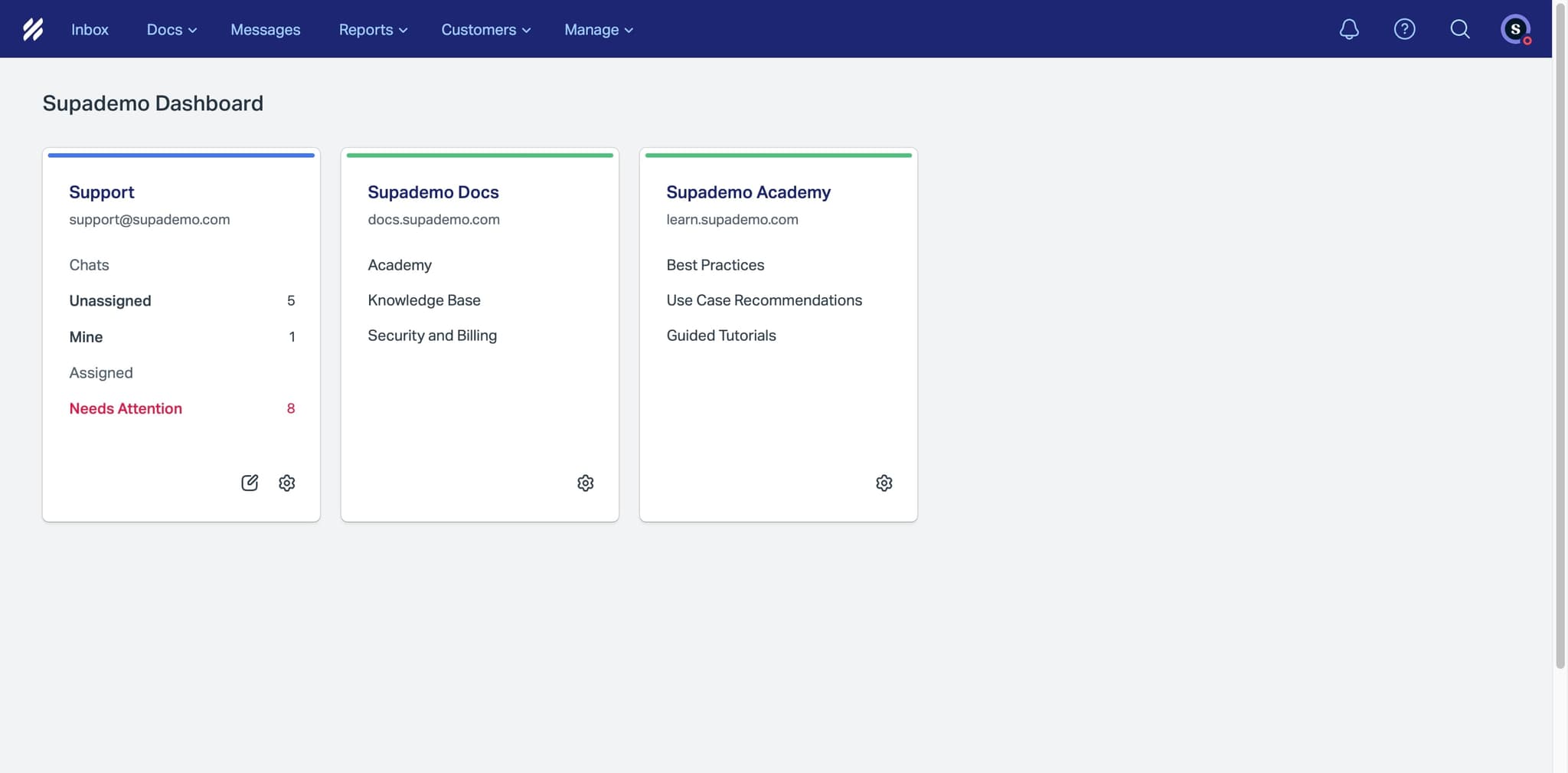
Access mailbox settings panel
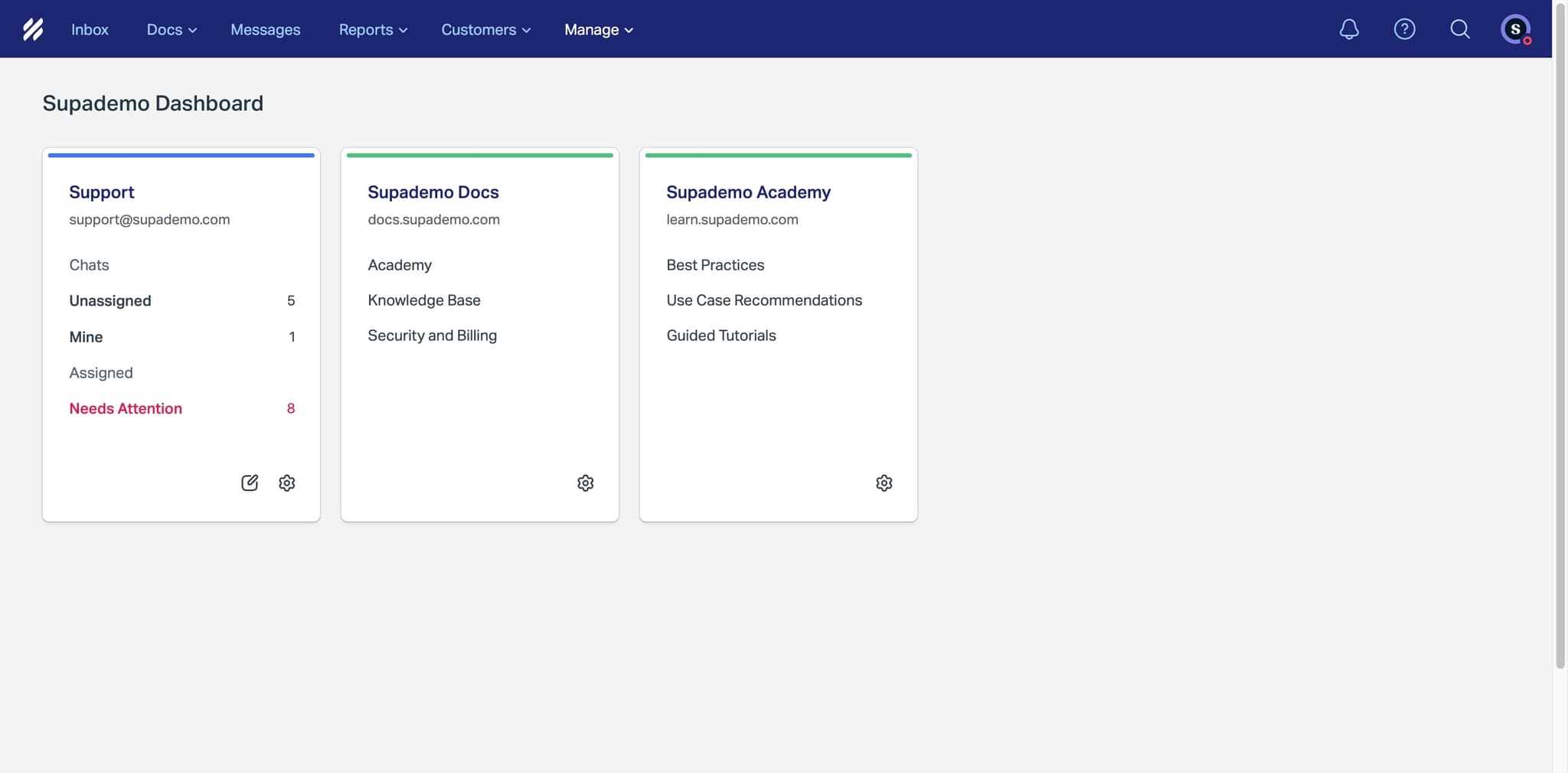
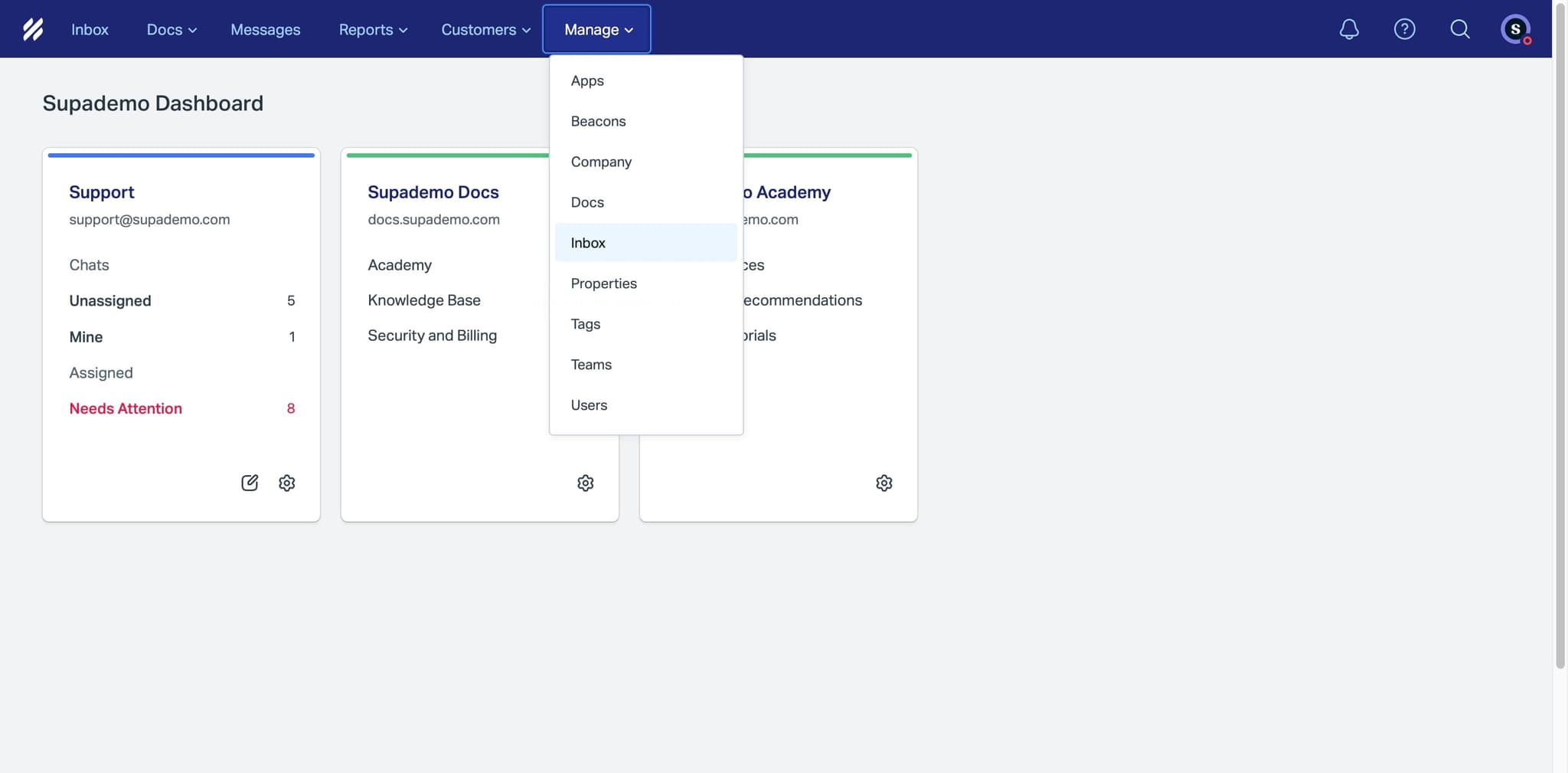
Navigate to your Help Scout dashboard and locate the settings icon or menu option associated with your mailbox. Click to open the mailbox settings panel where all customization options are available.
- 2
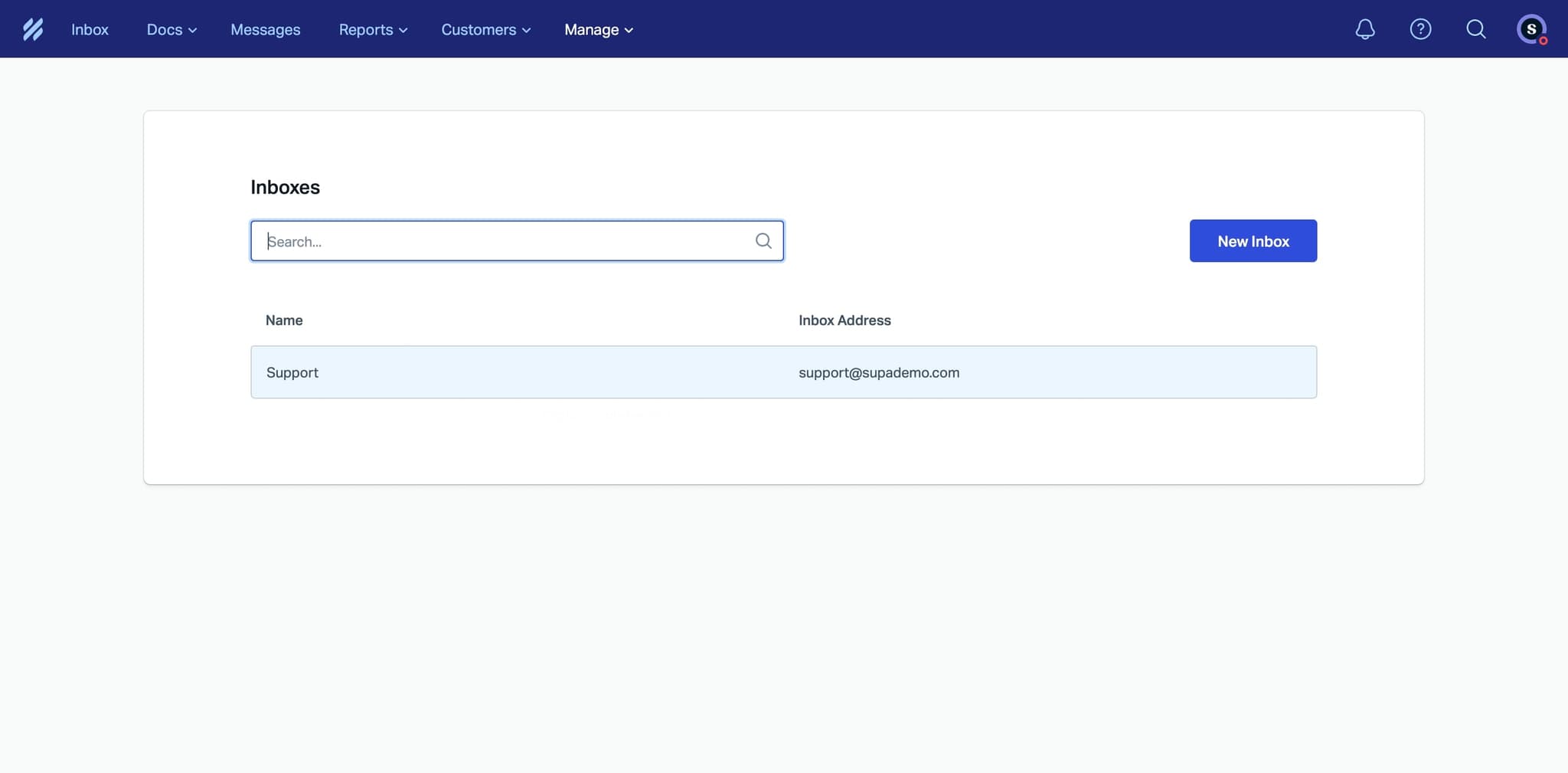
Configure basic mailbox information
Update your mailbox name, display email address, and timezone to match your organization. These foundational settings ensure customers and team members see accurate information about your support channel.
- 3
Add team members to mailbox
Invite users to your mailbox by entering their email addresses and assigning appropriate roles such as admin, agent, or viewer. Each role has specific permissions controlling what team members can access and modify.
- 4
Set up email forwarding rules
Configure which incoming emails are directed to your Help Scout mailbox and where replies should be sent from. This ensures messages flow correctly and customers receive responses from your designated support email address.
- 5
Enable auto-assignment settings
Define how incoming conversations should be distributed among team members, such as round-robin assignment or assignment based on workload. This prevents conversations from piling up with one agent and balances team capacity.
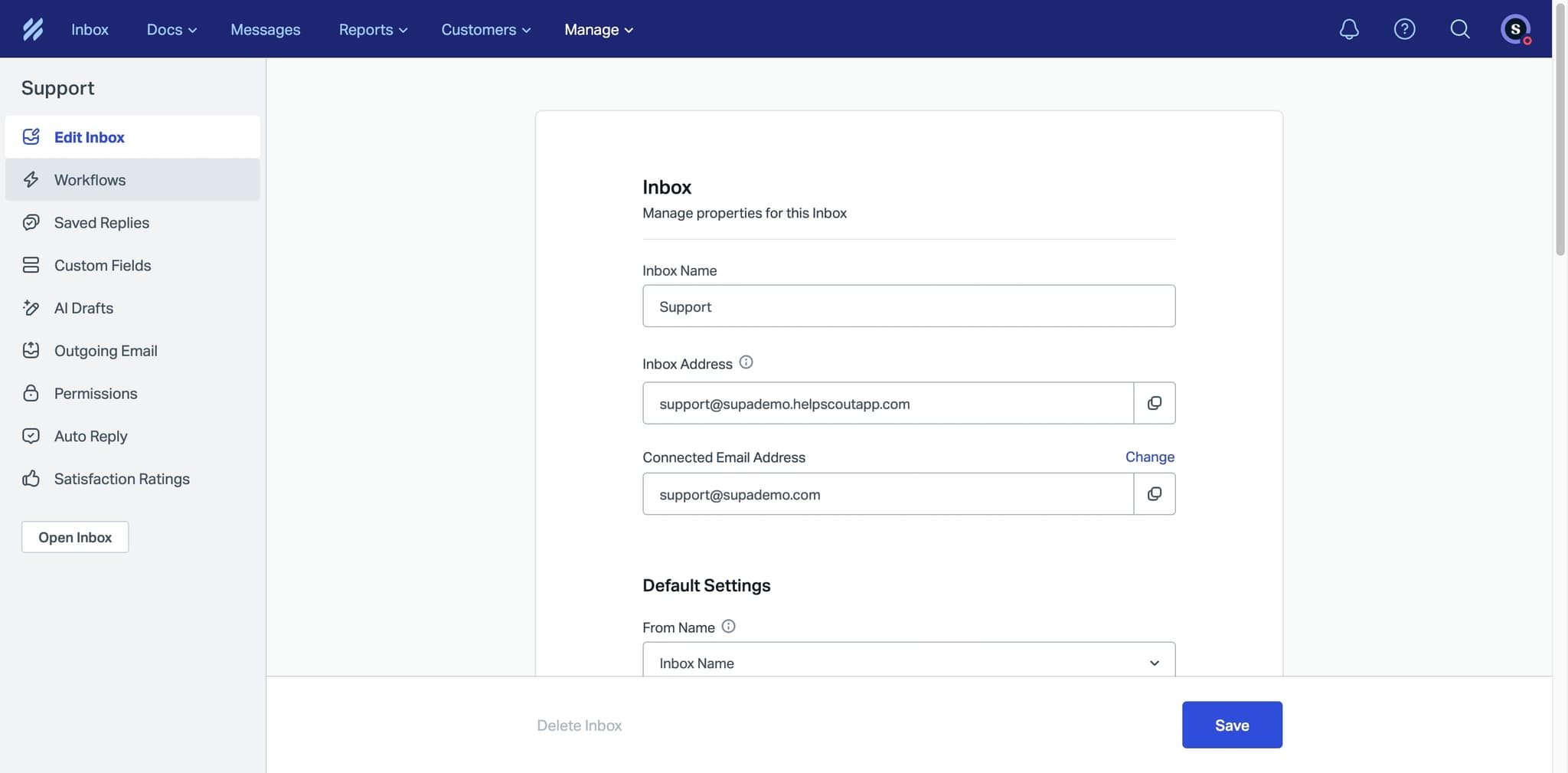
- 6
Create custom fields for data
Add custom fields to capture information relevant to your business, such as customer account type, issue priority, or product category. These fields help organize conversations and enable better filtering and reporting.
- 7
Set up automated workflows and tags
Define rules that automatically tag conversations or trigger actions based on specific conditions like keywords or sender domain. Automation reduces manual work and ensures consistent handling of common issue types.
- 8
Configure notification preferences
Customize when and how team members receive alerts for new conversations, assigned tickets, or mentions. Proper notification settings keep your team responsive without causing alert fatigue.
- 9
Set response time expectations
Define your expected first response time and configure reminders if conversations are approaching those thresholds. This helps your team maintain service level agreements and prioritize urgent customer requests.
- 10
Review and save all settings
Double-check all configurations for accuracy and completeness, then save your changes. Your mailbox is now customized and ready for your team to use with optimized workflows.
Frequently asked questions
Common questions about how to customize your helpscout mailbox.
Yes, you can modify most mailbox settings at any time. Changes to team assignments, automation rules, and custom fields take effect immediately. However, some settings like the mailbox email address may have limitations depending on your Help Scout plan.
Mailbox roles define a user's overall access level—admin can modify settings and manage team, agents handle conversations, and viewers can only read. Permissions are more granular controls that may apply within each role depending on your plan, allowing you to restrict specific actions like deleting conversations.
The number of custom fields available depends on your Help Scout plan. Most plans allow multiple custom fields, but premium plans offer more flexibility. Check your current plan details or contact Help Scout support to confirm your custom field limit.
Yes, automation rules can assign conversations based on various conditions. You can route conversations by keyword, sender, mailbox, or other triggers to specific team members. This is useful for routing specialized issues to the right expert.
Incorrect email forwarding can prevent customer emails from reaching Help Scout or cause replies to fail. Customers may not receive responses, or support emails might go to the wrong address. Always test your forwarding settings by sending a test email before fully activating the mailbox.