How to integrate apps with Monday.com

Integrating third-party apps with Monday.com expands your project management capabilities and streamlines your workflow. This guide walks you through the process of connecting external applications to your Monday.com workspace in just a few clicks.
Quick summary
In this tutorial, you'll learn how to browse available integrations, select an app, and authorize it to connect with your Monday.com board. By the end, you'll have successfully integrated a third-party application into your workspace.
Why this matters
App integrations reduce manual data entry, improve team collaboration, and create seamless workflows across your favorite tools. Connecting apps to Monday.com ensures your project data stays synchronized and your team works more efficiently without switching between platforms.
Step-by-step guide
- 1
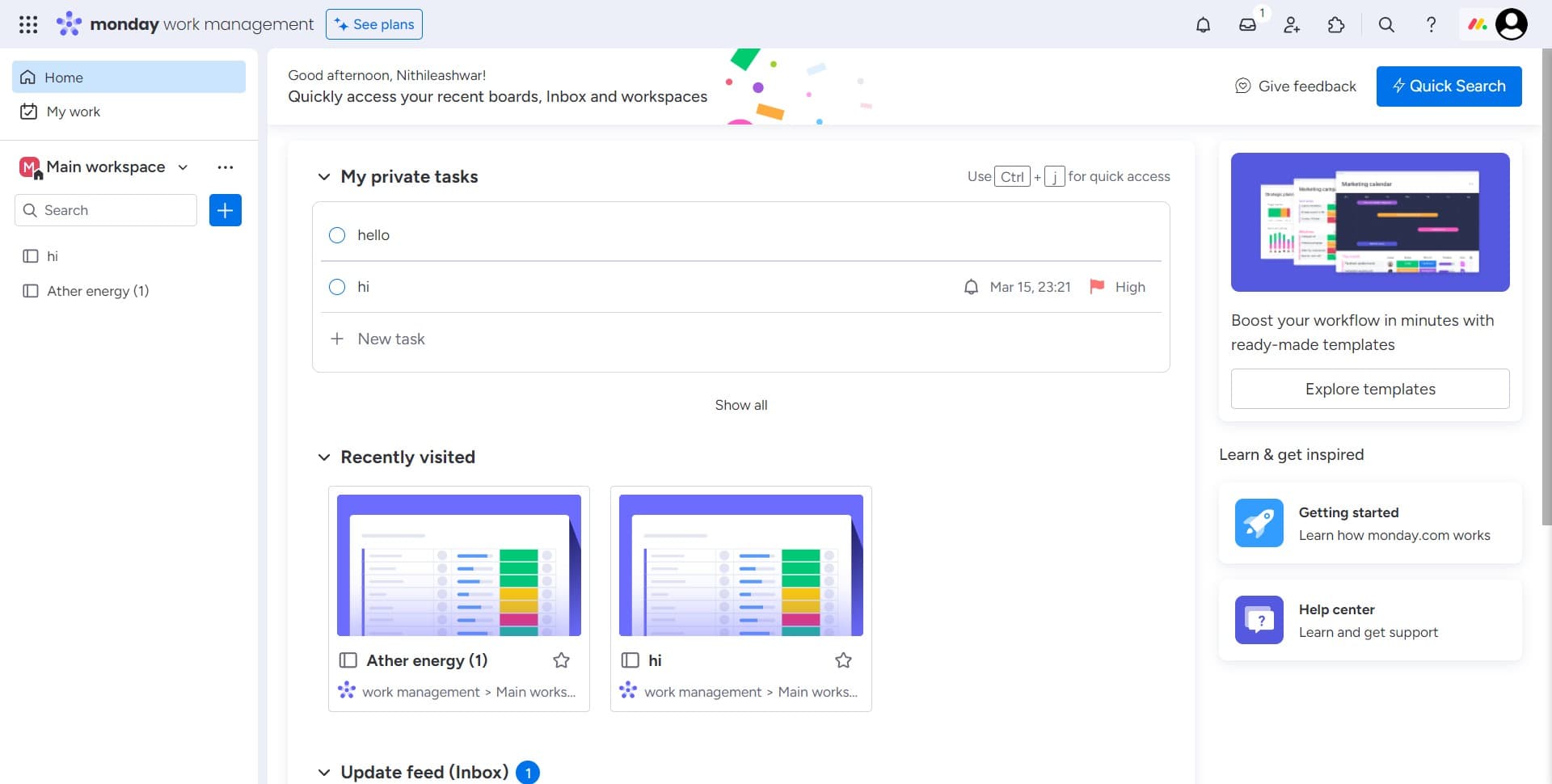
Click on Show all
Navigate to the integrations section in Monday.com and click the "Show all" button to view the complete list of available integrations. This displays all apps and services you can connect to your workspace.
- 2
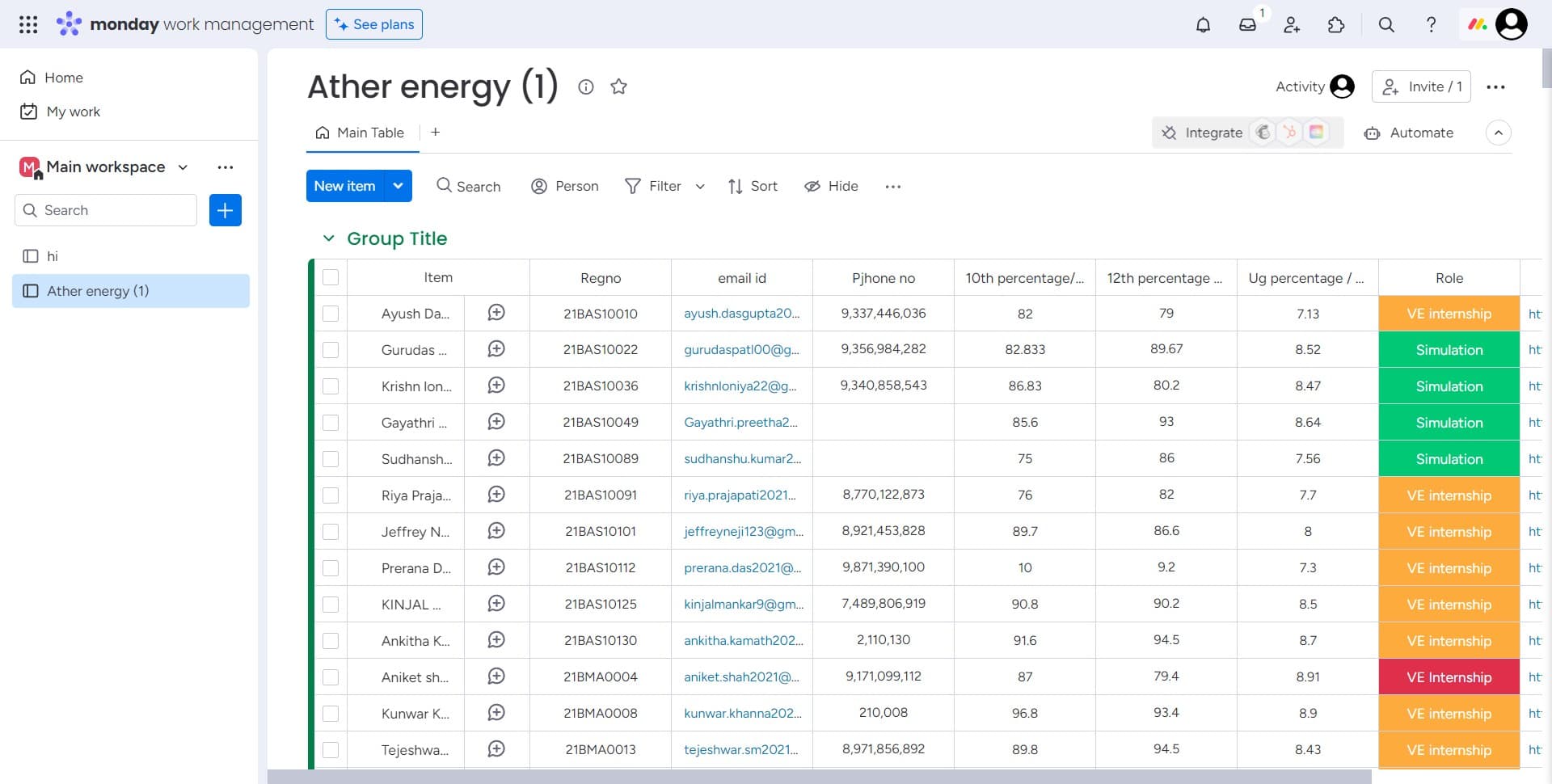
Click on Integrate
Select the app you want to integrate and click the "Integrate" button next to it. This initiates the connection process for your chosen application.
- 3
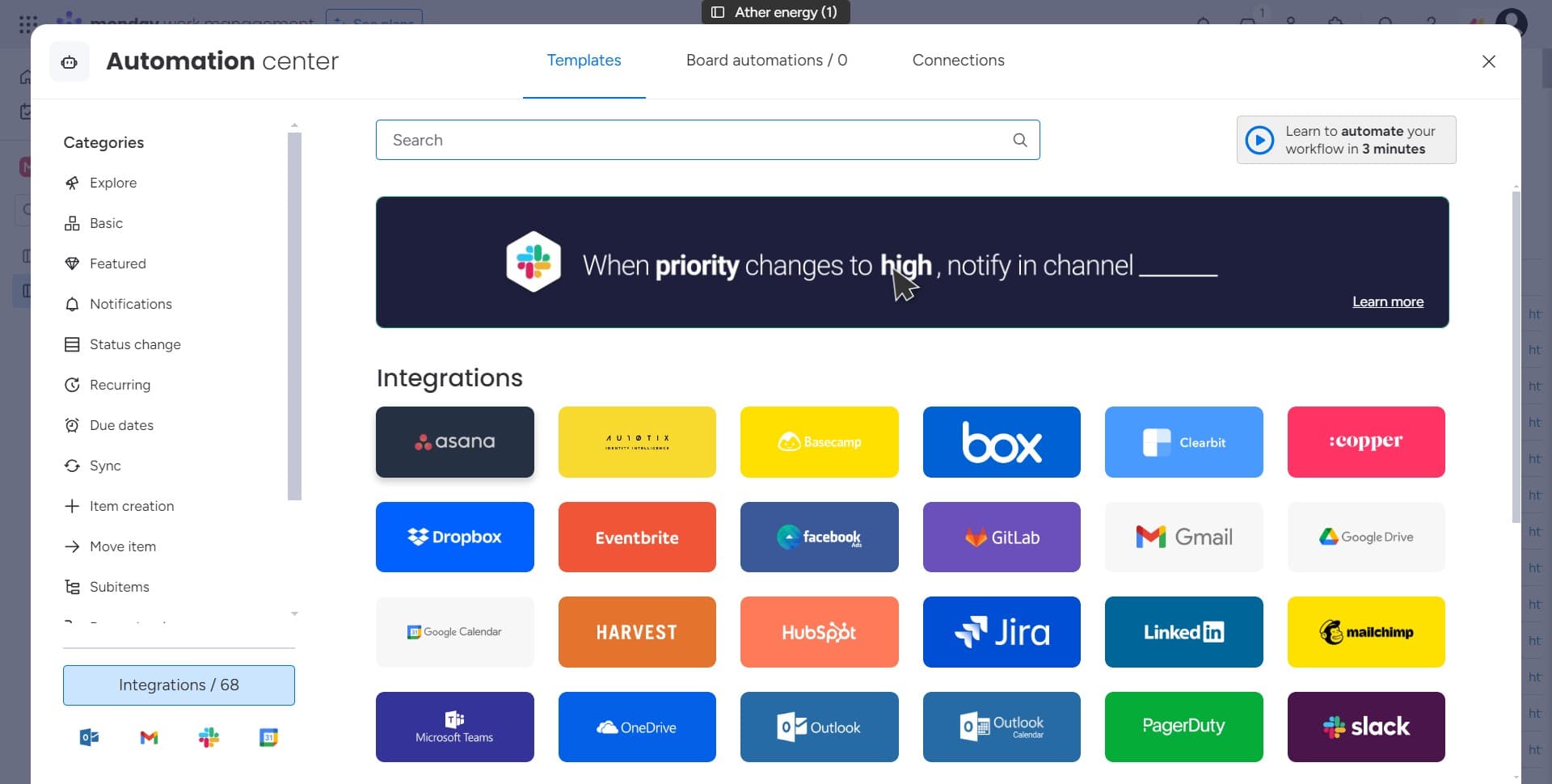
Click here
Follow the on-screen prompt and click the designated button to proceed to the next step of the integration setup. This advances you through the authorization flow.
- 4
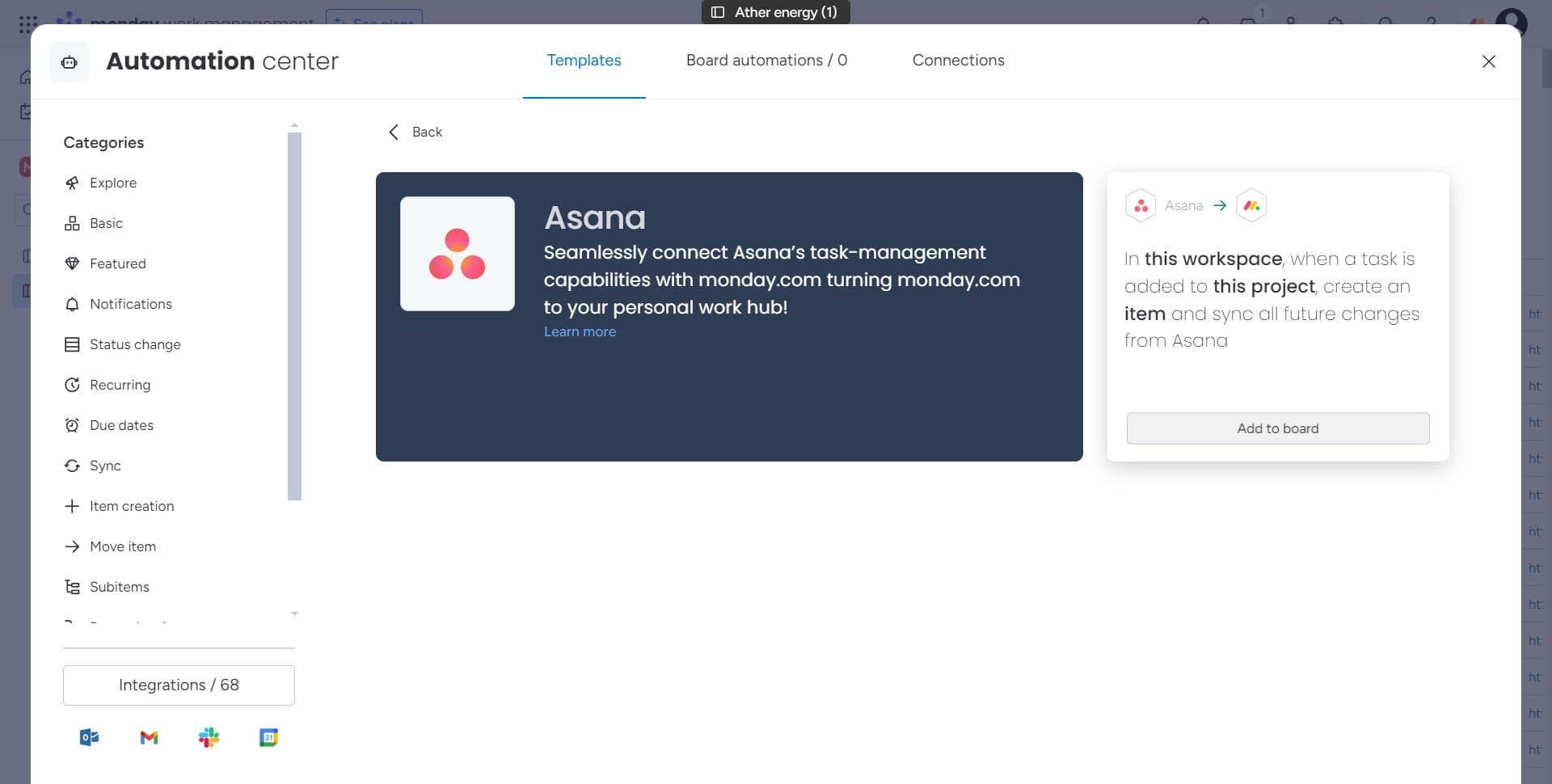
Click on Add to board
Select "Add to board" to specify which board or workspace this integration should connect to. This determines where the app's data and features will be accessible within Monday.com.
- 5
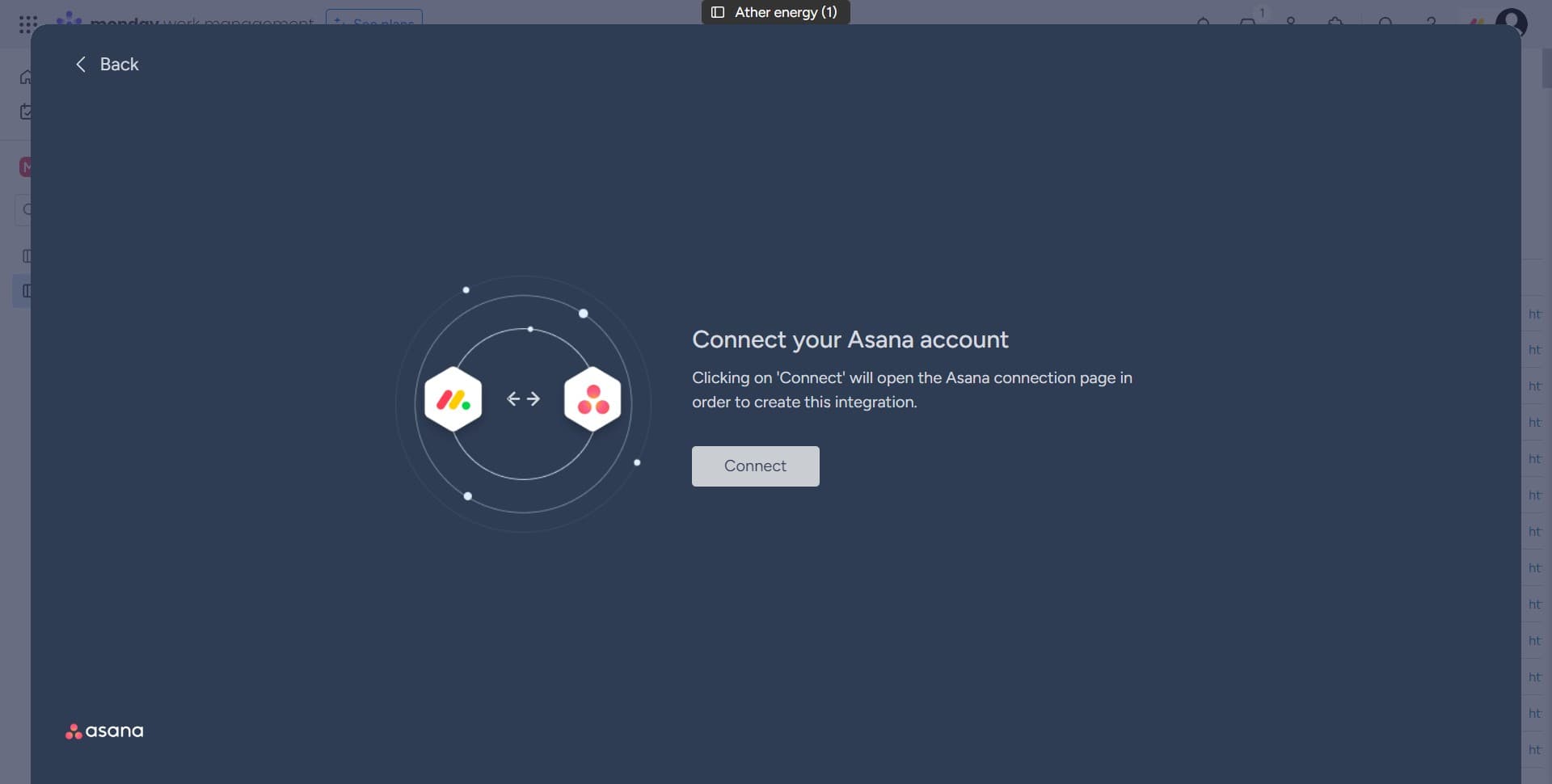
Click on Connect
Click the "Connect" button to establish the connection between Monday.com and the third-party app. You're now in the final authorization phase.
- 6
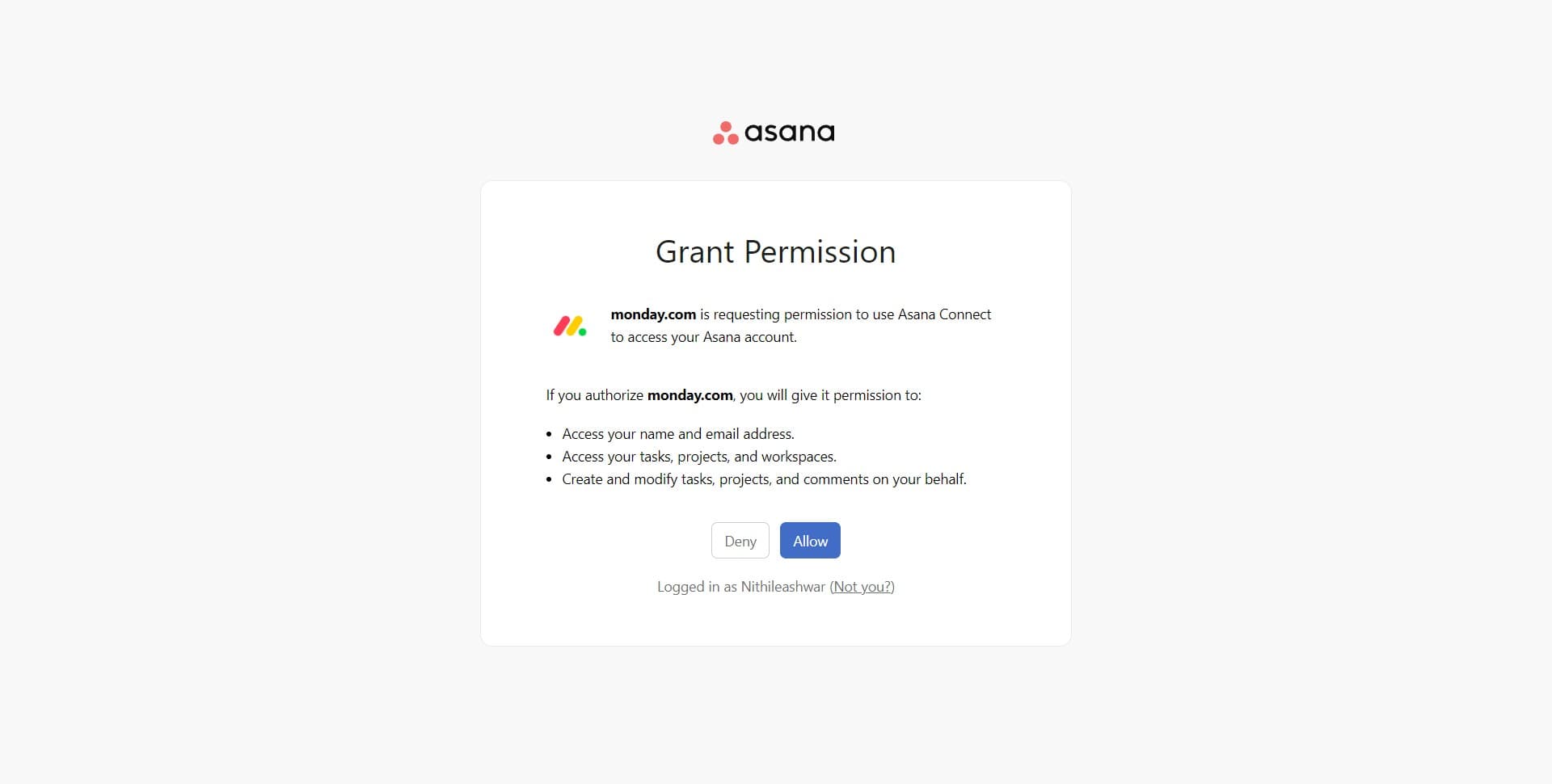
Click on Allow
Grant permissions by clicking "Allow" to complete the integration. This gives the app the necessary access to interact with your Monday.com board and data.
Frequently asked questions
Common questions about how to integrate apps with monday.com.
Monday.com continuously adds new integrations to its marketplace. If the app you're looking for isn't listed, check back periodically, or contact Monday.com support to request integration with a specific service. In the meantime, you may be able to use alternative apps that offer similar functionality.
Yes, Monday.com supports multiple integrations on a single board. You can add as many compatible apps as you need to customize your workflow. Each integration can be configured independently based on your requirements.
You typically need admin or owner-level access to your Monday.com workspace to authorize integrations. The specific permissions required depend on the app you're connecting and what data it needs to access.
Yes, you can disconnect any integrated app at any time through the integrations settings. Removing an integration will stop data syncing between Monday.com and the external app, but it won't delete existing data in either platform.
Monday.com only lists verified integrations in their marketplace, which undergo security reviews. Always review the permissions an app is requesting before granting access, and only authorize integrations from trusted providers. Check the app's privacy policy if you have concerns about data handling.