How to Undo on Monday.com

Mistakes happen when managing tasks in Monday.com, and knowing how to undo actions quickly can save you time and prevent lost work. This tutorial walks you through the undo functionality in Monday.com so you can easily revert unwanted changes.
Quick summary
In this tutorial, you'll learn how to effectively use the undo feature in Monday.com to reverse recent actions. You'll discover where to access the undo function and how to apply it to common workflows like task creation and modifications.
Why this matters
The undo feature is essential for maintaining accuracy in your project management workflow, especially when working with multiple tasks simultaneously. Being able to quickly revert changes prevents the need to manually fix errors and keeps your board organized without disruption.
Step-by-step guide
- 1
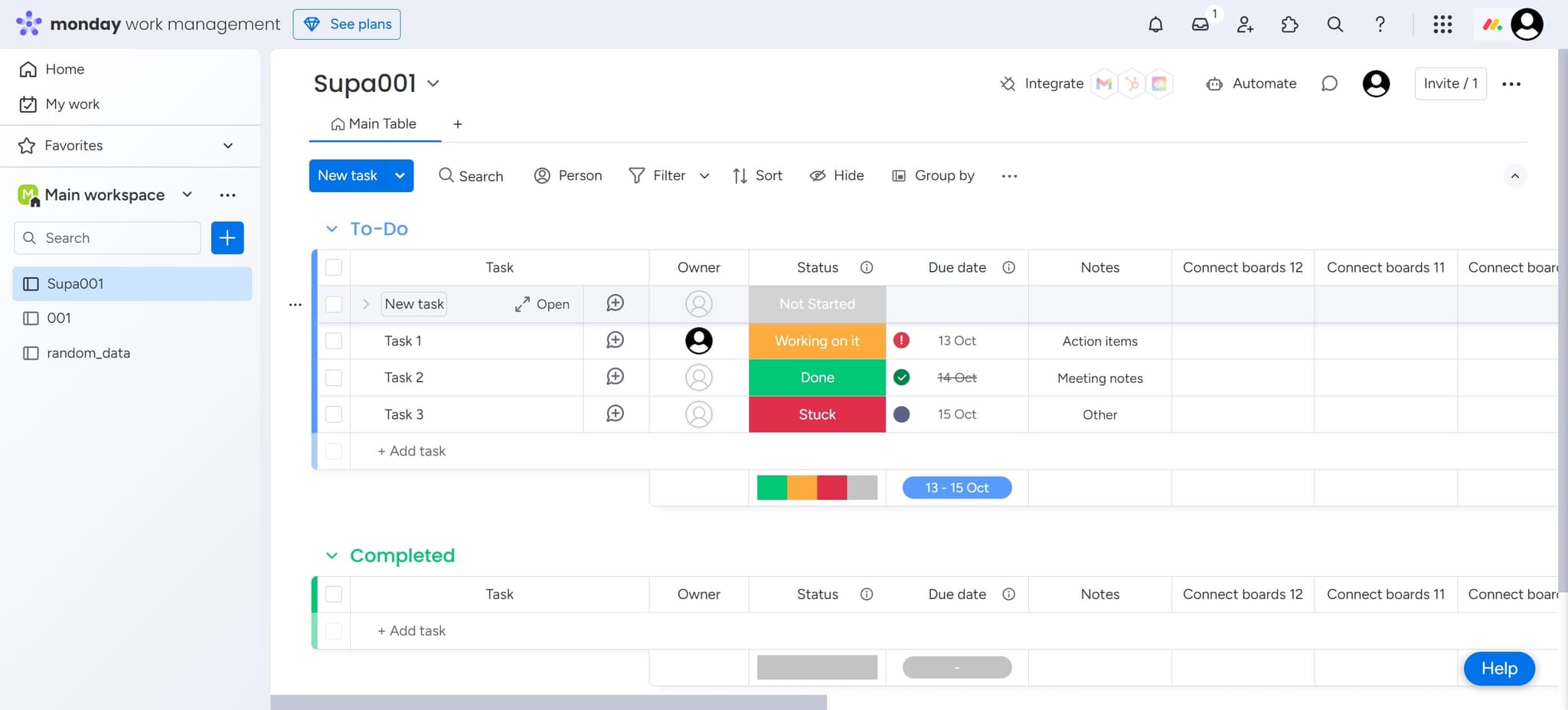
Click on New task
Start by clicking the 'New task' button to create a task in your Monday.com board. This action will generate a new task entry that you can then modify or undo if needed.
Frequently asked questions
Common questions about how to undo on monday.com.
Monday.com provides undo functionality through keyboard shortcuts and menu options. You can use Ctrl+Z (or Cmd+Z on Mac) to quickly undo your most recent action. This works for most operations including task creation, deletion, and modifications.
No, Monday.com's undo function works one action at a time. You'll need to press Ctrl+Z (or Cmd+Z) repeatedly to undo multiple sequential actions. Each press reverses the immediately preceding action.
Most actions in Monday.com can be undone, including creating tasks, deleting items, modifying task details, and updating status fields. Some system-level actions like account changes may not be reversible through the standard undo function.
Yes, Monday.com includes a redo function that works in tandem with undo. After undoing an action, you can press Ctrl+Y (or Cmd+Y on Mac) to redo the action and restore it to your board.
Monday.com maintains an undo history during your current session. The exact duration depends on your activity, but generally you can undo actions made recently during your work session. Refreshing your page or closing your browser may clear the undo history.