How to create a sheet in Smartsheet

Creating a new sheet in Smartsheet is the first step toward building organized, collaborative project management workflows. Whether you're starting a new project, tracking tasks, or managing resources, knowing how to create a sheet efficiently sets the foundation for your team's success.
Quick summary
In this tutorial, you'll learn how to create a new sheet in Smartsheet by navigating through the interface and confirming your new sheet setup. By following these straightforward steps, you'll be ready to start building your first project workspace.
Why this matters
Creating sheets is essential for keeping projects organized and separate. Each sheet allows you to manage distinct initiatives, track different team workflows, or maintain project-specific data without cluttering your workspace. This organizational structure improves collaboration and keeps your team focused on what matters.
Step-by-step guide
- 1
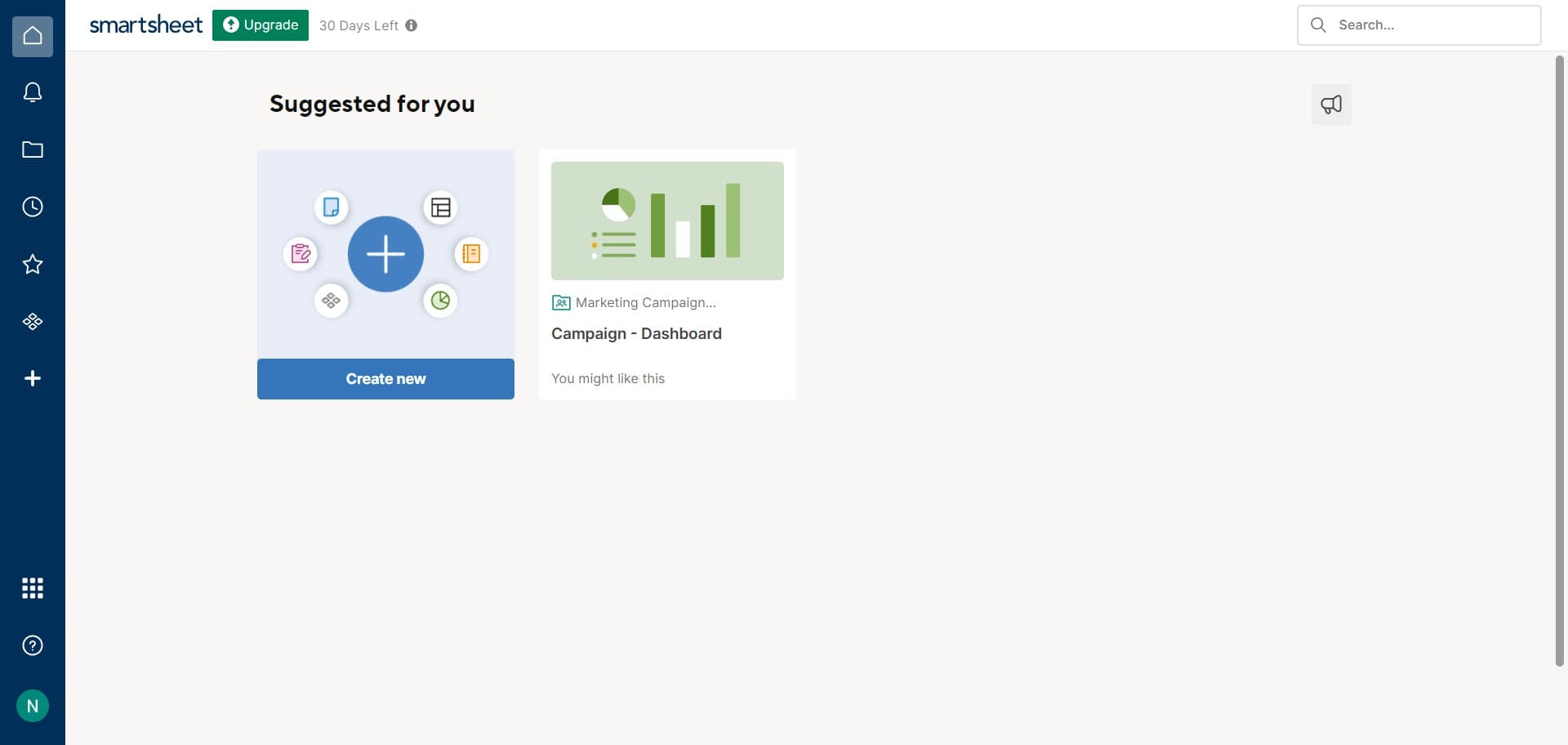
Click to access the menu
Start by clicking the designated area to open the Smartsheet menu or navigation interface. This action will reveal the options available for creating new items in your workspace.
- 2
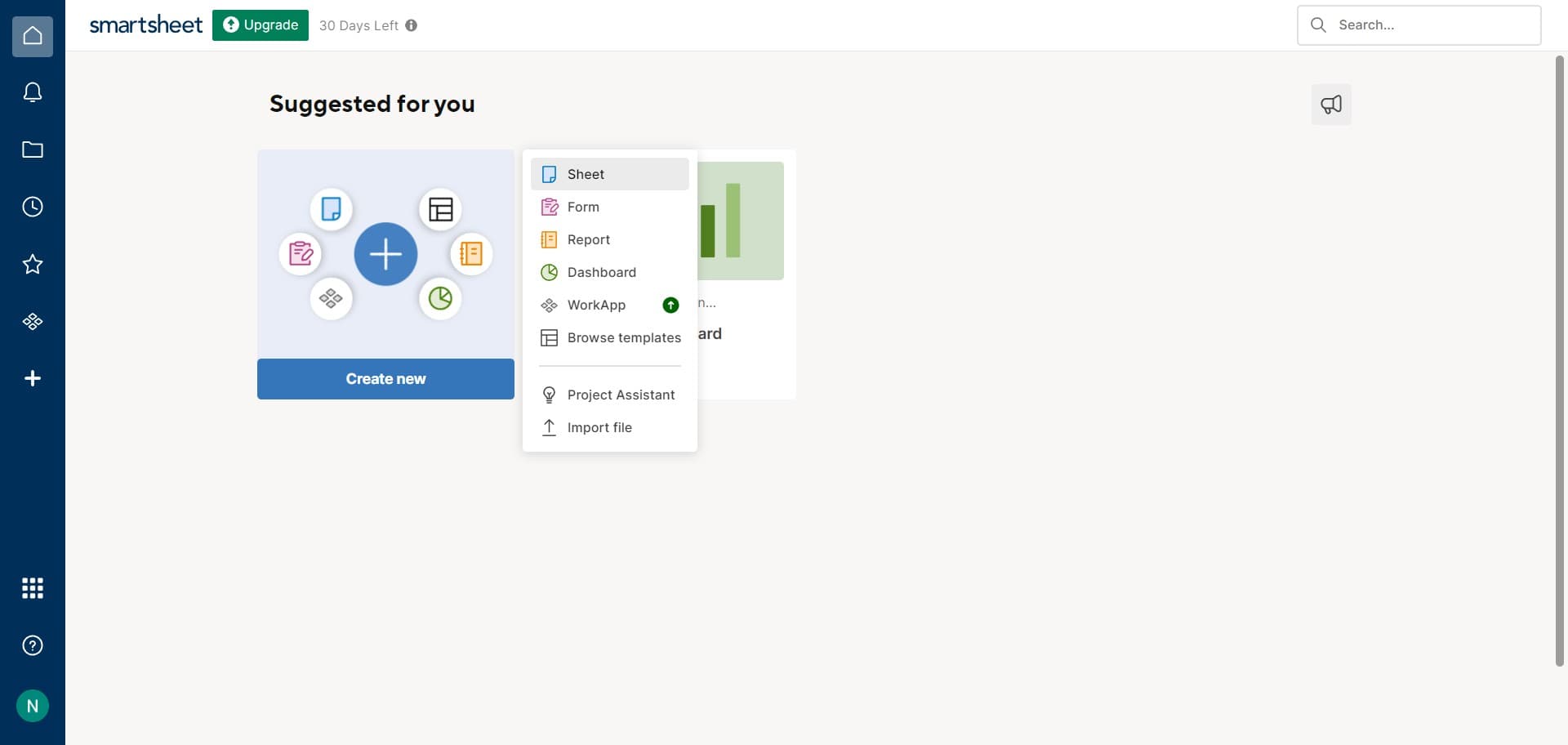
Click on Sheet option
From the menu that appears, locate and click on the 'Sheet' option. This selection indicates that you want to create a new sheet rather than other Smartsheet objects like reports or dashboards.
- 3
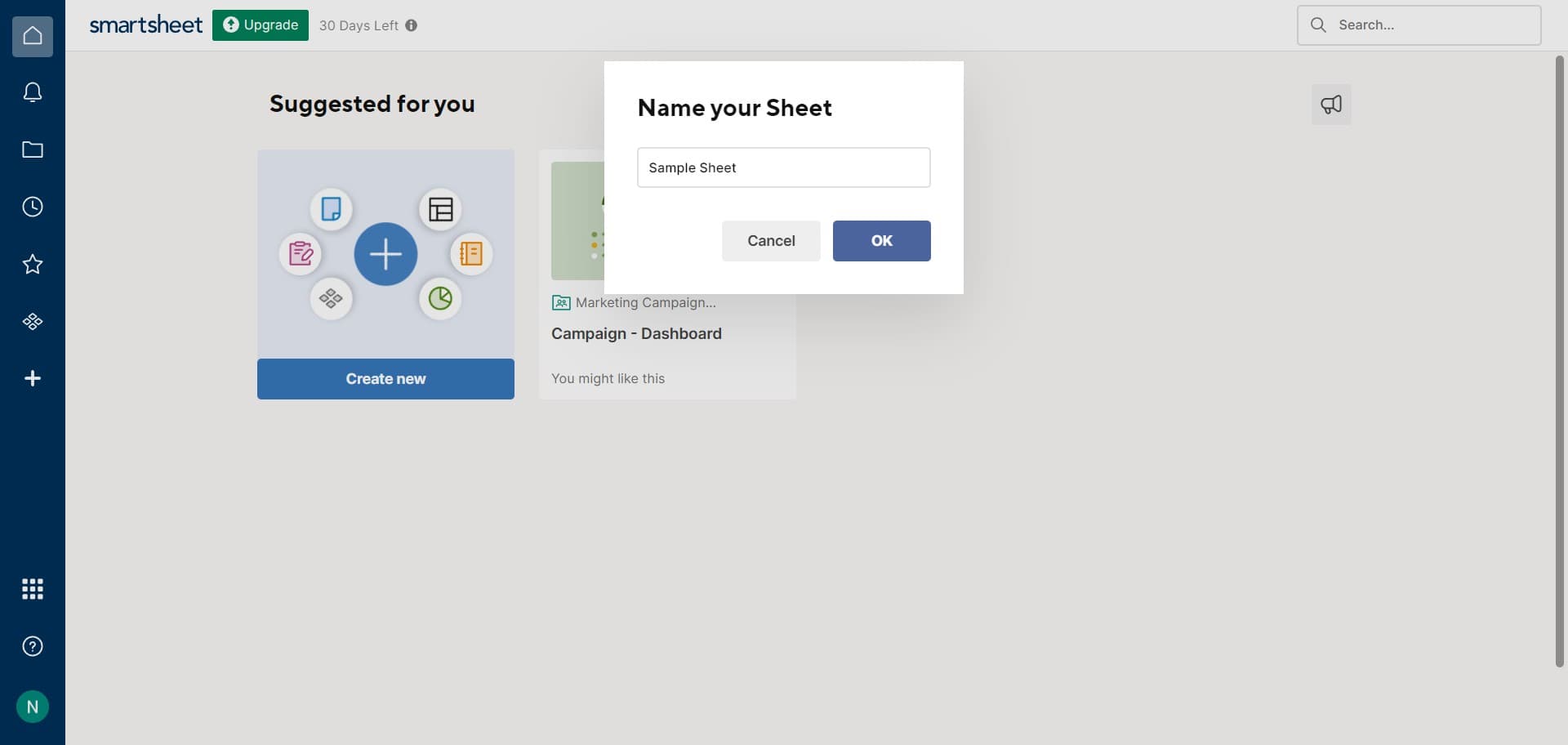
Confirm with OK button
Click the 'OK' button to finalize and create your new sheet. Your sheet will now be generated and ready for you to customize with columns, rows, and data relevant to your project.
Frequently asked questions
Common questions about how to create a sheet in smartsheet.
Yes, once your sheet is created, you can immediately begin customizing it by adding columns, adjusting column types, adding rows, and configuring settings. Smartsheet provides a flexible interface that allows you to tailor the sheet to your specific project needs right away.
The number of sheets you can create depends on your Smartsheet plan and workspace permissions. Most plans allow multiple sheets, but it's best to check your specific account settings or contact Smartsheet support for details about your plan's limitations.
Sheets are the primary workspace for organizing data in rows and columns, while reports and dashboards are views and summaries of that data. Sheets are where you input and manage information, whereas reports and dashboards help you visualize and analyze it.
Absolutely. After creating your sheet, you can share it with team members by using the share settings. You can control their access level, decide whether they can edit or view only, and manage permissions to ensure proper collaboration.
You can easily delete unwanted sheets from your workspace. Most Smartsheet accounts allow you to remove sheets through the sheet options menu. Be sure to back up any important data before deletion, as this action is typically permanent.