How to create and edit a dashboard on Smartsheet

Dashboards in Smartsheet provide a centralized view of your project data, metrics, and key information at a glance. This guide walks you through creating and editing a dashboard from start to finish, enabling you to monitor project health and share insights with stakeholders.
Quick summary
In this tutorial, you'll learn how to create a new dashboard in Smartsheet, add widgets to display important metrics, and configure data visualizations. By following these steps, you'll be able to build custom dashboards that aggregate your most critical project information in one place.
Why this matters
Dashboards are essential for project visibility and decision-making, allowing team leads and executives to track progress without diving into individual sheets. By mastering dashboard creation and editing, you can reduce time spent in status meetings and empower stakeholders with real-time data insights.
Step-by-step guide
- 1
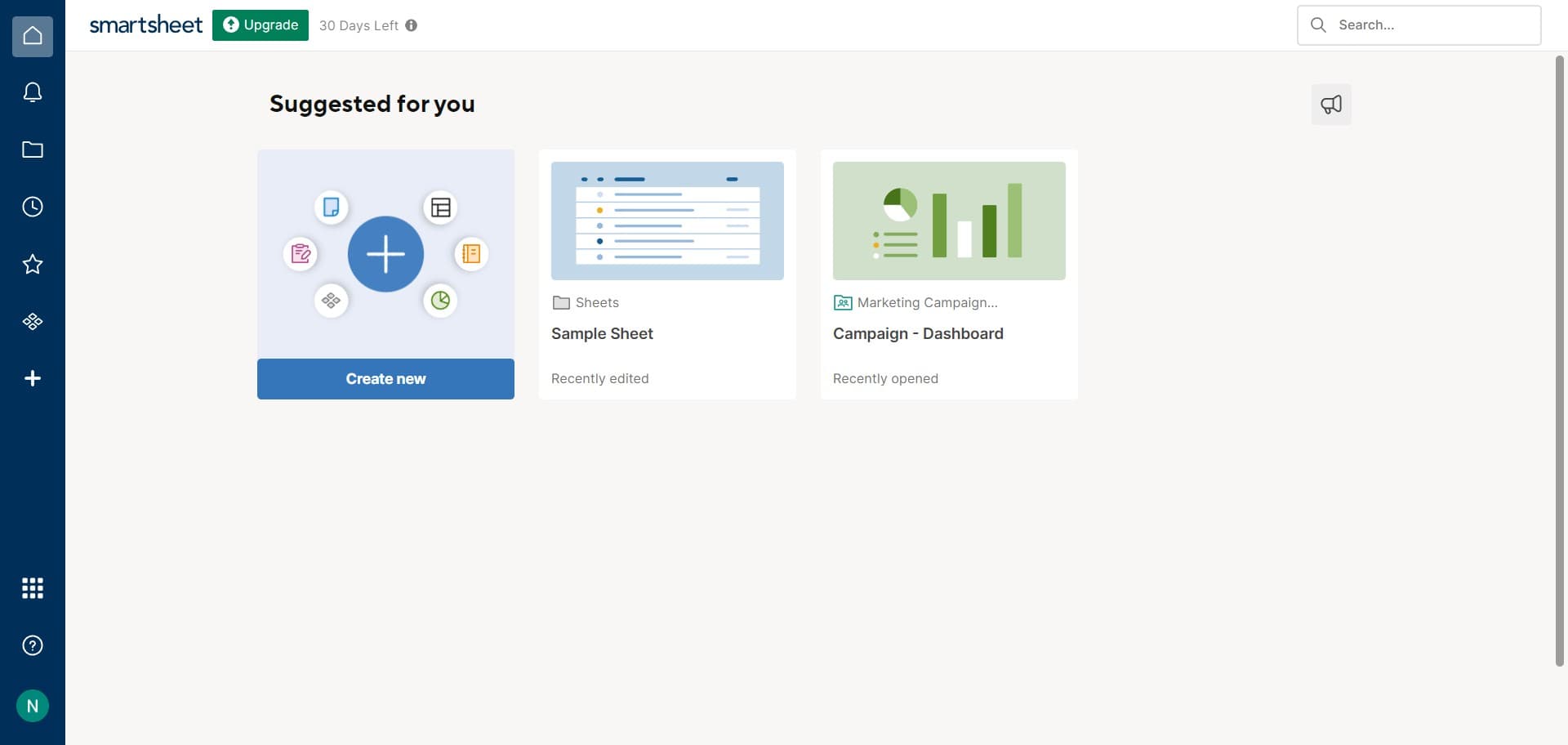
Access the dashboard creation menu
Click on the designated area in your Smartsheet interface to begin creating a new dashboard. This action opens the dashboard creation workflow.
- 2
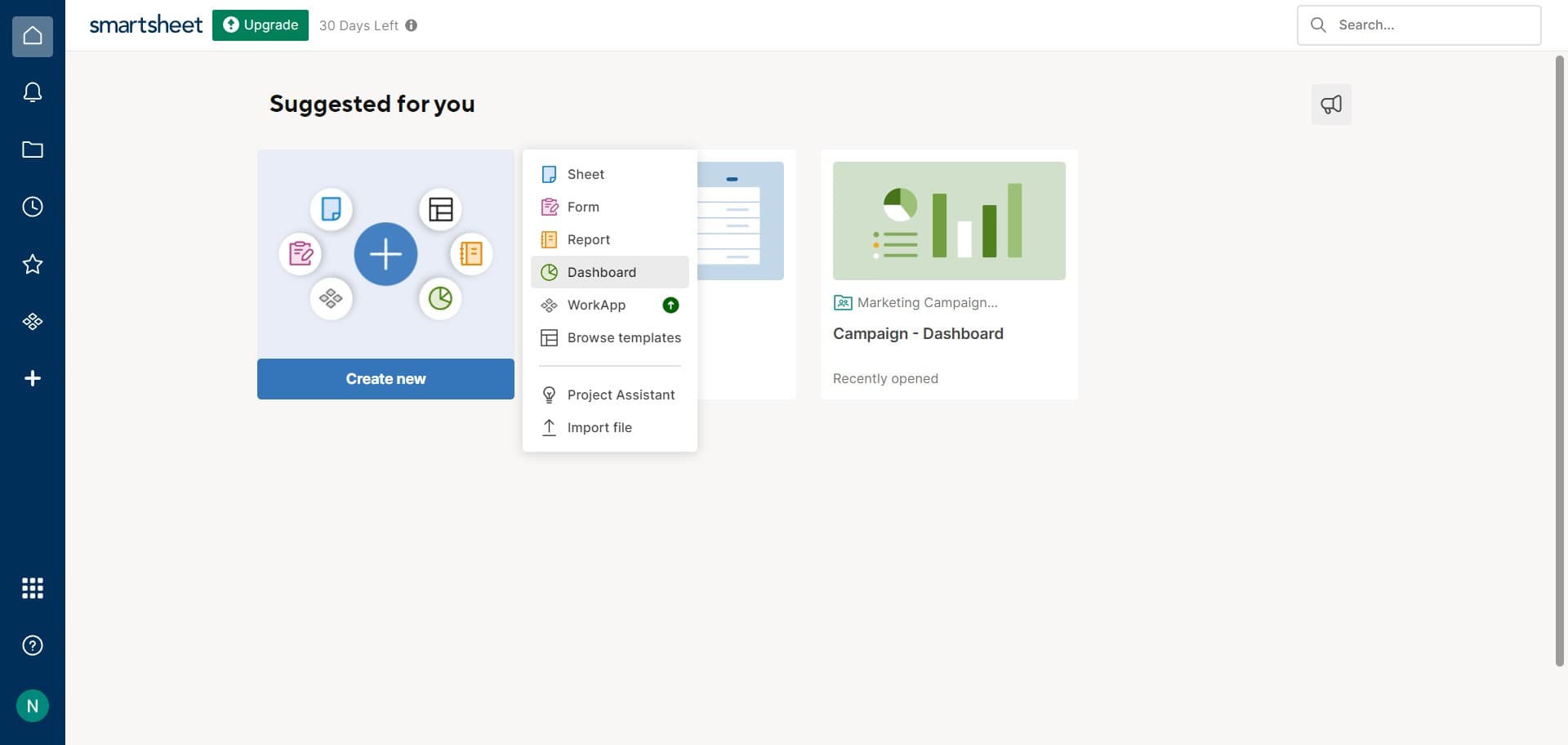
Select Dashboard from options
Click on 'Dashboard' from the available menu options. This confirms you want to create a new dashboard rather than another type of artifact.
- 3
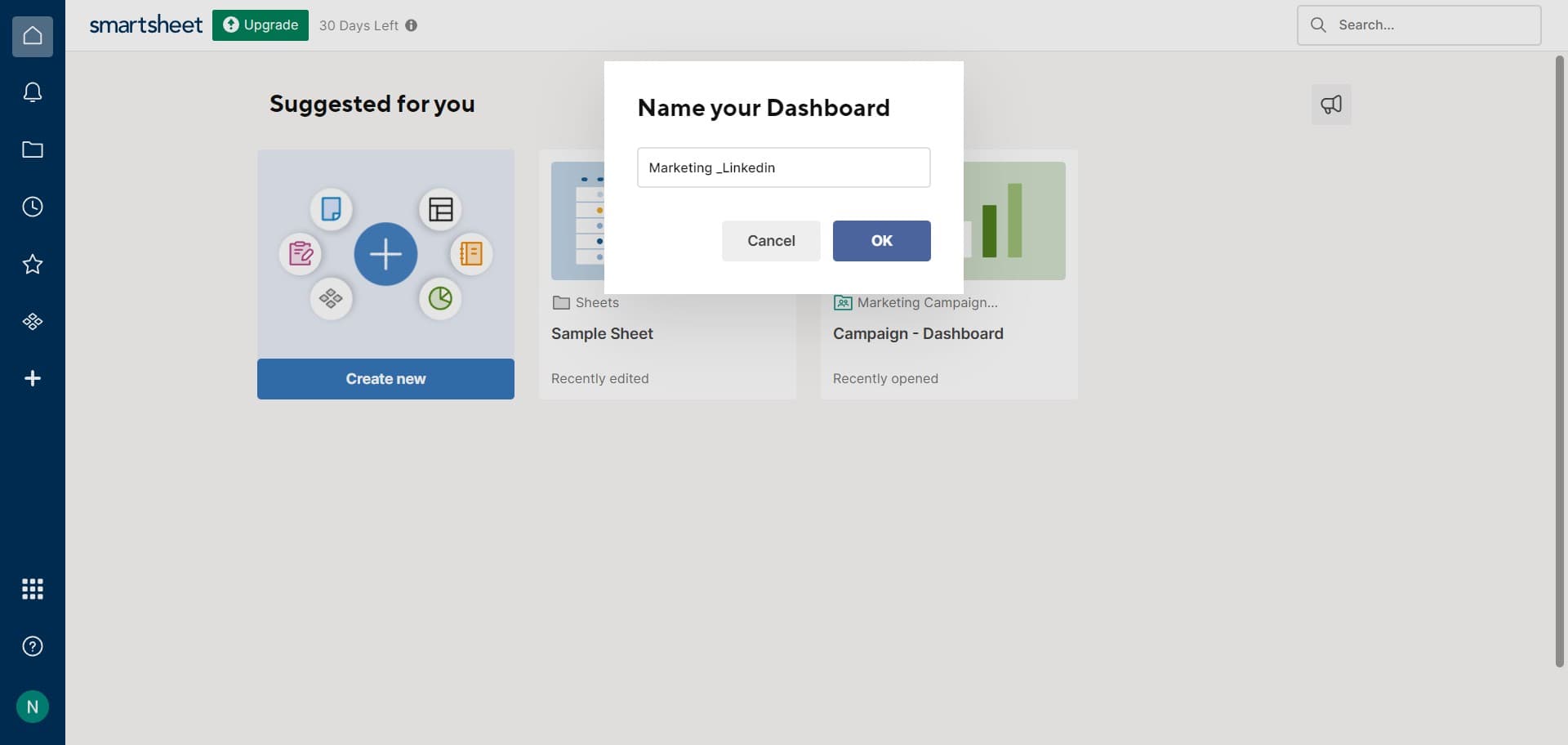
Confirm dashboard creation
Click 'OK' to proceed with creating your new dashboard. Your blank dashboard will now be ready for customization.
- 4
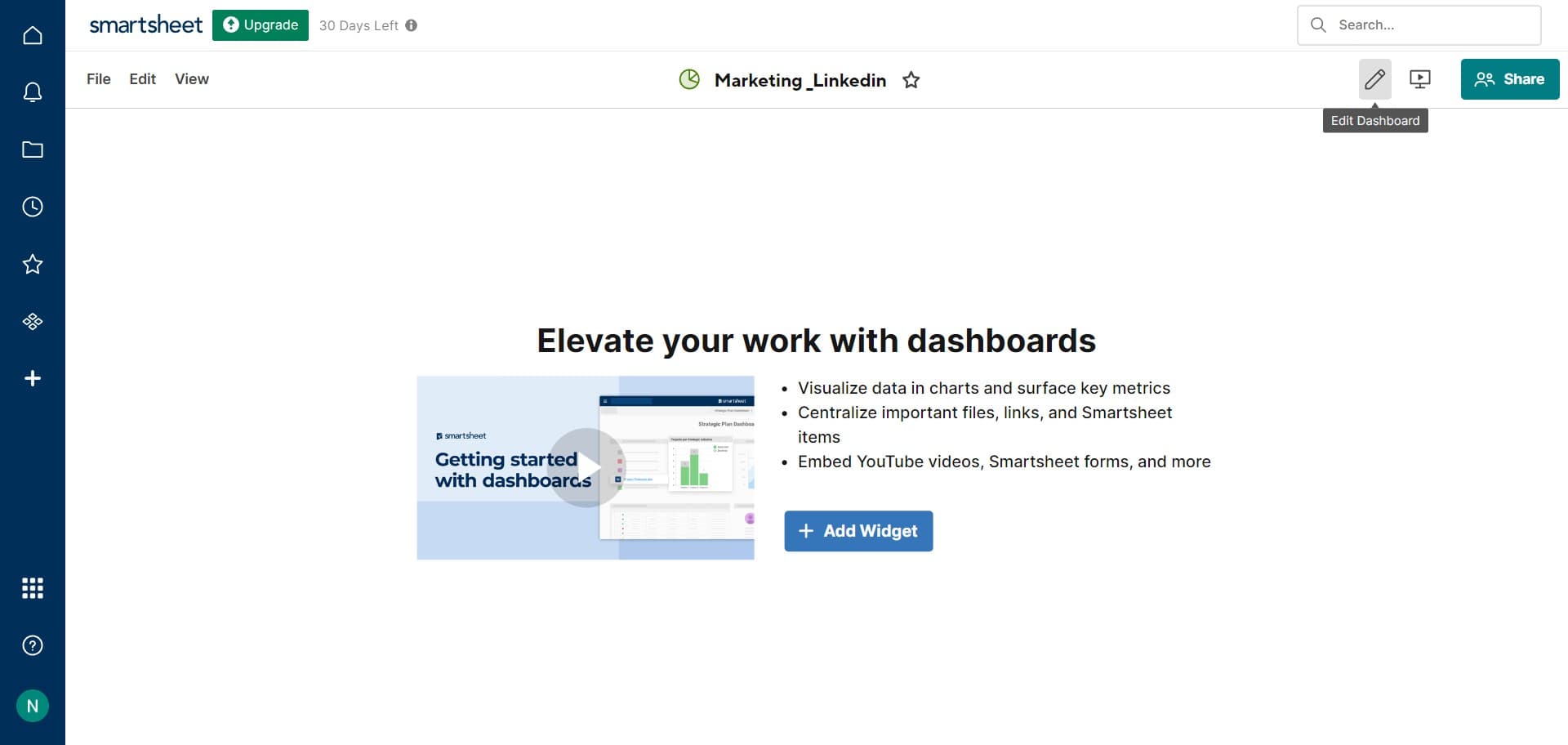
Open the dashboard for editing
Click on the designated area to access your newly created dashboard. This displays the dashboard interface where you can manage its contents.
- 5
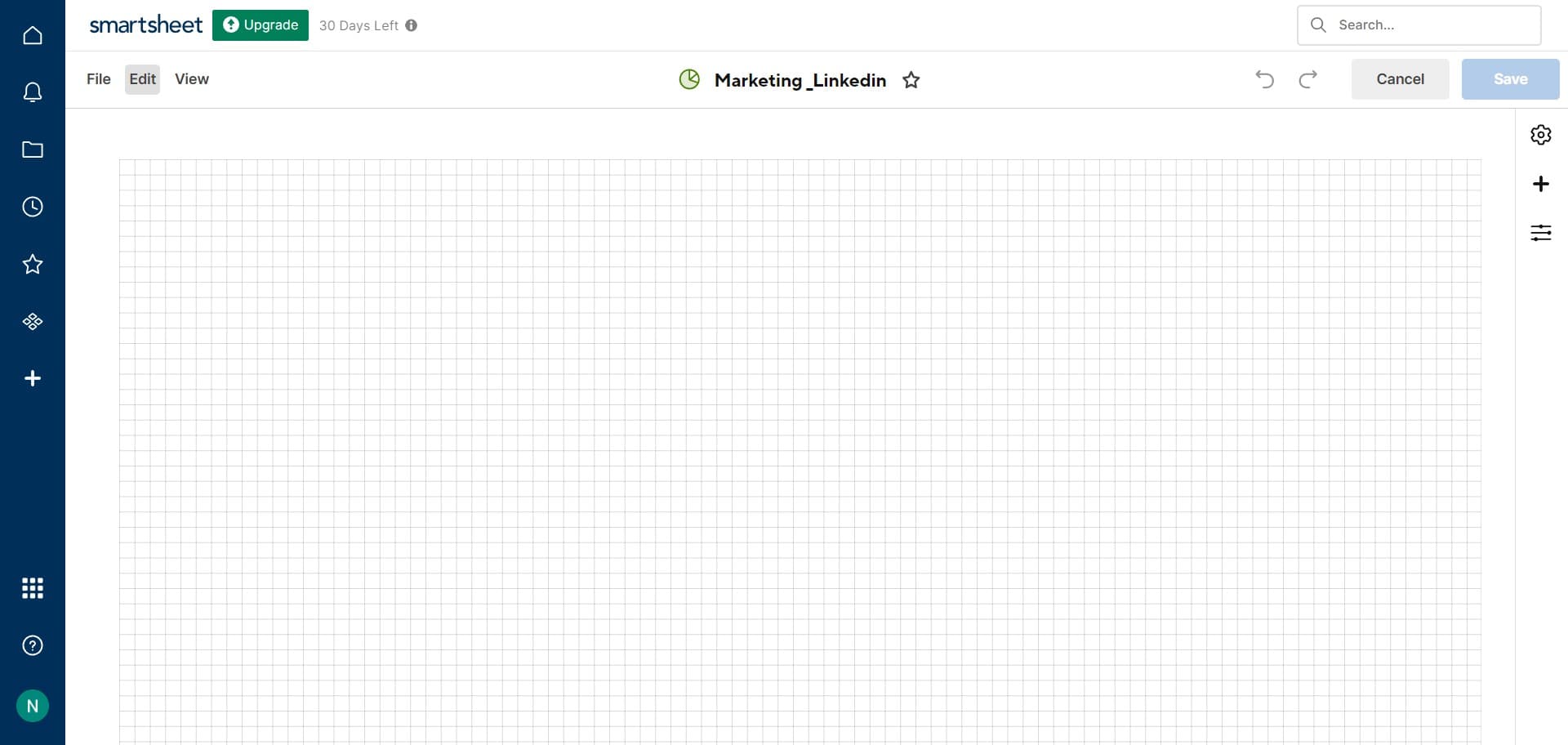
Enter edit mode
Click on 'Edit' to enter the editing interface for your dashboard. You'll now be able to add and configure widgets.
- 6
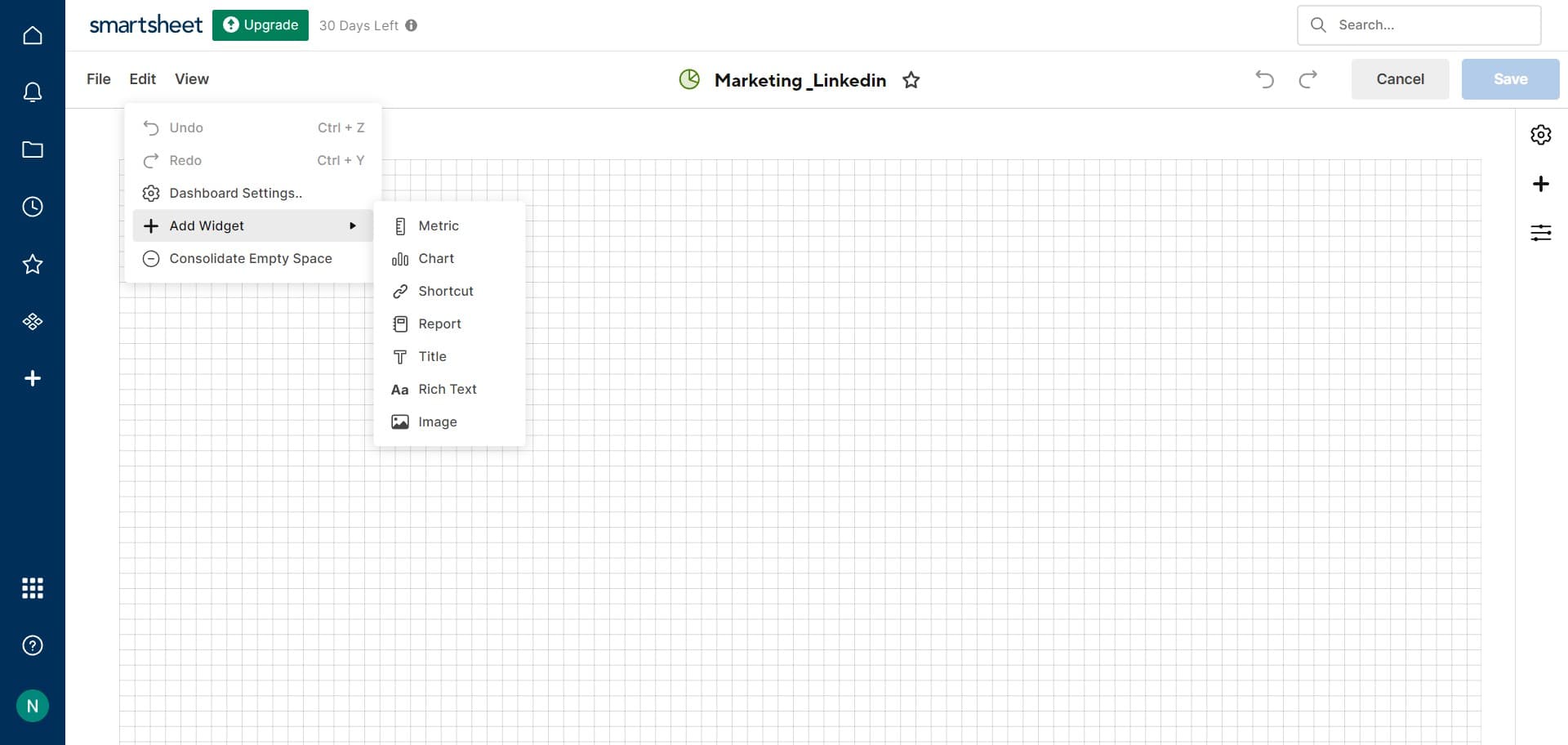
Add a new widget to dashboard
Click on 'Add Widget' to insert a new element into your dashboard. This opens the widget selection menu.
- 7
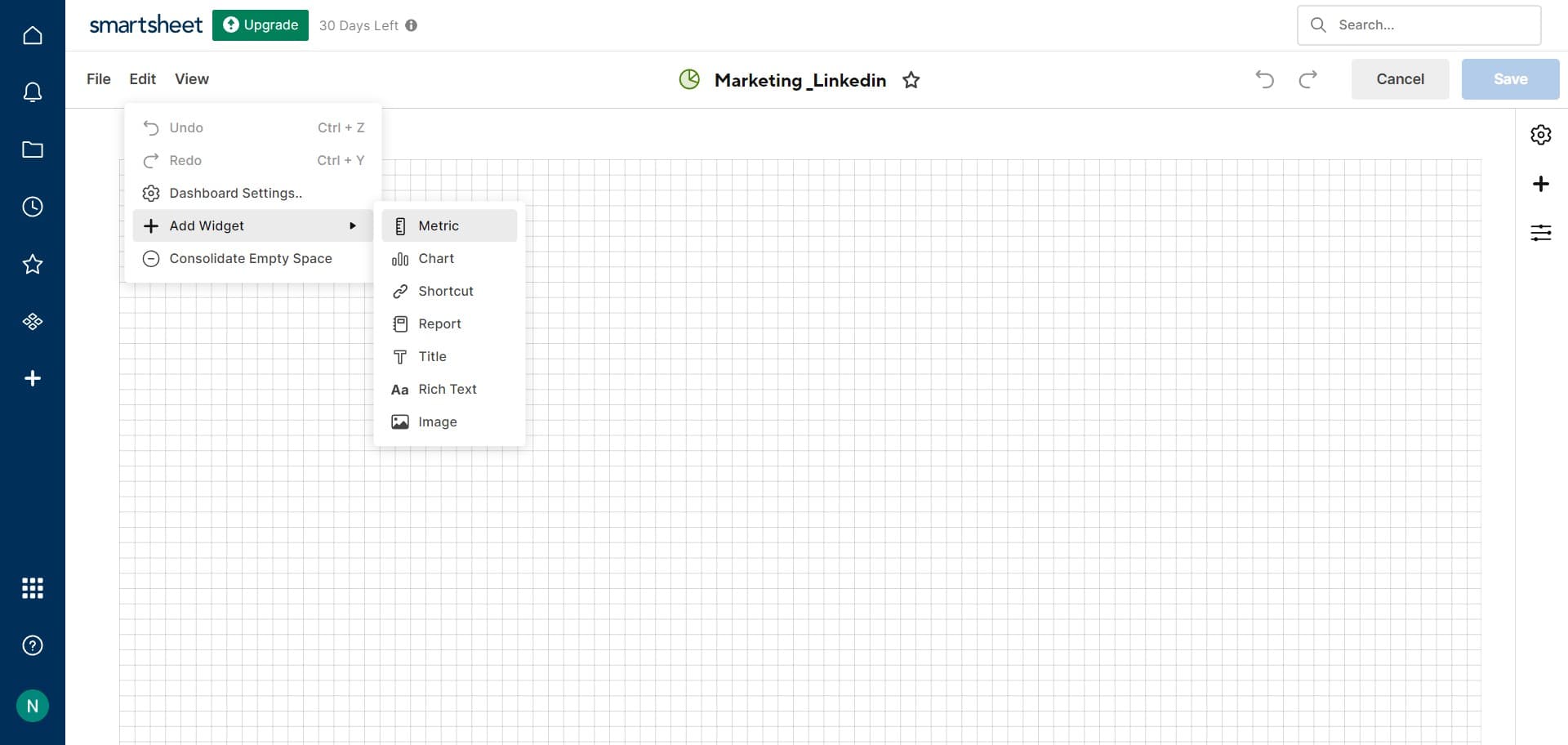
Select Metric widget type
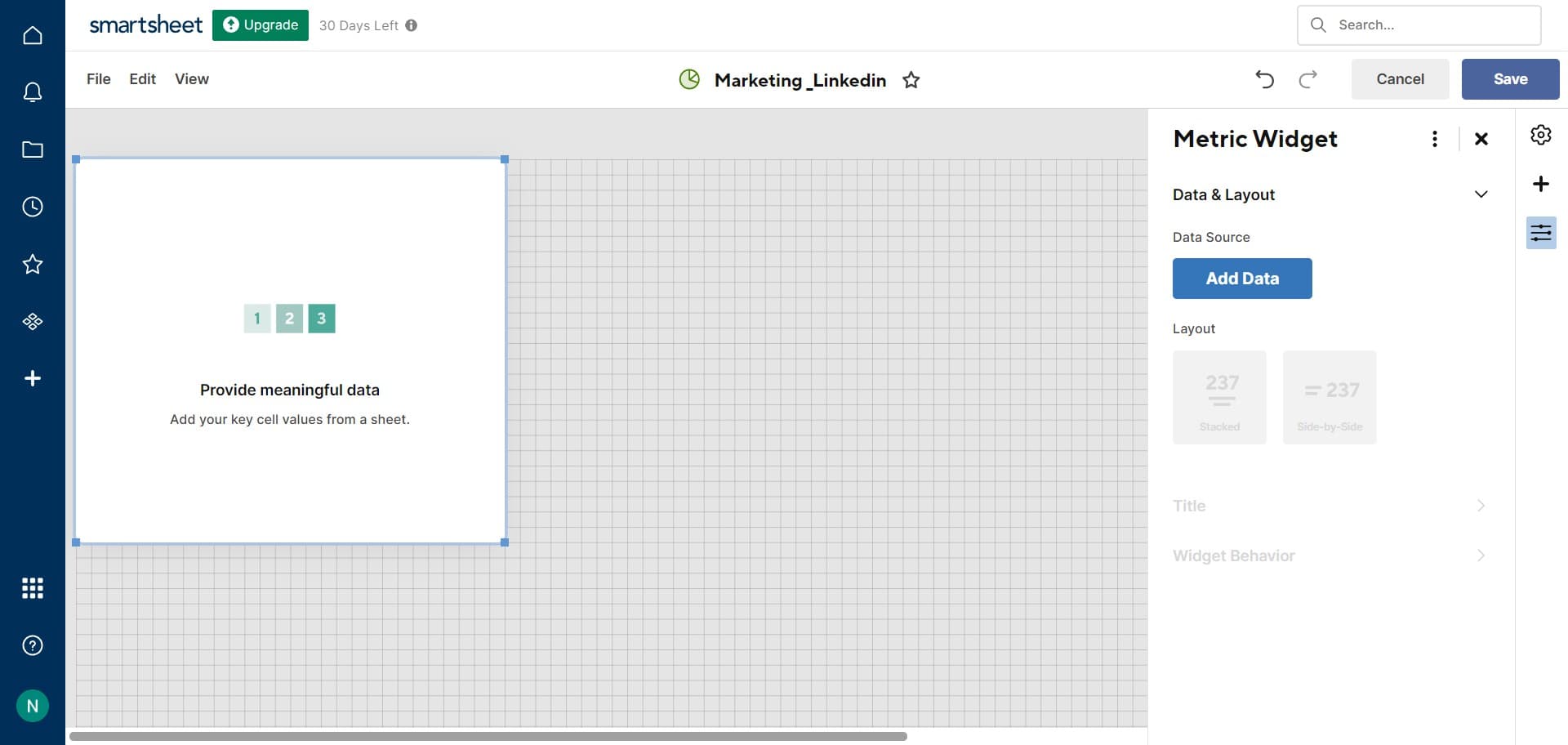
Click on 'Metric' to choose this widget type for displaying numerical data or KPIs. Metric widgets are ideal for showing key performance indicators at a glance.
- 8
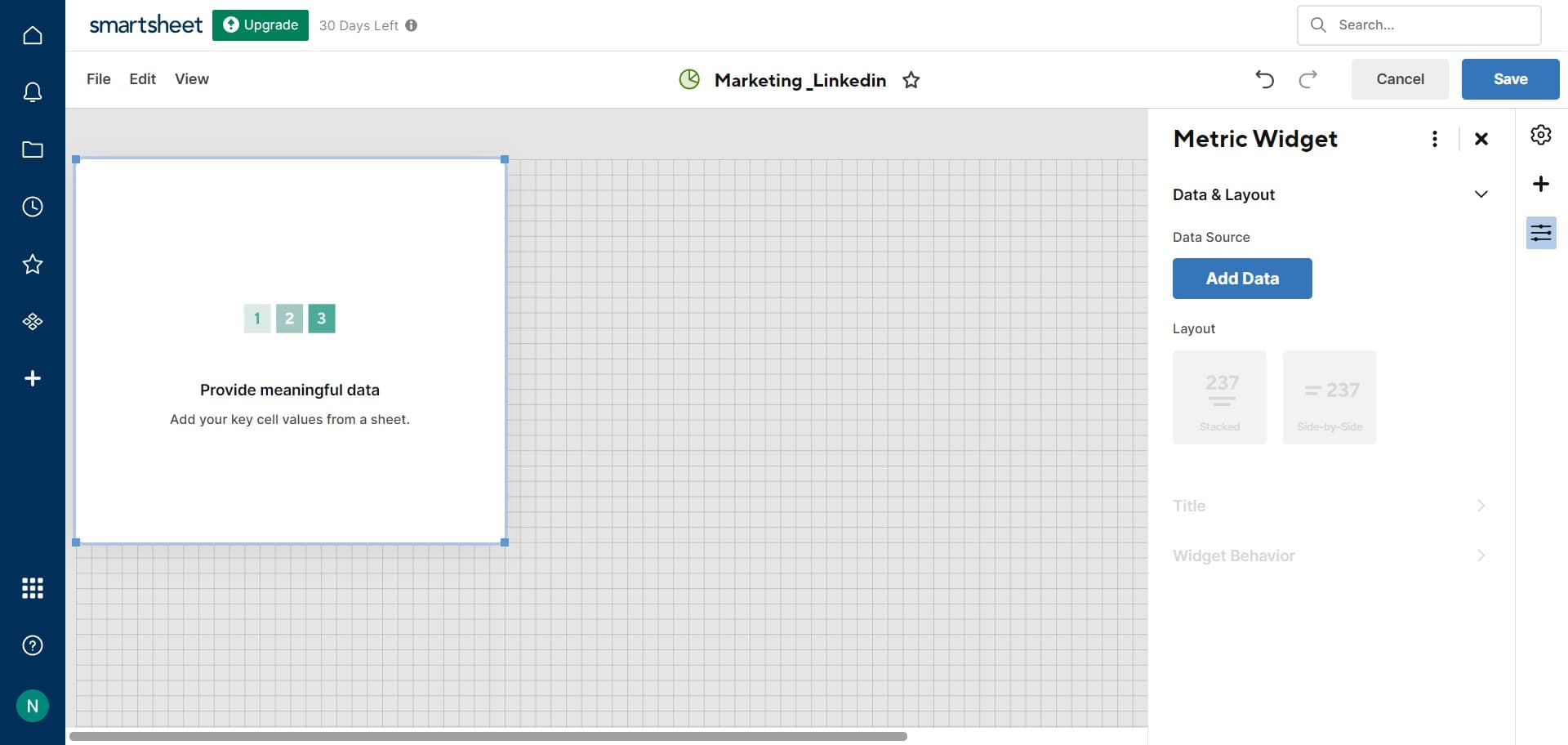
Connect data to the widget
Click on 'Add Data' to select the source data that will populate your metric widget. Choose the relevant sheet columns or calculations you want to display.
- 9
Save your dashboard changes
Click 'Save' to finalize all changes made to your dashboard. Your dashboard is now live and ready for use by your team.
Frequently asked questions
Common questions about how to create and edit a dashboard on smartsheet.
Yes, Smartsheet dashboards support multiple widget types including metrics, charts, gauges, and more. You can combine different visualizations to create a comprehensive view of your project data.
Dashboard data updates automatically based on changes made to your source sheets. If you need to modify which data appears, enter edit mode and adjust the data connections for each widget.
Yes, you can share dashboards with team members through Smartsheet's sharing settings. This allows stakeholders to view real-time project information without needing direct access to underlying sheets.
Dashboards are interactive visualizations designed for quick insights and monitoring, while reports are formatted printable documents. Dashboards are better for real-time tracking, whereas reports work well for formal documentation.
Yes, when in edit mode, you can resize and rearrange widgets to create a layout that suits your needs. Smartsheet allows flexible customization to prioritize the information most important to your team.