How to add additional ticket status in Zendesk

Custom ticket statuses help your support team organize workflows and track progress more effectively in Zendesk. This guide walks you through adding new ticket statuses to match your team's unique processes and requirements.
Quick summary
In this tutorial, you'll learn how to navigate to the ticket statuses configuration area in Zendesk Admin Center and add custom statuses tailored to your organization's workflow. By the end, you'll understand how to expand your status options beyond Zendesk's defaults.
Why this matters
Adding custom ticket statuses enables your team to better categorize support requests and track more granular workflow stages. This improves visibility into ticket lifecycle, reduces confusion, and helps measure team performance against your specific processes.
Step-by-step guide
- 1
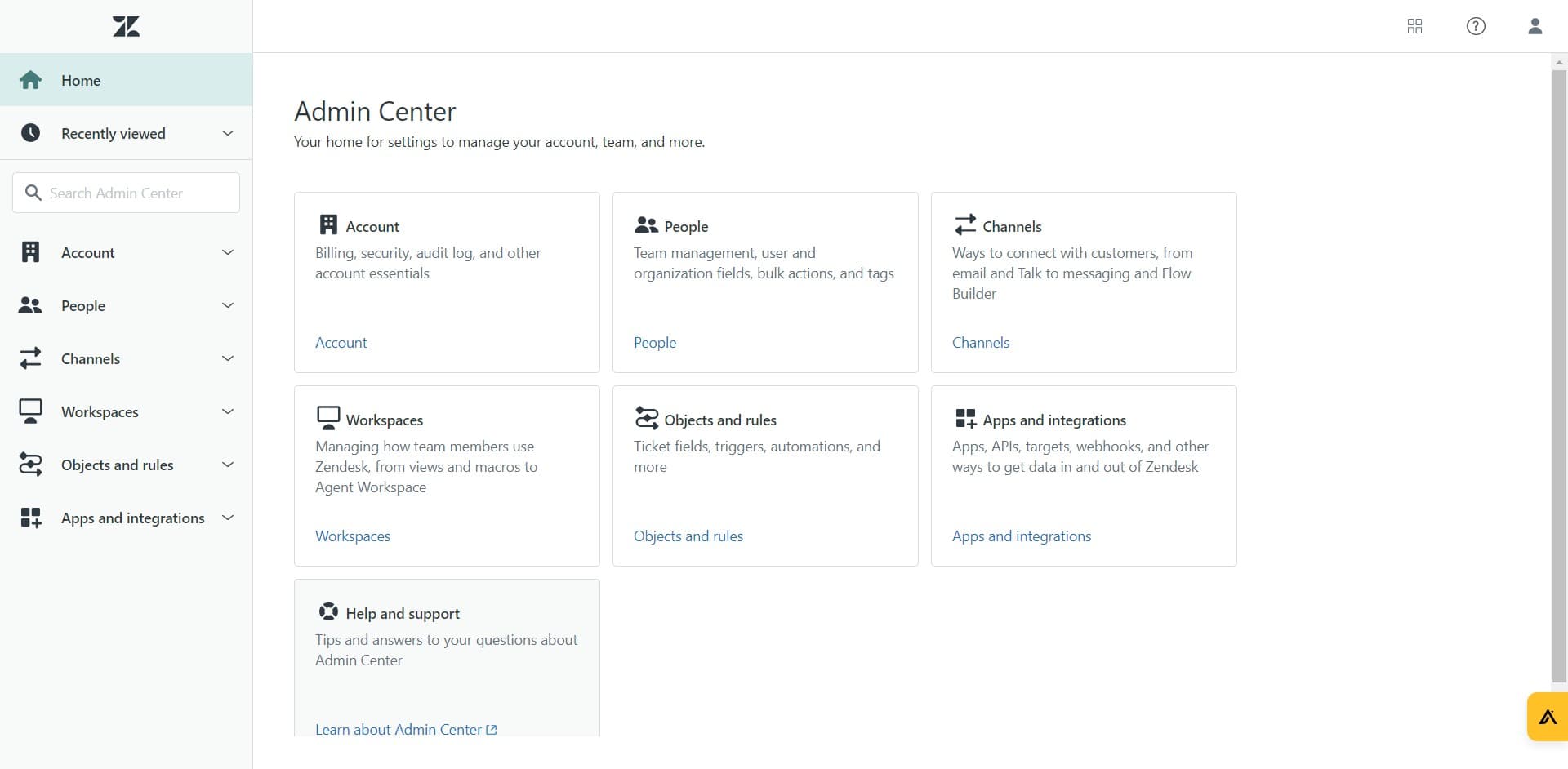
Open the Admin Center
Click on the Admin Center option to access Zendesk's administrative settings. This is where you'll manage system configurations and customizations for your entire account.
- 2
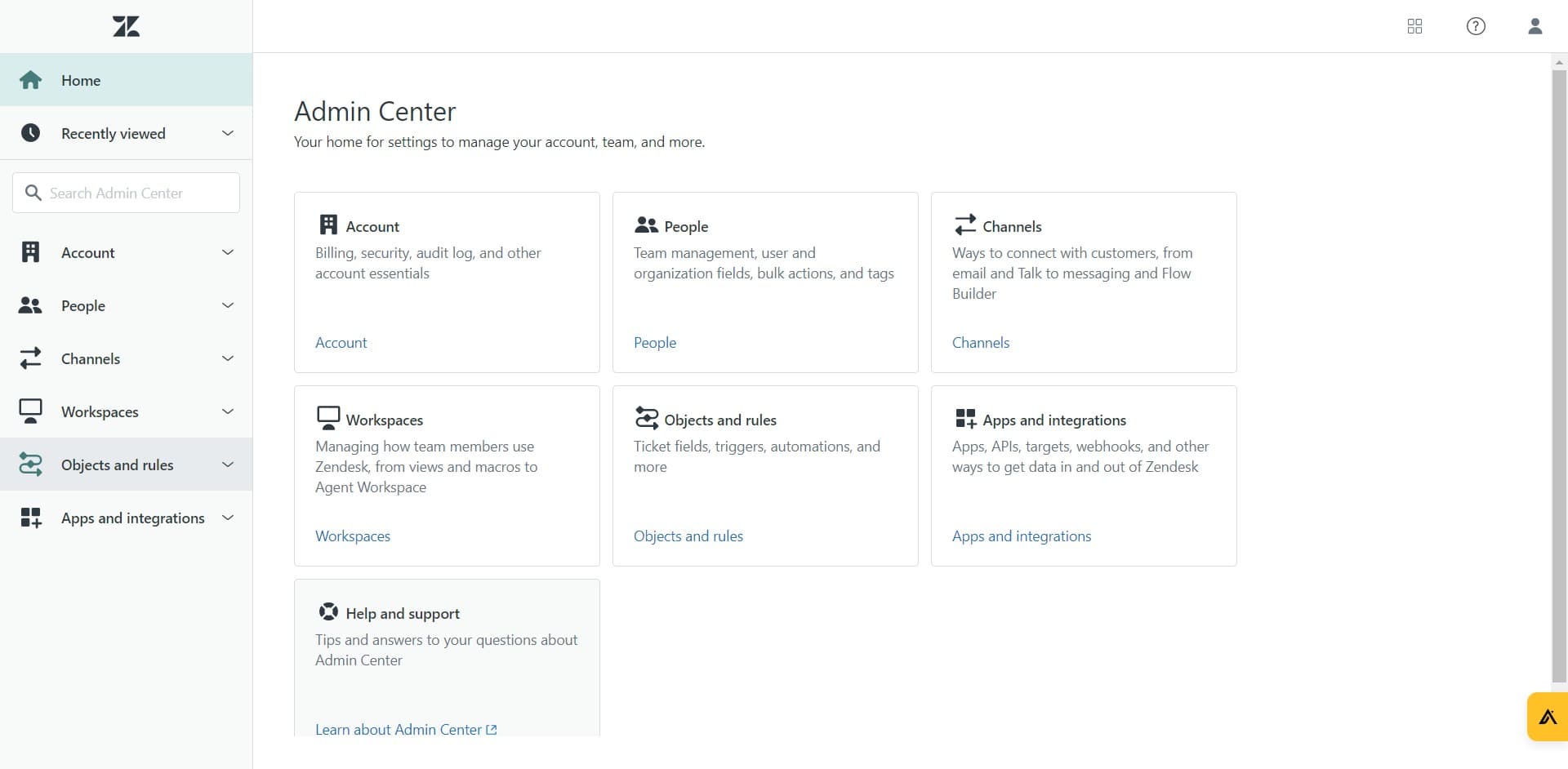
Navigate to Objects and rules
Select Objects and rules from the menu. This section contains all the settings for customizing Zendesk's core objects, including tickets and their properties.
- 3
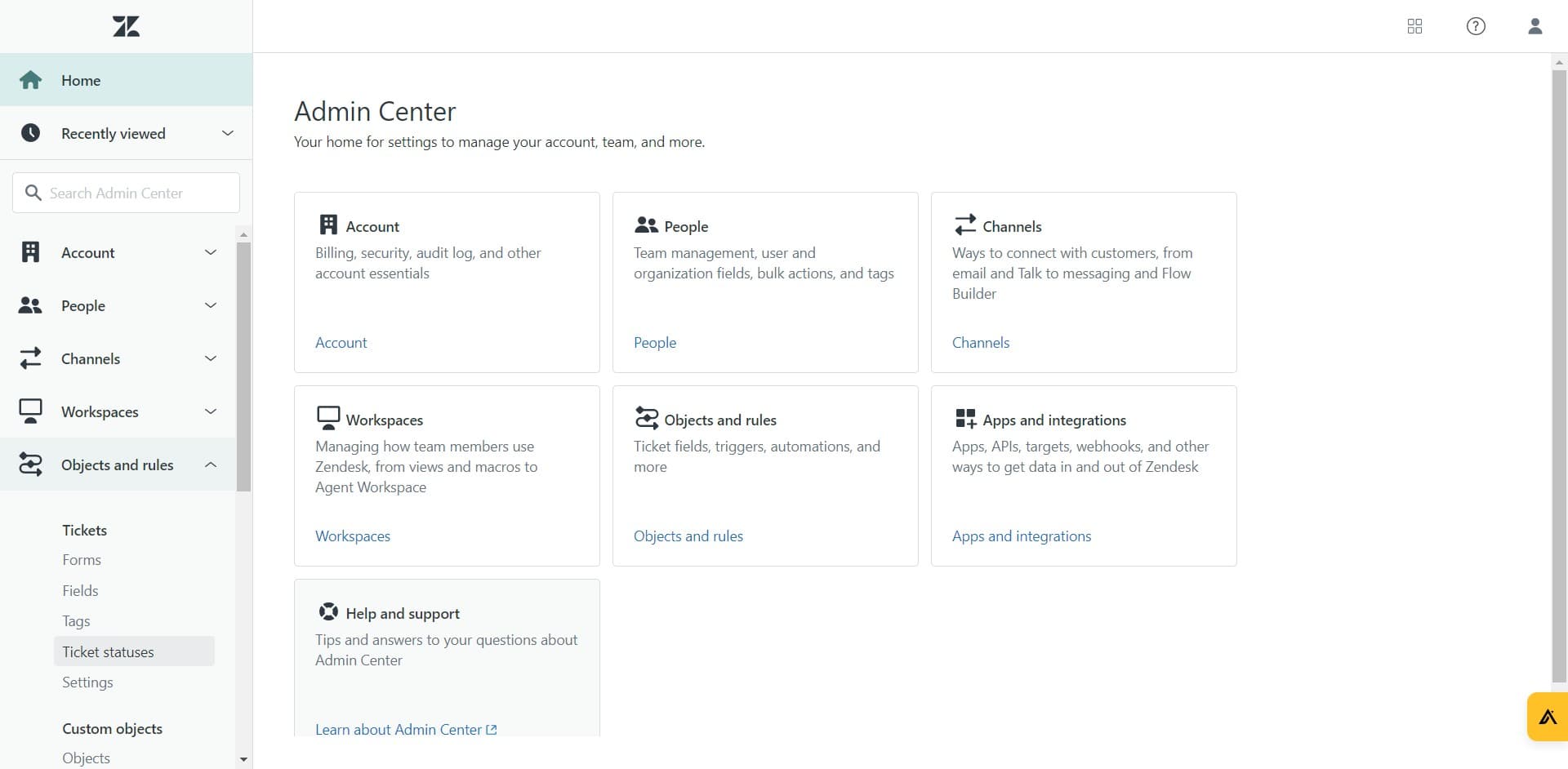
Click on Ticket statuses
Find and click on Ticket statuses to view your current status options. You'll see a list of existing statuses and the option to add new ones.
- 4
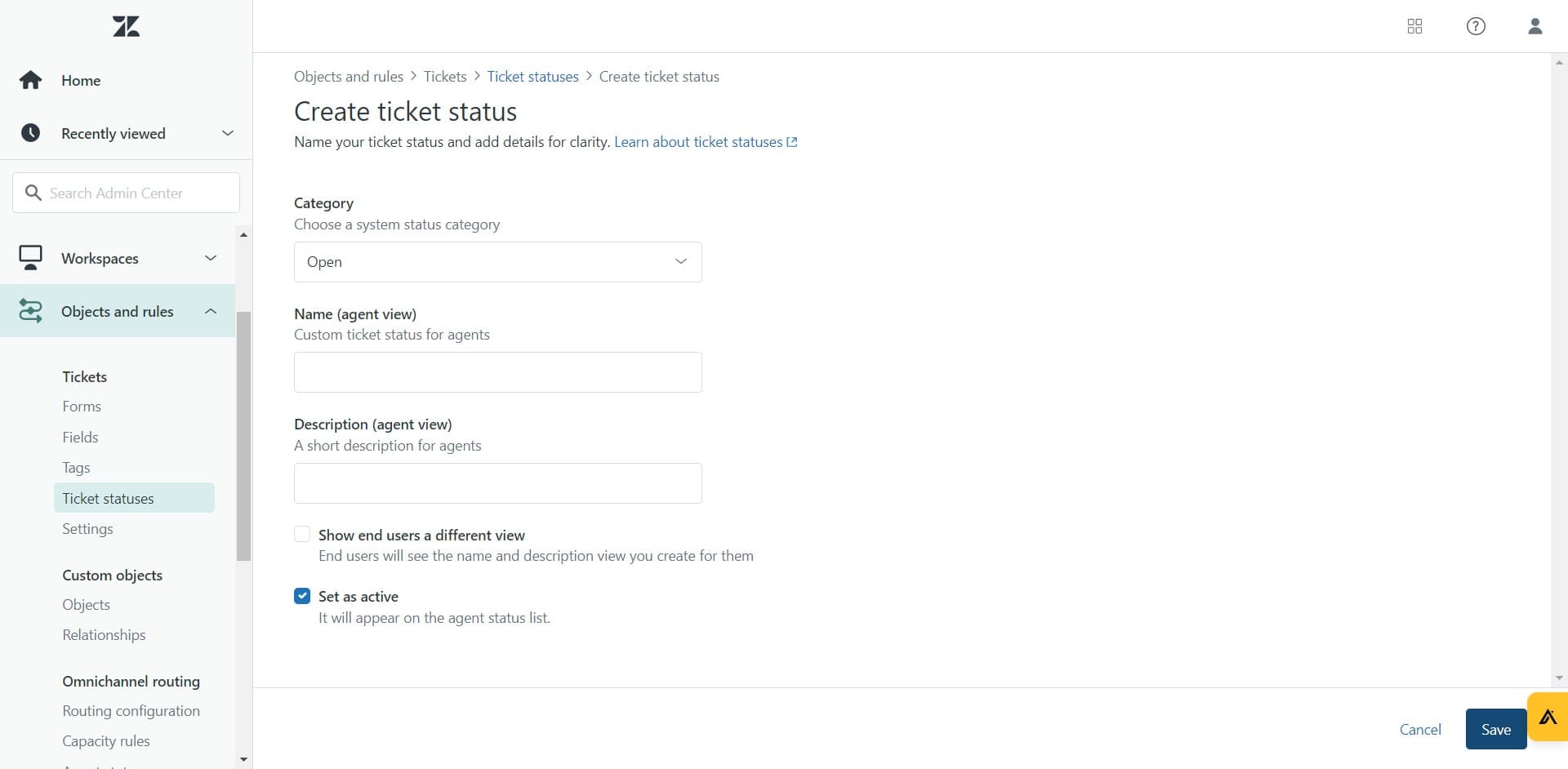
Configure your new status
Fill in the details for your new ticket status, including the name and any relevant settings. Ensure the status name clearly reflects its purpose in your workflow.
- 5
Save your changes
Click the Save button to apply your new ticket status. Your custom status will now be available for agents to use when updating ticket information.
Frequently asked questions
Common questions about how to add additional ticket status in zendesk.
You can modify some default statuses, but certain core statuses like Open and Closed cannot be deleted as they are essential to Zendesk's ticket system. However, you can customize their names and settings depending on your plan.
Zendesk allows you to add multiple custom statuses depending on your account plan. Most plans support a reasonable number of additional statuses beyond the defaults, though you should check your specific plan limits.
Adding a new status does not retroactively change existing tickets. New statuses are available going forward for agents to assign to tickets, but previously created tickets retain their assigned statuses.
Zendesk allows you to group statuses into categories such as Open, Pending, Solved, and Closed to help organize and display them logically in your interface. This makes it easier for agents to find and select the appropriate status.
Use clear, descriptive names that your team will easily understand. Avoid abbreviations and ensure each status name reflects a distinct stage in your workflow to prevent confusion among agents.