How to Merge Tickets in Zendesk

Merging tickets in Zendesk helps consolidate related customer conversations into a single ticket, improving organization and reducing clutter in your support queue. This guide walks you through the process of merging tickets efficiently using Zendesk's merge functionality.
Quick summary
In this tutorial, you'll learn how to merge multiple support tickets into one primary ticket in Zendesk. You'll navigate to the merge option, select the target ticket, and confirm the merge to streamline your ticket management.
Why this matters
Merging tickets is essential for maintaining a clean support system and ensuring that all related customer communications are tracked in one place. This workflow prevents duplicate efforts, improves team visibility, and creates a comprehensive conversation history for better customer service.
Step-by-step guide
- 1
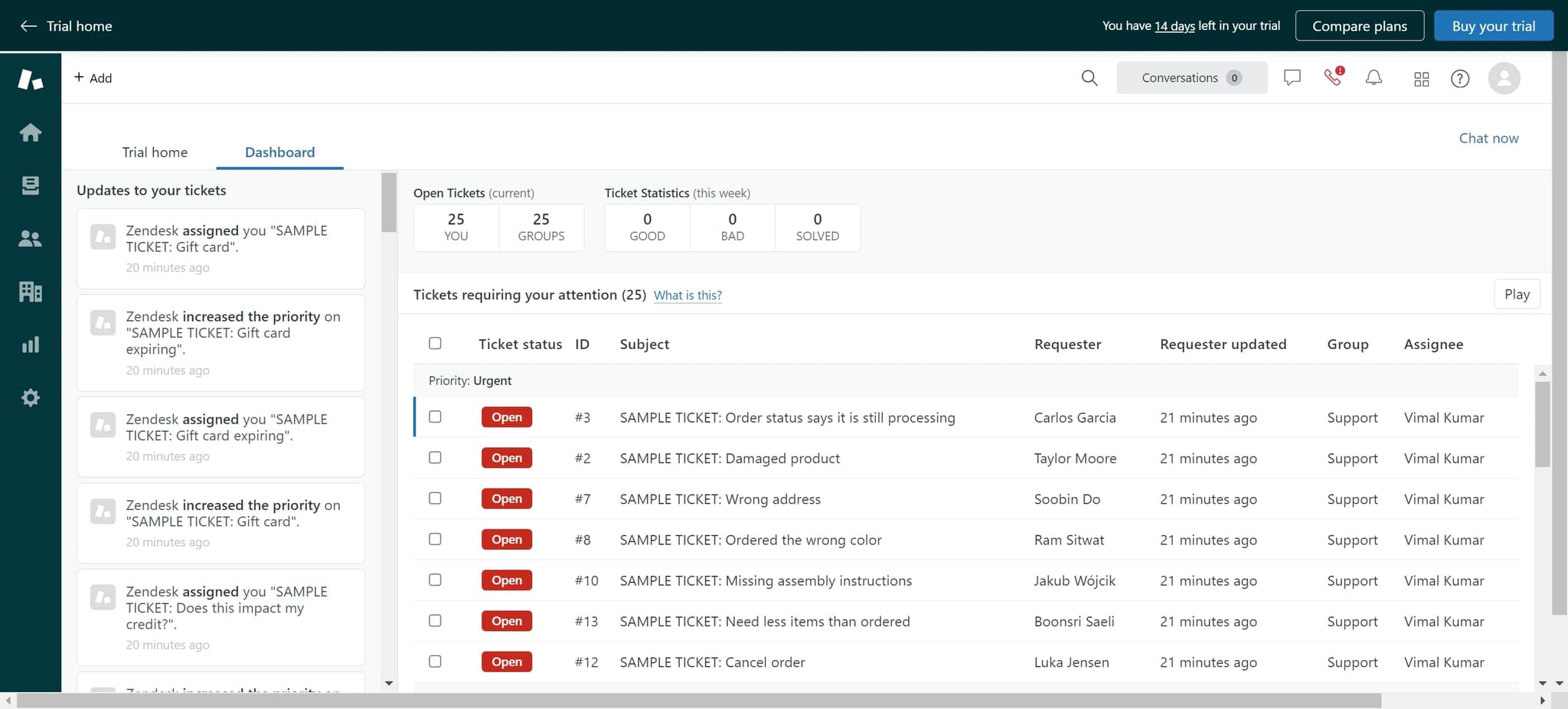
Initiate chat support
Click on 'Chat now' to begin accessing Zendesk's support features. This opens the communication interface where you can manage your tickets.
- 2
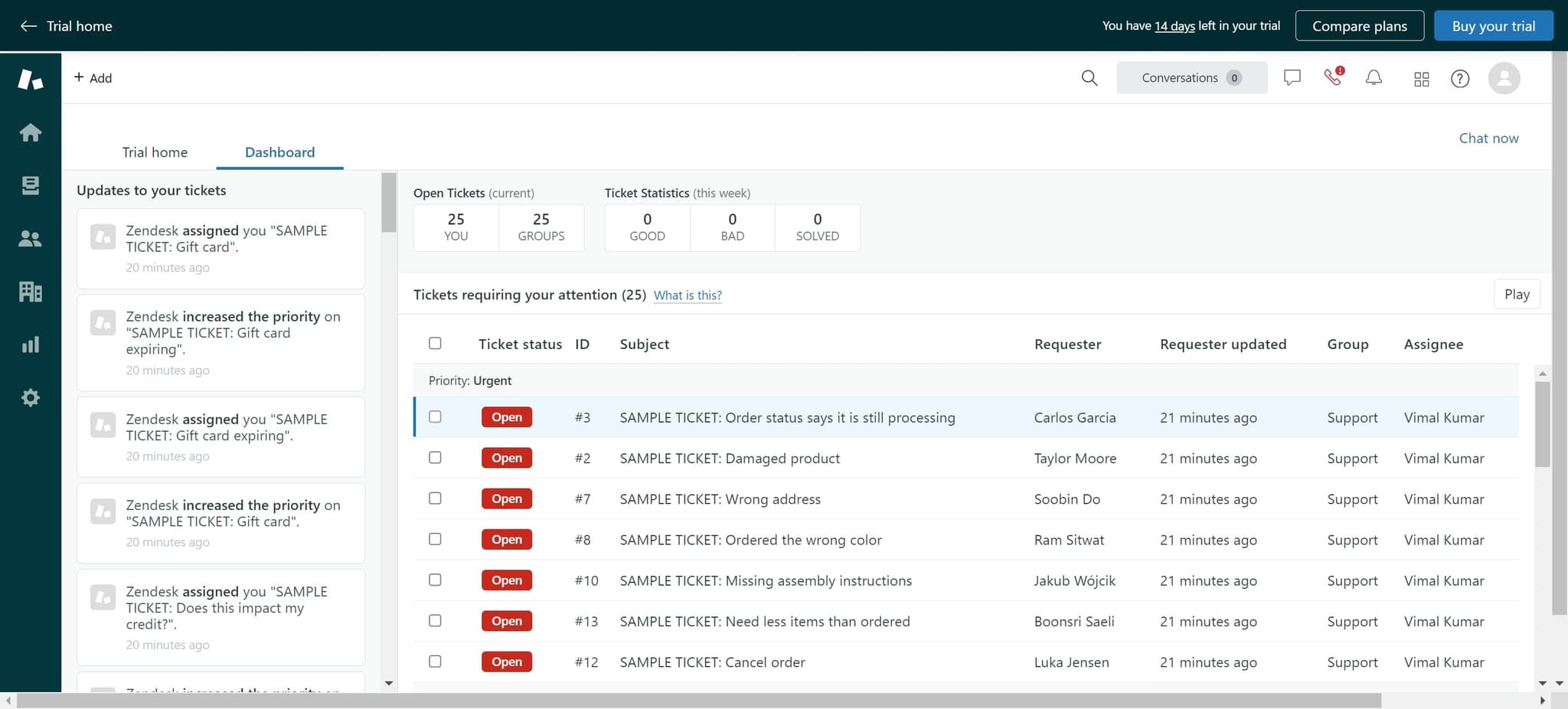
Navigate to ticket options
Click on the element to display the available ticket management options. This reveals additional actions you can perform on the current ticket.
- 3
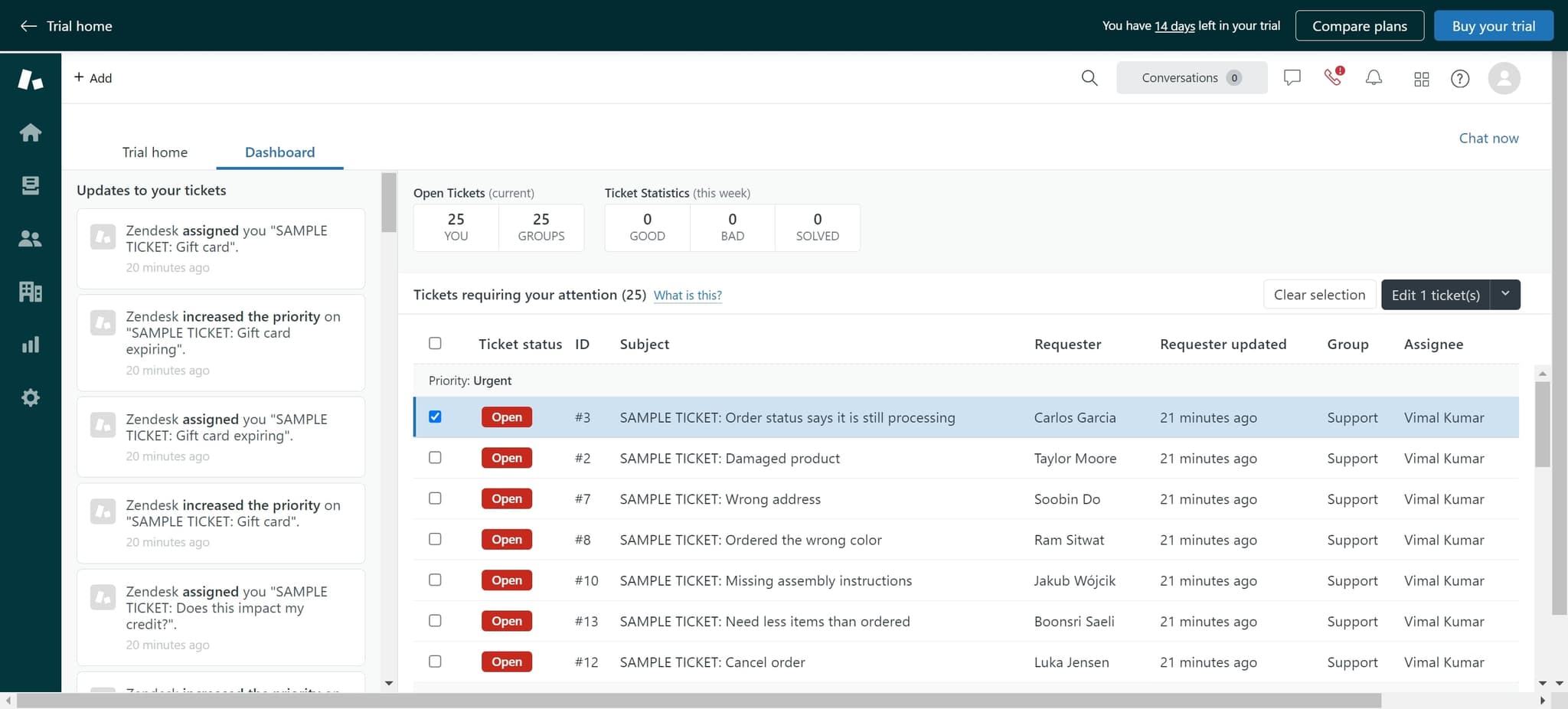
Access ticket actions menu
Click on the element again to expand the full set of ticket management features. This menu contains the merge option and other administrative controls.
- 4
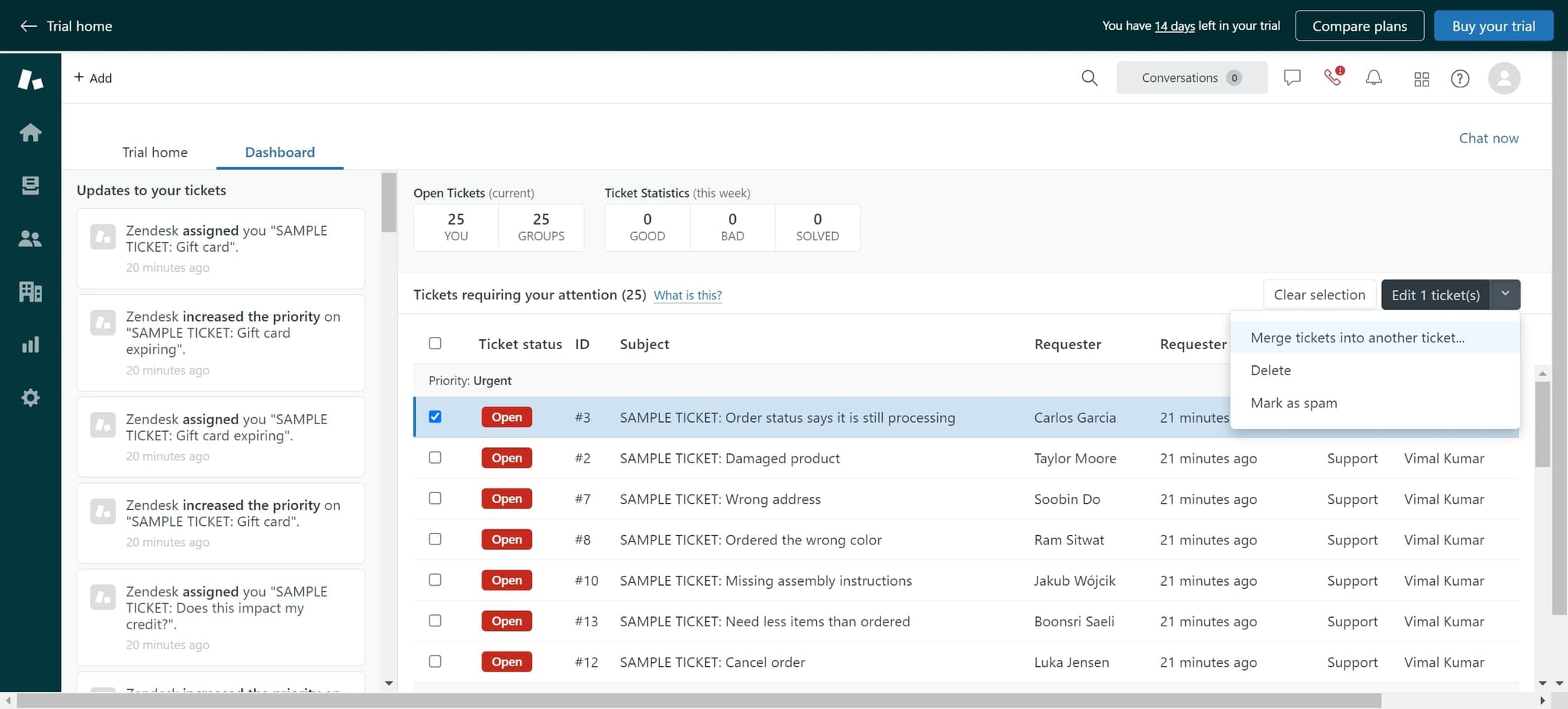
Select merge tickets option
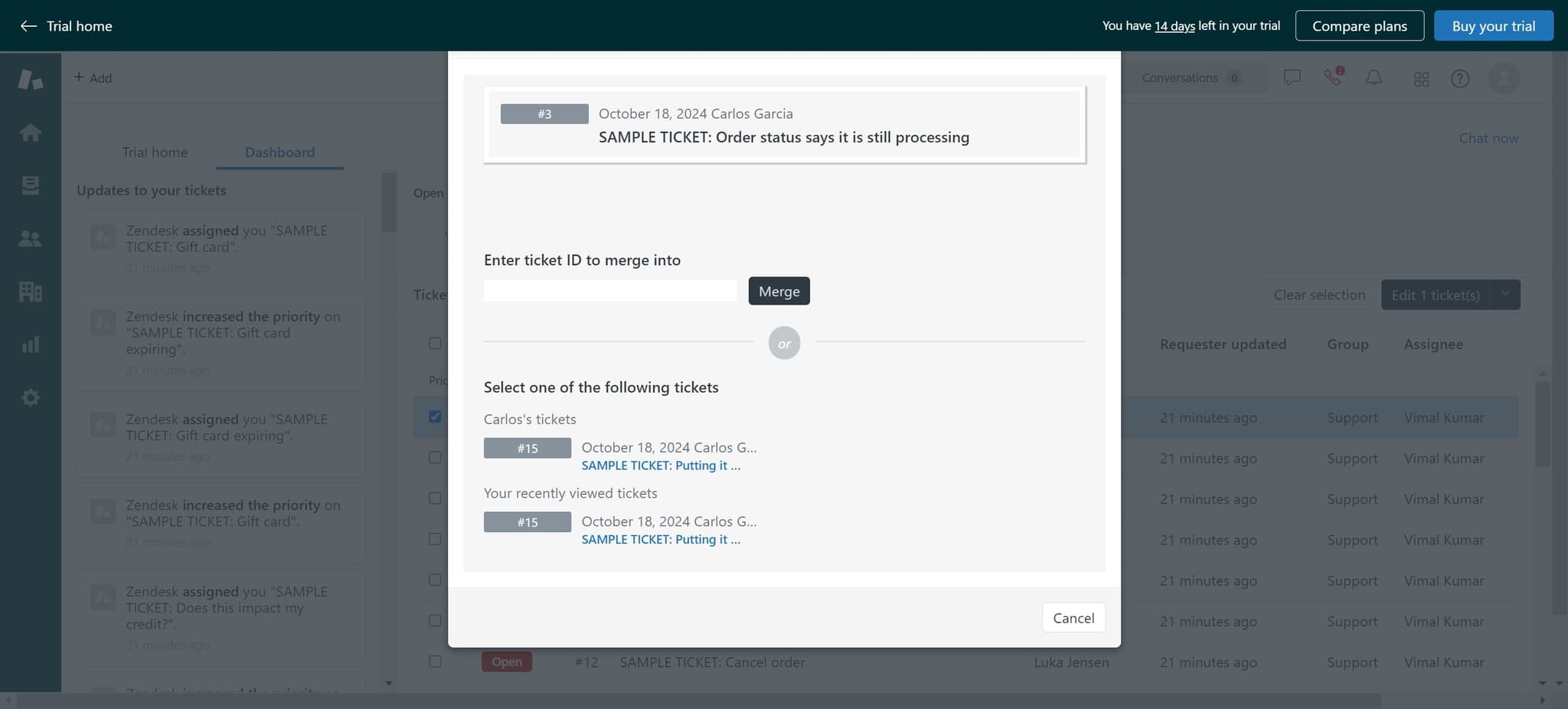
Click on 'Merge tickets into another ticket...' to initiate the merging process. This option allows you to combine the current ticket with another ticket in your system.
- 5
Choose target ticket number
Click on '#15' to select the ticket you want to merge the current ticket into. This designates ticket #15 as the primary ticket that will retain all merged information.
- 6
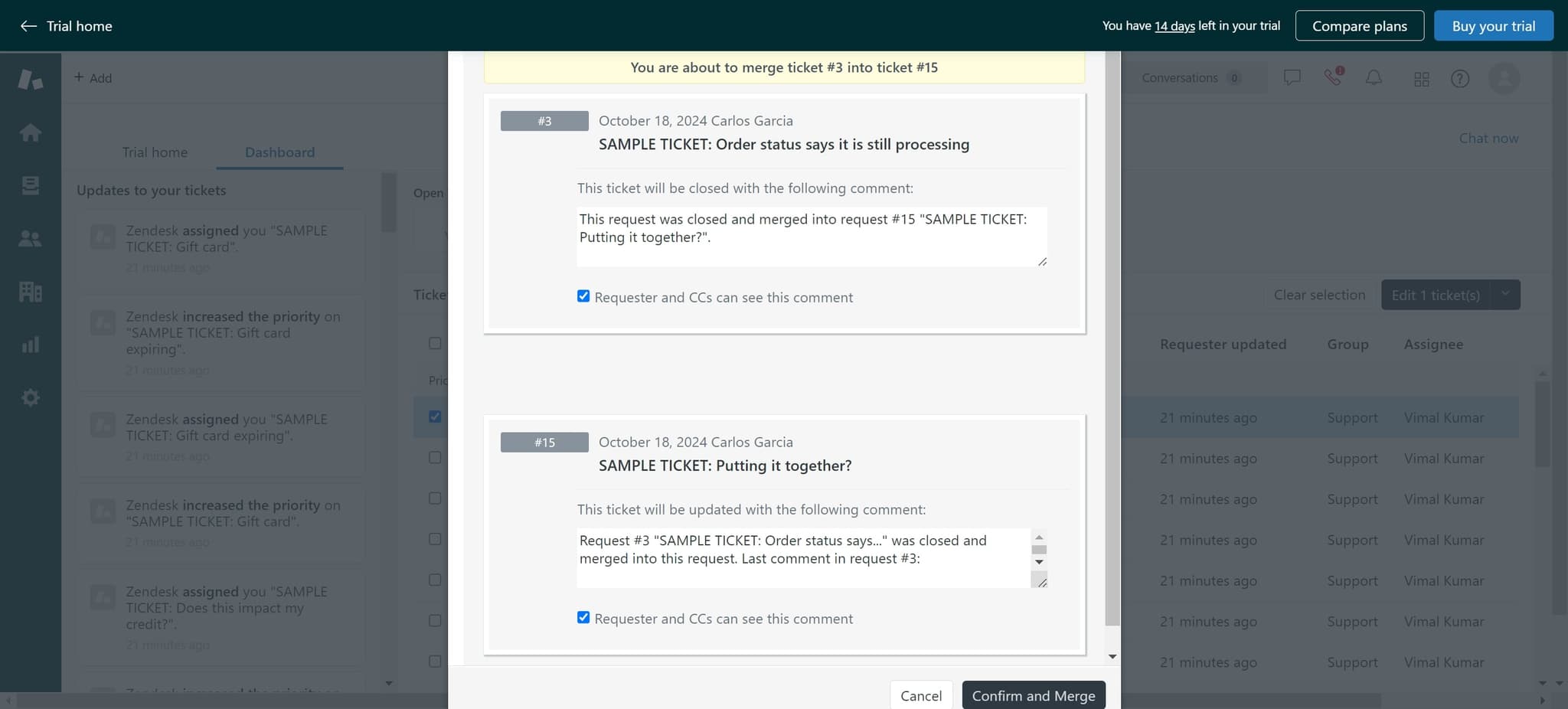
Confirm and complete merge
Click on 'Confirm and Merge' to finalize the merge operation. The tickets are now combined, and all communications and details are consolidated into the target ticket.
Frequently asked questions
Common questions about how to merge tickets in zendesk.
Zendesk does not provide a built-in undo function for merged tickets. However, you can contact Zendesk support to request a merge reversal if the merge was made in error. It's important to verify your target ticket before confirming the merge to avoid accidental combinations.
When you merge tickets, all comments from both tickets are preserved and consolidated into the primary ticket. The conversation history remains intact, allowing your team to see the complete communication timeline with the customer.
Zendesk's standard merge function combines two tickets at a time. If you need to merge multiple tickets, you can perform sequential merges by repeating the process with different ticket pairs until all related tickets are combined into one.
You should typically select the older ticket or the one with more relevant history as the primary ticket. Choose the ticket that best represents the customer issue and has the most comprehensive information about their problem.
The primary ticket number remains visible to customers, while the merged ticket becomes a child of the primary ticket. Your customer will continue to reference the primary ticket number in their communications and support records.