How to Add Automation in Zendesk

Automation in Zendesk allows you to streamline repetitive support tasks and ensure consistent ticket handling across your team. By setting up triggers and automations, you can reduce manual work, improve response times, and enhance customer satisfaction.
Quick summary
In this tutorial, you'll learn how to create and configure automations in Zendesk to handle common support workflows automatically. You'll discover how to set conditions, define actions, and deploy automations that work seamlessly with your support processes.
Why this matters
Automations are essential for scaling customer support without proportionally increasing your team size. They ensure that critical tickets are routed correctly, customers receive timely acknowledgments, and your team focuses on complex issues that require human judgment.
Step-by-step guide
- 1
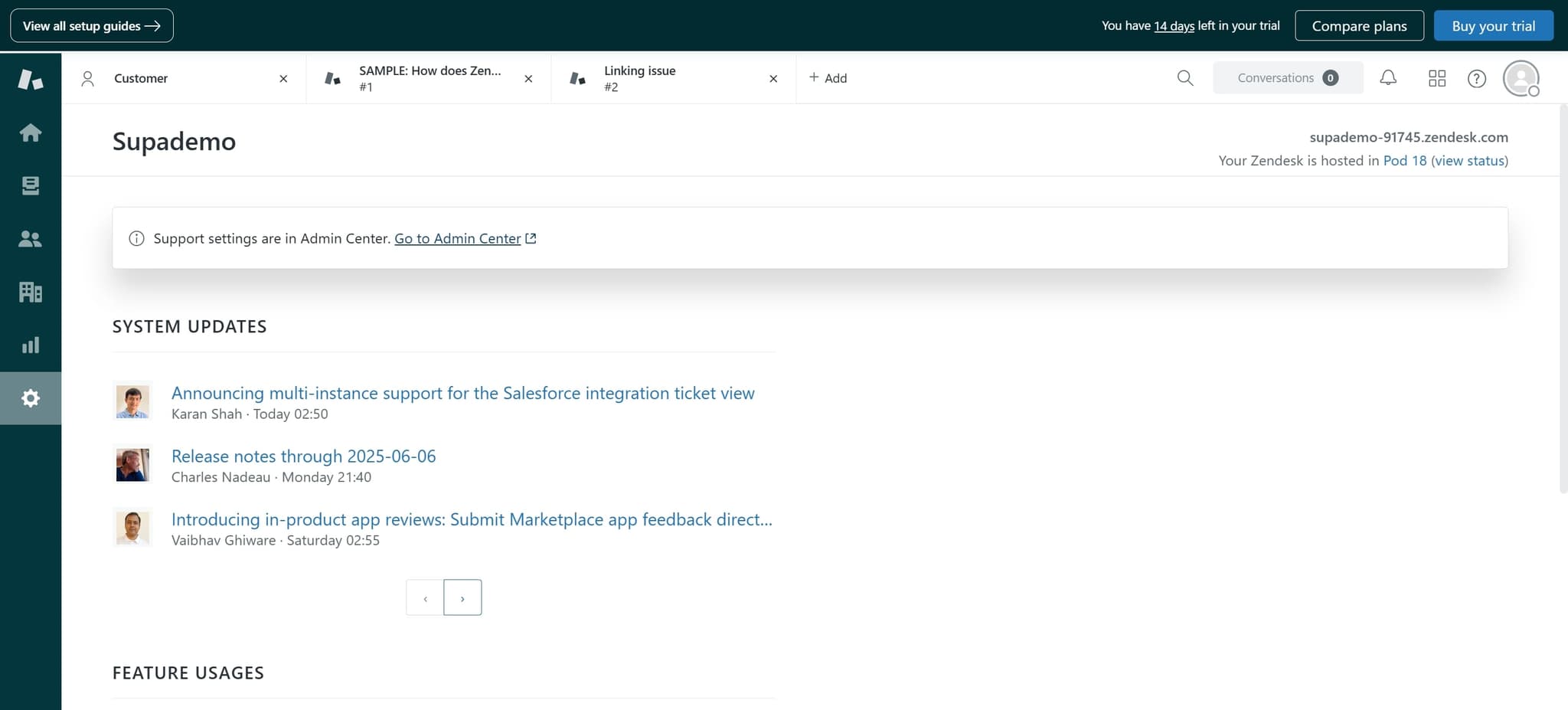
Access the Zendesk admin panel
Log in to your Zendesk account and navigate to the Admin section using the gear icon in the bottom-left corner. This is where you'll find all configuration options for your support environment.
- 2
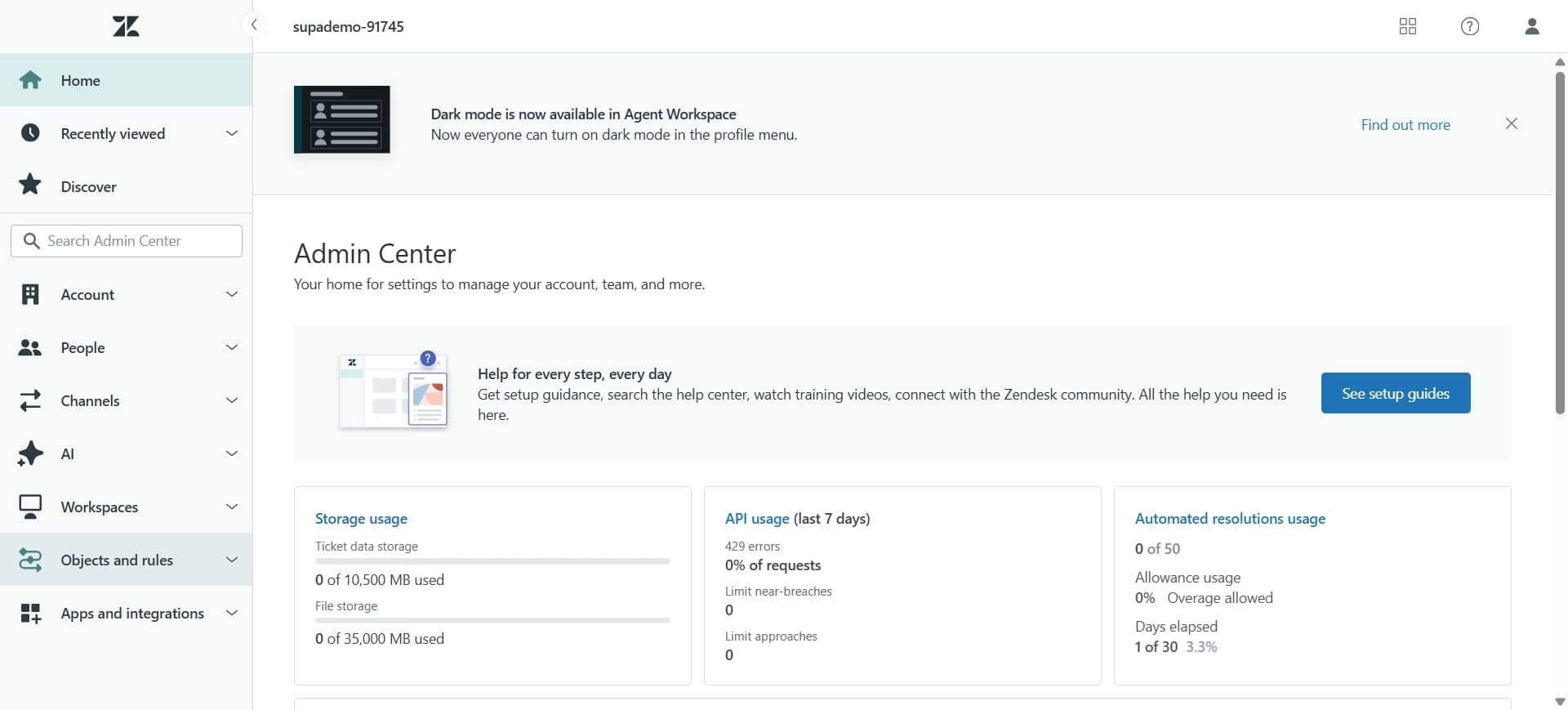
Navigate to automations settings
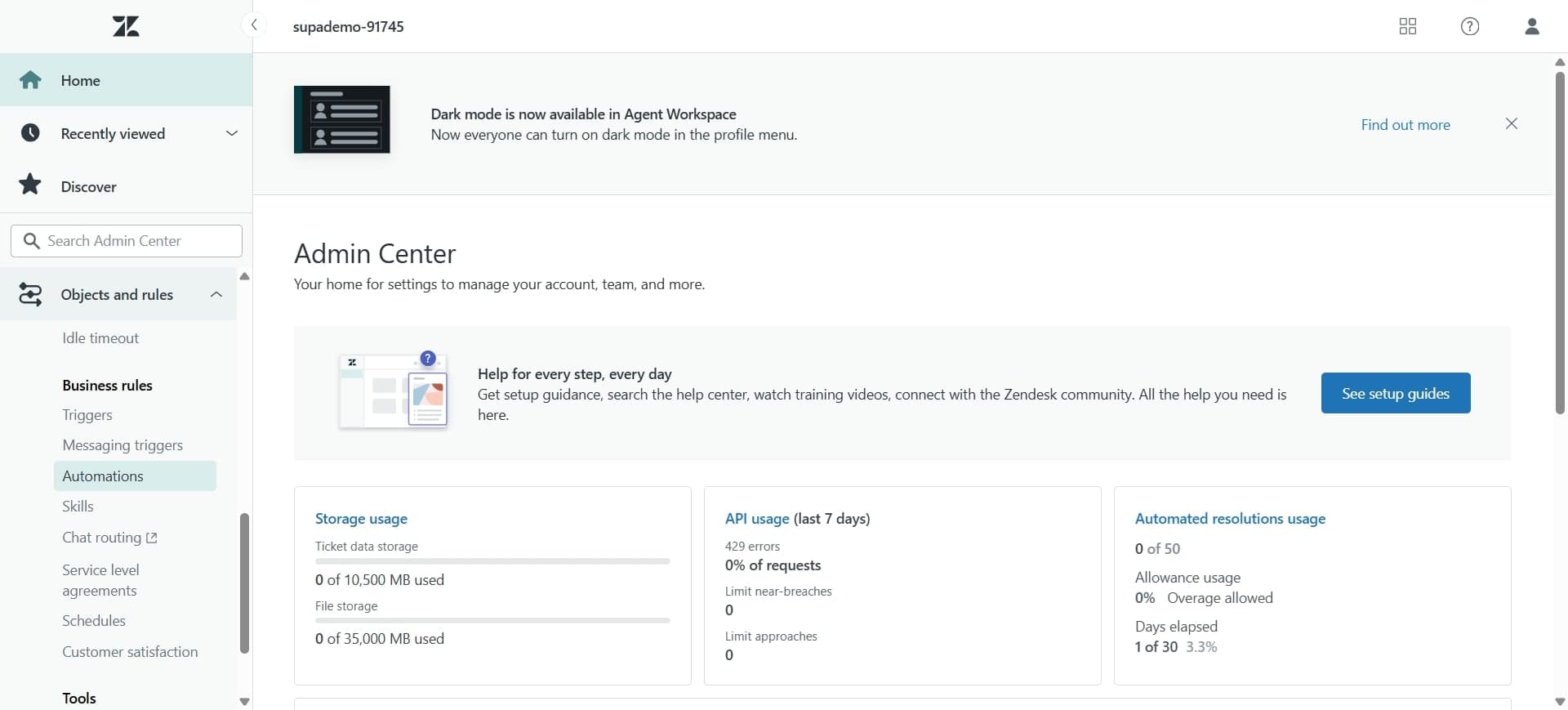
In the Admin panel, locate the Automations section under the Business Rules menu. This area displays all existing automations and provides options to create new ones.
- 3
Create a new automation
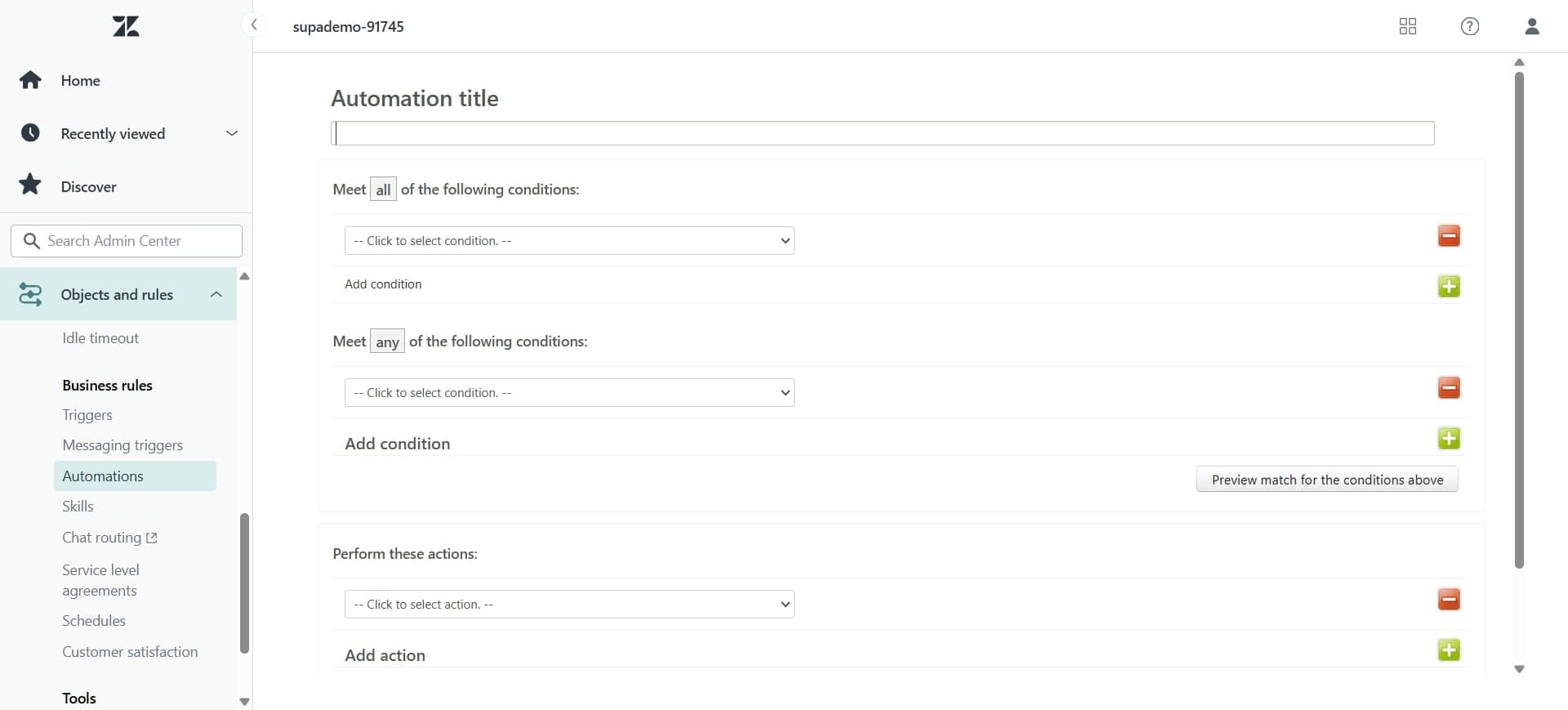
Click the Create Automation button to start building your first automation rule. You'll be taken to a form where you can define the conditions and actions for your automation.
- 4
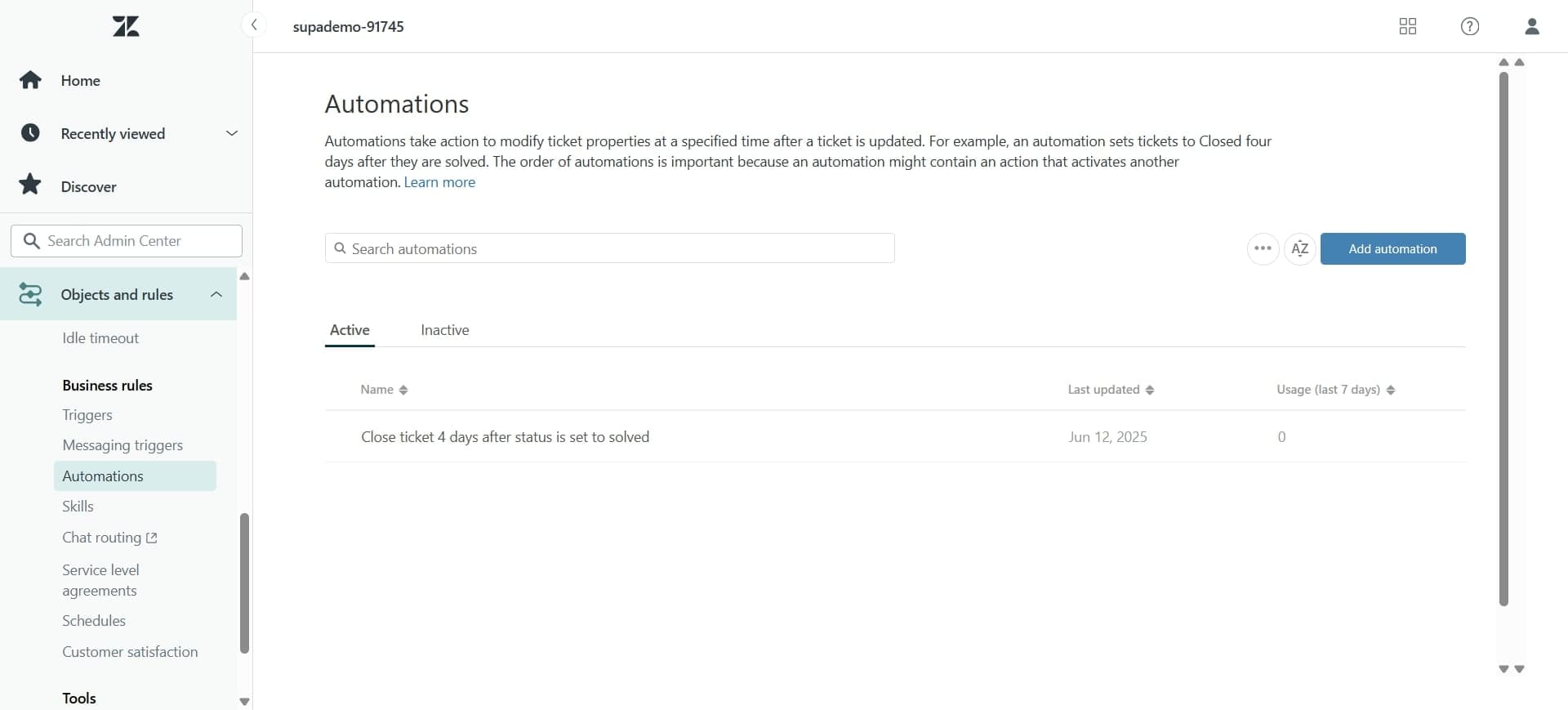
Set trigger conditions
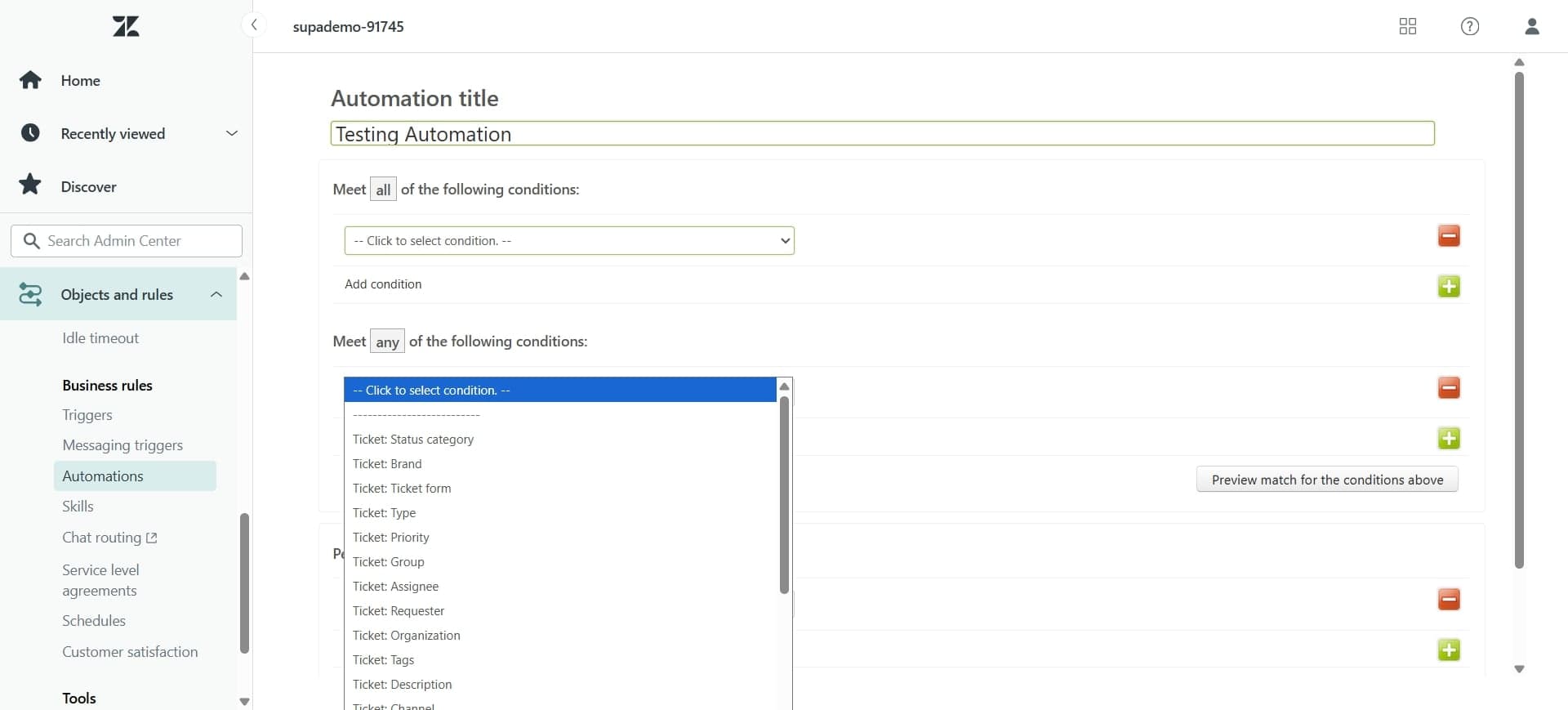
Define the conditions that will activate your automation, such as ticket status, priority level, or specific keywords in the ticket description. These conditions determine when the automation runs.
- 5
Define automation actions
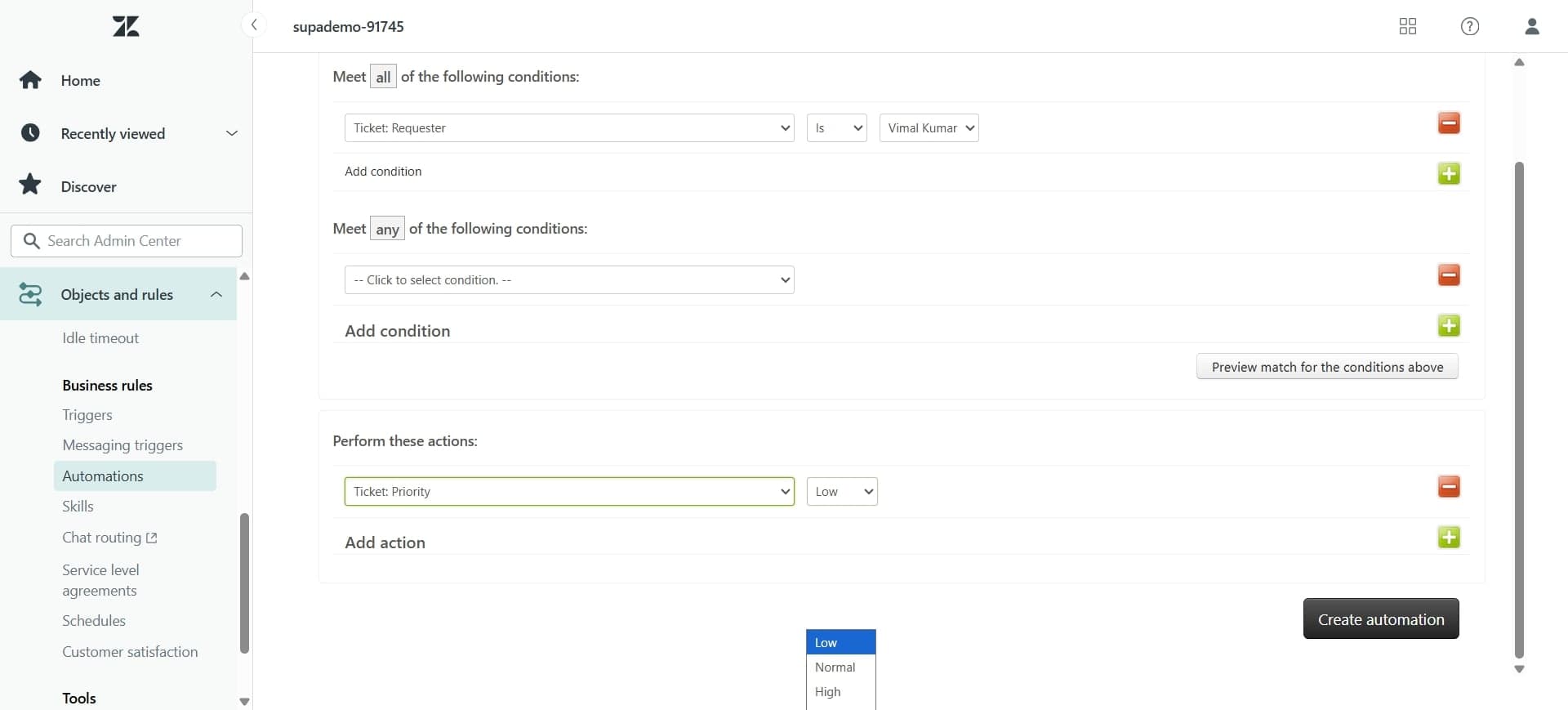
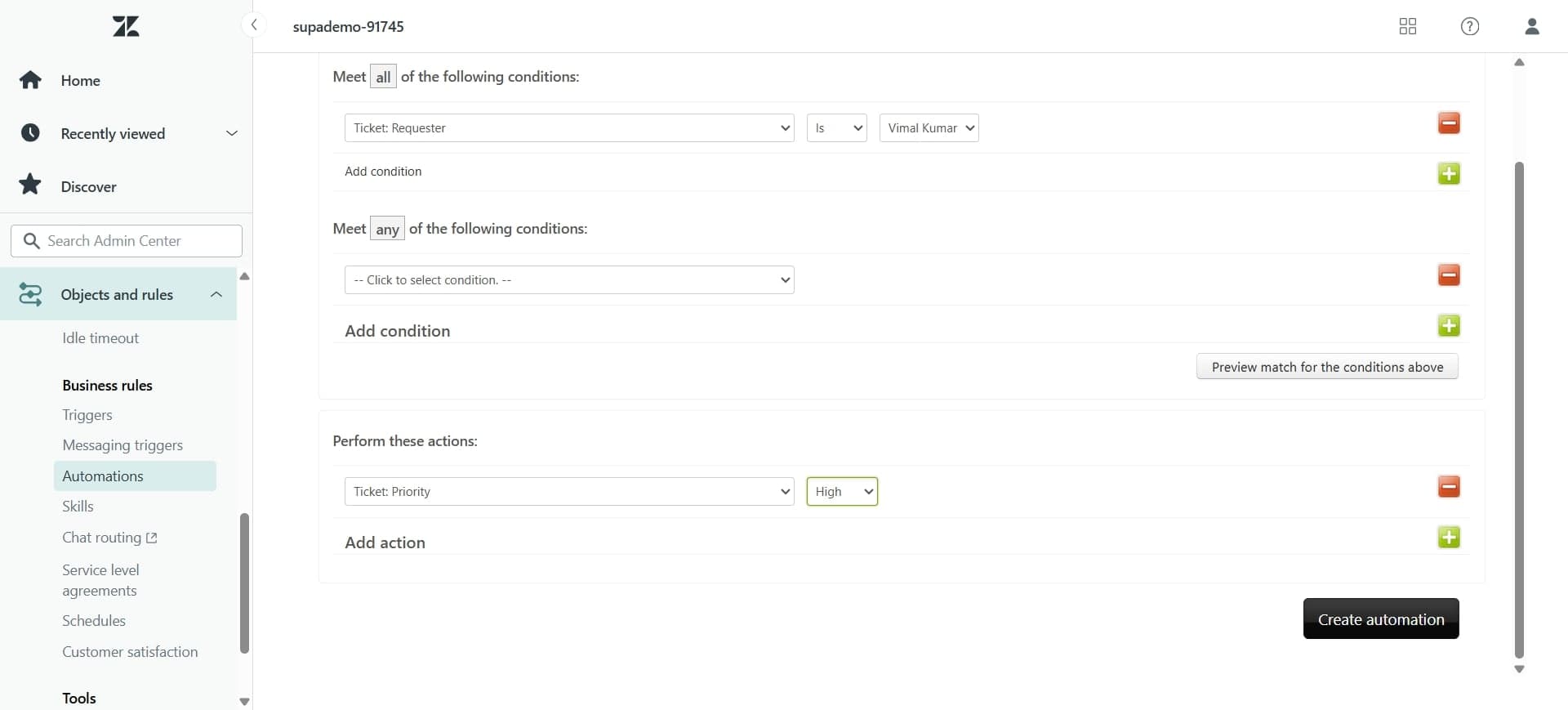
Specify what actions Zendesk should take when conditions are met, such as assigning tickets to a group, sending notifications, or updating ticket fields. You can chain multiple actions together.
- 6
Configure advanced options
Set optional settings like automation title, description, and any additional parameters specific to your workflow. You can also enable or disable the automation and set its priority.
- 7
Review and test the automation
Carefully review all conditions and actions to ensure they match your intended workflow. Consider testing with a sample ticket before enabling the automation for your entire support queue.
- 8
Enable and activate the automation
Click Save or Activate to deploy your automation. Once enabled, it will automatically process incoming tickets that match your defined conditions.
Frequently asked questions
Common questions about how to add automation in zendesk.
Yes, Zendesk allows multiple automations to run on a single ticket. However, be careful about creating conflicting automations that might cause unintended behavior. You can set automation priority to control the order in which they execute.
Automations run based on ticket status changes and are evaluated periodically, while triggers execute immediately when a ticket is created or updated. Use automations for ongoing conditions and triggers for immediate real-time responses.
Create the automation but leave it disabled, then manually create test tickets that match your conditions. Enable the automation temporarily to verify it behaves correctly. You can also check the audit log to see if automations are running as expected.
Yes, automations can send notifications to customers through ticket updates and comments. You can also configure automations to trigger webhook actions that send emails via third-party services integrated with Zendesk.
Zendesk logs automation errors in the system, and you can review them in the audit trail. If an automation fails, the ticket is not lost, but the automated action won't complete. Check your automation conditions and actions to prevent common errors like missing required fields.