How to Auto Assign Tickets in Zendesk

Auto-assignment in Zendesk streamlines ticket distribution by automatically routing incoming support tickets to the most appropriate agents based on predefined rules. This eliminates manual assignment bottlenecks and ensures tickets reach the right team members instantly, improving response times and customer satisfaction.
Quick summary
In this tutorial, you'll learn how to set up automatic ticket assignment in Zendesk using routing rules, conditions, and agent groups. You'll configure assignment logic based on ticket attributes like priority, department, and agent availability to optimize your support workflow.
Why this matters
Manual ticket assignment becomes impractical as ticket volume grows, often resulting in delays and inconsistent workload distribution. Implementing auto-assignment ensures fair load balancing, faster first response times, and reduces administrative overhead so your support team can focus on resolving customer issues rather than managing ticket queues.
Step-by-step guide
- 1
Access the Admin Center
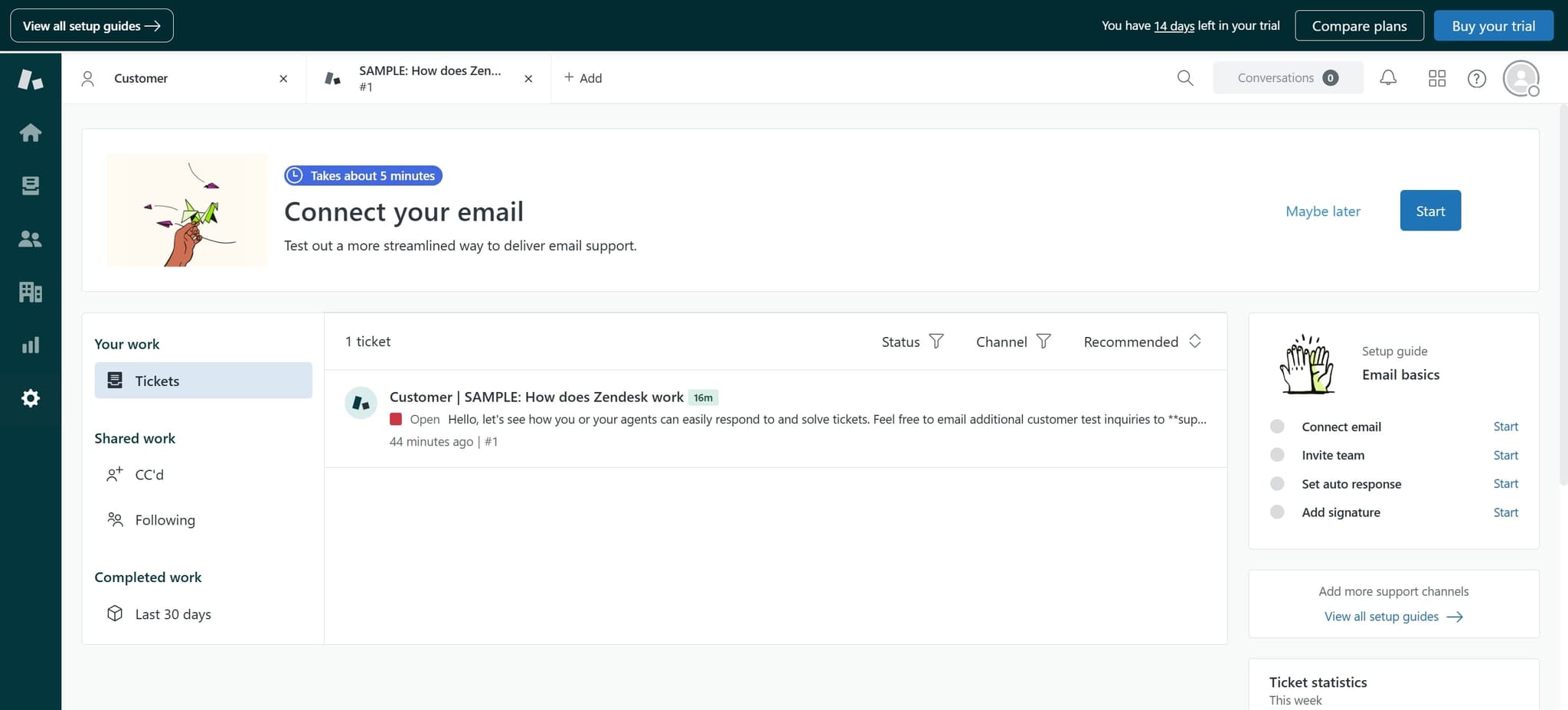
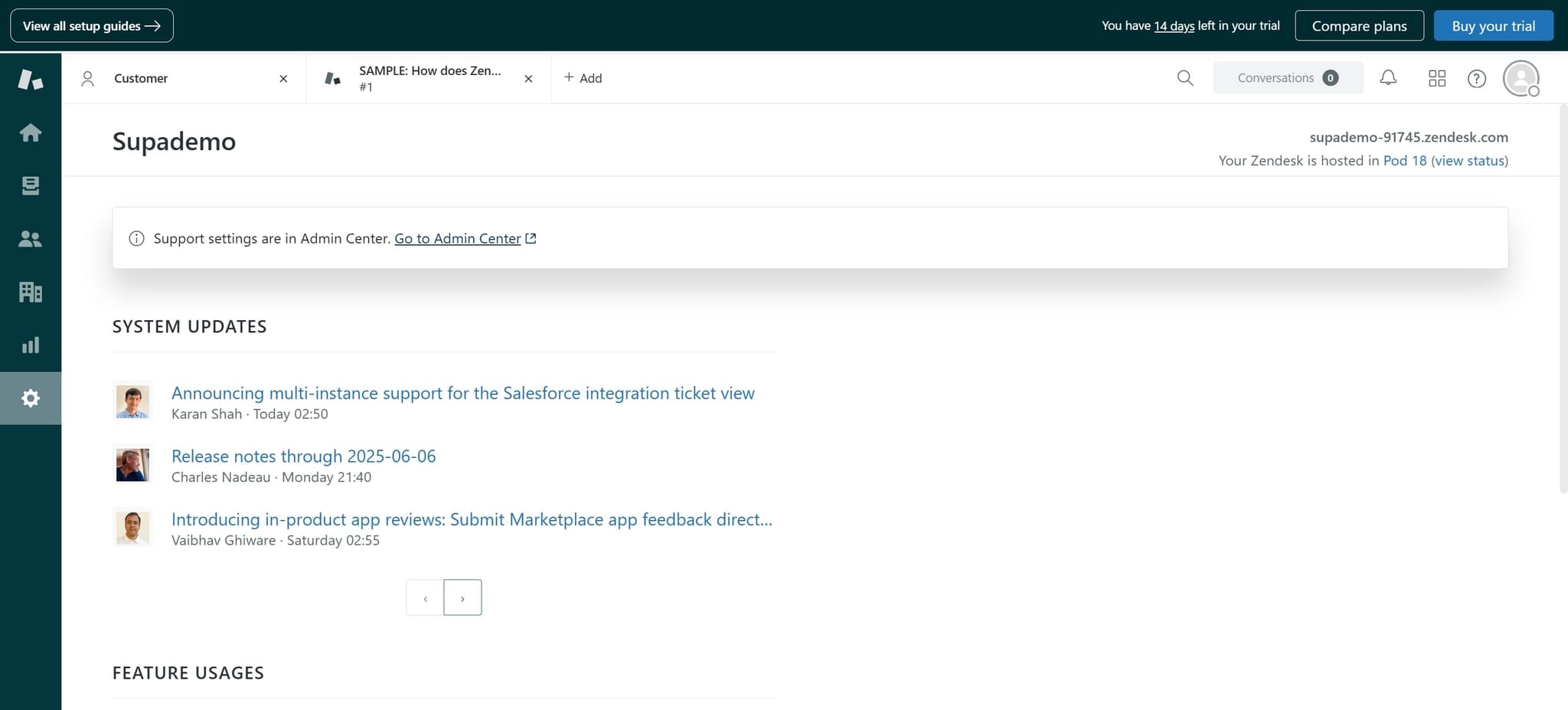
Log into your Zendesk account and click the Admin icon (gear) in the bottom left sidebar. The Admin Center dashboard will open, giving you access to all configuration settings.
- 2
Navigate to Routing settings
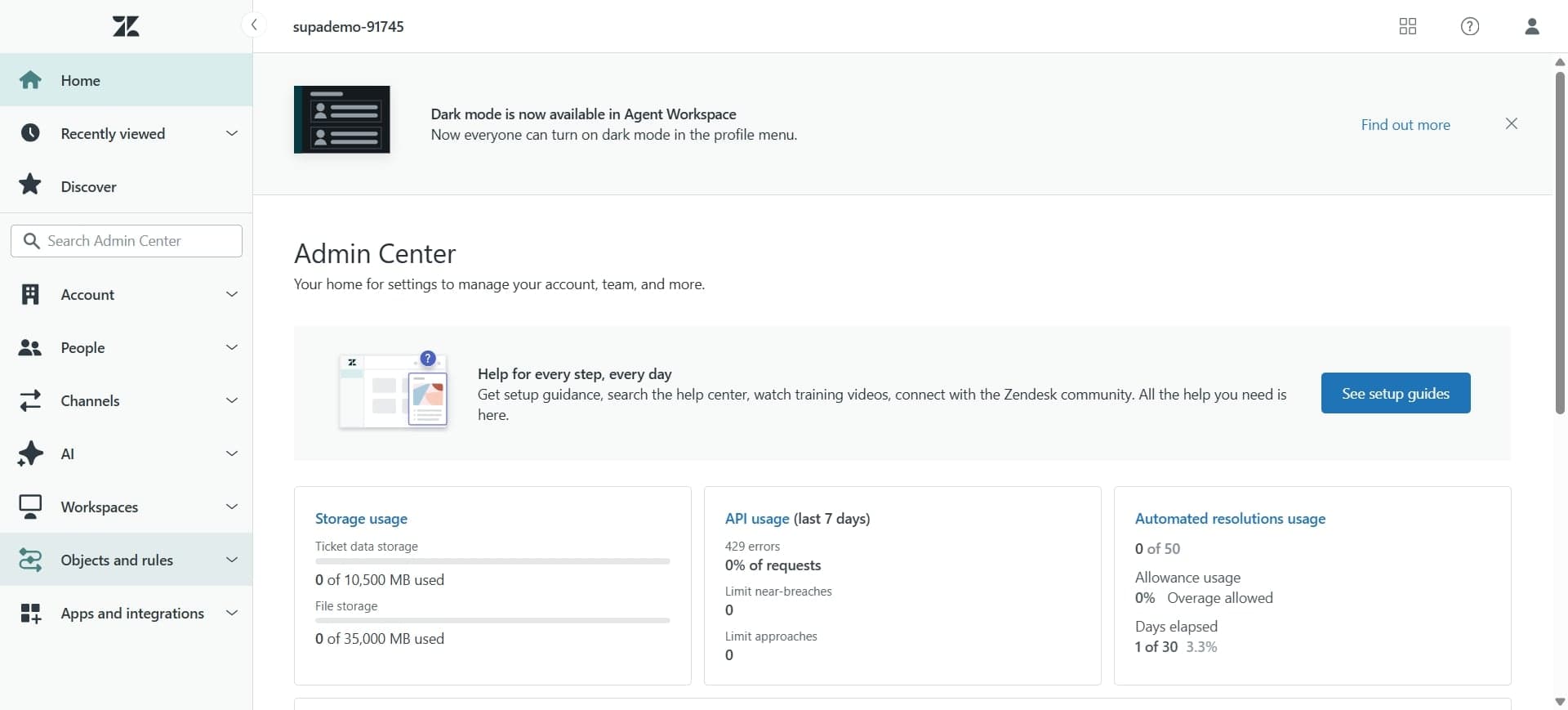
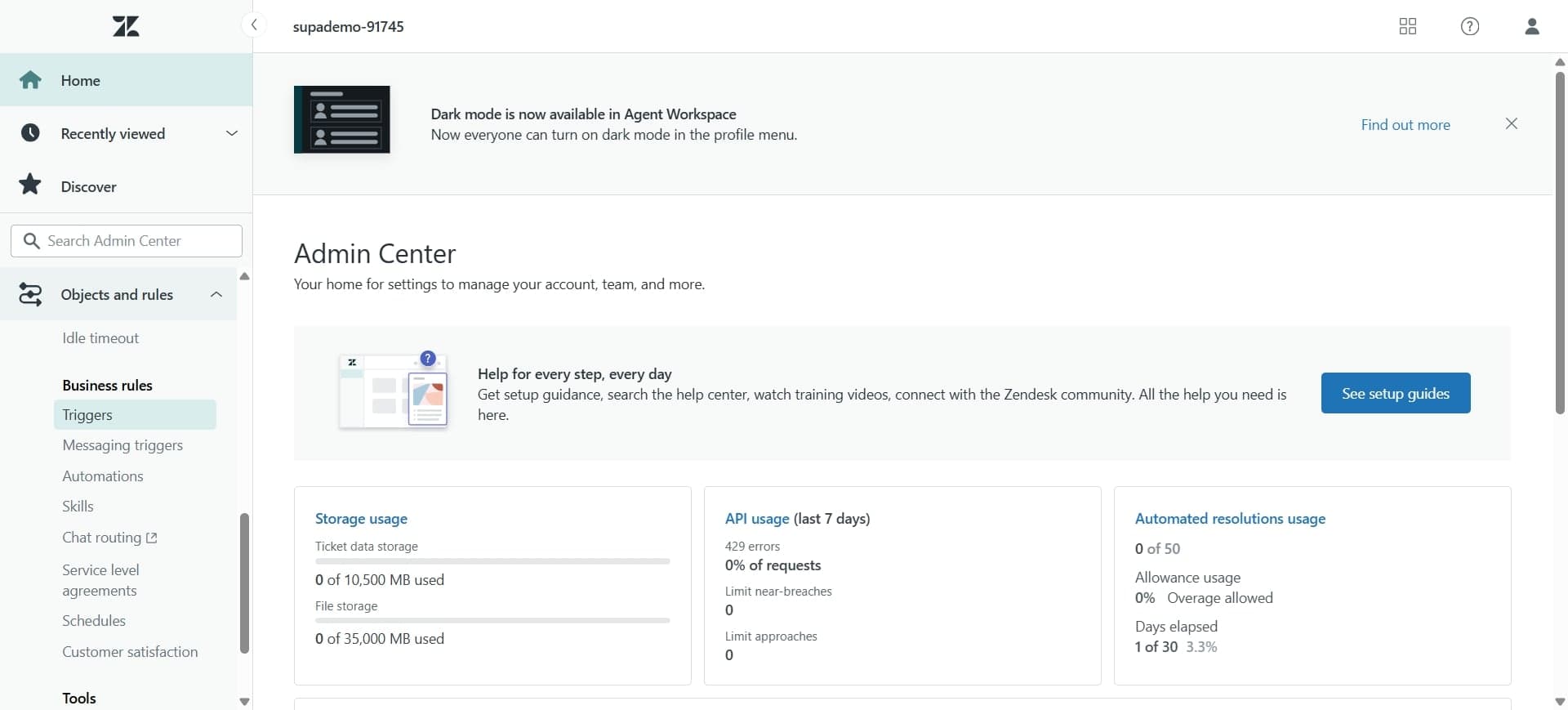
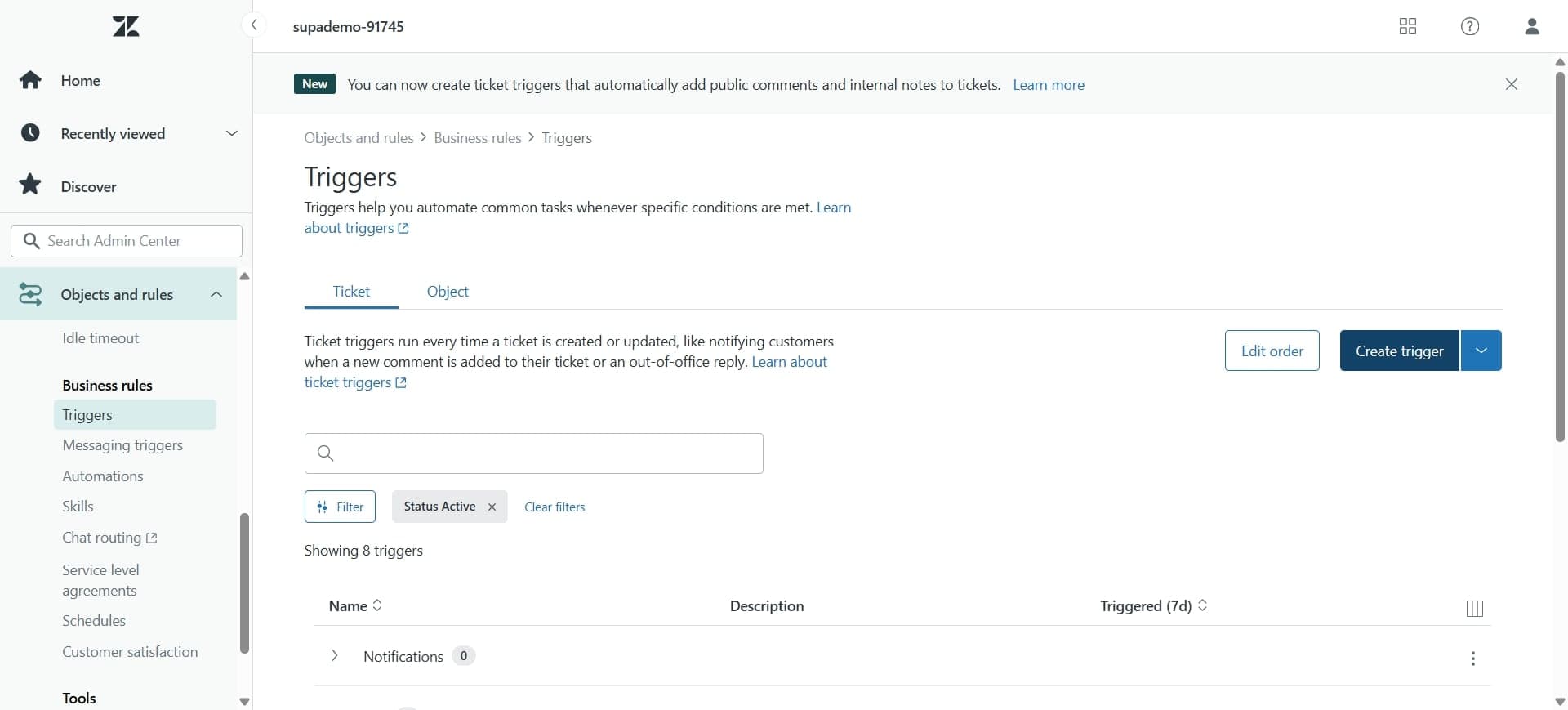
In the Admin Center, select Objects and rules from the left menu, then click Routing. This section controls how tickets are distributed across your support team.
- 3
Click Create routing rule
Select the Create rule button to start building a new automatic assignment rule. You'll define the conditions and actions that determine ticket distribution.
- 4
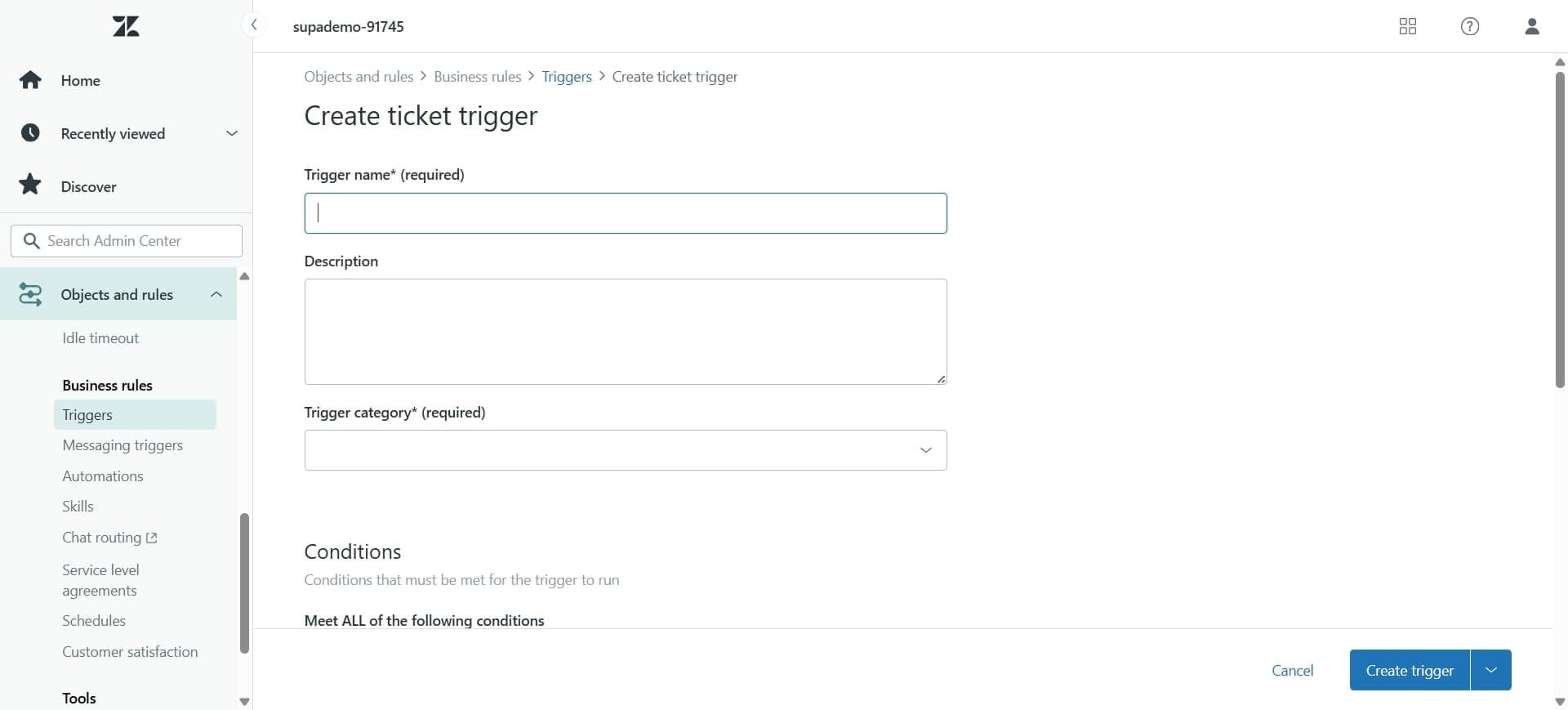
Name your routing rule
Enter a descriptive name for the rule, such as 'High Priority to Senior Agents' or 'Billing Department Auto-Assign'. A clear name helps you manage multiple rules later.
- 5
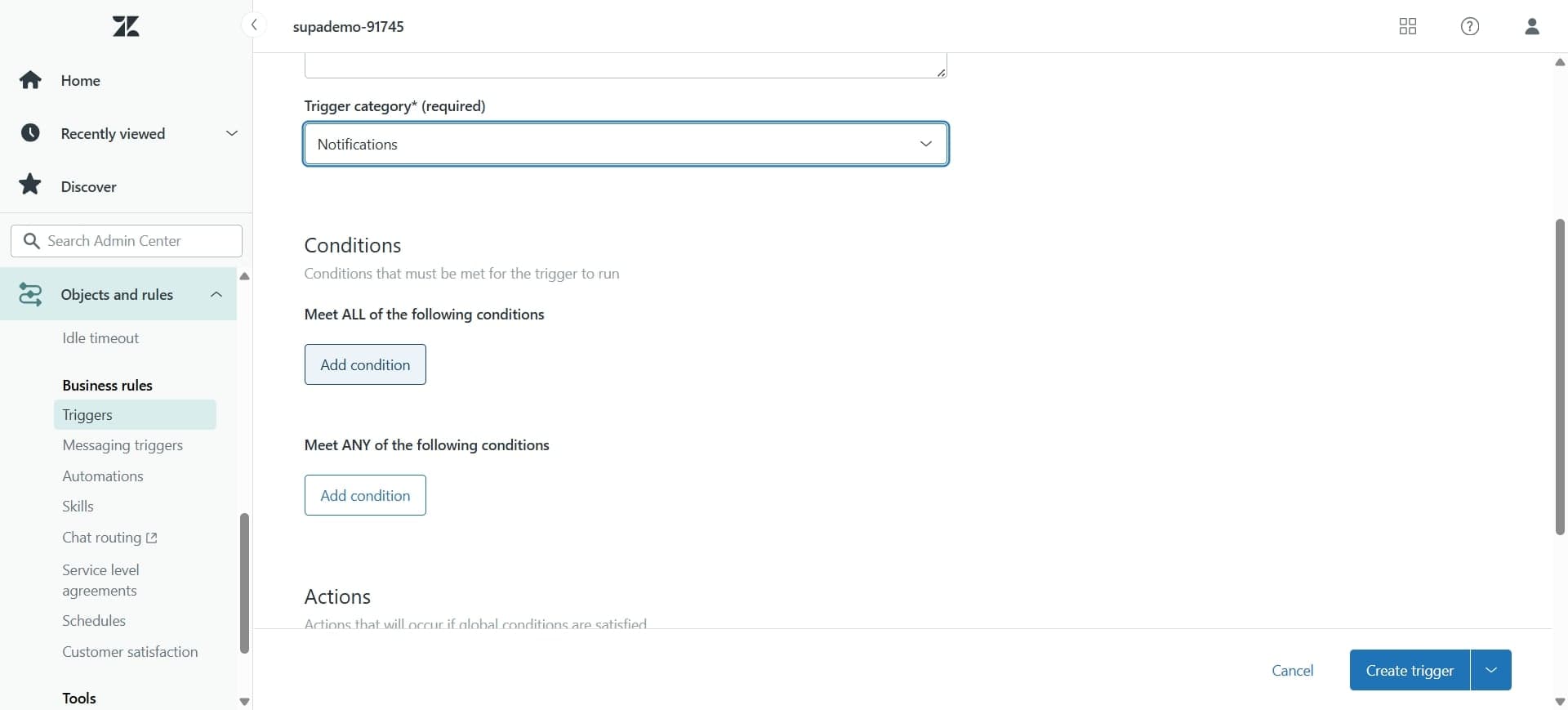
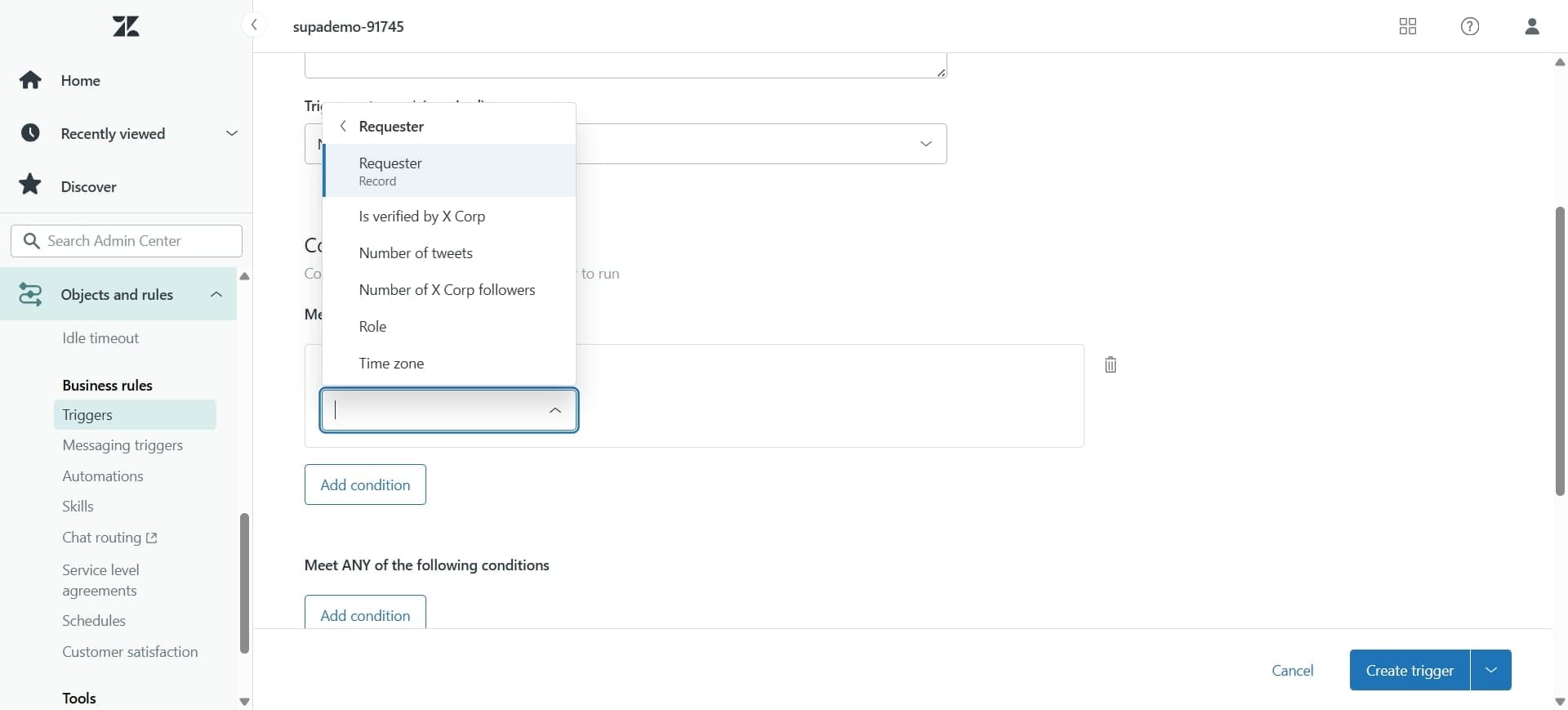
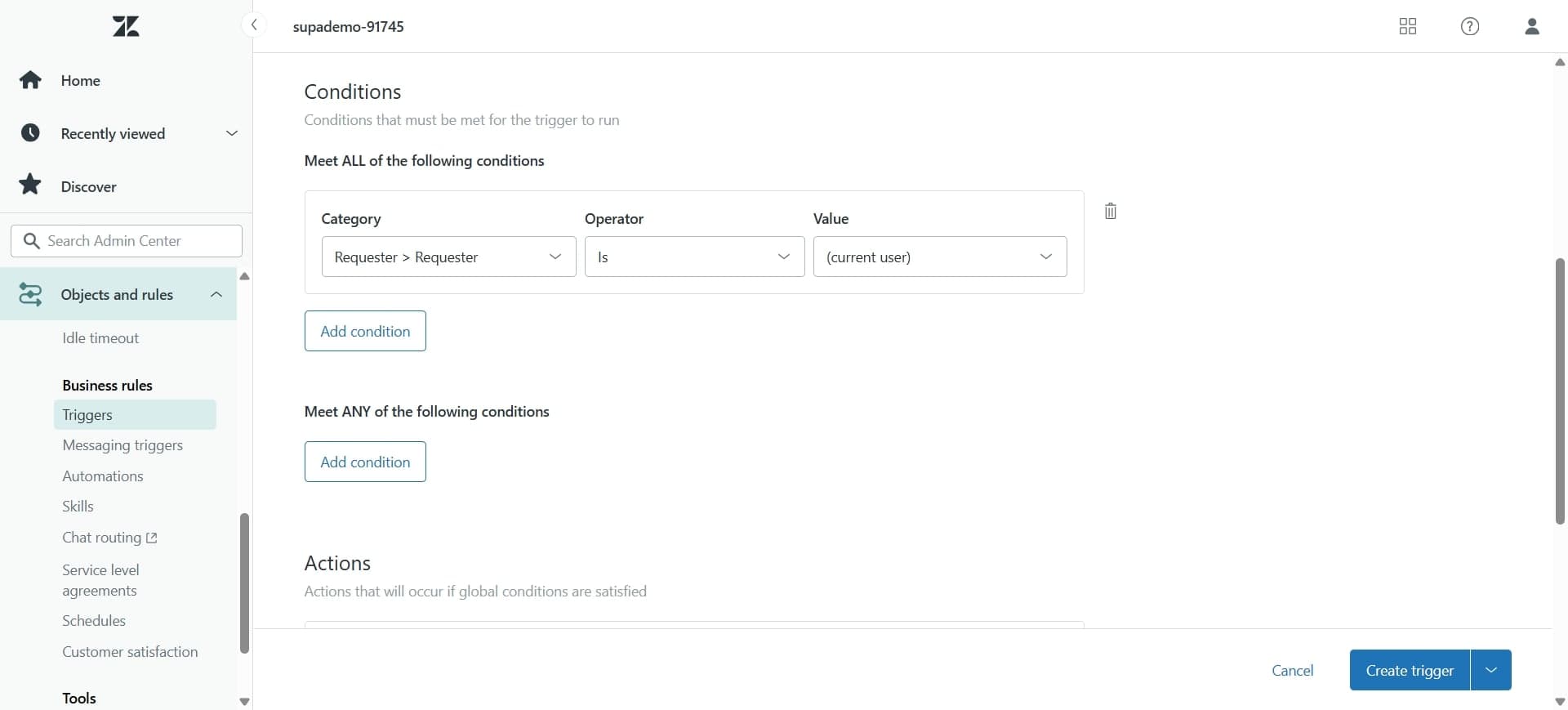
Define rule conditions
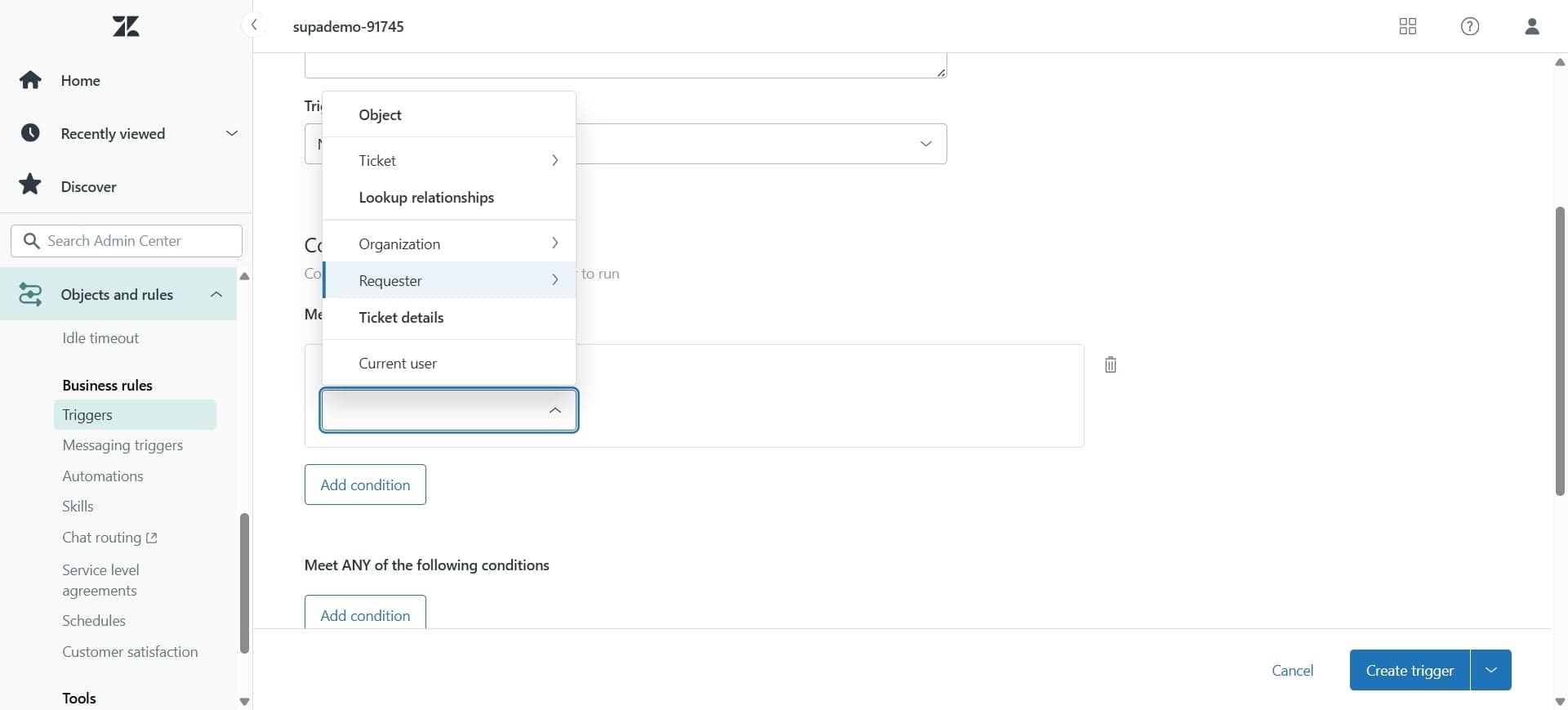
Click Add condition and specify the ticket attributes that must be met for this rule to apply, such as priority level, ticket type, or custom field values. You can add multiple conditions using AND/OR logic.
- 6
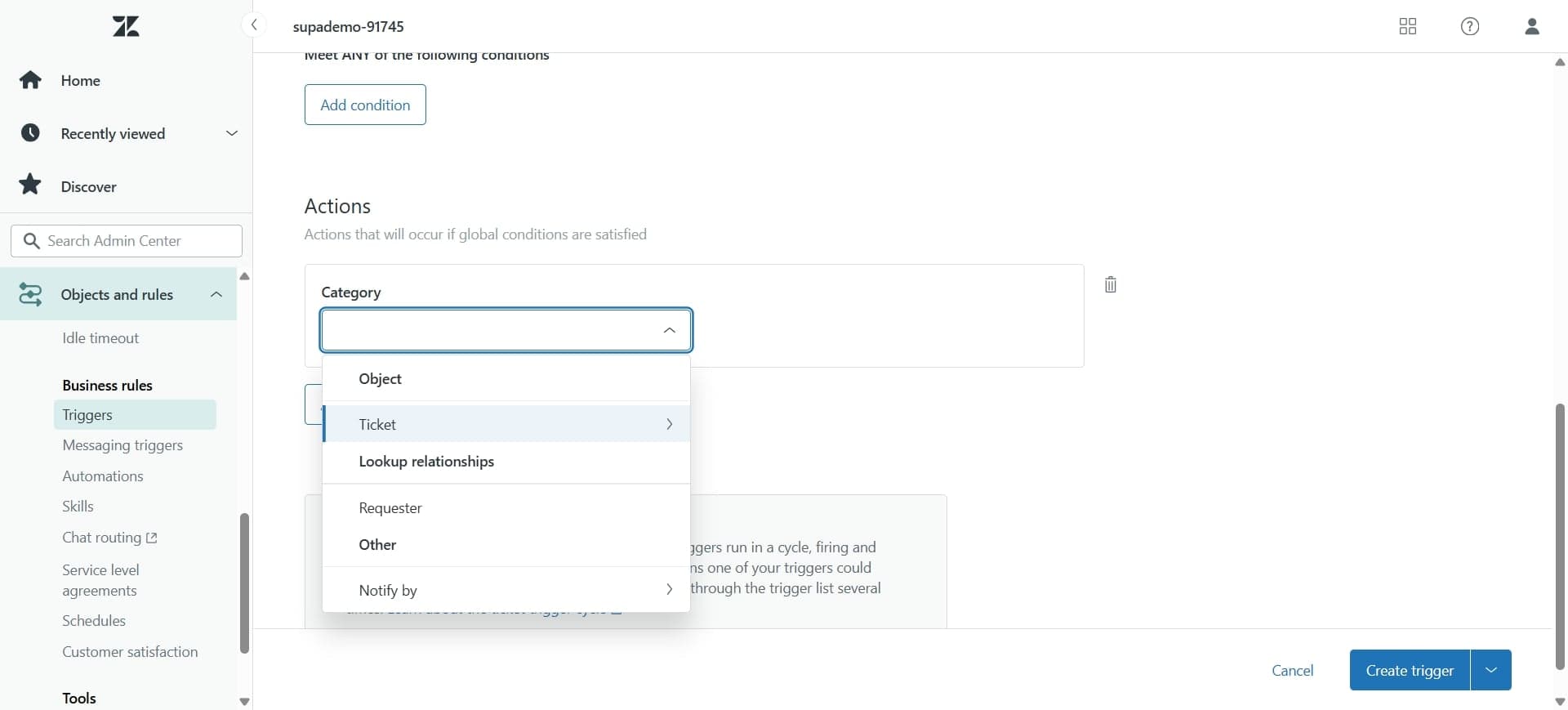
Set the assignment target
Choose whether to assign tickets to individual agents, agent groups, or based on agent availability. Select the appropriate option based on your team structure.
- 7
Configure agent group assignment
If assigning to a group, select the specific agent group from the dropdown menu. Ensure the group includes all agents who should receive tickets matching your conditions.
- 8
Set assignment priority
Specify the order in which multiple rules should execute by adjusting the rule priority. Higher priority rules run first, allowing more specific rules to take precedence over general ones.
- 9
Enable load balancing options
Toggle load balancing to distribute tickets evenly among agents in the assigned group. This prevents any single agent from being overwhelmed with incoming tickets.
- 10
Add fallback assignment
Configure a fallback agent or group in case the primary assignment target is unavailable. This ensures no ticket goes unassigned due to agent unavailability.
- 11
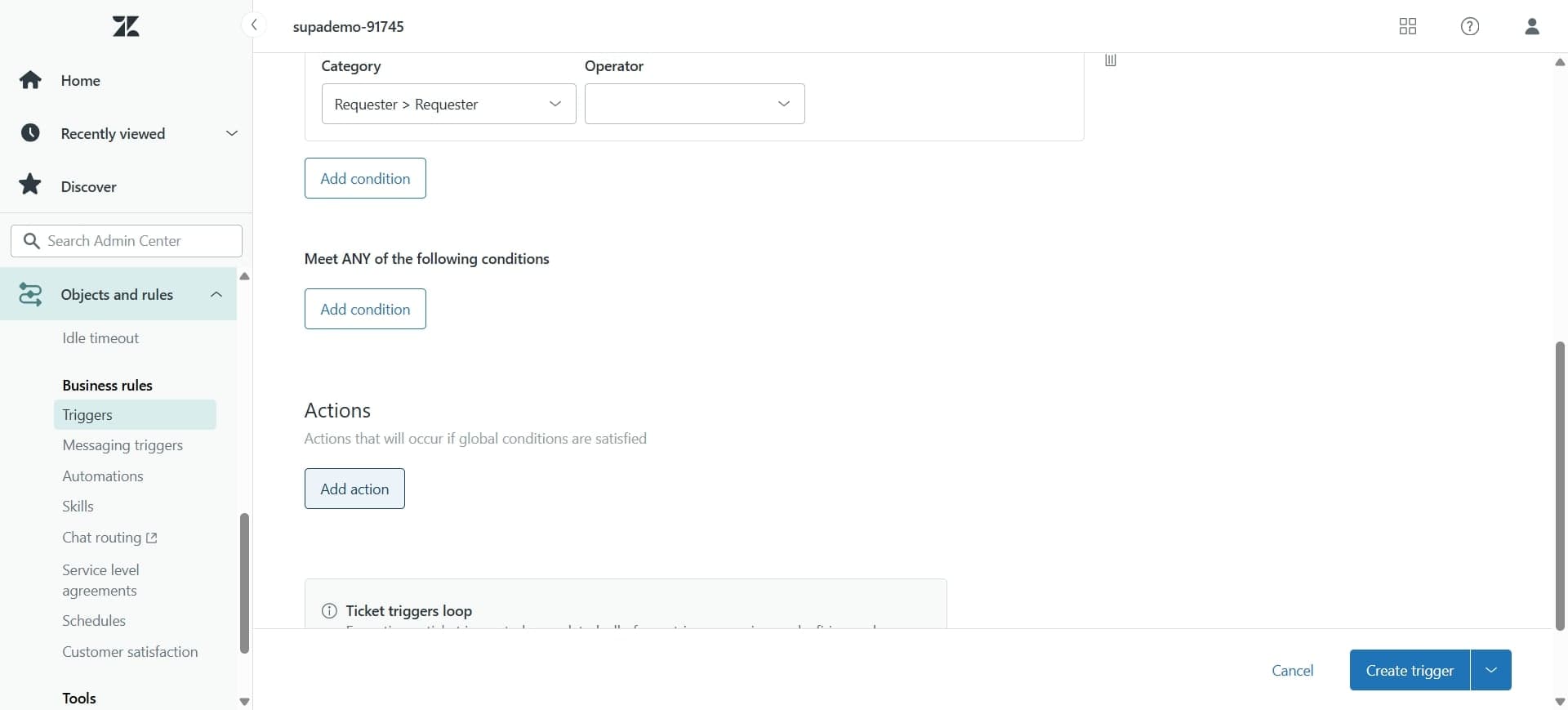
Review rule conditions
Double-check all conditions and assignments to ensure the rule matches your intended ticket distribution logic. Verify that the rule won't conflict with other existing rules.
- 12
Enable the routing rule
Toggle the rule to active status. The rule will now automatically apply to incoming tickets that match your specified conditions.
- 13
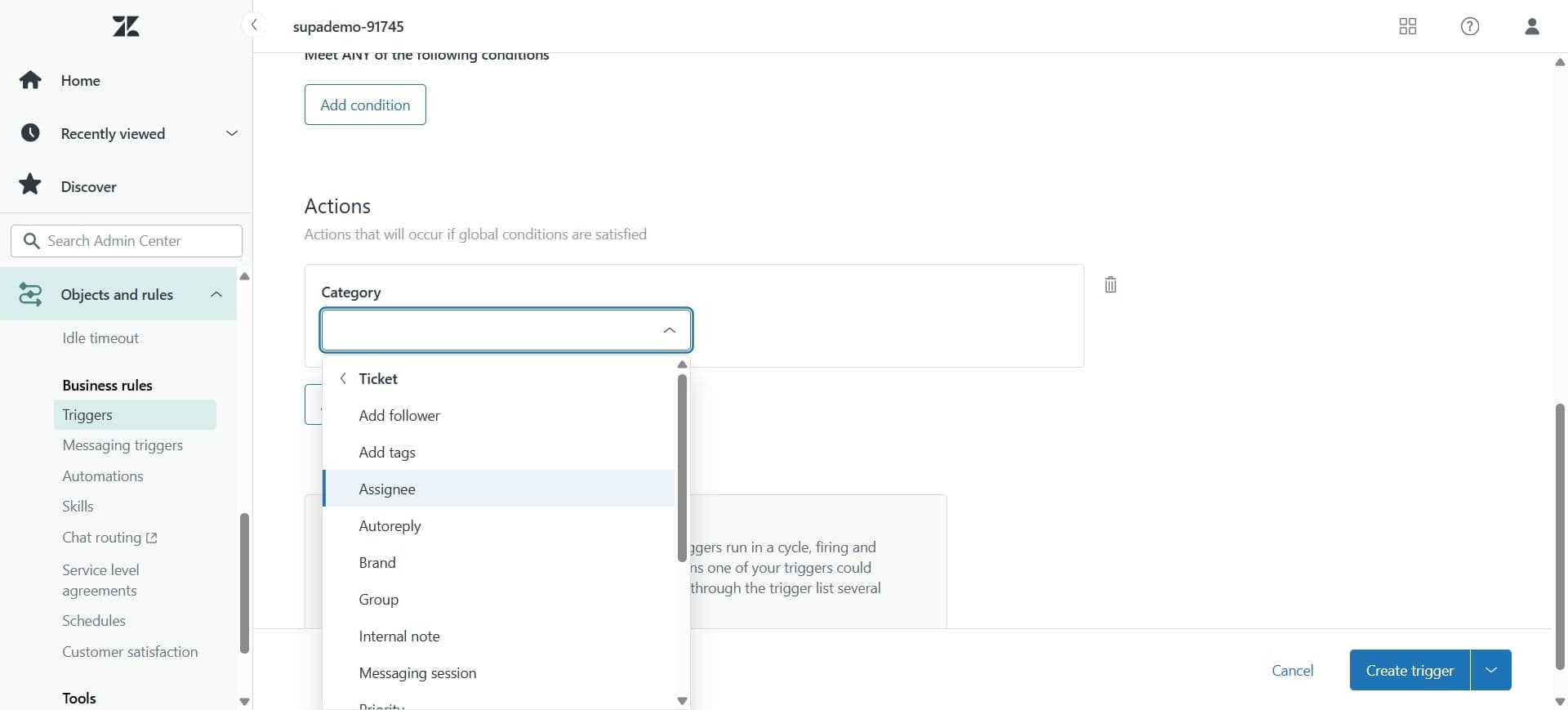
Test the rule on sample tickets
Create a test ticket that matches your rule conditions and verify it's assigned to the correct agent or group. Monitor the first few assignments to confirm proper behavior.
- 14
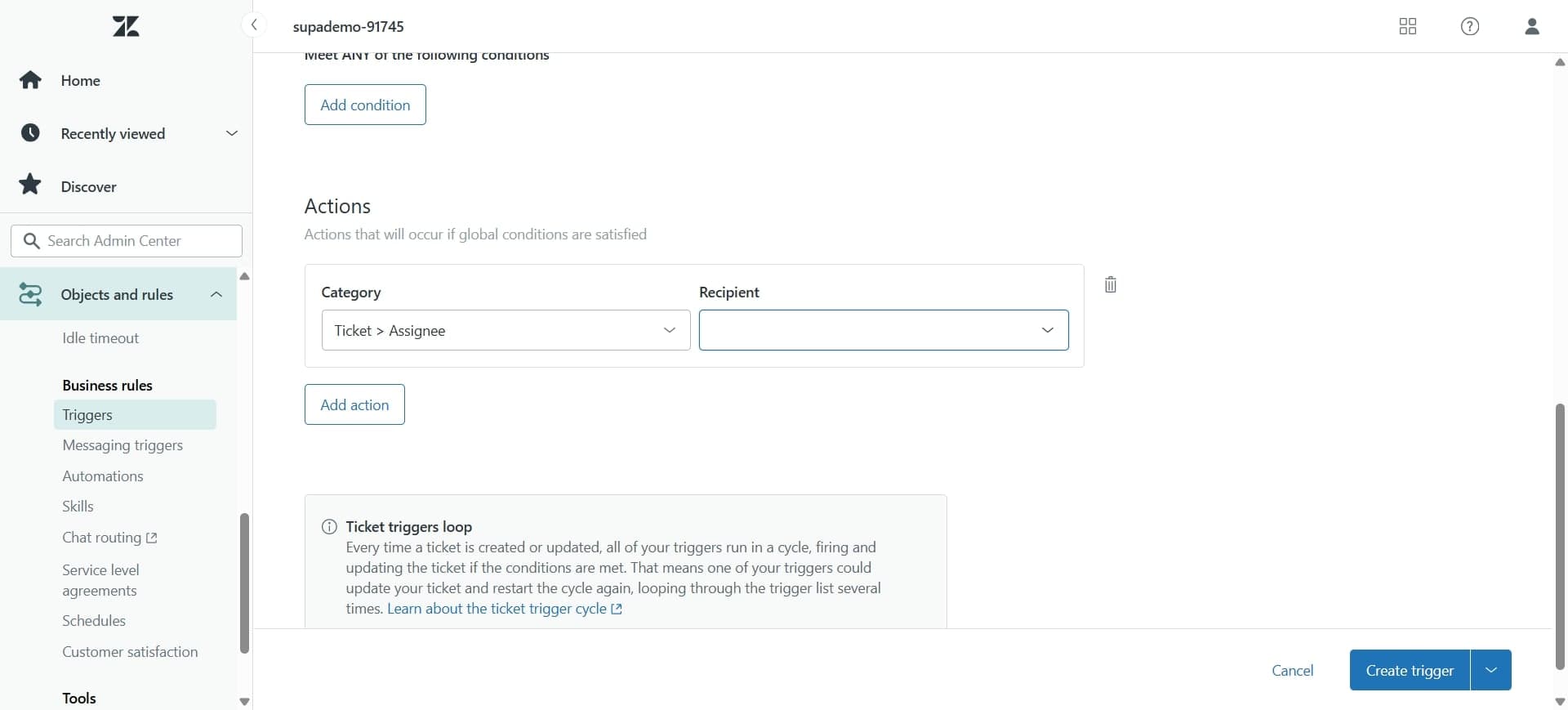
Monitor assignment metrics
Go to the Reporting section and review ticket assignment reports to ensure the rule is distributing tickets as intended. Check agent workload balance and ticket response times.
- 15
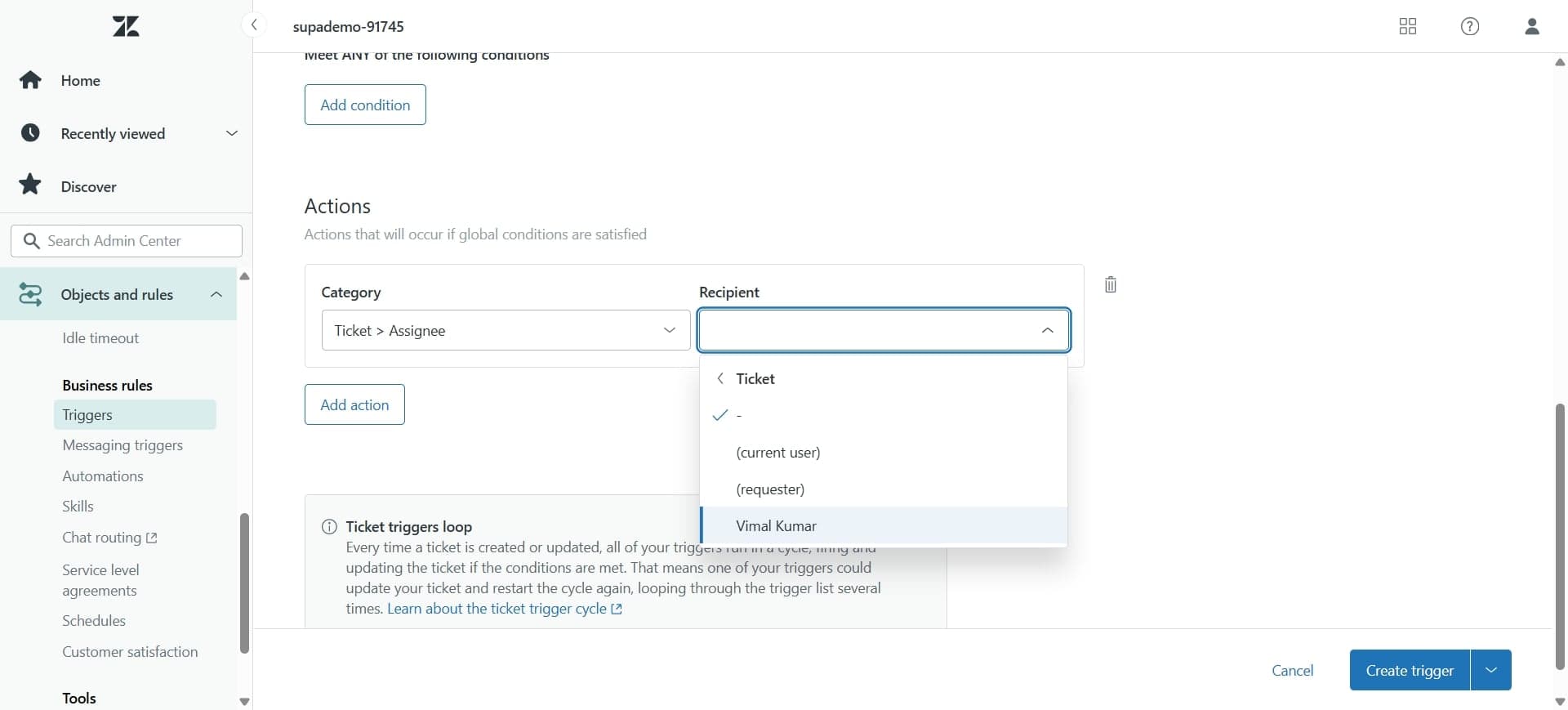
Adjust conditions if needed
If the rule isn't performing as expected, edit the rule by clicking the pencil icon and modify the conditions or assignment targets. Save changes to apply updates immediately.
- 16
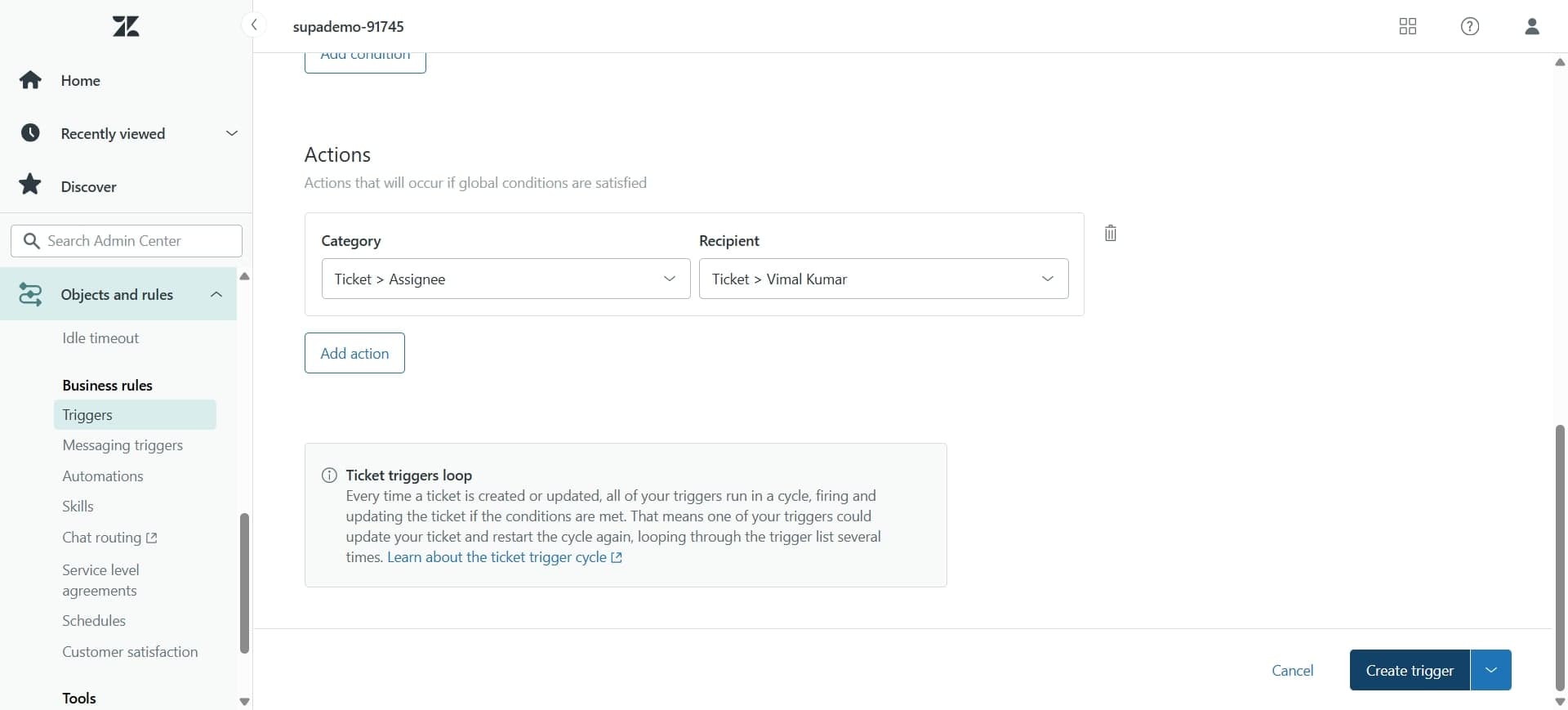
Document your routing rules
Keep a record of all active rules, their conditions, and their purposes. This helps your team understand the assignment logic and simplifies future maintenance and training.
Frequently asked questions
Common questions about how to auto assign tickets in zendesk.
Yes, you can create separate routing rules for each ticket type and assign each to the appropriate group. Use the ticket type as a condition in your rule to differentiate assignments. Multiple rules can work together to handle different ticket categories simultaneously.
Zendesk uses the fallback assignment you configured during rule setup. If you specified a fallback agent or group, the ticket will be assigned there. If no fallback is set, the ticket remains unassigned until an agent becomes available.
Create routing rules that exclude specific agents by assigning those ticket types to a different agent group. You can also configure agent-level skills and competencies in Zendesk to inform assignment rules based on expertise.
Absolutely. You can use custom fields as conditions in your routing rules. For example, assign tickets with a custom 'Department' field set to 'Enterprise' to your enterprise support group automatically.
No, auto-assignment rules only apply to new incoming tickets. Tickets you've already manually assigned will keep their current assignment. Rules take effect when tickets are created or when conditions are first met.