How to create a new group in Zendesk

Creating groups in Zendesk allows you to organize agents and streamline ticket assignment and collaboration. Groups serve as a foundation for efficient support operations, enabling you to route tickets to the right team members based on expertise or department.
Quick summary
In this tutorial, you'll learn how to create a new group in Zendesk by navigating to the Admin Center, accessing the People section, and configuring your group settings. By the end, you'll be able to set up groups that improve your team's organization and ticket management workflow.
Why this matters
Groups in Zendesk are essential for organizing your support team and ensuring tickets reach the appropriate agents. Properly configured groups reduce response times, minimize ticket overlap, and create clear accountability across your support operations.
Step-by-step guide
- 1
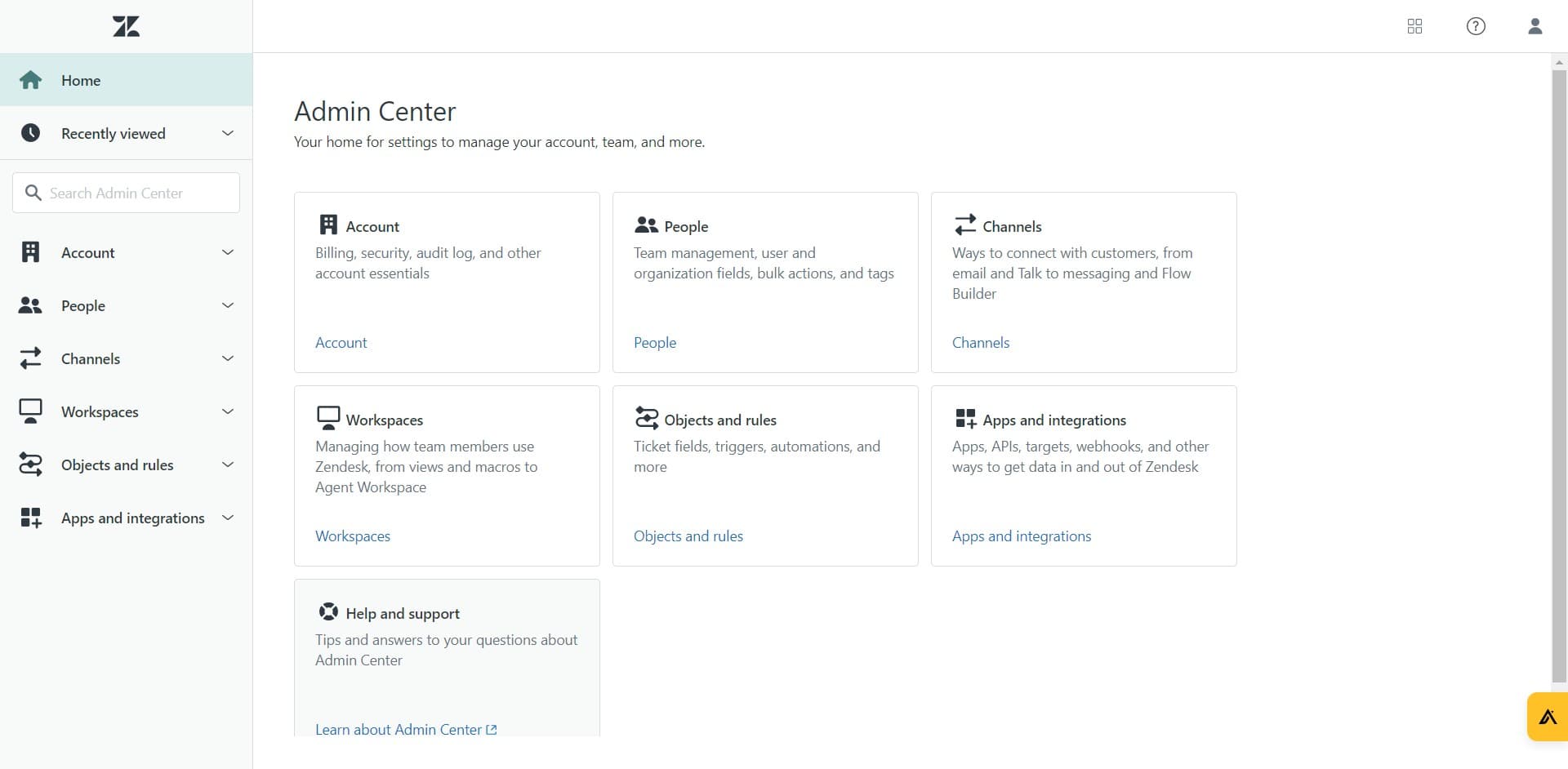
Open the Admin Center
Click on 'Admin Center' from your Zendesk dashboard. This is your central hub for all administrative settings and configurations.
- 2
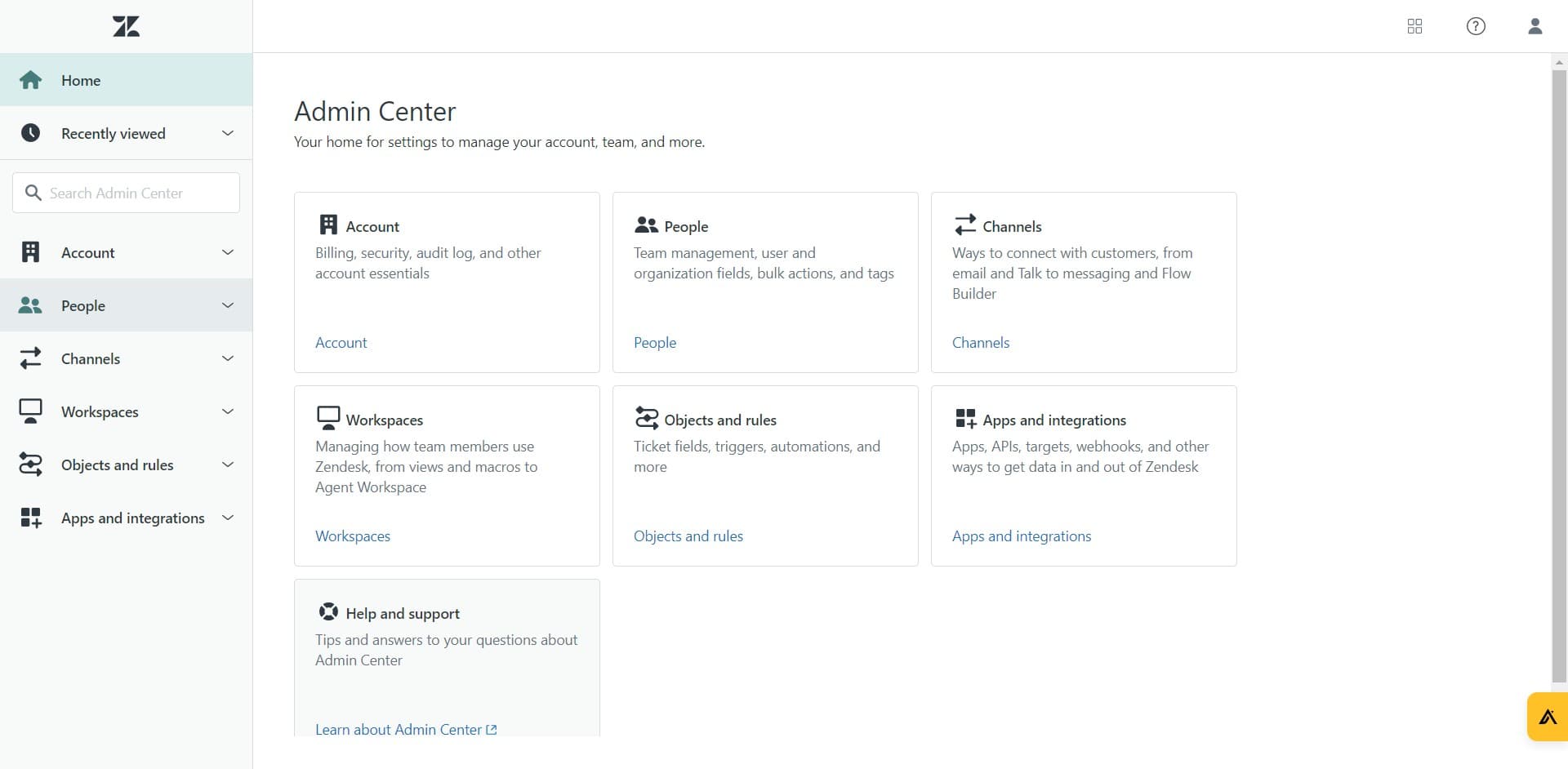
Navigate to People section
Click on 'People' in the left sidebar menu. This section contains all options for managing your agents and team structure.
- 3
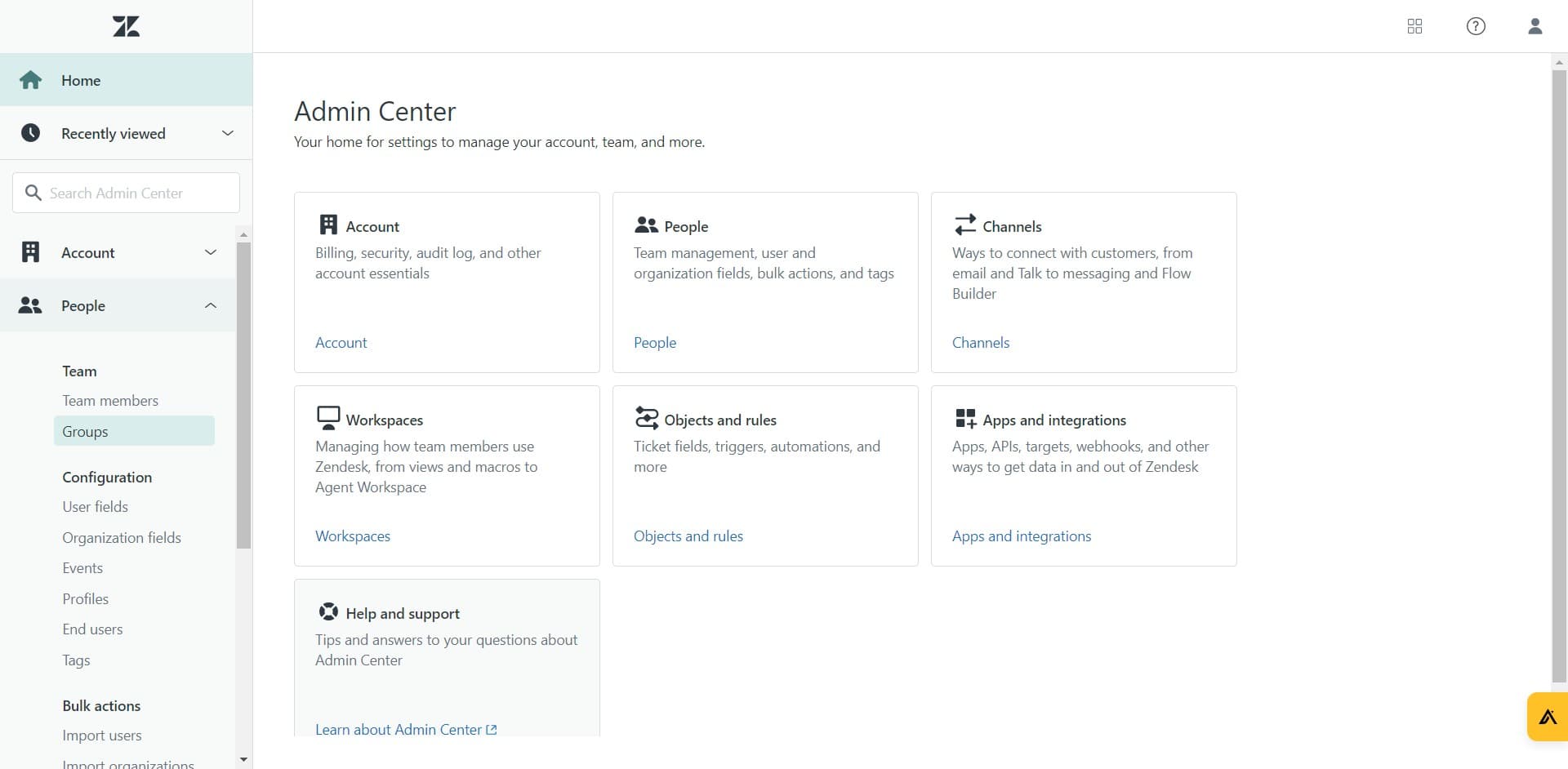
Access the Groups page
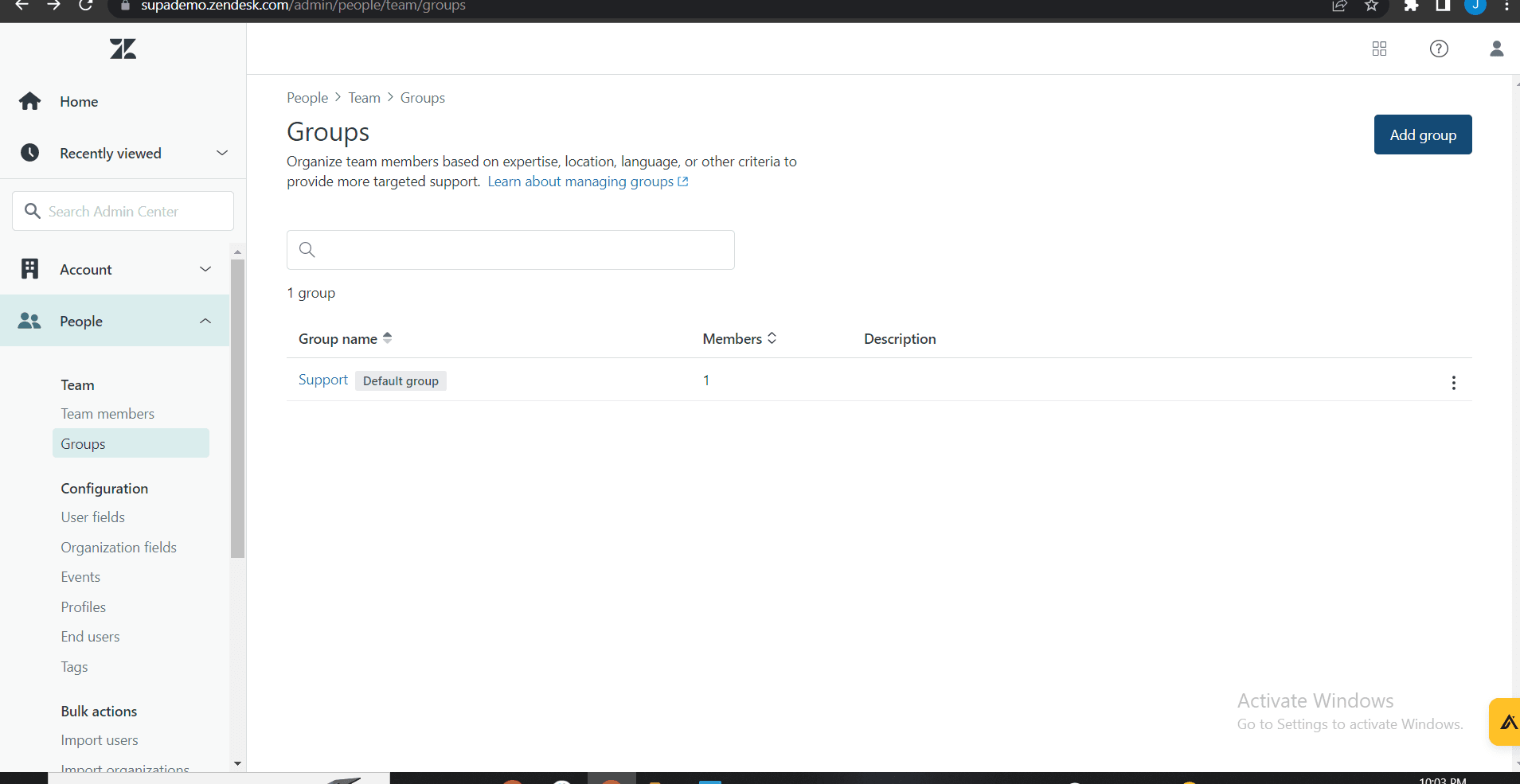
Click on 'Groups' to view your existing groups and access the interface for creating new ones. This is where you'll manage all group configurations.
- 4
Configure group details
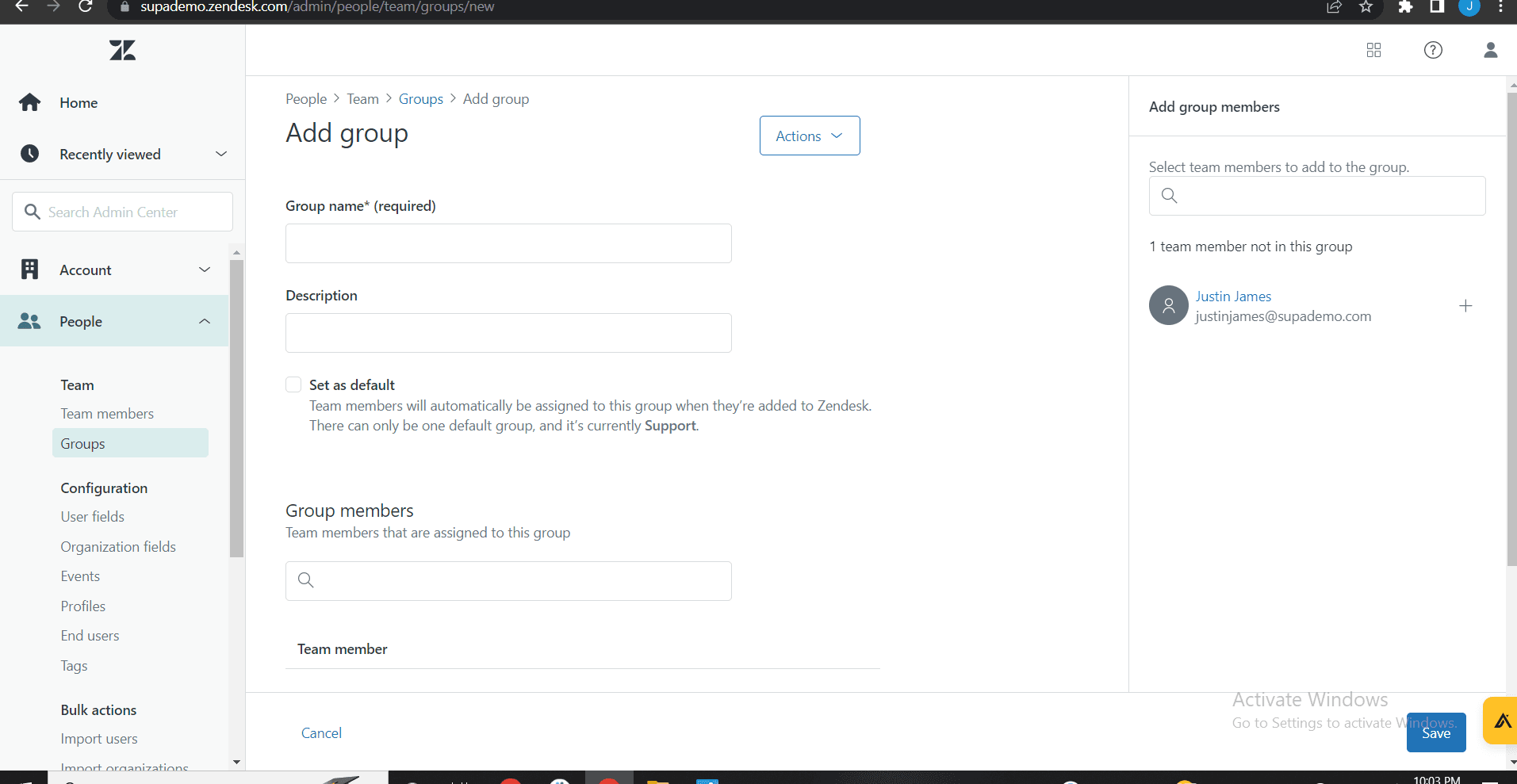
Enter the necessary information for your new group, such as the group name and description. Fill in all required fields to ensure proper identification and organization.
- 5
Add agents to the group
Select which agents should be members of this group. You can add multiple agents at once or modify group membership later as needed.
- 6
Save the new group
Click the save or create button to finalize your group setup. Your new group will now be available for ticket routing and assignment.
Frequently asked questions
Common questions about how to create a new group in zendesk.
Yes, you can modify group membership at any time after creation. Simply navigate to the Groups section, select your group, and add or remove agents as needed. Changes take effect immediately.
Groups are used for organizing agents and routing tickets, while teams are typically used for organizing end-users or customers. Groups are essential for internal agent management and ticket assignment workflows.
Yes, agents can be members of multiple groups simultaneously. This flexibility allows you to create overlapping team structures that match your organization's needs.
You can delete a group from the Groups page by selecting it and choosing the delete option. Ensure no active tickets are exclusively assigned to that group before deletion, as this may affect ticket routing.
Individual agent permissions are managed separately from group membership. Groups primarily control ticket routing and organization. Agent-specific permissions are configured in the agent's individual settings.