Onboarding Snapshot
Activation Event
First email template created and previewed in the Templates editor
Time-to-Value
~5–10 minutes once inside the template editor
Primary Strength
Dual-mode editor serves technical and non-technical users through one interface
Primary Risk
Default screen leads with API key setup before the product shows any visible value
Overview
Resend opens with the developer default: a 'Start your first email' screen with instructions for adding an API key. The product's real value becomes visible once you navigate to the Templates section via the left sidebar — a dual-mode editor that lets you build email templates visually or directly in code with a live preview. The gap is that default landing experience: most new users will spend their first minutes on infrastructure before seeing what the product can actually make.
What Should You Steal?
Swipe through actionable takeaways from this onboarding flow.
The Template Editor Is One Sidebar Click Away — But You Have to Find It
Resend's default landing screen asks you to add an API key and start your first email — the standard developer onboarding pattern.
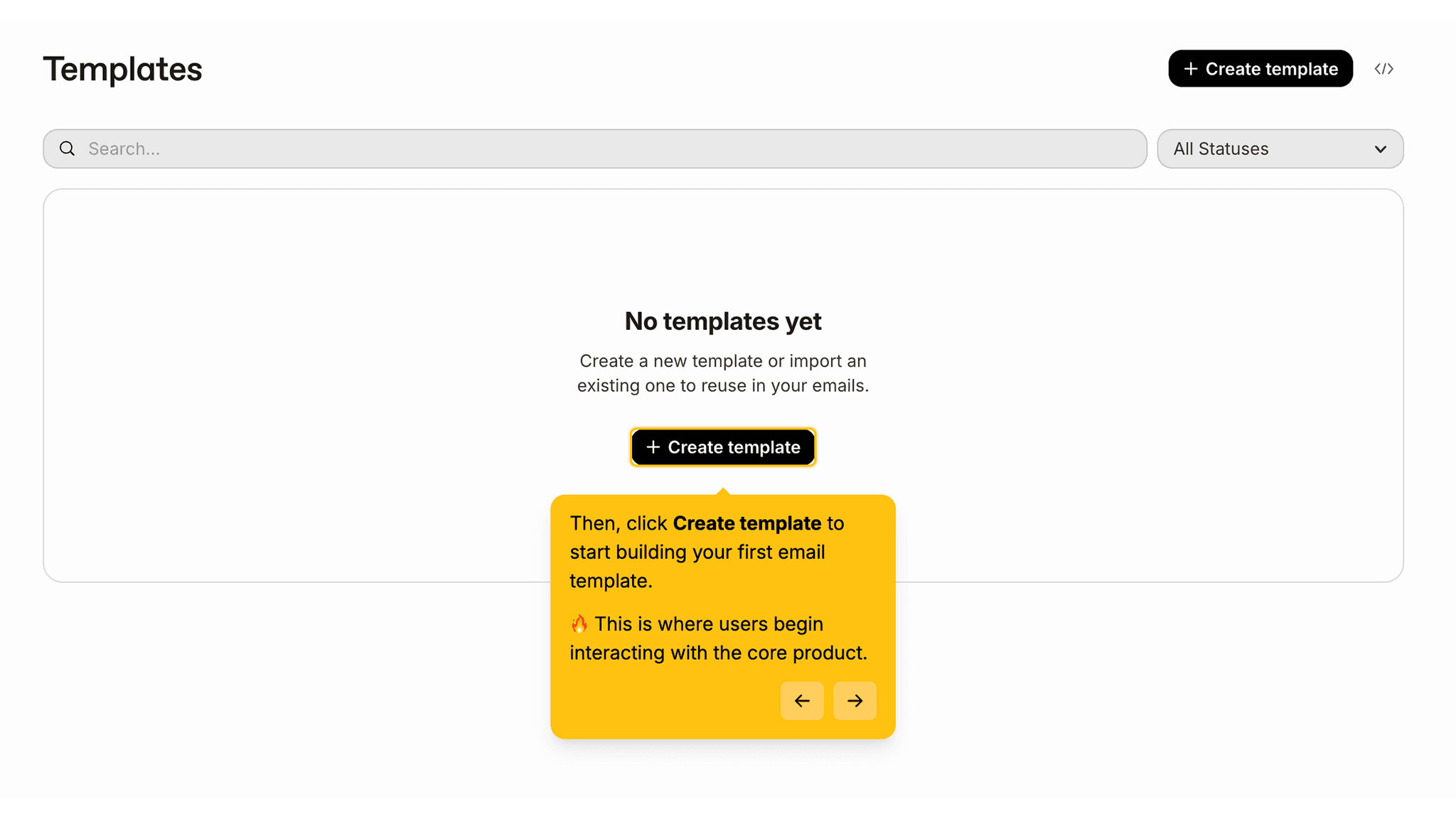
The Templates section lives in the left sidebar, and navigating there is where the product becomes tangible. Once inside, you're composing real email templates without writing any API integration code first. The friction isn't the editor — it's that the editor isn't surfaced as the starting point. A new user who only follows the default path may spend their first session entirely on authentication before discovering what Resend can actually make.
The Dual-Mode Editor Is Doing Real Work
Inside the template editor, you can build visually through a clean block-based interface, or flip to code view at any point and write the template directly, with a live preview updating as you type.
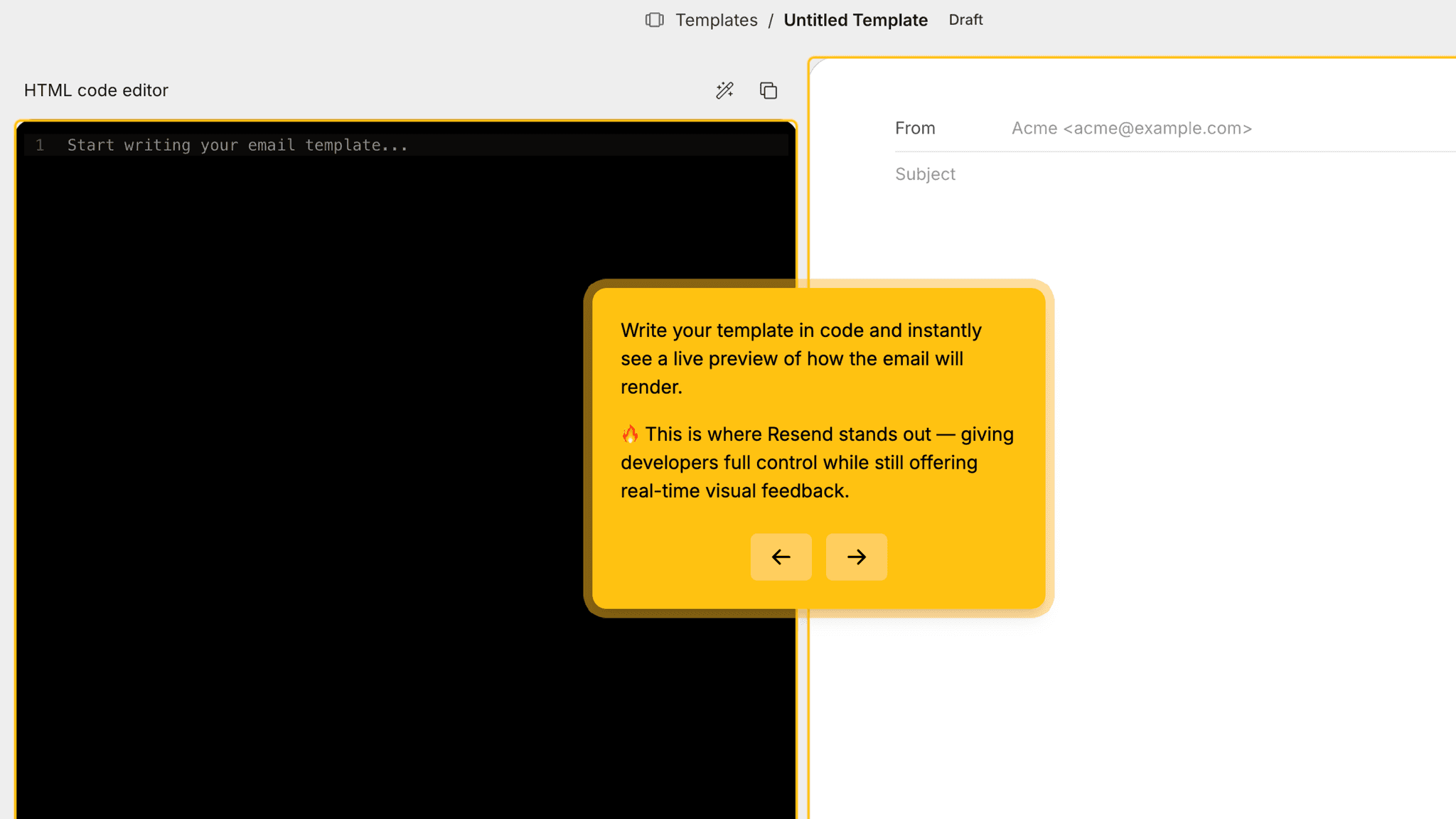
That's two completely different workflows sharing the same interface — non-technical users compose without touching markup, developers write HTML and see changes in real time. The live preview in code mode is the detail that makes this work. It closes the feedback loop between what you're writing and what the email will actually look like.
Onboarding Tactics That Work
Template editor accessible immediately via sidebar — no API wiring required to start building
Dual-mode editor (visual + code) gives both technical and non-technical users a viable path
Live preview in code mode closes the feedback loop during template work
Where There's Friction
Default landing screen leads with API key setup before any product value is visible
No explicit path from the default screen into the template editor for new users
No bridge between 'I've built a template' and 'my app is sending this email'
When Is the In-App Activation Moment?
The activation event is creating a working email template and previewing how it renders. Not sending an email, not integrating with an app. Building a template that looks the way it should and understanding how to control the output.
Getting there takes roughly 5–10 minutes, but the path isn't obvious. Resend's default landing screen opens with 'Start your first email' and instructions for adding an API key — the standard developer onboarding sequence. The Templates section is in the left sidebar. In this walkthrough, we navigate there directly to show what the editor can do. A new user following the default flow may not find it on their own without some exploration.
Once inside the editor, the product finally shows up. Whether you're using the visual block interface or writing directly in code, you're producing something real. The live preview in code mode is the clearest signal you're working in the right direction — no guesswork about whether the template is correct, you can see it rendering as you write.
What the flow doesn't do is bridge template creation to actual sending. After building a template, the next question is: how do I attach this to an API call and get it into someone's inbox? The onboarding stops short of that answer.
The Bottom Line on Resend's Onboarding
Resend follows the developer default: land on an API key screen, configure infrastructure, then find your way to what the product actually does. That sequence works for experienced developers who know the pattern. For everyone else, the default landing experience is a quiet stretch of setup before the product becomes tangible.
The template editor, once you find it, is genuinely well built. The dual-mode interface that lets you switch between visual composition and direct code editing in the same window is the kind of detail that signals the team built this for people who write email templates regularly. The live preview in code mode removes the guesswork that slows most email development.
The one thing worth stealing: the dual-mode editor pattern. If your product serves both technical and non-technical users, giving them two genuine paths through the same interface — rather than a simplified mode and an advanced mode — is the right call.
Steal the dual-mode editor pattern. Two genuine paths through the same interface, not a simplified mode and an advanced mode.
FAQs
Common questions about Resend's onboarding flow and what makes it effective.
How does Resend onboard new users?
Resend opens with a 'Start your first email' screen that walks new users through adding an API key — the standard developer onboarding sequence. The Templates section is accessible via the left sidebar and lets you compose and preview email templates without writing any integration code first. The dual-mode editor supports both visual composition and direct code editing with a live preview.
What makes Resend's onboarding stand out?
The dual-mode template editor is the standout. Building email templates visually or in code through the same interface, with a live preview that updates as you type, removes the uncertainty that typically slows email development. The friction is on the other end: the default landing experience leads with API key setup before the editor is visible, which means the most interesting part of the product isn't surfaced upfront.
How long does it take to reach value in Resend?
Roughly 5–10 minutes to a first working template, once you navigate to the Templates section. The default landing screen leads with API key configuration, which adds time before the editor becomes accessible. Once inside the template editor, the path to a working preview is short. The larger gap is the bridge between 'I've built a template' and 'my app is sending this email,' which the onboarding doesn't walk through.
How does Resend compare to other SaaS tools?
Resend follows the same API-first pattern as most developer infrastructure tools — authentication before product exploration. Where it differs is the template editor itself, which is more polished than most transactional email tools and serves non-technical users as well as developers. Tools like Clay and HeyReach in this gallery take the opposite approach, surfacing core value actions before asking for any configuration.