How to add reminders to attendees in Calendly

Adding reminders to attendees in Calendly ensures they never miss scheduled meetings. This feature helps reduce no-shows and keeps everyone informed about upcoming appointments. Learn how to configure automatic reminder notifications for your Calendly event types.
Quick summary
In this tutorial, you'll learn how to enable and customize reminders for meeting attendees in Calendly. You'll navigate to your event settings, access the communications section, and configure reminder timing and delivery methods to suit your scheduling needs.
Why this matters
Reminders significantly reduce meeting no-shows and improve attendee engagement. By automating reminder notifications, you save time manually following up and ensure attendees have adequate notice before their scheduled time slots. This is especially valuable for high-volume schedulers managing multiple meetings daily.
Step-by-step guide
- 1
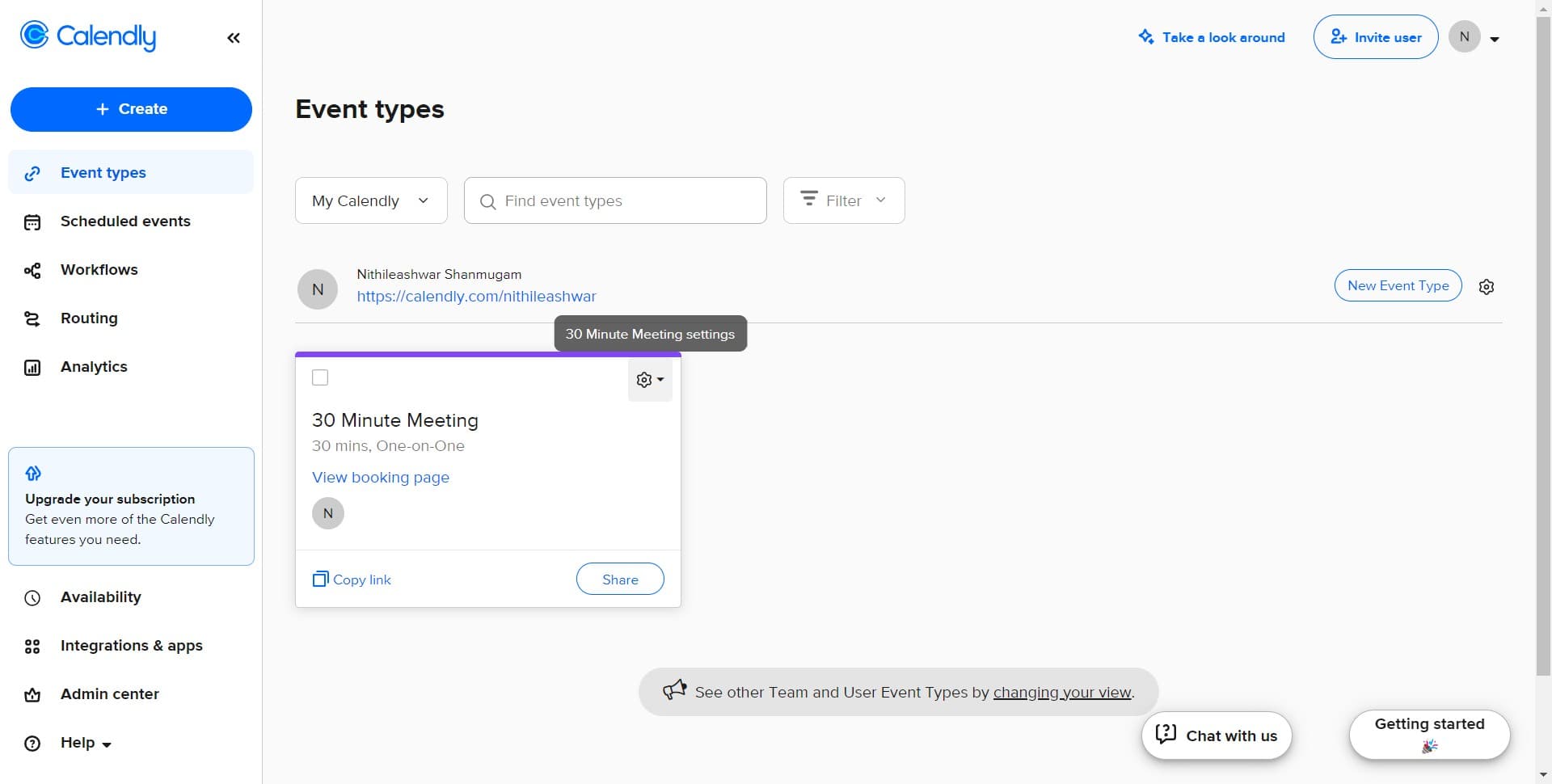
Open the event settings
Click on '30 Minute Meeting settings' to access the configuration panel for your event type. This opens the main settings page where you can customize all aspects of this meeting type.
- 2
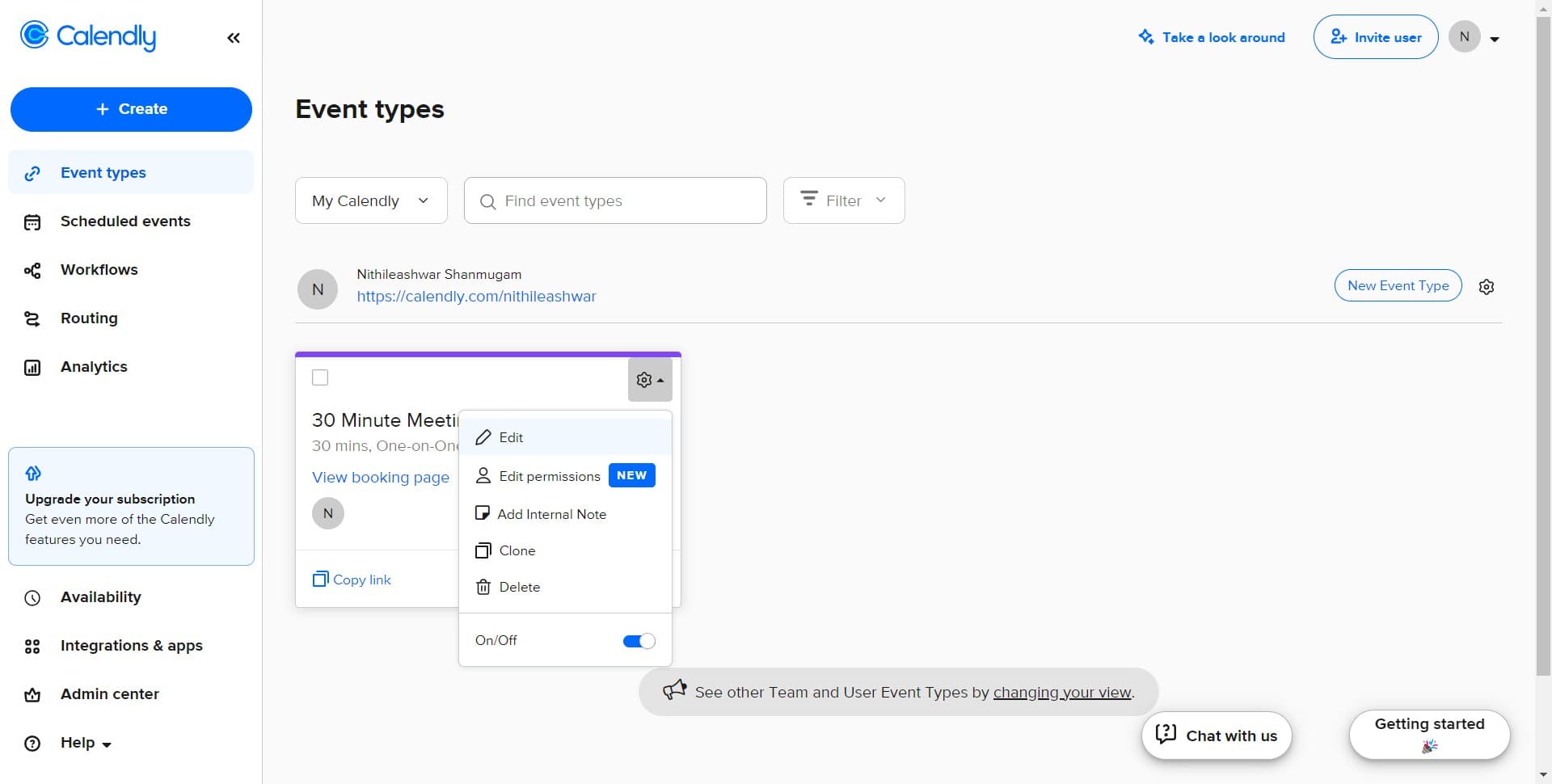
Click Edit to modify settings
Click the 'Edit' button to enter edit mode for this event type. You'll now be able to modify and configure various settings including communications.
- 3
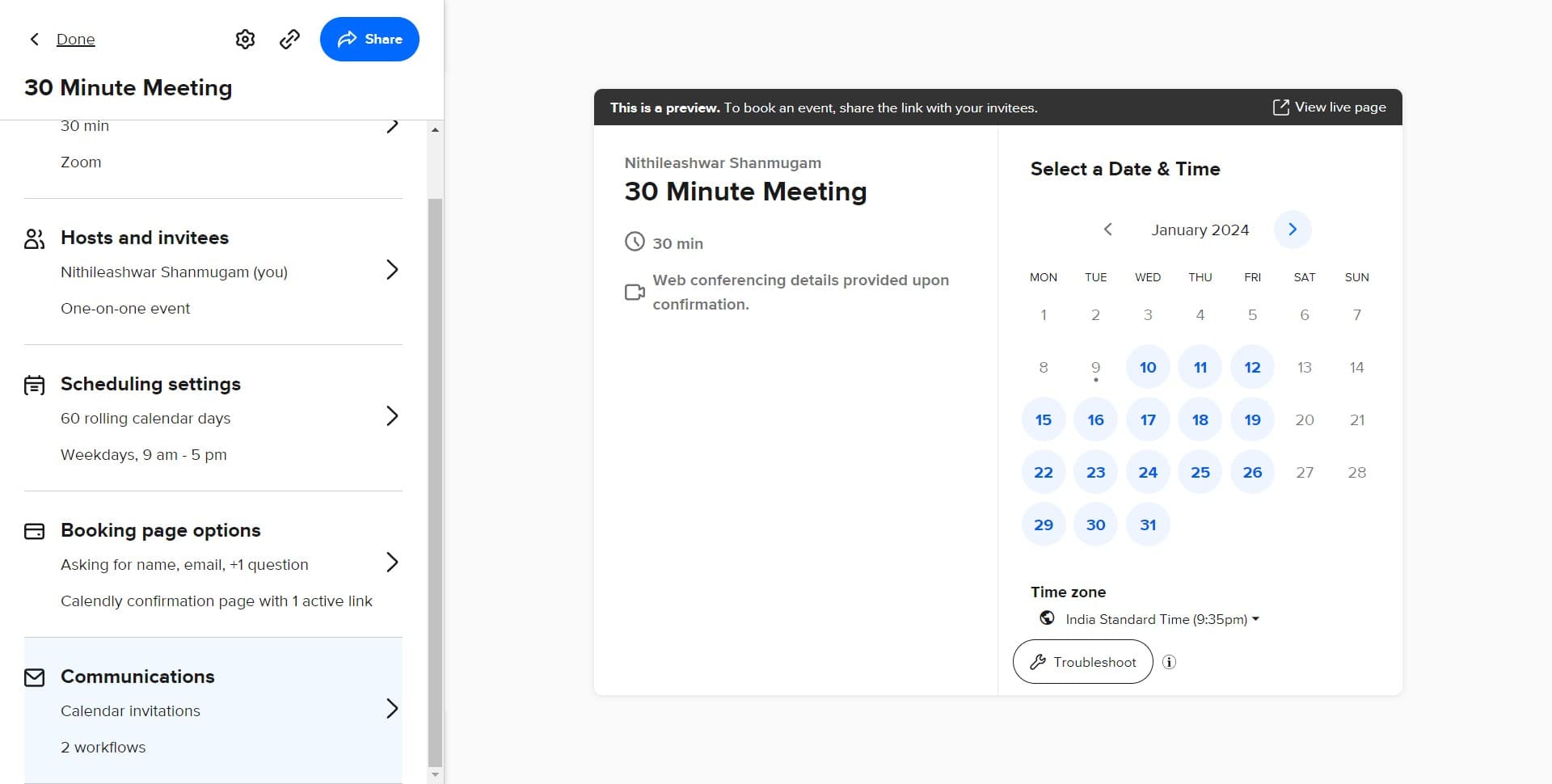
Navigate to Communications
Click on the 'Communications' section to access reminder and notification settings. This is where you'll configure all attendee communications, including reminders.
- 4
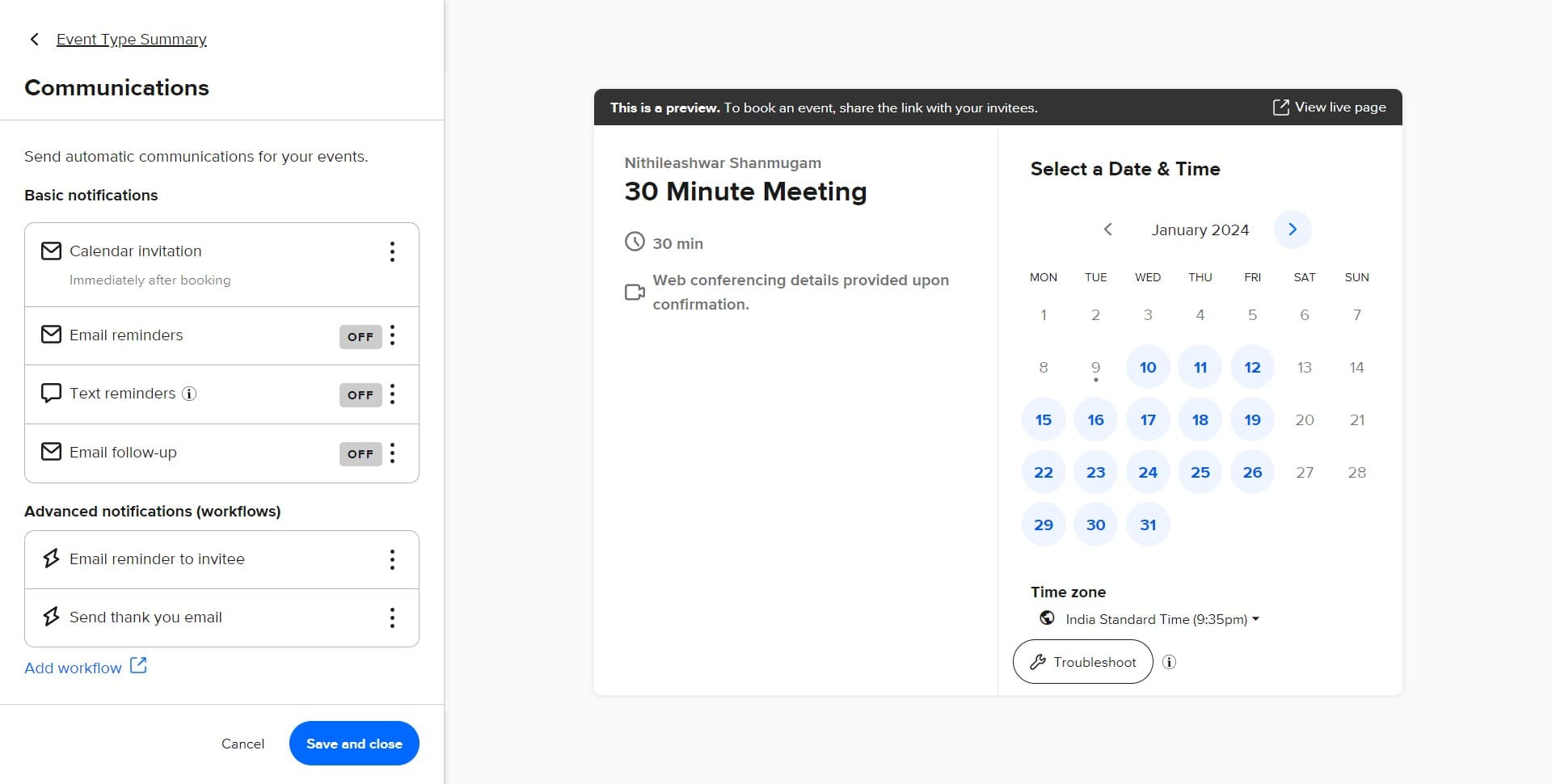
Access reminder configuration
Click the designated button to begin configuring reminders for this event type. This will open the reminder settings panel where you can customize timing and delivery preferences.
- 5
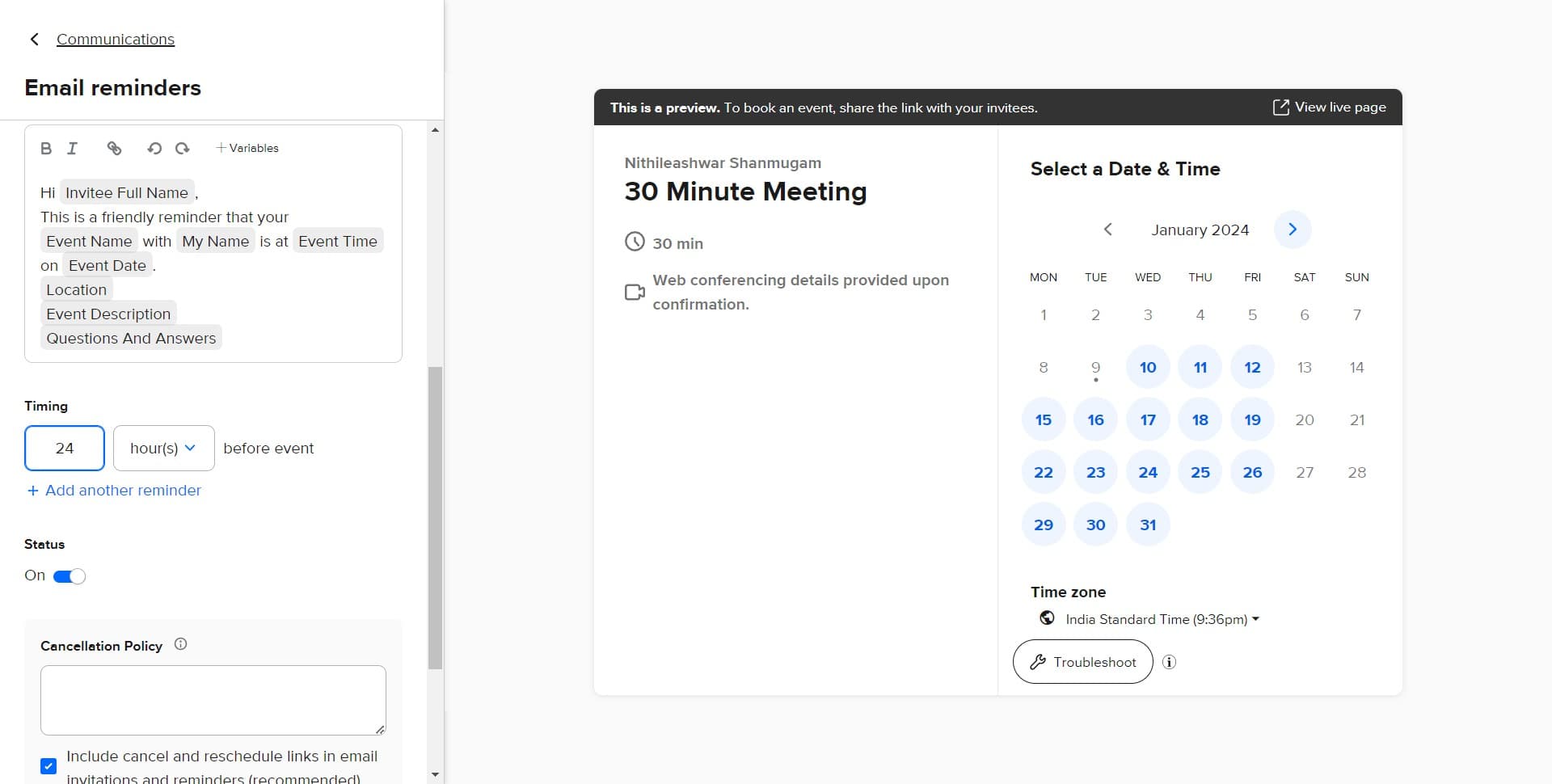
Configure reminder settings
Click to set your reminder preferences, including how many hours or days before the meeting the reminder should be sent. You may have options to customize the reminder message and delivery method.
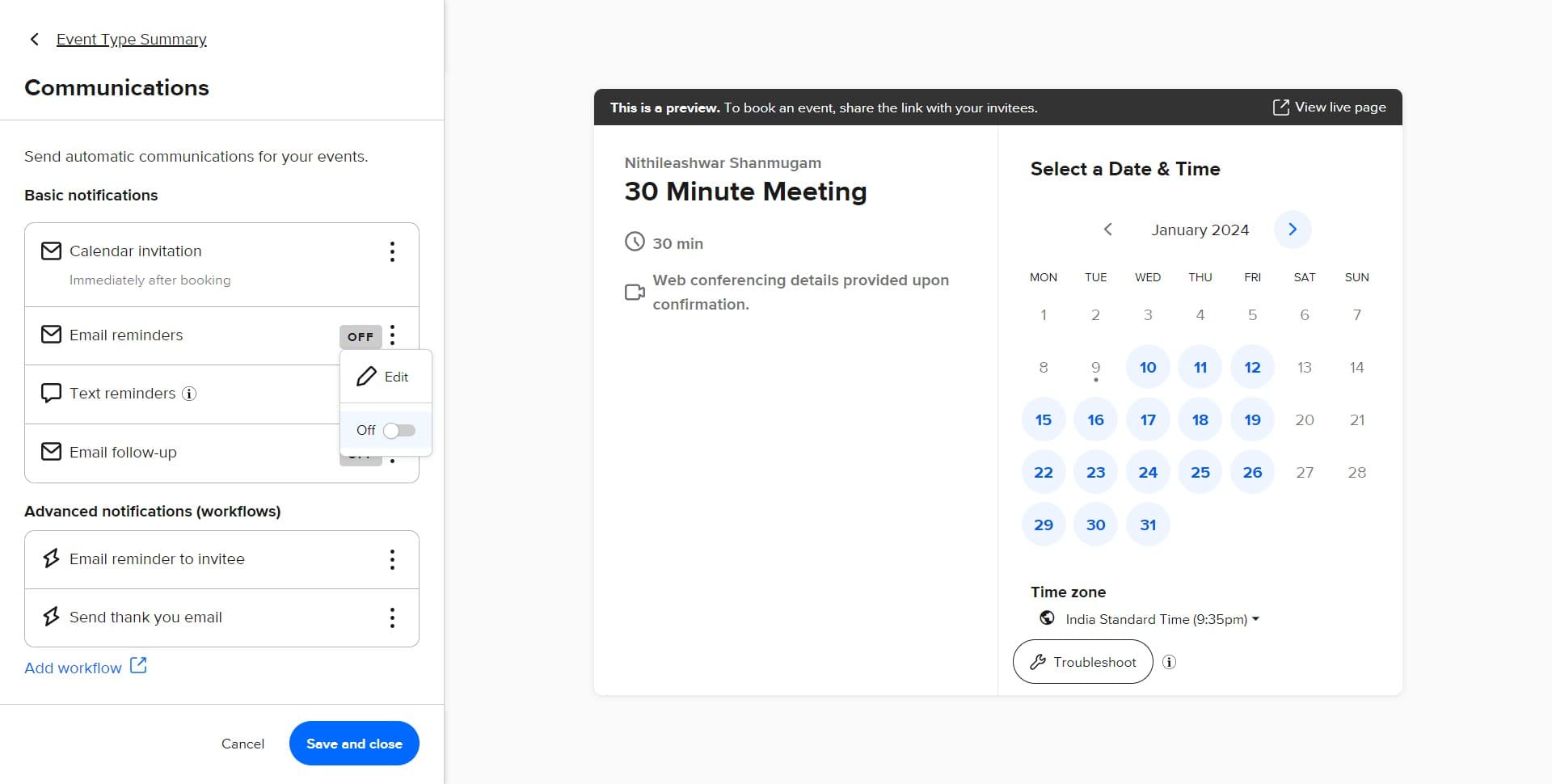
- 6
Select additional reminder options
Click to choose whether you want multiple reminders, the delivery method (email or SMS), or any other relevant reminder parameters. Customize these settings based on your attendees' preferences.
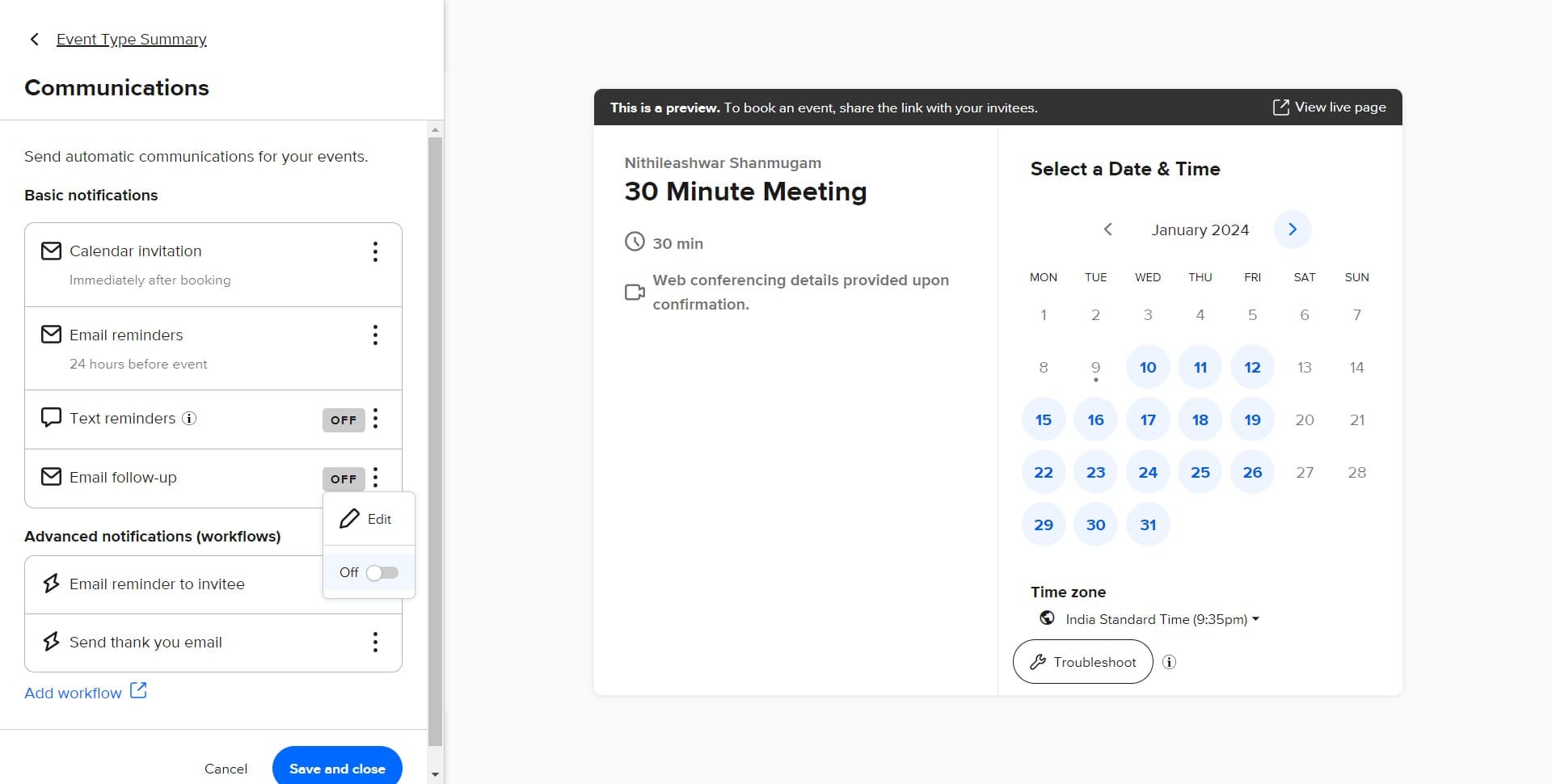
- 7
Finalize reminder preferences
Click to confirm and apply your selected reminder settings. This ensures your chosen configuration is set for all future attendees booking this event type.
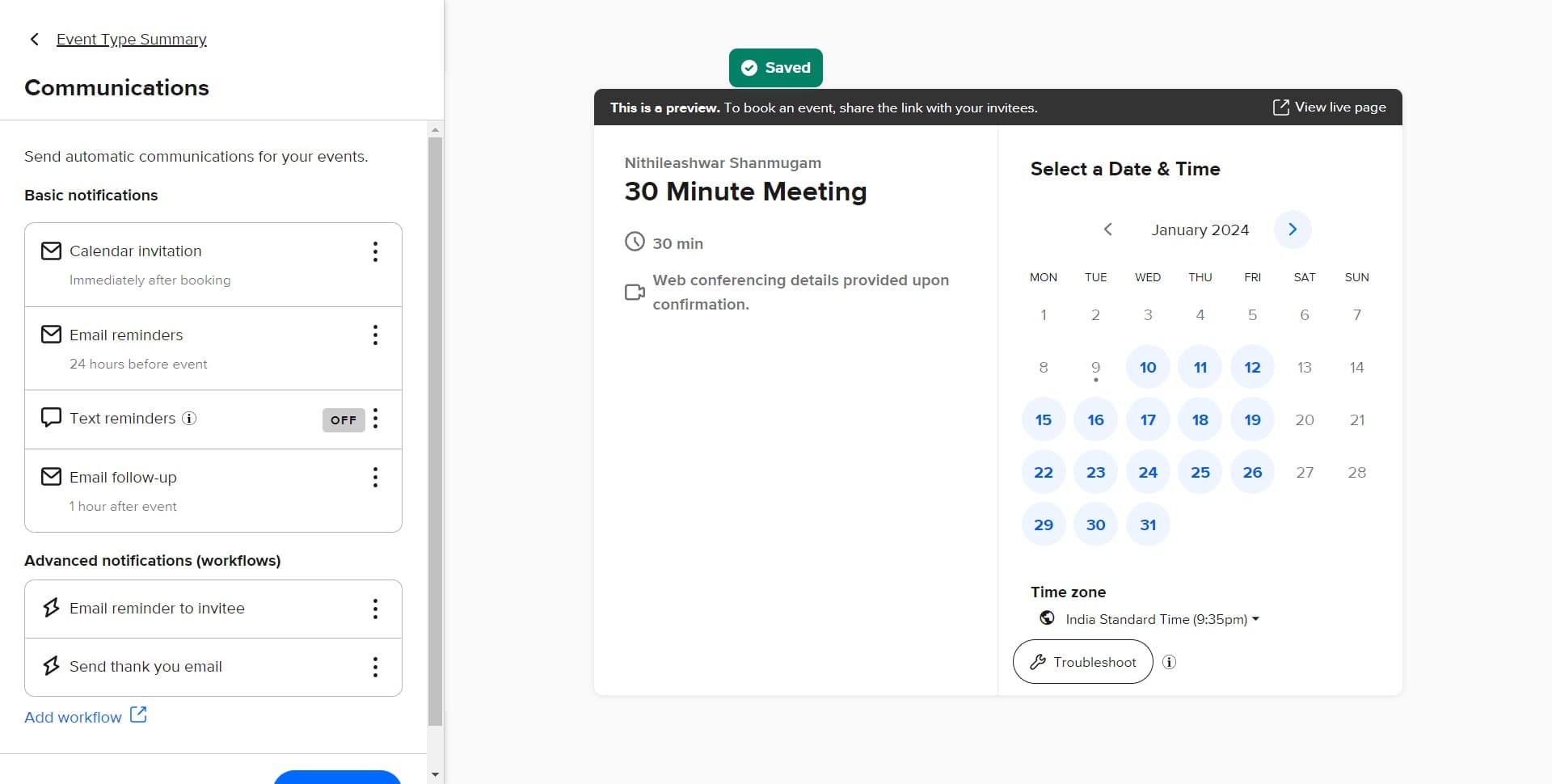
- 8
Apply changes to communications
Click 'Edit' again to finalize your communications settings. This saves your reminder configuration to the communications section.
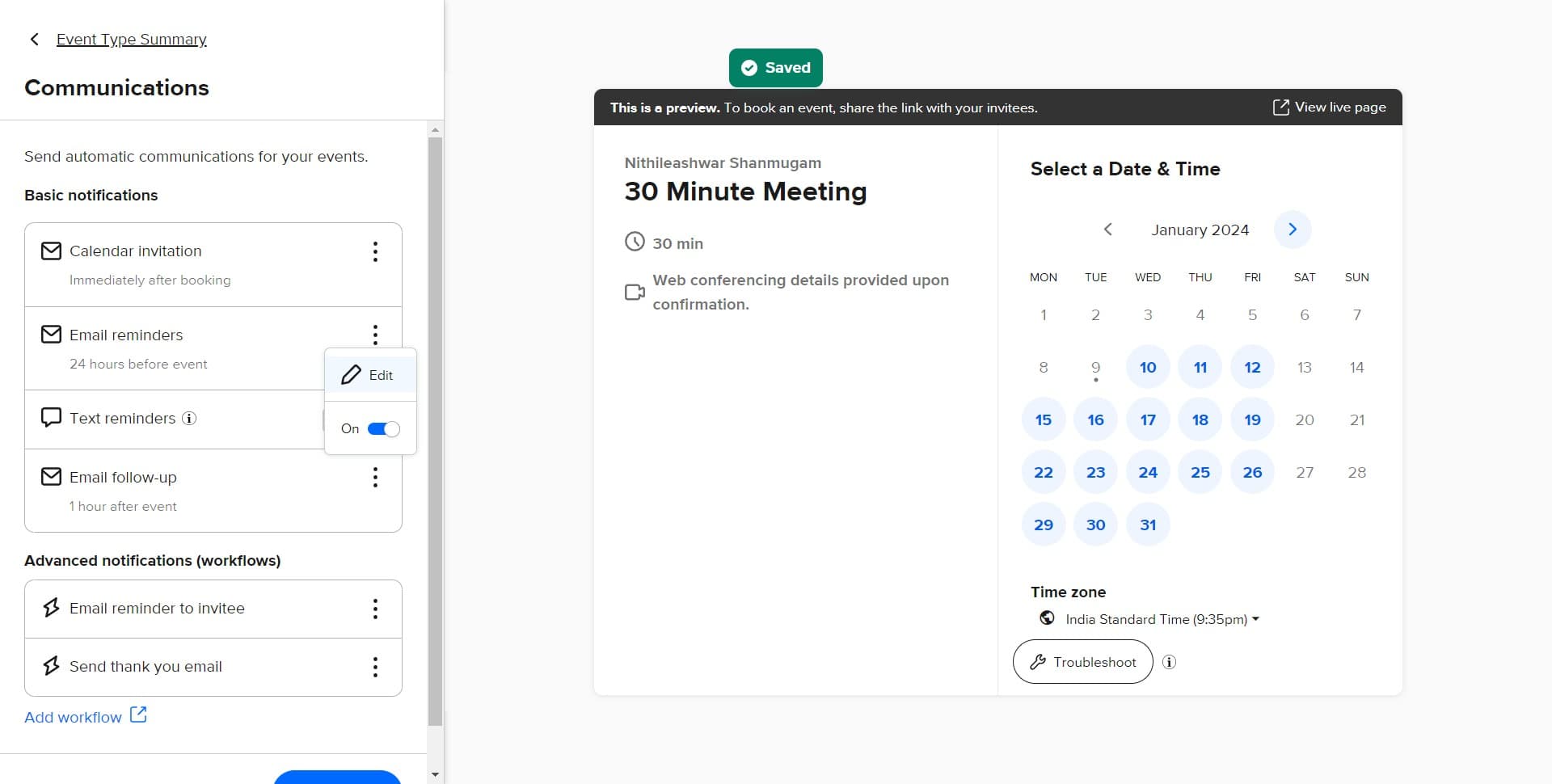
- 9
Confirm all settings
Click to review and confirm that all your reminder and communication settings are correctly configured. This is your final check before saving everything.
- 10
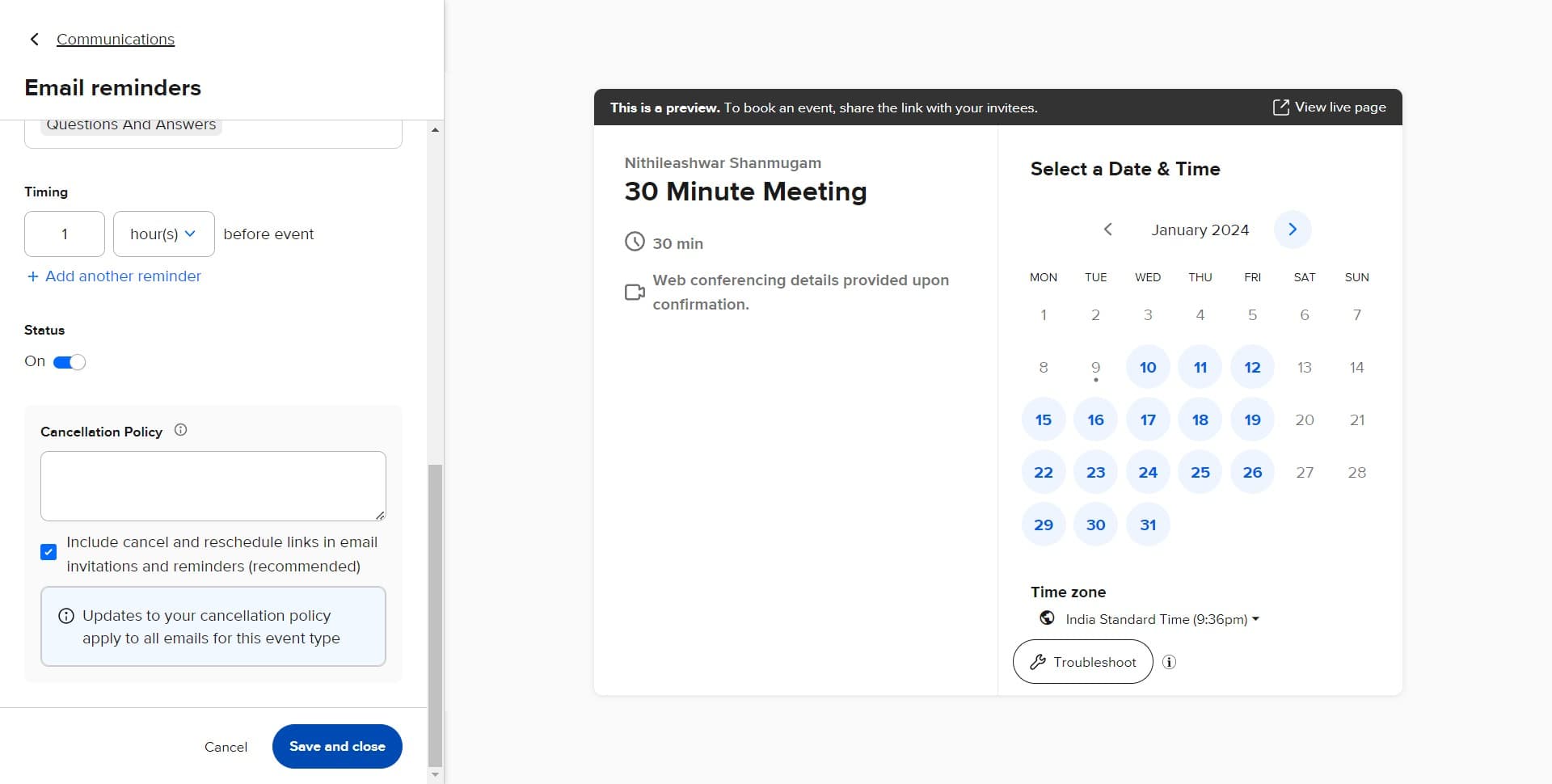
Save and close settings
Click 'Save and close' to apply all your reminder configurations to this event type. Your attendees will now receive reminders according to the settings you've specified.
Frequently asked questions
Common questions about how to add reminders to attendees in calendly.
Yes, most Calendly plans allow you to configure multiple reminders at different intervals before a meeting. You can typically set reminders at various time points, such as one week before and one day before the meeting. Check your specific plan's features to see the maximum number of reminders allowed.
Calendly typically supports email reminders as the standard delivery method. Some plans may offer additional options such as SMS reminders or in-app notifications. Verify your current Calendly plan to see which delivery methods are available to you.
Once you enable reminders in your event settings, Calendly automatically sends them to all attendees who book that event type. Attendees don't need to do anything—reminders are triggered based on the timing you configured.
This depends on your Calendly plan. Some plans allow custom reminder messages, while others use default Calendly templates. Check your event's communications settings to see if message customization is available.
Reminders apply only to the specific event type you're editing. If you want the same reminder settings across multiple event types, you'll need to configure reminders for each event individually or create a template with your preferred settings.