How to customize roles for users before inviting them to Calendly

Managing user access in Calendly starts with setting up appropriate roles and permissions before sending invitations. This tutorial walks you through customizing roles for team members so they have exactly the right level of access for their responsibilities. You'll learn how to create role groups, assign specific permissions, and send invitations with pre-configured access levels.
Quick summary
In this tutorial, you'll discover how to customize user roles in Calendly before inviting team members to your workspace. You'll create custom role groups, set granular permissions, assign event types, and send invitations with pre-defined access controls. This ensures new users have appropriate permissions from day one without manual adjustments after joining.
Why this matters
Customizing roles before inviting users prevents security gaps and reduces onboarding friction in your Calendly workspace. By assigning the right permissions upfront, you avoid giving team members unnecessary access while ensuring they can perform their required tasks immediately. This proactive approach maintains better control over your calendar management system and improves team productivity.
Step-by-step guide
- 1
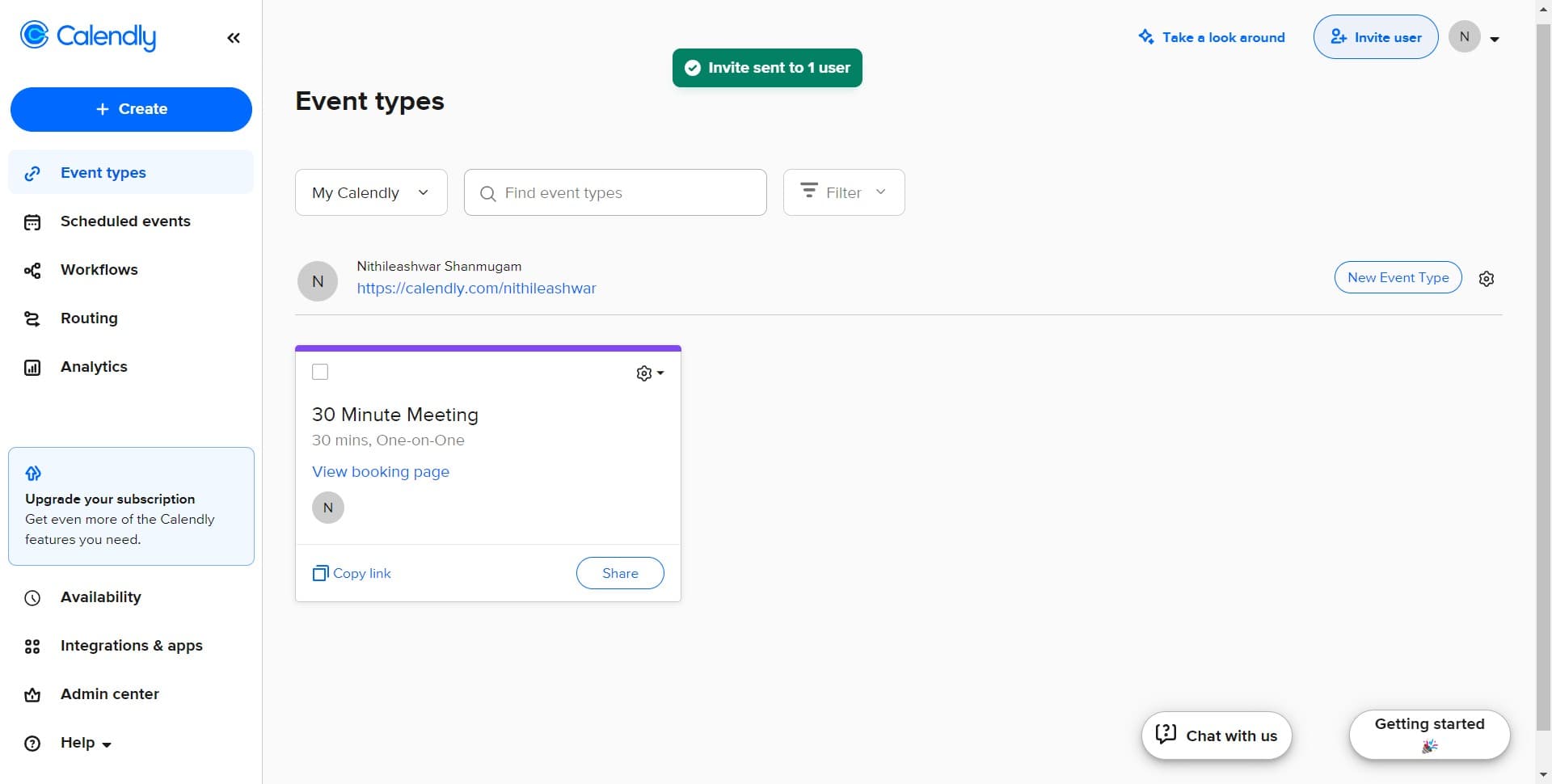
Click on Invite user
Navigate to your Calendly workspace and locate the user management section. Click the 'Invite user' button to begin the process of adding a new team member with custom roles.
- 2
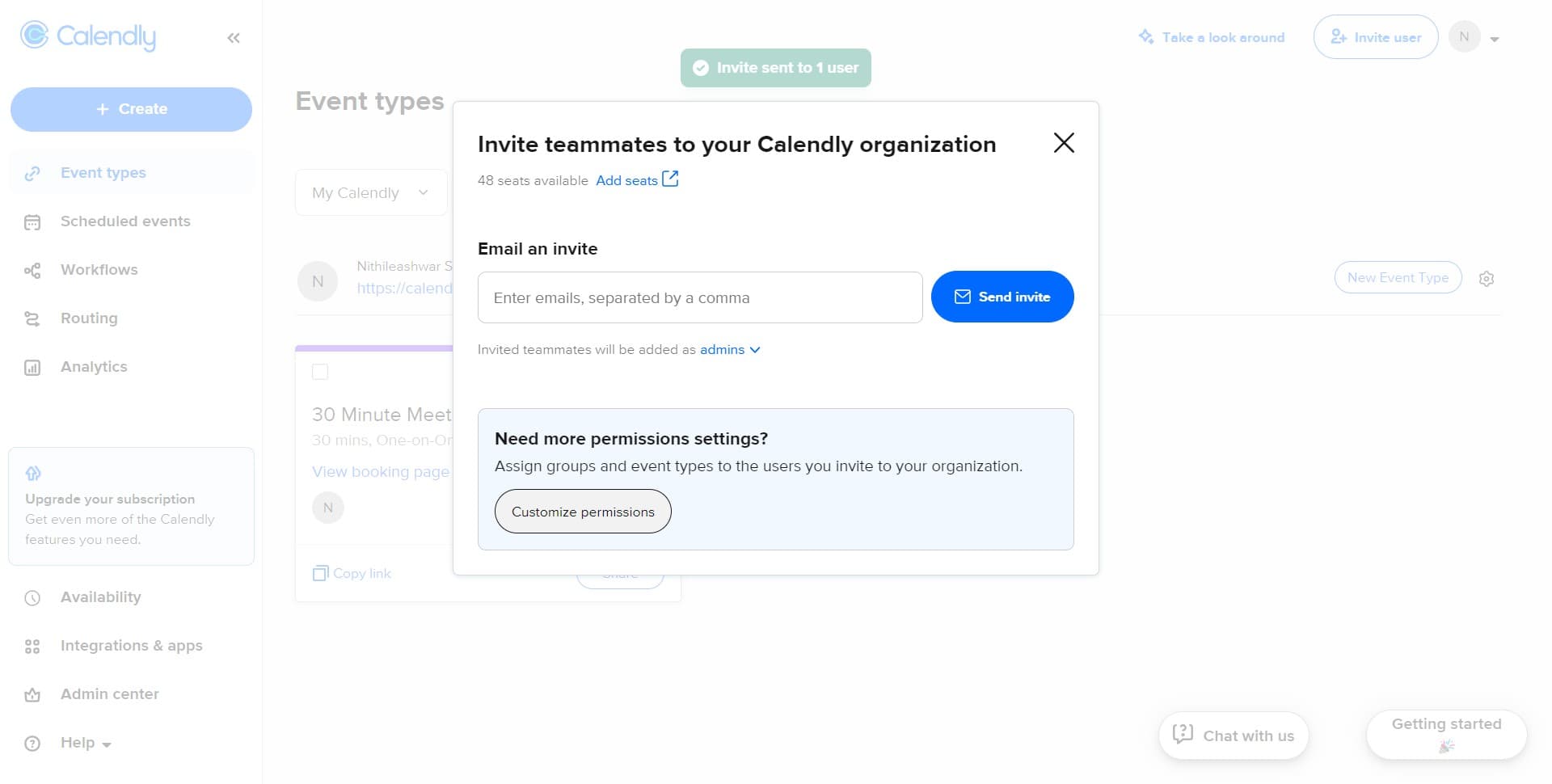
Click on Customize permissions
In the invitation interface, you'll see the 'Customize permissions' option. Click this to access the role configuration settings where you can define what the new user can do in your workspace.
- 3
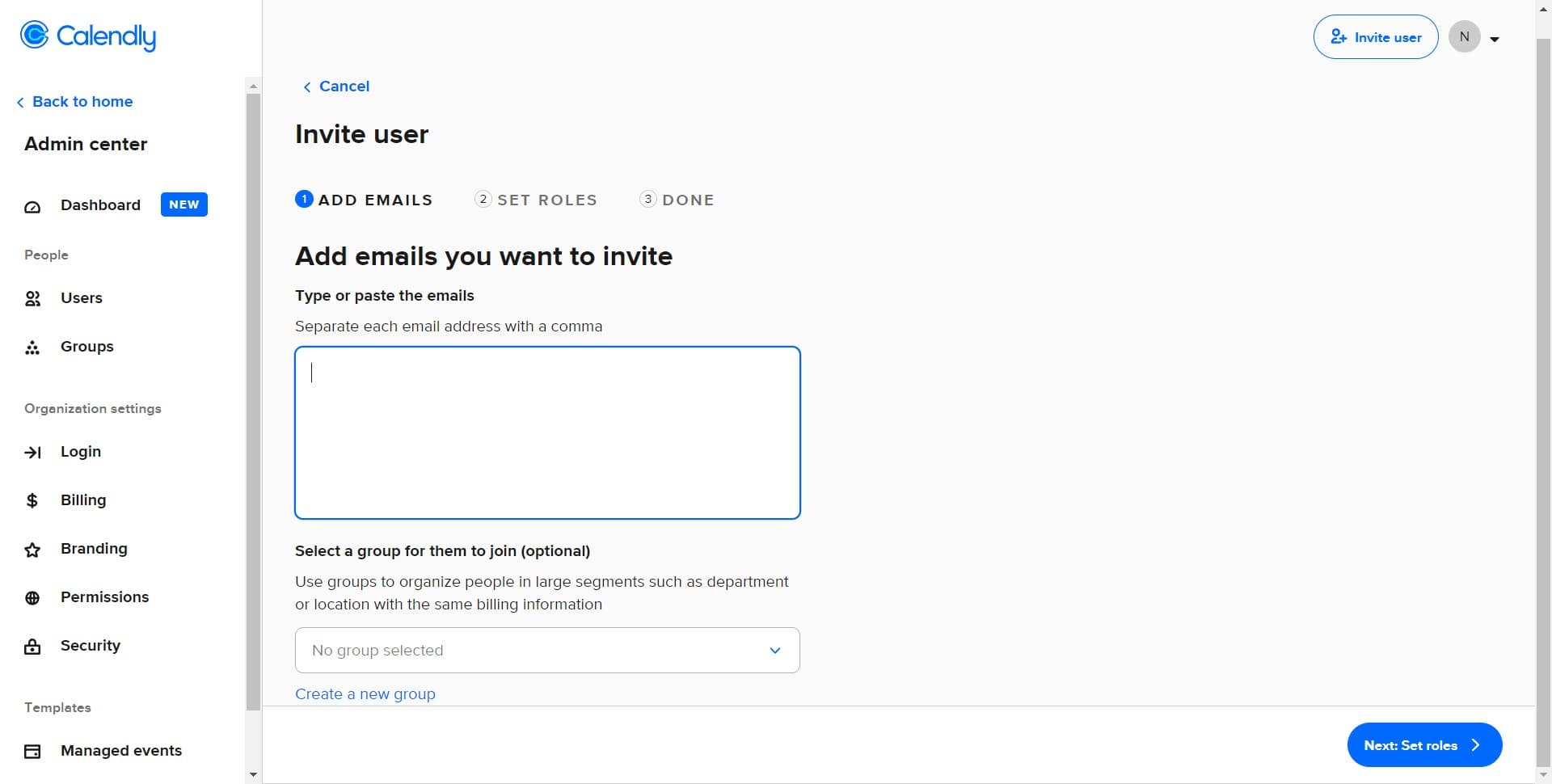
Click here to proceed
Follow the prompt on the screen to move forward with the role customization process. This action will take you to the next stage of role configuration.
- 4
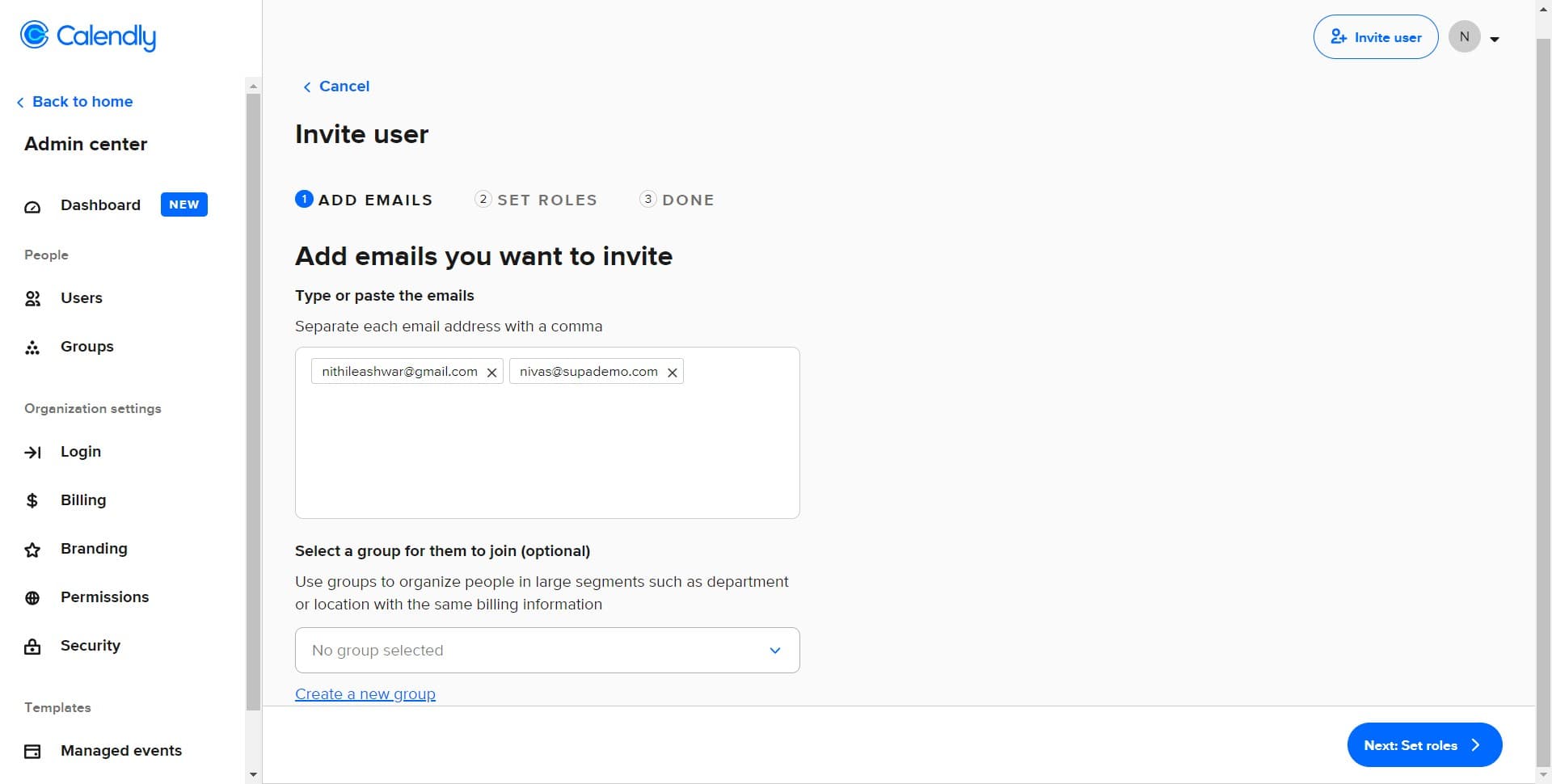
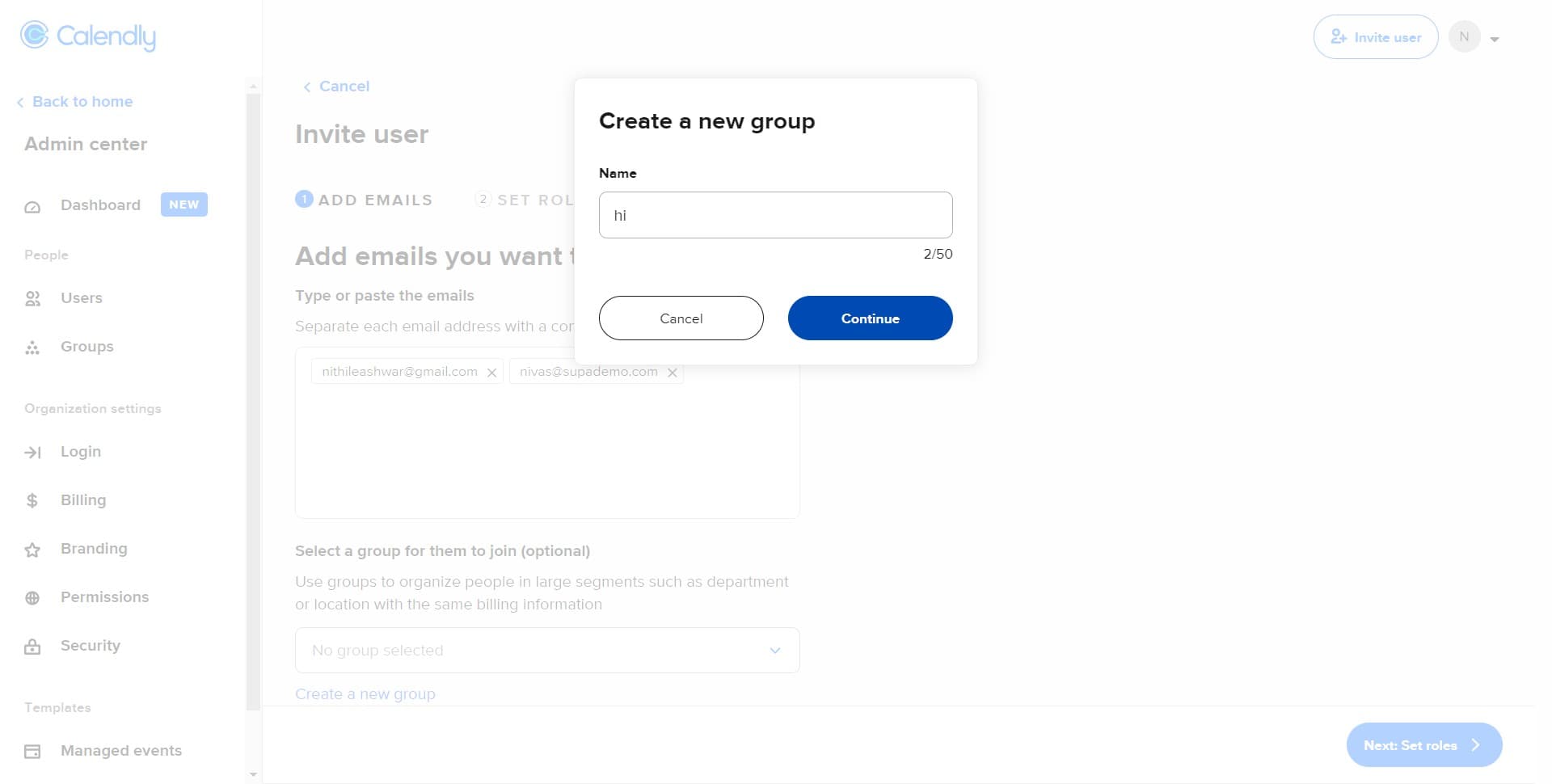
Click on Create a new group
Select 'Create a new group' to establish a custom role group with specific permissions. This allows you to bundle permissions together for consistent access control across multiple users.
- 5
Click on Continue
After naming and configuring your new role group, click 'Continue' to proceed to the next configuration step. This moves you forward in defining the role's capabilities.
- 6
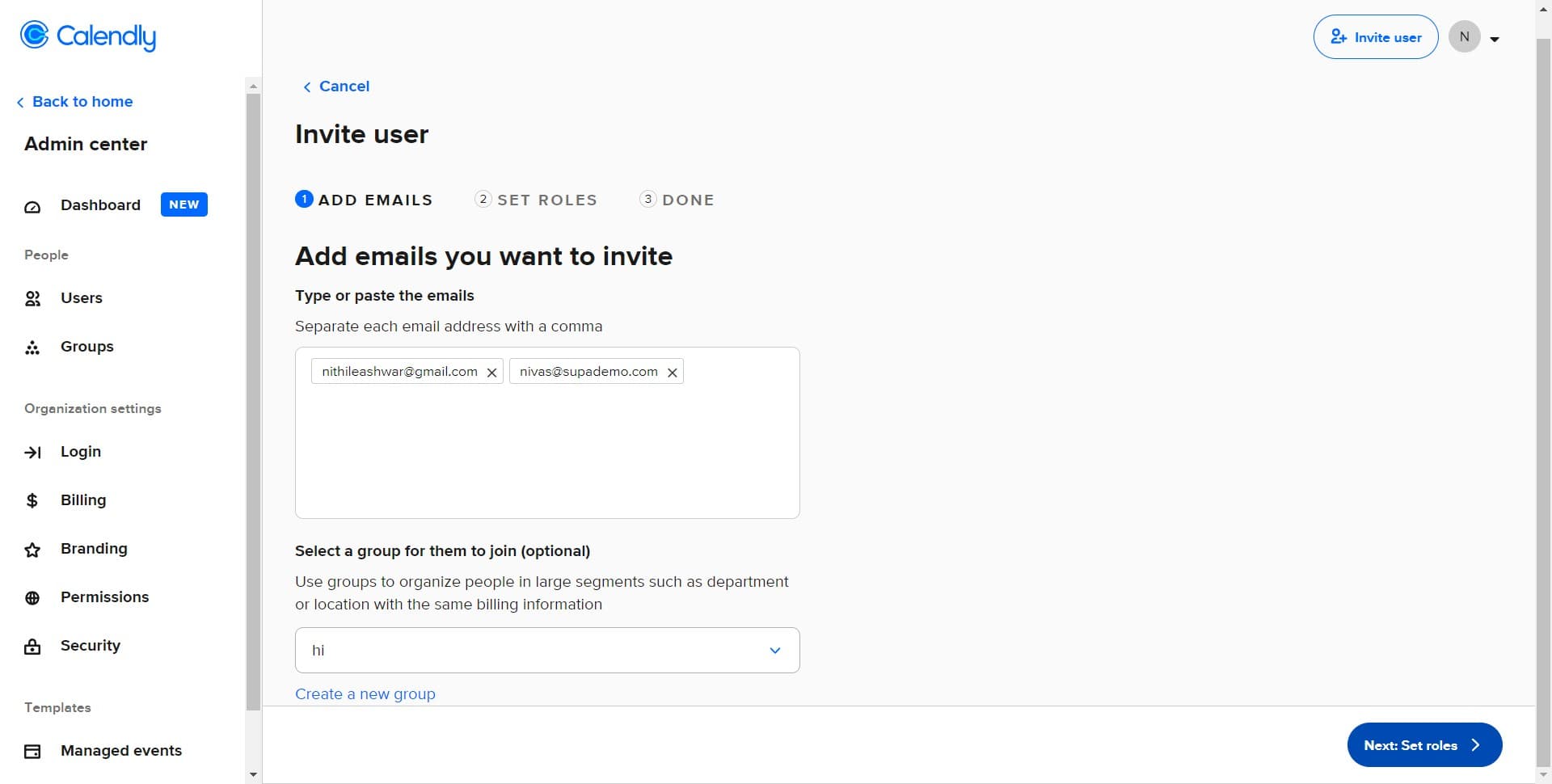
Click on Next: Set roles
You'll now move to the role-setting stage where you define specific permissions for this group. Click 'Next: Set roles' to access the permission checkboxes and toggles.
- 7
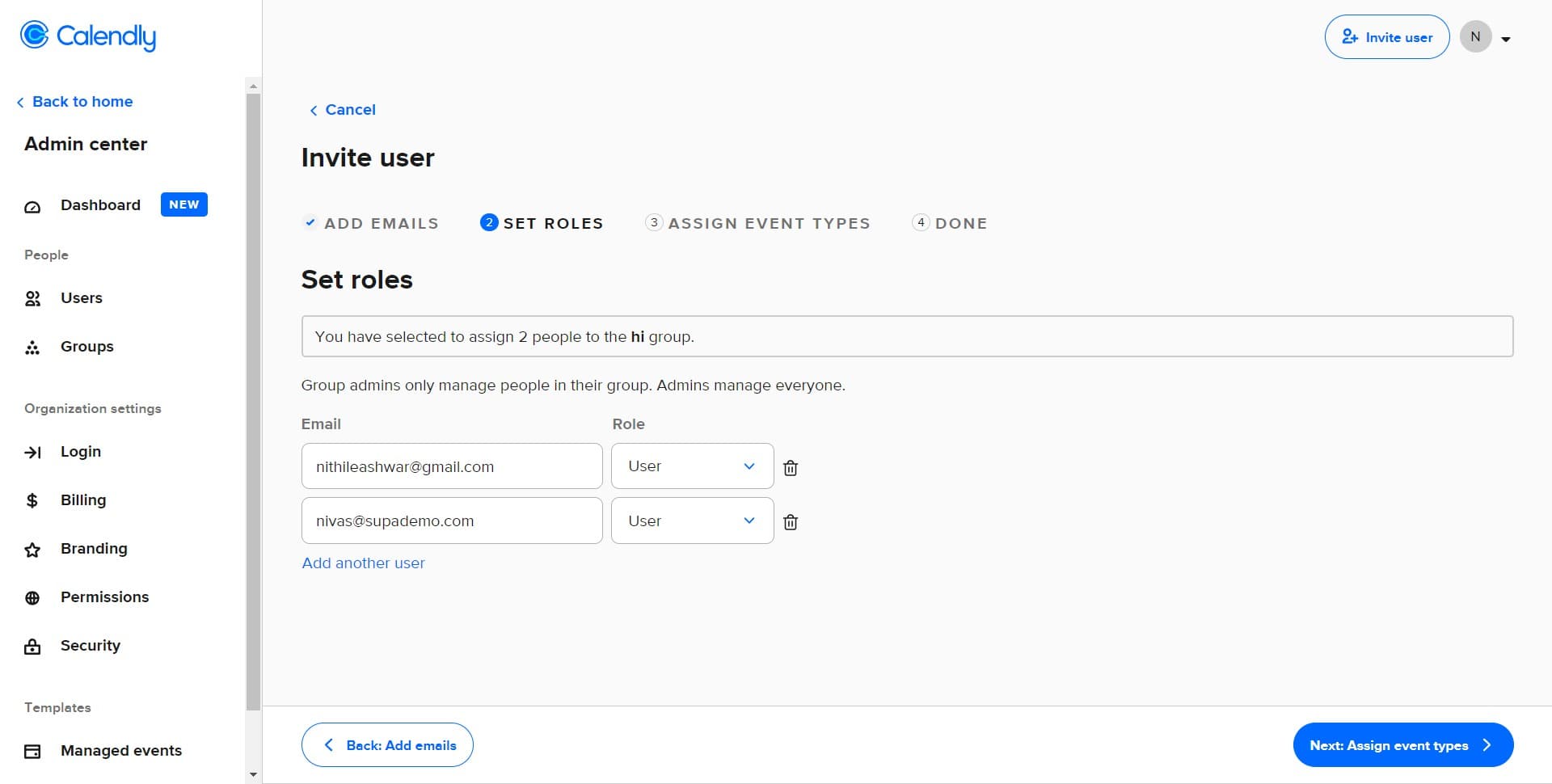
Click on User
Select 'User' as the base role type for your custom group. This establishes the foundation permission level from which you'll add or remove specific capabilities.
- 8
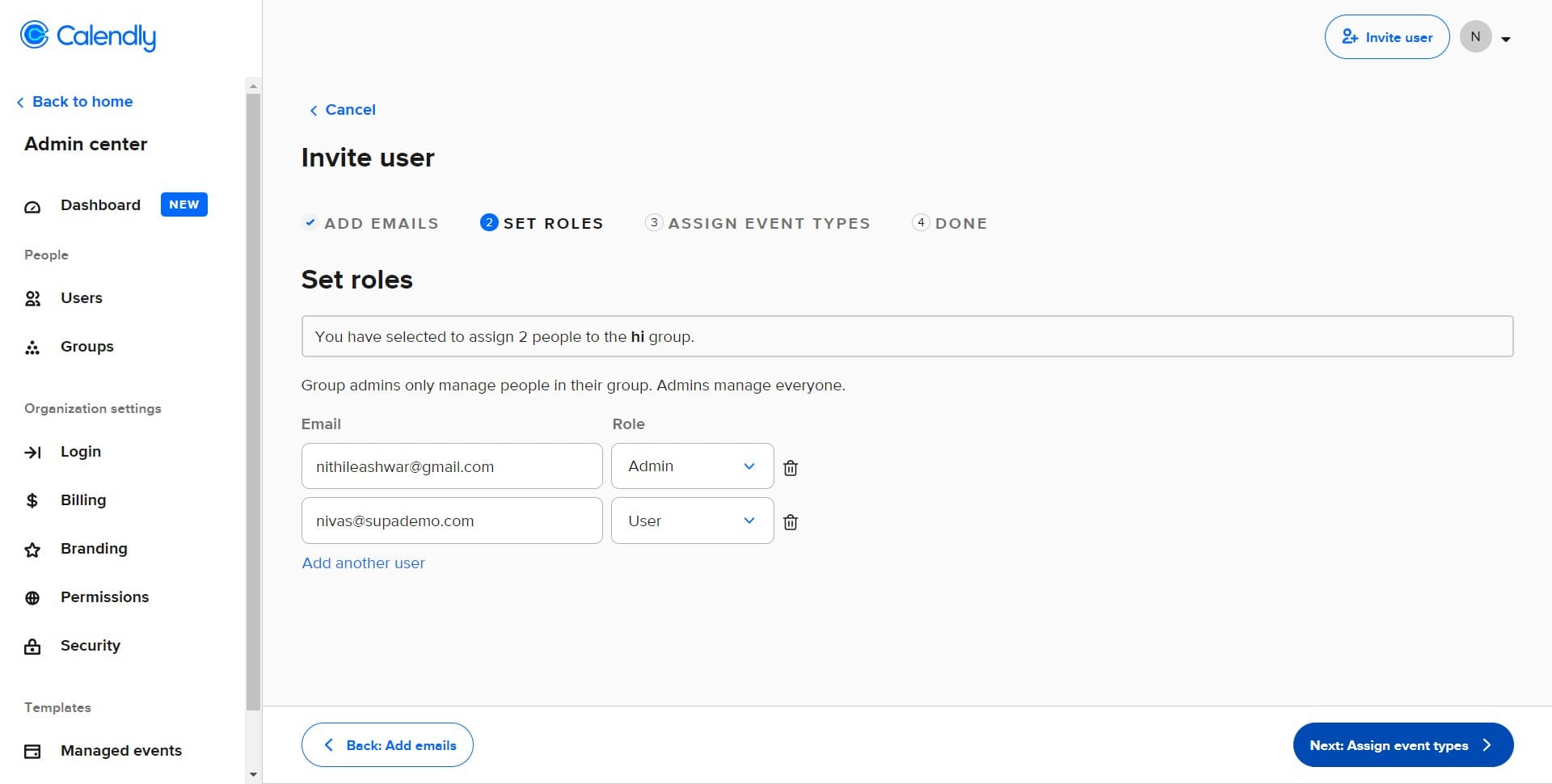
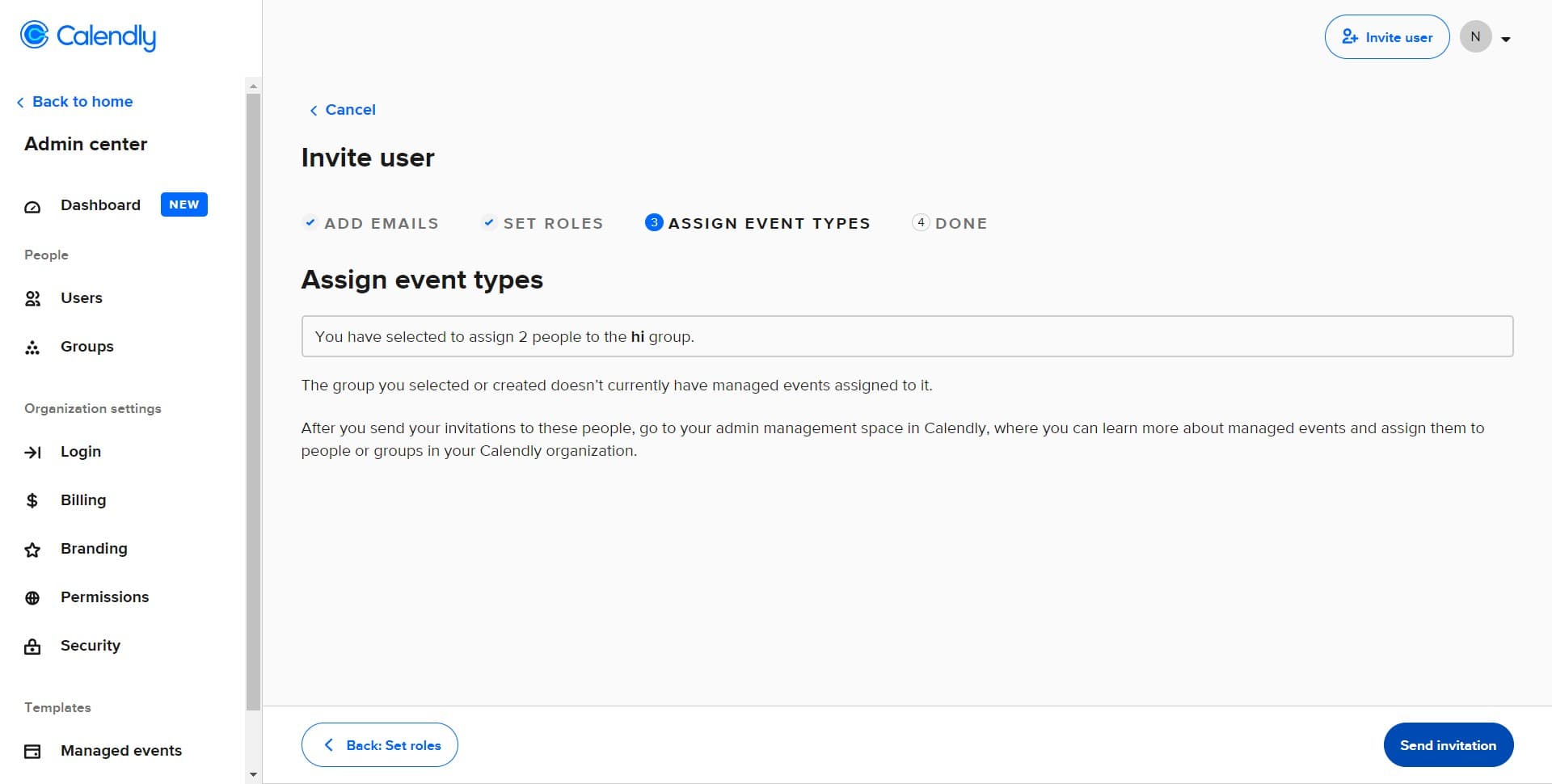
Click on Next: Assign event types
After setting the role permissions, click 'Next: Assign event types' to determine which calendars and events this user group can access. This step controls which scheduling resources are available to the invited user.
- 9
Click on Send invitation
Review your role configuration and click 'Send invitation' to dispatch the invitation with all customized permissions attached. The invited user will receive an email to join with these pre-configured access levels.
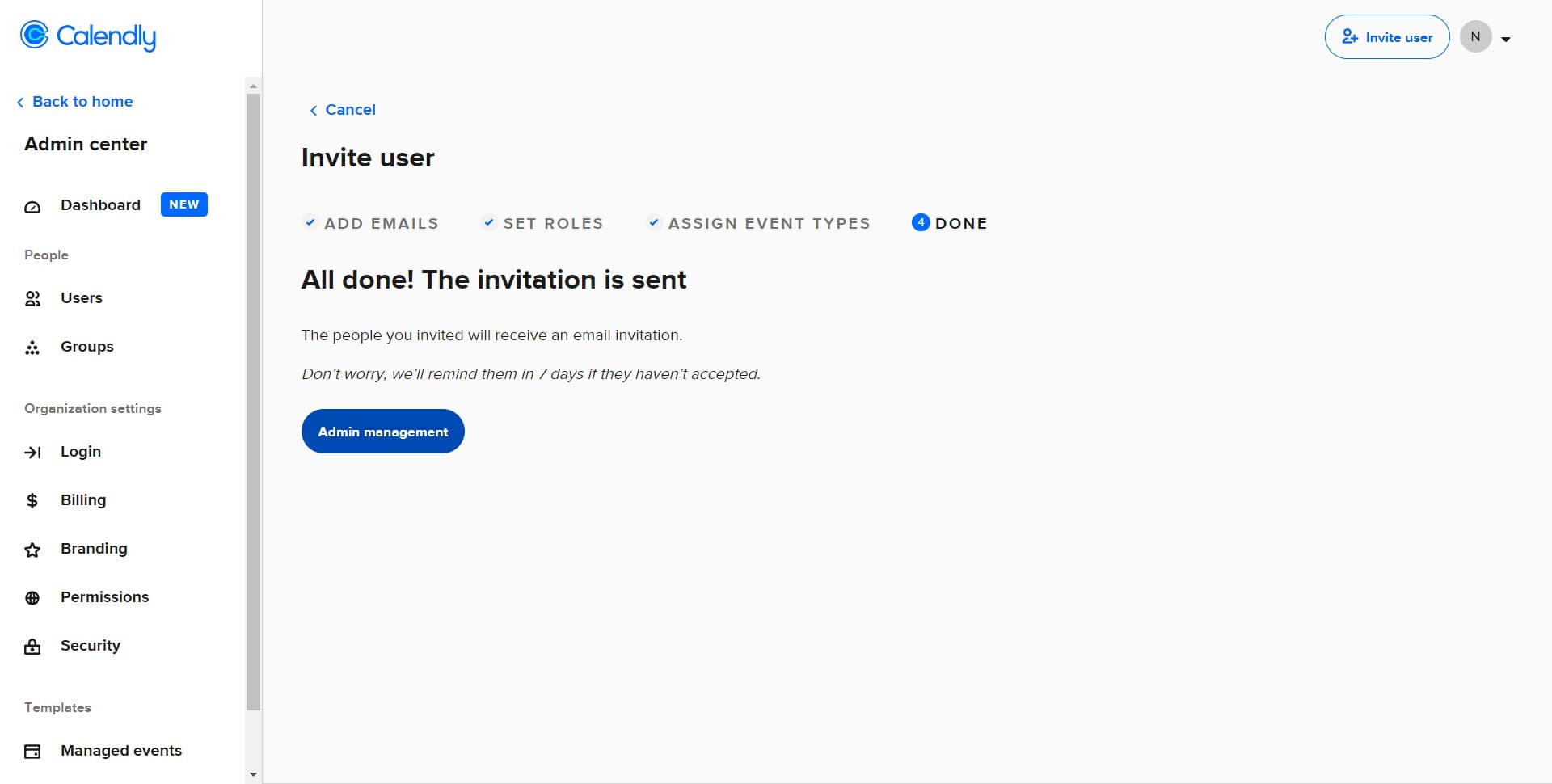
- 10
Click on Admin management
After sending the invitation, you can access 'Admin management' to view and manage all users, roles, and permissions across your workspace. This is where you monitor and adjust user access as needed.
Frequently asked questions
Common questions about how to customize roles for users before inviting them to calendly.
Yes, you can change a user's role at any time through the Admin management section. Simply locate the user in your team list, select their profile, and update their role or permissions as needed. Changes take effect immediately.
Creating a new role group lets you define custom permissions tailored to specific job functions, while assigning an existing role applies pre-built permission templates. Custom groups are ideal when standard roles don't match your team's needs.
Absolutely. Once you create a custom role group, you can invite multiple users and assign them to that same group. This ensures consistent permissions across team members with similar responsibilities.
This depends on your team structure and workflow. Assign event types based on what the user needs to schedule and manage. For example, a customer-facing team member might need access to client meeting calendars, while an admin needs access to all event types.
While Calendly doesn't offer a direct preview feature, you can review the specific permissions assigned to each role in the Admin management section. This shows exactly what capabilities each role has, including calendar and event type access.