How to add apps in ClickUp

Integrating third-party apps into ClickUp streamlines your workflow by connecting the tools you already use. This guide walks you through the process of adding apps like Google Drive to your ClickUp workspace, enabling seamless collaboration and data synchronization.
Quick summary
In this tutorial, you'll learn how to navigate ClickUp's App Center and connect external applications to your workspace. By following these steps, you'll be able to integrate Google Drive and other supported apps to enhance your project management capabilities.
Why this matters
Adding apps to ClickUp reduces context switching and keeps all your project information in one centralized location. Integrating tools like Google Drive allows your team to access, share, and manage files directly from ClickUp without leaving the platform, improving productivity and collaboration.
Step-by-step guide
- 1
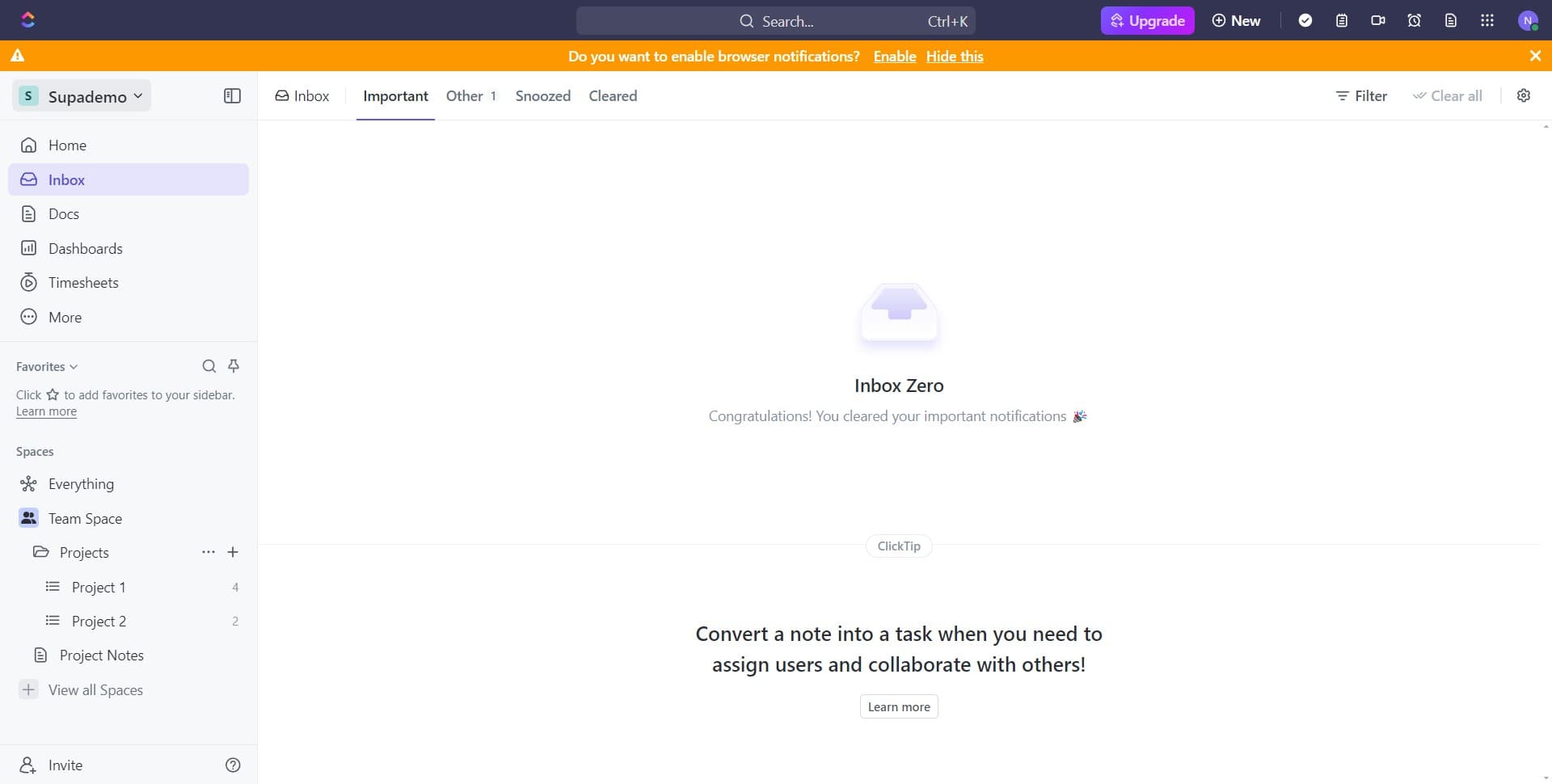
Access your workspace menu
Click on the workspace name or icon (labeled 'Supademo') in the top left or navigation area. This opens the workspace menu where you can manage settings and integrations.
- 2
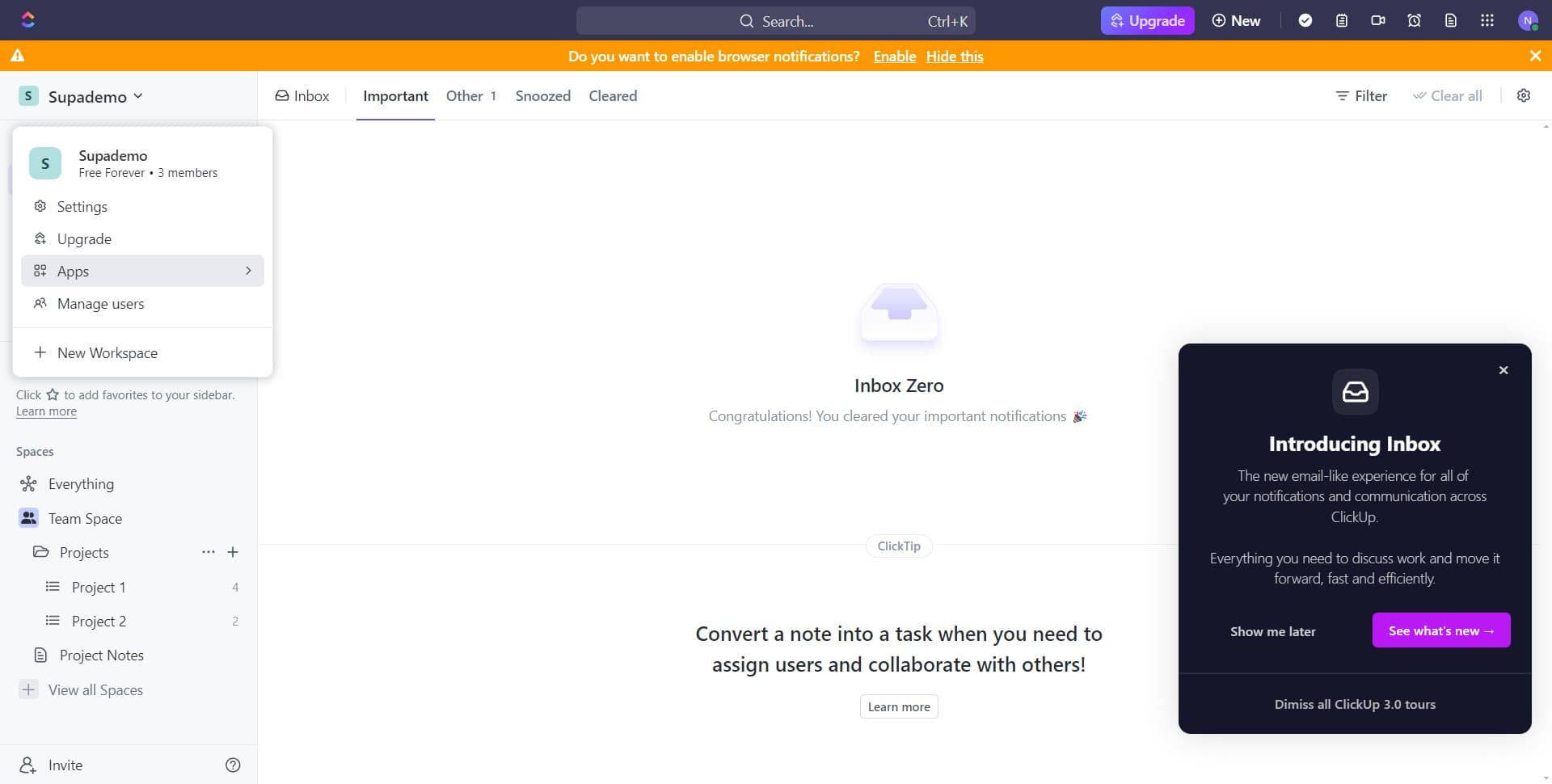
Navigate to the Apps section
Click on 'Apps' from the workspace menu dropdown. This takes you to the apps management area of your ClickUp workspace.
- 3
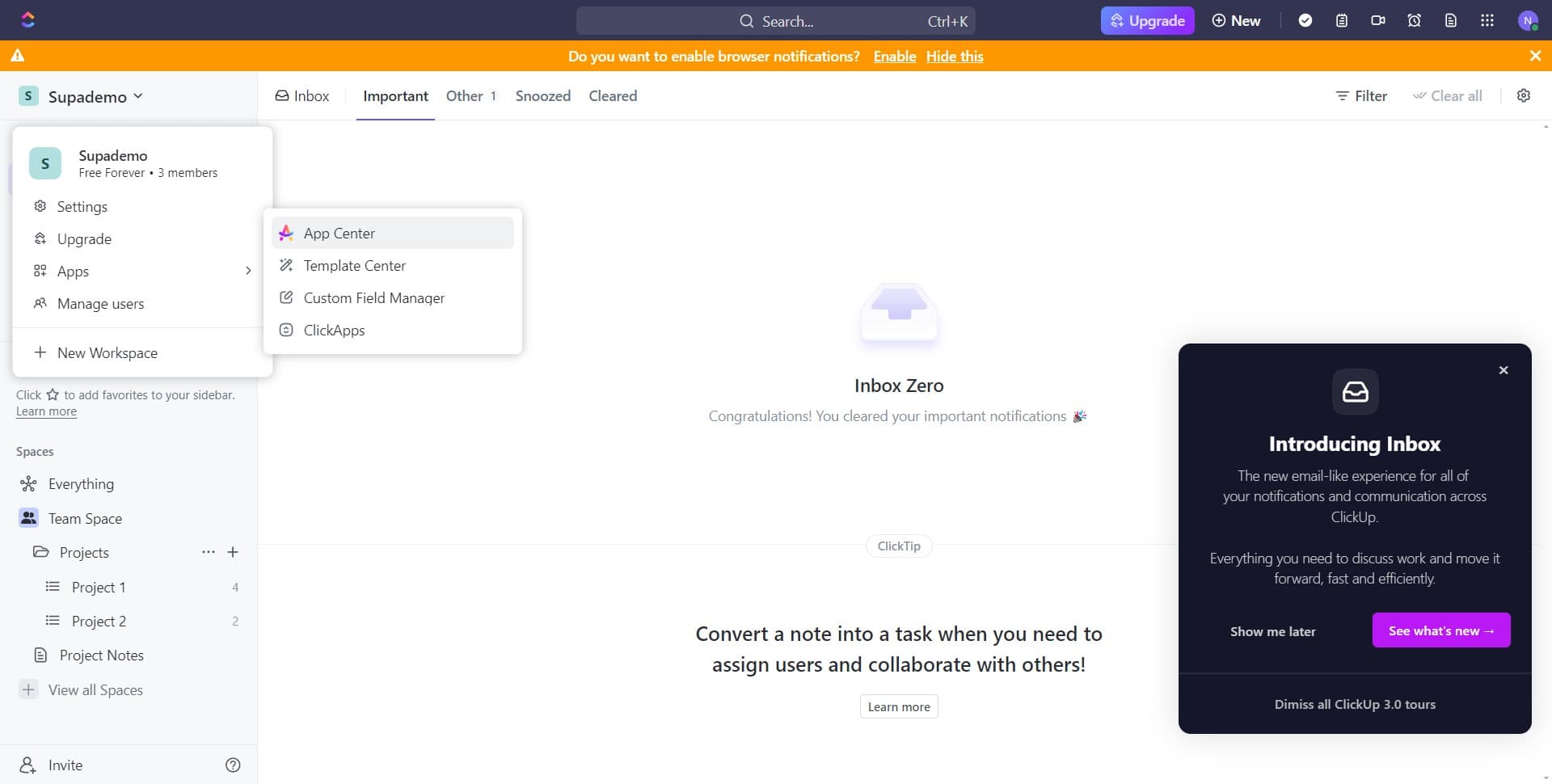
Open the App Center
Click on 'App Center' to browse all available integrations and apps that can be connected to ClickUp. The App Center displays hundreds of compatible third-party applications.
- 4
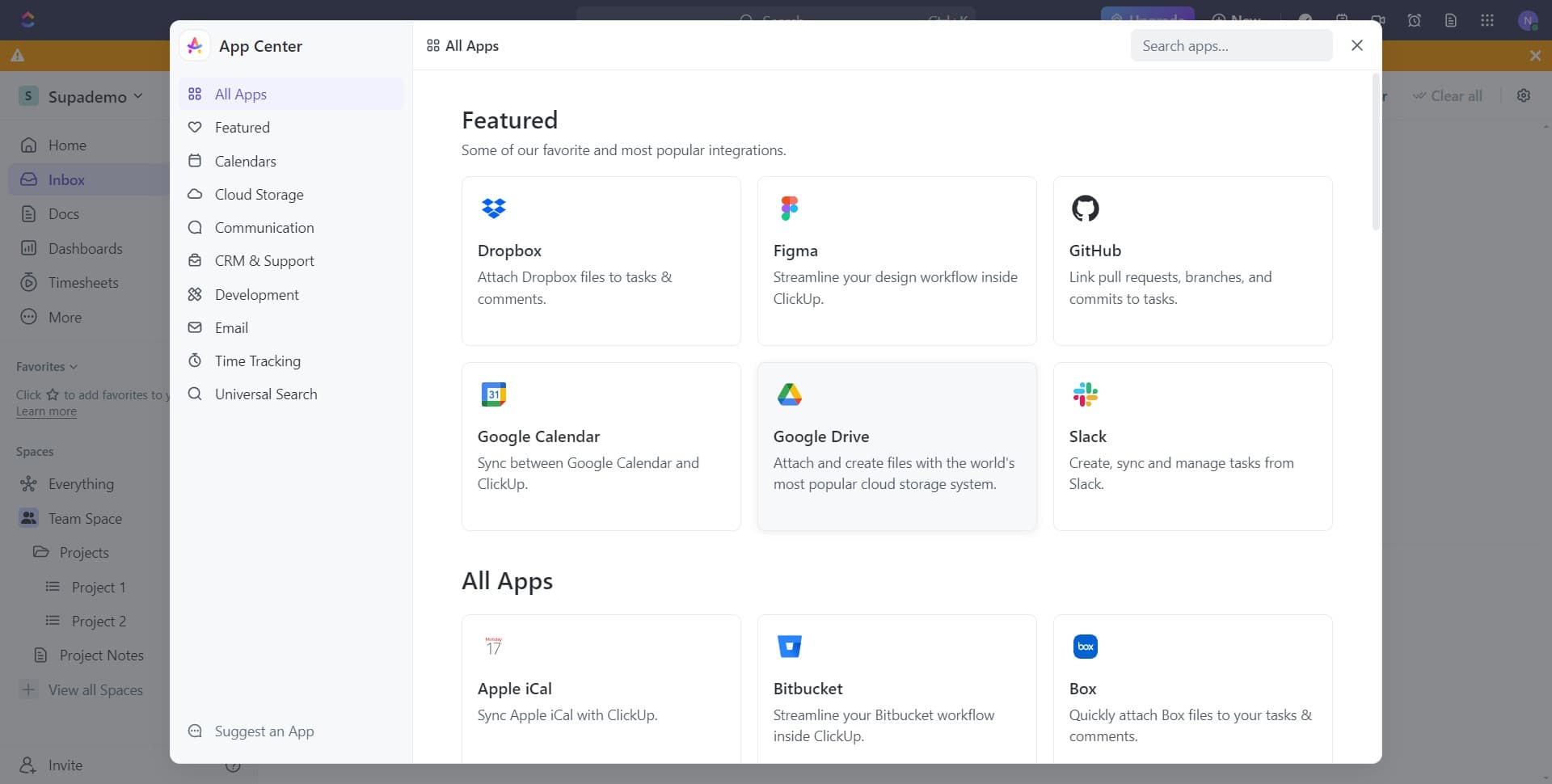
Select Google Drive integration
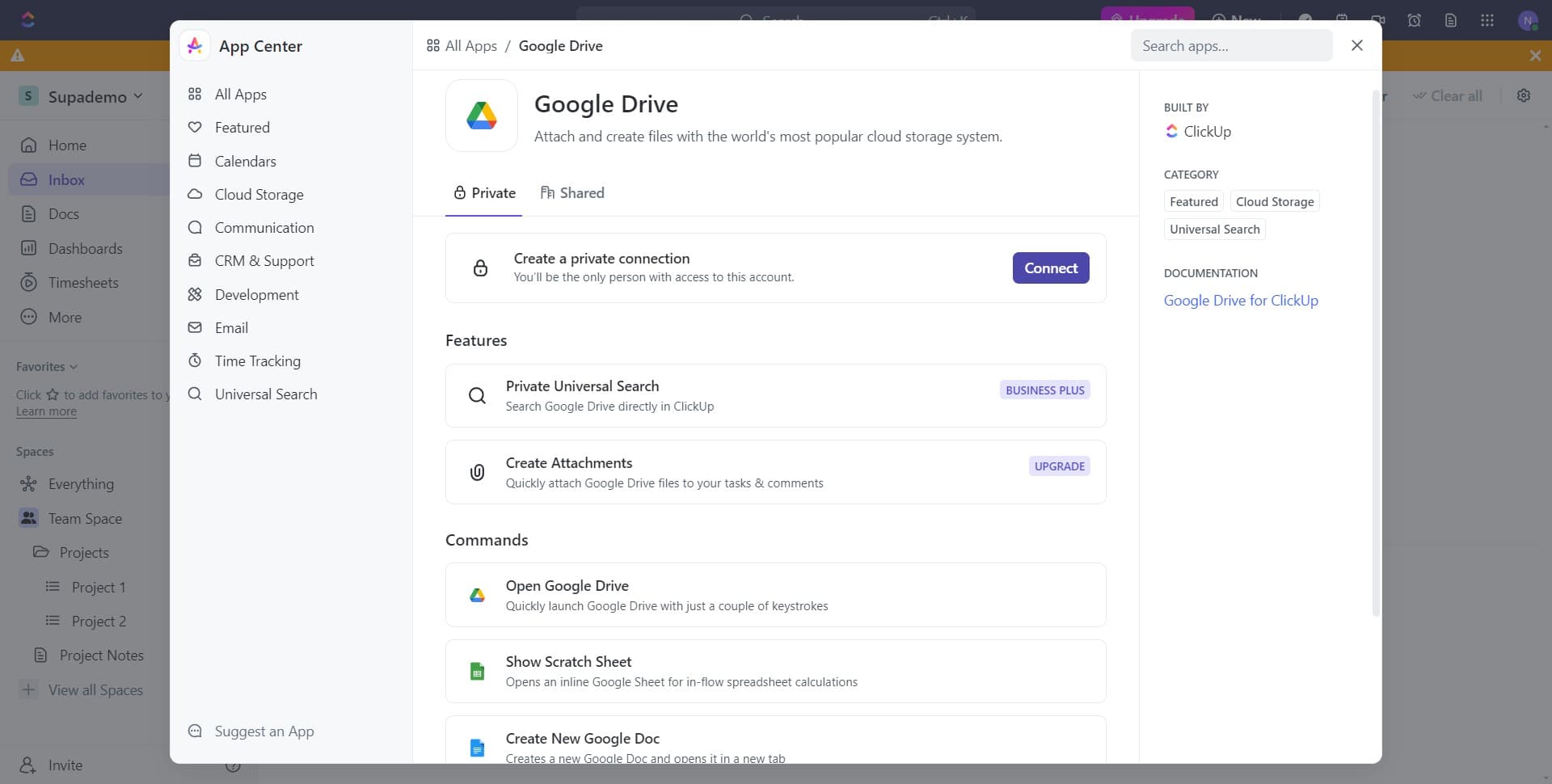
Search for and click on 'Google Drive' in the App Center. The Google Drive app card will display details about the integration and a 'Connect' button.
- 5
Initiate the connection process
Click the 'Connect' button on the Google Drive app card. This will prompt you to authorize the integration between your ClickUp workspace and Google Drive.
- 6
Select your Google account
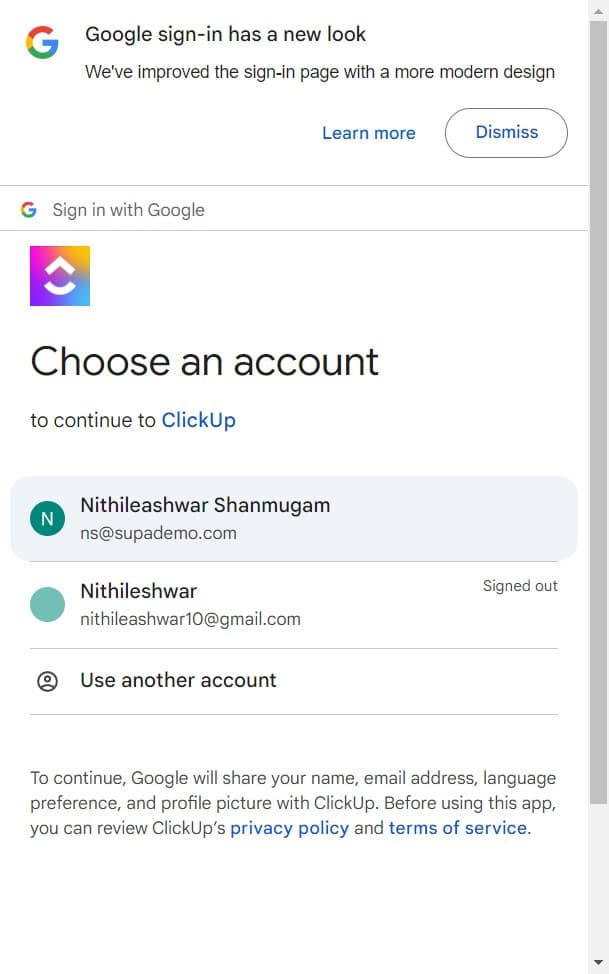
Click on the account name (in this case, 'Nithileashwar Shanmugam') that you want to connect to ClickUp. Ensure this is the Google account that has access to the files and folders you want to integrate.
- 7
Authorize the app integration
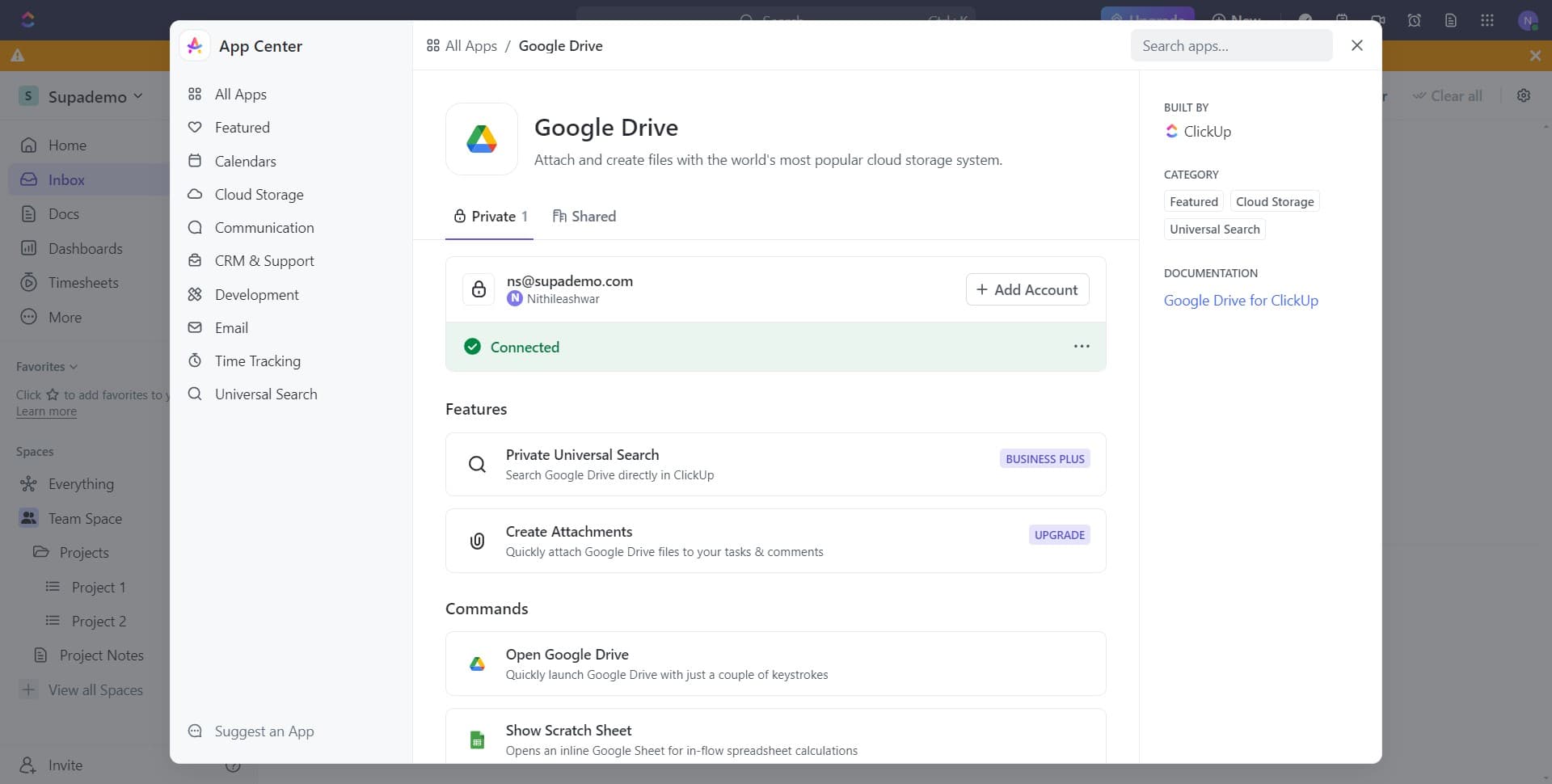
Click on 'BUILT BY ClickUp' or the authorization confirmation button to complete the connection. Your Google Drive will now be integrated with ClickUp, and you can start embedding files and folders in your tasks.
Frequently asked questions
Common questions about how to add apps in clickup.
Can I connect multiple Google accounts to ClickUp?
Yes, ClickUp allows you to connect multiple Google accounts. Simply repeat the process and select a different Google account when prompted. This is useful if your team members have different Google accounts with access to different files.
What permissions does ClickUp need to access Google Drive?
ClickUp requests permission to view and manage files in your Google Drive. These permissions allow you to embed files, create links to documents, and access Drive content directly from ClickUp tasks. You'll be shown the specific permissions during authorization.
Will connecting Google Drive affect my existing ClickUp data?
No, connecting Google Drive is a safe process that doesn't modify your existing ClickUp data or settings. It simply creates a new integration that allows you to access and link Google Drive files within your ClickUp workspace.
How do I disconnect Google Drive from ClickUp?
You can disconnect Google Drive from ClickUp by returning to the App Center, finding the Google Drive integration, and selecting the disconnect or remove option. This will revoke ClickUp's access to your Google Drive account.
Are there other apps I can add besides Google Drive?
Yes, the App Center contains hundreds of integrations including Slack, Microsoft Teams, Zapier, Salesforce, and many others. You can browse all available apps in the App Center and connect any that are relevant to your workflow.